Change iPhone Location Without Jailbreak: 4 Proven Methods
Change iPhone location without jailbreak for authorized app testing with Xcode, desktop GPS tools, or a VPN, with privacy and account-risk notes.
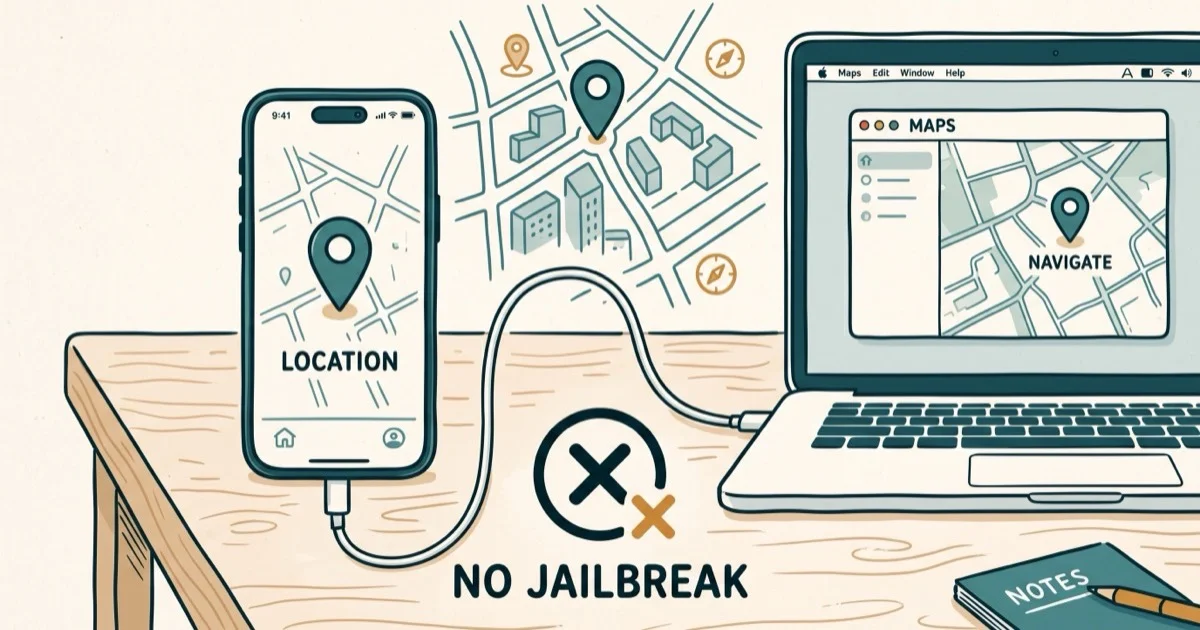
Quick AnswerUse Apple's Xcode location simulator to test an app you own on your iPhone without jailbreaking. A VPN changes only your IP region, while third-party GPS tools may violate an app's terms and can trigger account bans.
GPS location spoofing on iPhone used to require a jailbreak. That changed years ago. Desktop GPS tools usually give you the most control without touching your iOS installation.
- Desktop GPS tools can change coordinates via USB for authorized app testing, with no jailbreak needed
- Apple’s free Xcode tool works on Mac and simulates any location while connected
- A VPN shifts your IP address but does not change actual GPS coordinates
- Restart your iPhone to clear any spoofed location and return to real GPS
- Only use location spoofing on your own device; applying it to others’ devices can violate privacy laws
#Why Change iPhone Location Without Jailbreak?
Several legitimate reasons exist to simulate an iPhone’s GPS. App developers need to test how software they own behaves with coordinates in different cities. Privacy-focused users may also want to understand which apps read precise location, though disabling Precise Location is the supported control for that purpose.
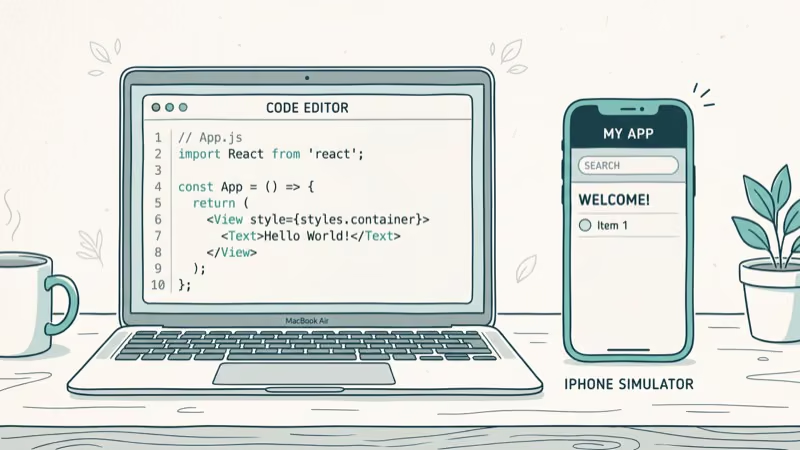
Authorization scope: Only use these methods on your own device. Spoofing another person’s GPS without their knowledge or consent may violate privacy laws in your jurisdiction and violate app terms of service. Always act within your legal rights.
The good news: none of the 4 methods below require jailbreaking iOS. Jailbreaking voids your warranty, removes Apple security protections, and creates significant risk of malware exposure. As XDA Developers notes in their jailbreaking risk guide, the security trade-offs rarely justify the benefit for most users. These methods work on stock iOS without any of that risk.
#Spoofing iPhone Location With Tenorshare iAnyGo
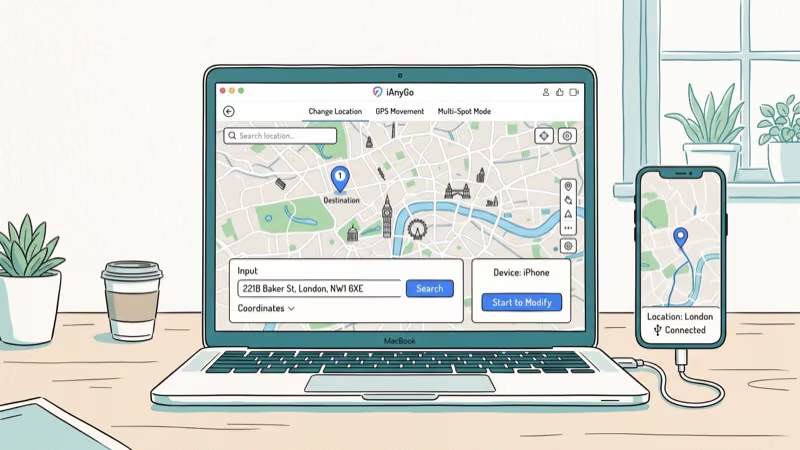
Tenorshare iAnyGo is a desktop GPS-simulation tool. It changes an iPhone’s reported coordinates from a Windows or Mac computer over a USB connection, so keep the session limited to an app you own and a device you’re authorized to test.
Map apps can then read the spoofed coordinates while the desktop tool stays connected.
Steps:
- Download and install iAnyGo on your computer
- Select Change Location mode and connect your iPhone via USB
- Trust the computer on your iPhone when prompted
- Search for your target location or enter GPS coordinates
- Click Start to Modify
iAnyGo also has a route simulation feature. You can plot a path between 2 points and set a walking, cycling, or driving speed. This is useful for testing location-based app features in a dedicated test build, not for falsifying movement in Pokemon GO.
To restore your real location, simply restart your iPhone. The spoofed coordinates clear on reboot.
#Changing iPhone GPS With iToolab AnyGo
iToolab AnyGo works on a similar principle: USB-connected desktop software that injects fake GPS coordinates into iOS without jailbreaking. According to iToolab’s documentation, it supports iOS 16 and later versions on both iPhone and iPad.
AnyGo’s setup is a short desktop-to-iPhone workflow, and the interface is built around map search plus a teleport control.
Steps:
- Download iToolab AnyGo and connect your iPhone via USB
- Unlock your device when the map loads
- Tap the Teleport icon in the top right
- Type your target location or zoom the map to it
- Click Go to teleport immediately
Simulate movement: AnyGo includes a movement simulator for walking or driving routes. Set a pace for your QA scenario, and the phone’s GPS updates continuously along the path. Use that feature only with software you own or are authorized to test.
Verify the change by opening Apple Maps. The blue dot moves to your selected coordinates right away.
If you want a tether-free workflow, the GFaker hardware dongle pairs over Apple’s External Accessory Framework and survives reboots without a USB connection, at the cost of a $279 one-time spend rather than a monthly subscription.
#Using Apple’s Xcode to Simulate Location (Free, Mac Only)
Xcode is Apple’s official location-testing tool for Mac.
As Apple’s developer documentation states that Xcode 15 supports location simulation for all 12 preset cities including New York, London, and Tokyo. Go to Apple’s developer tools page to download Xcode (about 12 GB). Once installed:
- Connect your iPhone to the Mac via USB
- Open Xcode and go to
Debug>Simulate Location - Select a preset city or enter custom GPS coordinates
The simulated location persists only while Xcode is connected. Unplug the cable, and your real GPS returns immediately. This makes Xcode the safest option for developers who need brief location testing on 1 device at a time.
It requires a Mac and an active connection.
#Does a VPN Change iPhone GPS Location?
A VPN changes your IP address, which affects how websites and streaming services see your region. But it does NOT change your iPhone’s actual GPS coordinates.
This distinction matters: if you connect to a US VPN server from London, Netflix may show US content, but Apple Maps and location-based apps still show your real London coordinates. VPNs work at the network layer, not the GPS hardware layer.
According to Tom’s Guide’s VPN overview, top VPN services like NordVPN and ExpressVPN connect to more than 5,000 servers across 60 countries for IP-based location changes.
Use Xcode for authorized coordinate testing.
Legal reminder: VPN usage is legal in most countries, including the US, UK, and Canada. However, using a VPN to bypass a streaming service’s geo-restrictions may violate that platform’s terms of service.
#Safety and Account Risk for GPS Spoofing
The hardware risk is zero. GPS spoofing via desktop tools doesn’t modify iOS, doesn’t install persistent software on your device, and clears completely on restart.
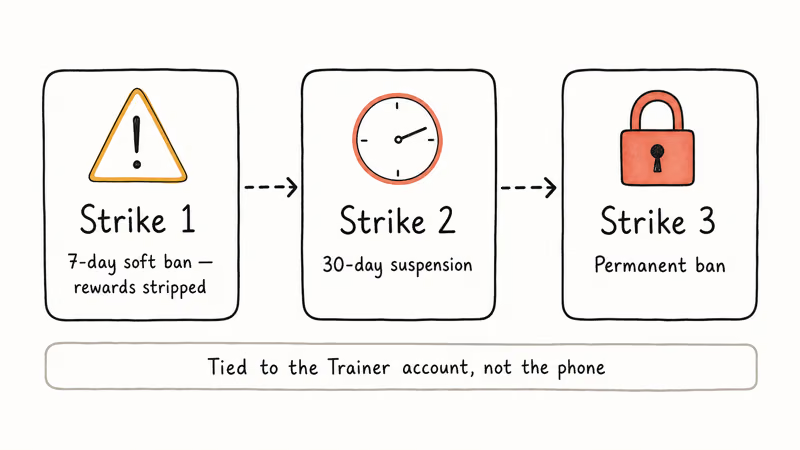
The account risk varies by app. Pokemon GO bans accounts that fake coordinates, particularly if the location jump is physically impossible (appearing in Tokyo one minute, New York the next). Apps like Tinder detect sudden location changes too.
For an ordinary real-location error, use the Pokemon GO GPS fixes instead of a spoofing tool.
Apple doesn’t officially support location spoofing outside of Xcode’s developer environment. However, using third-party tools like iAnyGo on your own device doesn’t violate Apple’s hardware warranty terms.
#Bottom Line
For app developers with a Mac, Xcode is the official and free option for brief location simulation in software they control. A third-party desktop tool may support Windows, but it should stay inside an authorized QA workflow. A VPN covers IP-based use cases but won’t move your GPS pin. Restart your iPhone whenever you want your real coordinates back.
#Frequently Asked Questions
Can I change my iPhone location without a computer?
Most reliable no-jailbreak methods require a computer. Desktop tools like iAnyGo and iToolab AnyGo connect via USB and inject coordinates directly into iOS. Without a computer, your options are limited to VPNs (which only mask IP, not GPS) or apps that require special device profiles.
Will faking my GPS location harm my iPhone?
No. GPS spoofing via desktop tools doesn’t modify your iOS installation or affect hardware. The spoofed coordinates exist only in memory and clear when you restart. No permanent changes are made to your device.
How do I know if an app has detected my fake location?
Apps like Pokemon GO will display a soft ban (no items from PokeStops) or a shadow ban (rare Pokémon stop appearing). Tinder may flag your account for sudden geographic jumps. Stop using the spoofing method; waiting before resuming it isn’t a safe remedy.
Does location spoofing work on all iOS versions?
Tenorshare iAnyGo states support for iOS 16 through iOS 18. iToolab AnyGo also reports compatibility with iOS 16 and later. Both tools update regularly to maintain compatibility with new iOS releases. Older tools like iBackupBot and plist-editing methods work only on iOS 13 and earlier.
Can I spoof location on iPad too?
Yes. Both iAnyGo and iToolab AnyGo support iPad in addition to iPhone. The steps are identical: connect via USB, select the target location, and click to apply. The iPad reads the fake coordinates just like an iPhone.
Is spoofing iPhone location without jailbreak legal?
Yes, on your own device. The act of GPS spoofing on hardware you own is legal in the US and most Western countries. What may be illegal is using spoofed location to deceive others, commit fraud, or violate specific app terms of service that have legal weight in your jurisdiction.
What’s the easiest method for beginners?
For development on a Mac, start with Xcode because it’s Apple’s official tool and keeps the simulation tied to a debug session. If your authorized QA workflow requires Windows, compare vendor permissions and removal steps before installing a third-party desktop tool.
How do I get my real GPS back after spoofing?
Restart your iPhone. That’s it. The spoofed coordinates clear from memory on reboot, and your device reconnects to GPS satellites afterward. You’ll see your actual position in Apple Maps after GPS reconnects.

Mac mini M6 vs M5 Pro: Which Model Should You Buy?
Mac mini M6 vs M5 Pro compared on price, memory, ports, displays, and real workloads. Find the better 2026 Mac mini for your desk and budget.

Apple Siri Settlement: Who Qualifies and How to Claim
Apple's $250 million Siri settlement covers iPhone 15 Pro and iPhone 16 models bought June 2024 to March 2025. See who qualifies and how claims work.

iOS 26.6.1 Security Update: What Apple Fixed and Who Gets It
Apple released iOS 26.6.1 on August 17 with 29 security fixes, including an IPSec interception bug. See what it patches, who gets it, and how to update.

iPhone Adaptive Power: How It Works and When to Use It
Learn how iPhone Adaptive Power works, which models support it, what it changes, and when Low Power Mode is still the better battery-saving choice.