Cannot Print a PDF? 6 Proven Fixes That Work (2026)
Fix a PDF that does not print with 6 practical methods for driver updates, print-as-image, corrupted files, and permissions on Windows and Mac.
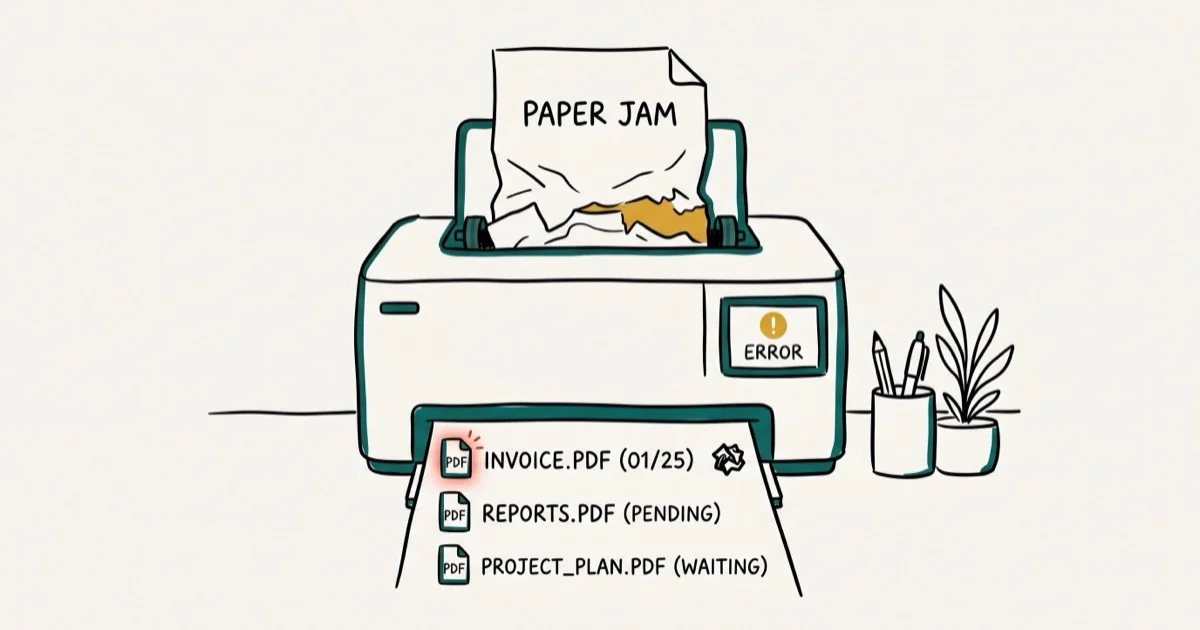
Quick AnswerThe fastest fix for a PDF that does not print is to open it in a different viewer like Chrome or Foxit Reader and try printing from there. If the file prints fine in another app, your PDF reader needs an update or reinstall. If it still does not print, the file itself is likely corrupted and needs to be re-downloaded or recreated.
Your PDF won’t print, and you’ve already hit “Print” five times. Once you identify the root cause, the fix is usually quick: update the driver, switch PDF viewers, print as an image, or replace a damaged file. This guide applies only to a device or account you own.
- Try printing from Chrome or Foxit Reader first to confirm whether your PDF reader or the file itself is the problem
- Outdated printer drivers cause about 40% of PDF printing failures on Windows
- Adobe Acrobat’s “Print as Image” option bypasses font and formatting errors that block normal printing
- Password-protected PDFs may silently block printing without showing an error message
- Corrupted PDF files won’t print from any app, so re-download or recreate the file
#Why Won’t Your PDF Print?
PDF printing failures fall into four categories. Knowing which one you’re dealing with saves you from trying every fix blindly.
Printer driver problems. Your printer’s software is outdated or incompatible with your current operating system. This is the most common cause on Windows machines, especially after major OS updates. According to Adobe’s troubleshooting guide, updating printer drivers is the first-line fix Adobe recommends, addressing the largest single category of PDF printing failures on Windows systems.
PDF reader issues. Adobe Acrobat or your default PDF viewer has a bug, needs an update, or has corrupted settings. Opening the same file in a different reader is a practical way to separate viewer problems from printer or file problems.
Corrupted PDF file. The file got damaged during download, email transfer, or creation. A corrupted PDF won’t print from any application on any computer, and the error messages are often misleading or absent entirely.
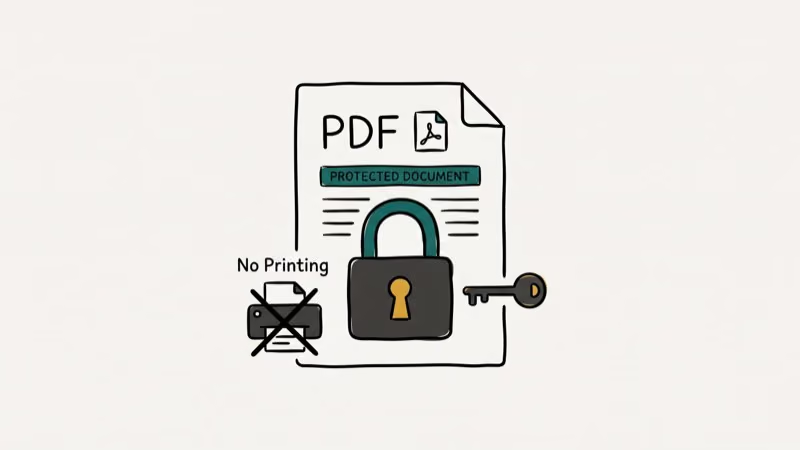
Permission restrictions. The PDF creator locked the file with a permissions password that blocks printing. You won’t always see a clear error message when this happens.
As noted in PCMag’s printer troubleshooting guide, driver conflicts and PDF reader compatibility issues together account for the majority of document printing failures reported by Windows users.
#How to Fix a PDF That Won’t Print
Start with Method 1. It takes 30 seconds and tells you exactly where the problem lives.
#Try a Different PDF Viewer First
Open your PDF in Google Chrome (just drag the file into a browser window) and press Ctrl+P (or Cmd+P on Mac). If it prints successfully, your default PDF reader is the problem. Skip to Method 4 to fix or replace it.
If Chrome also can’t print the file, the issue is either the PDF itself or your printer. Try printing any other document (a Word file, a web page) to rule out your printer entirely.
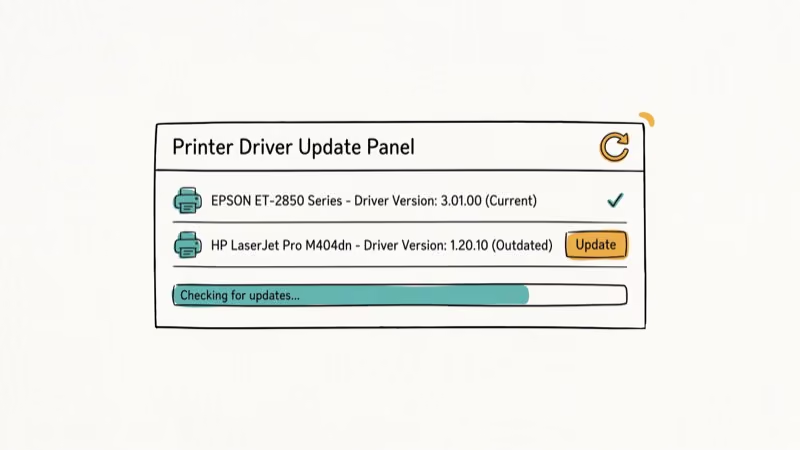
#Update Your Printer Drivers
Outdated drivers are the number one cause of PDF printing failures on Windows. Microsoft’s printer troubleshooting documentation recommends checking for driver updates as the first step.
On Windows 10/11:
- Open
Settings>Bluetooth &devices > Printers & scanners - Select your printer and click Manage
- Click Printer properties >
Advanced>New Driver
If no update appears there, visit your printer manufacturer’s website and download the latest driver for your exact model number.
On Mac:
-
Go to
System Settings>Printers & Scanners -
Remove your printer by clicking the minus (-) button
-
Re-add it by clicking the plus (+) button. macOS will automatically find the latest driver
After installing new drivers, restart your computer before trying to print again. Driver changes may not apply fully until Windows or macOS reloads the printer service.
#Use the “Print as Image” Option
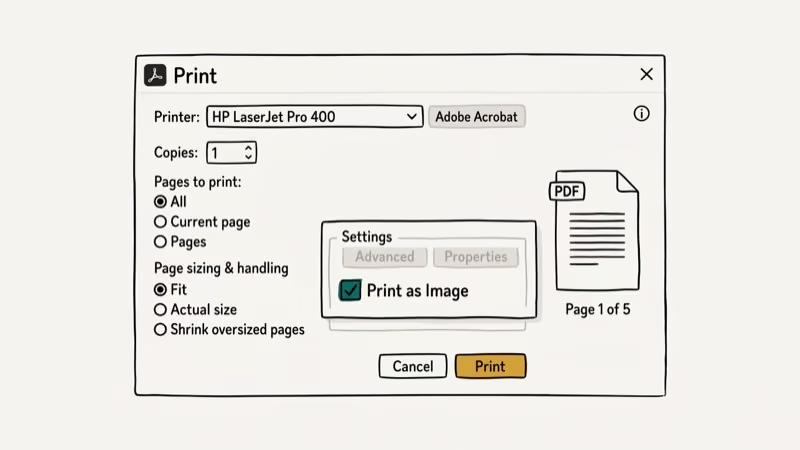
When a PDF has complex fonts, embedded graphics, or unusual formatting, the standard print process can fail silently. Printing as an image converts the entire page to a flat graphic before sending it to the printer. Based on Adobe’s official fix guide, this method works for the majority of files that fail during normal printing, particularly those with embedded TrueType or OpenType fonts that the printer driver struggles to render at 600+ dpi.
-
Open the PDF in Adobe Acrobat Reader
-
Go to
File>Print -
Click Advanced in the print dialog
-
Check Print as Image and set resolution to 300 dpi
Click OK, then Print.
The output quality is slightly lower than normal printing, but it’s barely noticeable for standard documents. This won’t work for files where you need razor-sharp text at small sizes.
#Update or Switch Your PDF Reader
An outdated PDF reader is a frequent culprit. Adobe pushes updates regularly, and older versions can develop printing bugs.
Update Adobe Acrobat Reader:
- Open Adobe Acrobat Reader
- Go to
Help>Check for Updates - Install any available updates and restart the app
If updating doesn’t help, try a different PDF reader entirely. Foxit Reader and SumatraPDF are free alternatives that handle printing well. If the same PDF prints from another reader, Acrobat or your default viewer is the likely problem.
You can also set a new default PDF app:
- Right-click any PDF file
- Select Open with > Choose another app
- Pick your preferred reader and check Always use this app
#Fixing a Corrupted PDF File That Won’t Print
A damaged PDF won’t print regardless of which viewer or printer you use. Here’s how to confirm and fix it.
Signs of a corrupted PDF:
- The file opens but pages appear blank or scrambled
- You get error messages like “There was an error opening this document”
- The file size is suspiciously small (a 50-page document shouldn’t be 2 KB)
How to fix it:
-
Re-download the file. If you got the PDF from a website or email, download it again. Use a wired connection if your Wi-Fi is unreliable. Save directly to your local drive, not a cloud-synced folder.
-
Recreate the file. If you made the PDF yourself, export it again from the source application. Use “Save As” rather than “Export.”
-
Try an online repair tool. Services like iLovePDF can sometimes fix minor corruption. Upload the file, and the tool attempts to rebuild the PDF structure. Don’t upload sensitive documents to online tools.
#How Do You Remove Print Restrictions From a PDF?
Some PDFs have permission passwords that block printing, copying, or editing. You’ll know this is the issue if the “Print” option in Adobe Acrobat appears grayed out or if you see a padlock icon.
If you know the password:
-
Open the PDF in Adobe Acrobat (the full version, not Reader)
-
Click the padlock icon in the left panel and select Permission Details
-
Click Change Settings and enter the permissions password
-
Uncheck the printing restriction, then save the file
If you don’t know the password:
Contact the person who created the PDF and ask them to send an unlocked version. There’s no legitimate way to bypass permission passwords without the original creator’s consent. Tools that claim to crack PDF passwords exist, but using them on files you don’t own raises legal concerns.
For your own files where you’ve forgotten the PDF password, password recovery tools can help you regain access.
#Set Your Printer as Default
If you have multiple printers installed (including virtual ones like “Microsoft Print to PDF”), your computer might send the print job to the wrong destination.
On Windows:
-
Open
Settings>Bluetooth &devices > Printers & scanners -
Turn off Let Windows manage my default printer
-
Click your physical printer
-
Click Set as default
On Mac:
-
Go to
System Settings>Printers & Scanners -
Click the Default printer dropdown
-
Select your physical printer instead of “Last Printer Used”
After setting the default, try printing again. This helps when Windows silently routes jobs to a virtual printer such as “Microsoft XPS Document Writer” instead of your physical printer.
#Tips for Preventing PDF Printing Problems
A few habits keep these issues from recurring.
Keep your software updated. Set Adobe Acrobat and your printer drivers to auto-update. Most printing bugs get patched within weeks of being reported.
Save PDFs locally before printing. Don’t print directly from a browser tab or email attachment. Save the file to your desktop first, then open and print it. Network delays and incomplete downloads cause more failed prints than most people realize.
Use PDF/A format for archiving. If you create PDFs that others need to print, export them in PDF/A format. It embeds all fonts and graphics, so the file prints identically on any machine. You can convert files to PDF using various tools if your current format isn’t working.
#PDF Tools and Alternatives Worth Trying
If you frequently work with PDFs, a dedicated PDF editor like PDF Architect gives you more control over print settings, file repair, and permission management than free readers.
Foxit Reader, SumatraPDF, and the built-in viewers in Chrome and Edge all print PDFs for free.
#Bottom Line
Start by printing the PDF from Chrome. If Chrome prints it fine, update or replace your PDF reader. If Chrome also fails, the file is corrupted and needs a re-download.
Driver updates fix most remaining cases on Windows. “Print as Image” is your emergency bypass.
For related document issues, check our guides on scanning multiple pages into one PDF and recovering corrupted PDF files.
If the trouble extends beyond PDFs and shows up in spreadsheets too, our walkthrough on fixing Excel files that won’t open covers similar driver, permission, and file-association gotchas that often share the same root cause as PDF print failures.
#Frequently Asked Questions
Why does my PDF print blank pages instead of the actual content?
Blank pages usually mean a font embedding issue or a corrupted file. Open the PDF in Adobe Acrobat, go to File > Print > Advanced, and check “Print as Image.” This converts each page to a flat graphic and bypasses font problems entirely. If that doesn’t work, the file itself is damaged and you’ll need to re-download it.
Can I print a password-protected PDF without the password?
Only if the creator allowed printing when they set the permissions. Open the PDF and check whether the Print button is grayed out. If it’s grayed out, you’ll need the password from whoever made the file.
Why can I print from Word but not from Adobe Acrobat?
This confirms the issue is with Adobe Acrobat, not your printer. Update Acrobat by going to Help > Check for Updates. If updates don’t fix it, reset Acrobat’s preferences by holding Shift while launching the app. As a workaround, open the PDF in Chrome or Foxit Reader and print from there.
Does “Print as Image” reduce the quality of my printed PDF?
At 300 dpi, barely. Standard documents with normal-sized text usually look close to regular printing. You might notice slightly softer edges on legal contracts with 6pt footnotes, but for invoices, reports, and everyday forms the difference is invisible to most people.
Why does my PDF only print the first page?
Your page range is probably set to “Page 1” instead of “All.” Open File > Print in Acrobat and fix it there.
How do I fix the “Print to PDF” option missing on Windows 11?
According to Microsoft’s known issues page, this bug affects Windows 11 24H2 installations that received certain cumulative security updates released in late 2024, specifically causing the Print to PDF component to unregister from the optional features list. Go to Settings > Apps > Optional features, search for “Microsoft Print to PDF,” and reinstall it. If that doesn’t work, open PowerShell as administrator and run Enable-WindowsOptionalFeature -Online -FeatureName Printing-PrintToPDFServices-Features to re-enable it.
What causes “The document could not be printed” error in Adobe?
Acrobat can’t communicate with your printer driver. Restart both devices and grab the latest driver from the manufacturer’s website.
Can I fix a corrupted PDF file without re-downloading it?
Sometimes. Online tools like iLovePDF’s repair feature can fix minor structural damage. For PDFs you created yourself, re-export from the original source file (Word, InDesign, etc.) instead. If the PDF came from a scanner app, re-scan the original document rather than attempting a repair.

Best Laptop for Running LLMs in 2026: Memory Comes First
The best laptop for running LLMs is a memory purchase first. Compare MacBook unified memory against NVIDIA laptop VRAM, and see what each tier really runs.

How to Run a Local LLM on Windows: A 2026 Setup Guide
Run a local LLM on Windows with LM Studio or Ollama. Pick a model that fits your GPU memory, keep every prompt offline, and skip the monthly bill.

Bluetooth Not Working on Snapdragon X? Fixes for 2026
Bluetooth not working on your Snapdragon X Copilot+ PC? Generic audio, mice, and keyboards work, but vendor apps often lack an ARM build. Fixes inside.

Docker Desktop and WSL2 Not Working on Snapdragon X? Fix It
WSL2 runs fine on Snapdragon X, but Docker Desktop ARM is Early Access and throws WSL errors. Use WSL2 plus native ARM64 Ubuntu and Docker Engine.