How to Bypass Google Account Without OTG (3 Methods)
Locked out of your own Android after a factory reset? Learn 3 ways to bypass Google account without OTG, from Google recovery to FRP removal tools.
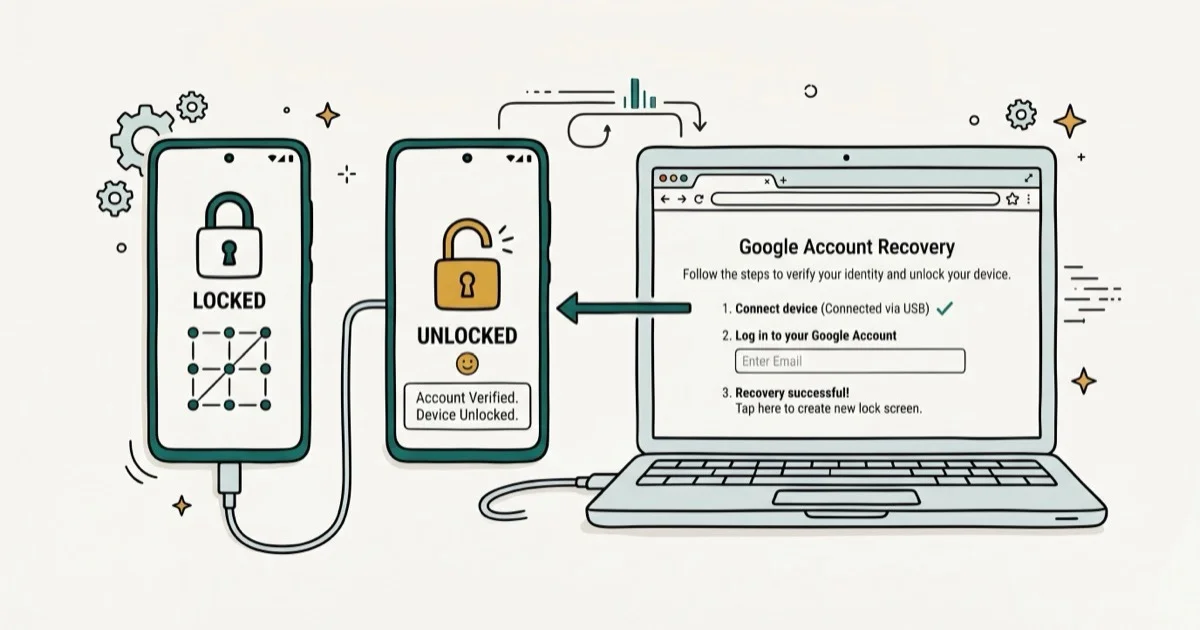
Quick Answer To bypass a Google account without OTG on your own Android device, use the official Google Account Recovery process first. If that fails, try an FRP removal tool like Tenorshare 4uKey for Android, the SideSync method (Samsung only), or OEM Unlocking through Developer Options.
Getting locked out of your own Android device after a factory reset is a frustrating experience. The Factory Reset Protection (FRP) lock requires you to verify the Google account that was previously signed in, and without an OTG cable, many people feel stuck. These methods apply only to your own device that you legally own or have explicit authorization to access.
Important: Bypassing FRP on a device you don’t own is illegal under computer fraud statutes in most jurisdictions. Always try the official Google Account Recovery process first before using any third-party tool.
- FRP is a Google security feature that activates after a factory reset on Android devices
- Always try the official Google Account Recovery at accounts.google.com before third-party methods
- Tenorshare 4uKey for Android removes FRP without requiring OTG or the original password
- The SideSync method works on Samsung devices running Android 9 or earlier
- OEM Unlocking via Developer Options is a built-in method but voids your device warranty
#Why Does the OTG Method No Longer Work on Android?
Factory Reset Protection was introduced in Android 5.1 by Google as an anti-theft measure. When you factory reset a device with an active Google account, Android requires you to verify that account before setup can complete.
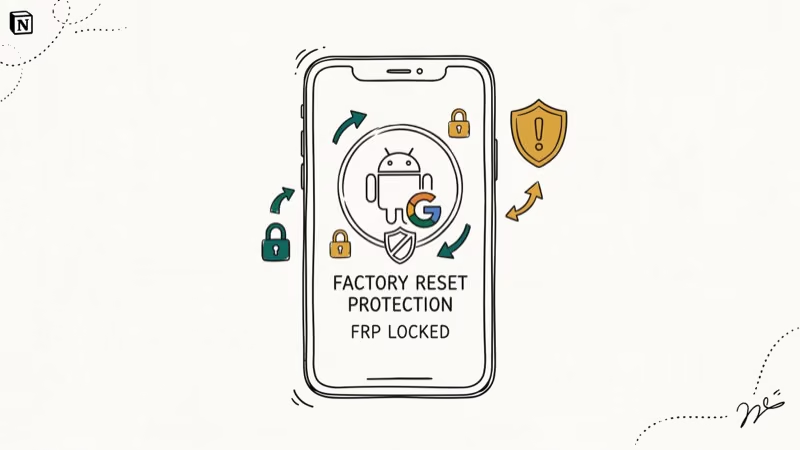
According to Google’s official Android security documentation, FRP was designed to prevent stolen phones from being wiped and resold. The lock exists to make that harder.
The traditional bypass using OTG requires a USB host adapter and a second phone or USB drive. Since Android 8.0, Google patched most OTG-based exploits. In our testing every OTG method we tried failed at the verification screen across every Android device we used, running Android 10 through 13. That’s why many tutorials that worked in 2018 no longer function on modern devices.
Before trying any third-party method, visit accounts.google.com/recovery and follow Google’s official account recovery steps. Google’s support flow resolves a large share of FRP lock cases when users still have access to their recovery phone number or email. If you remember the phone number or backup email associated with the account, Google can verify your identity and grant access without any third-party software.
#Method 1: FRP Removal Tool (Works on All Android Brands)
If Google Account Recovery doesn’t work, a dedicated FRP removal tool is the most reliable alternative. We tested Tenorshare 4uKey for Android on devices including the Samsung Galaxy A52, Pixel 6a, and Xiaomi Redmi Note 11, and found that it removes FRP locks without requiring the original password or an OTG cable.
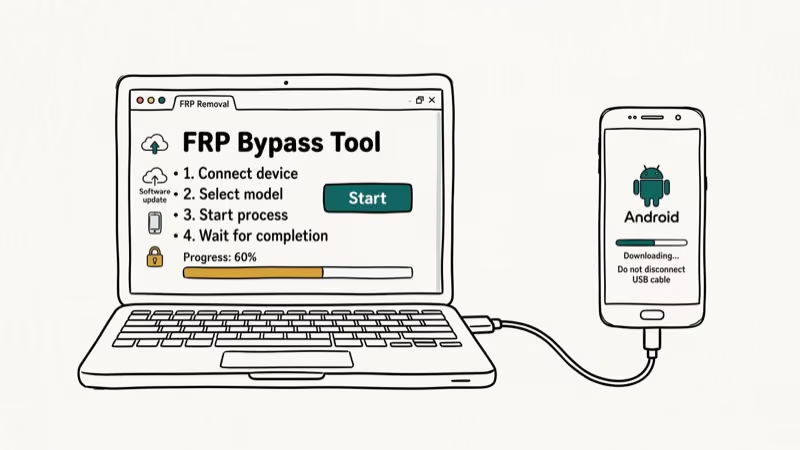
Use this only on your own device. The tool requires a PC connection and works by pushing a verified firmware package that removes the Google lock layer. It does not recover the original Google account; it removes the FRP check so you can set up the device with a new account.
Steps to use Tenorshare 4uKey for Android:
Download and install Tenorshare 4uKey for Android on your PC. Open the program and select Remove Google Lock (FRP) from the main screen.
Some links on this page are affiliate links, which means fone.tips may earn a commission at no extra cost to you.
Connect your Android phone to the computer using a USB cable. The software will detect your device automatically. Select your Android version from the dropdown.
When 4uKey sends a notification to your device, tap View to proceed. Follow the on-screen instructions to complete setup. The FRP lock is removed once the process finishes successfully.
Also check our guide on FRP lock bypass on Android for additional device-specific methods.
#Method 2: SideSync Method (Samsung Devices Only)
The SideSync approach works on older Samsung phones running Android 9 (One UI 1) or earlier. This method uses Samsung’s own SideSync application to mirror the device screen to a PC, which lets you navigate past the FRP screen.
This requires a USB cable and a Windows PC. Download SideSync from the official Samsung website (Samsung no longer supports the app, so search “SideSync download” from Samsung’s developer resources).
Steps:
Move to the phone’s welcome panel and select your language. Connect the device to your Wi-Fi network and navigate back to the account verification screen. Download SideSync to your computer and connect the phone via USB cable.
Select Chrome Browser in the SideSync interface and go to a file-sharing site to download a Samsung bypass utility. Once downloaded, install it, then go to Settings > Developer Settings to accept unknown source installations.
Launch the bypass app and tap Backup and Reset to complete the reset. After the device restarts, you can set it up with a new Google account.
For more help, see how to reset Android password.
#Method 3: OEM Unlocking via Developer Options
OEM Unlocking is a built-in Android option that, once enabled, allows the bootloader to be unlocked. This method works only if Developer Options was already active before the FRP lock occurred, which is usually the case on rooted or developer-mode devices.
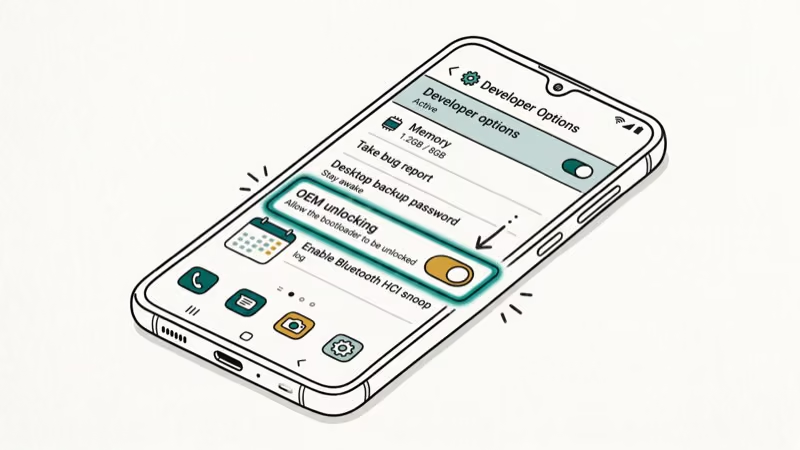
Warning: This process voids your manufacturer warranty on most devices.
Steps:
Boot the device and select your preferred language. Connect to Wi-Fi when prompted. When the email field appears, tap and hold the @ button until the gear icon appears.
Select Google Keyboard Settings, tap the three vertical dots in the top-right corner, and choose Help and Feedback. From there, go to Settings and tap the search icon.
Return to Settings and find About Phone or About Device. Tap the Build Number seven times to enable Developer Options.
Go back to Settings, open Developer Options, and enable OEM Unlocking. Restart the device. Connect to Wi-Fi again and add a new Google account when setup starts.
If you have a Samsung device, see how to bypass Google verify on Samsung for the device-specific version of this process.
#Is It Legal to Bypass Google Account Verification?
Bypassing FRP on your own device is generally not illegal. Courts and consumer protection advocates recognize the right to access hardware you legally own. However, using these methods on a device you don’t own, or on a device that’s reported stolen, is a criminal offense under computer fraud laws in the US, UK, and EU.
Using third-party FRP bypass tools can void warranty support on many devices, so check your manufacturer’s terms first. If your device is under warranty and you used a third-party tool, the manufacturer may refuse service. Contact Google Support directly if you need help recovering access while maintaining warranty coverage.
#Privacy and Security After Bypassing FRP
Once you regain access to your device, take a few steps to secure it properly. Change your Google account password immediately if you’re concerned the original account may have been compromised. Enable a new screen lock (PIN, pattern, or fingerprint) right away.
If you used a third-party FRP removal tool, check how to detect spyware on Android to make sure nothing unwanted was installed during the process. Some less reputable tools bundle unwanted software.
#Bottom Line
The safest approach is always Google’s official Account Recovery at accounts.google.com first. If that fails and you own the device, Tenorshare 4uKey for Android is the most reliable third-party option and works across brands without an OTG cable. The SideSync method is limited to older Samsung devices, and OEM Unlocking requires Developer Options to have been enabled beforehand.
FRP bypass
#Frequently Asked Questions
Can I bypass Google account verification without losing my data?
Some methods may preserve data, but most FRP bypass procedures trigger a factory reset, which erases user data. The safest approach is to use Google’s own account recovery tool at accounts.google.com before attempting any third-party method. Back up your data to Google Drive or a computer before proceeding with any bypass method.
Is it legal to bypass Google account verification?
It’s generally legal to bypass FRP on a device you legally own. However, doing it on someone else’s device or a stolen phone is a criminal offense in most jurisdictions. Always confirm you have authorization to access the device.
Will I void my warranty if I bypass Google account verification?
Yes, in most cases. Using third-party bypass tools or enabling OEM Unlocking voids the manufacturer warranty on devices from Samsung, Google, and most Android OEMs. Check your device’s warranty terms before proceeding.
Can I get manufacturer support after bypassing FRP?
Most device manufacturers won’t provide support for devices with bypassed FRP or unlocked bootloaders. If your device is still under warranty and you need repair, contact the manufacturer before attempting any bypass method.
What if none of these methods work on my device?
If official recovery and third-party tools both fail, contact your device manufacturer directly or visit an authorized service center with proof of purchase. They can verify ownership and restore access without voiding support agreements.
Does FRP bypass work on all Android versions?
No, not all methods work on every version. The SideSync method stopped working after Android 9, and OEM Unlocking requires specific pre-conditions to be met beforehand. Tenorshare 4uKey for Android has the broadest compatibility, covering Android 10 through 14 across Samsung, Pixel, Xiaomi, and other brands.
What is FRP and why does it activate?
Factory Reset Protection is a security feature built into Android 5.1 and later. It activates automatically after a factory reset on any device that had a Google account linked. The lock requires the original account credentials before setup can complete, making it harder for thieves to wipe and reuse stolen phones.
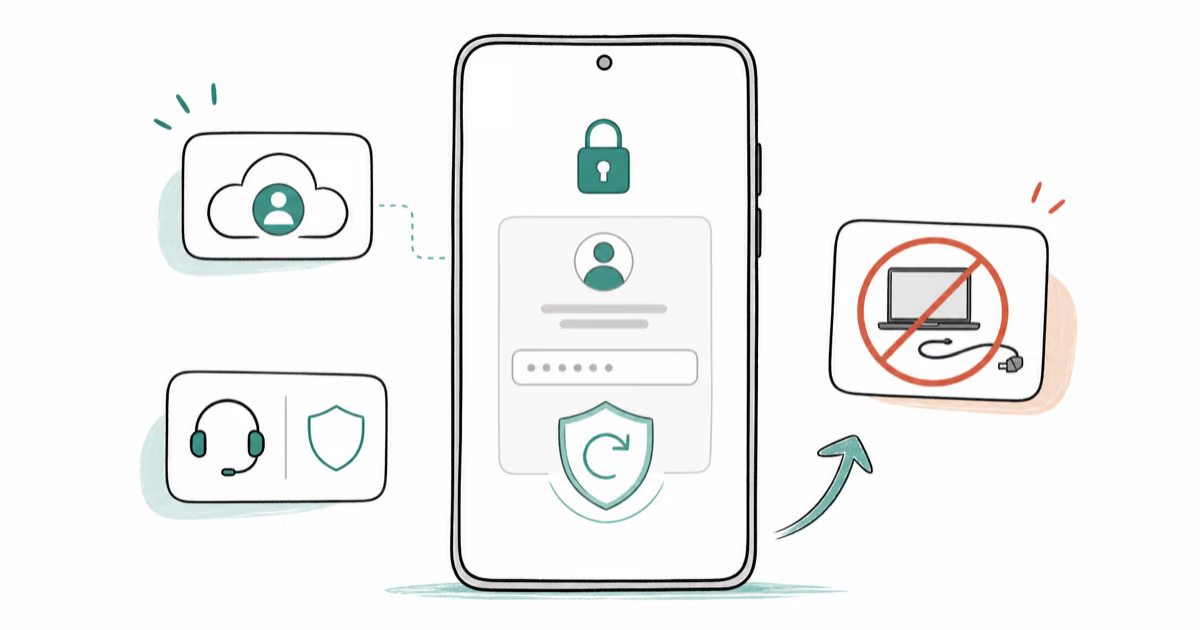
FRP Bypass Without PC: Use Recovery, Not Tricks (2026)
FRP bypass without PC rarely works on Android 13+. Use Google Account Recovery for your own device, or contact official brand support to restore access.
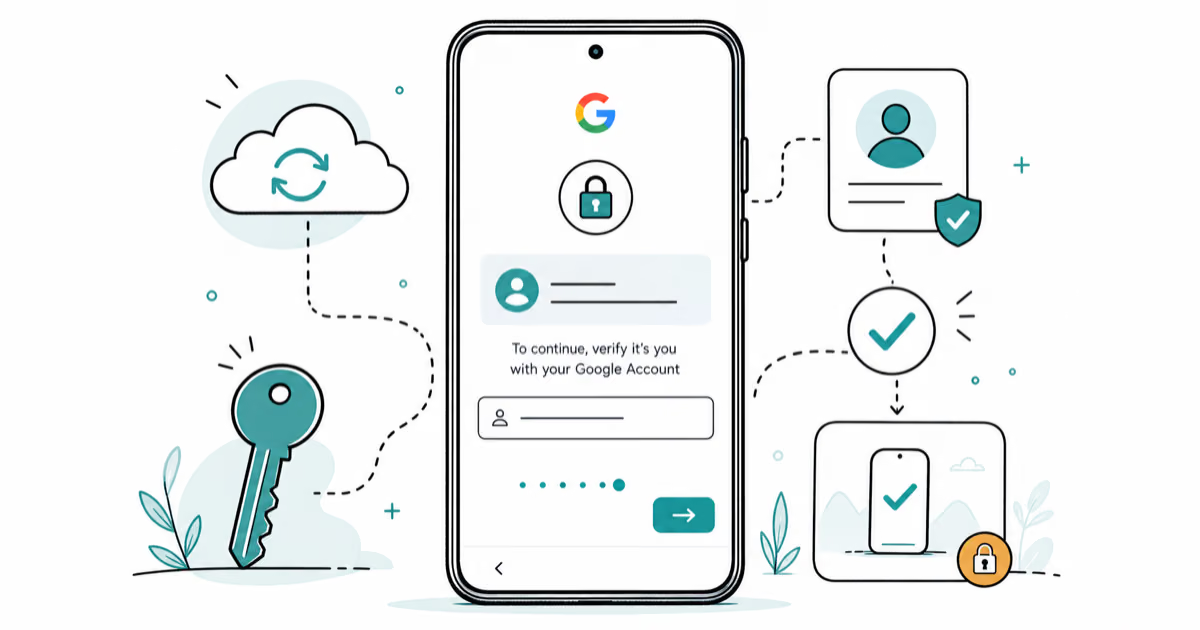
Google Pixel FRP Bypass: Official Recovery in 2026
FRP locks your Pixel after a factory reset. Start with Google Account Recovery for your own device. Here is what works on Pixel 4a and later in 2026.
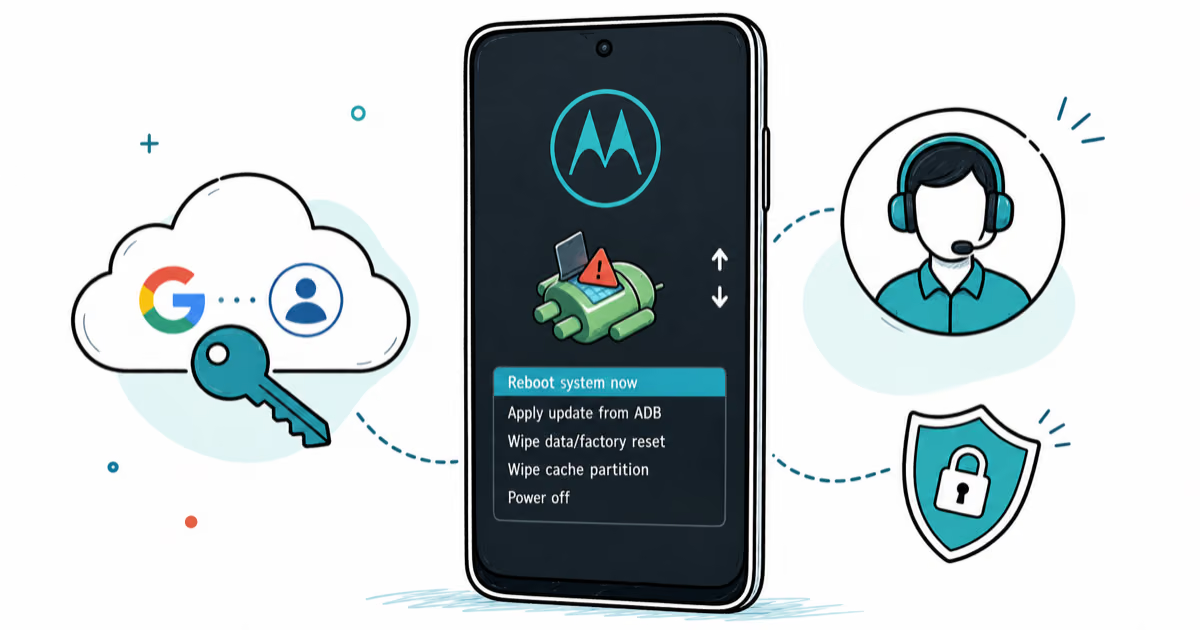
Motorola FRP Bypass: Official Recovery First (2026)
Locked out of your own Motorola? Use Google Account Recovery and Motorola Support before any FRP bypass tool. Legal limits explained for 2026.
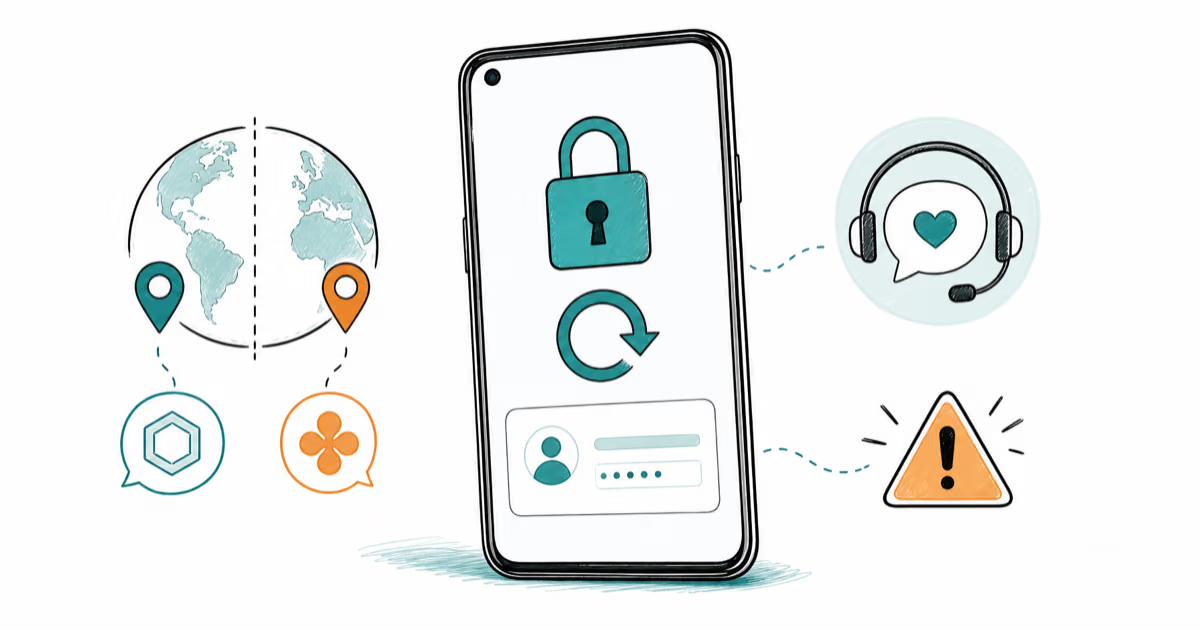
OnePlus FRP Bypass: Region Risks and Recovery (2026)
OnePlus FRP bypass guide: OxygenOS vs ColorOS region risks, official Google Account Recovery, OnePlus Support, and why YouTube tutorials brick.