Best USB Hub for iPad Pro: Ports That Actually Work
Pick the best USB hub for iPad Pro. Compare Thunderbolt 4, USB4, HDMI, Ethernet, SD cards, charging, iPad compatibility, and safe adapters now.
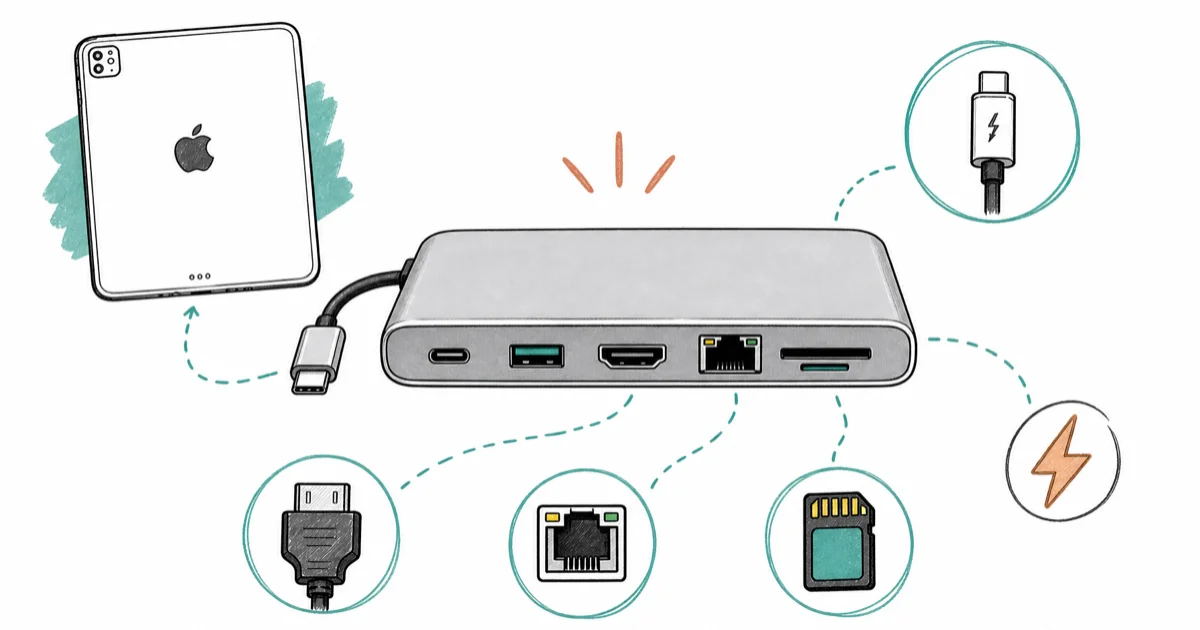
Quick AnswerThe CalDigit Thunderbolt 4 Element Hub is the best USB hub for iPad Pro power users, while Apple's USB-C Digital AV adapter is the safest basic HDMI pick.
The best USB hub for iPad Pro depends on whether you need one HDMI adapter or a desk dock for storage, Ethernet, and displays. This guide compares iPad Pro hub specs against practical workflows. CalDigit wins for power users, while Apple’s adapter is the safest basic pick.
- M-series iPad Pro models with Thunderbolt or USB4 can use higher-bandwidth hubs than basic USB-C iPads
- Apple’s USB-C Digital AV Multiport Adapter is the safest HDMI plus charging adapter
- CalDigit Element Hub is the best desk hub if you need Thunderbolt ports and powered USB-A
- Anker 555 is the better travel-style hub when Ethernet, SD, and USB-A matter
- Check iPad compatibility before buying because many third-party hubs list only older iPad Pro models
#What Ports Can an iPad Pro Actually Use?
iPad Pro can use more than a charging cable, but the exact ceiling depends on the model. Newer Pro models support high-bandwidth accessories that older USB-C iPads may not handle the same way.
For hubs beyond the iPad, our best USB hub picks cover the wider field.
Model year matters.
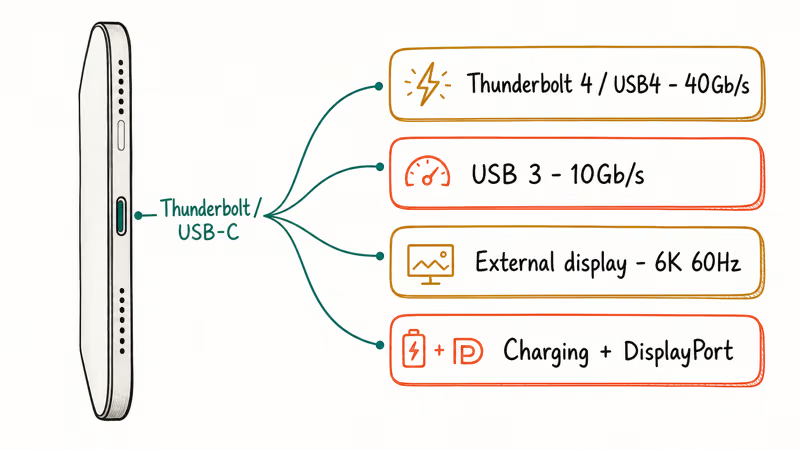
Apple’s iPad Pro technical specifications state that the current iPad Pro has a Thunderbolt / USB 4 port supporting charging, DisplayPort, Thunderbolt 3 up to 40Gb/s, USB 4 up to 40Gb/s, and USB 3 up to 10Gb/s. Apple also lists support for one external display up to 6K at 60Hz or 5K at 120Hz.
That doesn’t mean every hub unlocks every feature. iPadOS support for storage and card readers is broad, but display behavior still depends on the adapter, monitor, and cable. If your issue is display setup rather than ports, our best portable monitor guide may help you pick the other half.
Display quirks are normal.
#Best Overall: CalDigit Thunderbolt 4 Element Hub
The CalDigit Thunderbolt 4 Element Hub is the best iPad Pro desk hub if you own a Thunderbolt iPad and want a real workstation setup. CalDigit’s Element Hub manual states that it supports Thunderbolt 4, Thunderbolt 3, USB4, and USB-C hosts, and the system requirements list iPad Pro.
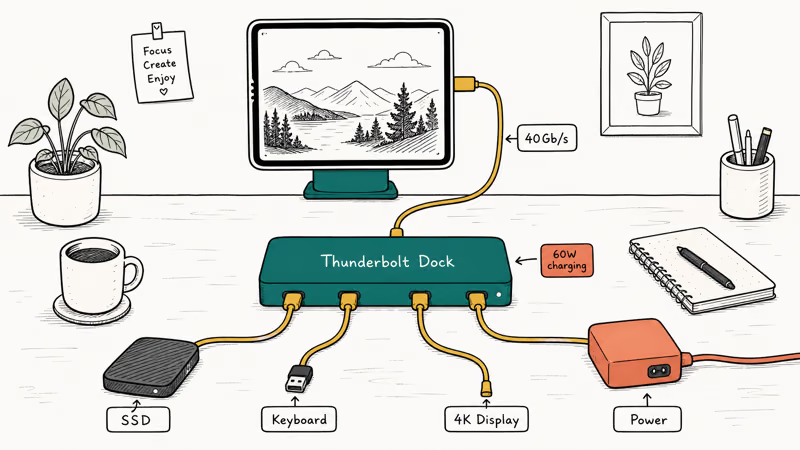
The same manual states that the host connection runs up to 40Gb/s, each downstream Thunderbolt 4 port supplies up to 15W, the four USB-A ports run up to 10Gb/s, and host charging reaches up to 60W.
Power makes docks different.
The desk-hub advantage is clean cable management. One powered hub can handle storage, keyboard receiver, and display accessories while keeping iPad charging available. It’s overkill if you only need HDMI for a TV.
Desk setups deserve power.
#Safest HDMI Pick: Apple USB-C Digital AV Multiport Adapter
Apple’s USB-C Digital AV Multiport Adapter is the safest pick when you just need HDMI, USB-A, and charging. Apple’s adapter support page states that it connects an HDMI display while also providing charging and a USB-A device port, and that all three ports can be used at the same time.
Buy this when reliability matters more than port count. It’s the least exciting hub here, but it’s also the safest basic choice before a hotel presentation or classroom setup.
The downside is obvious: no Ethernet, no SD card slot, and no extra USB-C data port. Creators will outgrow it fast.
That is intentional.
#Best Travel Hub: Anker 555 USB-C Hub
The Anker 555 USB-C Hub is the travel-style pick when you want Ethernet, SD cards, and several USB data ports in one small adapter. Anker’s 555 USB-C Hub specs state that its USB-C 3.2 Gen 2 and dual USB-A 3.2 Gen 2 data ports support up to 10Gbps, Ethernet supports up to 1Gbps, and pass-through charging supports up to 100W minus 15W for operation.
That port mix fits iPad Pro creators. You can pull files from a camera card, connect a keyboard dongle, and still keep power connected.
The caveat is compatibility wording. Anker’s page lists iPad Pro 2020, 2019, and 2018, so don’t assume it covers every new iPad Pro feature. Buy from a store with easy returns if your workflow depends on a specific monitor.
Returns reduce risk.
#Do You Need Thunderbolt 4 or Just USB-C?
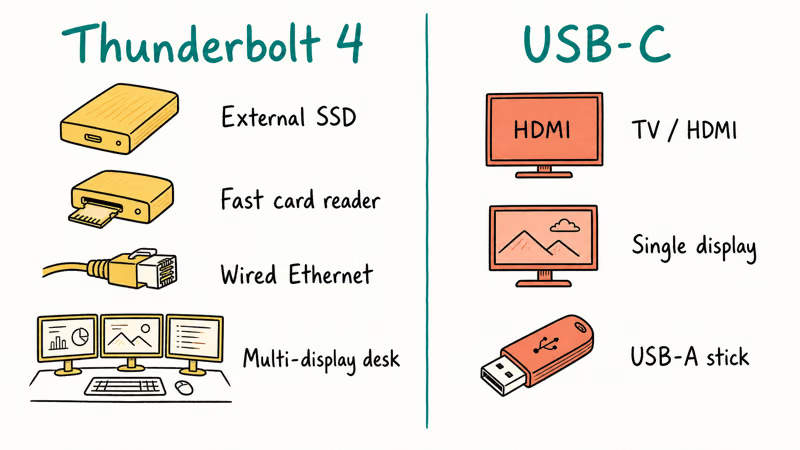
Thunderbolt 4 is worth it only if your iPad Pro supports it and you use high-bandwidth devices. External SSDs, fast card readers, wired Ethernet, and display setups are where the extra bandwidth starts to matter.
Bandwidth has a job.
Apple’s USB-C iPad support page states that USB-C iPads can connect external storage, cameras, displays, hubs and docks, keyboards, audio interfaces, MIDI devices, and USB to Ethernet adapters. The same page states that HDMI 2.0 adapters can output 4K at 60Hz from iPad Pro.
For basic TV output, USB-C is enough. For a desk where your iPad Pro acts like a laptop, Thunderbolt is easier to defend. If your setup also includes a MacBook, the best Thunderbolt 4 dock for Mac guide covers the desktop dock side.
For MacBook-style USB-C adapters, see our best USB-C hub for MacBook guide.
#iPad Pro Hub Features Worth Paying For
Pay for power delivery, HDMI reliability, Ethernet, and card slots if you use them. Don’t pay for a huge port list that duplicates ports you never touch.
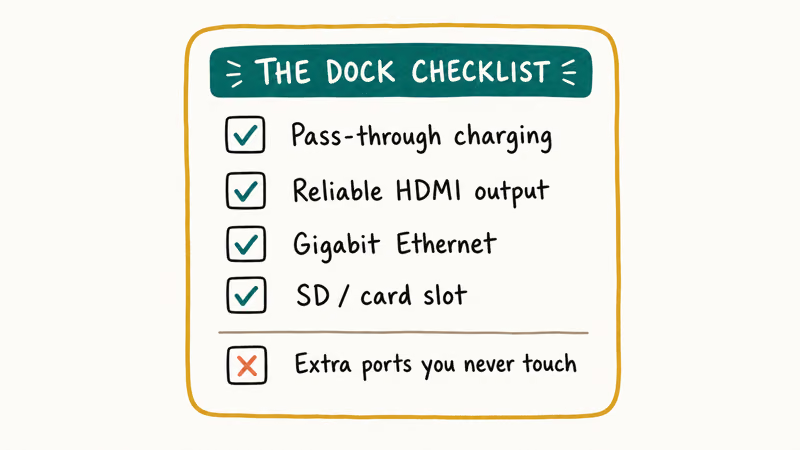
Useful ports win.
Pass-through charging is the feature to prioritize when choosing a cheap hub. iPad Pro battery drain is manageable for file transfers, but long display sessions need power. Ethernet also matters if you use cloud files, game streaming, or remote desktop tools.
Skip hubs that hide compatibility details. If the product page doesn’t name iPad Pro, Thunderbolt, USB4, HDMI output, or charging wattage, treat it as a risk. For storage-heavy work, our best portable SSD for iPhone 17 guide covers external drive choices that also apply to USB-C workflows.
Specifics reduce returns.
#Bottom Line
Buy the CalDigit Thunderbolt 4 Element Hub if you use an iPad Pro as a desk machine. It has the bandwidth and powered ports to make the tablet feel less like a single-port device.
Buy Apple’s USB-C Digital AV Multiport Adapter if you need the safest HDMI and charging path. Choose Anker 555 if you want a travel hub with Ethernet and card slots. Always check model compatibility before trusting a third-party hub for display work.
Compatibility is the gate.
#Frequently Asked Questions
Can iPad Pro use a USB-C hub?
Yes. iPad Pro can use USB-C hubs for storage, displays, card readers, keyboards, audio gear, and Ethernet adapters.
Do I need Thunderbolt 4 for iPad Pro?
Only if your iPad Pro supports Thunderbolt or USB4 and you use high-bandwidth accessories. For HDMI to a TV or basic USB-A, a regular USB-C adapter is enough.
Don’t overbuy.
Can an iPad Pro hub charge the iPad at the same time?
Yes, if the hub supports pass-through charging. Check the wattage because the hub may reserve some power for itself before passing the rest to the iPad.
Why doesn’t my iPad Pro hub show video?
The common causes are a non-video USB-C port, a weak HDMI adapter, a bad cable, or a monitor mode the iPad doesn’t like. Test with Apple’s adapter first if you need to isolate the problem.
Can I connect Ethernet to iPad Pro?
Yes. Apple says USB-C iPads can use USB to Ethernet adapters. Ethernet is useful for cloud files, remote desktop, and stable video calls.
Is Apple’s USB-C adapter better than a cheap hub?
It’s better for reliability, not port count. Apple’s adapter gives you HDMI, USB-A, and charging with fewer compatibility surprises.
Can iPad Pro use external storage through a hub?
Yes. External drives can work through a hub, but the drive format, power draw, and cable quality all matter. Powered hubs handle larger drives more reliably than tiny bus-powered adapters.

iOS 26.6.1 Security Update: What Apple Fixed and Who Gets It
Apple released iOS 26.6.1 on August 17 with 29 security fixes, including an IPSec interception bug. See what it patches, who gets it, and how to update.

iPhone Adaptive Power: How It Works and When to Use It
Learn how iPhone Adaptive Power works, which models support it, what it changes, and when Low Power Mode is still the better battery-saving choice.
How to Transfer Data to a New iPhone Without iCloud
Move everything to your new iPhone without iCloud: Quick Start device-to-device transfer, wired migration, and encrypted Finder or iTunes backups.

Group Text Not Working on iPhone? 8 Fixes That Work
Group text not working on iPhone? Turn on MMS Messaging and Group Messaging, check iMessage vs SMS routing, and fix mixed Android group chats fast.