Best USB-C Hub for MacBook in 2026: 4 Proven Picks
The best USB-C hub for any MacBook in 2026. This guide compares cabled and desk hubs across Air and Pro for 4K HDMI, power passthrough, and 10Gbps data.
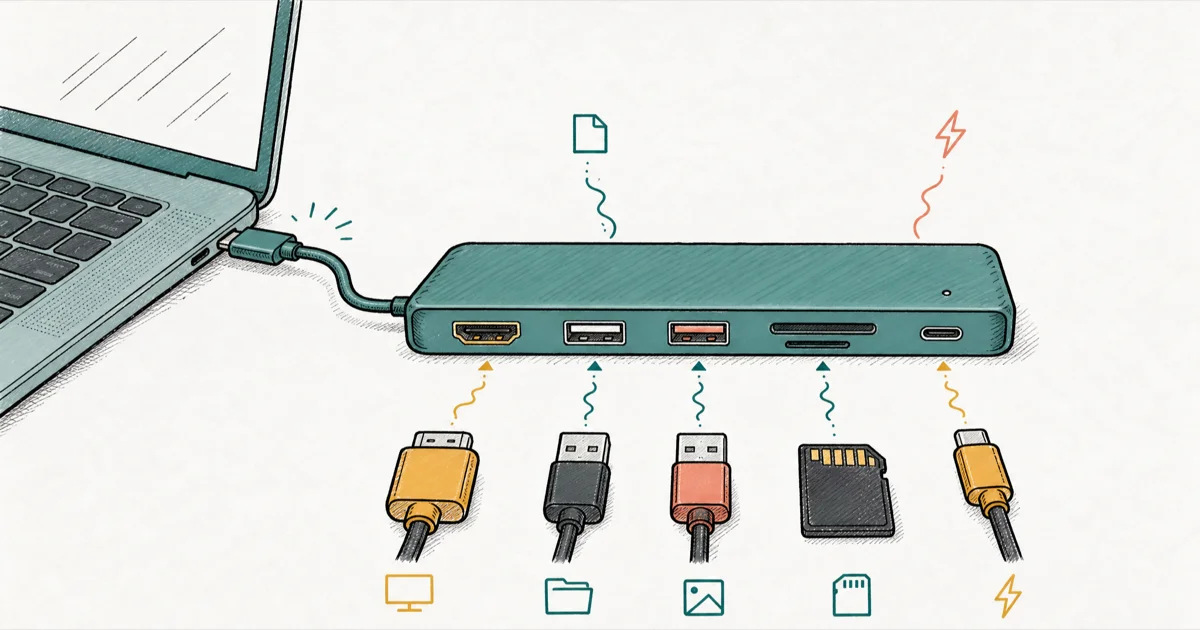
Quick AnswerFor most MacBooks, the UGREEN Revodok Pro 109 is the best all-round USB-C hub with 10Gbps ports and 4K HDMI. The Anker 555 wins for SD card workflows, and the Satechi OntheGo is the travel pick.
The best USB-C hub for a MacBook depends less on your model and more on what you plug in: a 4K monitor, fast SD cards, or a travel-light kit. This guide compares four popular hubs by display output, data speed, power passthrough, and travel fit, with the UGREEN Revodok Pro 109 as the all-round pick.
This roundup covers every MacBook, from the two-port Air to the Pro. If you own the specific M4 MacBook Air, our best USB-C hub for MacBook Air M4 guide drills into direct-mount picks for that exact two-port layout. Everything below applies across the rest of the lineup, whether you carry a 13-inch Air or run a 16-inch Pro on a desk, because the ports and the display limits behave the same way regardless of which MacBook the hub plugs into.
- The UGREEN Revodok Pro 109 is the best all-round hub, with 10Gbps on every data port and reliable 4K HDMI at 60Hz.
- The Anker 555 is the value pick and the better choice if you pull photos off SD cards regularly.
- The Satechi 8-in-1 V2 wins on build quality with an aluminum body that matches MacBook finishes.
- The Satechi OntheGo is the travel pick, with a coiled cable and a magnetic body, but slower 5Gbps data.
- None of these are Thunderbolt; a true Thunderbolt 4 dock runs 40Gbps and costs far more for daisy-chained displays.
#How These Hubs Compare
A good MacBook hub has to cover the same everyday desk basics: 4K HDMI, keyboard and mouse ports, USB-C data for storage, and enough passthrough charging for the laptop.
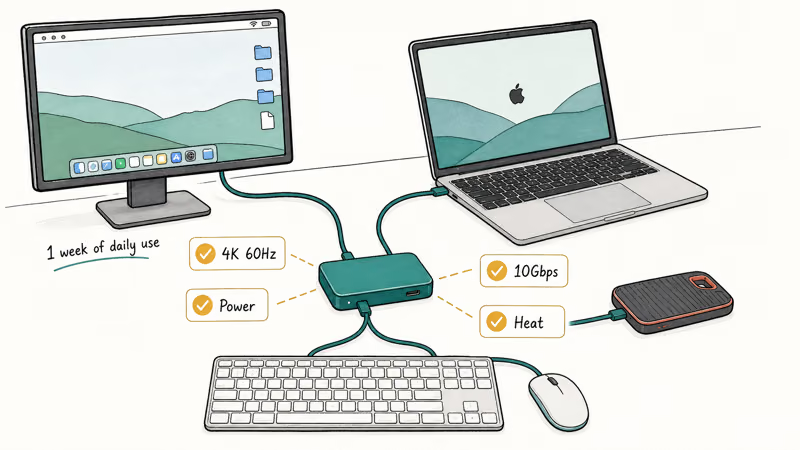
Check four basics: steady 4K60 HDMI, real passthrough power, SSD-speed data, and heat under load.
Cheaper 4K-at-30Hz hubs make text scrolling look visibly choppy next to 60Hz units, which is the single difference most people notice first. That one spec separates the picks more than any other.
#The Best All-Round Pick for Most MacBooks
For most people the UGREEN Revodok Pro 109 is the right call. It pushes 10Gbps on every data port, holds a clean 4K signal at 60Hz over HDMI, and adds Ethernet plus a longer host cable than most rivals.
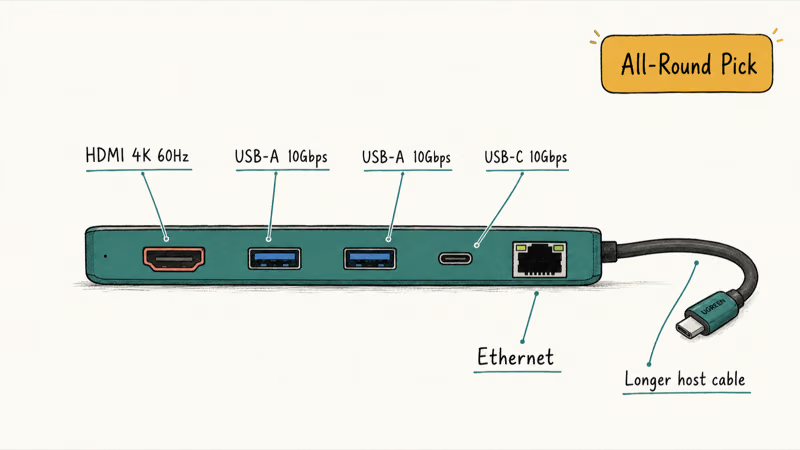
Engadget’s best USB-C hub roundup reports that both the Revodok Pro and the Anker 555 push 10Gbps on every data port, which matters for media work. The Revodok’s 10Gbps data ports, 4K60 HDMI, and charging passthrough make it the better all-round fit for a desk with an external display and SSD.
The tradeoff is no SD card reader. UGREEN skipped card slots to keep every port at 10Gbps, so photographers who offload cards daily are better served elsewhere.
#The Best Hub for SD Cards and Value
The Anker 555 is the value pick, and it’s the one to buy if you shoot photos. It includes both full-size SD and microSD readers that UGREEN drops, and it still drives a 4K monitor, Ethernet, and peripherals reliably.
According to Engadget’s testing, the Anker 555 missed the top spot only on a shorter host cable and one fewer USB-A port, not on performance. That matches the spec story: it offers 4K-at-60Hz HDMI, SD card readers, and charging passthrough in one hub.
External drives usually belong on a dedicated dock; our best hard drive docking station roundup covers cooler desk-bound options.
#The Build-Quality and Travel Picks
Two more hubs earn a spot for specific needs.
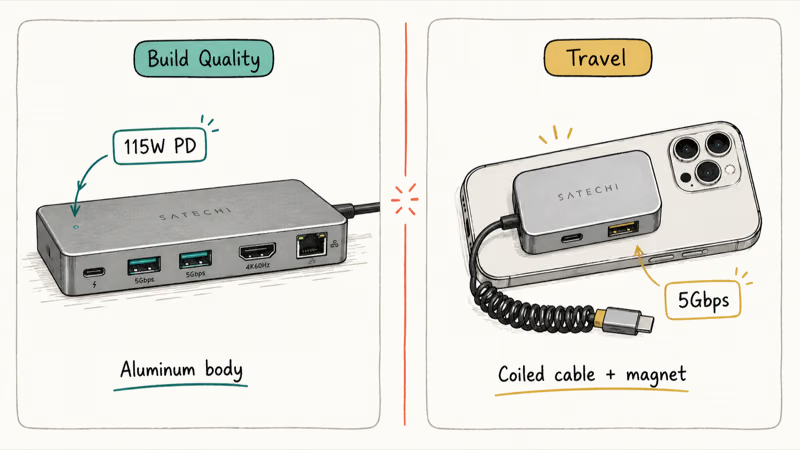
The Satechi 8-in-1 Hub V2 is the build-quality choice. Its aluminum enclosure matches MacBook finishes, and its rated 115W Power Delivery is higher than most rivals. Its high passthrough rating leaves useful headroom after hub overhead, which is enough for many MacBook setups while driving a 4K display and an SSD at once.
The Satechi OntheGo 7-in-1 is the travel pick. It has a coiled USB-C cable and a magnetic body you can snap onto an iPhone or stick to the back of the laptop. The catch is speed: its ports top out at 5Gbps rather than 10Gbps, and the USB-C PD port charges only with no data. For a carry-everywhere kit that tradeoff is fine.
A clean desk setup is more than the hub, so pair whichever you pick with a stand and a monitor. Our best laptop stand for MacBook and best portable monitor for MacBook Pro guides cover the rest of the kit.
#How Many Displays Can a Hub Actually Drive?
This is where a hub hits a hard limit set by the MacBook, not the hub. A USB-C hub can’t add display outputs beyond what the chip supports.
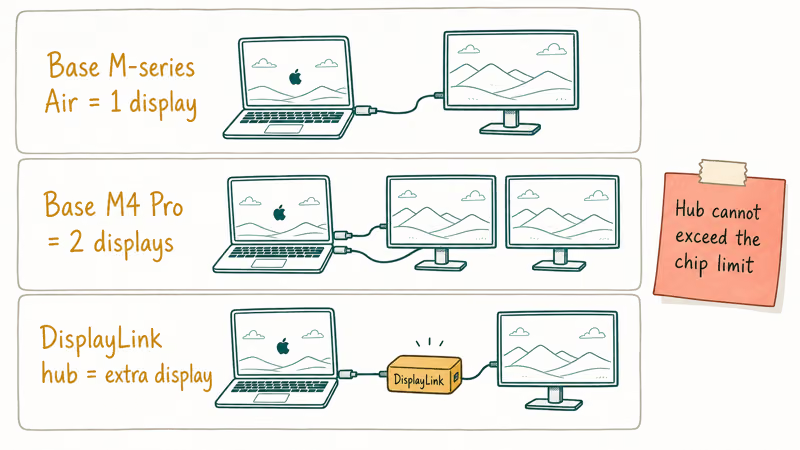
Apple’s MacBook Pro M4 tech specs page confirms that the base M4 drives up to 2 external displays, while Apple’s display support page states that a base M-series MacBook Air supports only 1 external monitor with the lid open. A hub with two HDMI ports won’t override that; the second output stays dark unless the hub uses DisplayLink.
So match the hub to your chip first. If you need dual monitors on a base Air or M-series chip, you need a DisplayLink hub or dock, not a passive USB-C hub. For a single 4K monitor, any of the picks above works.
For a 4K-at-120Hz or 144Hz gaming display, the HDMI version matters; our best HDMI 2.1 monitor guide explains which hubs carry the bandwidth for it.
#Do You Need Thunderbolt Instead of USB-C?
For most MacBook owners, no. A USB-C hub at 10Gbps handles a monitor, an SSD, and a few peripherals at a fraction of a Thunderbolt dock’s price, and unless you’re pushing multiple high-resolution displays at once, you won’t notice the speed ceiling in everyday work.
Thunderbolt 4 runs at 40Gbps and daisy-chains monitors, which no USB-C hub here can do. You only need it for several high-resolution displays at once.
Power is the other thing to verify. A hub’s passthrough always lands below the wall brick, so an 85W rated port typically delivers around 70W after overhead, which is enough for a 13-inch but tight for a 16-inch Pro under heavy load. If charging is your real bottleneck, a dedicated charger solves it better, and our best GaN charger for MacBook Pro roundup covers the high-wattage options.
#Bottom Line
Buy the UGREEN Revodok Pro 109 if you want one hub that does everything well, with 10Gbps ports and rock-steady 4K HDMI for a single-monitor desk. Choose the Anker 555 instead if you offload SD cards, since UGREEN drops the card readers. Grab the Satechi OntheGo only if travel weight matters more than transfer speed. And skip hubs entirely for a Thunderbolt dock if you run two or more high-resolution displays at once.
#Frequently Asked Questions
What is the best USB-C hub for a MacBook in 2026?
For most MacBooks, the UGREEN Revodok Pro 109 is the best all-round pick, with 10Gbps ports and steady 4K HDMI at 60Hz. The Anker 555 is better if you use SD cards. The Satechi OntheGo is the travel option.
Will a USB-C hub charge my MacBook?
Yes, if it has a USB-C Power Delivery passthrough port and you plug your charger into it. The hub delivers less than the wall brick, so an 85W rated port usually lands around 70W after overhead, plenty for a 13-inch MacBook but tight on a 16-inch Pro under heavy load while it also drives a display and an SSD off the same connection.
Can a USB-C hub add a second monitor to my MacBook?
Only if your MacBook’s chip supports a second display, or if the hub uses DisplayLink. A base M-series Air supports one external monitor with the lid open. To run dual monitors on a base chip, you need a DisplayLink hub or dock.
Is a USB-C hub the same as a Thunderbolt dock?
No. A Thunderbolt 4 dock runs at 40Gbps and daisy-chains displays; a USB-C hub tops out at 10Gbps. For a single monitor, the hub is cheaper and works fine.
Why does my 4K monitor look choppy through a USB-C hub?
The hub is likely running 4K at 30Hz instead of 60Hz, which makes scrolling feel laggy. A 60Hz hub uses DisplayPort 1.4 internals; cheaper hubs cap at 30Hz. Check the spec sheet for 4K at 60Hz before buying.
Are cheap USB-C hubs safe for a MacBook?
Hubs from reputable brands like UGREEN, Anker, and Satechi are safe and use regulated Power Delivery. The risk comes from no-name hubs with poorly regulated charging circuits, which can in rare cases stress the laptop’s USB-C port. We would stick with known brands here, especially for anything you charge through. The cheapest unbranded hub is a false economy when it sits between a wall brick and a laptop you paid four figures for.

Pixel 11 vs Pixel 10: What Changed and Who Should Upgrade
Pixel 11 vs Pixel 10: same screen and camera resolution, new Tensor G6, 25W wireless, and Gemini Intelligence. Here is who should actually upgrade.

Best Power Bank for iPad in 2026: Pro, Air, and Mini
Best power bank for iPad in 2026. Compare mAh tiers and USB-C PD wattage for iPad Pro, Air, and mini, plus airline Wh math, cables, and travel tips.
Best Power Bank With Built-In Cable: Top 2026 Picks
Best power bank with built-in cable picks for 2026. Compare single USB-C, multi-connector, and retractable laptop banks, plus airline Wh math.

Best Apple Watch Band for Working Out: Proven Picks
The best Apple Watch band for working out handles sweat and stays put on your wrist. Compare silicone, nylon, and titanium picks for runs and lifts.