How to Rename Your AirPods on iPhone, Mac, Android
Rename AirPods on iPhone, Mac, Android, or Windows with current steps for every model, including AirPods Pro 3, plus fixes when names do not update.
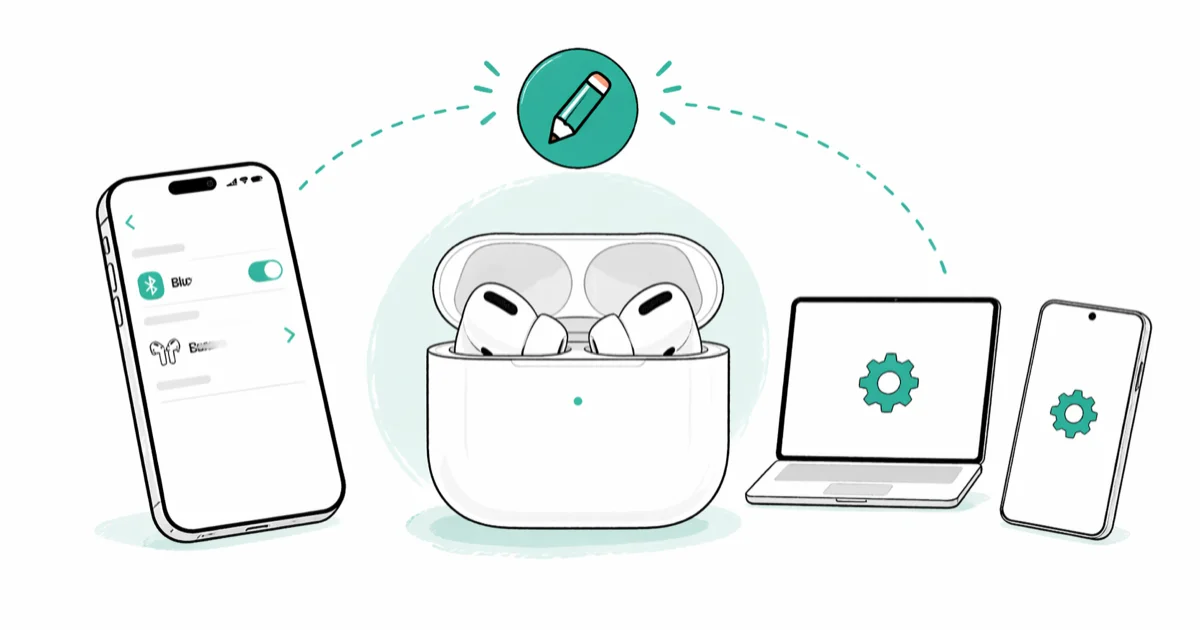
Quick AnswerTo rename AirPods on iPhone, go to Settings > Bluetooth, tap the i icon next to your AirPods, tap Name, type your new name, and tap Done. The new name syncs across all devices signed into the same iCloud account.
Renaming your AirPods is usually a quick Bluetooth settings change once the AirPods are connected. The core steps are the same in 2026: open Bluetooth settings, select the AirPods, edit the name, and save.
- On iPhone:
Settings>Bluetooth> tap i next toAirPods>Name - On Mac:
System Settings>Bluetooth> click i > Name - New names sync across all Apple devices on the same iCloud account
- Android and Windows names only apply to that specific device
- You can rename as many times as you want with no character limit
#How to Rename AirPods on iPhone
This is the method most people will use. Make sure your AirPods are connected to your iPhone before starting.
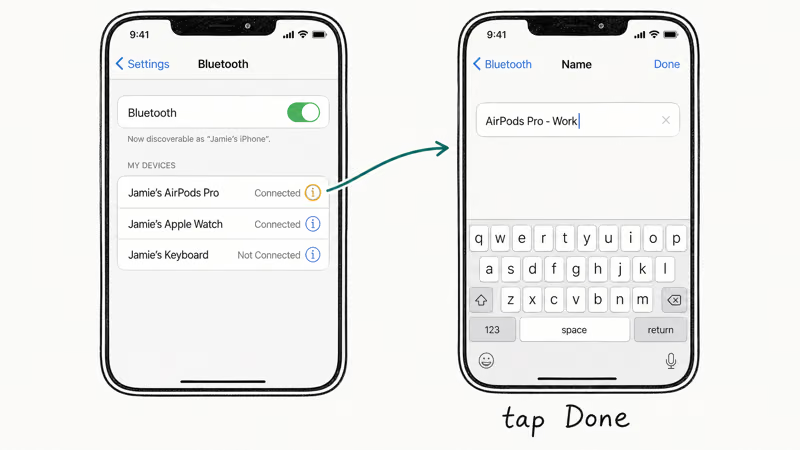
- Open Settings on your iPhone and tap Bluetooth
- Find your AirPods under My Devices and tap the i icon
- Tap Name, type your new name, and tap Done
The name change takes effect immediately. Apple’s current AirPods renaming guide confirms that the new name updates across devices signed in to the same Apple Account. That includes current models such as AirPods Pro 3.
Apple’s current AirPods settings page states that you can rename AirPods from the Bluetooth details screen and includes AirPods Pro 3 among current models.
AirPods not showing up in Bluetooth settings? Check our guide on why AirPods won’t connect for pairing fixes.
#How to Rename AirPods on Mac
The Mac process is almost the same. Connect your AirPods first, then open System Settings from the Apple menu in the top-left corner of your screen.
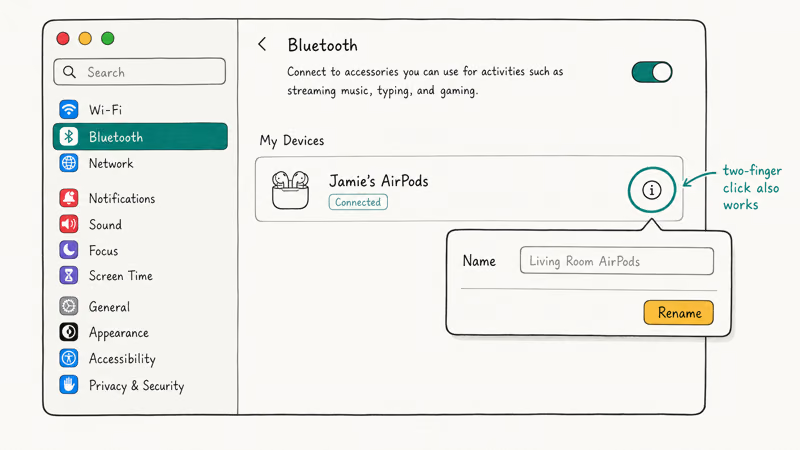
- Click the Apple menu and select System Settings
- Click Bluetooth and find your AirPods in the device list
- Click the i button, then click the name field and type your new name
On older Macs running macOS Monterey or earlier, right-click your AirPods in System Preferences > Bluetooth and select Rename.
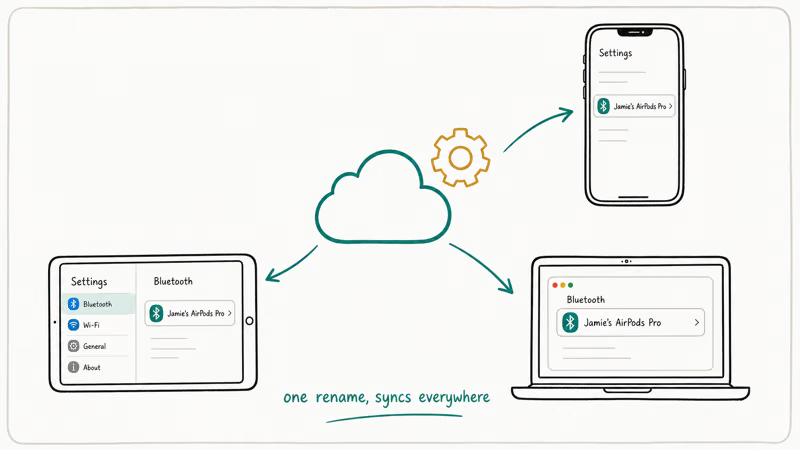
After you rename AirPods on a Mac, iCloud sync can carry the new label to linked iPhone, iPad, and Apple Watch devices signed into the same Apple Account. If the name does not appear right away, keep the AirPods connected and give iCloud a little time to update.
#Renaming AirPods on Android
You can rename them on Android too. The catch is the name only sticks on that one Android phone.
- Connect your AirPods via Bluetooth and open
Settings>Connecteddevices - Tap the gear icon next to your AirPods, then the edit icon next to the name
- Type your preferred name and tap Rename
The exact menu path varies by Android manufacturer. On Samsung phones running One UI 6, it’s Settings > Connections > Bluetooth > tap the gear icon. On Google Pixel, it’s Settings > Connected devices > tap your AirPods.
If you’re having connection issues, our AirPods connection failed guide covers fixes.
#How to Rename AirPods on Windows
Windows handles Bluetooth device renaming through the classic Control Panel. The newer Settings app on Windows 11 occasionally shows a rename option under Settings > Bluetooth & devices, but it’s inconsistent and sometimes grayed out, so the Control Panel path is the one you can rely on every time.
- Open Control Panel and click
Hardware and Sound>Devices and Printers - Right-click your AirPods, select Properties, and edit the name in the Bluetooth tab
- Click Apply to save
Avoid special characters like #, $, or & in the name. Some characters can cause display issues when connecting to other Bluetooth sources.
#Why Should You Rename Your AirPods?
The default name is “[Your Name]‘s AirPods,” which creates problems in a few scenarios.
If multiple people in your household own AirPods, the default names look almost identical in Bluetooth menus. Renaming each pair (like “Kitchen AirPods” or “Gym Pair”) makes it obvious which ones to connect to. This is especially helpful at family gatherings where 3 or 4 pairs of AirPods show up in the same Bluetooth scan.
Privacy is another reason. Your default AirPods name broadcasts your first name to every nearby Bluetooth device, and any device scanning for Bluetooth connections can see it. According to Apple’s guide to renaming your AirPods, changing it to something generic like “Headphones” keeps your identity private in public spaces.
If you own both AirPods that work on a plane and a pair you leave at home, naming them by location makes switching faster.
#Does Renaming Affect How AirPods Work?
Renaming is purely cosmetic. It doesn’t change audio quality, battery life, Bluetooth range, or noise cancellation. The name is just a label stored in the Bluetooth pairing profile and has zero impact on device performance.
An AirPods factory reset also restores the default name, but reset steps differ by model.
#Bottom Line
Open Bluetooth settings, tap the info icon next to your AirPods, and change the name. Apple devices sync the name through iCloud; Android and Windows keep it local.
#Frequently Asked Questions
Can I use emojis in my AirPods name?
Yes. iOS, macOS, and Android all support emojis in the name field. Windows may not display every emoji correctly but it won’t break the Bluetooth connection.
Will renaming AirPods change the name on all my Apple devices?
Yes, automatically. The new name syncs to every device on the same Apple Account within seconds.
How do I change my AirPods name back to the default?
There’s no “reset name” button. Just manually type “[Your Name]‘s AirPods” in the name field. You don’t need to factory-reset the earbuds, and reset steps now differ by AirPods model.
Why can’t I see the rename option on my phone?
Your AirPods need to be actively connected. Put them in your ears first, then check Bluetooth settings.
Does renaming AirPods affect Find My tracking?
No. Find My uses your AirPods’ hardware serial number for tracking, not the Bluetooth name. Renaming won’t affect your ability to find your AirPod case or locate lost AirPods through the Find My app.
Can two people rename the same AirPods differently?
Yes. Each device stores its own Bluetooth name for the AirPods. Apple devices sync names through iCloud, but an Android phone connected to the same pair can show a completely different name. The names are independent per platform, so you could call them “Work Buds” on your Pixel and they’d still show as “Travel AirPods” on your iPhone if that’s what you set there.
Is there a character limit for AirPods names?
Apple doesn’t publish an official limit. Long names can be truncated in some Bluetooth menus and the AirPods settings screen. Use a short, recognizable name for the cleanest display across devices.

Mac mini M6 vs M5 Pro: Which Model Should You Buy?
Mac mini M6 vs M5 Pro compared on price, memory, ports, displays, and real workloads. Find the better 2026 Mac mini for your desk and budget.

Apple Siri Settlement: Who Qualifies and How to Claim
Apple's $250 million Siri settlement covers iPhone 15 Pro and iPhone 16 models bought June 2024 to March 2025. See who qualifies and how claims work.

iOS 26.6.1 Security Update: What Apple Fixed and Who Gets It
Apple released iOS 26.6.1 on August 17 with 29 security fixes, including an IPSec interception bug. See what it patches, who gets it, and how to update.

iPhone Adaptive Power: How It Works and When to Use It
Learn how iPhone Adaptive Power works, which models support it, what it changes, and when Low Power Mode is still the better battery-saving choice.