Xbox Controller Won't Connect to PC? Fix All 3 Modes
Xbox controller won't connect to PC? Fix it over USB-C, Bluetooth, and the Wireless Adapter with driver and firmware steps that actually work.
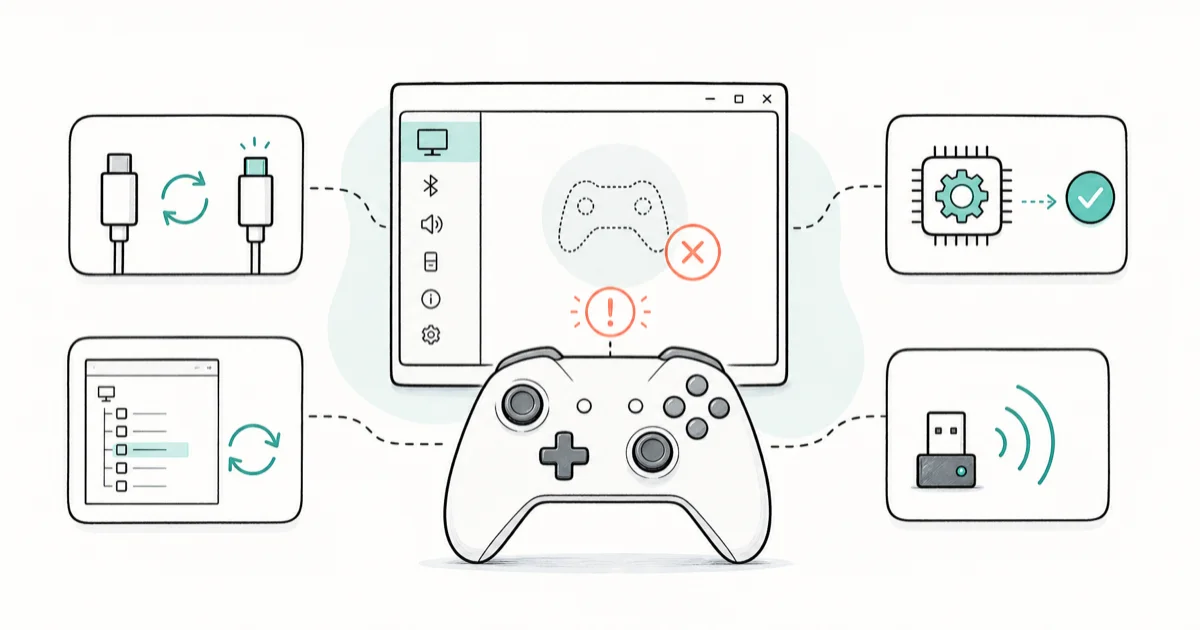
Quick AnswerMost Xbox controller pairing failures clear up after one of three fixes: swap the USB-C cable for a known data cable, reinstall the driver in Device Manager, or update firmware in the Xbox Accessories app.
An Xbox controller that won’t connect to your PC is almost always one of three things: the wrong cable, a Bluetooth handshake that never completes, or a driver Windows quietly broke. Modern Xbox Series and later Xbox One controllers can connect over USB, Bluetooth, or the Xbox Wireless Adapter, while older Xbox One controllers without Bluetooth need USB or the Wireless Adapter.
Wired first. A USB data-cable test quickly separates cable and driver problems from wireless pairing issues.
- Try a USB-C data cable before any wireless troubleshooting; if wired works, the controller hardware is fine and the fix is driver or interference side.
- Only controllers released with Xbox One S and later support Bluetooth, so older Xbox One pads need the Xbox Wireless Adapter for Windows.
- Reinstall the controller driver via Device Manager when Windows recognizes the controller but games don’t.
- The Xbox Accessories app from the Microsoft Store is the official firmware update tool and works without an Xbox console.
- Low batteries and 2.4 GHz interference often cause the “connects then disconnects every few minutes” symptom.
#Why Won’t My Xbox Controller Connect to My PC?
Three causes account for almost every failed pairing on Windows. The cable comes first. Many USB-C cables shipped with phone chargers are charge-only, which means Windows sees a power draw but no input device.
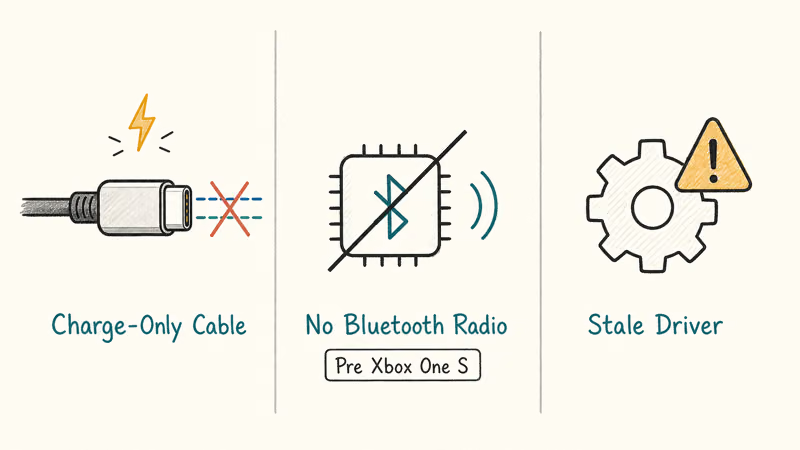
Bluetooth scope is second. Only controllers from Xbox One S onward carry a Bluetooth radio.
A stale driver is third. Windows holds onto old controller driver entries through OS upgrades and reinstalls, so when a fresh pairing attaches to an out-of-date driver, the controller shows up in Device Manager with a warning icon instead of working in games.
The cable test is fastest.
According to Xbox Support’s connection guide, there are three official pairing modes for Windows: a USB cable, Bluetooth, and the Xbox Wireless Adapter for Windows. The page is mode-specific, so each section assumes you already know which one applies to you. The fixes below cover all three modes plus the driver and firmware issues that show up regardless of how you connect.
#Fix 1: USB-C Cable Connection
Plug the controller into your PC with a USB-C cable you know transmits data. The controller should light up, and Windows should show “Xbox Controller” under Settings > Bluetooth & devices > Devices.
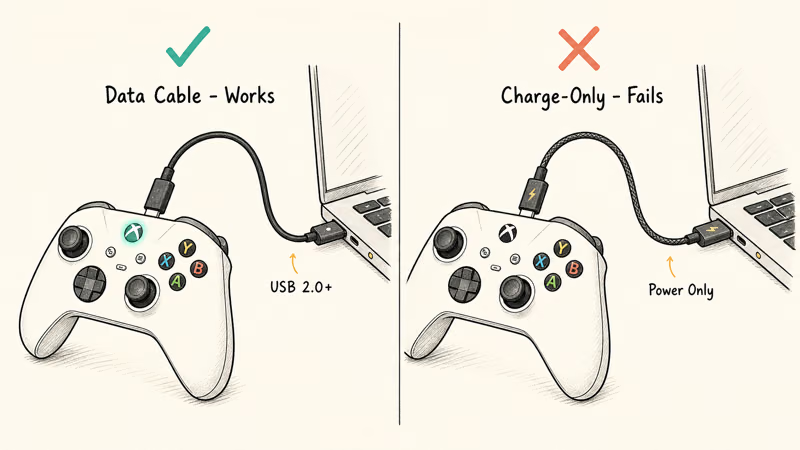
The cable is usually the problem.
Charge-only USB-C cables can deliver power without data lanes, leaving the controller invisible to Windows even though the Xbox button glows steadily.
Swap to a cable rated for data. Any USB-C cable that came with a recent Android phone for sync, any thunderbolt cable, or a cable explicitly labeled “USB 2.0” or higher will work. The official Xbox controller charging cable from Microsoft is a known-good baseline if you want to remove the variable entirely.
Once the cable’s fixed, the controller’s ready to use in any game that supports Xinput.
That covers almost every modern PC game. If the cable’s good and Windows still ignores the controller, jump to the Device Manager driver reinstall further down. Wired pairing failing with a confirmed data cable is the signal that the driver is the problem, not the radio.
#Fix 2: Bluetooth Pairing Pitfalls
Bluetooth is the most convenient pairing mode and the one with the most failure modes. First, confirm your controller supports Bluetooth at all.
The fastest tell is to flip the controller over and look at the plastic around the Xbox button. On Bluetooth controllers, that plastic matches the face color. On older non-Bluetooth controllers, it matches the bumpers. If you’ve got one of the older ones, skip ahead to Fix 3 right now.
The pairing flow itself is simple.
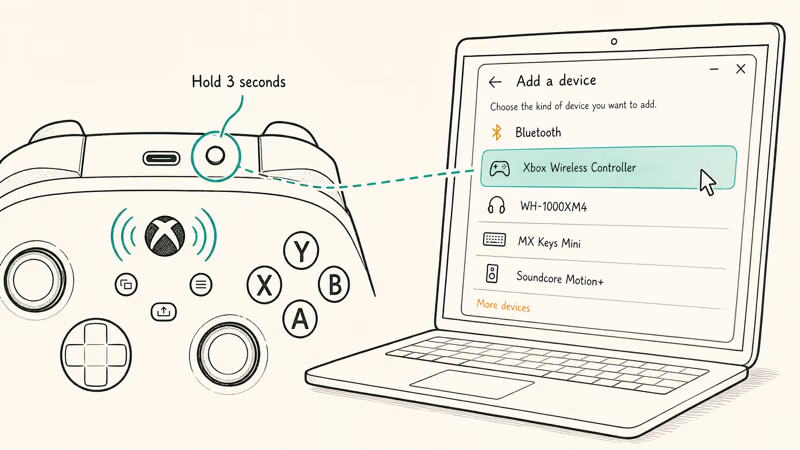
To pair a Bluetooth-capable controller, hold the Xbox button to power on, then press and hold the small pair button on the top edge of the controller (next to the USB-C port) for about three seconds. The Xbox button starts flashing quickly.
On the PC, open Settings > Bluetooth & devices > Add device > Bluetooth, and select Xbox Wireless Controller when it appears in the list.
Microsoft’s Bluetooth pairing instructions walk through the Add a Device flow with screenshots.
If the controller never shows up in the list, your laptop’s Bluetooth radio is probably the bottleneck.
Older Bluetooth 4.0 radios are technically compatible but unreliable with Xbox controllers, and a USB Bluetooth 5.x adapter solves the issue cleanly. We’ve got a deeper look at how to pick a better Bluetooth adapter if yours is flaky.
One more Bluetooth gotcha: the Xbox controller can only hold one paired host at a time.
If you previously paired the controller to an Xbox console, a phone, or another PC, that pairing has to be replaced before a new one will stick. Holding the pair button for three seconds starts a fresh pairing session and clears the previous host once the new one connects successfully.
#Fix 3: Xbox Wireless Adapter Setup
The Xbox Wireless Adapter for Windows is a small USB dongle that connects up to 8 Xbox controllers using Microsoft’s proprietary wireless protocol, the same one Xbox consoles use. This is the only wireless option for older Xbox One controllers without Bluetooth, and it’s the most reliable wireless option for newer controllers that suffer from Bluetooth interference on a noisy laptop.
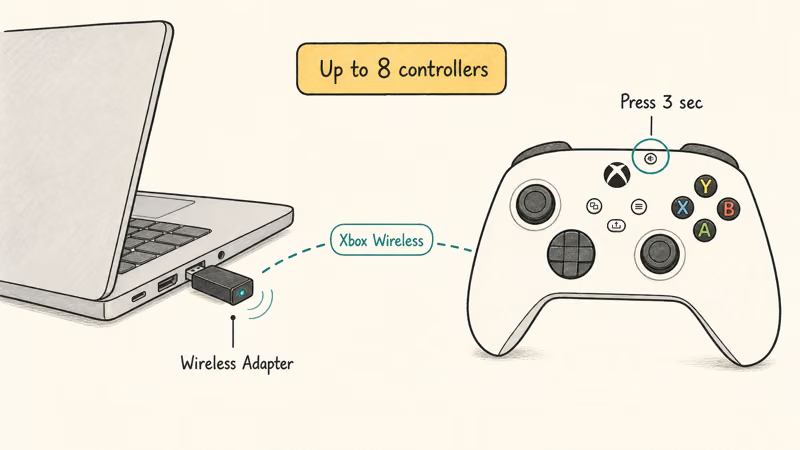
Setup is quick.
Plug the adapter into a USB port and Windows recognizes it automatically, installing the driver in the background. Press the small button on the side of the adapter once; the light starts blinking. Within 20 seconds, press and hold the pair button on the controller for three seconds, and both lights go solid when pairing completes.
The process is quick if Windows already has the driver.
The first setup can take longer while Windows installs the driver. The adapter occupies a USB port permanently, which is the only real drawback worth mentioning. It works on Windows 10 and Windows 11.
Recent firmware updates have improved compatibility with the Xbox Series S|X controller specifically.
If the adapter blinks but never finds the controller, double-check the controller has fresh AA batteries or a charged rechargeable pack. A flat pack often has just enough juice to light the Xbox button but not enough to complete the pairing handshake.
#Reinstall the Controller Driver in Device Manager
When wired or wireless pairing succeeds but the controller doesn’t work in games, the driver’s stale. Right-click the Start button and open Device Manager. Expand “Xbox Peripherals” or “Human Interface Devices” depending on the mode.
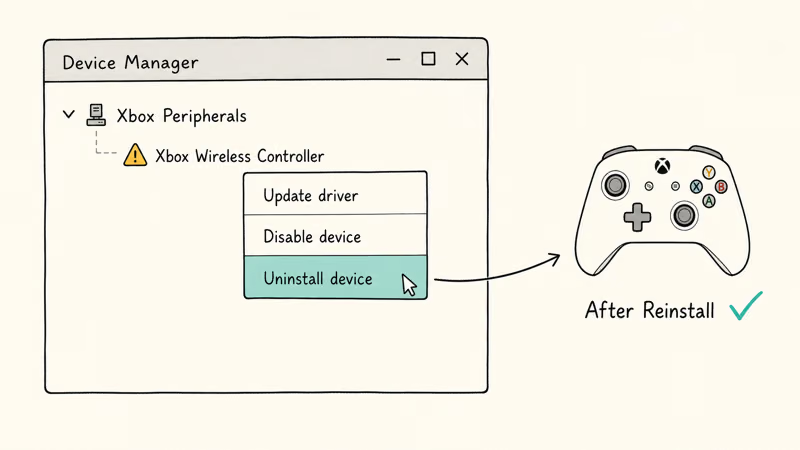
Then uninstall the entry.
Find the Xbox Wireless Controller entry, right-click, and choose Uninstall device. Confirm the prompt, then unplug or unpair the controller. Wait a few seconds, then plug it back in or re-pair it through whichever pairing mode you started with. Windows fetches a fresh driver from Windows Update and the controller registers cleanly with whatever game you launch next.
If the entry has a yellow warning triangle, the driver installation failed previously. Right-click, choose Update driver, then Search automatically for drivers. Let the search complete and accept whatever Windows installs. A reboot after the install clears any leftover state.
#Why Does My Xbox Controller Keep Disconnecting?
Two causes account for many “connects then drops every few minutes” complaints. The first is battery: weak AA cells or a low rechargeable pack can cause wireless drops that look like connection bugs rather than battery warnings. The fix is fresh batteries or a charged pack.
The second is 2.4 GHz interference.
That’s the same band Wi-Fi, microwaves, and a lot of USB 3.x ports use. Plugging the Xbox Wireless Adapter or a USB Bluetooth dongle into a USB 3.0 or 3.1 port often causes interference because those ports leak radio noise.
Intel’s USB 3.0 interference whitepaper confirms that USB 3.x ports radiate noise in the 2.4 GHz band, which is exactly where Xbox wireless and Bluetooth both live. Move the dongle to a USB 2.0 port or use a USB extension cable to get it away from the laptop body.
Moving the adapter away from USB 3.x ports can reduce wireless dropouts when radio interference is the cause.
If neither battery nor interference is the culprit, the disconnect pattern is firmware.
#Update Controller Firmware With the Xbox Accessories App
According to the Xbox Accessories app listing on the Microsoft Store, the free app is the official tool for updating Xbox controller firmware on Windows. You don’t need an Xbox console.
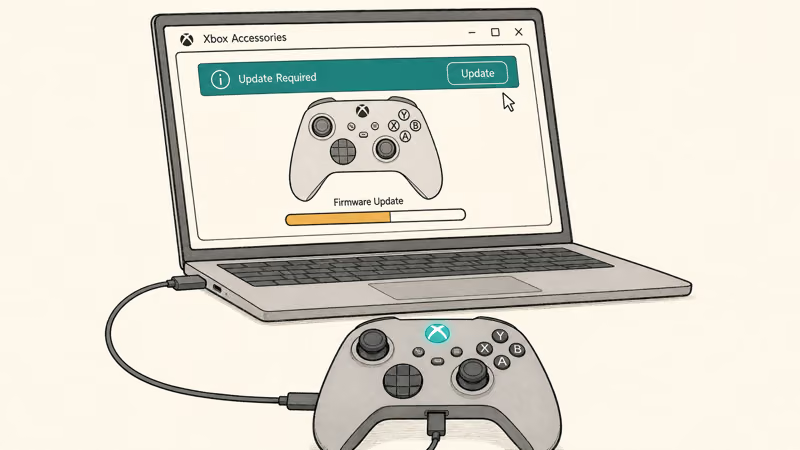
The update flow itself is straightforward.
Install the app, plug the controller in over USB-C, and the app shows “Update Required” if newer firmware is available. The controller reboots when the update finishes.
According to Xbox Support’s firmware update guide, firmware updates address Bluetooth stability, latency, and compatibility with new Windows builds. Xbox Support recommends checking for updates whenever you change platforms or upgrade Windows. If you haven’t updated firmware in a year or more, an update’s almost always available and often fixes intermittent disconnects without any further action on your end.
The same wired update flow works whether you normally use the controller over Bluetooth, the Wireless Adapter, or USB-C, so even wireless users have to plug in once to update. If you also game on PlayStation hardware, our notes on PS4 controller charging steps cover the equivalent path for Sony pads. If the pad pairs fine but the stick walks on its own, try the free steps in our Xbox stick drift free fixes before replacing hardware.
#Bottom Line
Plug the controller into the PC with a known-good USB-C data cable first.
That single test separates cable and driver failures from wireless-only problems. If wired works but wireless doesn’t, the controller’s fine and the fix is driver-side or interference-side. If wired also fails, reinstall the driver in Device Manager before assuming the controller’s dead.
Buy the Xbox Wireless Adapter only after you’ve confirmed Bluetooth pairing fails on a controller manufactured before Xbox One S, since older controllers have no Bluetooth radio and the dongle is the only wireless option for them. For shoppers comparing pad options across consoles and PC, our roundup of the best GameCube controllers for PC covers the wired-only alternative for retro-gaming setups.
#Frequently Asked Questions
Why does my Xbox controller blink but not connect?
It’s stuck in pairing mode because the PC never accepted the handshake. Usually Windows isn’t in Add a Device mode, or the controller’s still trying to reach a previously paired host.
Hold the controller’s pair button for three seconds to force a new pairing session, then make sure your PC is actively scanning under Settings > Bluetooth & devices > Add device. If it still blinks after that, the laptop’s Bluetooth radio is the bottleneck, not the controller. Move on to a USB Bluetooth 5.x adapter or use a USB-C cable for that session and update firmware before trying wireless again.
Do all Xbox controllers support Bluetooth on PC?
No, only the ones released with Xbox One S in 2016 and every model after that.
How do I update my Xbox controller firmware without an Xbox console?
Install the Xbox Accessories app from the Microsoft Store, plug the controller into your PC over USB-C, and open the app. If new firmware is available, the app shows an Update prompt and walks you through the update.
Can I use my Xbox controller wired and wireless at the same time?
Yes, in the sense that wired always overrides wireless. Plug a USB-C cable into a wireless-connected controller, the controller switches to wired mode automatically, and the wireless connection sleeps. Unplug the cable and it reverts to wireless. You can’t, however, use one controller as both a wired Xinput device and a Bluetooth device on two different PCs simultaneously, since the controller only holds one active pairing host at a time and the wired session counts as that host.
Why does my Xbox controller keep disconnecting after a few minutes?
Battery and radio interference are the top two causes.
Does the Xbox Wireless Adapter work on Windows 11?
Yes. Plug it in, wait for Windows Update to fetch the driver, then press the pair button.
Will a PS4 or PS5 controller work if my Xbox controller won’t connect?
PlayStation controllers work on Windows but need different drivers. Most games default to Xinput, which only recognizes Xbox-style controllers natively, so PS4 and PS5 controllers need Steam Input (which remaps them to Xinput) or DS4Windows. If you’re troubleshooting a Sony pad too, our notes on PS5 controller stick drift cover that side separately.
Could a console-side issue look like a controller disconnect?
Yes. Check whether the Xbox console powers off under your controller. Console-side power loss looks identical to a controller disconnect because both end the input session at the same moment. For Meta Quest pads on PC, our Meta Quest controller troubleshooting guide covers that ecosystem.

Bluetooth Not Working on Snapdragon X? Fixes for 2026
Bluetooth not working on your Snapdragon X Copilot+ PC? Generic audio, mice, and keyboards work, but vendor apps often lack an ARM build. Fixes inside.

Docker Desktop and WSL2 Not Working on Snapdragon X? Fix It
WSL2 runs fine on Snapdragon X, but Docker Desktop ARM is Early Access and throws WSL errors. Use WSL2 plus native ARM64 Ubuntu and Docker Engine.
Does iTunes Work on Snapdragon X? ARM Windows 11 Guide
Yes, iTunes runs on Snapdragon X laptops through Prism emulation, but the Apple Devices app is the smoother route. Here is what to install on ARM.

Does OBS Studio Work on Snapdragon X? ARM64 Build Guide
Yes, OBS Studio has an experimental ARM64 build since version 31.1, but x64 plugins won't load and hardware encoding is missing. Here is what works.