What Is Microsoft Wi-Fi Direct Virtual Adapter in Windows
Microsoft Wi-Fi Direct Virtual Adapter is a Windows driver that powers hotspots and Wi-Fi Direct. Learn how to disable, reset, and remove it in 5 minutes.
Quick AnswerThe Microsoft Wi-Fi Direct Virtual Adapter is a built-in Windows driver that turns your Wi-Fi card into a software access point so the PC can host a Mobile Hotspot or join a Wi-Fi Direct session. You can disable it in Device Manager, but Windows creates a new numbered instance the next time you turn on a hotspot.
You open Device Manager and see an entry called the Microsoft Wi-Fi Direct Virtual Adapter that you never installed. It sometimes shows up twice with #2 or #3 appended. This guide explains what the driver does and when it’s safe to disable.
- Built-in Windows driver that lets your laptop act as a Wi-Fi hotspot or Wi-Fi Direct peer without a second radio.
- Multiple numbered instances (#2, #3) in Device Manager are normal Windows housekeeping, not malware or a hardware fault.
- Disable it in Device Manager in about 2 minutes, but the entry comes back the moment you turn on Mobile Hotspot.
- Two entries on Intel laptops trace to Intel My Wi-Fi Technology; uncheck that PROSet component to drop one.
- Reset stale post-update hotspot settings with a single
reg deleteagainstHostedNetworkSettings, then reboot.
#What Does the Microsoft Wi-Fi Direct Virtual Adapter Actually Do?
The driver virtualizes your single physical Wi-Fi card into two logical radios. One stays bonded to your home router so the PC keeps its internet connection. The other runs as an access point or peer, letting Windows host a network for phones, printers, or another laptop without a second wireless card.
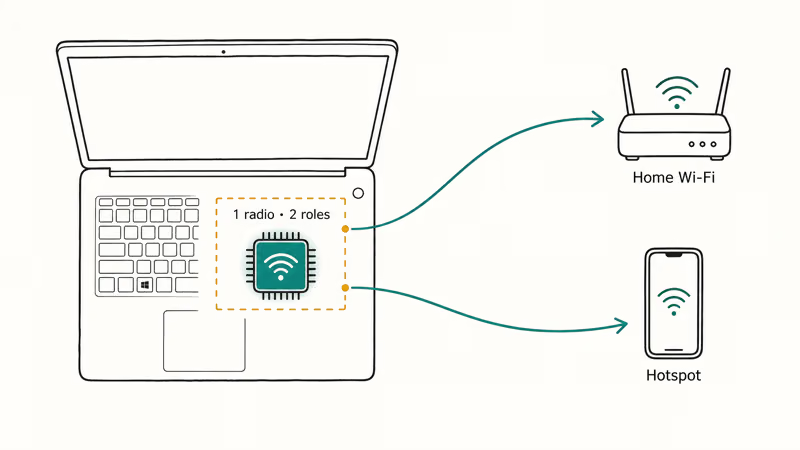
Mobile Hotspot wakes this virtual adapter. Wi-Fi Direct uses it for peer-to-peer roles such as wireless printing and Miracast.
Microsoft’s Wireless Hosted Network documentation confirms that Windows virtualizes a single physical wireless adapter into more than one virtual adapter, so the same radio runs the client connection and the software access point at once. The upstream link and the hosted network run on the same radio, which is why no separate USB dongle is needed. The same driver is reused across hotspot, Wi-Fi Direct, and Miracast because all three need the PC to act as a group owner.
Windows 7 shipped this driver under a different name: the Microsoft Virtual Wi-Fi Miniport Adapter. Windows 8.1 renamed it to reflect the broader Wi-Fi Direct stack. Same driver, same job, longer label.
#Why Does Device Manager Show Multiple Numbered Instances?
Two or three entries with #2 or #3 attached are normal. Not malware, not a hardware fault.
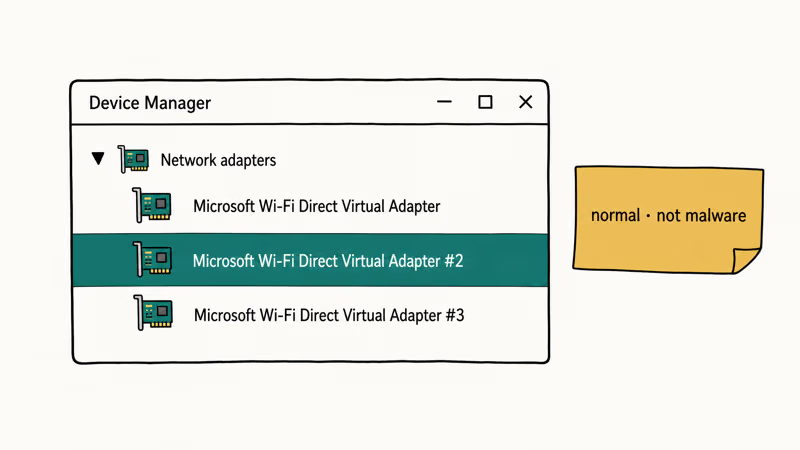
Windows allocates each new hotspot session a fresh slot. Disabling #1 does not delete it; the next time you flip Mobile Hotspot on, Windows promotes the next slot and you end up with #2. The numbered tail preserves the previous hotspot’s SSID and key so a quick re-enable restores them, instead of forcing you to retype credentials every reboot.
Intel laptops with PROSet/Wireless drivers add a second entry for a different reason. Intel My Wi-Fi Technology installs its own virtual adapter alongside the Windows-native one, so Device Manager shows two entries the day you unbox the machine. Both entries can coexist because they sit on top of the same physical Wi-Fi radio instead of replacing the main network adapter.
If you keep getting kicked off the network entirely, authentication errors connecting to Wi-Fi are a router or WPA issue, not a side effect of the virtual adapter.
#How to Disable the Microsoft Wi-Fi Direct Virtual Adapter
Disabling the adapter stops Windows from spinning up a hosted network until you turn the feature back on.
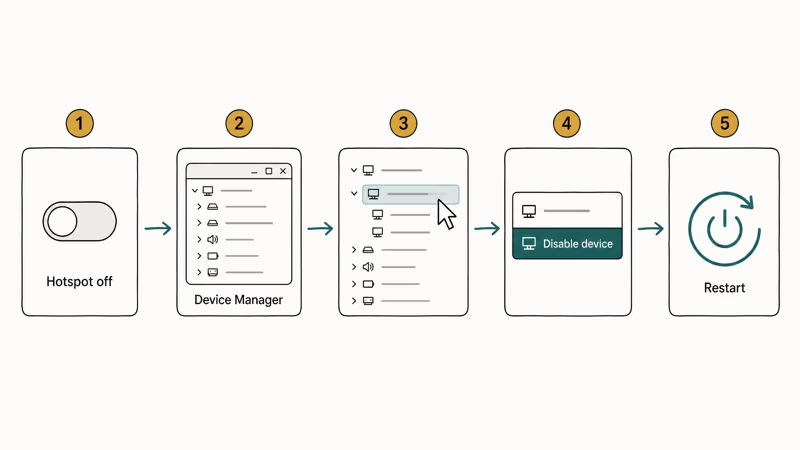
Step 1: Stop any active hotspot. Go to Settings > Network & Internet > Mobile Hotspot and switch it off. If a hotspot is live when you disable the driver, Windows can re-enable the adapter mid-disable or throw a “the requested operation requires elevation” error.
Step 2: Open Device Manager. Press Windows + X, then pick Device Manager from the power-user menu.
Step 3: Find the adapter. Expand Network Adapters and look for Microsoft Wi-Fi Direct Virtual Adapter, or the same name with #2 or #3 appended.
Step 4: Disable the driver. Right-click the entry, choose Disable Device, and confirm.
Step 5: Restart your PC. The change does not finalize until you reboot.
The adapter reappears the next time you toggle Mobile Hotspot on. That’s by design: Windows regenerates it from the WLAN AutoConfig service on demand, so Device Manager can’t remove it permanently.
#How to Reset the Adapter’s Stored Hotspot Settings
If your hotspot keeps broadcasting an old SSID or password after a Windows feature update, the registry kept the previous configuration. According to Microsoft’s netsh wlan command reference, the hosted network stores a persistent SSID and security key, which is why a feature update can leave behind a stale config.
Open Command Prompt as Administrator and run:
reg delete hklm\system\currentcontrolset\services\wlansvc\parameters\hostednetworksettings /v hostednetworksettingsRestart your PC. To confirm the reset, run netsh wlan show hostednetwork. The output should read Settings: Not configured under Hosted Network Settings.
If the old SSID still shows up, the delete command ran without full admin rights. Right-click the Command Prompt shortcut, choose Run as Administrator explicitly, and rerun the command. A standard user shell elevated through UAC after launch sometimes does not pass the privilege through to reg delete.
Different problem, different fix: a Windows IP address conflict is a DHCP lease issue on the physical adapter and unrelated to the virtual one.
#How to Remove the Intel Duplicate Adapter
Two Microsoft Wi-Fi Direct Virtual Adapter entries on an Intel laptop almost always trace back to Intel My Wi-Fi Technology. Removing that single component drops you back to one entry without uninstalling the whole driver package.
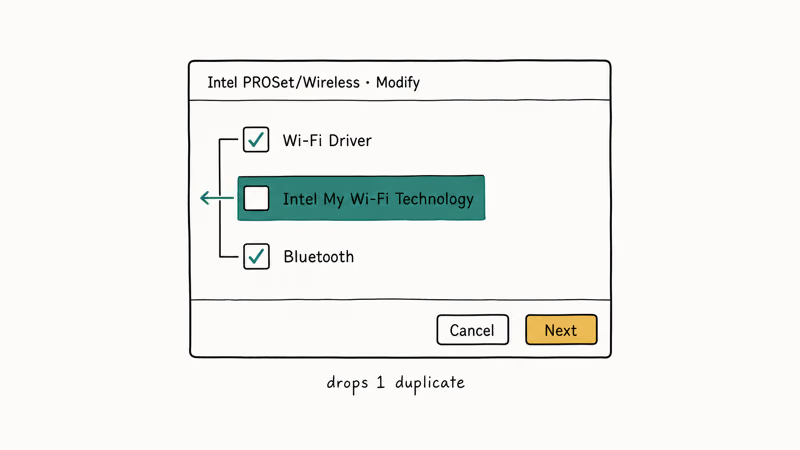
Go to Control Panel > Programs > Programs and Features. Find Intel PROSet/Wireless, click Change, and run the installer in modify mode. In the component tree, deselect Intel My Wi-Fi Technology. Leave the rest of PROSet alone.
Restart after the modify completes. Open Device Manager, expand Network Adapters, and you should see one Microsoft Wi-Fi Direct Virtual Adapter instead of two.
According to Intel’s legacy wireless products article, Intel My Wi-Fi Technology was originally added to provide Wi-Fi Direct group owner functionality before Windows had its own. Intel deprecated the feature in newer PROSet releases in favor of the Windows-native stack, so dropping the component does not break wireless printing, hotspot hosting, or Miracast on machines running PROSet 21 or newer.
#How to Set Up a Hotspot Using Command Prompt
Windows 7 holdouts and admins who want a scriptable hotspot can use the legacy hosted network commands instead of Settings.
Step 1: Share your internet connection. Go to Control Panel > Network and Sharing Center > Change adapter settings. Right-click your active connection, open Properties, then the Sharing tab. Tick “Allow other network users to connect through this computer’s Internet connection” and pick the virtual adapter from the drop-down, often labeled “Wireless Network Connection 2.”
Step 2: Open an elevated Command Prompt. Press Windows + S, type cmd, right-click Command Prompt in the results, and choose Run as Administrator.
Step 3: Configure the hosted network. Substitute your own SSID and password:
netsh wlan set hostednetwork mode=allow ssid=YourNetworkName key=YourPasswordStep 4: Start it. Run netsh wlan start hostednetwork. Check connected devices with netsh wlan show hostednetwork.
This produces a WPA2-PSK (AES) hotspot. Microsoft’s netsh wlan command reference states that 2 subcommands run the legacy flow end-to-end: set hostednetwork and start hostednetwork.
On Windows 11 the picture is uglier. The legacy netsh wlan start hostednetwork path is unreliable on modern Windows and may return “The hosted network couldn’t be started. The group or resource is not in the correct state.” Use Settings > Network & Internet > Mobile Hotspot instead, which is what Microsoft’s Windows hotspot setup article recommends for modern Windows.
If your hotspot keeps dropping every few minutes, that is a separate problem. Our guide on why your hotspot keeps turning off walks through the power management and driver causes.
#How the Same Driver Powers Wi-Fi Direct
Same driver, two different jobs.
Wi-Fi Direct is a peer-to-peer protocol the Wi-Fi Alliance certifies for direct device-to-device connections without a router; it powers wireless printing, file sharing, and Miracast. Mobile Hotspot is the access point mode that turns your PC into a router for other devices. Both use the Microsoft Wi-Fi Direct Virtual Adapter because both require the PC to act as a Wi-Fi group owner.
The same flow applies to phones. Our Samsung Wi-Fi Direct guide covers how Android handles direct file transfers to a Windows PC, with the laptop side showing a Wi-Fi Direct session against this exact driver. For Miracast, screen mirroring without Wi-Fi works precisely because Wi-Fi Direct sets up its own local network independent of your home router.
#Bottom Line
Leave the adapter alone unless duplicate entries bother you. On Intel laptops, uncheck Intel My Wi-Fi Technology in PROSet’s modify-mode installer. For stale post-update hotspots, run the reg delete against HostedNetworkSettings and reboot.
#Frequently Asked Questions
What is the Microsoft Wi-Fi Direct Virtual Adapter?
It’s a built-in Windows network driver that virtualizes a single physical Wi-Fi card into two logical radios using simultaneous multi-SSID (MuSSID) support, so the PC can stay on your home network and host a hotspot or Wi-Fi Direct session at the same time. Every Windows 10 and Windows 11 machine with a Wi-Fi 5 or newer card has this driver pre-installed.
Is the Microsoft Wi-Fi Direct Virtual Adapter safe?
Yes. It’s a Microsoft-signed system driver, part of the WLAN AutoConfig service, and not malware.
Can I permanently delete the Microsoft Wi-Fi Direct Virtual Adapter?
Not cleanly. You can disable it in Device Manager, but Windows regenerates a fresh numbered instance the moment you turn on Mobile Hotspot or accept an incoming Wi-Fi Direct session. The only way to stop the entry from coming back is to disable the WLAN AutoConfig service entirely, which also kills your normal Wi-Fi connection and is rarely worth the trade-off. Disabling in Device Manager is the right stopping point for most users.
Why do I see multiple numbered instances like #2 or #3?
Windows assigns each new hotspot session a new numbered slot instead of overwriting the previous one. To clean up old entries, open Device Manager, choose View > Show hidden devices, then right-click each grayed-out numbered entry and pick Uninstall device.
Why does my Intel laptop show two Wi-Fi Direct Virtual Adapters?
Intel PROSet/Wireless ships Intel My Wi-Fi Technology, which adds its own virtual adapter alongside the Windows one. Run PROSet’s installer in modify mode and uncheck that component.
Does the adapter slow down my internet connection?
No. The adapter sits idle when no hotspot or Wi-Fi Direct session is active. Even when active, it shares the same physical radio bandwidth as your normal Wi-Fi link, so internet speed depends on your router and ISP, not on how many virtual adapters Device Manager lists.
What is the difference between this and the Microsoft Virtual Wi-Fi Miniport Adapter?
Same technology, different name. Windows 7 used the older Microsoft Virtual Wi-Fi Miniport Adapter label; Windows 8.1 renamed the driver to Wi-Fi Direct Virtual Adapter to reflect the new Wi-Fi Direct stack. Our Microsoft Virtual Wi-Fi Miniport Adapter guide covers the Windows 7 version end-to-end if you are still on that release.
Why does my hotspot show outdated settings after a Windows feature update?
A Windows feature update can preserve the old HostedNetworkSettings registry value while replacing other system files. Run reg delete hklm\system\currentcontrolset\services\wlansvc\parameters\hostednetworksettings /v hostednetworksettings in an elevated Command Prompt, restart the PC, and reconfigure the hotspot from Settings > Network & Internet > Mobile Hotspot.

Pixel 11 vs Pixel 10: What Changed and Who Should Upgrade
Pixel 11 vs Pixel 10: same screen and camera resolution, new Tensor G6, 25W wireless, and Gemini Intelligence. Here is who should actually upgrade.

Verizon Not Receiving Texts? How to Fix It in 9 Steps
Verizon not receiving texts? Fix it in 9 steps: check Message Blocking in My Verizon, reset network settings, deregister iMessage, and call support.

Pixel Battery Drain: What Google's July Fix Really Covers
Google marked the Pixel idle battery drain bug fixed in July, but only some phones got the patch. Here is who is covered, who is not, and what to try.

iPhone Stuck on EDGE? How to Get 5G or LTE Back (2026)
iPhone stuck on EDGE with crawling data? Here's why the E icon appears, which settings force 5G or LTE back, and when the problem is your carrier.