Windows 11 Printer Not Working? 9 Offline Fixes (2026)
Printer offline on Windows 11? Uncheck Use Printer Offline, restart the spooler, clear stuck jobs, and fix the port. 9 proven fixes for wired and wireless.
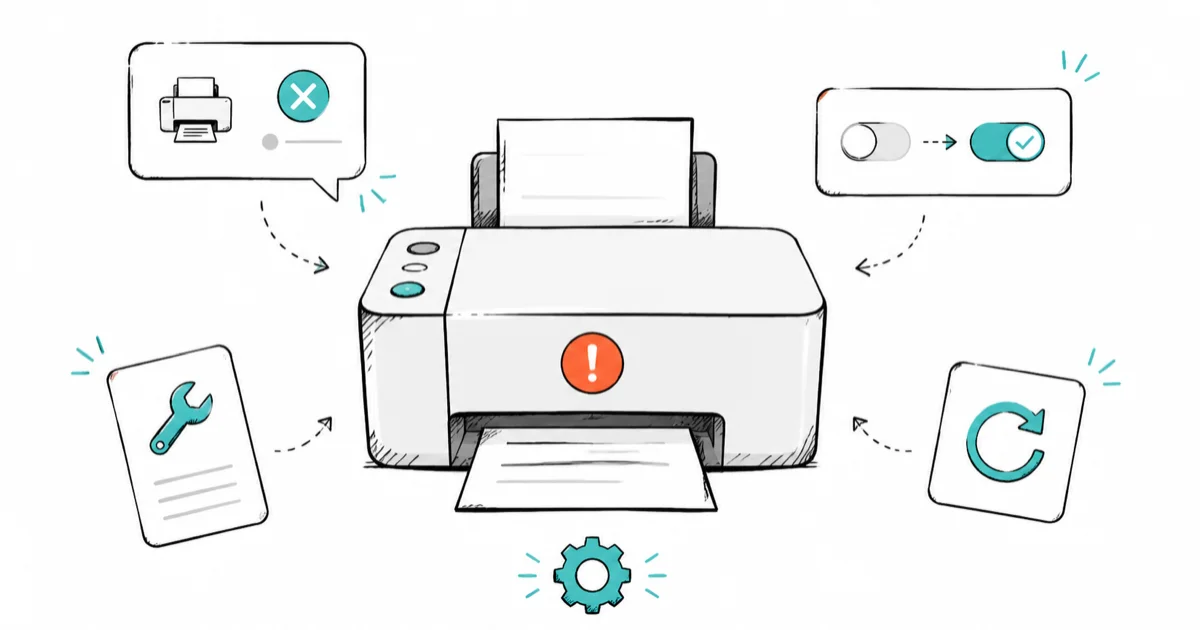
Quick AnswerWhen Windows 11 says a powered-on printer is offline, start by unchecking Use Printer Offline in the print queue and running the printer troubleshooter. If that fails, restart the Print Spooler and clear the stuck print queue.
A Windows 11 printer not working is maddening precisely because the printer looks fine. It’s powered on, the Wi-Fi light is solid, paper is loaded, and Windows still flashes “offline” or quietly swallows your print job. Most of the time the printer is healthy and Windows has simply lost the connection.
On Windows 11, the same handful of culprits cause the “offline” tag again and again, on both wireless and USB printers. The steps below go from the fastest software toggles to the network-level fixes that solve a printer that keeps dropping offline.
- A printer marked offline is usually working fine, and Windows has just lost communication with it
- The “Use Printer Offline” toggle gets switched on by accident and is the single fastest thing to check
- Restarting the Print Spooler and clearing the stuck print queue fixes more cases than most guides admit
- A wireless printer that drops randomly almost always needs a switch from the WSD port to a static TCP/IP port
- Reserving a static IP on your router stops a lease renewal from knocking a wireless printer offline
#Why Does Windows 11 Say Your Printer Is Offline?
“Offline” in Windows almost never means the printer is broken. It means Windows can’t reach it, or thinks it can’t.
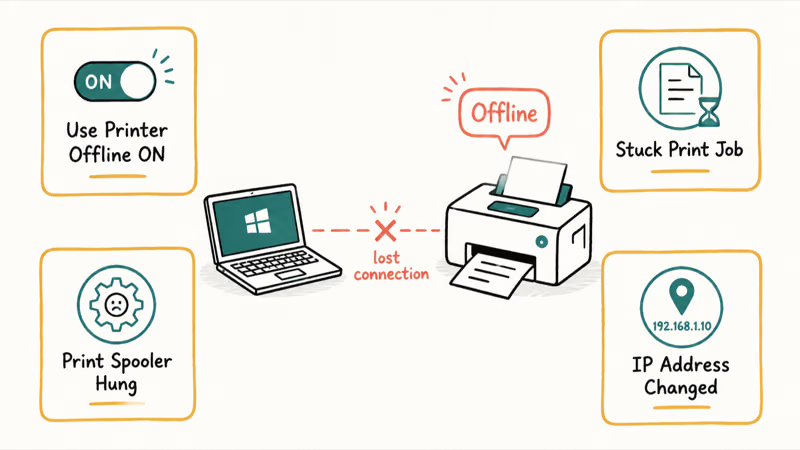
The usual triggers are the “Use Printer Offline” setting toggled on, a single stuck print job jamming the queue, the Print Spooler service hanging, or a wireless printer whose IP address changed after the router handed out a new lease. Windows 11’s habit of switching your default printer adds confusion, because your job can land on a printer that really is off.
The diagnosis order matters here. Software toggles and the spooler are the fastest wins, so start there before touching anything network-related. The deeper network fixes are only needed when a wireless printer drops offline repeatedly.
#Run the Troubleshooter and Uncheck Use Printer Offline
Start with the two cheapest fixes, because one of them clears most offline cases in seconds.
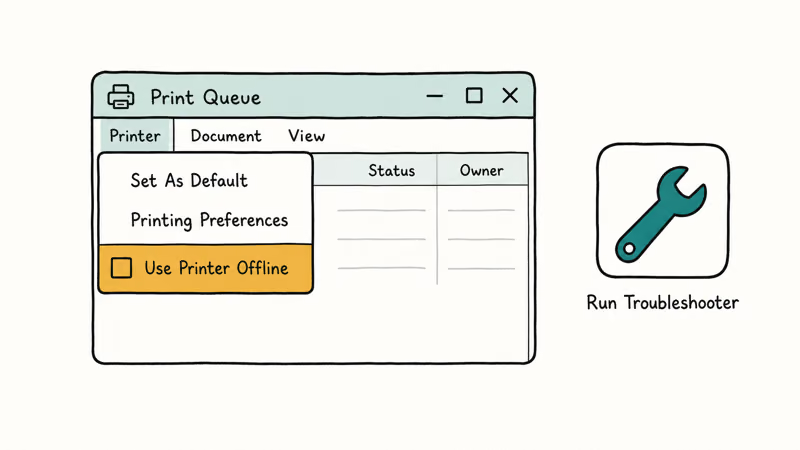
First, run the printer troubleshooter. Open the Get Help app or go to Settings > System > Troubleshoot > Other troubleshooters and run Printer. It resets the spooler and re-checks the connection automatically. According to Microsoft, clearing the offline state is the recommended first step, as covered on its offline-printer troubleshooting page. It often finds and clears the offline state on a wireless printer in well under a minute.
Next, check the offline toggle directly. Go to Settings > Bluetooth & devices > Printers & scanners, click your printer, open the print queue, then click the Printer menu and make sure “Use Printer Offline” is unchecked. This setting gets switched on by accident or by a brief connection hiccup, and it leaves the printer stuck offline until you clear it manually. This single toggle is the most common fix for a printer that looks offline but is really fine.
#Power-Cycle, Check Cables, and Stop Default Switching
If the toggle wasn’t the issue, rule out connection and default-printer problems next.
Power-cycle the printer properly: turn it off, unplug it for 30 seconds, then plug it back in and power it on. This clears the printer’s internal state and re-establishes the network handshake. For a USB printer, reseat the cable and plug it directly into the PC rather than a hub, since unpowered hubs cause intermittent drops.
Then stop Windows from reassigning your default. Go to Settings > Bluetooth & devices > Printers & scanners and turn off “Let Windows manage my default printer,” then set your real printer as the default manually. When this is on, Windows picks the last-used printer, so your job can silently route to a device that’s powered off. If your wider network is flaky, our guide to a Windows 11 Wi-Fi that keeps disconnecting covers the connection side.
#Restart the Print Spooler and Clear Stuck Print Jobs
This is the fix most guides bury, and it resolves a surprising share of offline printers.
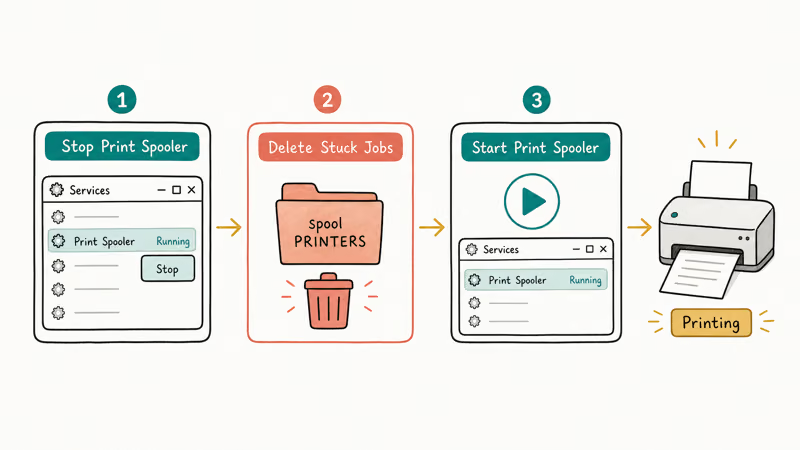
The Print Spooler is the Windows service that manages your print queue, and a single corrupt job can hang it, which forces the printer offline. To fix it, press Win + R, type services.msc, find Print Spooler, right-click it, and choose Stop. Leave the window open.
Now clear the jammed queue. Open File Explorer, paste C:\Windows\System32\spool\PRINTERS into the address bar, and delete the files inside that folder (delete the files only, not the folder). Go back to services.msc and start the Print Spooler again. Microsoft’s printer connection guide states that restarting the spooler and clearing the queue resolves stuck-job failures.
If the spooler keeps crashing, our Windows 11 troubleshooting guide covers deeper service repair. A sluggish PC can stall printing too, so our guide to 100% disk usage is worth ruling out.
#How Do You Fix a Wireless Printer That Keeps Going Offline?
A wireless printer that drops offline at random is the most frustrating case, and the cause is almost always the network port or the IP address.
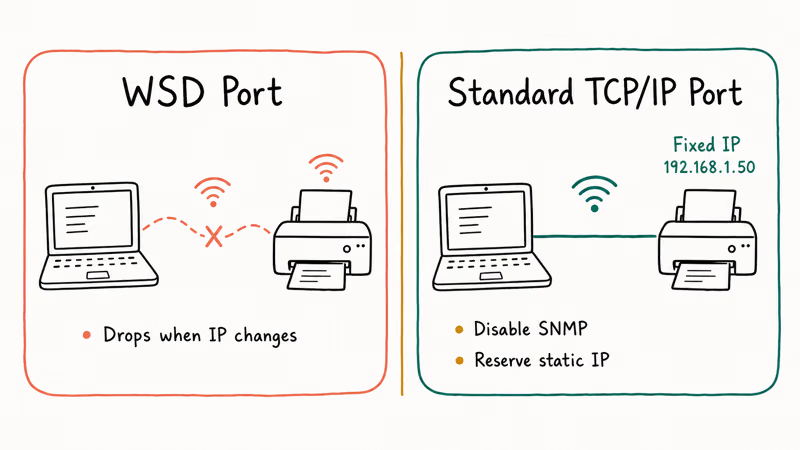
By default, Windows talks to wireless printers over a WSD port, which is flaky and loses the printer when its IP changes. The reliable fix is to switch to a Standard TCP/IP port pointed at the printer’s fixed IP. Find the printer’s IP from its control panel, then in Printers & scanners open Properties > Ports, add a Standard TCP/IP Port, and enter that IP.
While you’re in the port settings, uncheck “SNMP Status Enabled.” SNMP polling often makes Windows wrongly flag a working printer offline.
Finally, stop the IP from changing: reserve a static IP for the printer in your router so a lease renewal can’t move it. A full-tunnel VPN can also block your local network, so disconnect it when printing.
Our guide to a Windows 11 update stuck covers a related case where a network block stalls a Windows process. If Wi-Fi itself vanished, our Windows 11 Wi-Fi option missing guide restores the network stack the printer depends on.
#Update the Driver and Reinstall as a Last Resort
If nothing above works, the driver or the printer install itself is the problem.
Open Device Manager or your printer maker’s site (HP, Canon, Brother, Epson) and install the latest Windows 11 driver for your exact model. A generic or outdated driver can cause silent print failures even when the connection is fine. HP’s support site recommends installing the full HP driver package over the basic Windows driver for reliable wireless printing.
If the driver update doesn’t help, remove the printer in Printers & scanners and re-add it by IP address rather than letting Windows auto-discover it over WSD. Re-adding by IP is the most reliable way to keep a network printer online.
#Bottom Line
When Windows says a powered-on printer is offline, the printer is usually fine and Windows has lost communication. Start by unchecking Use Printer Offline and running the troubleshooter. If that fails, restart the Print Spooler and clear the stuck print queue, since a single jammed job forces a printer offline more often than people expect. For a wireless printer that drops repeatedly, switch from WSD to a TCP/IP port, disable SNMP, reserve a static IP, and re-add by IP.
#Frequently Asked Questions
Why does my printer say offline when it is turned on?
Almost always because Windows lost communication, not because the printer failed. The most common causes are the “Use Printer Offline” toggle being on, a stuck print job hanging the spooler, or a wireless printer whose IP changed. Uncheck the offline toggle first, then run the troubleshooter. If it’s wireless and keeps dropping, the port and IP are the real fix.
How do I clear a stuck print job on Windows 11?
Stop the Print Spooler service in services.msc, then delete the files inside C:\Windows\System32\spool\PRINTERS and restart the spooler. This clears jammed jobs that the normal “Cancel” button can’t remove.
Why does my wireless printer keep going offline randomly?
The two usual causes are the flaky WSD port and a changing IP address. Switch the printer to a Standard TCP/IP port aimed at its IP, disable SNMP status monitoring, and reserve a static IP on your router. That combination stops the random drops for most wireless printers.
Should I use a WSD or TCP/IP port?
For a printer that keeps going offline, use a Standard TCP/IP port. WSD loses the printer when the IP changes, which triggers the random “offline” state.
Can a VPN stop my printer from working?
Yes. A full-tunnel VPN routes all your traffic through the VPN server, which can cut off access to devices on your local network, including your printer. Use split tunneling to exclude local addresses, or simply disconnect the VPN while you print.
Why does Windows keep switching my default printer?
Because “Let Windows manage my default printer” is turned on, which makes Windows set the last-used printer as default. That can route your job to a printer that’s currently off. Turn the setting off in Printers & scanners and set your default printer manually so it stays put.

Best Laptop for Running LLMs in 2026: Memory Comes First
The best laptop for running LLMs is a memory purchase first. Compare MacBook unified memory against NVIDIA laptop VRAM, and see what each tier really runs.

How to Run a Local LLM on Windows: A 2026 Setup Guide
Run a local LLM on Windows with LM Studio or Ollama. Pick a model that fits your GPU memory, keep every prompt offline, and skip the monthly bill.

Bluetooth Not Working on Snapdragon X? Fixes for 2026
Bluetooth not working on your Snapdragon X Copilot+ PC? Generic audio, mice, and keyboards work, but vendor apps often lack an ARM build. Fixes inside.

Docker Desktop and WSL2 Not Working on Snapdragon X? Fix It
WSL2 runs fine on Snapdragon X, but Docker Desktop ARM is Early Access and throws WSL errors. Use WSL2 plus native ARM64 Ubuntu and Docker Engine.