Windows 11 Ethernet Not Working? 9 Fixes That Work
Fix Windows 11 Ethernet not working with an ordered checklist that proves the cable first, then resets the adapter, IP stack, and DNS before drivers.
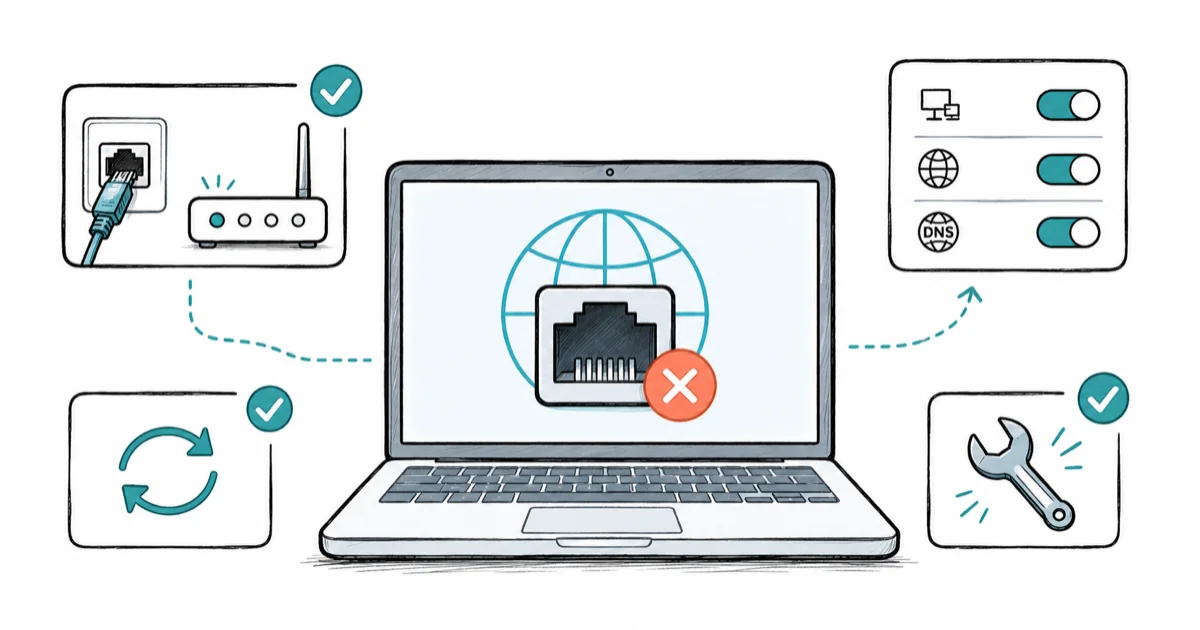
Quick AnswerProve the cable path first, because a dead cable or router port looks identical to a Windows fault. Once the link light is solid, reset the adapter and IP stack before you reinstall the network driver.
Windows 11 Ethernet not working usually has a physical cause, not a software one. A loose cable, a dead router port, or a disabled adapter looks exactly like a broken Windows network stack from the desk. The fix is to prove the cable path before you run a single netsh command.
- A dead cable or router port mimics a Windows fault, so prove the physical link before resetting anything
- The link lights on the port tell you in seconds whether the connection reached the PC at all
- “Connected, no internet” and “Unidentified network” are IP or DNS problems, not cable problems
- Run the network troubleshooter and
ipconfig /releaseand/renewbefore touching the driver - A USB-Ethernet adapter is the fastest way to tell a dead port from a dead driver
#Why Is Ethernet Not Working in Windows 11?
Ethernet is a chain: cable, router port, PC port, adapter, driver, and IP lease. Break any link and the result looks the same from Windows, which is why “reset everything” so often wastes an hour on a problem a new cable would have fixed. Sort the chain from the wall inward.
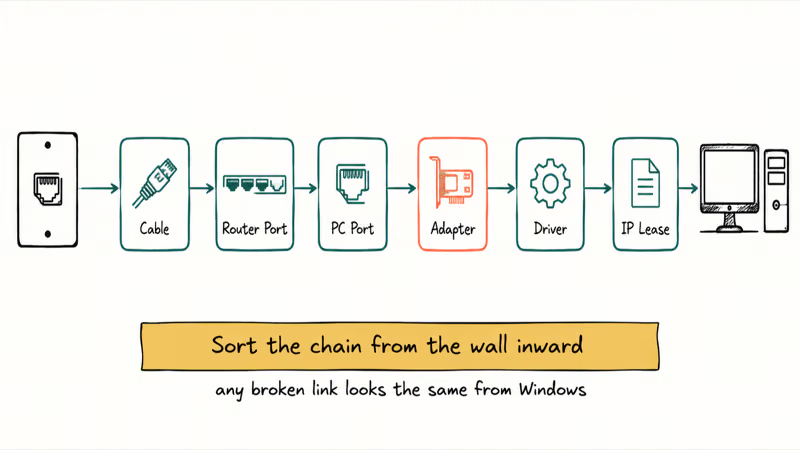
Your exact symptom narrows it fast. No connection at all points at the cable or port. “Connected, no internet” or “Unidentified network” points at the IP or DNS layer. No Ethernet adapter listed at all points at the driver or hardware.
| Symptom | Likely layer | First action |
|---|---|---|
| No link lights on the port | Cable, port, or NIC | Swap the cable, try another port |
| Link lights on, no connection | Disabled adapter | Enable it in Settings |
| Connected, no internet | IP or DNS | Renew IP, flush DNS |
| Unidentified network | Bad IP lease | Reset the network stack |
| No Ethernet adapter listed | Driver or hardware | Reinstall the driver |
Work top to bottom. Most readers stop at the cable or IP rows.
#Check Cable, Router Port, and Link Lights First
Look at the Ethernet port on both the PC and the router. A solid or blinking link light means a signal reached that point, and no light at all means the cable, the port, or the adapter is dead. This single glance is the most useful diagnostic you have, because it tells you instantly whether the rest of the chain is even worth checking, and no amount of resetting, renewing, or driver reinstalling will help until that light comes on.
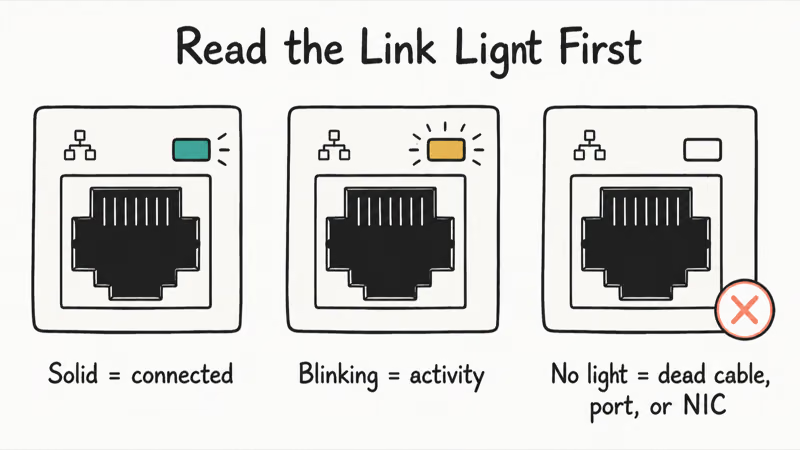
Swap the cable for a known-good one, then move it to a different port on the router. Cables fail at the connector more often than people expect.
According to Microsoft’s guide for fixing Ethernet connection problems in Windows, the first step is making sure the cable is securely plugged into the port on both your router and your PC. That sounds obvious. It’s also the single most common fix.
Try the same port with a phone or laptop. If that device works, the problem is your PC.
#Enable the Ethernet Adapter and Run Network Troubleshooter
A solid link light but no connection often means the adapter is disabled in Windows. Open Settings > Network & internet > Advanced network settings and confirm the Ethernet adapter shows Enabled. If it’s off, turn it on.
Now let Windows look. The built-in network troubleshooter catches stuck adapters, wrong settings, and DHCP hiccups without any command line, and the same automated tool appears in Microsoft’s guide to fixing Wi-Fi connection issues in Windows as an early step for both wired and wireless faults.
After a router swap or cable change, enabling the adapter and running the troubleshooter can restore the connection without a full reset.
If Wi-Fi works but Ethernet doesn’t, you’re looking at a wired-only fault, not a whole-network outage. The two paths are entirely separate, which windows 11 wifi option covers from the wireless side, and recurring wireless drops are a different problem handled in windows 11 wifi keeps disconnecting.
#What If Ethernet Says Unidentified Network?
“Unidentified network” or “Connected, no internet” means the link is good but Windows never got a valid IP address. This is the most common wired complaint, and it’s an IP problem, not a cable problem.
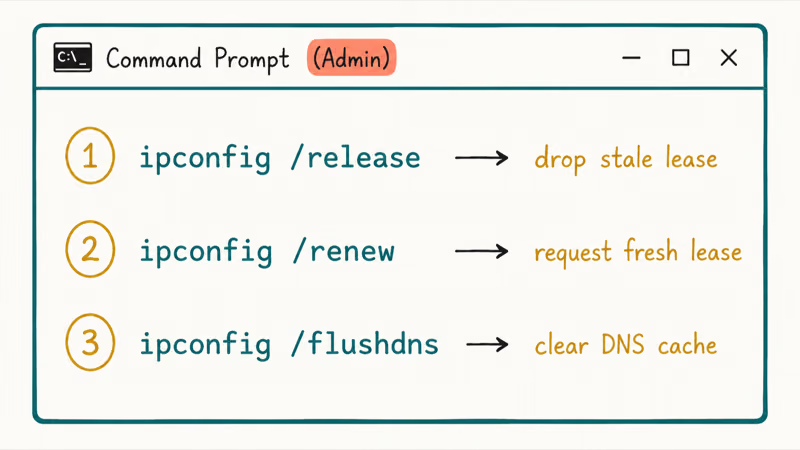
Open Command Prompt as administrator and run these in order:
ipconfig /releaseipconfig /renewipconfig /flushdns
That forces Windows to drop its stale lease, request a fresh one from the router, and clear cached DNS records. According to Microsoft’s support guidance, these 3 commands are the standard fix for connection problems, so you’re not improvising.
If a valid IP still won’t arrive, reboot the router and the PC together. A router that handed out a duplicate address or ran out of DHCP leases gets sorted by a clean restart far more often than by any Windows change.
#Renew IP, Reset Network Stack, and Check DNS
When release and renew don’t stick, reset the network stack itself. Run these as administrator, then restart:
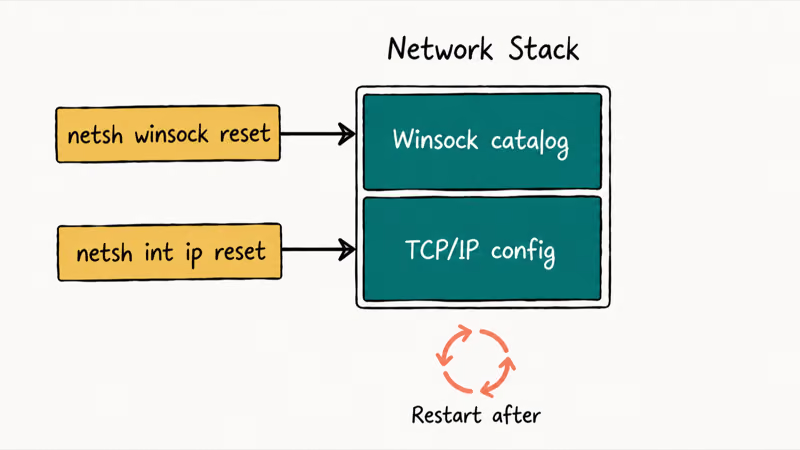
netsh winsock resetnetsh int ip reset
These rebuild the Winsock catalog and the TCP/IP configuration, which clears corruption that survives a normal reboot. Microsoft recommends 5 reset and renew commands for this layer (winsock reset, int ip reset, release, renew, and flushdns), and running them together is the standard sequence before a full network reset.
VPN and security software can also strangle a wired connection. A VPN client that crashed mid-session sometimes leaves a virtual adapter holding the route, so disconnect or fully quit it and test again. Third-party firewalls do the same thing, and a shared driver-update habit fixes related hardware too, like the path in windows 11 printer not.
Nothing yet? Settings > Network & internet > Advanced network settings > Network reset removes and reinstalls every adapter with default settings. Treat it as a last software step. It wipes saved Wi-Fi passwords and VPN profiles too.
#Update or Roll Back the Network Driver
No Ethernet adapter listed at all usually means a driver problem. Open Device Manager, expand Network adapters, and look for your Ethernet controller, which is usually an Intel or Realtek entry. The exact name varies by motherboard, so match it against your hardware spec sheet if more than one network device shows up in the list.
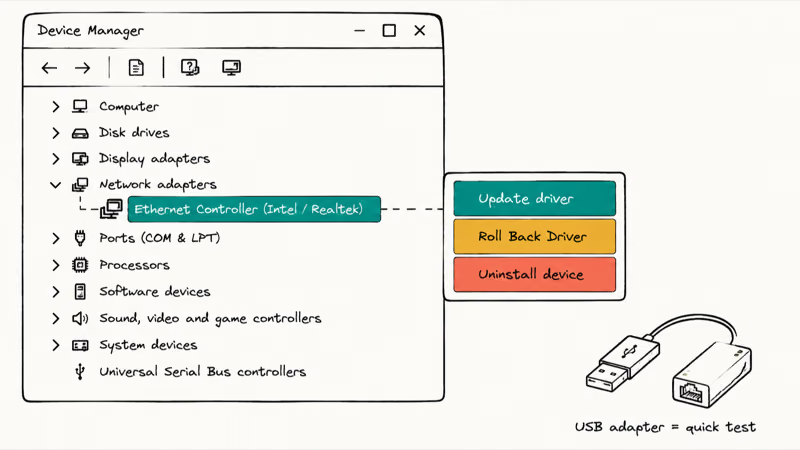
Try two moves. Right-click the adapter and choose Update driver first. If Ethernet broke right after an update, use Roll Back Driver on the Properties > Driver tab instead.
For a reinstall, right-click the adapter, choose Uninstall device, and restart. Microsoft’s Ethernet page states that Windows automatically reinstalls the driver on reboot. If the wired link is your only internet, Microsoft’s guide on how to update drivers manually in Windows covers getting the file first.
A USB-Ethernet adapter is the cleanest tiebreaker here. If a basic adapter connects, your built-in port or its driver is the fault, not the cable or router. A failed update can also leave the driver half-installed, which windows 11 update stuck covers, and a Mac on the same router that loses internet behaves the same way mac wifi connected but no internet describes.
#Bottom Line
Prove the cable path first. If there’s no link light, or another device fails on the same port, Windows isn’t the problem yet, so fix the cable or router before anything else. Once the link is solid, run the troubleshooter, then ipconfig /release and /renew, then the netsh resets, and only then reinstall the Ethernet driver. A USB dongle helps separate a dead port from a dead driver.
#Frequently Asked Questions
Why is Ethernet not working in Windows 11?
It’s usually physical. A loose or damaged cable, a dead router port, or a disabled adapter accounts for most cases. A solid link light with no internet shifts the cause to an IP or DNS problem instead.
What should I check first?
Check the link lights on the Ethernet port. A solid light means the signal reached your PC, so the problem is likely in Windows or the IP layer. No light means the cable, port, or adapter is the issue, and no software fix will help until that light comes on.
Can a Windows update cause this?
Yes, and it’s a common trigger. Updates sometimes replace the network driver with a version your adapter doesn’t like, which breaks Ethernet right after the update installs and leaves you with a connected-but-dead port. If that matches your timing, open the adapter in Device Manager, switch to the Driver tab, and use Roll Back Driver to return to the version that worked before the update touched it.
Will a network reset delete my data?
A network reset doesn’t touch your files. It does remove and reinstall every adapter and wipe saved Wi-Fi passwords and VPN profiles, so you’ll reconnect to Wi-Fi and re-enter VPN details afterward.
When should I contact official support?
Contact your ISP or PC maker when the link light never comes on with a known-good cable and a confirmed-working router port, or when a USB-Ethernet adapter also fails. At that point you’re likely looking at a dead network port or a router fault that needs hardware service rather than more software steps.
How do I prevent this from happening again?
Use a cable rated for your speed and avoid tight bends near the connector, keep your network driver current from the manufacturer rather than only Windows Update, and reboot the router occasionally to clear stale DHCP leases. A spare cable and a basic USB-Ethernet adapter in a drawer also make future diagnosis faster.

Best Laptop for Running LLMs in 2026: Memory Comes First
The best laptop for running LLMs is a memory purchase first. Compare MacBook unified memory against NVIDIA laptop VRAM, and see what each tier really runs.

How to Run a Local LLM on Windows: A 2026 Setup Guide
Run a local LLM on Windows with LM Studio or Ollama. Pick a model that fits your GPU memory, keep every prompt offline, and skip the monthly bill.

Bluetooth Not Working on Snapdragon X? Fixes for 2026
Bluetooth not working on your Snapdragon X Copilot+ PC? Generic audio, mice, and keyboards work, but vendor apps often lack an ARM build. Fixes inside.

Docker Desktop and WSL2 Not Working on Snapdragon X? Fix It
WSL2 runs fine on Snapdragon X, but Docker Desktop ARM is Early Access and throws WSL errors. Use WSL2 plus native ARM64 Ubuntu and Docker Engine.