Fix Tap to Download Not Working in iMessage (2026)
Fix iMessage attachments stuck on Tap to Download with current Apple-supported storage, network, Messages settings, update, and carrier checks.
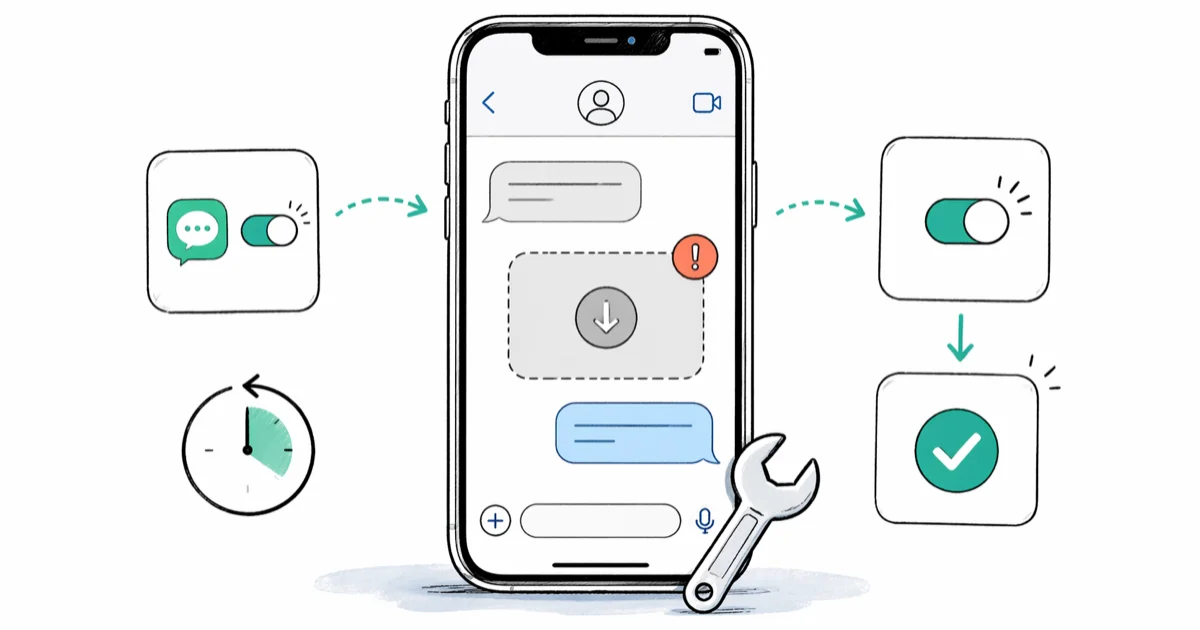
Quick AnswerCheck storage and test another Wi-Fi or cellular connection, then restart and retry. If the issue began after setting up a new iPhone, turn iMessage off and on under Settings > Apps > Messages and confirm Send & Receive.
When Tap to Download won’t retrieve a photo or video, don’t assume that one hidden cache or account token is responsible. Apple publishes no universal cause, speed threshold, storage cutoff, or guaranteed wait time for this symptom.
Use these steps only on your own iPhone, iPad, Apple Account, or a family device you have permission to manage. Accessing another person’s messages without consent can violate privacy laws and service terms. If the issue involves account access, use Apple’s official recovery path rather than sharing a verification code or password.
- Check available iPhone storage and try the attachment on another network
- Restart the iPhone before resetting settings or signing out of anything
- After setting up a new iPhone, turn iMessage off and back on and verify Send & Receive
- Reset Network Settings only after simpler connection checks because saved network details are removed
- Check Apple’s live System Status page and contact Apple or your carrier if the relevant service still fails
#1. Is the Message or Connection the Problem?
Open the conversation and tap the attachment again. If other websites and apps are also failing, test a different Wi-Fi network or cellular data before changing Messages settings.
According to Apple’s current Messages troubleshooting page, iMessage, RCS, and MMS need a Wi-Fi or cellular-data connection. It also notes that carriers can impose attachment-size limits on SMS or MMS media. That means a green-bubble attachment can be a carrier issue even when iMessage works normally.
If a VPN, firewall, content filter, or security app is installed, disable it temporarily and test again. Apple’s network-software guidance confirms that this software can block connections used by Apple services, including iMessage sign-in. Restore the setting after the test rather than leaving protection disabled. If the whole phone is offline, fix the iPhone Wi-Fi connection first.
#2. Check Available Storage
Messages needs room to receive photos and videos, but Apple doesn’t give one numeric amount that guarantees a download will work.
Go to Settings > General > iPhone Storage. Apple’s current storage guide recommends reviewing the device’s storage suggestions and the space used by each app there. If the page itself won’t load, fix the iPhone Storage display before relying on a guessed number.
Avoid treating a fixed number such as a few hundred megabytes or one gigabyte as an official cutoff. Attachment size, temporary space, and other device activity vary.
#3. Restart the iPhone
Restarting is one of the additional steps in Apple’s Messages troubleshooting sequence and is safer than signing out of the Apple Account.
On an iPhone with Face ID, hold the Side button and either Volume button until the power-off slider appears. Turn the phone off, then hold the Side button to start it again. Reopen the conversation after the phone reconnects.
If Messages still can’t retrieve the file, check the Apple System Status page for an active iMessage incident. The dashboard reports current service status; it doesn’t promise that every pending attachment will arrive within a particular time after an incident clears. If text delivery is also affected, compare the symptom with iMessage not saying Delivered.
#4. Did the Problem Start After Setting Up a New iPhone?
Apple documents an iMessage refresh for issues that begin after setting up a new device:
- Update the iPhone if an update is available.
- Go to
Settings>Cellularand confirm that the intended phone line is turned on. - Go to
Settings>Apps>Messages. On iOS 17 or earlier, go toSettings>Messages. - Turn iMessage off and then back on.
- Tap Send & Receive and select the phone number you want to use.
These steps come from Apple’s current send-and-receive troubleshooting article. Apple doesn’t require a timed delay or say that this action refreshes every pending attachment token. For wider activation or address problems, continue with the iMessage troubleshooting guide.
#5. Reset Network Settings Only as a Later Step
If Messages fails on multiple networks and the simpler checks have not helped, go to Settings > General > Transfer or Reset iPhone > Reset > Reset Network Settings.
Apple’s current reset-settings guide states that this removes network settings, previously used networks, and VPN settings that weren’t installed by a configuration profile or device management. It doesn’t erase your photos, apps, or messages. Have the Wi-Fi password available before proceeding.
#6. Update iOS and Escalate the Right Problem
Go to Settings > General > Software Update and install a compatible update if one is offered. Apple’s current Messages page includes updating iOS among its checks for problems after setting up a new device, but Apple doesn’t say that a particular iOS 18 point release fixed every Tap to Download case.
If blue-bubble iMessages still can’t send or receive media, contact Apple Support. If only green-bubble SMS, MMS, or RCS media fails, contact your carrier and ask whether that message type and attachment are supported. Asking the sender to resend an unavailable attachment is also safer than repeatedly changing account security settings. A linked phone that fails only in Windows needs the separate iMessage on Windows checks.
#Bottom Line
Check the connection and storage first, then restart the iPhone. Use the iMessage off/on and Send & Receive steps when the symptom began after new-device setup. Save Reset Network Settings for later, and don’t sign out of your Apple Account on the strength of an unsupported token claim.
#Frequently Asked Questions
How much free storage does an iMessage attachment need?
Apple says the device needs enough space to receive images and videos but doesn’t publish a universal numeric cutoff. Review Settings > General > iPhone Storage and act on the device’s own low-storage recommendations.
Does Tap to Download always mean iMessage is down?
No. A connection problem, low available storage, Messages settings after a device change, a carrier limit for MMS, or an Apple service incident can produce similar symptoms. Check whether the bubble is blue or green and whether other devices or conversations are affected.
Should I sign out of my Apple Account to fix it?
Not as an early step. Apple’s current iPhone Messages troubleshooting page doesn’t prescribe a full Apple Account sign-out for this symptom. Signing out affects multiple iCloud services, so use the documented network, storage, restart, and Messages checks first.
Does Reset Network Settings delete messages or photos?
No. It resets network configuration rather than personal content. It does remove saved network details, so be ready to reconnect to Wi-Fi and restore any manually configured VPN or APN settings that the reset removes.
What if only green-bubble photos will not download?
Green-bubble media can use MMS or RCS through the carrier. Apple advises checking the network and asking the carrier whether the message type is supported; the carrier may also set attachment-size limits.
Can I download every stuck attachment at once?
Apple’s current troubleshooting page doesn’t document a bulk retry control or promise that toggling iMessage rebuilds every download. Retry the files you need, and ask the sender to resend anything that remains unavailable.

Mac mini M6 vs M5 Pro: Which Model Should You Buy?
Mac mini M6 vs M5 Pro compared on price, memory, ports, displays, and real workloads. Find the better 2026 Mac mini for your desk and budget.

Apple Siri Settlement: Who Qualifies and How to Claim
Apple's $250 million Siri settlement covers iPhone 15 Pro and iPhone 16 models bought June 2024 to March 2025. See who qualifies and how claims work.

iOS 26.6.1 Security Update: What Apple Fixed and Who Gets It
Apple released iOS 26.6.1 on August 17 with 29 security fixes, including an IPSec interception bug. See what it patches, who gets it, and how to update.

iPhone Adaptive Power: How It Works and When to Use It
Learn how iPhone Adaptive Power works, which models support it, what it changes, and when Low Power Mode is still the better battery-saving choice.