Steam Deck Black Screen: 7 Proven Fixes to Try in 2026
Steam Deck shows a black screen? Use this fix ladder: force restart, exit Battery Storage Mode, swap chargers, or boot into BIOS for a quick recovery.
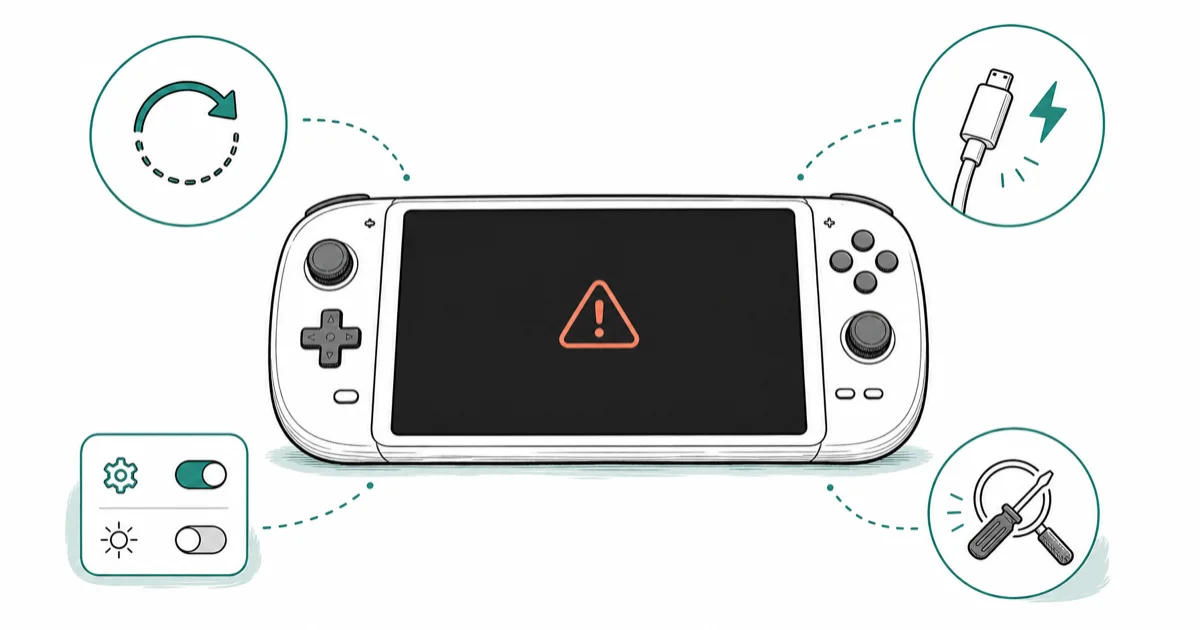
Quick AnswerHold the Steam Deck power button for 10 seconds to force a restart. If brand new, plug in the official charger and hold power 30 seconds to exit Battery Storage Mode.
A Steam Deck black screen rarely means the device is dead. The seven fixes below work on both LCD and OLED models. Do the fixes in order.
- Holding the power button for 10 to 15 seconds force-restarts the Steam Deck and clears most post-update or post-sleep black screens
- A brand-new Steam Deck ships in Battery Storage Mode and needs the official 45W charger plus a long power press to wake for the first time
- The official Steam Deck charger is 45W USB-C PD; flaky third-party chargers cause power-on failures that look like a dead screen
- Volume Up plus Power boots the Steam Deck into BIOS, which confirms the hardware works even when SteamOS won’t load
- Valve publishes a recovery image you can write to a USB drive and use to reinstall SteamOS before filing a warranty claim
#Why Is My Steam Deck Screen Black?
A black screen on the Steam Deck almost always traces back to one of four causes: a software hang that needs a hard restart, Battery Storage Mode on a brand-new unit, a charger or cable problem starving the device of power, or a corrupted SteamOS install. Hardware failure is the last suspect, not the first.
Sleep-state bugs are common after major SteamOS updates. The Deck wakes, the LED lights up, but the panel stays dark. This is the same symptom class as an iPhone black screen or a Samsung black screen. The system is running, the display just isn’t drawing.
According to Valve’s Steam Deck troubleshooting guide, the first step for any boot or display issue is a 10-second power-button hold. That single fix resolves most black-screen reports filed with Steam Support.
#Force Restart the Steam Deck
The 10-second force restart is the highest-success fix, and you should always try it first. It takes 15 seconds and clears software hangs that survived a normal sleep cycle.
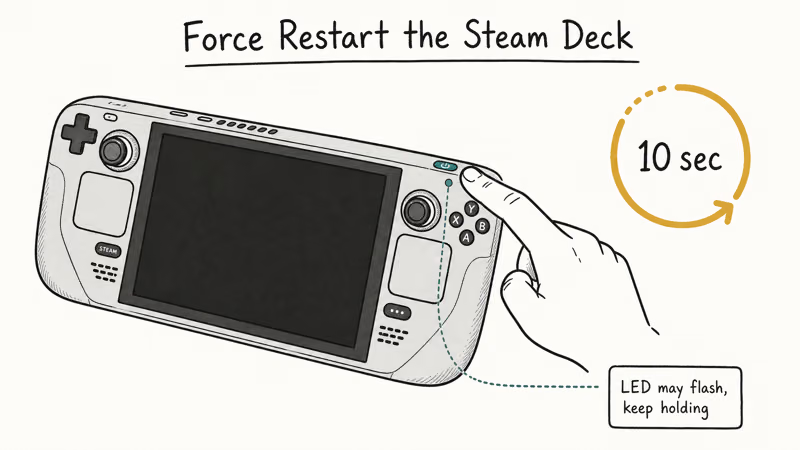
The procedure:
- Press and hold the power button on the top edge of the Steam Deck.
- Keep holding for 10 to 15 seconds, even after the screen flashes or the LED changes.
- Release the button. Wait five seconds.
- Press the power button briefly to boot normally.
A force restart resolves most post-update freezes and clears “screen black after sleep” cases, where the Deck hangs after sitting in sleep for hours.
If the Deck powers on but the screen stays black, it isn’t a hang. Move on.
#Wake the Deck From Battery Storage Mode
Every new Steam Deck ships in Battery Storage Mode, a safety feature that disconnects the battery from the mainboard during transit. The side effect: a brand-new Deck looks completely dead until you wake it right.
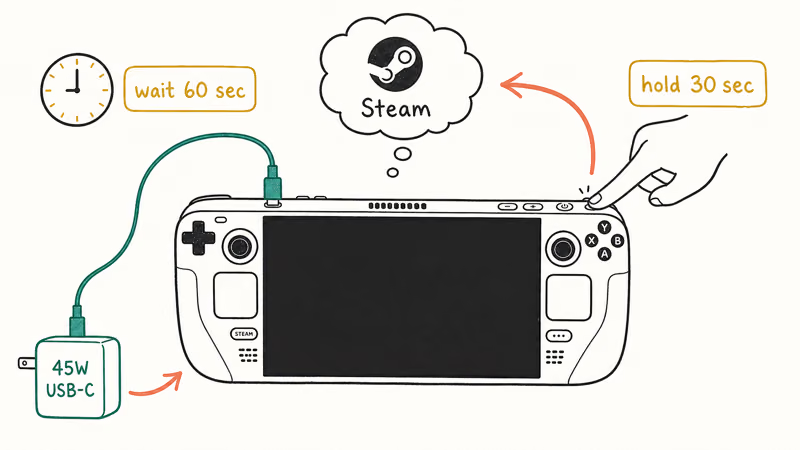
Most brand-new units need the Battery Storage Mode wake before they respond to the power button at all. Owners often assume the Deck is dead on arrival when this is the actual cause.
To exit Battery Storage Mode:
- Plug the official 45W USB-C charger into the Deck and into a known-good wall outlet.
- Wait 60 seconds. Don’t press anything yet.
- Hold the power button for 30 seconds, even if nothing happens at first.
- The Steam logo should appear within 10 seconds of release.
The official Steam Deck tech specs page confirms the device uses a 45W USB-C PD power supply. Lower-wattage chargers may not push enough current to wake the battery from storage state, so use the included charger.
#Check the Charger, Cable, and Dock
If force restart and the Battery Storage Mode wake both fail, the next suspect is power delivery. A black screen on the Steam Deck often turns out to be a charging problem in disguise.
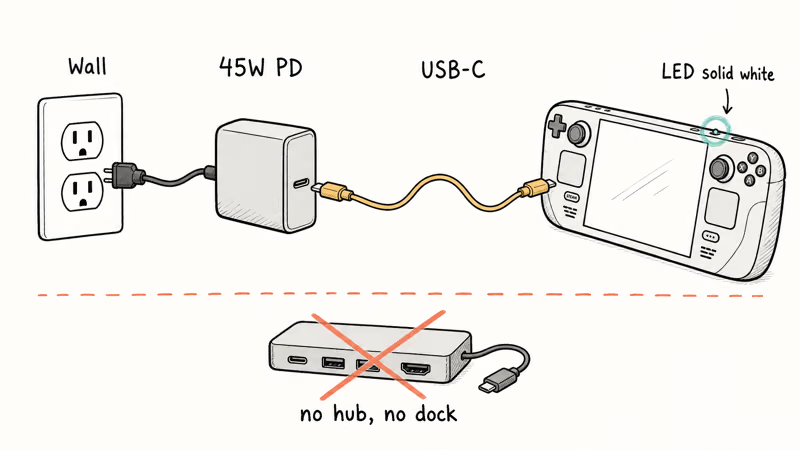
Run this triage:
- Use the official 45W USB-C charger that shipped with the Deck. Third-party chargers and weak PD adapters deliver power inconsistently.
- Swap the USB-C cable. A frayed or pinned cable may not signal the right PD profile.
- Plug directly into a wall outlet, not a hub, dock, or surge-protector pass-through.
- Look at the charge LED. A solid white LED means power is flowing; no LED means the charger or cable is the problem.
- Let the Deck charge for 30 minutes before trying to power on again. A battery sitting at 0% needs trickle charge before the boot circuit responds.
Valve’s official Steam Deck store page lists the included 45W charger as the supported accessory. Owners using underpowered USB-C chargers from laptops or phones often report black-screen behavior that vanishes the moment they swap back. When the Deck is healthy again and you need portable juice beyond the wall brick, compare 45W and 100W power banks built for Steam Deck play.
#Is It a Black Screen or a Dead Battery?
This distinction saves wasted troubleshooting. A truly black screen means the Deck is running but the panel is dark. A dead battery means nothing on the device responds.
How to tell the difference:
- Press and hold power for two seconds. If you hear the boot chime or feel the haptic motor pulse but the screen stays dark, the device is alive. That is a black screen.
- If nothing happens for 30 seconds of holding power with the charger plugged in, the battery is drained or the power circuit isn’t engaging.
- Check the LED next to the power button. Solid color means power is flowing. No LED with a charger connected points to a dead battery or dead charger.
The same diagnostic logic applies to a MacBook Pro black screen fix: separate “running but dark” from “off entirely” before trying advanced fixes.
If the Deck is alive but the screen stays black after a force restart and a full charge, the issue is software side: SteamOS booted but the display compositor crashed. The next two sections cover that path.
#Boot Into BIOS to Confirm the Hardware
Booting into BIOS proves the screen, GPU, and mainboard all work even when SteamOS refuses to load. If BIOS displays, hardware is fine and the problem is software state.
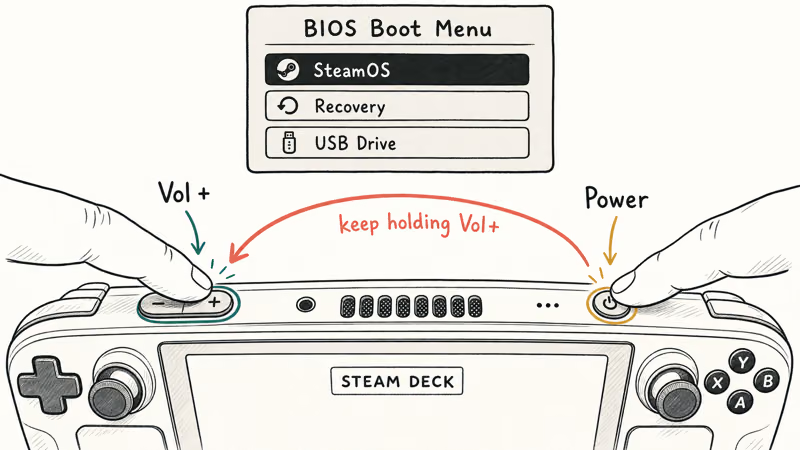
The keypress combination is documented in Valve’s official Steam Deck troubleshooting guide:
- Power the Deck fully off (use the 10-second force restart if needed).
- Press and hold Volume Up.
- While still holding Volume Up, press and release the power button.
- Keep holding Volume Up until the boot menu appears, then release.
If the BIOS menu appears, the screen and core hardware are working. The black screen was a SteamOS problem, not a panel or board failure. From here you can boot to SteamOS, choose recovery mode, or load an external image.
If you see nothing after 30 seconds of holding Volume Up, the issue is likely deeper than software.
#Reinstall SteamOS From Recovery
If BIOS displays correctly but SteamOS still produces a black screen, reinstalling the OS is the last DIY step before contacting Steam Support. Valve provides the official recovery image at no cost.
You’ll need:
- A USB drive with at least 8GB capacity, formatted as FAT32
- A second computer to download and write the recovery image
- The official 45W charger plugged into the Deck during the reinstall
Valve’s recovery image documentation confirms that the recovery process wipes the Deck’s 64GB or 256GB storage and reinstalls SteamOS clean. Back up cloud-synced saves through Steam first if the Deck has booted recently. Local-only saves can’t be recovered after the wipe.
The full flow involves writing the image with Rufus on Windows or Balena Etcher on Mac and Linux, then booting the Deck into the boot menu (Volume Down plus Power) and selecting the USB drive. The same boot menu trick is used for other Steam-side fixes like a stubborn Steam disk write error on the desktop client.
If reinstallation completes but the Deck still produces a black screen on first boot, the unit needs warranty service. iFixit’s Steam Deck guides cover teardown specifics, but contact Steam Support first.
#Bottom Line
For a Steam Deck black screen, the playbook is short: hold the power button for 10 to 15 seconds first. That single fix clears most post-sleep, post-update, and random-hang cases. If the Deck is brand-new and never booted out of the box, it’s almost certainly in Battery Storage Mode — plug in the official 45W charger, wait a minute, then hold power for 30 seconds.
Skip BIOS, recovery, and warranty until both of those have failed against a known-good charger and cable. If you need a gaming option while the Deck is in for service, you can play Steam games on Chromebook through cloud streaming.
#Frequently Asked Questions
Why is my Steam Deck stuck on a black screen?
The most common cause is a software hang that survived a sleep or wake cycle. Holding power for 10 to 15 seconds forces a full restart and clears the hang in most cases. If the Deck is brand-new, Battery Storage Mode is the likely culprit and needs the official charger plus a 30-second power press to wake.
How long do you hold the power button to restart a Steam Deck?
Hold for 10 to 15 seconds. Releasing too early aborts the restart.
What is Battery Storage Mode on the Steam Deck?
Battery Storage Mode is a shipping safety feature that disconnects the battery from the mainboard during transit. Valve recommends this mode to prevent the 7-cell lithium-polymer pack from degrading on units sitting in warehouses for 3 to 6 months. New Decks ship locked in this state and look completely dead until you plug in the official 45W charger and hold power for a full 30 seconds, which reconnects the battery circuit and triggers the first boot sequence on the device.
My brand-new Steam Deck won’t turn on. Is it dead on arrival?
Almost certainly not. Brand-new Decks ship in Battery Storage Mode and need a specific wake sequence: plug in the included 45W charger, leave it connected for 60 seconds, then hold power for 30 full seconds. The Steam logo should appear within 10 seconds of release.
How do I boot into the Steam Deck BIOS?
Hold Volume Up while pressing and releasing power, then keep holding Volume Up until the boot menu appears.
Why is my Steam Deck screen black after waking from sleep?
This is a known SteamOS sleep-state bug that surfaces after major OS updates. The system wakes and runs but the display compositor doesn’t redraw the panel. A 10-second force restart reliably clears it.
Should I reinstall SteamOS to fix a black screen?
Only after force restart, Battery Storage Mode wake, charger checks, and BIOS confirmation all fail. Reinstalling wipes local storage, so back up cloud-synced saves through Steam first. Valve provides a free recovery image, and the process takes about 30 minutes including USB-drive prep.
When should I contact Steam Support for a black screen?
Contact Steam Support when BIOS does not display after 30 seconds of holding Volume Up plus power, when the recovery image install completes but SteamOS still produces a black screen, or when the Deck shows no LED activity at all with a known-good 45W charger plugged in. These signs point to hardware failure that needs warranty service rather than DIY troubleshooting.

Pixel 11 vs Pixel 10: What Changed and Who Should Upgrade
Pixel 11 vs Pixel 10: same screen and camera resolution, new Tensor G6, 25W wireless, and Gemini Intelligence. Here is who should actually upgrade.

Verizon Not Receiving Texts? How to Fix It in 9 Steps
Verizon not receiving texts? Fix it in 9 steps: check Message Blocking in My Verizon, reset network settings, deregister iMessage, and call support.

Pixel Battery Drain: What Google's July Fix Really Covers
Google marked the Pixel idle battery drain bug fixed in July, but only some phones got the patch. Here is who is covered, who is not, and what to try.

iPhone Stuck on EDGE? How to Get 5G or LTE Back (2026)
iPhone stuck on EDGE with crawling data? Here's why the E icon appears, which settings force 5G or LTE back, and when the problem is your carrier.