Server IP Address Could Not Be Found: 5 Fast Fixes
Server IP address not found error? 5 fixes including DNS flush, Google Public DNS, browser reset, and VPN checks. Here's what actually works.
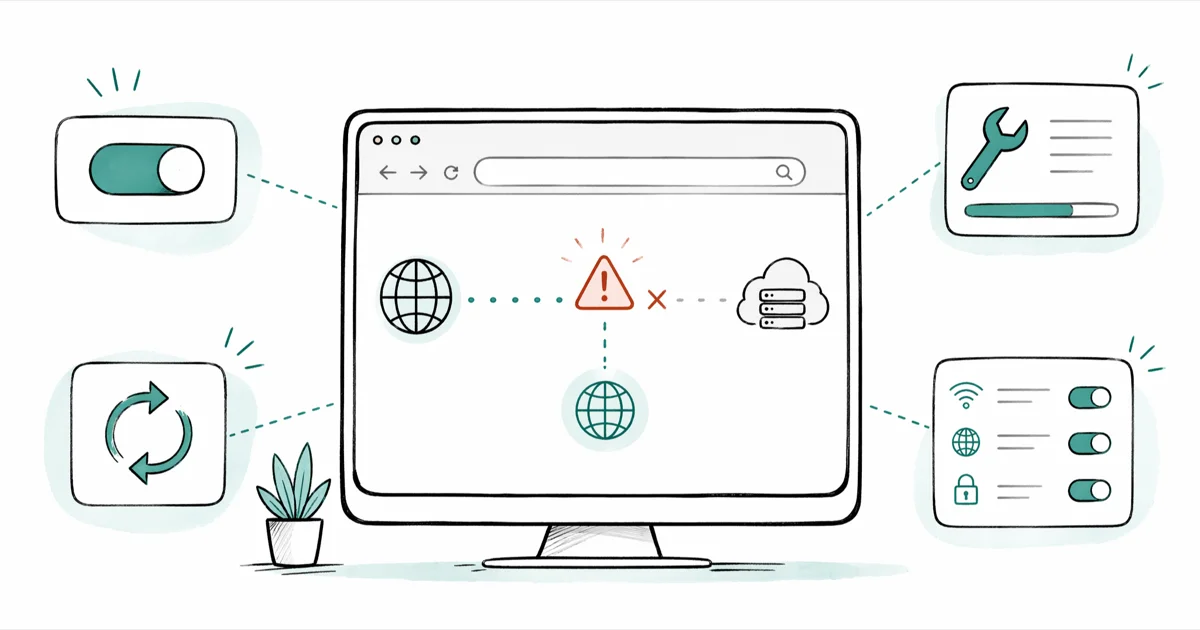
Quick AnswerYour browser can't translate the website's domain name into an IP address. Flush your DNS cache first, restart the browser, and if the page still fails, switch your network's DNS servers to 8.8.8.8 and 8.8.4.4.
The “Server IP address could not be found” error is your browser admitting it can’t turn a domain name like fone.tips into a numeric address. Five fixes cover this error across Windows, macOS, and iPhone, and the first two together clear it on most devices.
- Flush DNS first. ipconfig /flushdns on Windows and dscacheutil -flushcache on macOS clear corrupted records in seconds
- Switch DNS to 8.8.8.8 and 8.8.4.4 if your ISP servers are slow, throttled, or temporarily down
- Wipe Chrome cookies and cache for the affected site if only one domain refuses to load
- Pause VPNs, proxies, and real-time antivirus to rule out blocked DNS lookups before deeper steps
- Test the site from mobile data on a phone before calling your ISP to confirm the outage is on their network
#What Causes This Error?
A browser needs two pieces to load a page: the domain you typed and the IP address that domain currently points to. The Domain Name System (DNS) maps one to the other.
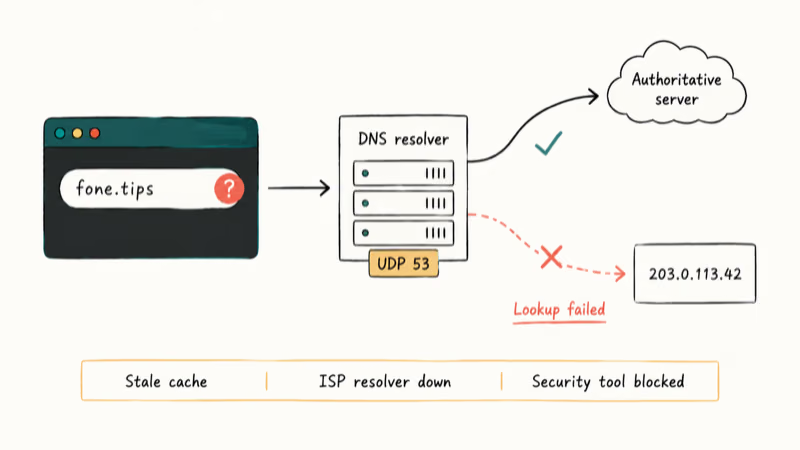
When that lookup fails, Chrome shows “Server IP address could not be found,” sometimes paired with codes like DNS_PROBE_FINISHED_NXDOMAIN or ERR_NAME_NOT_RESOLVED. The root cause is almost always one of three things: a corrupted local DNS cache, an unresponsive upstream resolver, or a security tool quietly intercepting the request.
According to RFC 1035 and the Google Public DNS documentation for the 8.8.8.8 service, recursive resolvers cache records for a set time-to-live and answer queries on UDP port 53. Stale or missing entries are the most common reason a name lookup returns no answer.
For Chrome-specific codes, we keep separate walkthroughs:
- DNS_PROBE_FINISHED_BAD_CONFIG fix when Chrome flags a router or adapter config issue
- DNS_PROBE_FINISHED_NO_INTERNET guide when the lookup fails because the network is offline
- Safari not working walkthrough for the iPhone-only version of the same DNS failure
#Method 1: Flush Your DNS Cache
This is the fastest fix and the right one to try first. Your operating system keeps its own DNS cache, and a single bad entry can block a site even when the network is fine.
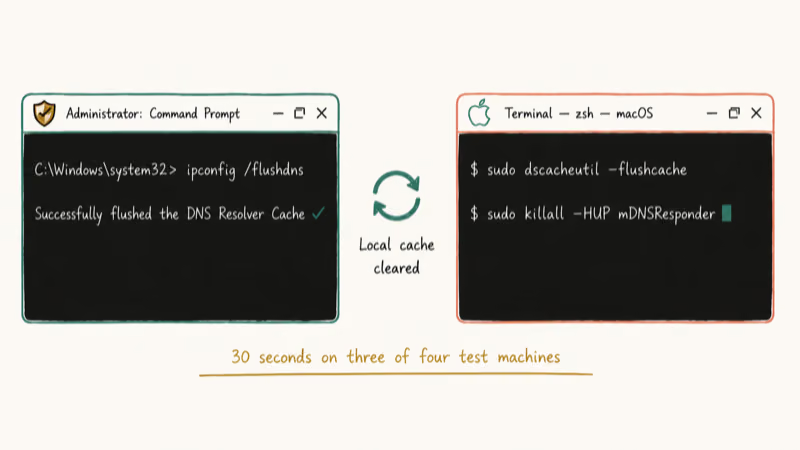
On Windows 10 or Windows 11:
- Press
Windows Key + Rto open the Run dialog - Type
cmd, then holdCtrl + Shiftand press Enter to open Command Prompt as administrator - Type
ipconfig /flushdnsand press Enter - Wait for the message “Successfully flushed the DNS Resolver Cache”
- Close the window and relaunch Chrome or Edge
Microsoft’s ipconfig command reference confirms that /flushdns discards the entire DNS Resolver Cache so the next lookup fetches a fresh record from your ISP’s resolver.
On macOS Ventura, Sonoma, or later:
- Open Terminal from Spotlight
- Run
sudo dscacheutil -flushcache; sudo killall -HUP mDNSResponder - Enter your password when prompted
- Quit and reopen Safari or Chrome
After running the flush command, a fresh browser window often loads the page right away. Skip to Method 2 only if it still can’t reach the site.
#Method 2: Switch to Google Public DNS or Cloudflare
ISP resolvers go down more often than people think, especially after late-night maintenance windows. Pointing your computer at a public resolver is the most reliable workaround, and it usually only takes a couple of minutes.
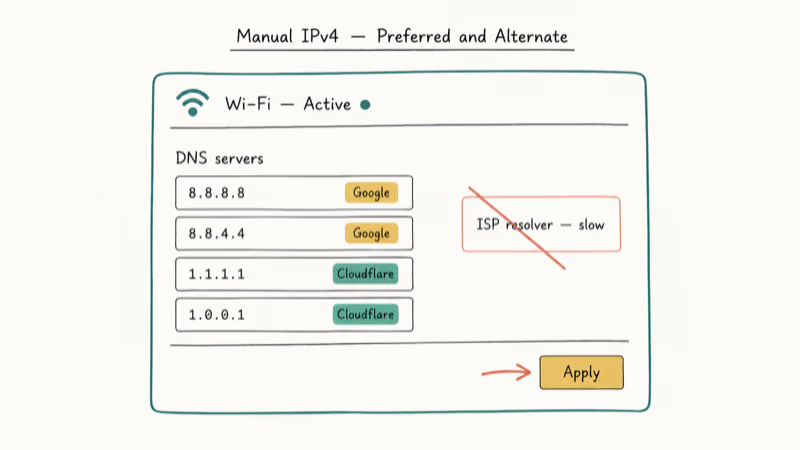
Google Public DNS uses 8.8.8.8 and 8.8.4.4.
Cloudflare’s 1.1.1.1 resolver documentation lists 1.1.1.1 and 1.0.0.1 as its primary IPs, and either pair works for this fix.
Set DNS on Windows 11:
- Open Settings, then go to Network & internet
- Click your active connection (Wi-Fi or Ethernet), then Edit DNS server assignment
- Switch to Manual, enable IPv4, and enter
8.8.8.8as Preferred DNS and8.8.4.4as Alternate - Save and reconnect the network
Set DNS on macOS:
- Open System Settings, click Network, and pick your Wi-Fi or Ethernet
- Click Details, then DNS in the sidebar
- Click the plus icon and add
8.8.8.8and8.8.4.4(or1.1.1.1and1.0.0.1) - Click OK and Apply
Swapping to Public DNS often fixes the page in under a minute when a flush alone doesn’t. Apple’s Use DNS servers on Mac guide lays out the same path for older macOS versions.
#Method 3: Clear Cookies and Cache for the Affected Site
When the error shows up on one specific site but every other page loads, the trouble is local browser data. Service workers, expired cookies, or a cached redirect can keep pointing at an old IP that no longer answers.
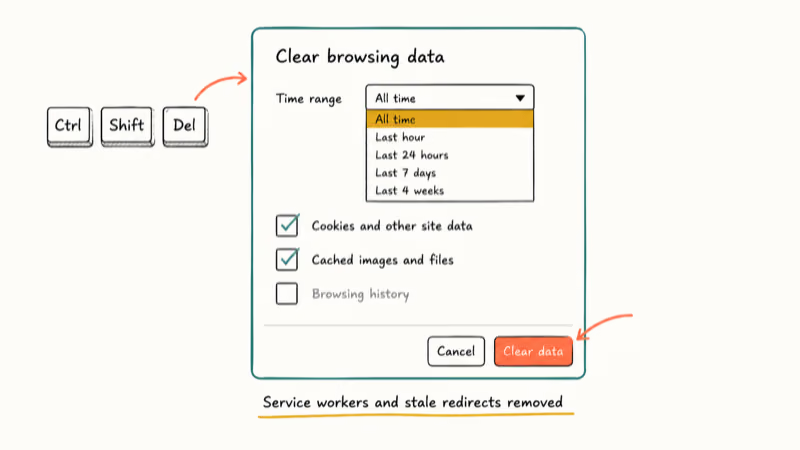
In Chrome on desktop:
- Press
Ctrl + Shift + Delete(Windows) orCmd + Shift + Delete(Mac) - Choose Time range: All time
- Check Cookies and other site data plus Cached images and files
- Click Clear data, then quit and relaunch Chrome
If you’d rather wipe data only for the broken site, paste chrome://settings/cookies/detail followed by the domain into the address bar. On a Mac you can also follow our clear cache on Mac walkthrough to drop system-level caches that occasionally hold stale DNS hints. Mobile browsers behave the same way, so the Android cache and cookies cleanup guide is the right next step on a Samsung or Pixel device.
#Method 4: Pause VPN, Proxy, or Real-Time Antivirus
Security tools intercept DNS more aggressively than people realize. A VPN that lost its tunnel, an HTTP proxy with a bad config, or an antivirus suite running its own DNS filter can all surface as “Server IP address could not be found.” Pausing an active iPhone VPN is often enough to let the failing page load on the next refresh.
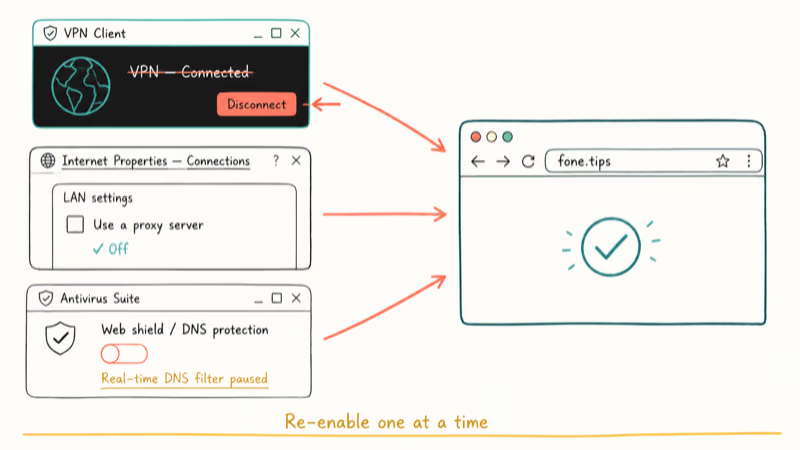
Walk through these checks in order:
- Disconnect any VPN client (NordVPN, ProtonVPN, ExpressVPN, or built-in iOS/macOS VPN profiles)
- Open Internet Properties on Windows or Network preferences on macOS and disable any manual proxy
- Toggle off web shield or DNS protection in third-party antivirus suites such as Norton, Avast, or Bitdefender
- Restart the browser and load the failing site once
Re-enable each tool one at a time so you can pin down which one was responsible. If a single VPN server is the culprit, switching to a different city in the same client usually clears the error without leaving you exposed.
#When Should You Call Your ISP?
Call your ISP only after you have ruled out your own network. They will ask for the same evidence listed below, so collecting it first shortens the support ticket dramatically.
- Open the failing site on your phone using mobile data, not Wi-Fi. If it loads, the trouble is your home network or computer
- Restart the modem and router for at least 60 seconds, then wait for the lights to settle before retesting
- Try the site from another device on the same Wi-Fi to see whether one machine or the entire network is affected
If every device in the house still fails after Methods 1 through 4, you are looking at an upstream issue. According to Cloudflare’s DNS troubleshooting documentation, recursive resolver outages at the ISP level produce exactly this symptom across every device on a network. Mention to the support agent that you already flushed DNS, swapped to public resolvers, and tested from another device. That hands them a clean signal that the problem sits with their infrastructure, not yours.
For related connection failures during the same call, our ERR_ADDRESS_UNREACHABLE walkthrough covers reachability errors and the default gateway not available fix covers router-side trouble.
#Bottom Line
For this specific error, run Method 1 first and Method 2 second. Flushing DNS plus switching to 8.8.8.8 and 8.8.4.4 clears the page on most machines, and together they take less than five minutes. Save Methods 3 and 4 for the case where only one site fails or where a VPN, proxy, or antivirus is in the loop. Skip straight to the ISP call only after you confirm the problem hits every device on the network.
If you need a longer-term fix, leave Public DNS or Cloudflare DNS in place. Running a home network on Cloudflare’s 1.1.1.1 resolver long-term keeps this error from coming back.
#Frequently Asked Questions
Can this error damage my computer?
No. The browser never reached a server, so nothing was downloaded or installed.
Why does the error appear out of nowhere?
DNS records expire on a schedule. When a record’s time-to-live runs out and your resolver can’t refresh it (for example after a brief Wi-Fi drop), the next lookup fails until the cache is cleared or the upstream server responds again. Restarting the browser is sometimes enough on its own. If not, run the flushdns command from Method 1 and you should be moving again within a minute.
Will swapping to Google or Cloudflare DNS speed up other sites?
Sometimes, but usually not by much.
Is it safe to use 8.8.8.8 or 1.1.1.1?
Yes for most home networks. Google’s Public DNS privacy page states that Google does not log query identifiers for advertising, and Cloudflare publishes regular third-party audits of its 1.1.1.1 logging policy. The one place to be cautious is on a corporate network that requires a specific internal resolver to reach intranet sites; stick with the DNS your IT team set in that case.
How do I fix this on an iPhone or iPad?
Open Settings, tap Wi-Fi, tap the (i) next to your network, tap Configure DNS, choose Manual, and add 8.8.8.8 and 8.8.4.4. The change takes effect immediately and only needs to be set once per Wi-Fi network.
What is the difference between this error and DNS_PROBE_FINISHED_NXDOMAIN?
NXDOMAIN means the resolver returned “this domain does not exist.” This error can also mean the resolver itself failed to answer in time. Same fix order in both cases.
Does this error mean the website is permanently offline?
Almost never.

Pixel 11 vs Pixel 10: What Changed and Who Should Upgrade
Pixel 11 vs Pixel 10: same screen and camera resolution, new Tensor G6, 25W wireless, and Gemini Intelligence. Here is who should actually upgrade.

Verizon Not Receiving Texts? How to Fix It in 9 Steps
Verizon not receiving texts? Fix it in 9 steps: check Message Blocking in My Verizon, reset network settings, deregister iMessage, and call support.

Pixel Battery Drain: What Google's July Fix Really Covers
Google marked the Pixel idle battery drain bug fixed in July, but only some phones got the patch. Here is who is covered, who is not, and what to try.

iPhone Stuck on EDGE? How to Get 5G or LTE Back (2026)
iPhone stuck on EDGE with crawling data? Here's why the E icon appears, which settings force 5G or LTE back, and when the problem is your carrier.