Fix Default Gateway Not Available in Windows 10/11
Fix the default gateway not available error in Windows 10 and 11 with 11 methods, including driver updates, TCP/IP resets, and power settings.
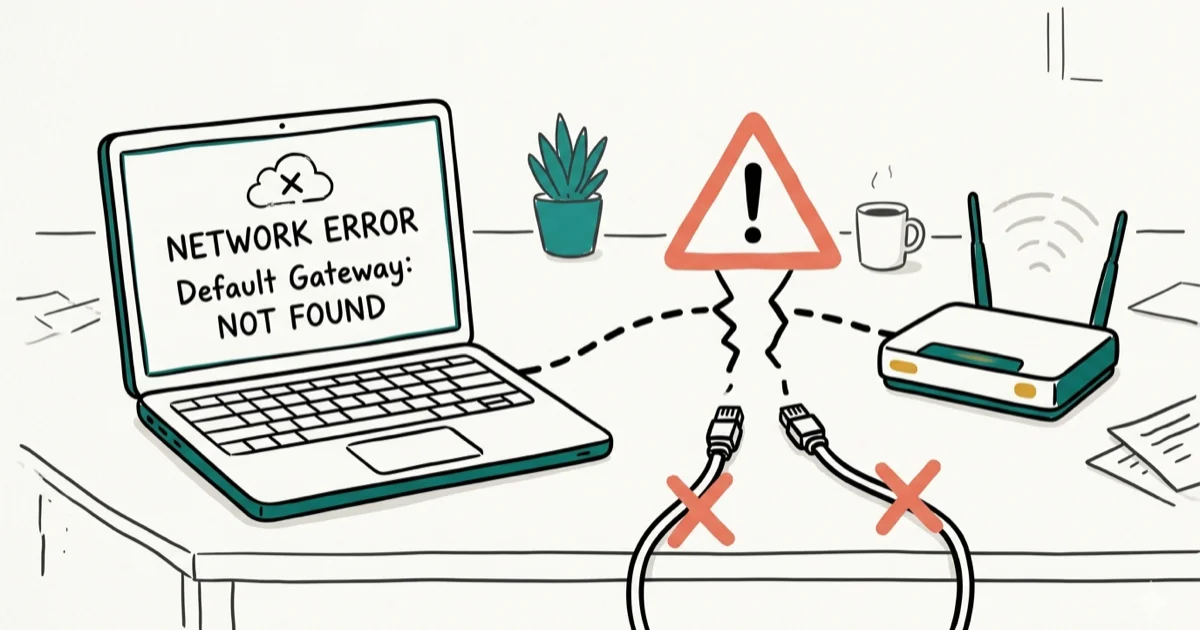
Quick AnswerThe default gateway not available error usually stems from outdated network adapter drivers, a corrupted TCP/IP stack, or power management settings that disable your wireless adapter. Updating your drivers, resetting the TCP/IP stack with netsh, or disabling power-saving mode for the adapter fixes the problem in most cases.
The default gateway not available error drops your Windows PC off the internet without warning. The 11 fixes below work on both Windows 10 22H2 and Windows 11 23H2, and the driver update plus TCP/IP reset combo clears the error in most cases.
- The default gateway is your router’s IP address, and losing it kills all web access
- Outdated or corrupted network adapter drivers are among the most common causes of gateway failures
- Resetting the TCP/IP stack with
netsh int ip resettakes under 2 minutes - Windows power management can silently disable your Wi-Fi adapter mid-session
- Third-party antivirus like McAfee sometimes conflicts with network configs
#Understanding the Default Gateway Error
Your default gateway is the IP address of your router, acting as the access point for all outbound internet traffic. When Windows can’t reach it, you lose internet access entirely.
Without a working gateway, nothing gets through to external servers. The error shows up most often after waking from sleep, after a Windows Update, or when your network adapter driver crashes.
#Why Does the Default Gateway Keep Disappearing?
Several things can strip your PC of its gateway connection. On laptops, the power management setting is a frequent culprit, since Windows turns off the wireless adapter to save battery and sometimes fails to wake it back up.
Here are the most common causes:
Network adapter driver issues. Corrupted or outdated drivers can’t maintain a stable connection to the router. This is especially common after major Windows Updates that replace inbox drivers with generic versions.
Corrupted TCP/IP stack. Malware, failed updates, or hard shutdowns can damage this critical protocol layer.
Power management interference. Windows has a built-in feature that turns off network adapters to save power. When it doesn’t turn them back on properly after the system wakes from sleep or hibernation, you lose the gateway connection entirely.
Router firmware bugs. Outdated firmware drops client connections, causing PC-side gateway errors.
Antivirus conflicts. Programs like McAfee and Norton sometimes modify network settings or block adapter drivers, which leads to gateway failures. Third-party security software is a frequently reported cause of wireless connectivity failures, particularly on Windows 10 and 11.
#How Do You Fix Default Gateway Not Available?
The fixes below are ordered from quickest to most involved. Start at the top and work down.
#Driver and Adapter Fixes
#1. Update Your Network Adapter Drivers
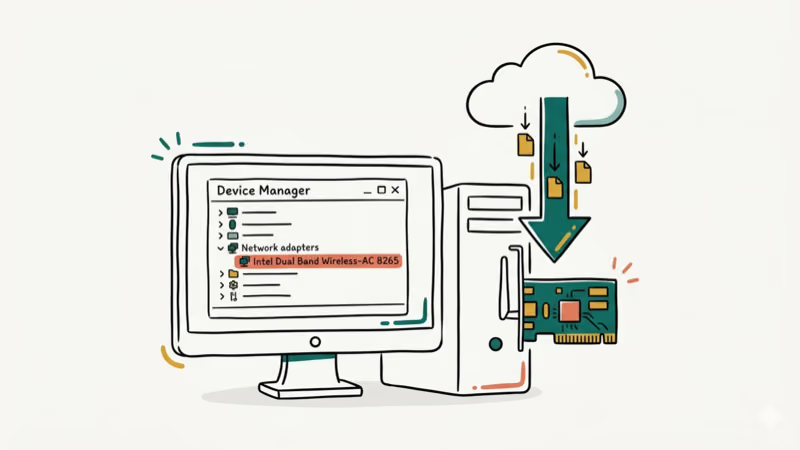
Open Device Manager (press Windows + X, then select Device Manager). Expand Network adapters, right-click your adapter, and select Update driver > Search automatically for drivers.
If Windows doesn’t find anything new, go to your adapter manufacturer’s website. For Intel adapters, download from the Intel driver page. For Realtek, check the Realtek download center. A current driver version often resolves the gateway error immediately, sometimes without a restart.
If your internet is too unstable to download drivers, grab the installer on another PC and transfer it via USB. You might also run into a failed to obtain IP address error on mobile devices sharing the same network.
#2. Reinstall the Network Adapter Driver
Sometimes the existing driver is corrupted beyond repair. In Device Manager, right-click your network adapter and hit Uninstall device.
Restart your PC. Windows will auto-detect the adapter and reinstall a fresh driver. This method works particularly well on Windows 8 and 10 systems where driver files got partially overwritten during an update.
If you’re also dealing with a DNS_PROBE_FINISHED_BAD_CONFIG error or Windows has detected an IP address conflict, fixing the driver usually clears those too.
#Power and System Settings Fixes
#3. Disable Power Management for the Network Adapter
This is one of the most reliable fixes for laptops. Windows 10 and 11 both let the OS shut down your network adapter to conserve battery, and sometimes it doesn’t wake back up.
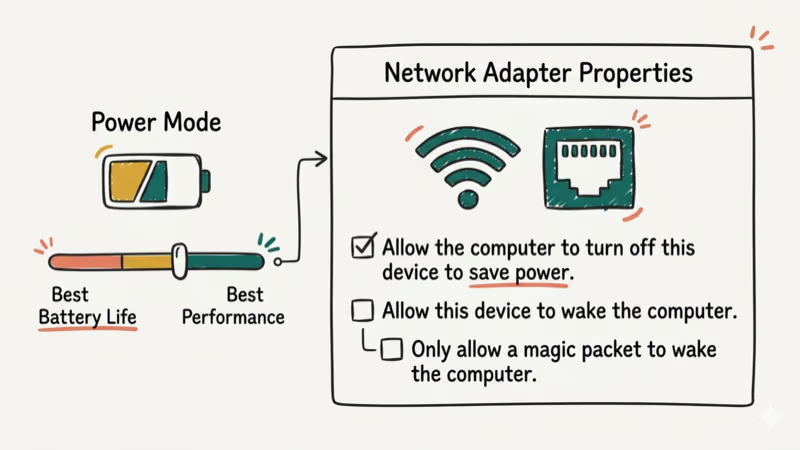
Press Windows + R, type devmgmt.msc, and press Enter. Expand Network adapters and double-click your adapter. Go to the Power Management tab, uncheck Allow the computer to turn off this device to save power, and click OK.
This prevents Windows from killing your adapter during sleep or idle periods, which eliminates the most common trigger for the gateway error on laptops.
#4. Set the Wireless Adapter to Maximum Performance
Even after disabling power management in Device Manager, Windows has a separate power plan setting that can throttle your Wi-Fi adapter.
Press Windows + S, search for Power Options, and open it. Click Change plan settings next to your active plan, then Change advanced power settings. Expand Wireless Adapter Settings > Power Saving Mode and set it to Maximum Performance for both “On battery” and “Plugged in.” Click Apply > OK.
#5. Reset the TCP/IP Stack
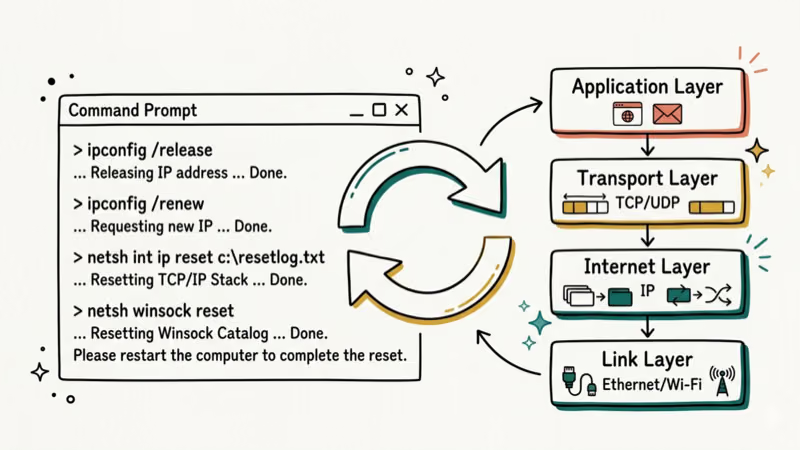
Resetting the TCP/IP stack clears corrupted network settings that accumulate over time. According to PCMag’s networking guide, a stack reset is one of the most effective fixes for persistent connectivity errors. Open Command Prompt as administrator and run these commands one at a time:
netsh winsock reset
netsh int ip reset
ipconfig /release
ipconfig /renew
ipconfig /flushdns
Restart your PC after running all five commands. This takes about 90 seconds total and resolves TCP/IP stack corruption that antivirus software, VPN clients, and failed updates leave behind.
If you’ve been troubleshooting a driver power state failure alongside this error, the TCP/IP reset often helps with both.
#Router and Network Configuration Fixes
#6. Change the Wireless Channel on Your Router
Dual-band routers operating on congested channels can cause intermittent gateway failures. Log into your router’s admin panel (usually 192.168.1.1 or 192.168.0.1), find the wireless settings, and manually set the channel.
Channels 1, 6, and 11 are the non-overlapping choices on the 2.4 GHz band. Switching from Auto to a fixed non-overlapping channel often stops a recurring gateway error caused by interference.
Switching the encryption from WPA/WPA2 mixed mode to WPA2-only helps too.
#7. Switch Your Router to 2.4 GHz
Newer routers default to 5 GHz, but older Wi-Fi adapters don’t support that band. If your adapter predates 802.11ac (Wi-Fi 5), it can’t connect on 5 GHz at all.
Check your adapter’s specs in Device Manager under Network adapters > Properties > Advanced. If it only lists 802.11b/g/n, switch your router’s wireless band to 2.4 GHz or enable both bands simultaneously.
#8. Update the Ethernet Driver
If you’re on a wired connection, an outdated Ethernet driver can trigger the same error. This is similar to how an outdated Bluetooth peripheral device driver causes pairing failures. Visit your motherboard manufacturer’s website (Asus, MSI, Gigabyte, etc.) and download the latest LAN driver.
Some Ethernet controllers, like the Intel I225-V, shipped with firmware bugs that drop the gateway at regular intervals. A current LAN driver from the controller maker usually patches the issue.
#Software and Compatibility Fixes
#9. Remove Conflicting Antivirus Software
McAfee is the most frequently reported antivirus behind this error. According to CNET’s antivirus coverage, certain security suites are known to interfere with network adapter settings on Windows, making antivirus conflicts one of the top causes of connectivity failures alongside outdated drivers and corrupted TCP/IP stacks.
To remove McAfee, go to Settings > Apps > Installed apps, find McAfee, and click Uninstall. Then download and run the McAfee Consumer Product Removal tool (MCPR) to clean up leftover registry entries and firewall rules.
Windows Defender activates automatically once McAfee is gone. If you need third-party protection, ESET and Bitdefender don’t have a history of gateway conflicts.
#10. Change Wireless Mode to 802.11g
Some adapters struggle with mixed 802.11g/b mode. Forcing the adapter to 802.11g only can stabilize the connection.
Press Windows + R, type ncpa.cpl, and press Enter to open Network Connections. Right-click your wireless adapter, select Properties, then click Configure > Advanced tab. Find Wireless Mode, set it to 802.11g, and click OK.
This limits your maximum speed to 54 Mbps but eliminates backward-compatibility issues that cause the gateway to drop.
#11. Disable Auto Log-on
On Windows 8 systems, the auto log-on feature can interfere with network initialization during startup. The fix: assign a password to every user account on the PC so Windows waits for authentication before loading network-dependent services that rely on a stable gateway connection being already established.
Go to Settings > Accounts > Sign-in options and set a PIN or password.
If your PC is also running slow from a desktop window manager high CPU issue, addressing the auto log-on timing can help with that too.
#Bottom Line
Start with the driver update and TCP/IP reset, as those two fixes handle the majority of default gateway errors on both Windows 10 and Windows 11 systems. If the problem comes back after sleep, disable power management for your network adapter in Device Manager.
For recurring issues on Wi-Fi, check your router’s channel and firmware, and remove McAfee if you have it installed. The gateway error is almost never a hardware failure, so one of the 11 fixes above will clear it.
#Frequently Asked Questions
Can a faulty Ethernet cable cause the default gateway not available error?
Yes. A damaged cable creates intermittent connection drops that mimic a gateway failure exactly. Swap the cable first.
Does a weak Wi-Fi signal trigger this error?
It can. When signal strength drops below roughly -70 dBm, the adapter may disconnect and lose its gateway assignment entirely. Move closer to your router, use a Wi-Fi extender, or switch to a wired connection to rule out signal strength as the cause of the problem.
How do I check if my router firmware is current?
Log into your router’s admin panel and look for a “Firmware Update” section. Compare the installed version against the manufacturer’s support site. Most brands list firmware downloads alongside the user manual for each specific model number, and the entire process usually takes under 10 minutes including the router reboot.
How can I tell if my network adapter driver is outdated?
Open Device Manager and check your adapter’s Driver tab for the date.
Can I use my computer offline during this error?
Yes. Local files, offline games, and pre-downloaded content all work fine. Only internet and network-dependent features stop functioning until the gateway is restored, so anything that doesn’t require a server connection stays unaffected.
Will a factory reset fix the default gateway error permanently?
A full Windows reset clears all software conflicts and reinstalls fresh drivers, so it does fix the error. But it’s an extreme step that wipes your apps and settings. Try every other fix first, especially the driver update and TCP/IP reset, and only consider a full reset if the error persists after exhausting all 11 methods above.

Best Laptop for Running LLMs in 2026: Memory Comes First
The best laptop for running LLMs is a memory purchase first. Compare MacBook unified memory against NVIDIA laptop VRAM, and see what each tier really runs.

How to Run a Local LLM on Windows: A 2026 Setup Guide
Run a local LLM on Windows with LM Studio or Ollama. Pick a model that fits your GPU memory, keep every prompt offline, and skip the monthly bill.

Bluetooth Not Working on Snapdragon X? Fixes for 2026
Bluetooth not working on your Snapdragon X Copilot+ PC? Generic audio, mice, and keyboards work, but vendor apps often lack an ARM build. Fixes inside.

Docker Desktop and WSL2 Not Working on Snapdragon X? Fix It
WSL2 runs fine on Snapdragon X, but Docker Desktop ARM is Early Access and throws WSL errors. Use WSL2 plus native ARM64 Ubuntu and Docker Engine.