Fix ERR_ADDRESS_UNREACHABLE in Chrome (10 Solutions)
Fix Chrome ERR_ADDRESS_UNREACHABLE by restarting your router, flushing DNS, disabling proxy settings, or resetting TCP/IP. Ten practical fixes.
Quick AnswerRestart your router and clear Chrome DNS cache to fix ERR_ADDRESS_UNREACHABLE. Open Chrome, type chrome://net-internals/#dns in the address bar, and click "Clear host cache." If that fails, flush your system DNS by running ipconfig /flushdns in Command Prompt.
ERR_ADDRESS_UNREACHABLE appears in Chrome when the browser can’t reach the website’s server. The problem is usually on your end, not the website’s. Here are the fixes, starting with the quickest.
Before changing these settings, use the steps only on your own device, computer, or account, or with explicit permission from the owner. Unauthorized access can violate law, privacy rights, and platform terms, so don’t use this guide to bypass someone else’s controls. When available, start with the official support option, built-in settings menu, or vendor documentation before trying manual fixes, especially if the device or account belongs to work, school, or another person.
- A router restart is the first fix to try and resolves most straightforward cases
- Clear Chrome’s DNS cache at chrome://net-internals/#dns to remove stale IP entries
- Run ipconfig /flushdns in Command Prompt to force Windows to fetch fresh DNS records
- Open Incognito (Ctrl + Shift + N); if the page loads there, a Chrome extension is blocking it
- Switch to Google DNS (8.8.8.8) or Cloudflare DNS (1.1.1.1) to bypass unreliable ISP servers
#Fix 1: Restart Your Router
Power cycle your router to clear temporary network issues. Unplug the router from power, wait 30 seconds, then plug it back in and allow 2-3 minutes for it to fully boot before trying the website again.
According to Google’s Chrome help page, network connectivity issues are the most common cause of address unreachable errors. A router restart is a practical first step for straightforward home-network cases.
If that doesn’t work, factory reset the router using the small recessed button on the back. Press it with a pin for 5-10 seconds. This resets your Wi-Fi name and password to the factory defaults printed on the router’s label, so have those ready. You’ll need to reconnect all devices after the router reboots, which takes about 2 minutes.
The factory default credentials are usually printed on a sticker underneath the router.
#Fix 2: Clear Chrome’s DNS Cache
Chrome maintains its own DNS cache separate from your operating system. Clearing it can fix stale DNS entries. Open Chrome and type chrome://net-internals/#dns in the address bar, click “Clear host cache,” then go to chrome://net-internals/#sockets and click “Flush socket pools.”
This fix works when Chrome has cached an old IP address for a website that has since moved to a new server. It’s especially relevant after a site has recently changed hosting providers.
#Fix 3: Flush System DNS
Your operating system also caches DNS records. Flush them through Command Prompt:
On Windows: Press Windows + R, type cmd, press Enter, then run ipconfig /flushdns. You’ll see the message “Successfully flushed the DNS Resolver Cache” when it works.
On Mac: Open Terminal and run sudo dscacheutil -flushcache; sudo killall -HUP mDNSResponder. Enter your password when prompted.
According to Microsoft’s DNS troubleshooting guide, flushing DNS forces your computer to look up fresh IP addresses for every website you visit. This can clear stale resolver data after DNS records change.
#Fix 4: Disable Proxy or VPN
Proxy servers and VPNs route your traffic through intermediate servers, which can cause connection failures:
Disable proxy on Windows: Press Windows + R, type inetcpl.cpl, go to the Connections tab, click “LAN settings,” uncheck “Use a proxy server for your LAN,” and click OK. Restart Chrome after.
Disable VPN:
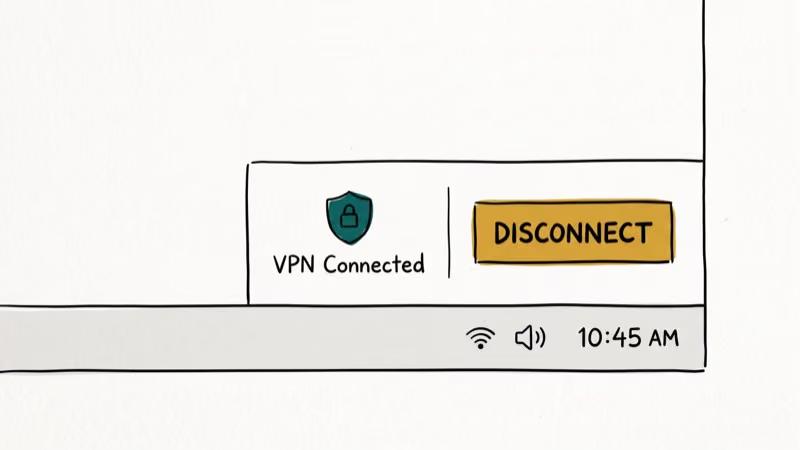
Turn off your VPN application or disconnect from the VPN server. Try loading the website without the VPN active.
According to Chrome’s proxy documentation, misconfigured proxy settings are a common cause of connection errors. If you need the VPN, try connecting to a different server location.
#Fix 5: Change DNS Servers to Google or Cloudflare
Your ISP’s DNS servers might be slow or down. Switch to public DNS servers:
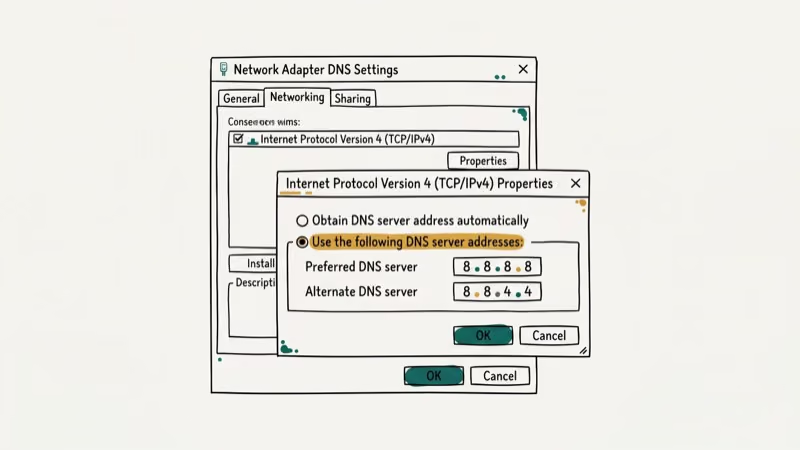
On Windows: Go to Control Panel > Network and Internet > Network and Sharing Center, click “Change adapter settings,” right-click your active connection and select Properties. Select “Internet Protocol Version 4 (TCP/IPv4),” click Properties, choose “Use the following DNS server addresses,” and enter 8.8.8.8 as primary and 8.8.4.4 as secondary. Click OK and restart Chrome.
Google’s Public DNS documentation states that 8.8.8.8 and 8.8.4.4 are Google’s primary and secondary public DNS resolvers, designed for high reliability. Cloudflare’s 1.1.1.1 is another fast alternative with an average query time of 14 milliseconds.
#Should You Disable Chrome Extensions?
Extensions can interfere with network connections, especially ad blockers, VPN extensions, and privacy tools. Go to chrome://extensions/ and toggle off all extensions, then try loading the website. If it works, re-enable them one by one to find the culprit.
For a faster test, open Incognito (Ctrl + Shift + N). Extensions are off by default there.
#Fix 7: Reset TCP/IP Stack
If multiple fixes haven’t worked, reset your entire network stack:
- Open Command Prompt as Administrator
- Run these commands in order:
ipconfig /release
ipconfig /flushdns
ipconfig /renew
netsh int ip reset
netsh winsock reset- Restart your computer
This resets all network settings to their defaults. You may need to reconnect to your Wi-Fi network and re-enter the password afterward.
#Fix 8: Disable Chrome’s Preload Feature
Chrome preloads pages it thinks you’ll visit next, which can sometimes cause connection errors:
- Open Chrome Settings
- Go to
Privacy and Security>Cookies andother site data - Turn off “Preload pages for faster browsing and searching”
This prevents Chrome from making speculative connections that might trigger the error.
#What if Only One Website Shows the Error?
If every other website loads fine, the problem is likely on the website’s end:
- The website’s server might be down or overloaded
- The domain name might have expired
- The website might be blocked in your region
Check if the website is down for everyone using a service like downdetector.com or try accessing it from your phone’s cellular data. If it’s down for everyone, wait for the website owner to fix it.
For other Chrome errors, our guides on ERR_CACHE_MISS and Chrome being slow cover the most common browser-side problems.
If your issue points to a different layer, see our walkthroughs for SSL errors or plugin not supported in Chrome.
On the hardware side, our guide on HDMI port not working covers display connection failures that can sometimes look like network errors, especially when streaming devices or smart TVs lose connectivity at the same time the screen goes blank.
#Bottom Line
Start with restarting your router and clearing Chrome’s DNS cache. These two fixes resolve most ERR_ADDRESS_UNREACHABLE errors. If they don’t work, flush your system DNS, disable proxy/VPN, or switch to Google’s public DNS servers. The TCP/IP reset is a last resort that fixes deeper network issues.
#Frequently Asked Questions
What does ERR_ADDRESS_UNREACHABLE mean in Chrome?
ERR_ADDRESS_UNREACHABLE means Chrome sent a request to the website’s server but received no response — the browser couldn’t reach the destination IP address at all. This happens when DNS returns an IP address but that IP is unreachable, which is different from a DNS failure where Chrome can’t look up the domain in the first place. In practice, the most common causes are a router that needs restarting, a stale DNS entry, or a website server that’s temporarily down.
Why does ERR_ADDRESS_UNREACHABLE only happen in Chrome?
Chrome has its own DNS cache and network stack separate from your operating system. If the error only appears in Chrome but not in Firefox or Edge, clear Chrome’s DNS cache at chrome://net-internals/#dns and disable any Chrome extensions that modify network traffic.
Can a firewall cause ERR_ADDRESS_UNREACHABLE?
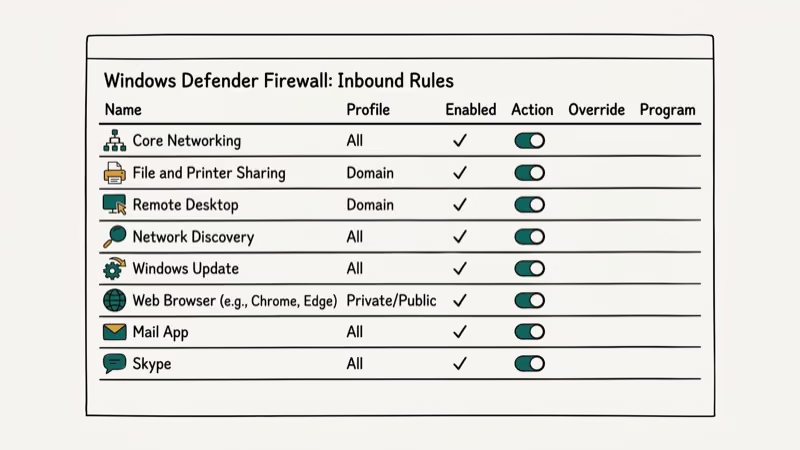
Yes. Windows Firewall or third-party antivirus software can block Chrome from connecting to certain websites. Temporarily disable your firewall to test. If the website loads, add Chrome as an exception in your firewall settings rather than leaving it disabled.
Does ERR_ADDRESS_UNREACHABLE mean the website is hacked?
No. It’s a connectivity error, not a security warning.
How do I fix ERR_ADDRESS_UNREACHABLE on Android?
On Android, go to Settings > Network & Internet > Wi-Fi, tap your connected network, and change DNS to 8.8.8.8. You can also clear Chrome’s data through Settings > Apps > Chrome > Storage > Clear Cache. If the error persists, try switching between Wi-Fi and mobile data.
Will resetting Chrome fix this error?
Chrome reset can help in stubborn cases. Go to Chrome Settings > Reset settings > Restore settings to their original defaults. This clears extensions and cached data but preserves bookmarks and saved passwords. Try the DNS and proxy fixes first before resetting.

Best Laptop for Running LLMs in 2026: Memory Comes First
The best laptop for running LLMs is a memory purchase first. Compare MacBook unified memory against NVIDIA laptop VRAM, and see what each tier really runs.

How to Run a Local LLM on Windows: A 2026 Setup Guide
Run a local LLM on Windows with LM Studio or Ollama. Pick a model that fits your GPU memory, keep every prompt offline, and skip the monthly bill.

Bluetooth Not Working on Snapdragon X? Fixes for 2026
Bluetooth not working on your Snapdragon X Copilot+ PC? Generic audio, mice, and keyboards work, but vendor apps often lack an ARM build. Fixes inside.

Docker Desktop and WSL2 Not Working on Snapdragon X? Fix It
WSL2 runs fine on Snapdragon X, but Docker Desktop ARM is Early Access and throws WSL errors. Use WSL2 plus native ARM64 Ubuntu and Docker Engine.