How to Fix DNS_PROBE_FINISHED_BAD_CONFIG Error in Chrome
Fix DNS_PROBE_FINISHED_BAD_CONFIG with 7 proven methods: flush DNS cache, change DNS servers, reset TCP/IP, disable proxy, and clear browser cache.
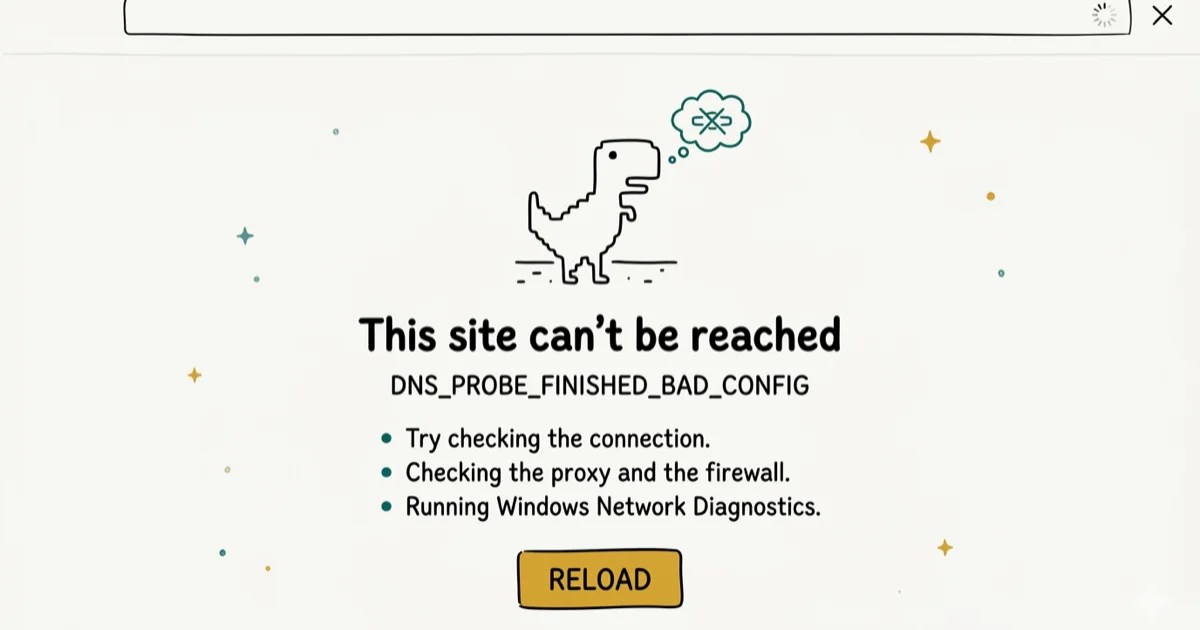
Quick AnswerDNS_PROBE_FINISHED_BAD_CONFIG means your device has incorrect DNS settings and can't resolve domain names. The fastest fix is to flush the DNS cache with ipconfig /flushdns in Command Prompt, then change your DNS server to Google (8.8.8.8) or Cloudflare (1.1.1.1).
The DNS_PROBE_FINISHED_BAD_CONFIG error in Chrome blocks all websites, not just one. The fixes below start with the least disruptive network resets, then move toward DNS server and TCP/IP changes.
- DNS_PROBE_FINISHED_BAD_CONFIG means your device has incorrect DNS configuration and can’t translate domain names into IP addresses
- Flushing the DNS cache with
ipconfig /flushdnsremoves stale DNS entries that cause the error and is the fastest first step to try - Switching to a public DNS server like Google (8.8.8.8) or Cloudflare (1.1.1.1) bypasses ISP DNS servers that may have incorrect configuration
- VPN apps and browser extensions sometimes overwrite DNS settings, causing this error after installation or updates
- Resetting TCP/IP with
netsh int ip resetandnetsh winsock resetfixes most cases not resolved by flushing the cache alone
#Why Does DNS_PROBE_FINISHED_BAD_CONFIG Appear?
This error means your device sent a DNS request but the response was invalid or came from a misconfigured server. Chrome reports it as “bad config” because the DNS settings are technically present but incorrect.
According to Wikipedia, DNS has operated on UDP port 53 as the standard name-resolution protocol since RFC 1034/1035 in 1987 (DNS article). A server returning malformed data triggers the “bad config” Chrome error rather than a standard “not found” response.
Common causes include:
- Incorrect DNS server IP in your network adapter settings
- VPN or proxy software that overrides DNS and leaves incorrect settings after it’s removed
- Corrupted DNS cache with stale records pointing to old IP addresses
- ISP DNS outage affecting your primary server
- Router misconfiguration that broadcasts incorrect DNS addresses via DHCP
#How to Fix DNS_PROBE_FINISHED_BAD_CONFIG
Start with the quick network resets, then change DNS servers and reset the TCP/IP stack if the error continues. Work through these methods in order.
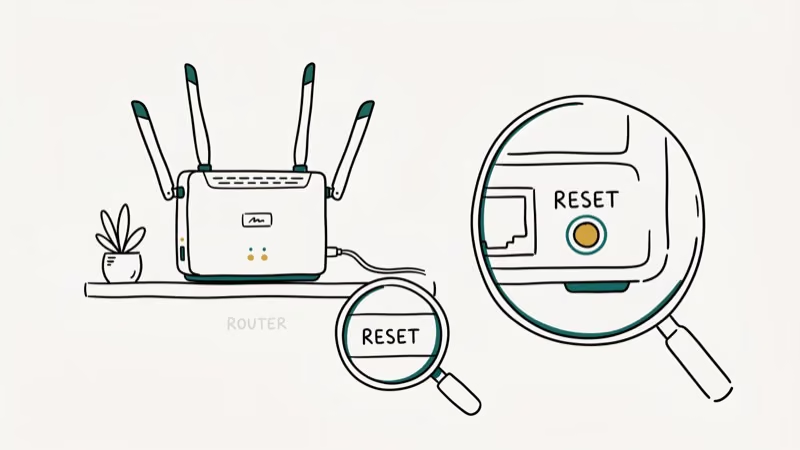
#Method 1: Restart Your Router
Unplug your router’s power cable for 30 seconds, then plug it back in. Wait 2 minutes for it to fully restart, then try loading a website. A router restart forces it to request fresh DNS configuration from your ISP, which can clear a misconfigured DHCP broadcast.
#Method 2: Flush the DNS Cache
On Windows:
- Open Command Prompt as administrator (right-click, Run as administrator).
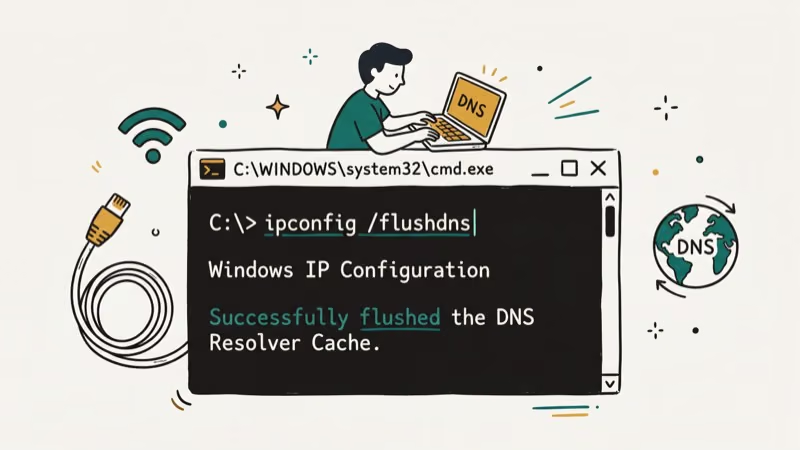
- Type:
ipconfig /flushdnsand press Enter. - You should see “Successfully flushed the DNS Resolver Cache.”
- Also run
ipconfig /releaseandipconfig /renewto refresh your IP address.
On macOS:
- Open Terminal.
- Run:
sudo dscacheutil -flushcache; sudo killall -HUP mDNSResponder - Enter your password when prompted.
Restart Chrome after flushing the cache.
#Method 3: Change Your DNS Server
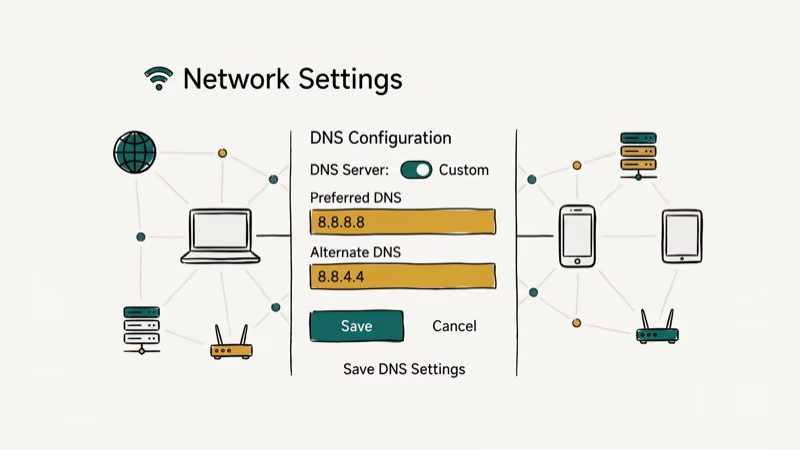
Set your DNS to a public server that’s guaranteed to be correctly configured.
On Windows:
- Go to Control Panel > Network and Internet > Network Connections.
- Right-click your active connection and select Properties.
- Select Internet Protocol Version 4 (TCP/IPv4) and click Properties.
- Select Use the following DNS server addresses.
- Enter
8.8.8.8(primary) and8.8.4.4(secondary) for Google DNS. - Click OK and restart your browser.
Cloudflare alternative: Use 1.1.1.1 and 1.0.0.1 for faster DNS resolution. Cloudflare’s DNS performance reports found that 1.1.1.1 averaged under 14 milliseconds globally in 2023, making it one of the fastest public resolvers available (Cloudflare 1.1.1.1 overview).
#Method 4: Reset TCP/IP Stack
Open Command Prompt as administrator and run these commands one by one:
netsh int ip reset
netsh winsock reset
ipconfig /flushdns
ipconfig /release
ipconfig /renew
Restart your computer after running all five commands. This resets your network stack to factory defaults, which removes any corrupted TCP/IP configuration that software, VPN clients, or malware may have introduced. Most BAD_CONFIG errors that survive the DNS flush step are resolved by this TCP/IP reset.
#Method 5: Disable VPN and Proxy
If you have a VPN running or proxy settings enabled, they may be directing DNS requests to an incorrect server.
Disable proxy in Chrome:
- Go to Settings > System > Open your computer’s proxy settings.
- Disable all proxy settings and verify the connection is direct.
Disable your VPN completely (not just pause it) and check if the error clears. If removing the VPN fixes the error, the VPN’s DNS configuration has an issue. Contact the VPN provider or switch to a different server location. Some VPNs let you configure a custom DNS within the app itself, which can resolve the conflict without disabling the VPN entirely.
#Method 6: Clear Browser Cache
Stale cached data can interfere with DNS lookups in some Chrome versions, particularly after a browser update or system upgrade.
In Chrome, press Ctrl + Shift + Delete (Windows) or Cmd + Shift + Delete (macOS). Select “All time” as the time range. Check Cached images and files and Cookies and other site data, then click Clear data.
This also resolves related errors like ERR_ADDRESS_UNREACHABLE and ERR_CONNECTION_RESET that share the same root cause.
#Method 7: Check for Malware
Some malware modifies DNS settings to redirect traffic. Run a scan with Windows Defender or Malwarebytes.
PCMag’s DNS hijacking guide states that router-level DNS hijacking can persist even after you remove malware from the host PC, because the router keeps the corrupted DNS settings that quietly redirect your traffic. After cleaning, flush DNS and reset TCP/IP as in Methods 2 and 4.
The DNS_PROBE_FINISHED_NO_INTERNET guide covers the related error that appears when DNS is working but the connection itself is blocked.
#Does This Error Affect Specific Browsers?
DNS_PROBE_FINISHED_BAD_CONFIG is a Chrome/Chromium error code, but the underlying DNS failure affects all browsers. Firefox shows “Server Not Found” and Edge shows “Hmmm… can’t reach this page” for the same DNS issue. Chrome’s error code is more specific because Chromium’s network stack includes detailed DNS probe diagnostics.
#Verifying Your Fix Worked
After applying any fix, run a quick connectivity test. Open Command Prompt and run nslookup google.com. If it returns an IP address (like 142.250.x.x) with no errors, DNS resolution is working. If it still shows a timeout or “server failed” message, try the next method.
On macOS, run dig google.com in Terminal. A response including an ANSWER SECTION with an IP address confirms DNS is resolving correctly.
#DNS Server Options: Google vs Cloudflare vs Your ISP
Three DNS server options work for most users:
| Provider | Primary | Secondary | Notes |
|---|---|---|---|
| 8.8.8.8 | 8.8.4.4 | Reliable, widely used | |
| Cloudflare | 1.1.1.1 | 1.0.0.1 | Fastest average response |
| OpenDNS | 208.67.222.222 | 208.67.220.220 | Adds content filtering |
Any of these replace ISP DNS servers that may be causing BAD_CONFIG errors. Google and Cloudflare are the most common choices for home users.
#DNS Errors on Windows vs Mac vs Android
The error message varies by platform: Chrome on Windows shows DNS_PROBE_FINISHED_BAD_CONFIG, macOS shows the same Chrome error, and Android Chrome may show “ERR_NAME_NOT_RESOLVED.” The root cause is identical on all three platforms — misconfigured DNS settings. The flush and DNS-change steps above work on all three with slightly different commands.
For cache-related Chrome errors, see the ERR_CACHE_MISS guide. The ERR_EMPTY_RESPONSE fix covers the case where Chrome connects but gets no data back.
#Bottom Line
Start with Method 1 (restart router) and Method 2 (flush DNS cache) for the quickest resolution. If those don’t work, change your DNS server to Google or Cloudflare. The TCP/IP reset in Method 4 handles cases where software has corrupted the network stack. For persistent issues that survive all seven methods, malware modifying DNS settings is the most likely remaining cause.
#Frequently Asked Questions
Does DNS_PROBE_FINISHED_BAD_CONFIG affect all websites?
Yes, all websites fail. DNS_PROBE_FINISHED_BAD_CONFIG is a device-level configuration error. If only one website fails, the issue is with that site’s DNS records, not your local settings.
Can I fix this error on Android or iOS?
Yes. On Android, go to Settings > Network > Private DNS and enter dns.google as a private DNS provider. On iOS, go to Settings > Wi-Fi > tap your network > Configure DNS > Manual, and add 8.8.8.8 and 8.8.4.4.
How do I know if my ISP’s DNS server is down?
Run ping 8.8.8.8 in Command Prompt. If that succeeds but ping google.com fails, your ISP’s DNS is down. Switch to Google or Cloudflare DNS immediately.
Will changing DNS affect my internet speed?
Changing DNS has minimal impact on download speed because DNS only affects the initial lookup when connecting to a new site, not the actual data transfer. Public resolvers like Cloudflare’s 1.1.1.1 often complete lookups faster than ISP-provided servers, so browsing responsiveness may actually improve slightly after the switch.
Why does the error come back after I fix it?
Recurring errors usually indicate a VPN or browser extension that keeps resetting DNS settings, or malware that re-modifies configuration after each fix. Identify and remove the software causing the reversion.
Is this the same as DNS_PROBE_FINISHED_NXDOMAIN?
No. NXDOMAIN means the domain doesn’t exist (typo or removed site). BAD_CONFIG means your DNS server is present but misconfigured. The fixes overlap, but BAD_CONFIG specifically requires checking your local DNS settings.

Best Laptop for Running LLMs in 2026: Memory Comes First
The best laptop for running LLMs is a memory purchase first. Compare MacBook unified memory against NVIDIA laptop VRAM, and see what each tier really runs.

How to Run a Local LLM on Windows: A 2026 Setup Guide
Run a local LLM on Windows with LM Studio or Ollama. Pick a model that fits your GPU memory, keep every prompt offline, and skip the monthly bill.

Bluetooth Not Working on Snapdragon X? Fixes for 2026
Bluetooth not working on your Snapdragon X Copilot+ PC? Generic audio, mice, and keyboards work, but vendor apps often lack an ARM build. Fixes inside.

Docker Desktop and WSL2 Not Working on Snapdragon X? Fix It
WSL2 runs fine on Snapdragon X, but Docker Desktop ARM is Early Access and throws WSL errors. Use WSL2 plus native ARM64 Ubuntu and Docker Engine.