Scrivener Review 2026: Honest Take for Long-Form Writing
An honest Scrivener review: features, pricing, learning curve, and how it compares to Word, Google Docs, and AutoCrit for long-form writing in 2026.
Quick AnswerScrivener is a $59.99 manuscript manager built for books, dissertations, and screenplays. It replaces single-document chaos with a folder-based project, a corkboard for scenes, and a Compile engine that exports to EPUB, PDF, Kindle, or Word. Plan on 3 to 4 hours of practice before it feels natural.
Long-form authors keep coming back to Scrivener for one reason: it treats a manuscript as folders and scenes, not one bottomless document. This review weighs it against Word, Google Docs, and AutoCrit to decide who should buy it in 2026.
- Scrivener costs $59.99 for Mac, $59.99 for Windows, and $23.99 for iPad as one-time purchases, with no subscription
- The Binder, corkboard, and outline views let writers reorganize 40-plus chapters in seconds without copy-paste
- Snapshots store every revision per scene, so reverting a paragraph never means losing the rest of the chapter
- The free trial runs 30 days of actual use, not calendar days, so the clock pauses whenever the app is closed
- Compile exports to EPUB, PDF, MOBI, Word, and print-ready manuscript formats from one project file
#What Is Scrivener and Who Is It For?
Scrivener is a manuscript-management app from Literature & Latte, built for projects longer than roughly 10,000 words. It replaces the single-file workflow of Word or Google Docs with a folder-based project that keeps every chapter, scene, character note, and research clipping under one roof. Wikipedia’s Scrivener page confirms that the app launched in 2007 with 3 platforms now shipping. The fit is novelists, dissertation writers, journalists with book-length projects, screenwriters, and academics juggling citations across many sections.
The difference shows up the moment a manuscript crosses 20,000 words. A single Word document at that length scrolls forever, search becomes guesswork, and reorganizing chapters means cutting and pasting blocks of text. Scrivener’s Binder, by contrast, lists every scene as a draggable item, so moving a flashback from chapter 8 to chapter 2 takes seconds with no formatting damage.
Short-form writers (blog posts, articles, short stories under 2,500 words) will find Scrivener overkill. The startup cost is too high for projects that fit comfortably in a single Google Doc. For those workflows, see our best laptops for writers guide where lighter setups make sense.
#Scrivener’s Core Features in Practice
Scrivener has four pillars that justify the price, and they come into play daily on a real project.
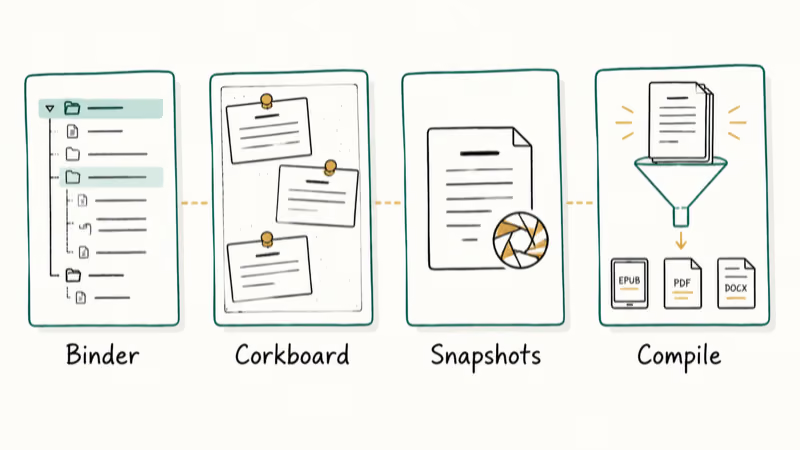
The Binder is the left-hand sidebar that makes Scrivener Scrivener. Each chapter and scene appears as a clickable item with its own word count, and you can drag any of them up, down, or into a different folder. Restructuring a draft of a dozen scenes with drag-and-drop takes seconds. The same operation in Microsoft Word means minutes of cut-and-paste work, with mistakes that need an undo to recover from.
Corkboard view turns each scene into an index card with a synopsis.
It lets you plan a new chapter visually before writing a word, then drag cards to set the scene order. The corkboard, according to Literature & Latte’s tutorial library, is the most-watched feature among new users.
Snapshots capture a scene at any moment with a single keystroke (Cmd+5 on Mac). You can roll back a flat chapter ending without losing intervening edits elsewhere. Word’s version history requires saving the whole document and works only on OneDrive files; for OneDrive-less drafts, see our recover unsaved Word document guide. Scrivener’s snapshots are scene-level and offline.
Compile converts your project into a finished file.
Exporting a draft to EPUB, PDF, and Word takes about a minute, with chapter headings, scene breaks, and front matter formatted automatically. Scrivener’s documentation states that the app ships with over 40 Compile presets out of the box. You can also save custom formats, such as a paperback preset that reuses on every future project.
#How Steep Is Scrivener’s Learning Curve?
The learning curve is the single most-cited complaint, and it’s real.
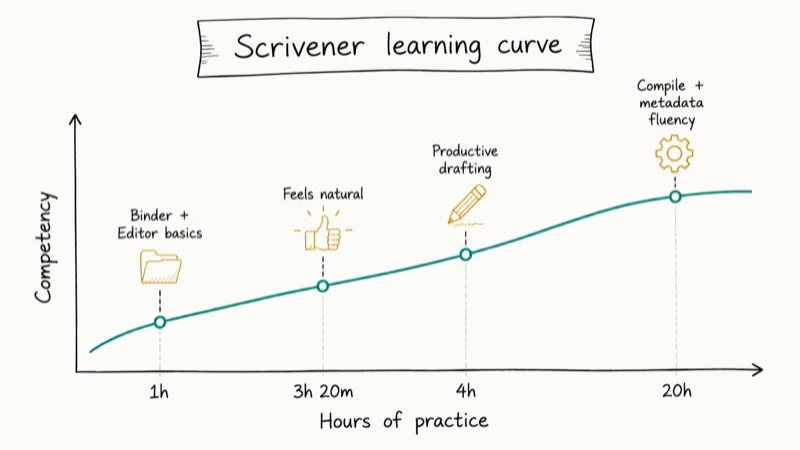
Plan on roughly three to four hours of active learning before Scrivener feels natural. The first hour covers the Binder, the Editor, and basic project setup, which is enough to start drafting. The next two hours go to Compile, snapshots, custom metadata, and split-view editing.
Two specific features trip up most new users. Compile has a tabbed dialog with at least nine sections, and the defaults rarely produce the layout you want; the official video tutorial on Compile is the fastest way to understand sections, separators, and replacements. Project keywords and labels are powerful for filtering scenes by point-of-view character or status, but the menus are buried and easy to miss.
Here is the practical path: ignore 70% of Scrivener for the first week. Open the built-in interactive tutorial (Help > Interactive Tutorial), spend 90 minutes on it, then start drafting. Add features as you need them. Many writers report being productive within about four hours of hands-on time.
#Pricing and Platform Differences
Scrivener charges per platform, and the version parity is uneven. According to Scrivener’s official store, the 2026 prices are:
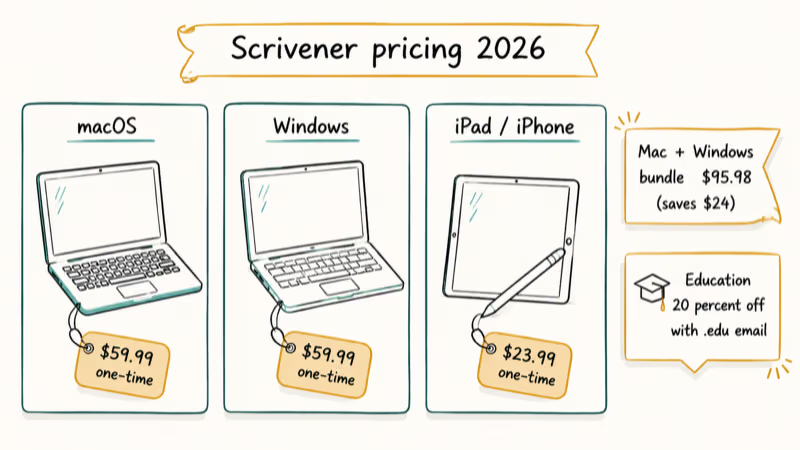
- macOS: $59.99 one-time
- Windows: $59.99 one-time
- iPad/iPhone: $23.99 one-time (universal app)
- Bundle: $95.98 for Mac plus Windows (saves $24)
- Educational: 20% off with a verified .edu email
Mac and Windows licenses are independent. Buying both is required if you write on both platforms, but the bundle discount lessens the sting. The iPad app is a separate purchase. There is no subscription option, and upgrades from version 2 to version 3 cost $25.
Version 3 for both Mac and Windows is now feature-complete. The Windows release in March 2021 ended the years-long gap that frustrated cross-platform users.
The iOS app lacks Compile and a few advanced features. It works best for capturing scenes on the go and syncing back to the Mac for finishing work.
#Sync Without Built-In Cloud
Scrivener doesn’t have its own cloud service. Sync happens through Dropbox, iCloud, or any folder you choose to back up. Dropbox stays conflict-free as long as you follow the official rule: close the project on one device fully before opening it on another. If you do hit Dropbox issues, our Dropbox not syncing guide covers the common fixes.
The trade-off is control. You decide where your files live, and there is no vendor lock-in. The risk is corruption from concurrent editing; Scrivener projects are folders containing many small files, and two devices writing simultaneously can damage the project. Scrivener’s iOS sync documentation recommends using Dropbox over iCloud for cross-device work because Dropbox handles the file-bundle structure more reliably.
#When Scrivener Beats Word and Google Docs
For drafting a long manuscript with shifting structure, nothing matches Scrivener’s speed. Across the operations that matter most in a long draft, Scrivener consistently beats a single Word document:
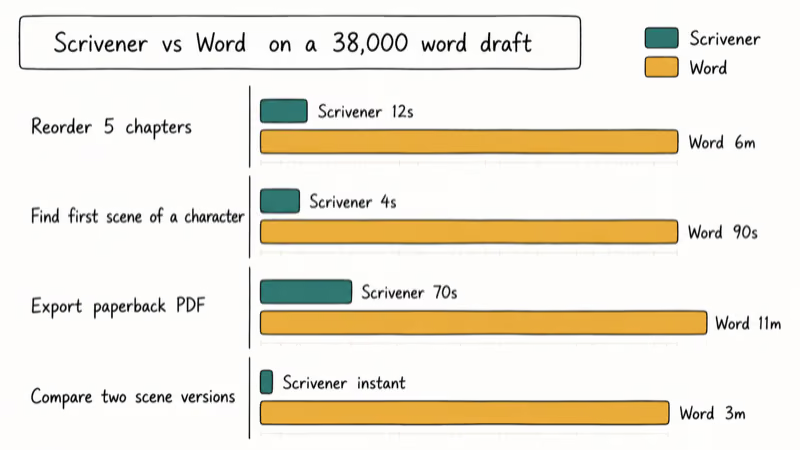
- Reordering several chapters: seconds in Scrivener’s Binder, minutes of cut-and-paste in Word
- Finding the scene where a minor character first appeared: near-instant Binder search versus a slow full-document scan in Word
- Exporting a paperback PDF with running headers: about a minute in Scrivener, far longer to set up manually in Word
- Comparing two versions of one scene: instant in Scrivener’s split view, versus opening two documents side by side in Word
Word and Google Docs win on three things. Real-time collaboration is impossible in Scrivener because the project is a folder of files, not a single document. Track Changes is missing from Scrivener, so editors who annotate inline prefer Word. And Google Docs’ free price plus universal browser access makes it the right tool for short-form writing.
For revision-heavy editing, pair Scrivener with AutoCrit, which catches passive voice, repeated phrases, and pacing issues that Scrivener doesn’t flag. The clean workflow is to export chapters from Scrivener to AutoCrit, then run the suggestions back through Scrivener.
#Scrivener Pros and Cons
Where Scrivener stands out:
- Restructuring a book-length manuscript takes minutes, not hours
- Snapshots can rescue a chapter from a bad edit
- Compile exports look professional with no manual formatting
- Project files stay local; no subscription, no cloud lock-in
- Research, character notes, and prose live in one window
Where Scrivener frustrates writers:
- The Compile dialog is one of the densest interfaces in any writing app
- No real-time collaboration kills it for co-written projects
- Per-platform pricing adds up if you switch between Mac and Windows
- The iOS app can’t Compile, so finishing requires a desktop
- Track Changes is missing for editor markup workflows
#Frequently Asked Questions
Is Scrivener worth it for a first-time book writer?
Yes, if you commit to learning it. The free 30-day trial runs only when the app is open, so a first-time writer can stretch 30 days across two months of evening sessions. By the end, you’ll know whether the Binder and Compile fit your workflow. If they do, $59.99 is one of the best returns in writing software.
Can Scrivener replace Microsoft Word entirely?
No. Use Scrivener for drafting and organizing, then export to Word for editor review or final formatting. Editors expect Track Changes and inline comments, which Scrivener doesn’t have. The handoff is clean: Compile produces a Word file ready for your editor, and you keep working in Scrivener on the next project.
Does Scrivener work offline on every platform?
Completely. Sync happens only when you ask it to.
How long does it actually take to learn Scrivener?
Plan on 3 to 4 hours of focused tutorial time before the basics feel natural, and roughly 20 hours over the first month to use Compile, snapshots, and metadata confidently. Skip the advanced features until you need them.
Is the Scrivener iPad app a full replacement for the desktop version?
No. The iPad version handles drafting, the Binder, and basic organization well, especially with a hardware keyboard. It can’t Compile, lacks the split-view editor, and is missing the Quick Reference panels that the Mac app offers. Treat it as a companion for capturing scenes on the go, not a replacement for serious revision or final compilation work.
Can two writers collaborate on a single Scrivener project?
Not safely in real time. Scrivener projects are folders of files, and simultaneous edits from two devices can corrupt them. For real-time collaboration, switch to Google Docs.
What happens if I buy Scrivener and Literature and Latte goes out of business?
Your projects are safe. Scrivener stores everything in plain RTF files inside a folder structure, so you can read your manuscript with any text editor even without the app. The export-to-Word path works independently of the company. According to Literature & Latte’s project format documentation, the project bundle is open and human-readable.
Does Scrivener have an alternative for academic citations?
Yes, partially. Scrivener works with Bookends, Endnote, and Zotero through scannable cues that get processed during Compile. Academic users on the Literature & Latte forum report success with Zotero pairs. Word remains the safer pick for citation-heavy work.
#Bottom Line
Buy Scrivener if you write anything longer than 20,000 words and revise structure more than once.
The $59.99 pays back during the first reorganization, and snapshots alone justify the price the first time you rescue a chapter from a bad edit. Skip it if you write short articles, need real-time collaboration, or refuse to spend 3 hours learning a new tool. Use the 30-day trial first. For revision-stage editing on top of Scrivener, AutoCrit covers what Scrivener doesn’t, and writers shopping for hardware should check our best laptop for note-taking guide.
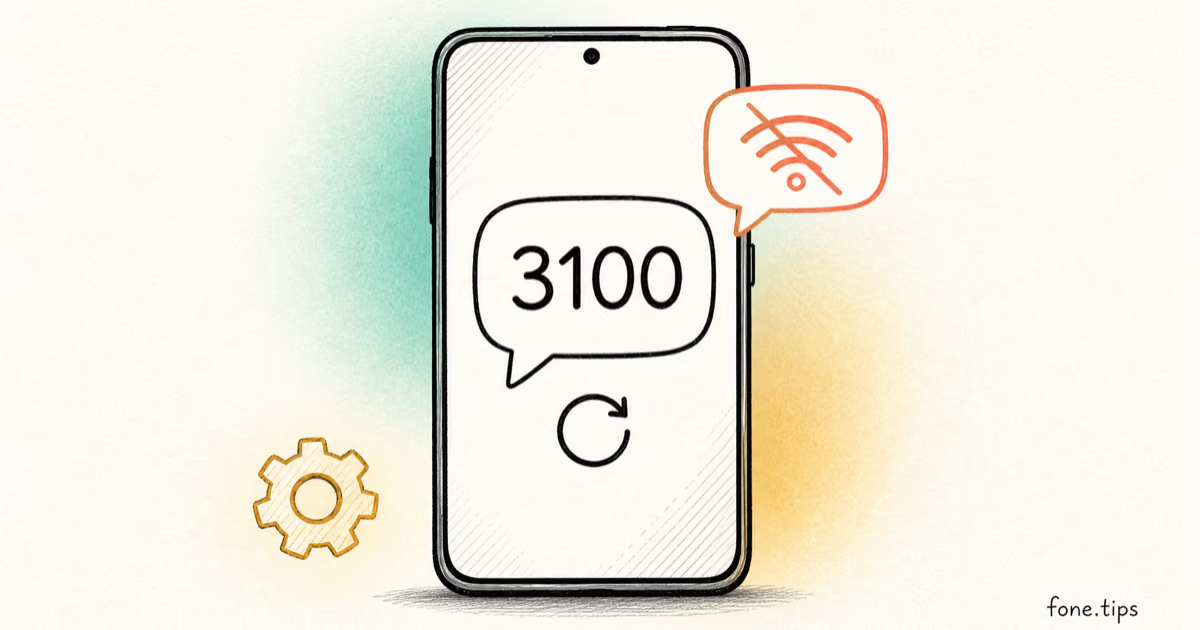
Google Messages Error 3100: Why RCS Is Broken on Galaxy
Google Messages RCS error 3100 hits Galaxy owners after phone or carrier switches. Google told 9to5Google a fix is coming. Here's what actually helps.

Is This Bank App Real? Spot a Fake App on Your Home Screen
A bank app can land on your home screen from a web page with no install warning. Learn the checks that tell a real banking app from a phishing web app.
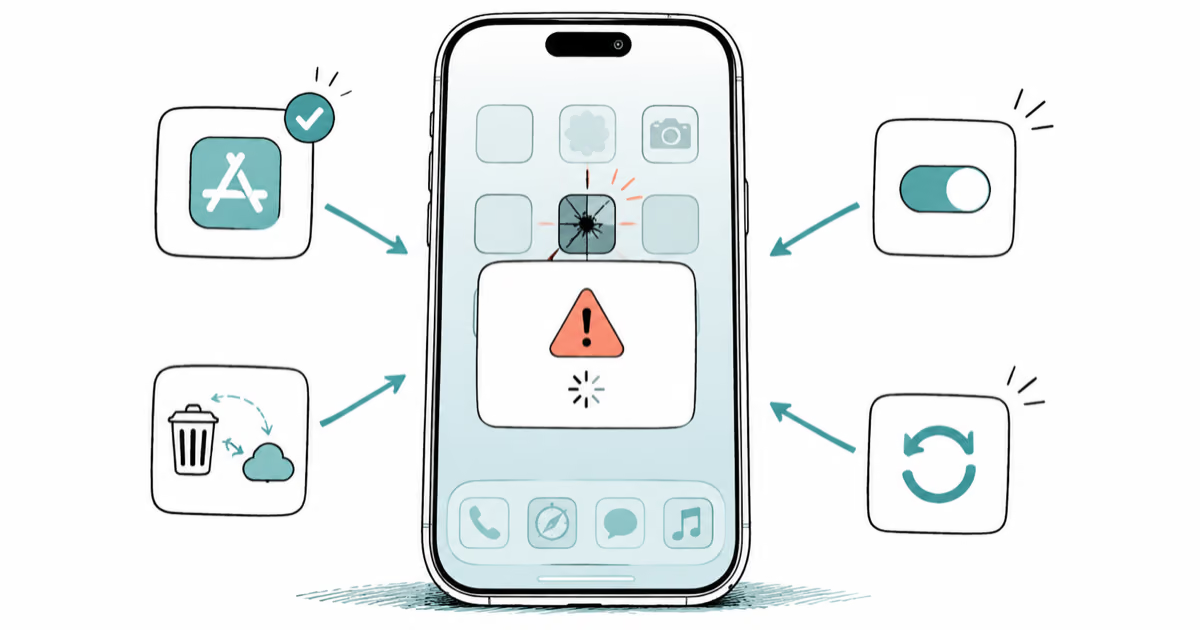
Apps Crashing After iOS 27 Update? Fix Order (2026)
Apps crashing after the iOS 27 update? Update the app in the App Store first, then offload and reinstall to clear stale cache, then restart. The fix order.
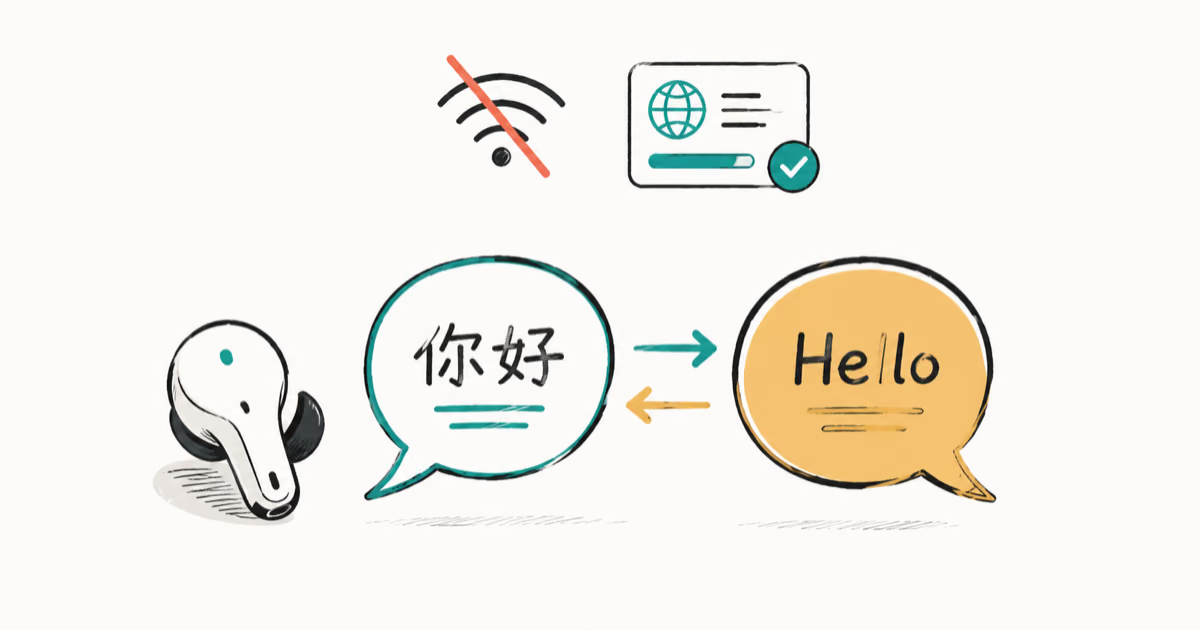
Do AI Translation Earbuds Work Offline? What to Know
Do AI translation earbuds work offline? A few do with downloaded language packs, but most need the cloud. Here's what works offline and what you give up.