Fix "Screen Overlay Detected" on Samsung Galaxy Phones
Fix the 'screen overlay detected' error on Samsung Galaxy phones in 30 seconds. Step-by-step One UI menu paths for Android 8 through 15 included.
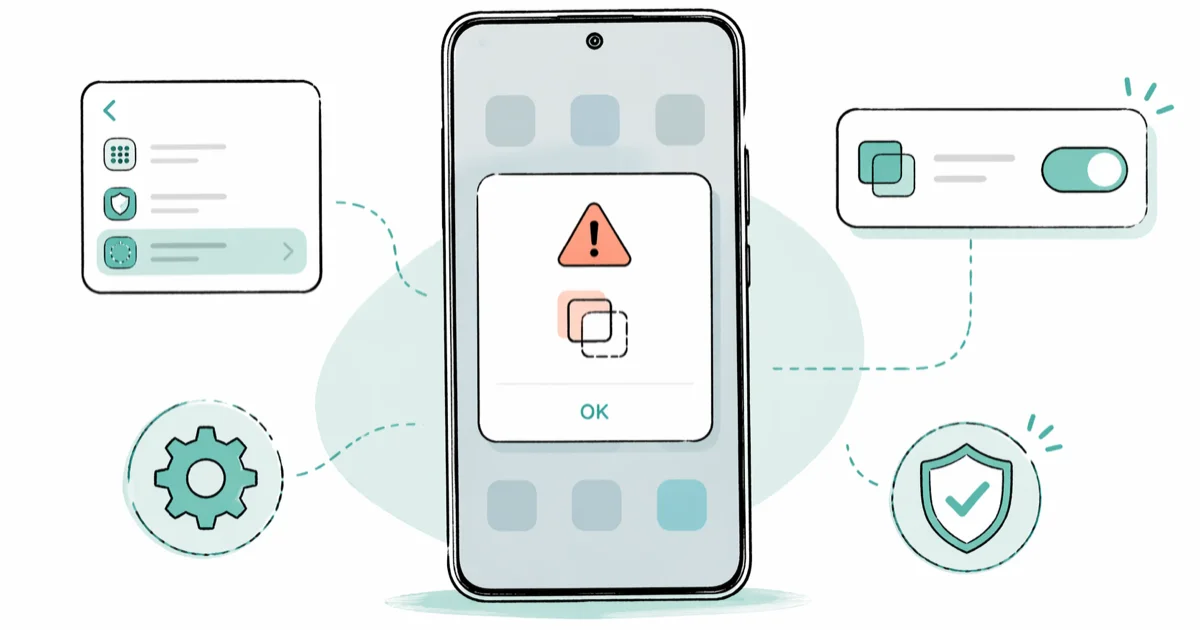
Quick AnswerThe 'screen overlay detected' error on Samsung phones happens when an app draws over other apps while you're trying to grant permissions. Go to Settings > Apps > Special access > Display over other apps and turn off the overlay for the app causing the conflict.
The “screen overlay detected” error on Samsung Galaxy phones blocks you from granting an app permission because another app is drawing on top of your screen at the same time. The fix is quick on every recent Galaxy phone, from older One UI builds through Android 15 (One UI 7). Find the overlay app, turn off “Display over other apps,” and the permission dialog goes through.
- The error fires when any app with overlay permission is active during a permission dialog
- Facebook Messenger chat heads, blue light filters, and screen recorders cause most of these cases
- The fix path is
Settings>Apps>Specialaccess > Display over other apps on Android 10+ and One UI 2.0+ - Disabling one offender takes 15-30 seconds and never deletes data or breaks the app
- The error is an Android security feature, so it can’t be permanently turned off; only the trigger can
#What Causes the Screen Overlay Detected Error?
Android’s permission framework has a strict safety rule: it refuses to display a sensitive permission dialog while any other app is drawing on top of your screen. The block is a tapjacking defense. Without it, a malicious app could float a fake “Allow” button over a real prompt and trick you into granting access you never intended to give.
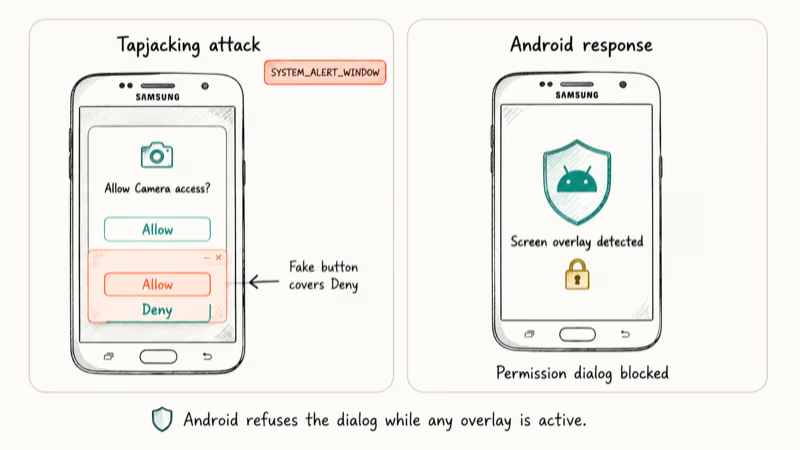
The trigger is the SYSTEM_ALERT_WINDOW permission. Apps that hold this permission can paint pixels on top of every other app, even when they aren’t in focus.
According to Google’s Android developer reference, SYSTEM_ALERT_WINDOW lets a window display on top of all other apps and is “very rarely required and should be used with care.” When you try to install an app or grant a runtime permission while one of these overlay windows is active, the system stops the dialog. You see “screen overlay detected” instead of the Allow/Deny choice.
Samsung’s One UI layers a few extra overlays on top of stock Android. Edge panels, Game Booster, Pop-up View, and Bixby all use overlay-style windows. That’s why this error tends to surface more often on Galaxy phones than on Pixels: the surface area is bigger. According to Samsung’s One UI security documentation, Samsung extends Android’s window manager with One UI features that overlay content on the foreground app.
#How Do You Disable Display Over Other Apps on Samsung?
The reliable fix is to turn off the overlay permission for whichever app is interfering, then grant the permission you originally wanted, then turn the overlay back on if you actually use it.
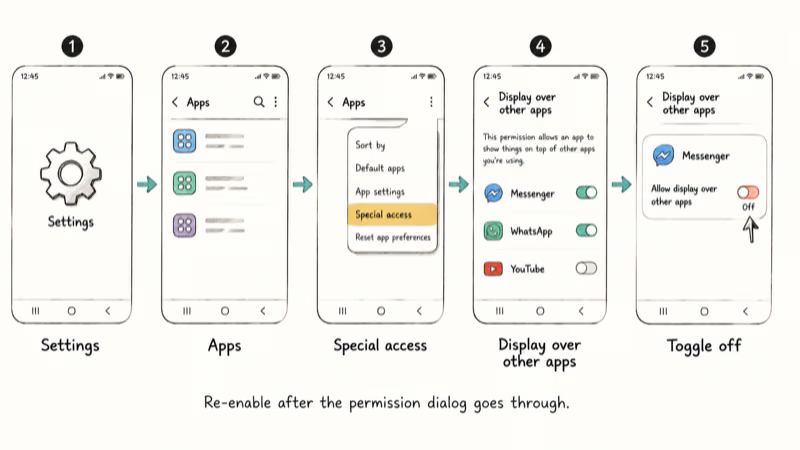
On Android 10 and later (One UI 2.0+): Open Settings, tap Apps, tap the three-dot menu in the top right, and choose Special access. Tap “Display over other apps,” find the app you suspect, and toggle it off. Turning off Messenger’s chat heads clears the error right away, and the camera permission dialog reappears on the next launch.
Switch the toggle back on after the permission goes through if you want the floating bubbles back. The off state only needs to last the few seconds the permission dialog is open.
On Android 8 and 9 (Galaxy S8, S9, Note 9, A50): The path is almost identical, but the menu wording shifts. Go to Settings, then Apps, then the three-dot menu, then Special access, then “Display over other apps” or “Draw over other apps.” If you can’t identify the culprit, toggle every app in the list to off, finish granting the permission, then re-enable only the apps you actually want floating.
If your Galaxy keeps surfacing weird system errors, the same Special Access menu also helps with related issues like the “System UI has stopped” error and the “process system isn’t responding” error. Both share Samsung’s permission stack.
#Common Apps That Trigger the Overlay Conflict
Overlay apps only break permission dialogs when they keep something visible on screen continuously. Brief notifications and toast messages don’t trigger the block.
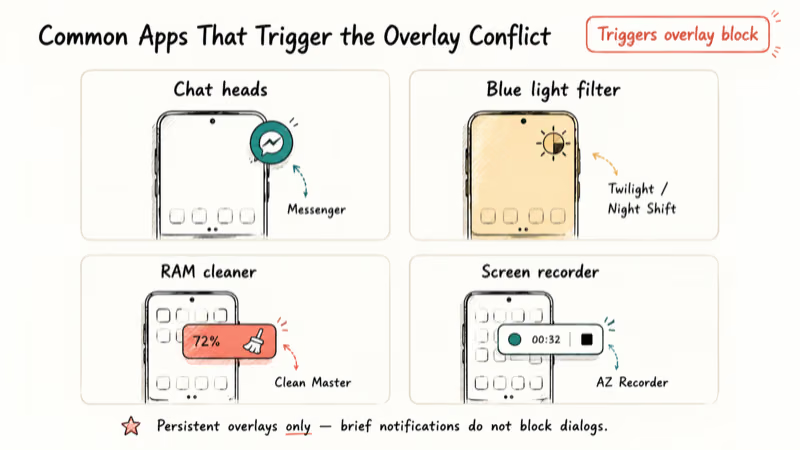
Facebook Messenger chat heads are the single most common offender reported in support threads on r/GalaxyS24 and r/AndroidQuestions. The floating chat bubbles are a SYSTEM_ALERT_WINDOW. To clear them without uninstalling Messenger, open Messenger, tap your profile, go to Notifications & Sounds, and toggle off Chat Heads.
Blue light filters such as Twilight, Night Shift, and CF.lumen tint the entire screen, which counts as a full-screen overlay. Disable the filter for a minute, grant the permission, then turn it back on. Samsung’s built-in Eye Comfort Shield (under Settings > Display) does not cause the error because it ships as a system-level color filter rather than a third-party overlay window.
Battery saver and “RAM cleaner” apps like Clean Master and DU Battery Saver paint persistent floating widgets and trigger the block constantly. According to Samsung’s device care support page, Galaxy phones already include built-in optimization tools, so these third-party utilities are usually redundant.
Screen recorders such as AZ Screen Recorder and Mobizen draw a floating control bubble while recording. Stop the recording first, then handle the permission, then restart the recorder.
For other Samsung-specific issues, see how to fix Samsung Pay not working or what the com.samsung.android.incallui system app does on your phone.
#The “Open Settings” Shortcut in the Error Dialog
Most “screen overlay detected” dialogs on Samsung phones include a small “Open Settings” link at the bottom. Tapping it jumps you straight to the “Display over other apps” page for the right app, which skips the manual menu walk.
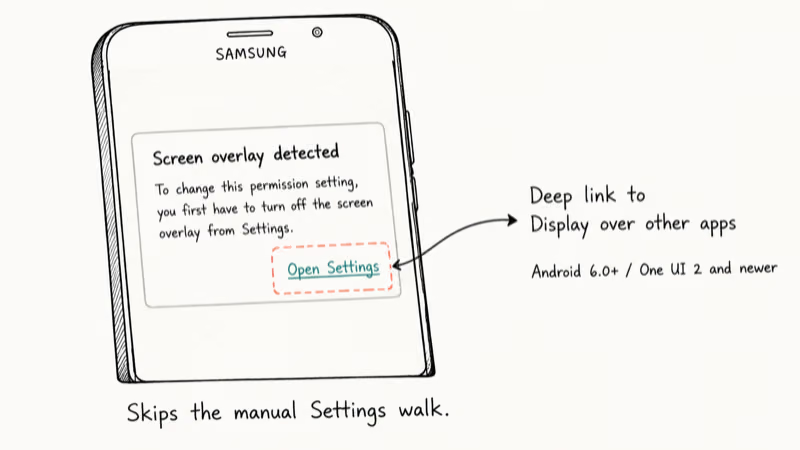
Based on Google’s developer reference for Settings.ACTION_MANAGE_OVERLAY_PERMISSION, the deep-link intent that powers the shortcut was standardized in Android 6.0 Marshmallow and is supported by every modern Galaxy phone.
The shortcut appears on every One UI 5, 6, and 7 device. Some older Galaxy J and Tab A models on One UI 1.x don’t show it. If yours doesn’t, fall back to the manual path: Settings > Apps > three-dot menu > Special access > Display over other apps.
#Preventing the Error From Coming Back
You can’t disable the security feature itself, because it’s part of Android’s tapjacking defense. What you can do is keep the list of apps with overlay permission short.
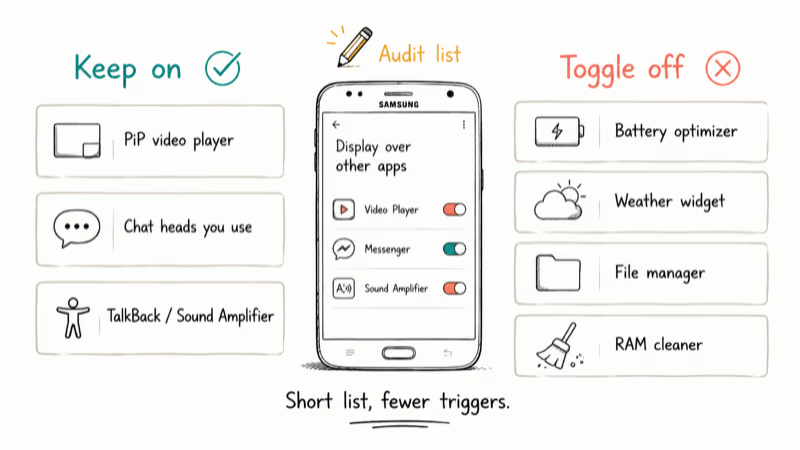
Open Settings > Apps > Special access > Display over other apps and audit the list. Apps that legitimately need overlay permission are picture-in-picture video players, chat apps with floating bubbles, and accessibility tools (TalkBack, Sound Amplifier).
Apps that almost never need it are battery optimizers, file managers, weather widgets, and most utilities. Toggle off everything in the second group.
According to the Android 12 behavior changes documentation, Google reworked the permission flow so that brief or scheduled overlays are less likely to block dialogs on Android 12 and newer. On Android 15, transient overlays clear themselves quickly. Persistent ones, like chat heads or blue light filters running 24/7, still trip the error every single time. Keeping the list short is the only reliable preventative measure.
The green dot indicator on Galaxy phones is a separate microphone and camera privacy light, unrelated to overlay permissions.
#When a Factory Reset Is (and Isn’t) the Right Fix
A factory reset will technically clear the error because it removes every third-party app and resets every special access permission. It’s also wildly disproportionate. Disabling one toggle takes 30 seconds. Restoring a Galaxy from a factory reset takes hours and forces you to sign into every account again.
Save the reset for actual system corruption: persistent boot loops, hardware-stage errors, or storage failure. If you’re dealing with a Galaxy that keeps rebooting or a black screen that stays black after a charge cycle, those qualify. The overlay error doesn’t.
If you do decide to reset for unrelated reasons, back up your WhatsApp messages on Samsung devices and your contacts before you start.
#Bottom Line
For 95% of Galaxy users hitting this error, the fix is one toggle: open Settings > Apps > Special access > Display over other apps, turn off Facebook Messenger or whichever blue-light filter you installed, and grant the permission. Switch the toggle back on after the dialog goes through. Skip the factory reset, skip the third-party “fix” tools, and don’t sit through a One UI reinstall. None of them are needed for an overlay conflict.
Samsung Galaxy Guide
#Frequently Asked Questions
Does the screen overlay error damage my phone?
No. It’s a built-in Android security check that pauses a permission dialog. Once you disable the offending overlay and grant the permission, your phone returns to normal with no data loss.
Why does this error show up more on Samsung than on Pixel or OnePlus?
Galaxy phones ship with more system overlays than stock Android: Edge panels, Game Booster, Pop-up View, Bixby, and several Samsung apps all use overlay windows. One UI’s richer surface stack just gives the trigger more chances to fire, so users see the dialog more often than on Pixel devices running cleaner software.
Can I grant permissions to apps without disabling the overlay?
No. Android refuses to display a permission dialog while any overlay is active. You have to disable the overlay window first, complete the permission grant, and then re-enable the overlay if you want it back.
How do I find out which app is causing the overlay?
Check what you used in the last few minutes that draws on screen: chat heads, blue light filters, screen recorders, floating widgets. If nothing obvious comes to mind, open Settings > Apps > Special access > Display over other apps and look at every app set to “Allowed.” Toggle them off one by one until the permission dialog clears.
Will updating my Samsung phone fix this permanently?
No. Updates won’t remove it because the security check is built into Android itself. Android 12+ did improve how short, scheduled overlays interact with permission prompts, so brief overlays stopped firing the block on most phones. Persistent overlays like Messenger chat heads still trigger it on every Android version because they keep drawing while you tap, which is exactly the pattern Android is designed to defend against.
Is this the same as the “appearing on top” notification?
Related but different. “Appearing on top” notifies you whenever an app uses overlay permission. “Screen overlay detected” only fires when you try to change permissions while that overlay is active.
Can screen overlay apps drain my battery?
Slightly. Each persistent overlay keeps a window manager process alive, which adds incremental drain. The extra drain from a few persistent overlays is small but noticeable over a day, so culling the list is a small but real battery win.
Does this error appear on Samsung tablets too?
Yes. Galaxy Tab A, S, and S Ultra models running One UI use the same Android permission framework, so the error appears the same way on tablets as it does on phones. The fix path is identical: Settings > Apps > Special access > Display over other apps, then disable the offending overlay.
Samsung Secure Folder: Setup, Hide Apps, Clone Apps
Set up Samsung Secure Folder in under 5 minutes. Hide apps and photos, clone a banking app, and hide the Secure Folder icon on any Galaxy S8 or newer.
How to Use Google Find Hub: Setup + Find Lost
Set up and use Google Find Hub to locate, ring, lock, or erase your own Android phone, including offline finding and powered-off Pixel support.
Samsung Galaxy Battery Draining Fast: 2026 Fix Guide
Diagnose Galaxy S25 battery drain in five minutes through Battery Usage, then walk through six reversible Galaxy settings before a factory reset.
Samsung Parental Controls: Full Setup Guide for Parents
Set up Samsung parental controls in three layers: Samsung Kids, Google Family Link, and Digital Wellbeing. Free step-by-step guide for Galaxy parents.