What Is KLMS Agent on Samsung and How to Disable It
KLMS Agent is a Samsung Knox security component, not malware. Learn what it does, why it runs on your phone, and how to disable or remove it if needed.
Quick AnswerKLMS Agent (com.samsung.klmsagent) is a legitimate Samsung Knox component pre-installed on Galaxy phones, not malware. To disable it on a personal device, go to Settings > Apps > Show system apps > KLMS Agent > Disable.
KLMS Agent appears in the device administrator list or app settings on most Samsung Galaxy phones, which often prompts a question about whether it belongs there. On a typical Samsung Galaxy phone, the app sits idle and consumes negligible CPU, memory, and battery. This guide explains what KLMS Agent does, why Samsung pre-installs it, and how to disable or remove it without rooting.
Only change KLMS Agent on your own device; altering a company phone without permission can violate privacy and workplace policies.
- KLMS Agent (package name: com.samsung.klmsagent) is part of Samsung Knox, the company’s enterprise security platform
- The app handles license validation and certificate management for work-managed Galaxy devices
- It ships on every Samsung Galaxy phone since the Galaxy S4 and isn’t malware or spyware
- Disabling it through Settings stops it from running and is fully reversible
- Removing it through ADB is more thorough and doesn’t require root access
#What Is KLMS Agent on Samsung Devices?
KLMS stands for Knox License Management Service. The agent is the user-space service that talks to a corporate mobile device management (MDM) server.
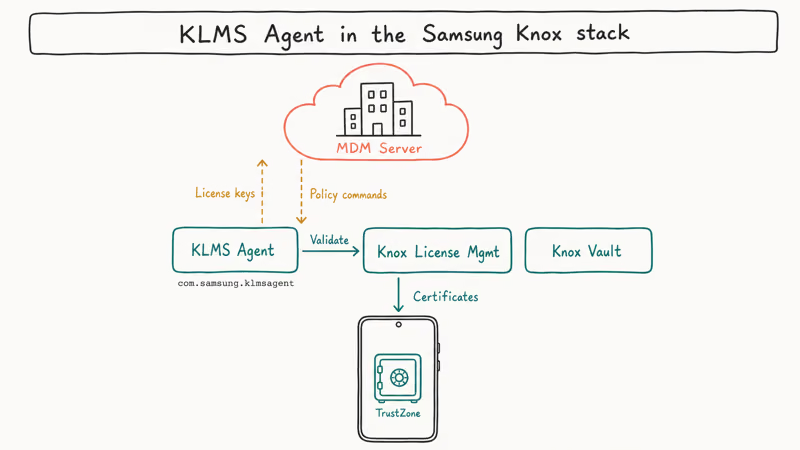
Samsung Knox’s Platform for Enterprise documentation confirms that Knox shipped first on the Galaxy S4 in 2013 and is now standard across the Samsung Galaxy lineup. The full package name is com.samsung.klmsagent, and the agent validates Knox licenses, installs certificates, and relays policy commands from IT administrators to the device. Wikipedia’s Samsung Knox entry tracks the public history of the platform across more than ten Galaxy generations.
On a personal phone with no MDM enrollment, KLMS Agent is essentially dormant. It registers as a device administrator capability but never receives instructions, so its CPU, memory, and battery footprint stay near zero in practice.
#Is KLMS Agent a Virus or Spyware?
No. KLMS Agent is a pre-installed Samsung system application, signed by Samsung’s official developer certificate, and not malware of any kind. It’s built into the Galaxy firmware image and verified at boot by Knox’s hardware-backed security architecture, which uses the device’s TrustZone-isolated secure storage to detect tampering and rollbacks. The same architecture also protects Samsung Pay, Secure Folder, and biometric template storage on Galaxy phones.
The concern usually starts in the device admin list.
Google’s device admin documentation states that device admin permissions have shipped in Android since API level 8 in the Froyo release. Samsung Knox is the Galaxy-specific implementation of the same idea, so it appears in admin settings for the same reason an MDM app would on a Pixel or OnePlus device. Our Android system battery drain guide covers how to identify which system apps are responsible if KLMS Agent shows up there.
#KLMS Agent and the Samsung Knox Stack
On a personal Galaxy with no work profile, KLMS Agent stays inactive and waits for instructions that never arrive.
On work-managed devices, the picture is different. The agent verifies Knox license keys issued by an IT administrator, allowing the rest of the Knox stack to enable features like containerized work profiles, encrypted on-device storage, and remote command execution. It also pushes certificates into the Android keystore, which lets corporate VPNs, Wi-Fi networks, and email accounts authenticate without user interaction from the employee.
Samsung’s Knox hardware-backed security documentation states that Knox builds on a hardware-backed root of trust embedded in the device during manufacturing. KLMS Agent is one of the user-space services that talks to that trusted environment on behalf of an MDM server.
#How to Disable KLMS Agent Without Rooting
Standard Android settings let you disable KLMS Agent on any Galaxy phone without root, custom firmware, or third-party tools.
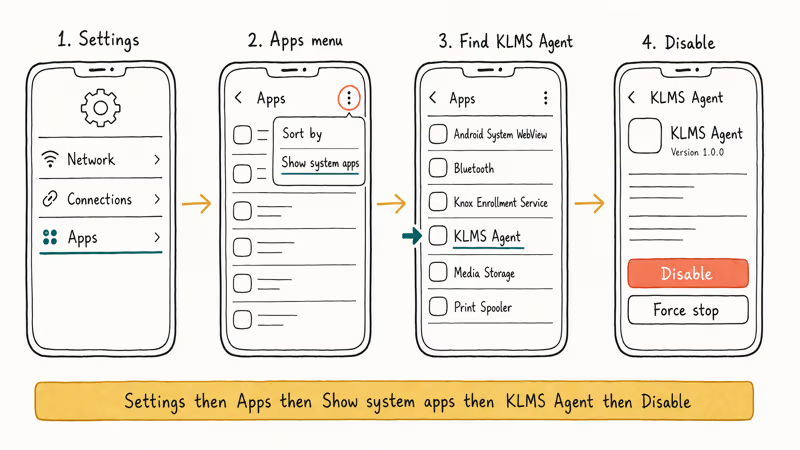
Open Settings > Apps, tap the three-dot menu in the top right, and choose Show system apps. Scroll to KLMS Agent, open it, and tap Disable. Confirm the warning prompt; the app shuts down and won’t restart on reboot. Disabling stops it from running and removes it from the active app list, while keeping the package files on the device so you can re-enable later.
If anything misbehaves afterward, like Samsung DeX losing a paired display profile or a Knox-managed corporate VPN refusing to connect, return to the same screen and tap Enable. The change takes effect immediately.
#How to Remove KLMS Agent Using ADB
ADB (Android Debug Bridge) lets you uninstall system apps for the active user without rooting the device. The result is more thorough than disabling, but it’s reversible, and it doesn’t trip the Knox warranty fuse on the Samsung Knox security chip. The steps below work on most recent Galaxy phones, which accept the command without extra setup.
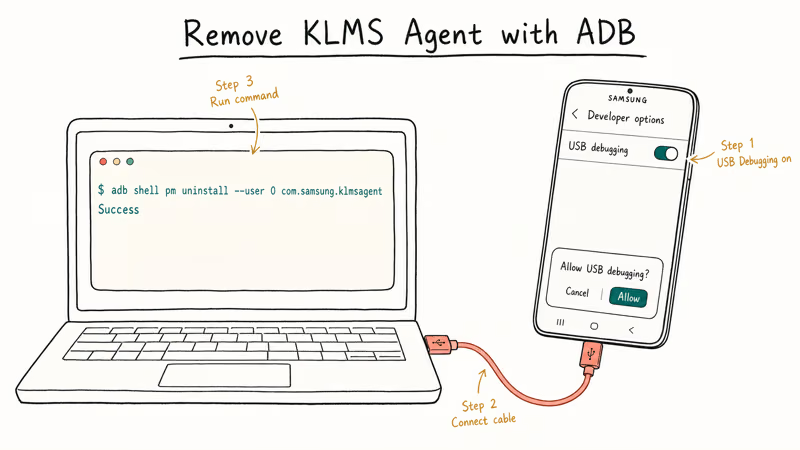
Step 1: Enable USB Debugging
Go to Settings > About Phone > Software Information and tap Build Number seven times. Enter your screen lock when prompted to unlock Developer Options. Then go to Settings > Developer Options and turn on USB Debugging.
Step 2: Set up ADB on Your Computer
Download the Android Platform Tools bundle from Google’s developer site, extract the ZIP, and open a terminal or PowerShell window in that folder.
Step 3: Connect and Run the Command
Connect your Galaxy to your computer with a USB data cable. Accept the USB Debugging authorization prompt on your phone. Then run this command from the platform-tools folder:
adb shell pm uninstall --user 0 com.samsung.klmsagentYou’ll see “Success” when the command finishes.
The app stays gone after a reboot and won’t reinstall itself unless you perform a factory reset. Re-enrolling in an MDM doesn’t bring it back automatically; the agent only re-installs after a clean factory wipe of the device.
#Battery Drain From KLMS Agent on Personal Phones
Almost never an issue. On a personal Galaxy with no MDM enrollment, KLMS Agent has no work to do, so battery, CPU, and data usage attributed to the app should sit at zero in Settings > Battery > Battery usage. Anything climbing above zero is unusual and worth investigating.
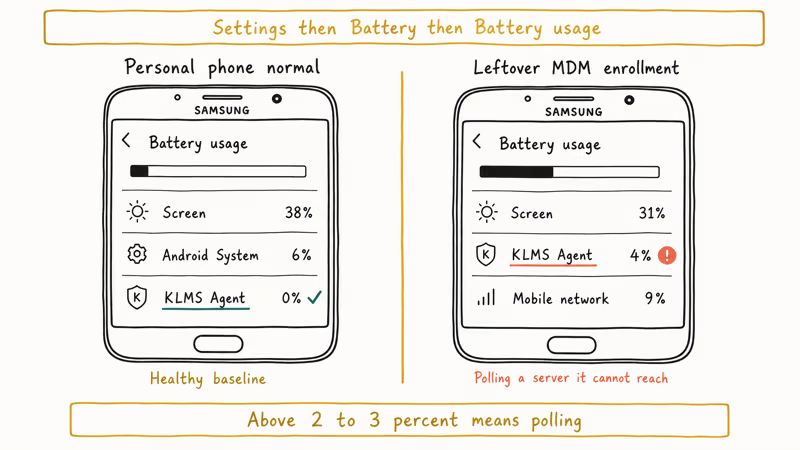
The most common explanation is a leftover MDM enrollment.
This happens when a previous owner or job left an enrollment behind, and the device keeps trying to reach a server that no longer accepts its requests. Disabling KLMS Agent through Settings stops the polling and resolves the drain within a day, often within a few hours, without a factory reset. Our Samsung tablet battery not charging guide walks through general Galaxy power diagnostics that apply to phones too.
If KLMS Agent is also burning mobile data on a personal phone, the same enrollment issue is likely the cause.
#Features Affected When KLMS Agent Is Disabled
For most personal phone users, disabling KLMS Agent has no visible effect because the functions it manages, like enterprise policy enforcement, remote MDM configuration, and Knox license validation, only matter when the device is enrolled in a work program.
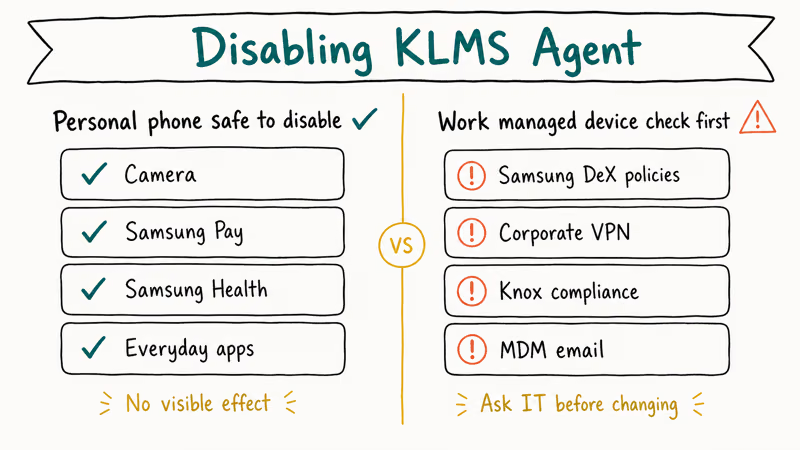
A few Samsung features are mildly affected. Samsung DeX configurations that depend on Knox-pushed policies sometimes fail to persist after re-pairing with a new dock or display, and corporate VPN profiles installed by IT through Knox stop working until KLMS Agent is re-enabled. Knox Vault, which protects payment credentials for Samsung Pay, lives in a separate hardware partition and is not affected by KLMS Agent’s status, so contactless payments keep working.
On any device issued by an employer, school, or government agency, check with IT before disabling KLMS Agent.
Disabling on a managed device often violates a Knox compliance rule and can result in the device being blocked from corporate email, VPN, or single-sign-on systems.
#How to Check for MDM Enrollment on Your Galaxy
Active battery, CPU, or data usage from KLMS Agent on a personal phone strongly suggests the device is still enrolled in an MDM somewhere. Open Settings > General Management > Security > Device Admin Apps to see whether KLMS Agent or any related Knox component is listed as active.
To unenroll from a Knox MDM without a corporate IT contact, the standard route is a factory reset.
If the device has Samsung Reactivation Lock or Knox Enrollment Service (KES) enabled, the reset alone won’t clear the enrollment, and the phone re-binds to the previous administrator on first boot. Our Samsung Smart Switch guide covers how to use Samsung’s transfer tool to inspect and back up the device before any reset, and the Android factory reset code guide covers reset behavior across Galaxy generations.
For other unrelated Galaxy issues that share the same diagnostic flow, the Samsung screen rotation not working and Samsung hotspot not working guides use the same Settings > Apps and Safe Mode steps as the KLMS workflow above.
#Bottom Line
For a personal Galaxy phone, the safest path is to leave KLMS Agent alone unless the battery dashboard or device admin list shows it as active.
If it’s active, the Settings > Apps > Show system apps > KLMS Agent > Disable flow stops the work in seconds and is fully reversible. Reach for the ADB pm uninstall --user 0 removal only when you also need the package gone from the user package list, like when prepping a phone for resale where a previous corporate enrollment keeps leaving traces.
Samsung Galaxy Guide
#Frequently Asked Questions
What is KLMS Agent and should I remove it?
KLMS Agent is part of Samsung Knox and doesn’t need removal unless it’s causing battery drain on a personal phone. On Galaxy devices that were never enrolled in an MDM, the app sits dormant.
Can KLMS Agent spy on me?
No. KLMS Agent is a Samsung-signed system component, not third-party software. It only transmits data to an MDM server when the device is explicitly enrolled in a corporate program. On personal phones the agent doesn’t initiate outbound traffic on its own, and Knox holds independent security certifications including Common Criteria and FIPS 140-2 that require external auditing of how the platform handles data.
Will disabling KLMS Agent break Samsung Pay?
Samsung Pay relies on Knox Vault, a separate Knox component from KLMS Agent. Disabling KLMS Agent on a personal phone doesn’t affect Samsung Pay.
How do I know if KLMS Agent is causing battery drain?
Open Settings > Battery > Battery usage. KLMS Agent should sit at zero on a personal phone. Anything above 2 to 3 percent means the device is still polling an MDM server.
What happens if I use ADB to remove KLMS Agent?
The command adb shell pm uninstall --user 0 com.samsung.klmsagent removes the app for the current user profile. The package files stay in the read-only system partition, so a factory reset restores the app. Knox features that rely on KLMS Agent, mainly enterprise policy enforcement and MDM communication, stop working after the removal, but everyday Galaxy features like the camera, Samsung Pay for personal use, and Samsung Health are unaffected.
Is KLMS Agent different from Knox Agent?
KLMS Agent specifically handles Knox license management and MDM policy enforcement. “Knox Agent” is sometimes used loosely to refer to the entire Knox service stack. On a Galaxy phone, you may see several Knox-related system apps such as KLMS Agent, Knox Enrollment Service, and Knox Notification Manager, each handling a different Knox subsystem.
Can I uninstall KLMS Agent without ADB?
Disabling through Settings stops the app from running, which is enough for almost every personal-phone scenario. ADB removal is the right tool only when you also need the package gone from the user package list entirely.
Samsung Secure Folder: Setup, Hide Apps, Clone Apps
Set up Samsung Secure Folder in under 5 minutes. Hide apps and photos, clone a banking app, and hide the Secure Folder icon on any Galaxy S8 or newer.
How to Use Google Find Hub: Setup + Find Lost
Set up and use Google Find Hub to locate, ring, lock, or erase your own Android phone, including offline finding and powered-off Pixel support.
Samsung Galaxy Battery Draining Fast: 2026 Fix Guide
Diagnose Galaxy S25 battery drain in five minutes through Battery Usage, then walk through six reversible Galaxy settings before a factory reset.
Samsung Parental Controls: Full Setup Guide for Parents
Set up Samsung parental controls in three layers: Samsung Kids, Google Family Link, and Digital Wellbeing. Free step-by-step guide for Galaxy parents.