How to Clear Other Storage on Samsung Galaxy (One UI 8)
Clear Other storage on Samsung Galaxy safely. Use Device care, the new Other files panel in One UI 8, and per-app cache clears to recover several GB.
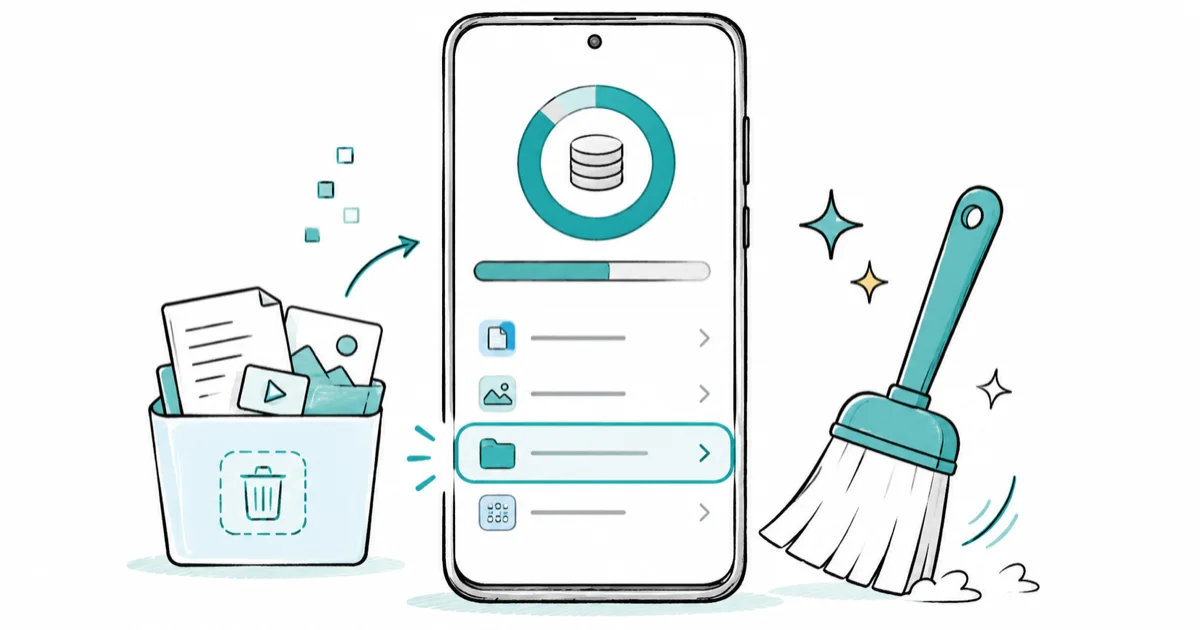
Quick AnswerOpen Settings, Battery and device care, Storage, then Other files. Delete everything under Invisible backups, then clear app caches in Settings, Apps.
Other storage on Samsung Galaxy is the catch-all bucket for cached data, residual app files, invisible photo backups, and pending downloads. One UI 8 finally lets you open it. The safe steps below focus on built-in cleanup controls that remove cache, Trash contents, invisible backups, and old downloads without wiping personal data.
- Other storage on Samsung Galaxy is the bucket for cached data, residual app files, and invisible photo backups
- One UI 8 added a three-tab Other files panel inside Settings: Invisible backups, Pending files, and Uncategorised
- Only Invisible backups has a full delete control in One UI 8’s Other files panel
- Pending and Uncategorised entries only show details, so you delete those from My Files or the source app
- Per-app cache clears, empty Trash bins in Gallery, and removing old downloads are still the biggest wins
#What Is Other Storage on a Samsung Galaxy?
Other storage is the leftover slice you see on the storage bar after Photos, Videos, Audio, Apps, and Documents are counted. It’s not a single folder. On One UI, it bundles four kinds of data:
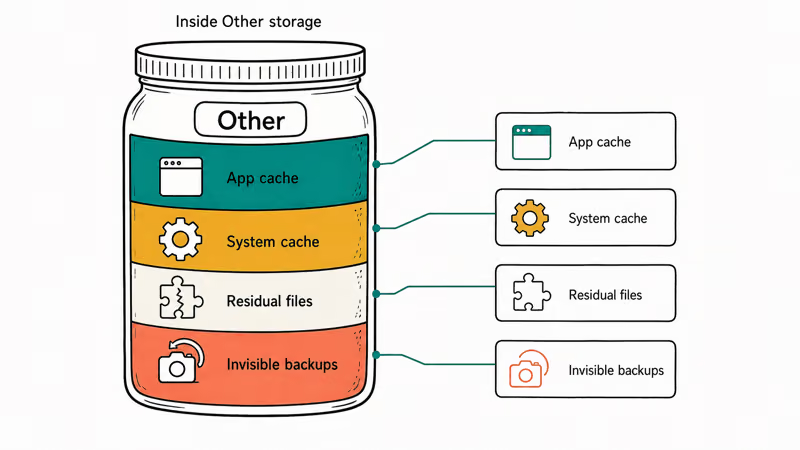
- App cache and temporary files that apps create while you use them
- System cache and log files Android keeps for performance
- Residual files left after an app or update is removed
- Invisible backups, like the Gallery edit history that lets you revert an edit
According to Samsung’s storage support page, this category also includes downloads that haven’t been moved into a media library, which is why a fresh photo edit can quietly add hundreds of megabytes to Other. Samsung’s support docs state that this folder grows with normal use and isn’t a sign of malware.
Large Other storage totals are common after long-term use, especially when cache, Trash contents, and invisible backups accumulate. For related Samsung maintenance, see our Samsung Galaxy battery draining fast guide.
#Why Samsung Storage Stays Full After Deleting Photos
Deleting photos sends them to the Gallery Trash for 30 days. The bytes stay on the device until the Trash is emptied.
The same is true for files you delete in My Files, which has its own Recycle bin. The storage bar may barely move after deleting media until you empty the Trash menu. Our empty trash on Android walkthrough shows the exact taps for both the Gallery and My Files bins.
Two other reasons Other keeps growing:
- App updates ship new binaries, and old versions can linger as residual files for several days
- Messaging apps download stories, statuses, and previews that the source app never deletes
So the cleanup isn’t one tap. It’s a short sequence: empty Trash bins, then clear caches, then open the new Other files panel.
#Open the New Other Files Panel in One UI 8
One UI 8 is the first version where you can actually see what’s inside Other. The path on a Galaxy phone running One UI 8:
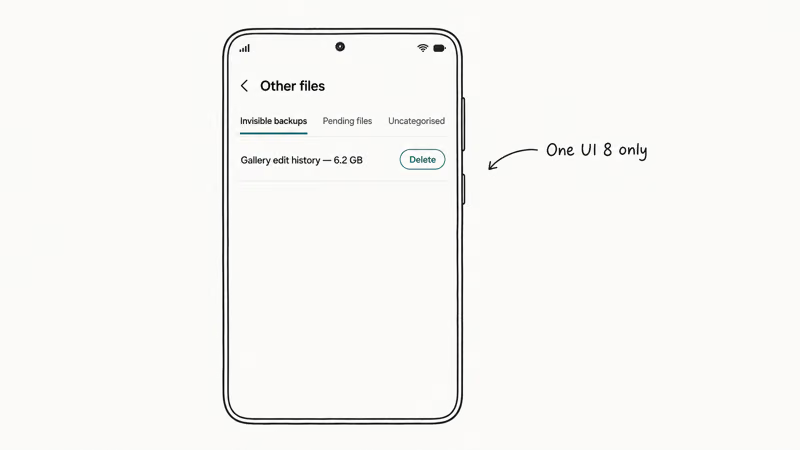
- Open Settings.
- Tap Battery and device care.
- Tap Storage.
- Scroll down and tap Other files.
You’ll see three tabs:
- Invisible backups holds Gallery edit history, app sandbox backups, and similar safety copies. This tab has a real delete control.
- Pending files lists half-finished downloads and uploads. Tap Details to see the file name and source.
- Uncategorised lists anything the system can’t match to a known category, including auto-expiring statuses from messaging apps.
Invisible backups can be cleared with Select all, then Delete, and the storage bar should update after the cleanup. A 2026 MakeUseOf storage walkthrough found that Invisible backups is the safest tab to wipe because the originals already exist in your Gallery library.
If you’re on One UI 7 or older, the Other files panel doesn’t appear. Skip to the Device care steps below.
#Use Device Care for a Safe One-Tap Cleanup
Device care is the built-in optimizer. It isn’t magic, but it handles the boring parts in one tap.
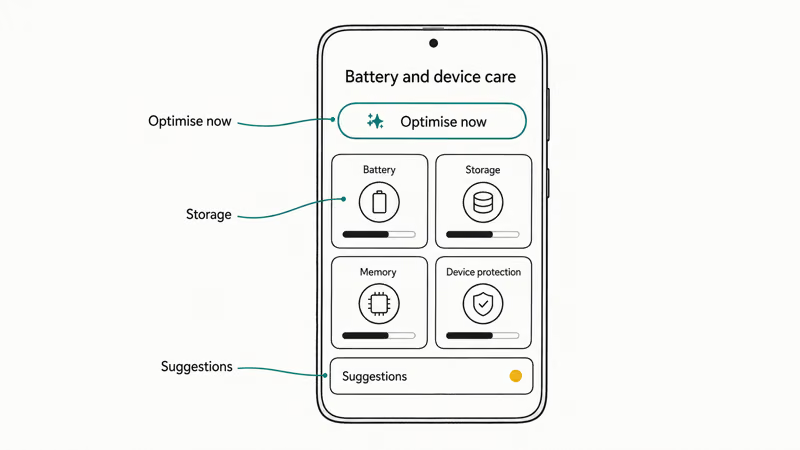
#Run Optimise Now
- Open Settings.
- Tap Battery and device care.
- Tap Optimise now.
The phone closes idle background apps, scans for crashes, and removes a small batch of temporary files. The recovered space may be small, but it costs nothing.
#Clean Storage From the Storage Card
- In Battery and device care, tap Storage.
- If a banner reads Unnecessary data, tap Clean now.
- Below that, tap each category in turn: Trash, Large files, Unused apps, Duplicate files.
The Trash entry empties Gallery and My Files Recycle bins together. Samsung’s Canada Device care support article confirms that each bin holds items for 30 days before auto-deletion, so emptying them on demand is the fastest recovery for users who delete often.
#Review Device Care Suggestions
Tap Suggestions at the top of Device care. You’ll see a short list of apps you haven’t opened in 30 to 90 days, plus oversized media files. Each suggestion has a Why explanation.
Read it before you confirm. The Delete action skips the 30-day Recycle bin and removes files immediately.
#Clear App Cache the Right Way
Per-app cache clearing is the highest-yield step that most people skip. It can remove leftover cache after the Device care pass.
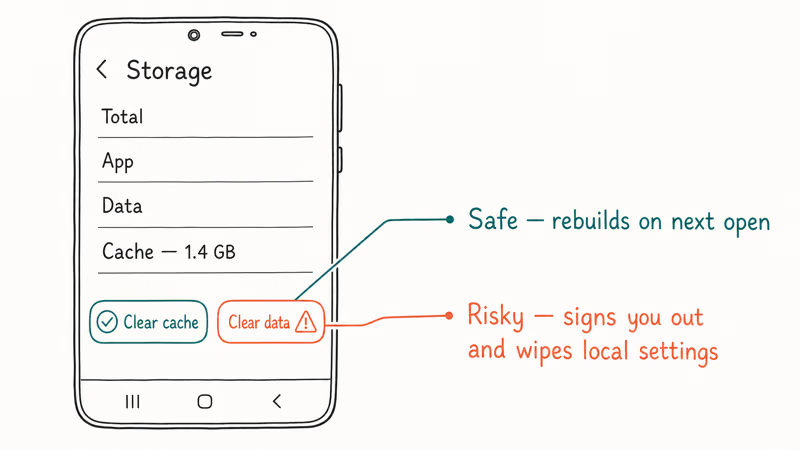
- Open Settings.
- Tap Apps.
- Sort by Size to find the biggest offenders. Chrome, Instagram, Spotify, and TikTok are the usual suspects.
- Tap an app, then tap Storage.
- Tap Clear cache.
Clearing cache is safe. It won’t log you out, delete photos, or wipe message history. The app will rebuild the cache the next time you open it, which can mean a few seconds of slower loading the first time. Our broader clear cache, cookies, and history on Android guide covers the same path on non-Samsung phones and walks through the Chrome browser cookies dialog.
Don’t tap Clear data unless you’re ready to lose offline content, sign-in state, and local app settings. Clear data is closer to a fresh install than a cache wipe.
Repeat this for the top five or six apps by size. On a Galaxy that hasn’t been cleaned in months, the combined recovery can be meaningful. WhatsApp is a frequent offender because it caches every media preview it shows you, and our WhatsApp backup on Samsung devices guide explains how to back the chats up first if you’d rather clear data.
#Is It Safe to Clear Other Storage?
Yes, if you stay inside the safe paths. The risky moves are the ones people are tempted to try when those paths don’t seem like enough.
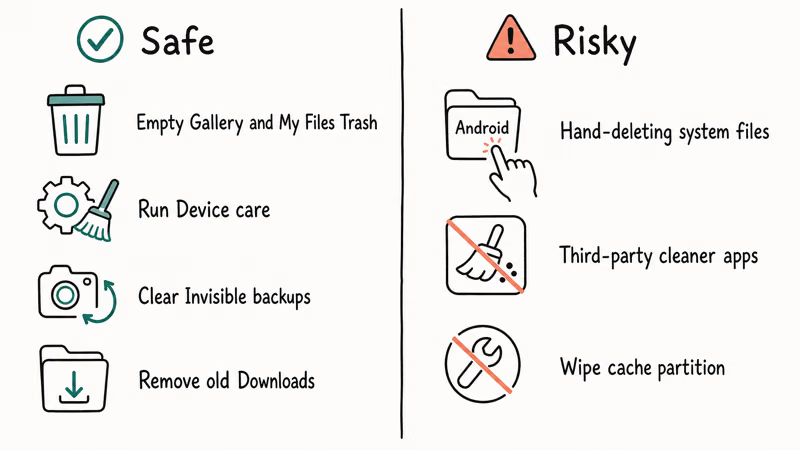
Safe paths:
- Empty Gallery Trash and My Files Recycle bin
- Clear app cache from Settings, Apps
- Delete everything in the Invisible backups tab on One UI 8
- Run Device care Optimise and Clean now
- Delete old files in your Downloads folder after a quick review (our delete downloads on Android guide shows the exact path)
Risky paths and not recommended:
- Manually deleting files inside the Android folder from a file manager
- Using third-party cleaner apps that promise to clear system cache
- Wiping cache partition from recovery, which Samsung removed on most newer Galaxy models anyway
A long Samsung Community thread on the missing wipe cache partition option reported that recovery mode no longer exposes that toggle on the S25 and S26 lines. Samsung points users back to Settings, Apps, and Clear cache for the same effect, and that thread accumulated 80+ confirmations across 2026.
#Move Photos and Videos Off the Phone
If Other shrinks but Photos and Videos still fill half the device, the cleanest fix is to move media off the phone instead of compressing it.
Three options most readers already have:
- Quick Share to a nearby PC or Galaxy device, which works without cloud accounts. See our Quick Share walkthrough for the exact pairing steps.
- Google Photos with Backup turned on, then Free up space. This deletes the local copies once the cloud copy is confirmed.
- A microSD card on Galaxy A and Galaxy S Ultra models that still ship with a slot, useful for archive video.
After backups are confirmed, return to Gallery, select older albums, and delete in batches of a few hundred. Empty the Trash when you’re done. This can reclaim more space than Other cleanup alone when local media is the main storage problem.
#Quick Cleanup Order That Recovers the Most Space
Use this cleanup order to remove the safest, highest-yield categories before touching anything riskier:
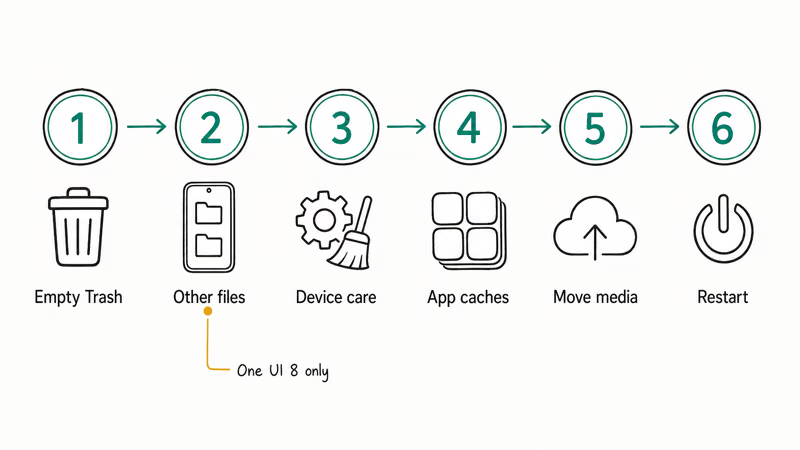
- Empty Gallery Trash and My Files Recycle bin. This alone often frees several gigabytes.
- Open Other files in One UI 8 and clear the Invisible backups tab.
- Run Battery and device care, Optimise now, then Clean now under Storage.
- Clear cache for the top five apps by size in Settings, Apps.
- Move old photos and videos off the phone with Quick Share, Google Photos, or a microSD card.
- Restart the phone. A reboot flushes lingering memory and Android writes a fresh storage report.
Restart matters. Galaxy storage reporting sometimes lags by a minute or two, and a reboot makes the new number match reality.
#Bottom Line
Start with the Invisible backups tab in One UI 8, then clear app caches for your five biggest apps in Settings, Apps. Empty every Trash bin before you check the storage bar. Don’t hand-delete system files, and don’t trust third-party cleaners. If those steps don’t free enough space, move media off the phone before you reach for a factory reset.
#Frequently Asked Questions
What is Other storage on a Samsung phone?
Other storage is the bucket for cached app data, residual files from removed apps, invisible Gallery backups, and pending downloads. It isn’t a single folder. On One UI 8 you can open it from Settings, Battery and device care, Storage, Other files.
Is it safe to clear Other storage on my Galaxy?
Yes, if you use the Settings paths. Clearing cache, emptying Trash, and deleting Invisible backups won’t remove your photos, messages, or app sign-ins. The risk only shows up if you start hand-deleting files from inside the Android folder with a third-party file manager, which can break an app’s saved state and force you into a fresh install or, worse, a factory reset.
How do I clear app cache on a Galaxy phone?
Settings, Apps, pick the app, Storage, Clear cache. That’s it.
Why is my Samsung storage still full after deleting photos?
Deleted photos sit in the Gallery Trash for 30 days. Open Gallery, tap the menu, tap Trash, then tap Empty. The same is true for My Files. Your storage bar won’t move until both bins are empty.
Does clearing cache delete my data?
No. Clearing cache removes temporary files only. Your photos, messages, contacts, and app accounts are untouched. The app rebuilds the cache the next time you open it.
How much space can I recover on a Galaxy with Other cleanup?
It depends on how long the phone has gone without a cleanup. Most recovery depends on cache size, Trash contents, downloads, and how long the phone has gone without cleanup.
Can I clear Other storage without One UI 8?
Partly. The Other files panel only exists on One UI 8. On older versions you still have Device care, Trash bins, and per-app cache clears, which together cover most of what the new panel exposes. The main loss is direct access to Invisible backups.

Pixel 11 vs Pixel 10: What Changed and Who Should Upgrade
Pixel 11 vs Pixel 10: same screen and camera resolution, new Tensor G6, 25W wireless, and Gemini Intelligence. Here is who should actually upgrade.

Verizon Not Receiving Texts? How to Fix It in 9 Steps
Verizon not receiving texts? Fix it in 9 steps: check Message Blocking in My Verizon, reset network settings, deregister iMessage, and call support.

Pixel Battery Drain: What Google's July Fix Really Covers
Google marked the Pixel idle battery drain bug fixed in July, but only some phones got the patch. Here is who is covered, who is not, and what to try.

iPhone Stuck on EDGE? How to Get 5G or LTE Back (2026)
iPhone stuck on EDGE with crawling data? Here's why the E icon appears, which settings force 5G or LTE back, and when the problem is your carrier.