Samsung Private Mode: Hide Photos and Files on Galaxy
Hide photos and files on Galaxy phones with Samsung Private Mode in about 2 minutes. Step-by-step setup for the S5, S6, S7, Note 4, and Note 5.
Quick AnswerSamsung Private Mode hides photos, videos, and files behind a separate PIN, pattern, or fingerprint. Activate it in Settings > Privacy and Safety > Private Mode, set your security method, then move files from Gallery or My Files.
Samsung Private Mode hides photos, videos, and files on older Galaxy phones by tucking them behind a separate PIN, pattern, password, or fingerprint. Toggle the feature off and the files vanish from Gallery, My Files, and Voice Recorder until you authenticate again. This guide covers the legacy Galaxy S5, S6, S7, Note 4, and Note 5 path.
Use these steps only on your own device or with the owner’s explicit permission. Respect privacy laws in your region.
Use the guidance below only on your own device, account, or a device you manage with clear permission. Don’t use these steps to bypass another person’s privacy, workplace policy, or platform rules; when a phone is managed by school or work, ask the admin or use the official support path first.
- Private Mode is a hidden view filter inside Gallery, My Files, and Voice Recorder
- The access code must differ from your phone’s normal lock screen credential
- Hidden files stay on the device but disappear from normal view when the toggle is off
- The feature does not encrypt files, so root-level file managers can still read them
- Galaxy S8 and newer ship with Secure Folder instead, which adds Knox-grade encryption
#How Does Private Mode Actually Hide Your Files?
Private Mode does not delete or move files. It applies an app-level filter that hides flagged photos, videos, and recordings from normal view. Reactivate the feature, enter your code, and the file reappears in supported apps.
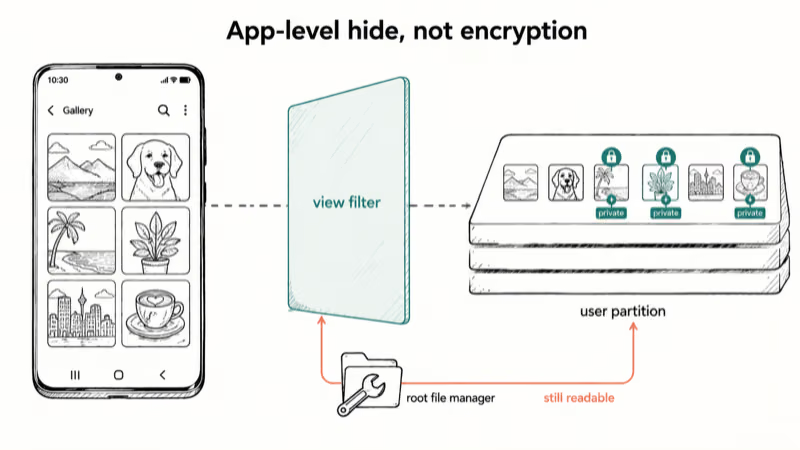
Disabling Private Mode hides marked photos from Gallery, and enabling it again restores them to the normal app view. That behavior is view filtering, not a separate encrypted vault.
The catch is small but important.
Private Mode relies on app-level hiding, not file-system encryption. According to Samsung’s Knox platform documentation, Knox-based protection wraps user data in a 256-bit AES container that the legacy Private Mode never touched. A file manager with root permissions can still see your hidden files. For sensitive material, Secure Folder is the right tool because it encrypts at the operating system level.
#Step-by-Step: How to Turn Private Mode On
The activation flow is similar across the supported legacy models. Use the path below for Galaxy phones that still include Private Mode.
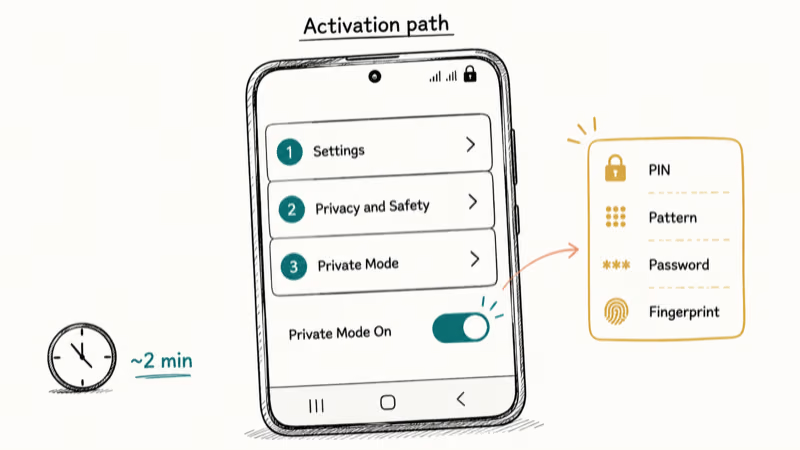
- Open Settings on your Galaxy phone.
- Tap Privacy and Safety. On older firmware it’s labeled simply Privacy.
- Tap Private Mode.
- Toggle the switch to On.
- Choose your access method from this list:
- PIN (4 to 16 digits)
- Pattern (unlock gesture)
- Password (alphanumeric)
- Fingerprint, if your model supports the native biometric path
- Confirm the new code. A small lock icon appears in the status bar to indicate Private Mode is on.
Two minutes. That is the whole flow.
Samsung’s Private Mode support page notes that you set a separate PIN the first time you enter Private Mode, and that the feature covers Gallery, Video, Music, Voice Recorder, and My Files. Choosing a code different from your lock screen password means anyone who already knows your phone PIN still can’t automatically read your hidden files.
Activation usually finishes quickly after you set a PIN, pattern, password, or fingerprint. Fingerprint setup can take a little longer because of the enrollment scan.
#Moving Files Into Private Mode
Once the toggle is on, you move files into the private layer from inside their host app. The interaction is consistent across all three supported apps.
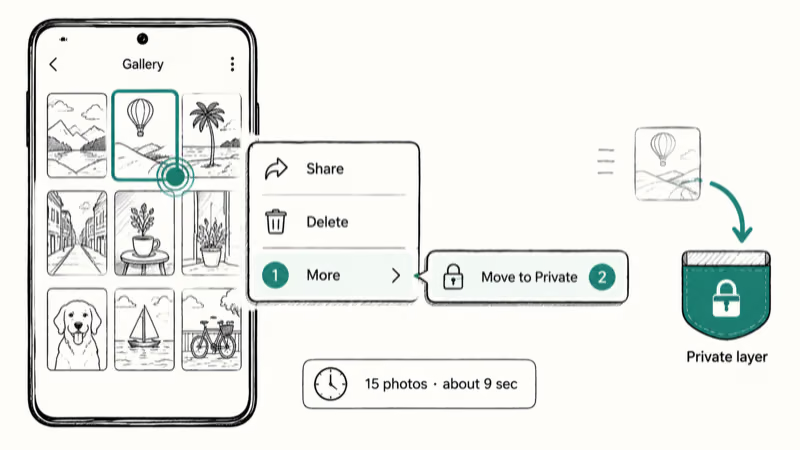
To hide files in Gallery: open Gallery, long-press the photo or video, tap More (the three-dot menu), and choose Move to Private. The thumbnails disappear from the main grid as soon as the move finishes.
That is all there is to it.
To hide files in My Files: long-press the file, tap More, choose Move to Private. Folder structure is preserved.
To hide recordings in Voice Recorder: open Voice Recorder, long-press the clip you want hidden, tap More, and choose Move to Private. Voice memos behave the same way photos do — they vanish from the main list and reappear only when Private Mode is on.
Move files in small batches, then confirm they still open before deleting any originals.
#Accessing Your Hidden Files Again
To view the hidden layer, open Gallery, My Files, or Voice Recorder while Private Mode is enabled.
Private files appear inline with normal files. As soon as you toggle Private Mode off in Settings or in the quick-settings panel, the private items vanish from view. Nothing about your normal photo library changes.
To move files back to your normal storage, open the app with Private Mode on, select the items, tap More, and choose Remove from Private. They land in the original folder you grabbed them from, with the original capture date intact.
#Private Mode vs. Private Browsing
Two unrelated features share a confusingly similar name. Private Mode hides files. Private browsing hides browsing history. They protect different things in different places.
Samsung Internet has a built-in Secret Mode: open Samsung Internet, tap the Tabs icon, then Turn on Secret Mode. The browser stops saving the URL history, cookies, autofill data, and login credentials for that session. It won’t hide your activity from your ISP or from your network’s owner.
Chrome offers the same idea under a different name.
Open Chrome, tap the three-dot menu, and choose New Incognito Tab. Google’s Chrome Help Center confirms that Incognito sessions don’t save browsing history, cookies, or form data to the device, and the page also notes that activity remains visible to the websites you visit, your employer, and your internet provider.
Treat Secret Mode and Incognito as light shields against shoulder-surfing only. Neither one is a replacement for a VPN or a password vault.
#Private Mode vs. Secure Folder: The Encryption Gap
Comparing these features matters because the names sound identical but the security model is not.
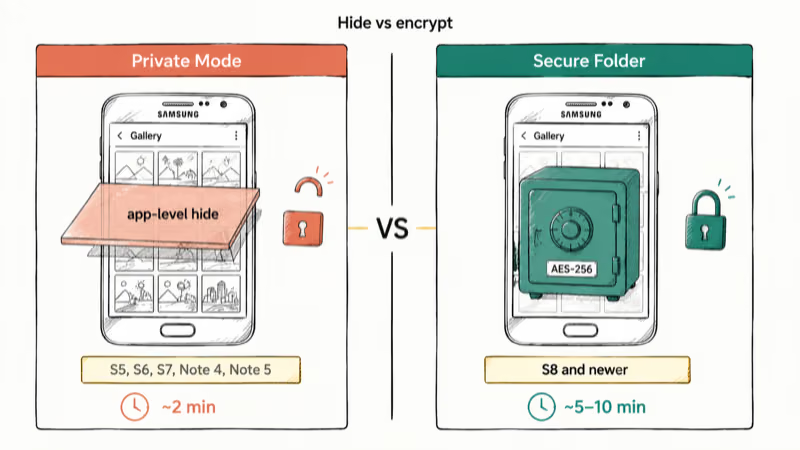
| Feature | Private Mode | Secure Folder |
|---|---|---|
| How it works | App-level hide filter | Knox-encrypted partition |
| Devices | Galaxy S5, S6, S7, Note 4, Note 5 | Galaxy S8 and newer |
| Supported apps | Gallery, My Files, Voice Recorder | Any app installed inside the folder |
| Security level | Hides from casual view, not encrypted | AES-256 encryption, separate biometric profile |
| Setup time | About 2 minutes | About 5 to 10 minutes |
If your Galaxy is the S8 or newer, Secure Folder is the right choice for anything you would not want a roommate, kid, or repair tech to see. Private Mode still has a role on legacy hardware, but only for casual privacy: a borrowed phone, a curious sibling, a quick hand-off in a meeting.
For tax records, medical scans, or work documents, don’t lean on Private Mode. Move them into Secure Folder, an encrypted vault app, or a cloud storage service that encrypts at rest with a passphrase you control. The threat model matters.
#How Do You Disable Private Mode Without Losing Files?
Move every private file back to normal storage before you turn the toggle off. Disabling Private Mode while files still live inside it strands them on disk: they stay in their hidden directories but no normal app can see them.
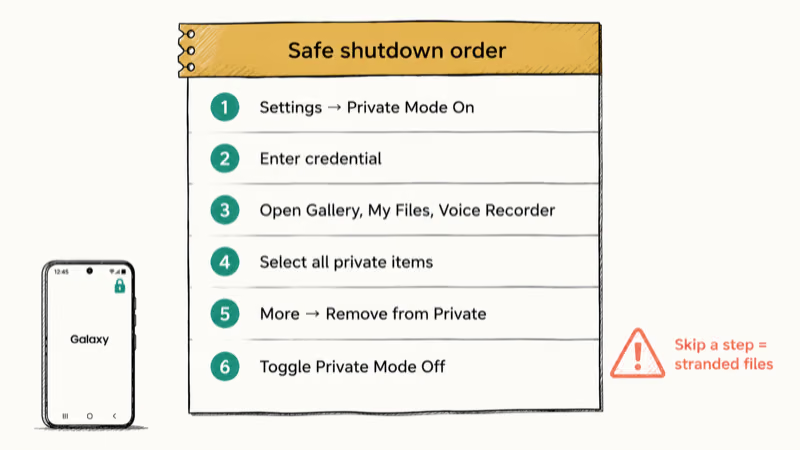
Here is the safe shutdown order:
- Open Settings → Privacy and Safety → Private Mode and toggle the feature On.
- Enter your Private Mode credential.
- Open Gallery (and My Files and Voice Recorder if you stored items there).
- Select all private items: long-press, then tap Select All.
- Tap More → Remove from Private.
- Return to Settings and toggle Private Mode Off.
Skip a step and you risk lost photos.
Samsung doesn’t warn you when you toggle Private Mode off, which is the single most common cause of “lost” Galaxy photos in older support threads. Samsung’s support page states that there is no recovery path for content left inside disabled Private Mode, and no recovery path after a factory reset on a phone where Private Mode was still active.
If you forgot the code, the only fix is the destructive reset described in our Samsung reset code guide or the Galaxy password recovery walkthrough.
#Bottom Line
For Galaxy S5, S6, S7, Note 4, or Note 5 owners who need to hide casual photos from a friend who borrows the phone, Private Mode is the fastest fix in the Settings app: about 2 minutes from start to a working hidden layer. For anything more sensitive, upgrade your storage strategy. Use Secure Folder if your phone supports it, or move the data off the device entirely into an encrypted cloud vault.
If your phone lacks both Private Mode and Secure Folder, our Samsung lock screen removal workflow plus a fresh One UI install gives you a clean baseline before you commit to a long-term encrypted vault.
Samsung Galaxy Guide
#Frequently Asked Questions
Which Samsung phones support Private Mode?
Galaxy S5, S6, S7, Note 4, and Note 5 ship with Private Mode. Samsung removed it from the Galaxy S8 onward and replaced it with Secure Folder, which became the default on every flagship after the S8 release in 2017.
Can someone still find my private files with a file manager?
Yes. Private Mode hides files at the app level, not the filesystem level, so a third-party file manager with root access reads the underlying directories and exposes anything you placed in Private Mode. The directories sit on the regular user partition with no extra encryption applied. If you need encryption rather than just hiding, use Secure Folder; if your phone is too old for Secure Folder, an encrypted vault app is the better answer.
What happens if I forget my Private Mode PIN?
You have to reset Private Mode from Settings, which permanently erases everything stored inside it. Recovery is not possible. Save the code in a password manager, or use a fingerprint if your phone has the sensor enrolled.
Does Private Mode slow down my phone or drain the battery?
No. Private Mode doesn’t run a separate background service or allocate extra RAM for a hidden vault. It’s a view filter applied inside specific apps. The main delay is the few seconds it takes to authenticate with your PIN, password, or fingerprint when you first enable the feature in a new session.
Can I use both Private Mode and Secure Folder together?
Technically yes on the early Galaxy S8 firmware that retained the legacy code, but there is no benefit. Secure Folder does everything Private Mode does and adds Knox encryption, which means you double your maintenance work for nothing.
Is Private Mode safe enough for business documents or financial records?
Not on its own. Private Mode protects against a friend or family member casually scrolling through your Gallery, and that is the limit of its threat model. For tax statements, medical scans, two-factor backup codes, or work files you signed an NDA over, use Secure Folder, an encrypted vault app, or a cloud service that encrypts at rest with a passphrase you control. Sensitive data deserves real encryption, not a view filter.
How is Secret Mode in Samsung Internet different from Private Mode?
They protect different layers. Private Mode hides files saved on the phone itself. Secret Mode in Samsung Internet (and Incognito in Chrome) only stops the browser from saving the URL history, cookies, and form fills for that session. Neither one hides your traffic from the websites you visit, your network, or your ISP.
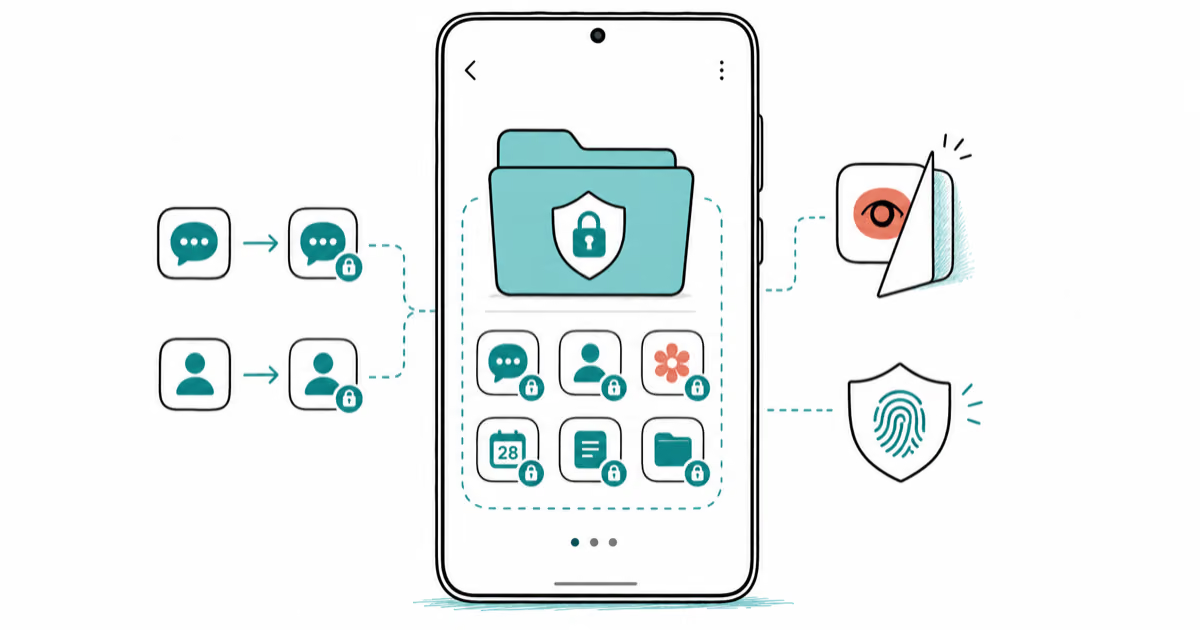
Samsung Secure Folder: Setup, Hide Apps, Clone Apps
Set up Samsung Secure Folder in under 5 minutes. Hide apps and photos, clone a banking app, and hide the Secure Folder icon on any Galaxy S8 or newer.
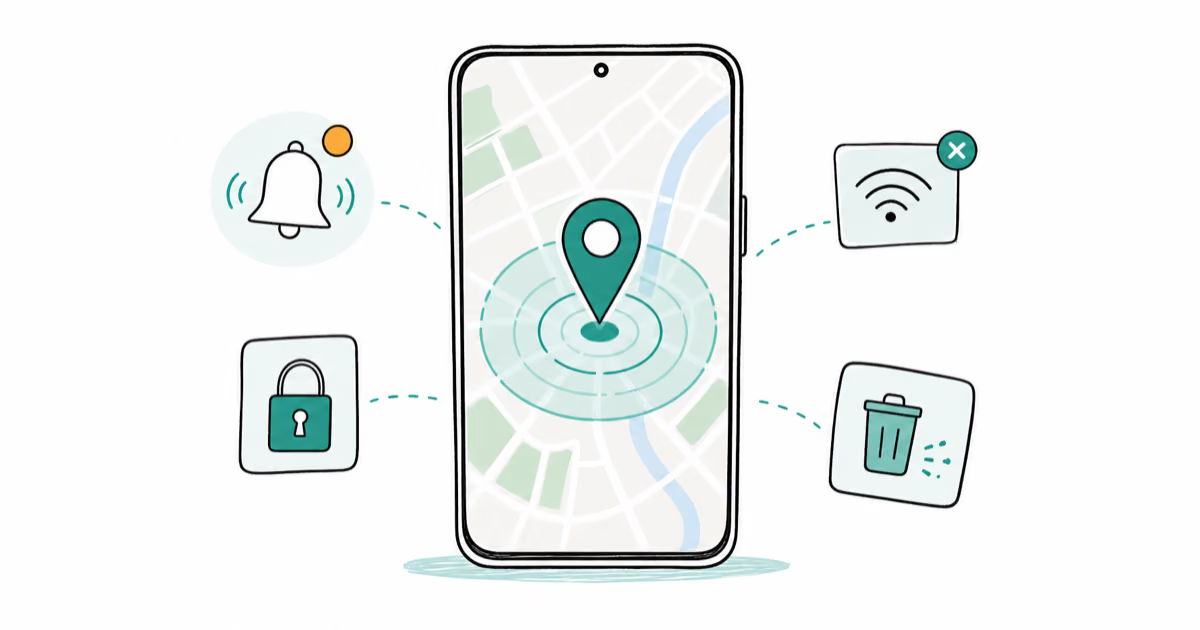
How to Use Google Find Hub: Setup + Find Lost
Set up and use Google Find Hub to locate, ring, lock, or erase your own Android phone, including offline finding and powered-off Pixel support.
Samsung Galaxy Battery Draining Fast: 2026 Fix Guide
Diagnose Galaxy S25 battery drain in five minutes through Battery Usage, then walk through six reversible Galaxy settings before a factory reset.
Samsung Parental Controls: Full Setup Guide for Parents
Set up Samsung parental controls in three layers: Samsung Kids, Google Family Link, and Digital Wellbeing. Free step-by-step guide for Galaxy parents.