Best Portable Monitor for Chromebook in 2026: 4 USB-C Picks
Best portable monitor for Chromebook in 2026. This guide compares 4 USB-C displays on ChromeOS for plug-and-play, power draw, and portability.
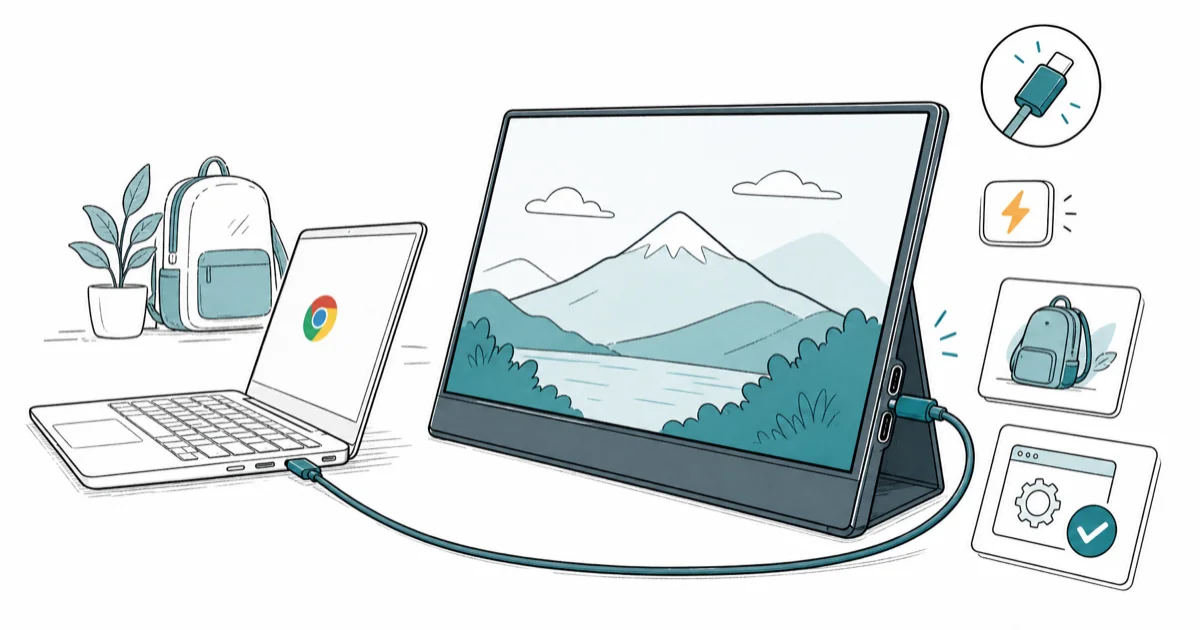
Quick AnswerViewSonic VG1655 is the best portable monitor for Chromebook because dual USB-C ports split power and video over one cable, and ChromeOS detects the panel with no driver.
Most portable monitor lists assume Mac or Windows, but Chromebooks have different constraints: USB-C alt-mode varies, and school IT may block firmware updates. This guide compares four USB-C portable monitors by ChromeOS compatibility, power passthrough, and backpack-friendly design.
- A Chromebook portable monitor must work over USB-C DisplayPort alt mode, since ChromeOS rarely supports DisplayLink USB-A monitors
- Dual USB-C ports on the monitor let you split power and video, keeping the Chromebook battery topped up
- 15.6-inch 1080p panels at about 1.6 pounds hit the sweet spot for backpacks without overloading entry-level Chromebooks
- ChromeOS detects USB-C alt-mode displays as native external monitors with no driver install required
- Integrated kickstands beat origami cover stands for cramped desks and seat-back trays on flights
#Why Is a Portable Monitor a Smart Chromebook Add-On?
A 15.6-inch external monitor doubles the workspace on a 14-inch Chromebook, which matters for split-screen tab work, video calls beside class notes, and side-by-side document review. According to Google’s official Chromebook external display guide, ChromeOS supports external monitors at resolutions up to 3840x2160 at 30 Hz over USB-C alt mode, and most Chromebooks drive 1920x1080 panels at 60 Hz with no setup beyond plugging in the cable.
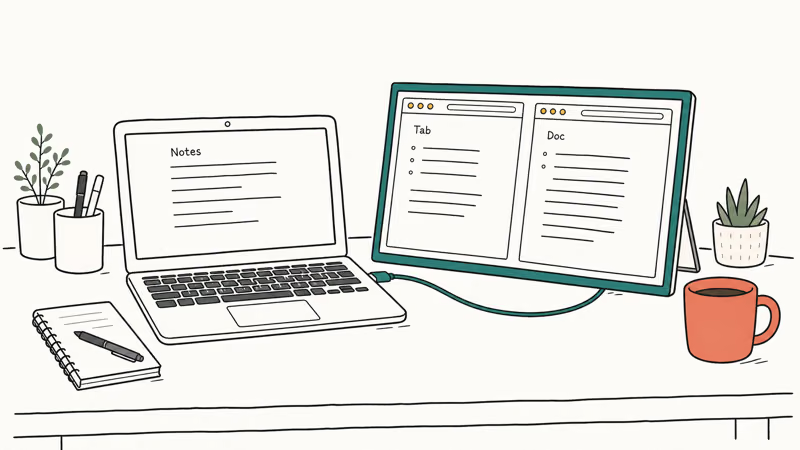
Cable count drives the buy. A single USB-C cable carrying video and power keeps backpack clutter low.
Some Chromebooks ship with only one USB-C port, so a monitor with dual USB-C inputs lets the second port pass power through to the laptop. Our best portable monitor for laptop covers the broader landscape, and the best USB-C cable for fast charging on Samsung breaks down USB-C cable spec tiers.
#Best Portable Monitor for Chromebook: ViewSonic VG1655
ViewSonic VG1655 wins for most Chromebook users because the dual USB-C ports let the second port pass power back to the Chromebook. Its 1920x1080 panel matches the common 15.6-inch portable-monitor resolution, and ChromeOS handles USB-C alt-mode displays without a separate driver.
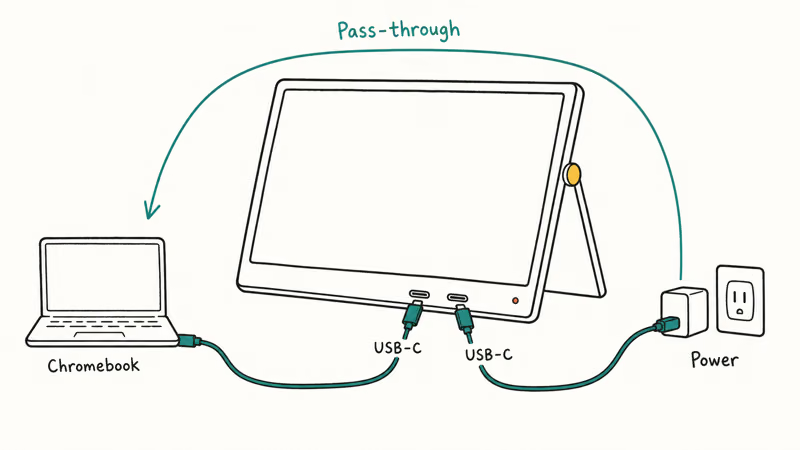
Dual-port pass-through is the unlock.
The 360-degree kickstand survives daily backpack abuse, and ChromeOS detects the panel without a driver install, which matters because school IT often locks down USB peripherals that need firmware downloads.
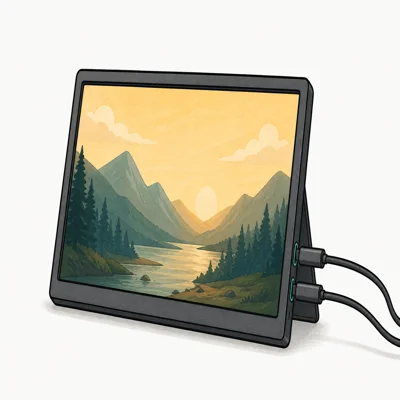
- Dual USB-C lets the second port pass power back to a single-port Chromebook
- 360-degree kickstand pivots from desktop landscape to seat-back tray portrait
- ChromeOS detected the panel as native external display with no driver install
Last updated on May 26, 2026
As an Amazon Associate fone.tips earns from qualifying purchases. Prices and availability on Amazon are accurate as of the date above and subject to change.
The ViewSonic ships with built-in stereo speakers, which matters in cafes and dorm rooms where pulling out a Bluetooth speaker isn’t an option. The 360-degree kickstand is the real upgrade over origami-cover competitors, because it pivots smoothly from landscape desktop to portrait coding without unfolding sticky magnetic flaps.
Dual USB-C, native ChromeOS support.
#Best Value Chromebook Monitor: ASUS ZenScreen MB16ACE
ASUS ZenScreen MB16ACE is the budget pick for students whose Chromebook supports USB-C alt mode but doesn’t need full pass-through power. The matte panel reduces glare under fluorescent classroom lighting, and the included slipcover doubles as a kickstand without adding weight to the backpack.
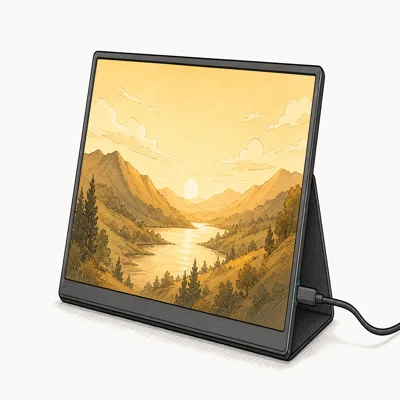
- Matte anti-glare panel readable under direct classroom fluorescents
- Included slipcover folds into a kickstand at three viewing angles
- USB-C alt mode supports plug-and-play ChromeOS external display setup
Last updated on May 26, 2026
As an Amazon Associate fone.tips earns from qualifying purchases. Prices and availability on Amazon are accurate as of the date above and subject to change.
ASUS ships only one USB-C port on the MB16ACE, which means single-USB-C Chromebooks have to choose between charging and external display unless you add a USB-C hub. Battery runtime can drop quickly when the laptop powers both its own screen and an external panel.
Single port costs runtime.
The ZenScreen has no built-in speakers, so plan to use the Chromebook’s audio or a USB-C dongle. Our best USB4 cable for external SSD test covers the cable side and applies here, since a USB-C 3.1 Gen 2 cable handles both DP alt mode and 60W power passthrough.
#Best Compact Chromebook Monitor: Lenovo ThinkVision M14
Lenovo ThinkVision M14 is the right pick when backpack weight matters more than every feature. At about 1.3 pounds, it’s a backpack-friendly 14-inch portable monitor, and the integrated tilt stand lays flat without a separate kickstand cover.

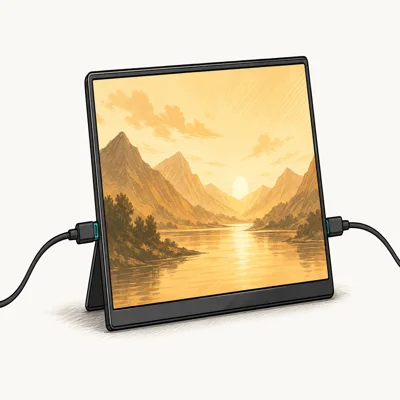
- 1.3-pound chassis is light enough for student backpacks
- Integrated tilt stand lays flat without a separate magnetic cover
- USB-C alt mode doesn't need a DisplayLink driver on ChromeOS
Last updated on May 26, 2026
As an Amazon Associate fone.tips earns from qualifying purchases. Prices and availability on Amazon are accurate as of the date above and subject to change.
The M14 has dual USB-C ports, so single-USB-C Chromebooks can route power through the second port back to the laptop while the panel pulls video off the same cable chain. The 14-inch panel is smaller than the ViewSonic, but matches most Chromebook lid sizes for a clean dual-screen aesthetic. The compact footprint also fits on cramped library desks, coffee shop tables, and seat-back trays where larger 15.6-inch panels would overhang the workspace and block laptop airflow vents.
Lightweight, dual USB-C.
#Best Premium Chromebook Monitor: espresso Display 15 Touch
espresso Display 15 Touch is the splurge option for Chromebook users who want touch input that mirrors the tablet-style ChromeOS gestures. The aluminum chassis is the only one in our roundup that doesn’t feel like a budget product.
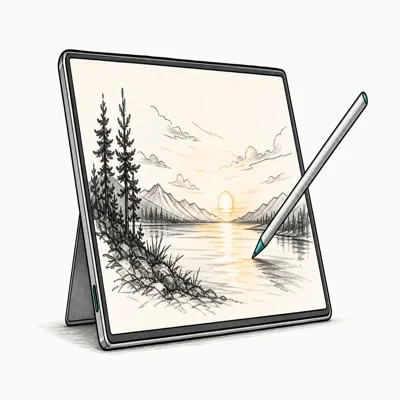
- Aluminum chassis avoids the plastic creak common at this size class
- Touch input works for ChromeOS gestures on touch-enabled Chromebooks
- Magnetic stand attaches without screws and folds flat for travel
Last updated on May 26, 2026
As an Amazon Associate fone.tips earns from qualifying purchases. Prices and availability on Amazon are accurate as of the date above and subject to change.
espresso touch costs about three times the ASUS ZenScreen, so it’s only the right pick if you need touch input that mirrors ChromeOS gestures. States that the touch driver runs over the USB-C alt mode without a driver install on ChromeOS, which means no separate firmware download from a blocked school IT environment.
#How Do You Connect a Portable Monitor to Your Chromebook?
Most modern Chromebooks support USB-C DisplayPort alt mode, which carries video, audio, and power over a single cable. Open the Chromebook lid, plug the USB-C cable into the monitor, plug the other end into the Chromebook, and ChromeOS should detect the panel automatically. According to the ChromeOS connectivity documentation, Chromebooks released since 2020 ship with USB-C alt mode enabled by default.
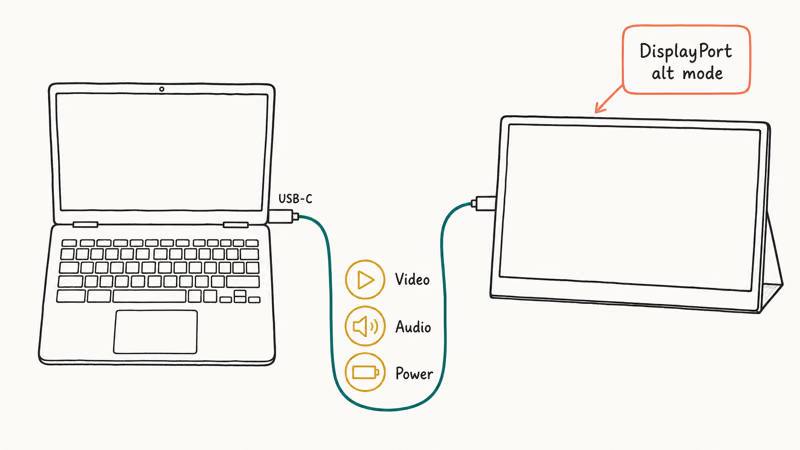
Settings tweaks come after. Open ChromeOS Settings, click Device, then Displays, and pick mirrored or extended desktop. Most users want extended desktop so the external monitor adds workspace rather than duplicating the laptop screen.
For Chromebooks with only one USB-C port, a dual-USB-C monitor like the ViewSonic VG1655 routes power through the second port back to the laptop. Our best GaN charger for iPhone 16 covers the charger end, and the best portable monitor for Nintendo Switch details how to pick a panel for handheld console use.
Extended desktop, two views.
Cable type matters. According to the USB-C Wikipedia overview, USB 3.1 Gen 2 cables carry both video and 60W power in one connection.
#Bottom Line
For most Chromebook users, ViewSonic VG1655 is the right buy. The dual USB-C ports solve the single-port Chromebook power problem, the 360-degree kickstand works on cramped desks and seat-back trays, and ChromeOS detects it without a driver. At about $200, it sits between the budget ASUS and the premium espresso while covering the features that matter on ChromeOS.
If budget is the top priority, ASUS ZenScreen MB16ACE delivers the same 1080p plug-and-play story for about $150. Lenovo ThinkVision M14 is the lightest option for student backpacks at about 1.3 pounds. Pick espresso Display 15 Touch only if you have a touch-enabled Chromebook and want gesture input that mirrors the tablet-mode interface.
#Frequently Asked Questions
Does ChromeOS need a driver for portable monitors?
No. USB-C alt-mode displays are detected automatically by ChromeOS without a DisplayLink driver.
Can my Chromebook power a portable monitor through USB-C?
Yes, if the Chromebook USB-C port supports DisplayPort alt mode. Most Chromebooks released since 2020 do, but check the Chromebook spec sheet for “USB-C with DisplayPort” to confirm.
Do portable monitors drain Chromebook battery faster?
Yes. Running an external monitor over USB-C alt mode drains the Chromebook faster because the laptop is now powering two displays. Use a dual-USB-C monitor with passthrough power to keep the Chromebook battery topped up during long sessions.
Will a portable monitor work with school-managed Chromebooks?
Generally yes, since USB-C alt mode requires no driver install or firmware update. School IT policies that block USB storage don’t affect monitor connectivity.
Can I connect a portable monitor to a Chromebook using HDMI?
Some portable monitors include a Mini-HDMI port, and any HDMI-to-USB-C or HDMI-to-Mini-HDMI cable works if your Chromebook has a full-size HDMI port. Most newer Chromebooks ship with USB-C only, so check before ordering an HDMI cable.
Do touch portable monitors work on ChromeOS?
Yes, when the model supports ChromeOS touch input over USB-C. Touch gestures pass over USB-C alt mode and ChromeOS treats the external panel as a touch input device, mirroring the tablet-mode interface. ASUS and Lenovo touch portable monitors don’t always ship with ChromeOS-certified drivers, so confirm ChromeOS support before buying.
Is 1080p enough resolution for a Chromebook external monitor?
Yes for most use cases. Chromebooks rarely drive 4K external displays at 60 Hz without dropping frames, and 1080p at 15.6 inches stays sharp at typical 24-inch viewing distance.

Pixel 11 vs Pixel 10: What Changed and Who Should Upgrade
Pixel 11 vs Pixel 10: same screen and camera resolution, new Tensor G6, 25W wireless, and Gemini Intelligence. Here is who should actually upgrade.
Best Power Bank for iPad in 2026: Pro, Air, and Mini
Best power bank for iPad in 2026. Compare mAh tiers and USB-C PD wattage for iPad Pro, Air, and mini, plus airline Wh math, cables, and travel tips.
Best Power Bank With Built-In Cable: Top 2026 Picks
Best power bank with built-in cable picks for 2026. Compare single USB-C, multi-connector, and retractable laptop banks, plus airline Wh math.
Best Apple Watch Band for Working Out: Proven Picks
The best Apple Watch band for working out handles sweat and stays put on your wrist. Compare silicone, nylon, and titanium picks for runs and lifts.