How to Recover Deleted Files from Dropbox (All Methods)
Recover your deleted Dropbox files on web, desktop, or mobile. Free and Plus plans keep them 30 days; Professional and Business plans keep 180.
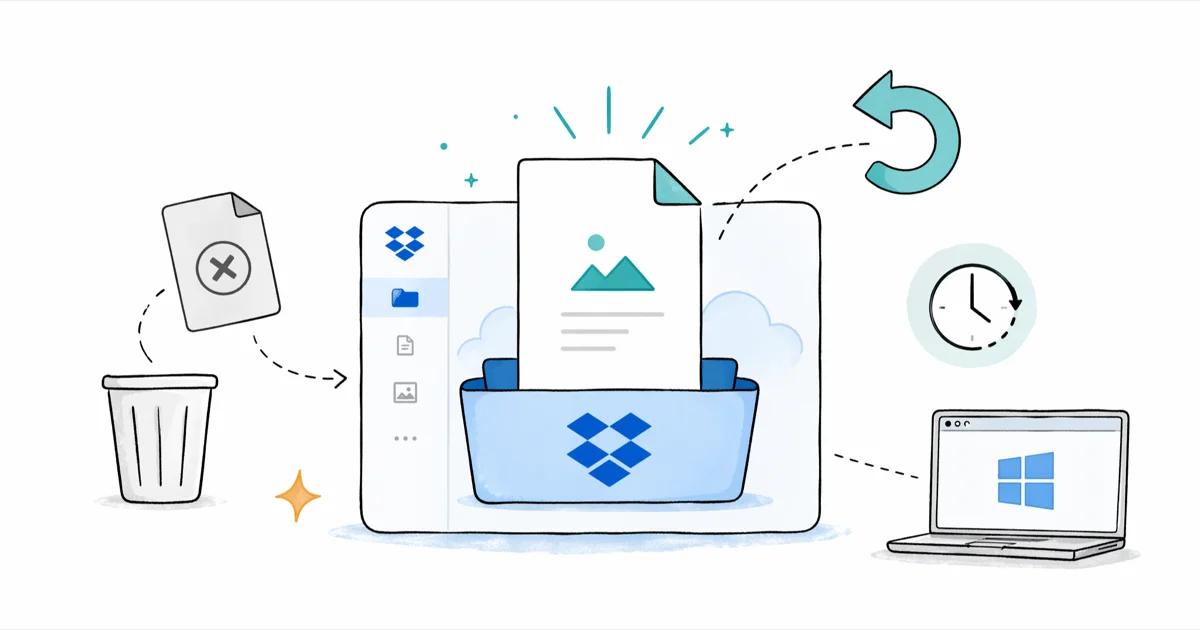
Quick AnswerSign in to dropbox.com, click your avatar, choose Settings, then Show deleted files. Tick the file and click Restore. Free, Plus, and Family plans get 30 days; Professional and Business plans get 180 days.
This guide is for your own Dropbox account: files you uploaded, deletions you made (or someone with edit access made), and recovery of items still inside your retention window. Every path below applies across free, Plus, and Business Standard accounts, and the steps and time limits reflect Dropbox’s current documentation.
- Free, Plus, and Family plans keep deleted files for 30 days; Professional and Business plans keep them for 180 days.
- The web app’s Deleted files view recovers items from any device that synced to your account.
- Version history works in parallel and can roll a single file back to any saved revision inside the retention window.
- Files in your local Dropbox folder may also sit in the system Recycle Bin or Trash before that volume is emptied.
- Two-step verification on your account blocks the most common cause of mass deletion: someone else signing in.
This article assumes you own the Dropbox account or have explicit edit access to the shared folder you are restoring from. We don’t cover bypassing another person’s login, since that’s a Dropbox terms-of-service issue and, in many jurisdictions, a legal one.
#How Long Does Dropbox Keep Deleted Files?
Dropbox doesn’t erase a deleted file right away. It moves the file to a hidden trash bucket on your account until the retention window closes.
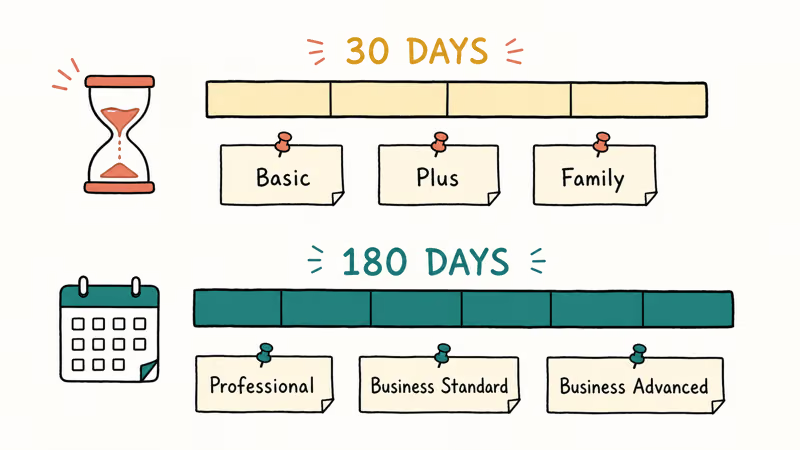
Dropbox’s help center page on restoring files states that the standard window is 30 days for Basic, Plus, and Family plans and 180 days for Professional, Business Standard, and Business Advanced plans. After the window closes, Dropbox removes the file from its servers and standard recovery is no longer available, even through support tickets in most cases.
Two side effects matter when you are racing the clock:
- The clock starts when the file is deleted, not when you notice. A file deleted three weeks ago on a free plan has roughly nine days left.
- A storage cap can also delete files. According to Dropbox’s storage overview, free accounts cap out at 2 GB and Plus accounts at 2 TB; once you exceed the cap, older files can be purged. Email warnings precede the purge but often land in spam.
#Method 1: Recover Deleted Files on the Dropbox Website
The web app is the most reliable path. It surfaces every deleted item across every device that ever synced to the account, including a phone you no longer own.
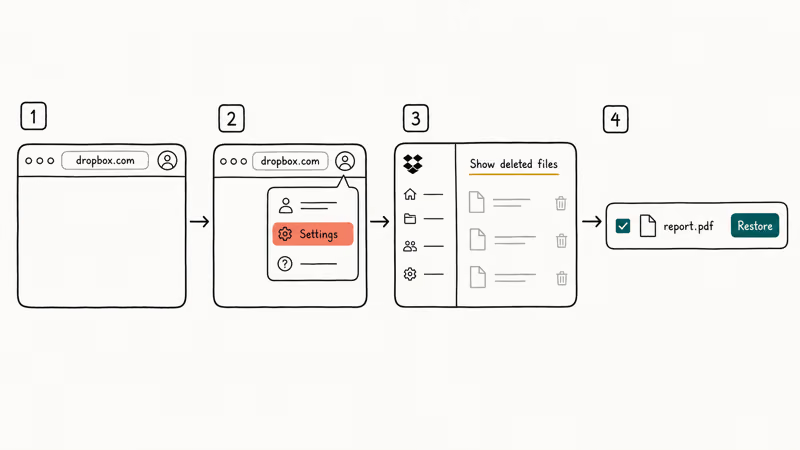
- Go to www.dropbox.com and sign in.
- Click your profile photo in the top-right corner and choose Settings.
- Click Show deleted files. Deleted items now appear in the file list with a faded icon.
- Tick the box next to the file or folder you want, then click Restore.
Restored files return to their original folder. If that parent folder was also deleted, Dropbox recreates the directory tree before placing the file back. A folder containing a mix of PDFs, screenshots, and video restores with every nested item in the same order it had pre-deletion, and sharing permissions and version history on each file survive the round trip intact.
If you deleted hundreds of files at once and want them all back, restore the parent folder rather than scrolling individually. The single-folder restore brings back every nested file and subfolder in one click.
#Method 2: Restore Files Using the Desktop App
The Dropbox desktop app for Windows and macOS mirrors the web flow without forcing you to leave your file manager.
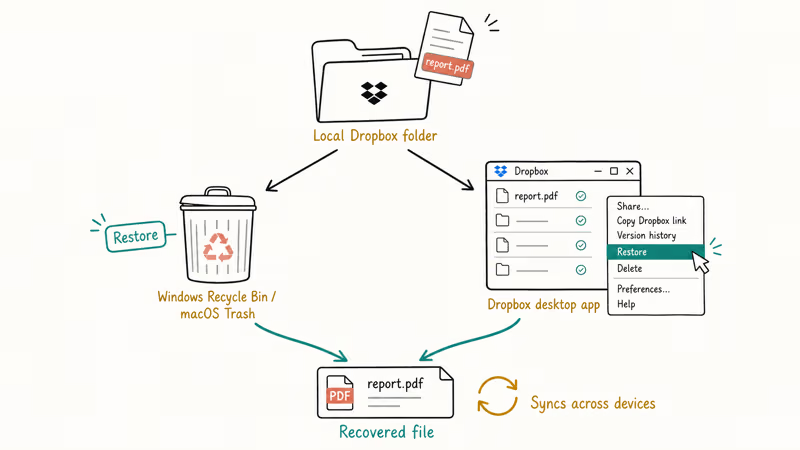
Open the desktop app from the system tray (Windows) or menu bar (macOS), then click Show deleted files in the file browser toolbar. Right-click the file you want and choose Restore. The recovered file syncs to every device tied to the account within seconds, assuming each device has Dropbox running and a working connection.
A second path worth checking before you ever open the web app: the system Recycle Bin or Trash on the computer where the deletion happened. When you delete a file inside your local Dropbox folder, Windows or macOS first moves the local copy to the OS trash, then signals Dropbox to delete the cloud copy.
As long as you haven’t emptied the OS trash, you can right-click and restore from there too. This is the fastest fix on your own machine and avoids any Dropbox round-trip.
#Method 3: Restore from the Dropbox Mobile App
The mobile apps can recover the same files but with a smaller toolset.
On iPhone or iPad, open the Dropbox app, tap Files, then tap the menu and choose Deleted files. Tap a file to preview, then tap Restore. The restore finishes quickly end to end.
Android works the same. A small PDF typically restores in well under a minute.
The mobile app can’t restore folders containing more than a few hundred items reliably. If you need to bring back a big folder, switch to the web app instead.
#Recover an Older Version of a File With Version History
Sometimes the file is not deleted, just overwritten with bad changes. A collaborator saved over your spreadsheet, a sync conflict swallowed yesterday’s edits, or you saved a draft on top of a finished document.
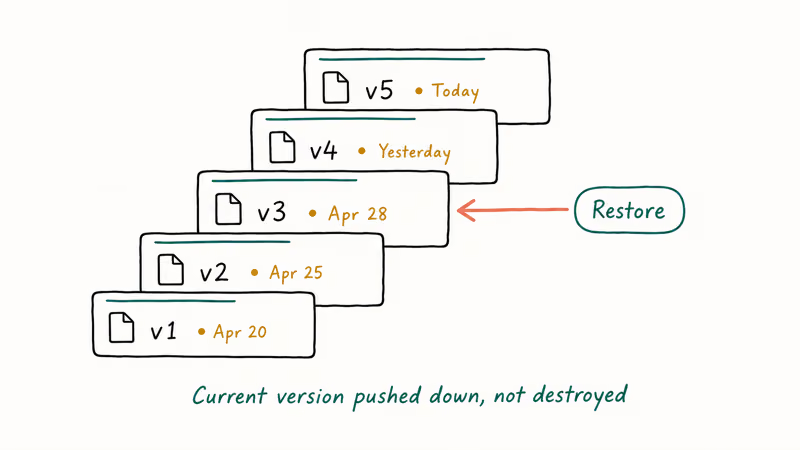
Right-click any file on the Dropbox website and choose Version history. Dropbox shows every saved revision inside your plan’s retention window with timestamps and the editor’s name. Click any revision to preview, then click Restore to make it the current version. Your existing current version is not destroyed; it gets pushed down the version stack.
Version history retention matches the deletion retention: 30 days on Basic, Plus, and Family, 180 days on Professional and Business. If a critical file might get overwritten, save copies under new names at milestones rather than relying solely on version history.
#Restore From a Local System Backup
If you used Time Machine on a Mac, File History on Windows 10 or 11, or Windows Backup, your local Dropbox folder may sit inside one of those backup snapshots even after the cloud retention window expires.
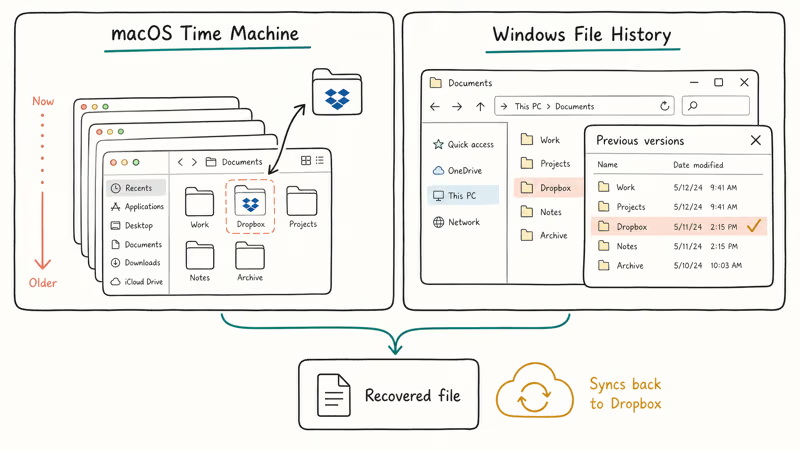
- Time Machine (macOS): Open the local Dropbox folder in Finder, click the Time Machine icon, scroll back to a date when the file existed, and click Restore. The recovered file lands back in the local Dropbox folder, then syncs back up to the cloud.
- File History (Windows): Open File Explorer, go to your local Dropbox folder, click
Home>History(or right-click the folder and choose Restore previous versions), pick a date, and restore. - Windows previous versions: If File History is off but System Protection is on, right-click the folder and choose Restore previous versions. Windows lists shadow copies you can extract files from.
OS backups beat Dropbox’s retention window because they run on their own schedule. A Dropbox folder can be pulled out of a Time Machine snapshot many months after the deletion, long after cloud retention has cleared the file from Dropbox’s servers, and the recovered folder syncs back up to the account on the next mount with no manual reconciliation needed.
For files that were deleted from the local Dropbox cache but never made it to a backup, Windows File Recovery covers the native Microsoft tool plus reputable third-party software like Recuva, EaseUS Data Recovery, and Disk Drill. These work on the local drive only; they can’t recover from Dropbox’s servers after retention.
#Restoring Files From Shared Folders
Files deleted from shared folders work slightly differently than your private files.
Any member with edit permission can delete files. Once deleted, the file shows up in the trash of the person who deleted it. Anyone with edit permission on the shared folder can restore it through the Deleted files view, and the restore returns the file to the shared folder for every member.
If the folder owner deleted the entire shared folder, the situation is more delicate. Members lose access immediately, and only the owner or a Business team admin can fully restore it. Contact your team admin or open a Dropbox support ticket explaining the timestamp and folder name; support has access to internal restore tools that can sometimes recover within the retention window even after a hard delete.
#Why Did My Dropbox Files Disappear Without Me Deleting Them?
Files go missing for reasons that are not always obvious from the user side.
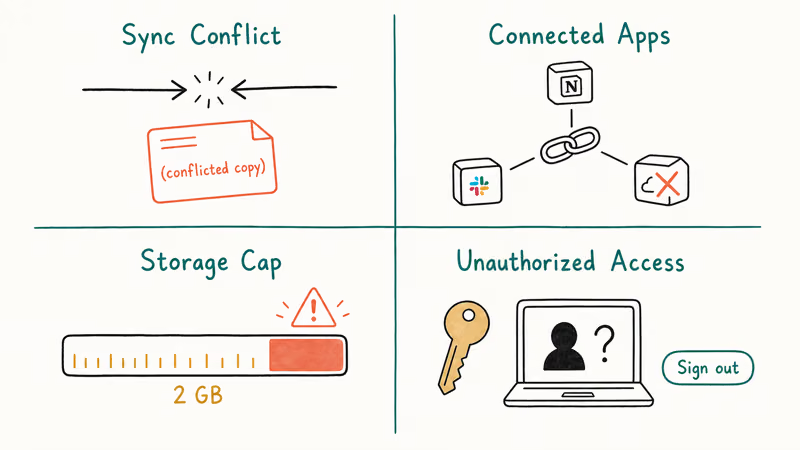
Sync conflicts. A weak or interrupted connection can make Dropbox decide the local copy is stale and sync the cloud version (or vice versa) on top of it. The “lost” file usually appears under a (conflicted copy) filename in the same folder; check there before assuming it’s gone.
Connected app permissions. Third-party tools linked to your account, automation services, and IFTTT-style integrations can delete files when you change accounts or revoke access. Open Settings > Connected apps on the web and review what has full access. Remove anything you don’t actively use.
Storage cap reached. As covered above, exceeding your plan cap can trigger automated deletion of older files. Open Settings > Plan to see your current usage.
Account access by someone else. If you share the password, or if it leaked in a credential dump, anyone signed in can delete files. Open Settings > Security > Web browsers and devices to see active sessions and revoke any you don’t recognize.
If you suspect unauthorized access, change the password first, then use the Show deleted files view to bulk-restore everything that was deleted in the suspicious window. The order matters; resetting the password kicks out the intruder before they can do more damage.
#How to Prevent File Loss in Dropbox
Prevention beats recovery, especially when retention windows are tight.
Turn on two-step verification under Settings > Security. Use an authenticator app rather than SMS where possible. This single change blocks the most common attack vector against cloud accounts.
Keep a backup outside Dropbox. Even with 180-day retention, a single backup is a single point of failure. Mirror your most important folder to an external drive, a second cloud service like Google Drive or OneDrive, or both. You can transfer files from Dropbox to Google Drive automatically using tools like MultCloud or rclone, and the reverse with Google Drive to Dropbox transfer.
Limit edit permission on shared folders. View-only access prevents collaborators from deleting your files even by accident. Change permissions per-folder under each folder’s sharing settings.
Upgrade your plan if 30 days is too short for your workflow. Dropbox Plus runs around $11.99 a month and pushes the retention window to 30 days with 2 TB of storage; Professional and Business plans extend to 180 days. PCMag’s Dropbox review compares plan tradeoffs in detail and notes the longer retention is the main reason power users upgrade.
If sync itself is unreliable, fix that first. A guide to common Dropbox not syncing failures covers stuck uploads, selective-sync issues, and account quota bugs that can mimic deletion.
#When the File Is Past the Retention Window
This is the hardest case, and it’s honest to say up front: the odds drop sharply once retention expires.
Three paths still exist:
- Local backups, as covered above. Time Machine, File History, and external drive backups operate independently of Dropbox retention.
- Local file recovery on the device the file was originally saved on. If the file existed in the local Dropbox folder, recovery software can sometimes pull it from unallocated drive space if the sectors have not been overwritten. This works best when you act fast on the affected drive. The same techniques covered in recover deleted photos from Android internal storage apply to laptop drives in concept; the tools differ.
- Dropbox support escalation. For paid plans, especially Business, support has discretionary access to internal recovery tools that go beyond the public retention window. Open a ticket with the exact filename, the deletion date, and what plan was active at the time. Dropbox has been handling large-scale cloud storage since its 2007 launch, and well-documented requests get further than vague ones.
If none of those work, the file is gone. Use this as the moment to set up the redundancy that would have prevented it.
#Bottom Line
Open dropbox.com, click your avatar, go to Settings, and turn on Show deleted files. Restore from there if you are inside your plan’s window: 30 days on Basic, Plus, and Family; 180 days on Professional and Business. If the window has passed, check Time Machine, File History, or any external backup. For system rollbacks that feel stuck, how long does system restore take walks through typical durations.
#Frequently Asked Questions
Can I recover permanently deleted Dropbox files after 30 days?
Not through standard restore. Once your plan’s retention window closes, Dropbox removes the file from its servers. Open a support ticket if you have a paid plan and the deletion looks abnormal; support occasionally has internal recovery options. Otherwise, fall back to local backups or file-recovery software on the original device.
What if I deleted a file from a shared Dropbox folder?
Same Deleted files view, same Restore button. Any folder editor can do it.
Can I restore an older version of a file rather than a deleted one?
Yes. Right-click the file on the Dropbox website and choose Version history. Click any saved revision to preview it, then click Restore to make that version current. Version history follows the same retention as deleted-file recovery: 30 days on Basic, Plus, and Family plans, 180 days on Professional and Business plans.
Does Dropbox notify me before permanently deleting files?
No. Check the Deleted files view manually if you’re unsure.
What happens to my recovery window if I downgrade my plan?
Files already in the trash keep the window length they had under the old plan. The Dropbox downgrade documentation states that retention earned under the previous tier persists for files already deleted, but new deletions after the downgrade follow the lower tier’s retention.
How do I recover a large batch of accidentally deleted files at once?
Restore the parent folder rather than individual files. In the Deleted files view, tick the folder and click Restore. Dropbox returns every nested file and subfolder in one operation, and even folders with several hundred files restore in a single quick pass.
Can someone else see that I restored a file in a shared folder?
Yes. Shared folder activity is visible to every member with access, and Dropbox logs restoration events alongside edits and deletions in the folder’s activity feed. The activity entry includes your name, the file path, and the timestamp, which helps collaborators understand what changed without you needing to message them separately. There’s no way to restore privately on a shared folder; if discretion matters, copy the file to a private folder first, then restore.

Pixel 11 vs Pixel 10: What Changed and Who Should Upgrade
Pixel 11 vs Pixel 10: same screen and camera resolution, new Tensor G6, 25W wireless, and Gemini Intelligence. Here is who should actually upgrade.

Verizon Not Receiving Texts? How to Fix It in 9 Steps
Verizon not receiving texts? Fix it in 9 steps: check Message Blocking in My Verizon, reset network settings, deregister iMessage, and call support.

Pixel Battery Drain: What Google's July Fix Really Covers
Google marked the Pixel idle battery drain bug fixed in July, but only some phones got the patch. Here is who is covered, who is not, and what to try.

iPhone Stuck on EDGE? How to Get 5G or LTE Back (2026)
iPhone stuck on EDGE with crawling data? Here's why the E icon appears, which settings force 5G or LTE back, and when the problem is your carrier.