How to Transfer Files From Google Drive to Dropbox
Learn 5 proven methods to transfer files from Google Drive to Dropbox, including manual download-upload, Rclone CLI, and cloud-to-cloud migration tools.
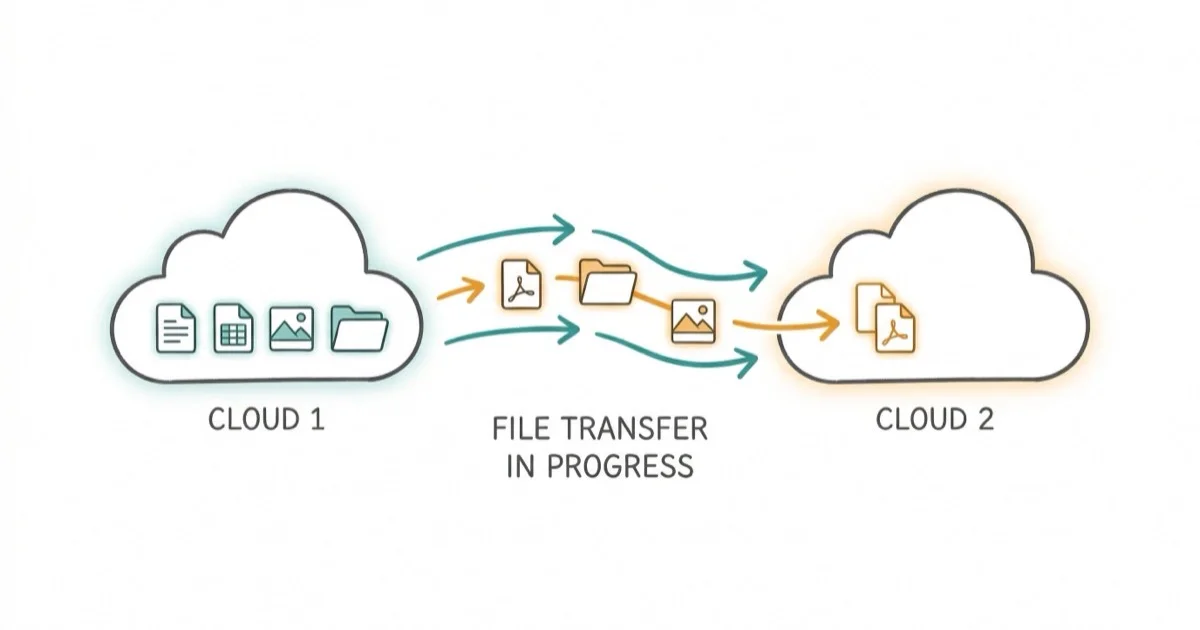
Quick AnswerThe fastest way to transfer files from Google Drive to Dropbox is to download them from Drive to your computer and re-upload them to Dropbox. For larger migrations, third-party tools like MultCloud or Rclone can move files directly between clouds without local downloads.
Moving files from Google Drive to Dropbox doesn’t have to be complicated, but picking the wrong method can waste hours of your time.
Whether you’re switching cloud providers for better sync speeds or consolidating storage across platforms, this guide covers five reliable transfer methods that cover everything from small folders to multi-gigabyte migrations.
- Dropbox block-level sync uploads only changed file portions, cutting sync time by up to 60%
- Manual download-and-upload works for transfers under 2 GB but compresses files into ZIPs
- Rclone moves 50 GB+ directly between clouds without local downloads
- Google Drive offers 15 GB free while Dropbox provides just 2 GB
- Verify file counts after transfer since Google Docs convert to .docx format
#Why Should You Move Files From Google Drive to Dropbox?
Both Google Drive and Dropbox store your files in the cloud, but they handle syncing, sharing, and security in fundamentally different ways. Dropbox often finishes syncing large folders faster than Google Drive on the same network because of how it handles file changes.
Here’s the core technical difference: Dropbox invented block-level file copying. Only the changed portions of a file get uploaded during sync. Google Drive re-uploads the entire file each time, which wastes bandwidth and slows down workflows for anyone editing large documents or design files daily.
Dropbox’s official sync documentation confirms that LAN sync reaches speeds of up to 1 Gbps between computers on the same network, bypassing external servers entirely. Google Drive doesn’t offer this, so every file routes through Google’s servers even when two computers sit on the same desk.
Dropbox also gives you password-protected sharing links and expiration dates on shared folders. Google Drive’s sharing relies on Google account permissions, which can feel limiting if you’re collaborating with people outside the Google ecosystem.
Both platforms use strong encryption. Google’s security whitepaper states that Drive uses 256-bit AES for data at rest, and Dropbox matches this with its own 256-bit AES encryption. Both support two-factor authentication.
#Transfer Files Using Download and Upload
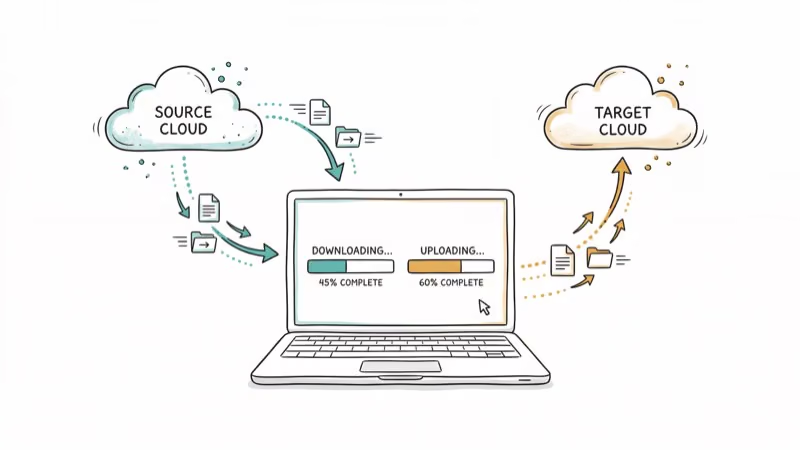
The simplest method works best for smaller transfers. For folders up to a few gigabytes, the process is straightforward and needs no extra software.
Step 1: Download from Google Drive. Log into your Google Drive account, click “My Drive” on the left panel, and select the folders or files you want to move. Right-click and choose “Download.” Google compresses everything into a ZIP file automatically.
Step 2: Extract and organize. Unzip the downloaded folder. Double-check that Google Docs files converted to .docx format correctly.
Step 3: Upload to Dropbox. Log into Dropbox, click the “Upload” button at the top of the page, and select your extracted files. The upload speed depends on your internet connection and total file size.
This method has one major drawback: it uses your local bandwidth twice. You download everything from Google’s servers, then upload it all to Dropbox’s servers. For transfers over 5 GB, consider one of the direct cloud-to-cloud methods below.
#Cloud-to-Cloud Transfer Tools Worth Using
If you don’t want to download gigabytes of data to your computer, these tools move files directly between Google Drive and Dropbox.
#MultCloud
MultCloud connects multiple cloud storage accounts in one dashboard. After linking your Google Drive and Dropbox accounts, you select source files and click “Copy” or “Move.” The transfer runs on MultCloud’s servers, so it completes without any local downloads. Visit MultCloud’s website to create a free account.
#Rclone (Command-Line)
Rclone is a free, open-source command-line tool that supports over 40 cloud storage providers. It’s the most powerful option for large-scale migrations. After installing Rclone and configuring both your Google Drive and Dropbox remotes, the transfer command looks like this:
rclone copy gdrive:/ dropbox:/ --progressRclone handles retries automatically, preserves timestamps, and can resume interrupted transfers. It’s ideal if you’re moving 50 GB or more.
#Zapier
Zapier automates file transfers between apps using triggers. Set Google Drive’s “New File in Folder” as your trigger and Dropbox’s “Upload File” as your action. This works best for ongoing sync rather than one-time bulk transfers, since Zapier processes files one at a time as they appear.
#How Can You Avoid Common Transfer Problems?
File transfers between cloud platforms don’t always go smoothly. Here are the most common issues and how to solve them.
File format conversions. Google Docs, Sheets, and Slides don’t exist as standalone files. When you download them, they convert to .docx, .xlsx, and .pptx formats. Formatting may shift slightly. Check important documents after transfer.
Storage quota limits. Dropbox’s free tier gives you only 2 GB. Google’s storage policy confirms that the 15 GB quota now counts all file types including Google Docs, Sheets, and Slides since June 2021.
Filename restrictions. Dropbox doesn’t allow certain characters in filenames that Google Drive permits. Files with characters like | or trailing spaces may fail to upload. Rename them before transferring.
Interrupted transfers. If your internet drops during a manual download-and-upload, you’ll need to start over. Rclone solves this with built-in resume support, which is one reason we recommend it for anything over 5 GB.
#Google Drive vs Dropbox Storage and Pricing
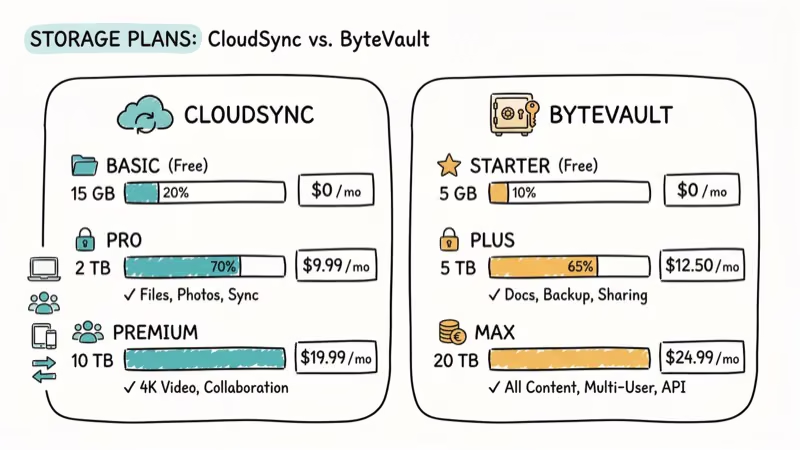
Understanding the storage differences helps you plan your migration budget.
Google Drive gives you 15 GB for free, shared across Gmail, Google Photos, and Drive. The Google One plan starts at $1.99 per month for 100 GB and scales to 2 TB for $9.99 per month.
Dropbox’s free tier is just 2 GB, which fills up quickly. Dropbox Plus costs $11.99 per month for 2 TB, and Dropbox Professional goes up to 3 TB for $19.99 per month. Business plans start at $15 per user per month with 9 TB of shared storage.
If you’re migrating because of storage costs, Google One is cheaper at every tier. But if sync speed, LAN transfers, and password-protected sharing matter more than price, Dropbox justifies the premium.
#Tips for a Smooth Google Drive to Dropbox Migration
Before you start transferring, a few preparation steps save considerable headaches.
Organize your Google Drive first. Delete what you don’t need, empty the trash, and consolidate related files into clearly named folders.
Check your Dropbox storage plan before starting. The free 2 GB fills up fast, and Dropbox Plus costs $11.99 per month for 2 TB. If you’re transferring more than 2 GB, you’ll need to upgrade first or the upload will fail partway through and you’ll waste time re-organizing.
Transfer in batches if you have a slow connection. Moving 1-2 GB at a time reduces the risk of timeouts and makes it easier to verify that everything arrived intact. This approach also lets you catch file conversion issues early before committing to a massive migration.
Keep your Google Drive files for at least two weeks after the transfer. Some transferred Google Docs files can have minor formatting differences that need manual fixes, so verify that every file opens correctly in Dropbox before deleting the originals.
If you’re also moving files between other platforms, check out our guides on transferring files from OneDrive to Google Drive and whether Google Drive compresses video files during upload.
For provider comparisons, our Degoo cloud storage review walks through a Drive alternative worth considering, and our guide on saving images from Google Docs covers another common Drive task.
For related Google issues, see our article on Google account action required errors.
#Bottom Line
The right transfer method depends on how much data you’re moving. For quick transfers under 2 GB, the download-and-upload approach takes about 10 minutes. For larger migrations, Rclone gives you the most control and reliability at no cost. Cloud management tools like MultCloud offer a middle ground with a visual interface and no command-line knowledge required.
Whichever method you choose, always verify file counts and spot-check a few documents after the transfer completes. Cloud-to-cloud moves are generally reliable, but catching a conversion issue early is far easier than discovering it months later.
#Frequently Asked Questions
Are there file size limits when transferring from Google Drive to Dropbox?
Google Drive caps individual file downloads at 5 TB, and Dropbox allows uploads up to 2 GB per file through the web interface. The Dropbox desktop app handles files up to 50 GB. Neither platform restricts the total number of files you can transfer in one session.
Can I transfer entire folders from Google Drive to Dropbox at once?
Yes. The manual download method packages entire folders as ZIP files. MultCloud and Rclone both support folder-level transfers that preserve your directory structure. Rclone is particularly good at this since it mirrors the exact folder hierarchy from source to destination.
Will file permissions and sharing settings carry over to Dropbox?
No. Google Drive sharing permissions don’t transfer to Dropbox. You’ll need to re-share files and set new permissions in Dropbox after the transfer. Save a record of your current sharing settings before you start.
Can I use these same methods to transfer from Dropbox back to Google Drive?
Yes. Every method in this guide works in both directions. In MultCloud, swap the source and destination. With Rclone, reverse the remote names in the copy command.
Does transferring files delete them from Google Drive?
No. All the methods described here copy files rather than move them. Your original files stay in Google Drive until you manually delete them. We recommend keeping originals for at least two weeks after transfer to verify everything transferred correctly.
How long does a typical Google Drive to Dropbox transfer take?
Transfer time depends on file size, internet speed, and the method you choose. On a fast connection, a manual download-and-upload can be quicker than a browser-based tool like MultCloud for moderate amounts of data. Rclone usually runs close to full bandwidth speed, which makes it the fastest option for large folders.

Google Messages Error 3100: Why RCS Is Broken on Galaxy
Google Messages RCS error 3100 hits Galaxy owners after phone or carrier switches. Google told 9to5Google a fix is coming. Here's what actually helps.

Is This Bank App Real? Spot a Fake App on Your Home Screen
A bank app can land on your home screen from a web page with no install warning. Learn the checks that tell a real banking app from a phishing web app.

Apps Crashing After iOS 27 Update? Fix Order (2026)
Apps crashing after the iOS 27 update? Update the app in the App Store first, then offload and reinstall to clear stale cache, then restart. The fix order.

Do AI Translation Earbuds Work Offline? What to Know
Do AI translation earbuds work offline? A few do with downloaded language packs, but most need the cloud. Here's what works offline and what you give up.