RCS Messages Not Sending? A 2026 Cross-Platform Fix
RCS messages not sending? Fix it on Android and iPhone with a status-first triage: verify chat features, clear Carrier Services, check registration.
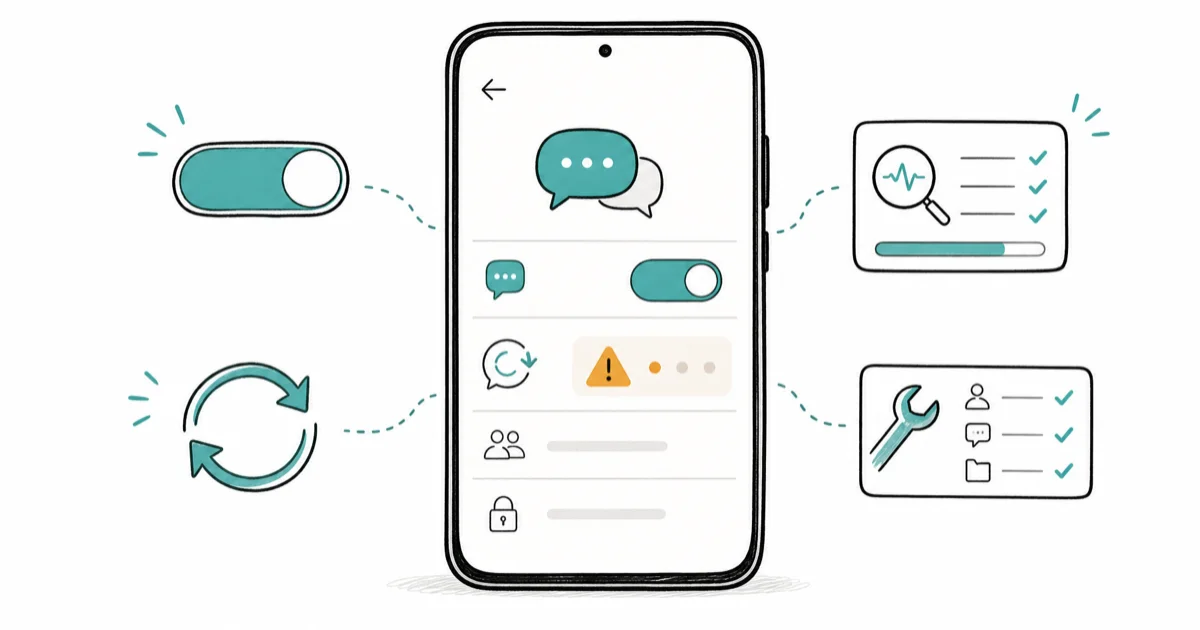
Quick AnswerRCS messages not sending usually means chat features are still verifying or your number deregistered after a phone switch. Check RCS status first, then clear Carrier Services.
RCS messages not sending is almost always a registration or status problem, not a broken app. Your chat bubble might say “Connecting,” fall back to SMS, or stall on one contact. Check whether RCS is verified for your number first, then work down to Carrier Services and the app cache.
- Check RCS status first: open Google Messages settings, RCS chats, and confirm it reads “Connected” rather than “Verifying” or “Setting up.”
- A stuck “Verifying” state after a SIM swap or phone switch is the most common cause, and it clears on its own within 24 hours in many cases.
- Clearing Carrier Services storage can fix Android RCS send failures without erasing your texts.
- On iPhone, RCS only works when your carrier supports it and the toggle under Messages is on, so this is a carrier-gated feature, not a universal one.
- If a message sends to everyone except one person, the problem is that contact’s RCS state, not your phone.
#Why Are RCS Messages Not Sending?
RCS sends fail for four main reasons. The fix depends on which one you’re hitting, so read what the chat shows when a message stalls.
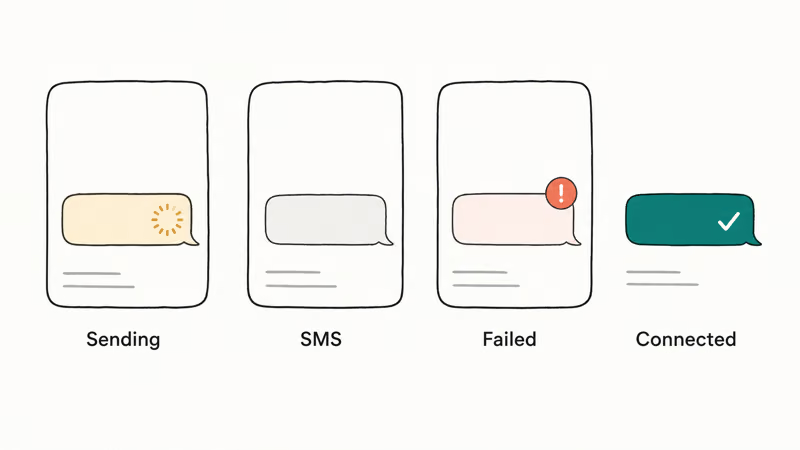
A message stuck on “Sending” with a spinning circle points to a live connection or registration issue. A message that quietly converts to a green or gray SMS bubble means RCS gave up and fell back. A red exclamation mark usually means the recipient or the network rejected the delivery.
Here’s the quick triage to run before touching any settings.
| What you see | Likely cause | Where to look first |
|---|---|---|
| Stuck on “Sending” | Number not verified or chat features off | RCS status (next section) |
| Sent as SMS/MMS instead | RCS unavailable for that contact or network | Contact-specific section |
| Red exclamation, one contact | That person’s RCS deregistered | Contact-specific section |
| Worked yesterday, broke today | App update or Carrier Services glitch | Carrier Services cache |
Common RCS send-failure symptoms and the matching first step to check.
This triage separates live connection problems from registration or contact-side failures. A fresh “Verifying” state can simply need time to finish before RCS sends as chat again.
#Is RCS Down or Disabled for Your Number?
Confirm RCS is on and your number is registered before changing anything else. This one check resolves a large share of “not sending” reports, because people assume RCS is active when it quietly never finished setting up in the first place after a recent SIM or carrier change.
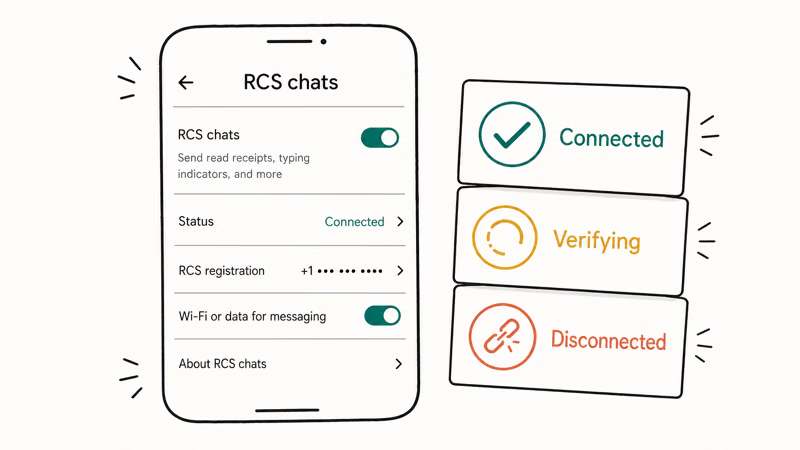
Status first. Always.
Open Google Messages, tap your profile picture, then Messages settings > RCS chats. Read the status line. “Connected” means live, “Verifying” means registration hasn’t finished, “Disconnected” means it failed.
According to Google’s Messages RCS help, RCS chat features rely on your phone number being verified through the Messages app. The system falls back to SMS or MMS automatically when chat features aren’t available for a conversation. That fallback is by design, so an SMS-only bubble isn’t always a bug.
If you recently switched phones or carriers, your old device may still hold the RCS registration. The cleanest fix is to deregister on the old phone. The How To Turn Off RCS guide walks through the exact toggle on both Google and Samsung Messages, which releases the number so your new phone can claim it.
Give a fresh “Verifying” state up to 24 hours before assuming it’s broken. Carrier provisioning isn’t instant.
#Fix Google Messages and Carrier Services
When RCS shows “Connected” but messages still won’t send, the problem is almost always a stale Carrier Services or Messages cache. This is the fix that resolves most Android-side send failures, and it doesn’t delete your conversations.
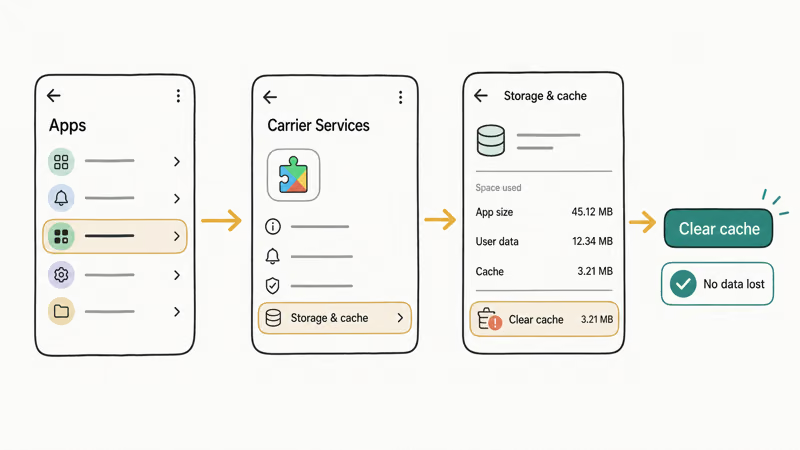
Go to Settings > Apps > See all apps > Carrier Services > Storage & cache and tap Clear cache. If that doesn’t help within a few minutes, clear cache on Google Messages too, then force-stop both apps and reopen Messages. Carrier Services is the background component that actually negotiates the RCS connection, so a corrupted cache there breaks sending while the app itself looks fine.
Clearing Carrier Services cache is a non-destructive reset for Android RCS issues: it doesn’t erase texts, settings, or media, and it can restore sending when the status already reads Connected.
Google’s Messages troubleshooting page recommends confirming you have a stable Wi-Fi or mobile data connection and the latest version of the Messages app before deeper steps, because RCS needs a working data path to send. A spotty connection is a frequent and easily missed culprit.
If you use Wi-Fi calling and texting, an unstable network handoff can also stall RCS, especially when your phone bounces between a weak Wi-Fi signal and cellular mid-send. The guide on how to Enable Wi-Fi Calling Android covers the related settings if your sends only fail on Wi-Fi, and walks through the toggles worth checking when handoff is the suspect.
Two more quick checks. Make sure your default SMS app is Messages, not a third-party app that lacks RCS. And confirm RCS isn’t being blocked by a battery-saver profile that kills Carrier Services in the background.
#Fix RCS on iPhone and Cross-Platform Chats
RCS on iPhone is carrier-gated, which trips up a lot of people who expect it to work the moment they update. It arrived with iOS 18 and works only when your carrier has enabled it for your line, so a missing toggle isn’t always something you can fix on your own.
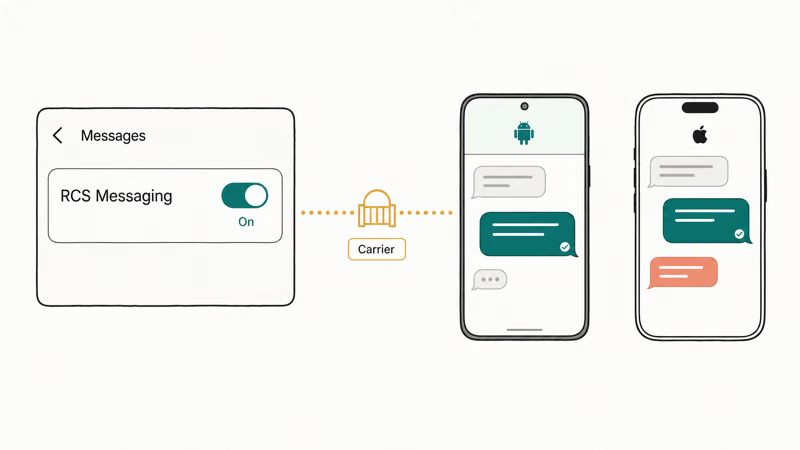
Check Settings > Apps > Messages for the RCS Messaging toggle. Absent means your carrier hasn’t enabled it. Present but off means switch it on and test.
Apple’s RCS on iPhone support page states that RCS needs iOS 18 or later and a carrier that supports it. If the toggle is missing on an older iPhone, that’s the reason, the feature didn’t exist before iOS 18.
Cross-platform chats fail in a predictable way. If you message an Android user and it sends as SMS, RCS may be off on either end, or the carrier link between your networks doesn’t support it yet. The message still goes through as a regular text, just without the chat features. If iMessage itself is acting up alongside RCS, the iMessage Not Working guide isolates the Apple-side causes.
On iPhone, toggling RCS Messaging off and back on forces a fresh carrier registration check. If you’re an iPhone user who recently moved from Android and texts now arrive unreliably, the cause may be a leftover iMessage or RCS registration. The Fix iPhone Not Receiving Texts guide covers the deregistration steps for that exact scenario.
One nuance worth knowing: read receipts and typing indicators only appear when both people have RCS active. The explainer on How To Tell If Someone Read Your Text on Android breaks down what those indicators mean and when they’re reliable.
#Turning RCS Off and Back On as a Reset
Toggling RCS off and on is a legitimate reset. Use it after you’ve confirmed status and cleared Carrier Services, because the toggle forces a fresh registration handshake. It’s a middle step, not a first move, and reaching for it too early just adds another “Verifying” wait on top of the one you’re already trying to escape.
Turn it off in RCS chats settings, wait about 30 seconds, then turn it back on and let it re-verify. This clears a wedged registration that a cache wipe didn’t touch. Expect another “Verifying” period, sometimes a few minutes, sometimes longer.
Don’t toggle RCS repeatedly. Each flip restarts provisioning and stalls you longer.
If two clean toggles don’t fix it, the cause is likely carrier-side or contact-side. That’s your signal to stop self-troubleshooting and call your carrier, because anything past two resets is provisioning you can’t reach from the phone yourself.
None of this helps if your carrier doesn’t support RCS at all, since there’s nothing to register against in the first place. Check your carrier’s RCS support status before you assume any toggle will fix the problem, because no reset can enable a feature your network never turned on.
#When Only One Contact Won’t Receive RCS
Sometimes RCS works everywhere except one thread. That single case is the easiest to diagnose, because it rules out your phone entirely.
The cause sits on their side. Nothing on your device needs fixing.
Ask them to check their own RCS status and re-verify if it’s stuck. Until they do, your texts keep arriving as plain SMS for them, which still delivers fine. Don’t waste time resetting your own settings for a problem that lives entirely on a phone you don’t control.
#Bottom Line
Work the problem in order: confirm RCS status, clear Carrier Services cache, then toggle RCS as a reset, and only deregister an old device if you switched phones. Most “not sending” cases are a stuck “Verifying” state or a stale cache, both of which clear without erasing a single message.
If a message fails to only one contact, stop touching your settings, the issue is on their end. And if your carrier never enabled RCS, no toggling will turn it on.
#Frequently Asked Questions
RCS messages not sending, what is the first thing to check?
Open Google Messages settings, RCS chats, and read the status line at the top. If it says “Verifying” or “Setting up,” registration hasn’t finished and you may just need to give it a few hours. If it already says “Connected,” skip the waiting and move straight to clearing Carrier Services cache, which is where most live send failures actually hide.
Why did RCS stop working after an update or new phone?
Switching phones often leaves the old device still holding your number’s RCS registration. Deregister RCS on the old phone, then let the new one re-verify, and it usually clears within 24 hours.
Does fixing RCS require a reset or reinstall?
Almost never. Clearing Carrier Services cache and toggling RCS off and on resolves the large majority of send failures, and neither step deletes a single message, setting, or photo. A full factory reset should be a genuine last resort, used only after carrier support has run out of ideas, not an early move you reach for in frustration.
What official support page should I check first?
Google’s Messages RCS help page is the source of truth for Android. Apple’s RCS on iPhone support page covers the carrier-gated iPhone toggle.
What should I avoid doing when RCS won’t send?
Don’t rapidly toggle RCS on and off, which can wedge the registration for longer than simply waiting would. Avoid a factory reset before you’ve tried the cache clear and the carrier check. And don’t assume RCS is broken just because you see an SMS fallback bubble, since that often only means the person on the other end doesn’t have RCS turned on.
When should I contact my carrier?
Contact your carrier if two clean RCS toggles don’t restore sending, if the RCS toggle is missing on your iPhone, or if RCS status stays “Disconnected” for more than a day. Each of those points to carrier-side provisioning you simply can’t fix from the phone yourself.
Why does RCS work for everyone except one person?
That contact’s RCS registration likely dropped. There’s nothing to fix on your phone, the resolution is on their end.

Is This Bank App Real? Spot a Fake App on Your Home Screen
A bank app can land on your home screen from a web page with no install warning. Learn the checks that tell a real banking app from a phishing web app.
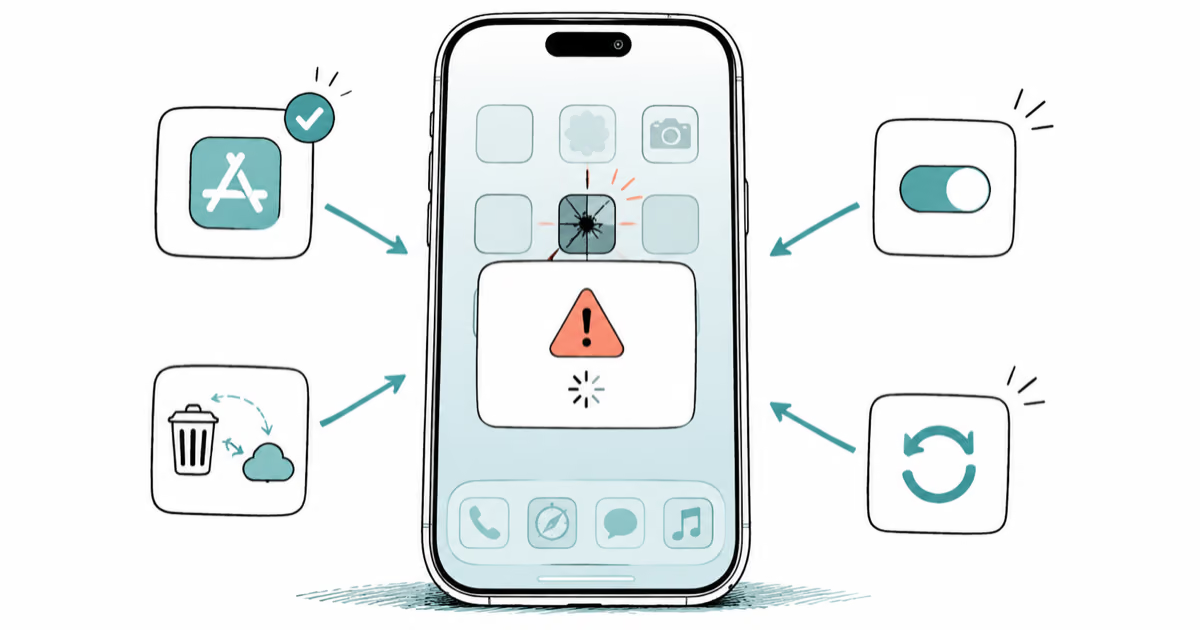
Apps Crashing After iOS 27 Update? Fix Order (2026)
Apps crashing after the iOS 27 update? Update the app in the App Store first, then offload and reinstall to clear stale cache, then restart. The fix order.
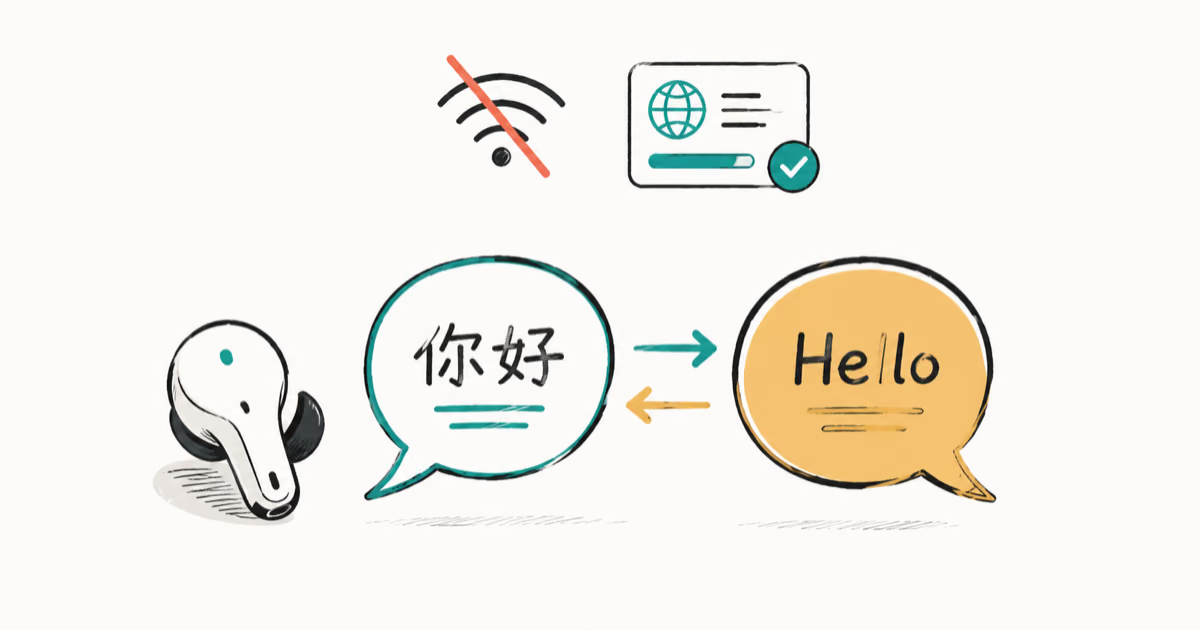
Do AI Translation Earbuds Work Offline? What to Know
Do AI translation earbuds work offline? A few do with downloaded language packs, but most need the cloud. Here's what works offline and what you give up.
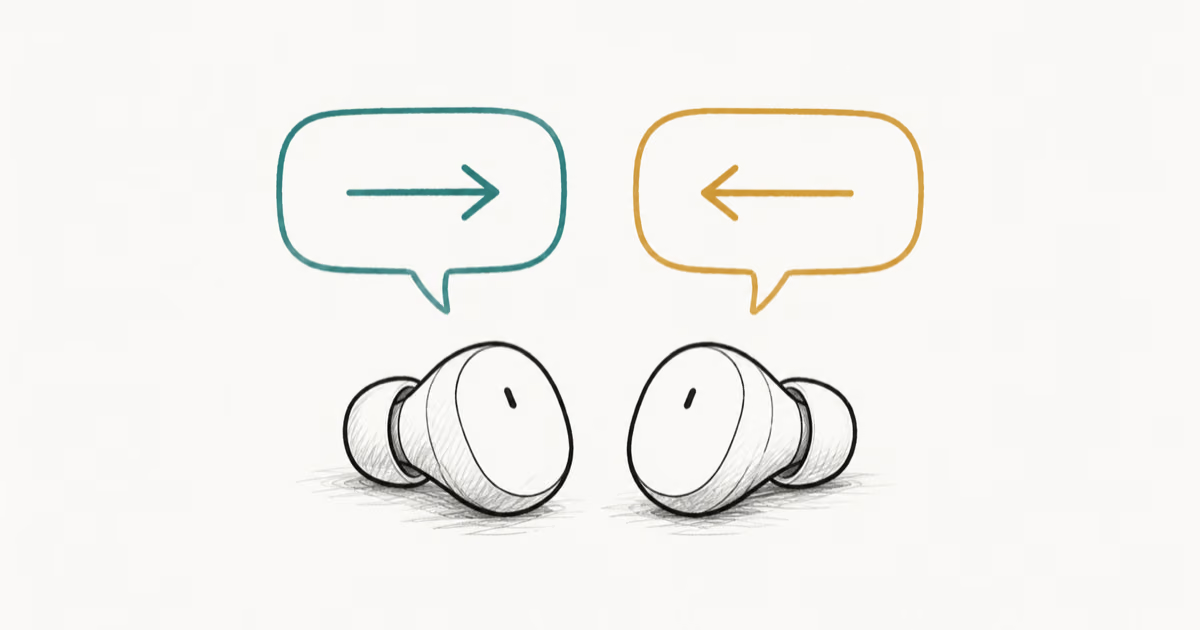
How to Set Up Translation Earbuds (Pairing and Modes)
How to set up translation earbuds: charge, install the app, pair over Bluetooth, pick two languages, and choose a mode. A step-by-step first-use guide.