How to Enable Wi-Fi Calling on Android (Samsung and Pixel)
Enable Wi-Fi calling on Android in under a minute. Exact Samsung and Pixel menu paths, plus the carrier fix when the toggle is missing or greyed out.
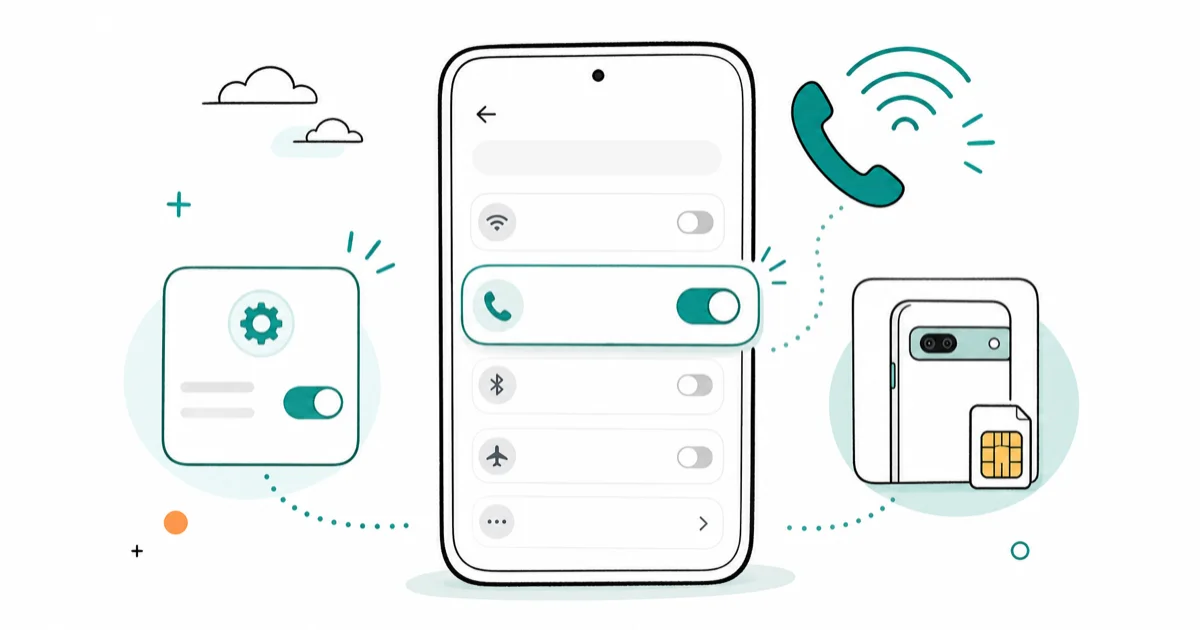
Quick AnswerOn Samsung Galaxy, go to Settings > Connections > Wi-Fi Calling and turn it on. On Google Pixel, go to Settings > Network & Internet > SIMs, tap your carrier, then turn on Wi-Fi calling. If the toggle is missing, your carrier has not provisioned the feature for that line.
Wi-Fi calling on Android lives in a different menu depending on which phone you own. Samsung Galaxy buries it under Connections, and Google Pixel hides it inside the SIM card detail screen. Once the carrier flag is in place, activation is usually just a toggle plus an emergency address prompt.
- Samsung path is
Settings>Connections>Wi-Fi Calling, one toggle plus an emergency address - Pixel path is
Settings>Network & Internet>SIMs> [carrier] > Wi-Fi calling - A missing or greyed-out toggle means your carrier has not provisioned Wi-Fi calling on that specific line
- Wi-Fi calling uses your home or public Wi-Fi instead of cellular and does not eat into your data plan
- AT&T phones need VoLTE turned on before Wi-Fi calling will activate; other US carriers don’t require it
#How to Enable Wi-Fi Calling on Samsung Galaxy
The Samsung path is short: Settings > Connections > Wi-Fi Calling, then an emergency address prompt on first use.
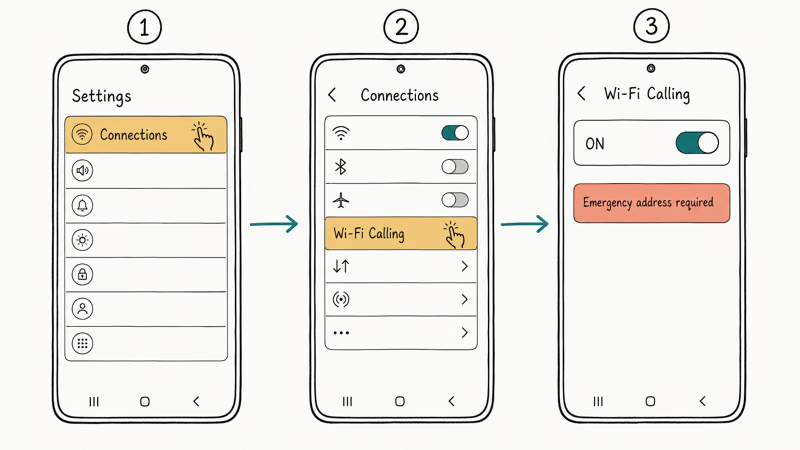
Open Settings, tap Connections, then tap Wi-Fi Calling. Flip the switch on.
The first time you turn it on, Samsung prompts for an emergency address. Enter your home or work address and tap Save. The FCC requires this for E911 location routing on Wi-Fi calls; it’s not a Samsung upsell.
There’s a shortcut too. Some Galaxy models expose Wi-Fi Calling in the Quick Settings panel: swipe down twice from the top, look for the phone-with-Wi-Fi-waves icon, tap to toggle.
Can’t find the menu? Open Settings, tap the search bar, type “wifi calling.” On older One UI versions the label reads “Call over WiFi” instead.
#How to Enable Wi-Fi Calling on Google Pixel
Pixel uses near-stock Android, so the toggle sits inside the SIM card detail screen instead of a top-level Connections menu. The path looks longer but takes the same 20 seconds once you know where to tap.
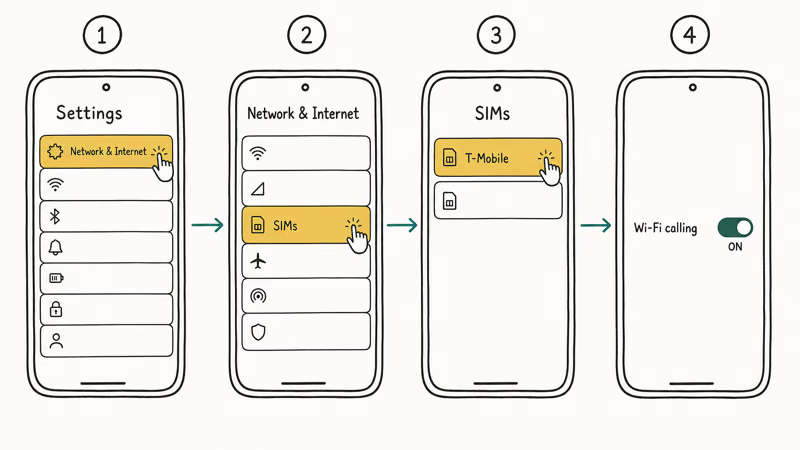
Open Settings > Network & Internet > SIMs, tap your carrier, scroll, turn on Wi-Fi calling.
According to Google’s Phone app help, if you don’t see the Wi-Fi calling option at all, your carrier doesn’t support the feature on your line. There is no workaround on the phone side. The toggle only appears when the carrier flag is active.
Pixel also exposes a second path through the Phone app itself. Open the Phone app, tap the three-dot menu, tap Settings, then tap Calls. The Wi-Fi calling toggle sits there too and flips the same setting as the SIMs path. Use whichever path you remember.
Pixel then asks for an emergency address, same as Samsung. Enter your full street address. Postal code alone isn’t enough for E911 routing.
#Why Is Wi-Fi Calling Greyed Out or Missing?
Carrier provisioning. That’s it.
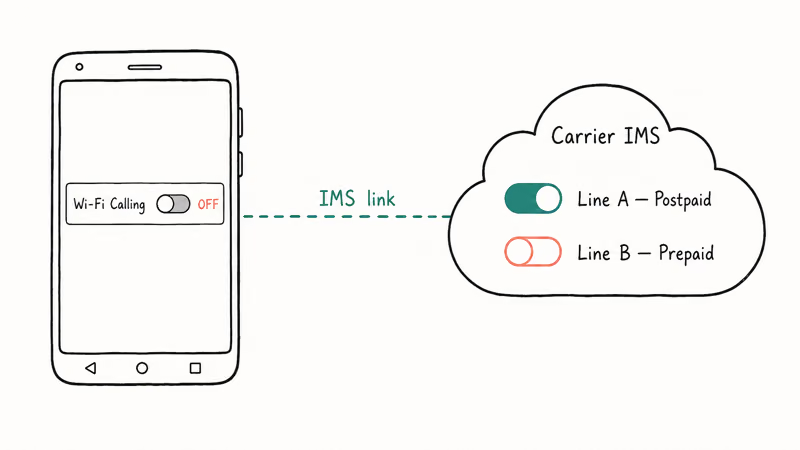
Almost every greyed-out or missing toggle traces back to one root cause: your carrier hasn’t flagged Wi-Fi calling as active on your specific line.
The feature is a carrier service, not a phone feature. Your Galaxy or Pixel hardware supports it, but the toggle only appears when your carrier provisions it on your account. Prepaid plans, older legacy plan tiers, MVNOs (like Mint Mobile, Visible, or US Mobile), and freshly-swapped SIMs are the four most common ways the flag goes missing.
The feature is line-provisioned, not just phone-provisioned. Two lines on the same carrier can behave differently on the same phone if only one account has Wi-Fi calling enabled.
On AT&T? AT&T’s Wi-Fi Calling support page states that VoLTE must be turned on first.
Samsung VoLTE lives at Settings > Connections > Mobile networks > VoLTE calls. Flip it on, restart, then retry the Wi-Fi Calling toggle.
Related: how to fix restricted access changed on Android.
#How Do You Know Wi-Fi Calling Is Active?
The status bar tells you. When Wi-Fi calling is registered and a call is active, your status bar shows the carrier name followed by “Wi-Fi,” for example, “T-Mobile Wi-Fi” or “EE Wi-Fi Calling.” On some Samsung One UI versions, a small phone-with-Wi-Fi-waves icon also appears in the status bar permanently once the feature registers.
On Pixel, the in-call screen displays a “Wi-Fi” badge under the contact name during the call itself. If you see the badge, the call is routing over your Wi-Fi network; if you don’t, the call is on cellular even though the toggle is on. That usually means the carrier-side flag is half-set. Call the carrier and ask them to reprovision.
Samsung’s Wi-Fi Calling support page confirms that 2 conditions must both be met to register: active Wi-Fi and an active SIM or eSIM.
The toggle being on isn’t enough.
#Set Your Calling Preference
After enabling Wi-Fi calling, both Samsung and Pixel let you tell the phone which network to prefer when both are available.
On Samsung, the preference sits inside the same Wi-Fi Calling menu. Tap the dot menu in the top-right corner, then Settings, then “When roaming” or “Roaming network preference.” Pick “Wi-Fi preferred” for the fewest cellular hand-offs, especially if you live or work in a weak-signal area.
On Pixel, the preference also lives under the same Wi-Fi calling screen. Tap “Calling preference” and choose between Wi-Fi preferred, cellular preferred, or never use cellular. The default on most carriers is cellular preferred, which routes most calls over LTE even when Wi-Fi is available. Flip it to Wi-Fi preferred if your home Wi-Fi is faster than your cell signal.
There’s a battery cost. Wi-Fi preferred keeps both radios warm for handoff, which can drain slightly faster. It’s usually a tradeoff only in weak-signal areas, not a reason to avoid Wi-Fi calling.
#When the Toggle Is On but Calls Still Use Cellular
The Wi-Fi calling toggle being on is necessary but not sufficient. Three things must all be true for an active call to route over Wi-Fi:
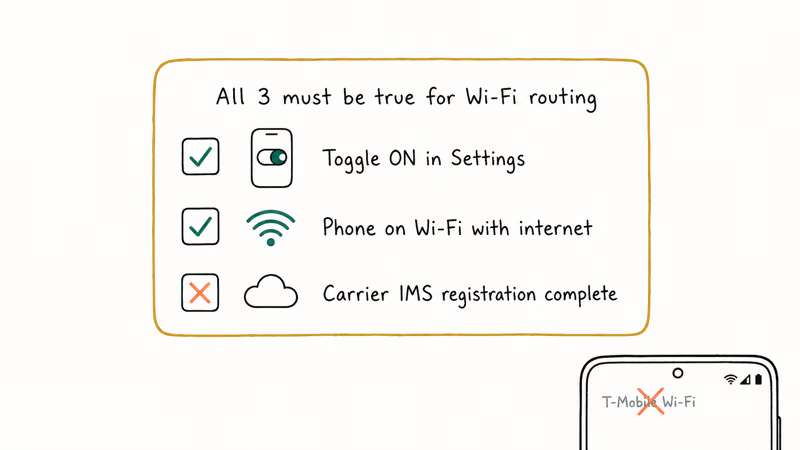
- The toggle is on in Settings.
- Your phone is connected to a Wi-Fi network with working internet.
- Your carrier has provisioned Wi-Fi calling for that specific line and the IMS registration completed successfully.
Step 3 is where most “toggle on but cellular still” cases live. If you flipped the toggle on but the status bar never shows “Wi-Fi,” the IMS registration with your carrier’s server failed quietly. Restart the phone, which forces a fresh registration attempt. If that doesn’t fix it, contact your carrier with your phone’s IMEI (Settings > About phone > IMEI) and ask them to reprovision Wi-Fi calling on your line.
The iOS counterpart of this exact problem is documented at iPhone Wi-Fi calling not working. The IMS registration mechanics are identical across iOS and Android; only the menu paths differ. Carrier provisioning is the bottleneck on both platforms.
For dropped calls that happen specifically when you leave Wi-Fi range, see iPhone keeps dropping calls for the Wi-Fi-to-cellular handoff explanation. Android handles handoff the same way, and the troubleshooting logic transfers.
#Bottom Line
For Samsung Galaxy, the path is Settings > Connections > Wi-Fi Calling. For Google Pixel, it’s Settings > Network & Internet > SIMs > [your carrier] > Wi-Fi calling. Both take about 20 seconds once you know where to tap, and both need an emergency address on first activation.
Missing or greyed out? Skip the phone-side troubleshooting first.
Call your carrier, give them your IMEI, and ask them to provision Wi-Fi calling on your line. That carrier-side reprovisioning step is the right first move for missing-toggle cases. Don’t reset network settings or factory-reset the phone until the carrier side is confirmed active.
For related Samsung connectivity problems, see Samsung hotspot not working and the Phone app explainer at Samsung Android InCallUI if you are curious what is running behind the dialer.
#Frequently Asked Questions
How do I turn on Wi-Fi calling on my Android phone?
On Samsung Galaxy, go to Settings > Connections > Wi-Fi Calling and flip the switch on. On Google Pixel, go to Settings > Network & Internet > SIMs, tap your carrier, then turn on Wi-Fi calling. Both phones ask for an emergency address on first activation.
Where is the Wi-Fi calling setting on Samsung Galaxy?
Settings > Connections > Wi-Fi Calling on every One UI version since One UI 2. If you don’t see it under Connections, your carrier hasn’t provisioned the feature on your line, or you’re on an older One UI version where the label reads “Call over WiFi” instead.
Why is Wi-Fi calling greyed out or missing on my Android?
Carrier provisioning. Your carrier hasn’t flagged the feature for that line. Call them with your IMEI and ask them to enable it.
Does my carrier support Wi-Fi calling?
All four major US carriers (AT&T, Verizon, T-Mobile, US Cellular) do. Most MVNOs do too.
Does Wi-Fi calling cost extra or use cellular data?
Wi-Fi calling does not use cellular data and is included free on most US plans. However, minutes still count against your talk allotment, and texts may count against your messaging allotment, exactly the same as if the call had gone over cellular. International Wi-Fi calls from a US number to a non-US number are billed at international rates even though you are on Wi-Fi.
Does Wi-Fi calling work with eSIM?
Yes, on both Samsung and Pixel. The feature is per-line, not per-SIM-type, so eSIM and physical SIM behave identically. On dual-SIM phones (whether eSIM + eSIM or physical + eSIM), Wi-Fi calling is independent per line. Your work line might have it active while your personal line does not, even on the same phone.
How do I know Wi-Fi calling is active during a call?
Check the status bar. It shows your carrier name plus “Wi-Fi” (like “T-Mobile Wi-Fi”). On Pixel, an in-call Wi-Fi badge appears under the contact name. No indicator usually means IMS registration failed, typically half-set carrier provisioning.
Can I use Wi-Fi calling abroad on Android?
Yes, on any Wi-Fi network anywhere in the world. Calls back to US numbers are billed at your normal domestic rate as if you were home. Calls to non-US numbers from your US line are billed at international rates, not local rates from the country you’re visiting. Check your carrier’s terms before you travel; some restrict the feature to specific countries.

Pixel 11 vs Pixel 10: What Changed and Who Should Upgrade
Pixel 11 vs Pixel 10: same screen and camera resolution, new Tensor G6, 25W wireless, and Gemini Intelligence. Here is who should actually upgrade.

Verizon Not Receiving Texts? How to Fix It in 9 Steps
Verizon not receiving texts? Fix it in 9 steps: check Message Blocking in My Verizon, reset network settings, deregister iMessage, and call support.

Pixel Battery Drain: What Google's July Fix Really Covers
Google marked the Pixel idle battery drain bug fixed in July, but only some phones got the patch. Here is who is covered, who is not, and what to try.

iPhone Stuck on EDGE? How to Get 5G or LTE Back (2026)
iPhone stuck on EDGE with crawling data? Here's why the E icon appears, which settings force 5G or LTE back, and when the problem is your carrier.