How to Turn Off RCS on Android: Google and Samsung Messages
Turn off RCS in Google Messages or Samsung Messages in under a minute. Includes the iPhone-switch de-register step and how to fix stuck verifying.
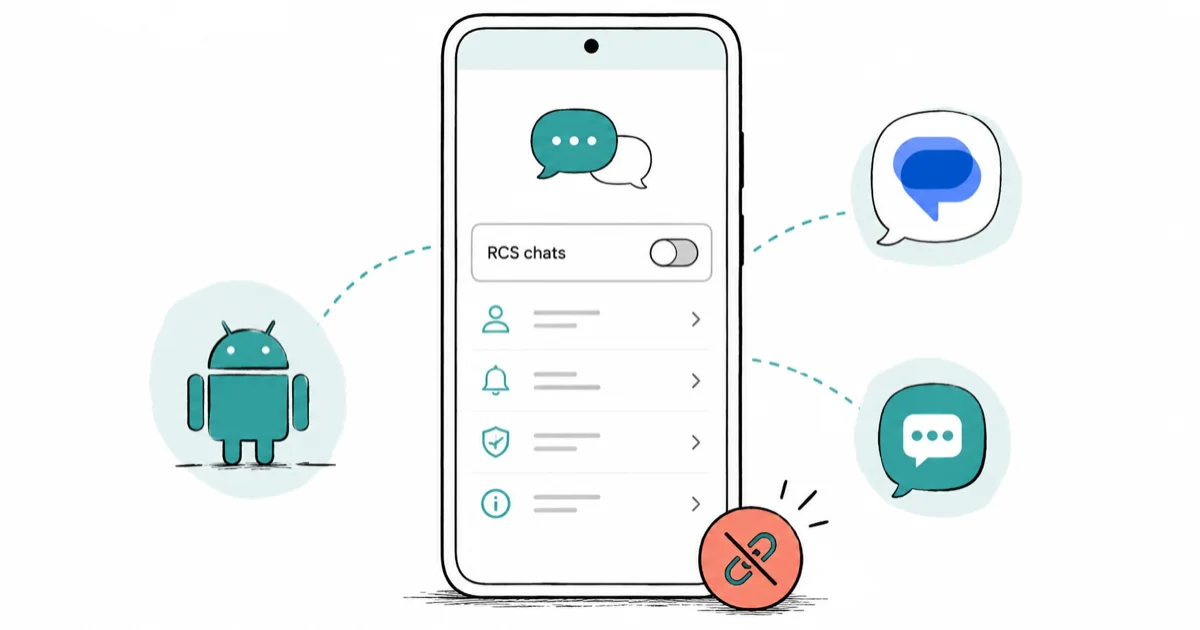
Quick AnswerIn Google Messages, tap your profile, Messages settings, RCS chats, then turn the toggle off; on Samsung Messages it lives under Settings, Chat features. Do this before switching to iPhone.
If RCS is acting up on your Android phone, or you’re switching to an iPhone, the fix is one toggle inside Google Messages or Samsung Messages. This guide walks through the exact steps on each app and the de-register trap that can swallow your texts.
- RCS is Google’s upgrade to plain SMS that adds typing indicators, read receipts, larger media, and Wi-Fi delivery on Android.
- In Google Messages on a Pixel, the switch is under
Profile>Messagessettings > RCS chats > Turn off RCS chats. - On Samsung Messages, the same control sits under
Settings>Chatfeatures, with one toggle per active SIM. - Turn RCS off and wait for the status to read “SMS/MMS” before you remove your SIM card or move to iPhone, or iPhone users may stop seeing your texts.
- Disabling RCS does not delete any messages already on your phone, and you can switch it back on whenever you want.
#What RCS Is and Why People Turn It Off
RCS stands for Rich Communication Services. It’s the modern replacement for plain SMS that Google ships through the Messages app on Android.
According to Google’s RCS chats support page, RCS adds 5 things SMS lacks: typing indicators, read receipts, higher-resolution photos and videos, group chats above the carrier MMS cap, and end-to-end encryption between two Google Messages users. The official Messages RCS reference covers each in detail. When RCS is on, eligible messages travel over Wi-Fi or mobile data instead of the SMS network.
Most people leave RCS on. The reasons to turn it off are specific:
- Messages get stuck on “Sending” or “Verifying” and never deliver.
- You are about to remove your SIM, port your number to another carrier, or switch to an iPhone.
- Photos from a specific contact arrive blurry, and you suspect a fallback issue between RCS and MMS.
- A work device policy requires SMS only.
- You want to confirm read-receipt behaviour matches plain SMS for a privacy reason on a number you own.
When RCS is turned off, the status indicator under the toggle should change from Connected to Off or SMS/MMS. The phone should continue sending normal SMS and MMS messages without extra setup.
#RCS vs SMS vs iMessage
RCS, SMS, and iMessage are three different transport layers. SMS is the 1990s carrier protocol that works on every phone with a SIM. iMessage is Apple’s encrypted service between Apple devices and is tied to the Apple ID. RCS sits in the middle on the Android side.
When you text from Google Messages to an iPhone, the message still travels as SMS or MMS, because Apple added RCS support to iMessage in iOS 18 but kept it as a separate channel.
#How Do You Turn Off RCS in Google Messages?
This is the path on a Pixel and on most non-Samsung Android phones that use the Google Messages app as the default texting app.
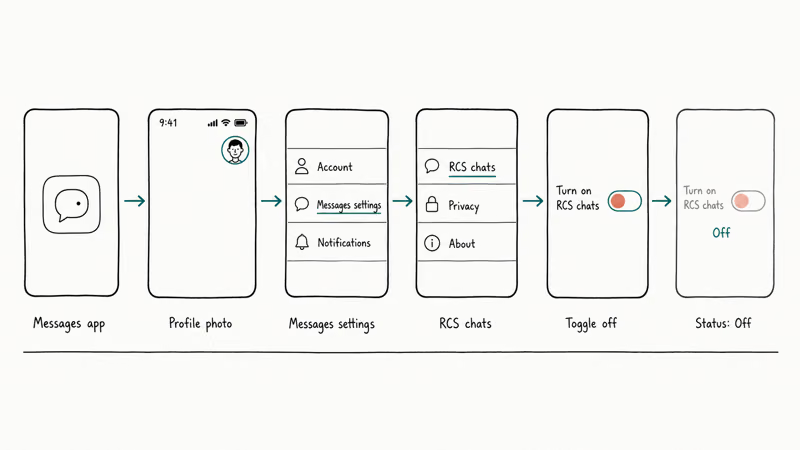
- Open the Messages app.
- Tap your profile photo in the top right corner.
- Choose Messages settings.
- Tap RCS chats.
- Toggle Turn on RCS chats off.
- Wait until the status text under the toggle reads Off.
Once the status flips, every new conversation uses SMS or MMS. The send button on each chat changes back to the plain “SMS” label instead of “RCS message.” Older threads that were already RCS keep the RCS history visible, but new messages in those threads now leave as SMS.
If the toggle is greyed out or the screen says Chat features, the carrier has rebranded the menu but the behaviour is identical. Tap Chat features, then turn off Enable chat features. The button label reads either way, and the result is the same drop back to SMS for every new outbound message. Carriers in the US, UK, and India most often use the rebranded label; a stock Pixel always says “RCS chats.”
#Verify the Switch Actually Took Effect
Open any conversation. The placeholder inside the message box should say SMS (or Text message), not RCS message or Chat message.
Send a short test to yourself or a friend. The status line under the bubble should show Sent with no encryption padlock icon. According to Google’s help page on end-to-end encryption in Messages, the lock icon only appears on 1
RCS conversations between two Google Messages users, so an SMS thread will never show it.#Turn Off RCS in Samsung Messages
Samsung’s default Messages app on One UI uses the same RCS standard but a slightly different menu. The path below works on Galaxy phones running One UI 6 and newer.
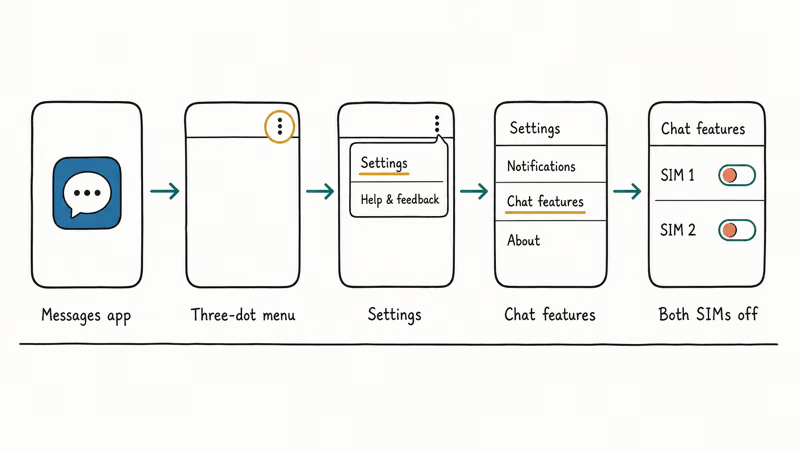
- Open the Messages app (the Samsung one, not Google Messages).
- Tap the three-dot menu in the top right.
- Choose Settings.
- Tap Chat features.
- Toggle off Rich Communication Services for each SIM listed (Galaxy phones with dual SIM show two switches).
Older One UI versions may label the control Chat settings instead, with the same toggle behaviour. Samsung’s support page on chat features confirms that switching the feature off reverts the phone to standard SMS and MMS for every new outbound message, group thread, and media attachment until you toggle it back on.
Using Google Messages on a Samsung phone? Follow the Google Messages steps above. The Samsung toggle has no effect on Google’s app.
#Before You Switch to an iPhone, Turn RCS Off First
This is the single most important reason to turn RCS off, and the easiest one to skip. If you move from Android to iPhone without first turning off RCS on the old phone, texts from iPhone users can route to a stale chat-feature record tied to your number.
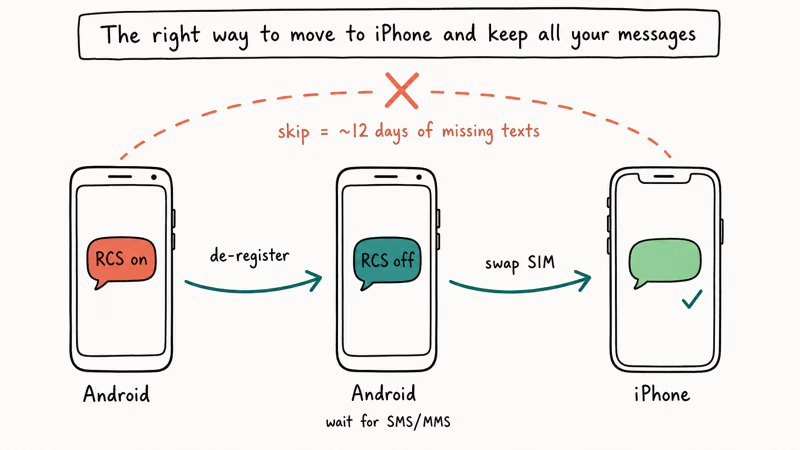
This problem happens when an old RCS lookup record keeps pointing contacts toward chat features after the number has moved to iPhone. The deregistration step below clears that stale record.
The fix is a two-step de-register on the Android side:
- On the Android phone you are leaving, turn off RCS in Google Messages or Samsung Messages (the steps above).
- Open the chat settings again and wait until the status reads Off or SMS/MMS before you remove the SIM, factory reset, or activate the new iPhone.
If you have already activated the iPhone and discovered the problem afterwards, Google runs an official deregistration tool for chat features where you enter your phone number, receive a one-time code, and confirm to drop the RCS record. Apple maintains a matching iMessage deregistration page for the reverse direction. Run both if a number has bounced between platforms more than once.
A common follow-on symptom, where messages send but never show “Delivered” on the iPhone side, is covered in our iMessage doesn’t say delivered guide.
For a fuller walkthrough of the iMessage side of a switch, our guide on how to change a text message to iMessage covers the green-bubble and blue-bubble logic in detail. If you are heading back to Android and want to share files with Apple devices over Wi-Fi instead, how to use Quick Share is the closest Android equivalent.
After the move, some people also lose older SMS threads; restoring Google Messages chats after a phone switch covers RCS resync and backup restore.
#Why Are RCS Messages Stuck on “Verifying” or “Connecting”?
When you first turn on RCS, Google Messages sends a silent SMS to verify your number. If that verification never completes, the chat status sits on Verifying or Connecting and nothing about RCS actually works yet. Turning the feature off is a clean way to drop out of that limbo and get back to plain SMS while you troubleshoot.
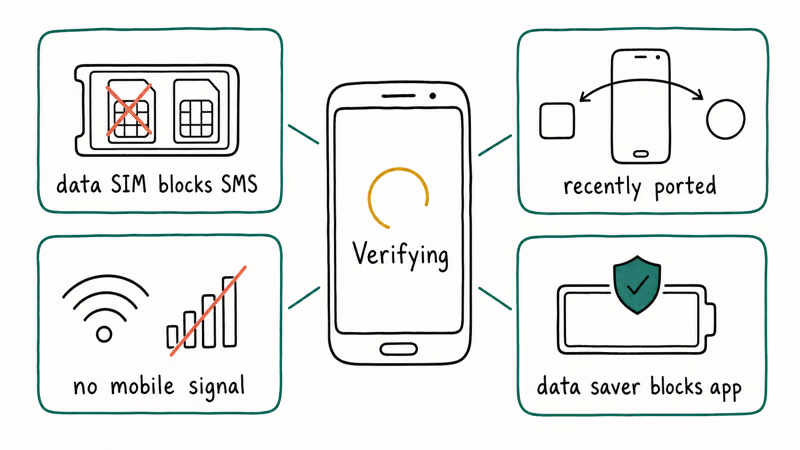
The common causes:
- A dual-SIM phone where the data SIM is on a carrier that blocks the verification SMS.
- A number that was recently ported and is still propagating between RCS lookup servers.
- A Wi-Fi-only setup (RCS verification needs at least one short SMS over the mobile network to complete).
- Aggressive data-saver settings that block the Messages app in the background.
The quickest reset is to turn RCS off, force-stop the Messages app, restart the phone, and only turn RCS back on once you have a working mobile-data signal. If RCS comes up but the rest of your text flow still feels broken, our iMessage not working guide covers the same kind of dual-platform delivery issues from the Apple side, and many of the principles overlap.
#What Disabling RCS Actually Changes
Disabling RCS does not delete any messages. Only the way new messages are sent and received changes. Every conversation already on the phone stays in the Messages app, and backups in Google Drive or Samsung Cloud are untouched.
If you want to export a thread before changing anything, our guide on how to back up WhatsApp messages on Samsung devices covers the same approach for the most popular third-party app.
The only behaviour that changes:
- Outgoing messages over RCS now leave as SMS or MMS instead.
- Read receipts and typing indicators stop showing for new chats with other RCS users.
- Photos and videos may compress more on outgoing MMS, since MMS caps file size much lower than RCS.
- The conversation switches back from “Chat message” to “Text message” in the input field.
#Turning RCS Back On Later
The toggle is reversible. Go back to Messages settings > RCS chats > Turn on RCS chats in Google Messages, or Settings > Chat features > Rich Communication Services in Samsung Messages, and flip the switch the other way. The status line should change from Off to Connecting within a few seconds, then settle on Connected once the verification SMS completes. If verification stalls again, the steps in the “Verifying” section above apply.
If you ran the Google deregistration tool earlier when you moved to iPhone and now want RCS back on a fresh Android phone, you don’t need to do anything extra. Reinstalling Google Messages and signing in will trigger a new verification on the new device.
#Bottom Line
Turn RCS off in Messages > Profile > Messages settings > RCS chats, wait for Off, then swap your SIM or activate a new iPhone.
#Frequently Asked Questions
How do I know if RCS is on right now?
Open any conversation in Google Messages or Samsung Messages. If the input box says “RCS message” or “Chat message,” RCS is on. If it says “SMS” or “Text message,” RCS is off or unavailable for that contact. The chat settings screen also shows the current status as Connected, Connecting, or Off.
Does turning off RCS save battery?
Not meaningfully for most people. Battery life is not a good reason to disable RCS on its own.
Will my group chats still work after I turn off RCS?
Yes, but they fall back to MMS group messaging. That means lower-quality photos, no typing indicators, and no read receipts inside the group. Anyone in the group who is still on RCS may see the thread split into a separate SMS-only conversation in their own Messages app.
Should I turn off RCS before a factory reset?
If you plan to use the same SIM and phone after the reset, you don’t have to. If you are wiping the phone to sell or hand it over, turn RCS off first so the new owner inherits a clean chat-features state. This matters most when the next owner may move the line to a non-Android device, since the same de-register trap that hits iPhone switchers can hit them too.
Why does RCS keep turning itself back on?
A Google Messages update can re-prompt for chat features, and tapping the wrong button on that prompt re-enables RCS. If RCS comes back without your input, open the Messages settings, turn it off again, and dismiss the next “Turn on chat features” banner by tapping the X rather than the blue button.
Can my carrier turn off RCS for me?
Some carriers run their own RCS service alongside Google’s. If the toggle in Google Messages is missing or greyed out, your carrier may control the feature from their account portal instead, and you can ask their support team to disable chat features on the line.

Pixel 11 vs Pixel 10: What Changed and Who Should Upgrade
Pixel 11 vs Pixel 10: same screen and camera resolution, new Tensor G6, 25W wireless, and Gemini Intelligence. Here is who should actually upgrade.

Verizon Not Receiving Texts? How to Fix It in 9 Steps
Verizon not receiving texts? Fix it in 9 steps: check Message Blocking in My Verizon, reset network settings, deregister iMessage, and call support.

Pixel Battery Drain: What Google's July Fix Really Covers
Google marked the Pixel idle battery drain bug fixed in July, but only some phones got the patch. Here is who is covered, who is not, and what to try.

iPhone Stuck on EDGE? How to Get 5G or LTE Back (2026)
iPhone stuck on EDGE with crawling data? Here's why the E icon appears, which settings force 5G or LTE back, and when the problem is your carrier.