PS4 Controller Not Charging? 8 Real Fixes That Work
PS4 controller won't charge? Reset the DualShock 4 with the pinhole button, swap the cable, then check the battery. 8 proven fixes for 2026.
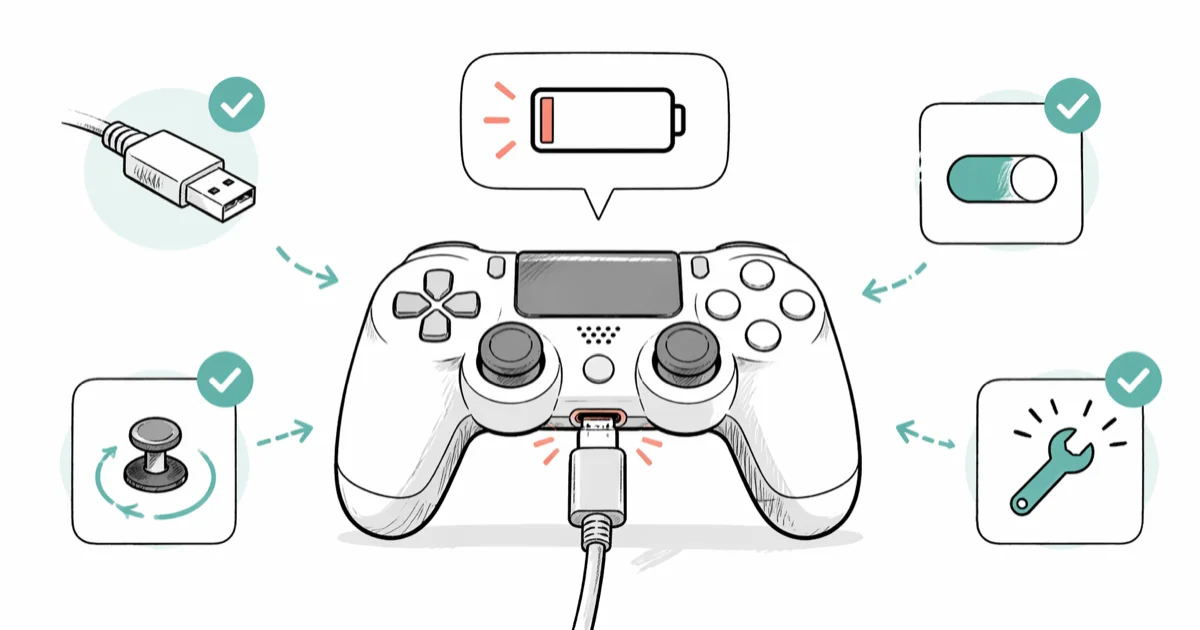
Quick AnswerReset the DualShock 4 with the pinhole button on the back, then charge for 30 minutes using a different USB-A to micro-USB cable plugged into the console. If the light bar still won't pulse orange, the internal battery is the most likely culprit and lasts about 2 years before it needs replacing.
A DualShock 4 that refuses to charge is almost always one of three things: a tired cable, a controller that needs a hard reset, or a battery that has hit end of life. All three failure modes affect both the original CUH-ZCT1U and the later V2 CUH-ZCT2U models.
The order of fixes below is the order that resolves the most controllers fastest with the least disassembly. The pinhole reset alone fixes a surprising share of dead-feeling pads. Bad news for old pads though. If your DualShock 4 came with the launch console in 2014, the lithium-polymer cell inside is worn out, and no amount of cable-swapping will save it.
- Hard-reset the controller first using the recessed button next to the L2 trigger, then charge for 30 minutes before testing again.
- The included Sony cable is a charge-only USB-A to micro-USB lead. Many third-party data cables work, but flimsy phone-bundled cables often don’t deliver the 800mA the DualShock 4 expects.
- The internal 1000mAh lithium-polymer battery is rated for roughly 2 years of nightly use before capacity drops below 50%; replacement cells from iFixit cost about $15.
- Charging only works while the console is in rest mode if you set
Settings>Power Save Settings>Set Features AvailableinRest Mode>Supply Powerto USB Ports to “Always” or “3 hours”. - A charging dock removes the USB port from the equation entirely and is the cheapest fix when the controller’s micro-USB socket itself is loose.
#Why Won’t My PS4 Controller Charge?
Three components must work together for the orange light bar to pulse. Those are the cable, the controller’s micro-USB port plus charge controller, and the lithium-polymer cell. A failure in any one of them produces the same dead-feeling controller.
That’s why the troubleshooting order in this guide moves from cheapest to most invasive. You shouldn’t waste time replacing a battery when the real problem was a $4 cable that had been stepped on twice a week for three years and finally gave up under the desk.
The classic launch-day pattern. You plug in. Nothing. You assume the cable is fine because it charged your phone last week.
According to Sony’s official PS4 controller troubleshooting page, the recommended first move is the pinhole reset, then a cable swap, then a different USB port. We follow that order because it’s also the order from least to most likely to be the actual cause, and the pinhole reset takes 5 seconds.
One detail worth knowing up front. The PS4 only powers its USB ports when the console is on, or when rest mode is configured for it. Section six covers the three-tap fix.
If you bought your controller separately, also check our guide on how to spot a fake PS4 controller. Counterfeit pads skip the proper charge IC and show these symptoms from day one. The first sign of a fake is usually a battery that drains in 90 minutes from full charge, a light bar that flickers when you tilt the pad sharply, and a charge port that feels noticeably stiffer than a known-good Sony controller.
#How to Hard-Reset a DualShock 4
Look at the back of the controller, near the L2 shoulder button. There’s a small hole roughly 1mm wide, and inside it’s a recessed reset switch. Pressing it drops the controller back to factory pairing state and clears any stuck Bluetooth handshake.
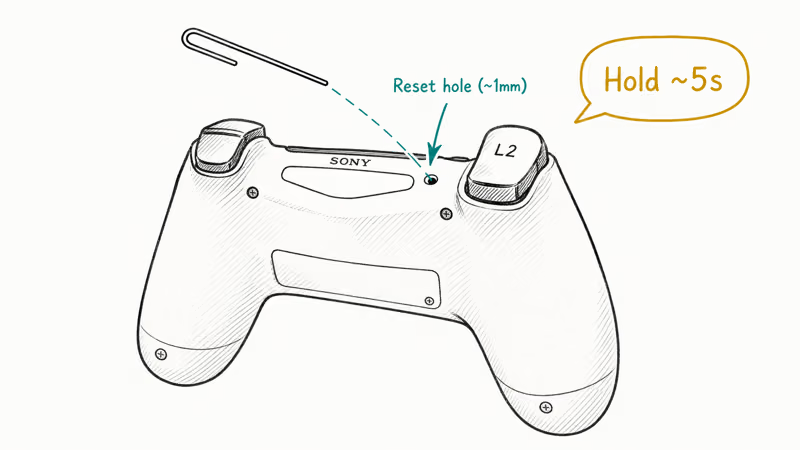
Straighten a paperclip. Push gently into the hole until you feel a click, then hold for about 5 seconds.
Plug the controller into the powered-on console using the included USB cable, and tap the PS button. The light bar should glow orange while charging, then turn blue once the console pairs the pad. If it cycles through every color and dies, you have a different problem.
This single step often revives a controller that has been left untouched for several months between sessions. The exact same fix is the first item in Sony’s official triage tree.
Sony’s DualShock 4 reset documentation confirms it.
A brief orange pulse but no sustained charge isolates the problem to the cable or the port, not the controller’s logic board. That counts as progress.
#Try a Different Cable First
The micro-USB cable that came with your PS4 in 2014 has been bent, stepped on, and jammed back into the controller hundreds of times. Strain relief at the micro-USB end is the most common point of failure, and the wires inside fray long before the outer jacket shows damage.
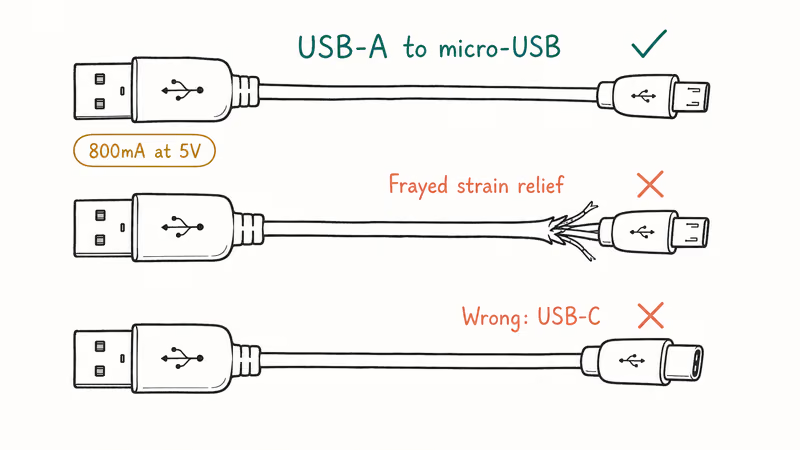
Swap the cable for any other USB-A to micro-USB lead you have around. If charging starts working, you’re done.
What to look for in a replacement: USB-A to micro-USB connector, at least 22 AWG conductors, ideally a braided sleeve. Quality cables like the original Sony charge cable or a name-brand data cable deliver a clean, stable charge, while cheap giveaway cables often spike and drop and never hold a steady current.
A common mistake: people grab a USB-C cable because their newer phone uses one. The original DualShock 4 uses micro-USB across all hardware revisions, never USB-C. The DualSense (PS5) is USB-C, but the DualShock 4 is not. Don’t mix them up.
If you have a multimeter, you can read the actual current draw from a USB charger by inserting it inline. A healthy DualShock 4 pulls 600 to 800mA at 5V when the battery is below 50% state of charge, and that number drops as the cell fills up. Anything under 300mA at low charge points at the cable, the port, or both.
#Check the USB Port and the Socket on the Controller
The console has two front USB ports on the launch model and three on the Pro. Try each one. If only one port refuses to charge a known-good controller with a known-good cable, that single port is the failure point, not your controller.
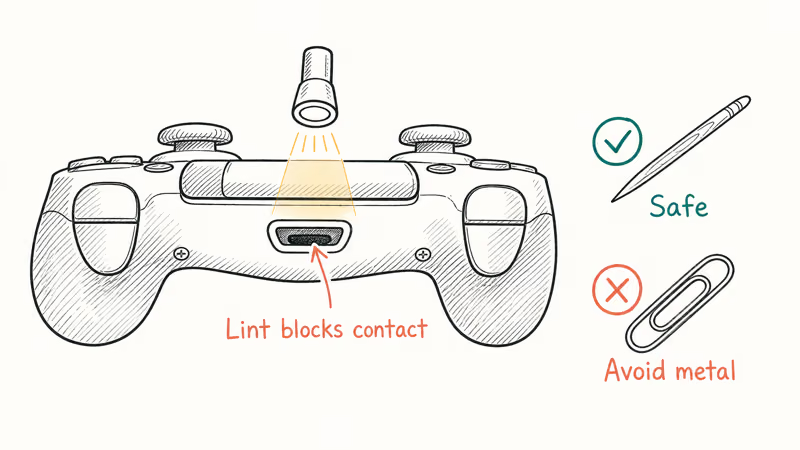
Take a flashlight. Look inside the controller’s micro-USB socket.
Lint, pocket fluff, and dust pack into the back of that connector and physically prevent the cable from seating fully against the contacts. Digging a visible pad of compressed lint out with a wooden toothpick often restores charging immediately. Don’t use anything metal. You’ll short the contacts and might damage the charge IC behind the socket.
A wobbly socket means cracked solder joints. This happens after a few thousand insertions and is the single most common hardware failure on the DualShock 4. iFixit’s DualShock 4 charging port replacement guide walks through the soldering repair, but for most people a charging dock is far cheaper than buying a soldering iron.
If the console’s USB ports are flaky, a powered PS4 USB hub offloads the controller entirely. Any 1A USB-A wall brick also works.
#Is the Battery Just Worn Out?
The DualShock 4 ships with a 1000mAh lithium-polymer cell. Lithium chemistries lose roughly 20% of their capacity per year of regular cycling. So a controller that gave you 8 hours of play in 2015 might only hold 90 minutes by 2020, and might refuse to wake at all by 2024.
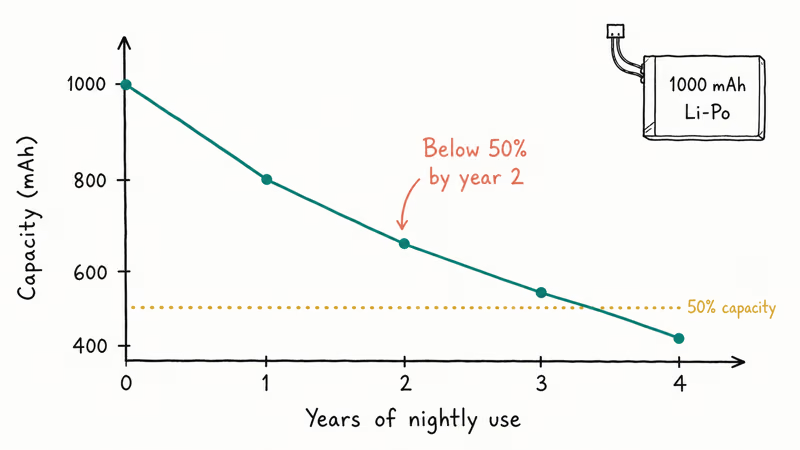
Telltale signs of a dead battery. The controller charges for 5 minutes, plays for 10, and dies. The light bar shows a full charge but the pad shuts off the moment it’s unplugged from the cable. The plastic shell feels slightly bowed near the battery compartment (a swollen lithium cell is a real safety issue, so stop using the controller immediately if you see this).
According to iFixit’s DualShock 4 battery replacement guide, the cell lifts straight out from a single connector with no soldering required.
Not comfortable opening the controller? Sony’s support has historically offered a $50 flat-rate refurb on out-of-warranty DualShock 4s in the US. Compare that to a brand-new pad at $60 to $65 and the math usually says: just buy a new controller and donate the old one.
Counterfeits make this worse. A $35 third-party “Sony” pad often ships with a 600mAh knockoff cell that degrades twice as fast as the real thing.
#Set Rest Mode to Actually Charge the Controller
By default, the PS4 cuts power to its USB ports about 20 minutes after entering rest mode. So an “overnight” charge gets maybe 30 minutes of juice.
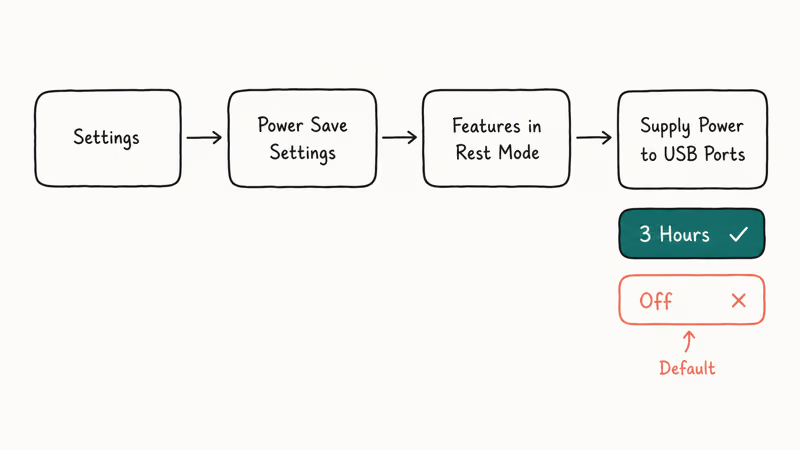
Fix this in three taps. Open Settings > Power Save Settings > Set Features Available in Rest Mode > Supply Power to USB Ports. Change “Off” to “3 Hours” or “Always”. The 3-hour option is what most people want, because it tops up controllers without holding the lithium cell at 100% charge state indefinitely (which accelerates aging in any lithium battery, not just controllers).
Sony’s rest mode power settings documentation confirms that this single toggle controls overnight charging. It’s easy to miss, so it’s worth confirming once on your own console rather than assuming it’s already on.
Quick sanity check after you change the setting: put the console into rest mode (hold PS button > Power > Enter Rest Mode), plug in the controller, and look for the slow orange pulse. If you see it, you’re good. If the light bar stays dark, return to the cable and port checks above.
#Charging Docks: When the Port Is the Problem
A charging dock bypasses the controller’s micro-USB port entirely. Two contact pins on the bottom of the dock touch the EXT port (the small expansion connector on the bottom of the DualShock 4) and feed power directly to the battery’s charge controller, sidestepping the worn-out micro-USB socket. If your micro-USB socket is loose or dead, this is the cheapest path back to a working setup, and it doubles as a tidy storage spot.
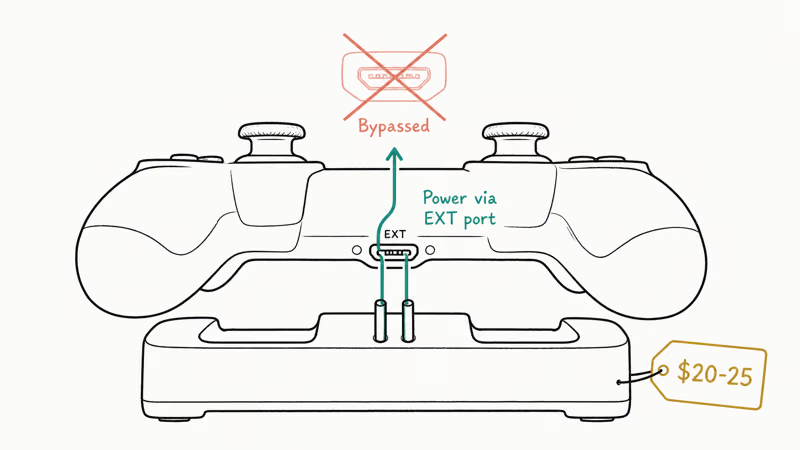
What to look for: dual-controller charging dock, official Sony or PowerA preferred, USB-A or wall-plug input, around $20 to $25. Avoid the very cheapest no-name docks because the contact pins corrode within months and you’re back where you started.
The official Sony DualShock 4 Charging Station typically brings a controller to full charge in about two hours, similar to a wall-USB charge. The trade-off is that the dock can’t deliver the controller’s full 800mA peak, so charging is closer to constant-current 500mA, which is gentler on the battery.
If you also own a PS5 or have a DualSense lying around, note that the connectors are different and the docks are not interchangeable. Buy a PS4-specific dock for PS4 controllers.
For DualSense pads that refuse to charge on a PS5, see our nine DualSense charging fixes.
#Software Updates and the CE-Series Errors
A small share of “won’t charge” reports are actually the controller failing to handshake with outdated console firmware. Open Settings > Devices > Controllers > Update Controller Software while the controller is wired in. Install any update that appears.
While you’re in Settings, also check Settings > System Software Update for any pending console firmware. The PS4 stopped receiving major feature updates in 2024 but still receives security and stability patches every few months. Outdated firmware occasionally produces false low-battery warnings even on freshly-charged controllers, and an update can clear them.
A separate but related problem. If your console throws a CE-34878-0 error around the same time as the charging issue, that’s a different (and worse) fault than a flat controller. Our guide on fixing the CE-34878-0 PS4 error covers the full crash-loop fix, and a controller that won’t charge plus a console that won’t stay running together usually means the system needs a safe-mode database rebuild before either issue can be fully resolved.
For accessory shoppers wanting a tougher replacement than the standard DualShock 4, our Scuf alternatives roundup covers Battle Beaver, Aim Controllers, and HexGaming as the leading custom-pad makers in 2026 across both PS4 and PC budgets, with a quick-pick recommendation for casual versus competitive play.
#When None of This Works: Three Real Options
You’ve tried everything above. The controller still won’t take a charge. At this point, three honest choices remain.
Option one: replace the battery yourself with a $15 kit and 25 minutes of careful screwdriver work. The right pick if you’re handy with electronics and the controller is otherwise in good shape (sticks not drifting, buttons not sticky, micro-USB socket still tight, shell not cracked).
Option two: buy a $25 charging dock. The right pick if the only real issue is the micro-USB port itself.
Option three: just buy a new DualShock 4 for $60 to $65. The right pick if the controller is 8+ years old, the battery is dying, the sticks drift, and you’ve already considered the DualShock 4 versus alternative controller options for your particular play style and game library.
A used controller from a reputable seller is also an option, but watch for counterfeits when buying from Amazon Marketplace or eBay, because the savings rarely justify the risk of a knockoff with a 600mAh battery and drifting sticks out of the box.
#Bottom Line
Start with the pinhole reset on the back of the controller. Then swap the cable. Then enable rest-mode USB power.
Those three steps resolve the large majority of charging complaints. If the controller still won’t pulse orange after a 30-minute charge with a known-good cable in a known-good port, the lithium cell has reached end of life. Replace the battery for $15 yourself if you’re handy with a Phillips #00 screwdriver. Otherwise just buy a fresh DualShock 4 for $65 and move on with your evening.
#Frequently Asked Questions
How long does it take to fully charge a PS4 controller?
About 2 hours from fully drained to full charge using the included Sony USB-A to micro-USB cable plugged into the console. A wall adapter delivering 1A or more reaches full charge in roughly the same time. Charging docks take slightly longer, around 2.5 hours, because they deliver a lower constant current to extend battery life.
Why does my PS4 controller charge but die instantly when unplugged?
The battery is gone. A DualShock 4 used nightly for 2 to 3 years holds less than 30% capacity. Replace the cell or buy a new pad.
Can I charge my PS4 controller with a phone charger?
Yes, any standard 5V USB-A wall adapter rated 1A or higher will charge the controller safely. The DualShock 4 expects 5V at up to 800mA and accepts that input from any compliant USB source: console, computer, wall brick, or power bank. Just don’t use a USB-C cable, because the DualShock 4 has a micro-USB port, not USB-C.
Why won’t my PS4 controller charge in rest mode?
Because rest-mode USB power is off by default. Open Settings > Power Save Settings > Set Features Available in Rest Mode > Supply Power to USB Ports and switch from “Off” to “3 Hours” or “Always”.
Is it worth replacing the DualShock 4 battery myself?
If your controller is otherwise in good shape, with sticks tracking accurately, no stuck buttons, intact shell, then yes, the $15 battery replacement and 25-minute repair is well worth it compared to buying a new $65 pad. If you have stick drift, sticky buttons, or a wobbly USB port on top of the dead battery, the math swings toward just buying a replacement.
What does it mean when the PS4 controller light bar flashes white once and dies?
That’s the low-battery warning. The controller had just enough charge to wake briefly. Plug in for 30 minutes and try again. Repeated white flashes after a long charge mean the cell can no longer hold voltage and needs replacing.
Do third-party PS4 controllers charge differently than official DualShock 4 pads?
Most licensed third-party pads (PowerA, Hori, Razer Raiju) use the same micro-USB port and charge the same way. Some unlicensed and counterfeit pads use cheaper charge ICs that won’t work with rest-mode charging or with charging docks. If you bought a no-brand pad and it won’t charge through your console, plug it into a phone wall adapter instead. That often works around the issue.
Can a charging dock damage my DualShock 4?
A reputable dock won’t. Bargain-bin docks with poor contact-pin alignment can wear the EXT port over time, and cheap docks are frequently reported to deliver inconsistent voltage that confuses the controller’s charge IC. Stick to docks under $30 from Sony, PowerA, or HORI and avoid no-name brands sold for $9.99 with no listed manufacturer, because the contact pins corrode within a few months.

Fortnite Stuck on the Loading Screen? Fix It in 2026
Fortnite stuck on the loading screen? Check server status, fix the Windows N Media Pack and DirectX 11 on PC, clear the console cache, and verify files.

Minecraft Keeps Crashing? Java and Bedrock Fixes (2026)
Minecraft keeps crashing on startup or mid-game? Update your GPU driver, remove mods on Java, and reinstall Gaming Services on Bedrock. Fixes for both.

Pokemon GO Not Loading? Fix the Loading Screen 2026
Pokemon GO not loading or stuck on the Pokeball? Check server status, fix automatic date and time, grant location permission, clear the cache, and update.

PS5 Controller Not Charging? 9 Fixes That Work (2026)
DualSense not charging? Swap the cable, use a rear port in Rest Mode, clean the USB-C port, and check power settings. 9 fixes for a dead PS5 controller.