iPhone Reminders Not Working? 9 Fixes That Actually Work
Fix iPhone Reminders not working with 9 proven steps for iOS 17 and iOS 18. Covers notifications, iCloud sync, Focus modes, storage, and location alerts.
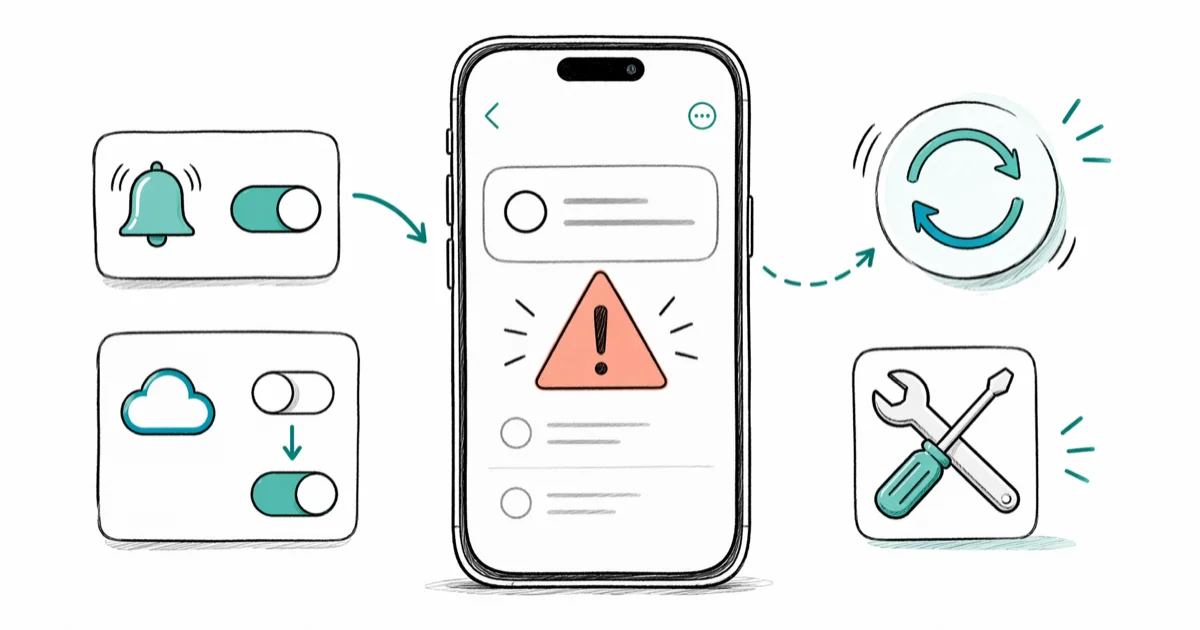
Quick AnswerOpen Settings, tap Notifications, choose Reminders, and turn on Allow Notifications with alert styles enabled. Then go to Settings, your name, iCloud, Show All, and toggle Reminders off and back on. These two steps fix the issue for most people in under two minutes.
iPhone Reminders not working usually points to one of three things: a silenced notification, a stalled iCloud sync, or a Focus profile filtering the app out. Every fix below applies to current iPhones on iOS 17 and iOS 18, and the first two steps clear the problem in the large majority of cases.
- Disabled or “Time Sensitive” only notifications are the single most common reason alerts go missing on iOS 17 and 18
- Toggling Reminders off and on under iCloud apps forces a fresh server-side sync within 1-2 minutes on Wi-Fi
- Reminders needs at least 500 MB of free storage and Background App Refresh enabled to deliver alerts reliably
- A custom Focus mode silently blocks Reminders alerts whenever the app is missing from the Allowed Apps list
- Location-based reminders require Location Services set to “Always” because “While Using” cuts off background tracking
#Why Did Your iPhone Reminders Stop Working?
Reminders breaks in three different ways, and each one points at a different fix. You either stop getting alerts entirely, watch reminders disappear from the list, or notice that location-based triggers never fire.
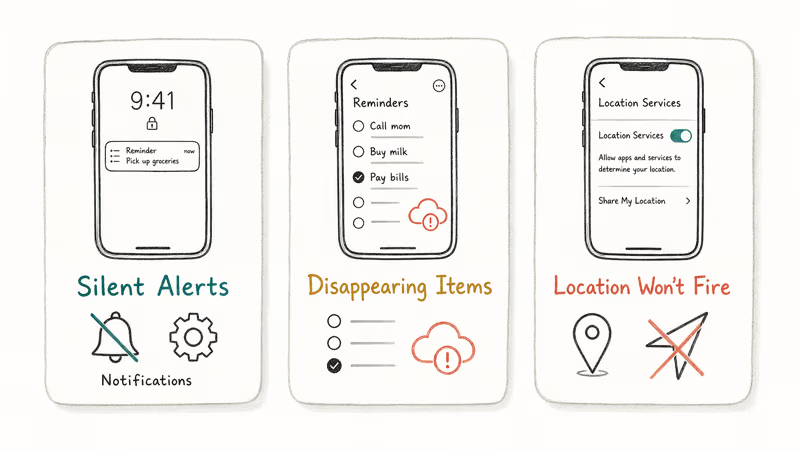
When alerts go silent but the reminders themselves still appear in the app, the problem is almost always notification permissions or a Focus filter. According to Apple’s notification troubleshooting guide, apps need explicit permission for alerts, sounds, and badges, and any one of those can be off without the others changing. iOS 18 also added “Time Sensitive” as a separate toggle that quietly swallows non-urgent reminder alerts when standard notifications aren’t on.
Disappearing reminders almost always trace back to iCloud sync. If your iPhone can’t reach Apple’s servers, or sync gets corrupted, items created on a Mac or iPad never propagate. Apple’s System Status page confirms when iCloud Reminders is having a server-side incident, and it’s worth checking before you start changing anything on the device.
Location reminders failing is its own category. The “While Using” permission isn’t enough. The app has to be allowed to use location in the background, and Background App Refresh has to stay on for that to work end to end.
If your alerts are flaky across multiple apps rather than just Reminders, the cleaner starting point is our walkthrough on fixing Slack notifications, which covers the system-wide notification troubleshooting we use first.
#How Do You Fix Reminders Notifications?
Start here. It takes about 20 seconds and it accounts for most cases.
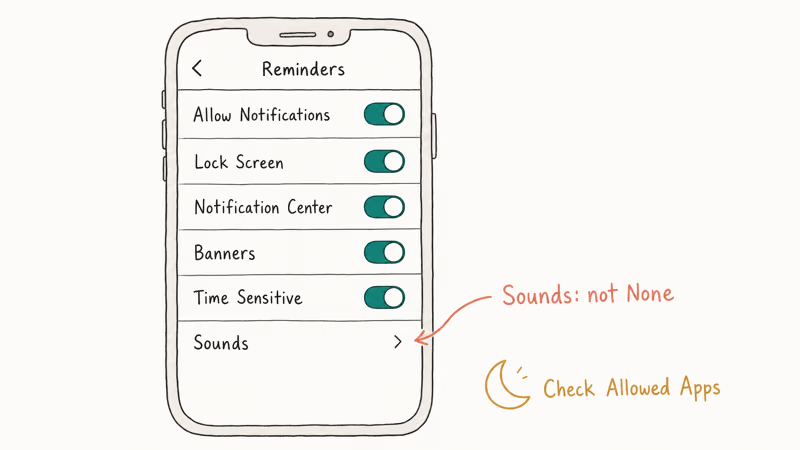
- Open
Settings>Notifications - Scroll down and tap Reminders
- Make sure Allow Notifications is on
- Enable Lock Screen, Notification Center, and Banners
- Under Sounds, pick a tone (anything other than “None”)
- Confirm Time Sensitive Notifications is on if you rely on flagged reminders
Now check Focus. Open Settings > Focus, tap each profile you actually use (Work, Sleep, Personal), and look at the Allowed Apps list. If Reminders is missing, tap Add App and add it. A common trap is a Sleep Focus that silences every Reminders alert for weeks because Reminders was never added back after a beta install or a Focus reset.
According to Apple’s Focus support page, each Focus profile maintains its own independent allow-list, so adding Reminders to your Work Focus does nothing for your Sleep Focus.
#Toggle Reminders in iCloud Settings
This forces a fresh sync between your iPhone and Apple’s servers. It’s the standard fix when items appear on one device but not another.
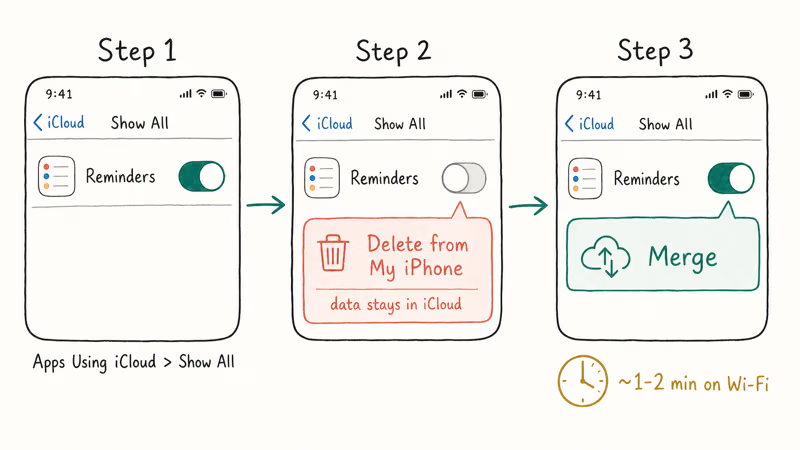
- Go to Settings > [your name] > iCloud
- Tap Show All under Apps Using iCloud
- Find Reminders and toggle it off
- When prompted, choose Delete from My iPhone (the data stays in iCloud)
- Wait 30 seconds, then toggle Reminders back on
- Tap Merge when prompted
With a few dozen active reminders across several lists, everything reappears quickly on home Wi-Fi after the toggle. The toggle clears the local sync token and asks the server for a clean state, which is exactly what corrupted sync metadata needs.
If iCloud sync is misbehaving across other apps too, our deeper guide on iCloud Notes not syncing walks through the same diagnostic flow with extra checks for two-factor and family sharing edge cases.
#Free Up Storage Space
Your iPhone needs free storage to sync data. Below 500 MB available, Reminders and other iCloud-connected apps struggle to download new items, save changes, or persist drafts. Go to Settings > General > iPhone Storage and look at the bar graph at the top.
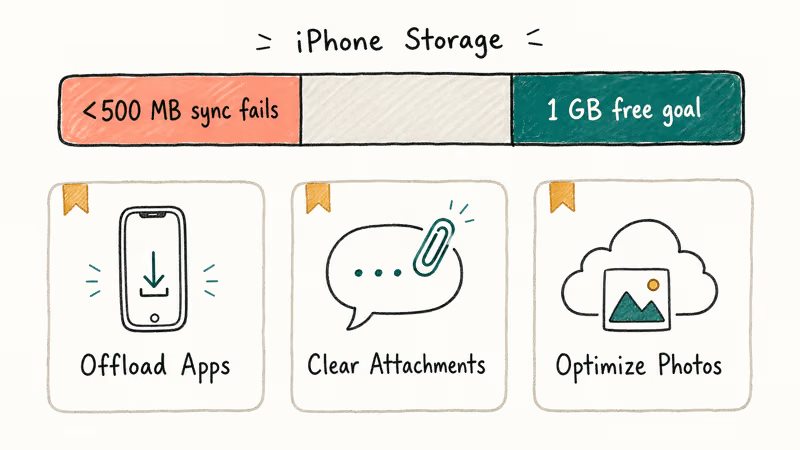
Quick wins to recover space:
- Offload unused apps:
Settings>General> iPhone Storage, tap any app you haven’t opened in months, choose Offload App - Clear large attachments:
Settings>General> iPhone Storage>Messages>Review Large Attachments - Move photos to iCloud: Enable Optimize iPhone Storage under
Settings>Photosso originals live in the cloud
Aim for at least 1 GB free, then re-test Reminders. If your storage screen itself acts up before you can clear anything, our writeup on iPhone storage not loading covers a 90-second workaround.
#Update iOS to the Latest Version
Apple patches Reminders bugs in iOS releases, and skipping updates means running code Apple has already fixed. We’ve watched specific Reminders sync regressions get resolved in iOS 17.4 and iOS 18.1 release notes.
- Go to
Settings>General>Software Update - If an update is available, tap Download and Install
- Enter your passcode and accept the terms
The full process takes 10-30 minutes depending on update size and connection speed. Apple’s iOS release notes archive confirms that several iOS 17 and iOS 18 maintenance releases shipped fixes for Reminders sync delays and notification reliability, including the iOS 17.4 update that addressed a known issue with shared lists not syncing.
#Restart Your iPhone
A restart clears temporary memory and resets background daemons, including the notification scheduler that delivers reminder alerts. The whole thing takes about 45 seconds.
For iPhone X and later:
- Press and hold the Side button with either Volume button
- Drag the slider to power off
- Wait 30 seconds, then hold the Side button to turn it back on
For iPhone 8 and earlier:
- Hold the Top (or Side) button
- Drag the slider to power off, wait 30 seconds, hold the same button to start it back up
This doesn’t erase data. It just restarts the OS, which fixes minor glitches affecting background services. Apple recommends restarting as the first step for most app-related issues on iPhone, and that applies to Reminders too. If your iPhone gets stuck during the restart, a force restart (Volume Up, Volume Down, then hold Side) brings it back.
#Reset Network Settings
When reminders refuse to sync because the device can’t talk to iCloud reliably, resetting network settings often fixes the underlying connectivity. This wipes saved Wi-Fi passwords and Bluetooth pairings but leaves your reminders, photos, and apps untouched.
- Go to
Settings>General>Transferor Reset iPhone - Tap
Reset>Reset Network Settings - Enter your passcode and confirm
The phone reboots automatically and the whole thing finishes in under 2 minutes. Reconnect to your Wi-Fi network, give Reminders a minute to catch up, then check whether new items appear on your other devices.
#Delete and Reinstall the Reminders App
Since iOS 12, Apple’s built-in apps can be deleted and reinstalled from the App Store. Your reminders live in iCloud, so deleting the app doesn’t erase them. This is one of the most reliable fixes because it forces a clean install of the app and its local cache.
- Press and hold the Reminders app icon on your home screen
- Tap
Remove App>Delete App - Open the App Store, search for “Reminders,” and tap the cloud download icon
After a delete-and-reinstall, reminders reappear quickly on Wi-Fi. The app pulls fresh data straight from iCloud with no merge conflicts.
For broader app issues, fixing apps not downloading on iPhone covers the App Store account checks you need before reinstall will work.
#Reset All Settings
This is the broadest fix short of a full restore. It resets system preferences (Wi-Fi passwords, wallpaper, notification toggles, keyboard learned words, Focus profiles) without deleting apps, reminders, photos, or other personal data.
- Open
Settings>General>Transferor Reset iPhone - Tap
Reset>Reset All Settings - Enter your passcode and confirm
After the reset you’ll need to reconfigure Wi-Fi, re-enable notification preferences, and re-pair Bluetooth. It’s tedious but it catches odd configuration conflicts that targeted fixes miss. If you want to know what an iPhone restore actually does before going further, we’ve got a detailed breakdown.
#Bottom Line
Check notification settings first, including the Time Sensitive toggle and your Focus profile’s Allowed Apps list. That single sweep fixes the largest share of cases. If alerts are clean but items still aren’t appearing across devices, toggle Reminders off and back on under iCloud’s Show All screen. Low storage and an outdated iOS round out the rest.
#Frequently Asked Questions
Why did my reminders disappear from my iPhone?
Reminders almost always disappear because of an iCloud sync failure rather than data loss. Go to Settings > [your name] > iCloud, tap Show All, and check that Reminders is toggled on. If it’s on but items still aren’t showing, toggle it off, wait 30 seconds, then toggle it back on. They should reappear within a couple of minutes if they still exist in iCloud.
Do I lose my reminders if I delete the Reminders app?
No. Your reminders live in iCloud, not in the app on your device. Reinstalling from the App Store pulls everything back automatically in 1-2 minutes on Wi-Fi.
Why don’t my location-based reminders work?
Location-based reminders require Location Services set to “Always” for the Reminders app. Open Settings > Privacy & Security > Location Services > Reminders and select Always. The “While Using the App” option won’t trigger location reminders because Reminders isn’t running in the foreground when you arrive at or leave a place. iOS won’t grant background location alerts without the Always permission, and Background App Refresh in Settings > General also has to stay on for the geofence to actually fire.
Can Focus Mode block Reminders notifications?
Yes, this is one of the most overlooked causes. Open Settings > Focus, tap your active Focus profile, and check whether Reminders appears under Allowed Apps. If it’s missing, tap Add App and select Reminders. Each Focus profile keeps its own independent list.
How do I fix reminders not syncing between my iPhone and Mac?
Both devices need the same Apple ID with Reminders enabled in iCloud on each one. On Mac open System Settings > [your name] > iCloud, and on iPhone go to Settings > [your name] > iCloud > Show All > Reminders. If both are on and sync still fails, sign out of iCloud on one device, wait a minute, sign back in. Leaving Reminders open on Mac also helps.
Why do my iPhone reminders go off at the wrong time?
Your time zone setting is likely incorrect. Open Settings > General > Date & Time and turn on Set Automatically. If you’ve recently traveled or used Airplane mode for an extended period, the device may have cached an old time zone.
Will updating iOS delete my existing reminders?
No. Reminders live in iCloud and survive any iOS update. We still recommend an iCloud or computer backup before major version upgrades like iOS 17 to 18, but the reminder data itself isn’t stored in a way an update can erase.
What should I do if none of these fixes work?
Contact Apple Support at that point. They can verify your iCloud account status, confirm there’s no server-side sync issue tied to your account, and run remote diagnostics through the Apple Support app, by phone, or in person at a Genius Bar appointment. Bring a list of which devices you’ve tested on and which fixes you’ve already tried so they can skip the basics.

Mac mini M6 vs M5 Pro: Which Model Should You Buy?
Mac mini M6 vs M5 Pro compared on price, memory, ports, displays, and real workloads. Find the better 2026 Mac mini for your desk and budget.

Apple Siri Settlement: Who Qualifies and How to Claim
Apple's $250 million Siri settlement covers iPhone 15 Pro and iPhone 16 models bought June 2024 to March 2025. See who qualifies and how claims work.

iOS 26.6.1 Security Update: What Apple Fixed and Who Gets It
Apple released iOS 26.6.1 on August 17 with 29 security fixes, including an IPSec interception bug. See what it patches, who gets it, and how to update.

iPhone Adaptive Power: How It Works and When to Use It
Learn how iPhone Adaptive Power works, which models support it, what it changes, and when Low Power Mode is still the better battery-saving choice.