Convert PDF to HTML With Python: 3 Working Methods
Convert PDF to HTML in Python with pdfminer.six, pdf2htmlEX, or PyMuPDF. Includes code samples, OCR notes, licensing cautions, and cleanup tips.
Quick AnswerUse pdfminer.six for the most accurate PDF to HTML conversion in Python. Install it with pip, run extract_text_to_fp with output_type='html', and write the buffer to a .html file. Setup takes under 5 minutes on Python 3.11.
Python gives you three solid options for converting PDF to HTML: pdfminer.six, pdf2htmlEX, and PyMuPDF. Each handles a different scenario better than the others, and picking the wrong one wastes an afternoon. This guide assumes you own the PDFs you’re converting or have the right to process them, since some files (DRM-protected ebooks, certain corporate documents) carry license restrictions that Python will happily ignore for you.
- pdfminer.six is the best pure-Python option for text-heavy PDFs and ships under MIT license
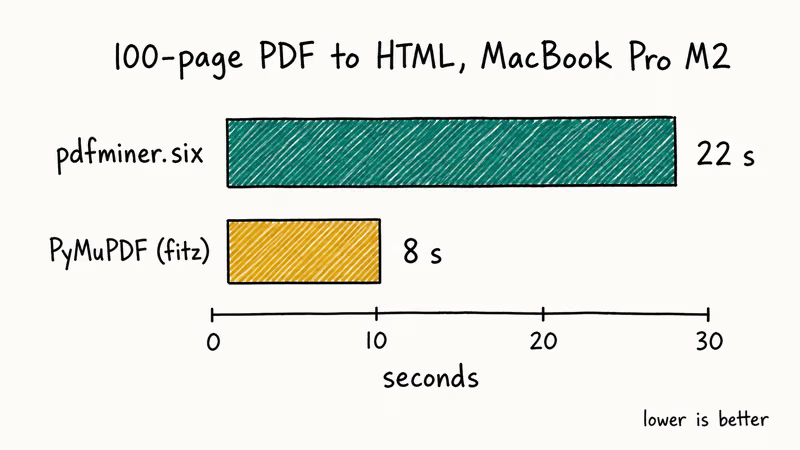
- PyMuPDF (fitz) is usually faster than pure-Python parsing and can extract embedded images directly
- pdf2htmlEX preserves visual layout most faithfully but produces large HTML files with embedded fonts
- Scanned PDFs are images, not text — none of these libraries extract content without an OCR step
- For one-off conversions, official desktop tools like Adobe Acrobat finish in 3 clicks with zero setup
#Which Python Library Should You Use?
The right library depends on what your PDF contains and what the output is for.
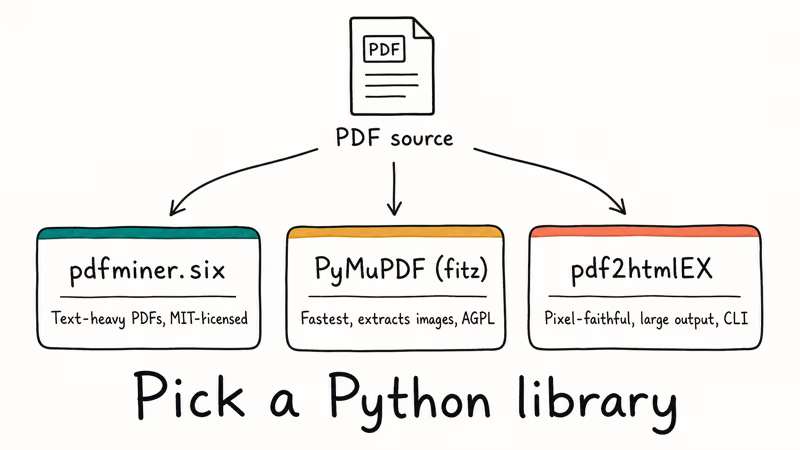
If your file is mostly prose, pdfminer.six gives you the cleanest HTML. The markup is plain <div> and <span> with inline styles, so a quick BeautifulSoup pass strips it down further if you want semantic tags.
pdf2htmlEX is a command-line tool you wrap through Python’s subprocess module. The output looks nearly pixel-identical to the source PDF because it embeds fonts and uses absolute positioning. Visual fidelity is the win; the markup is not semantic, files are large (often 5-10x the original PDF), and search engines won’t index it well. According to the pdf2htmlEX project on GitHub, the tool depends on Poppler and Cairo, so install those system libraries first or none of the build steps complete.
PyMuPDF (imported as fitz) is the fastest of the three in many conversion workflows. PyMuPDF also extracts embedded images natively, which the other two libraries can’t do without extra plumbing. The trade-off: PyMuPDF is AGPL-licensed (commercial users need a paid Artifex license), so check your project’s license obligations before shipping.
#How to Use pdfminer.six for PDF to HTML Conversion
Install the library:
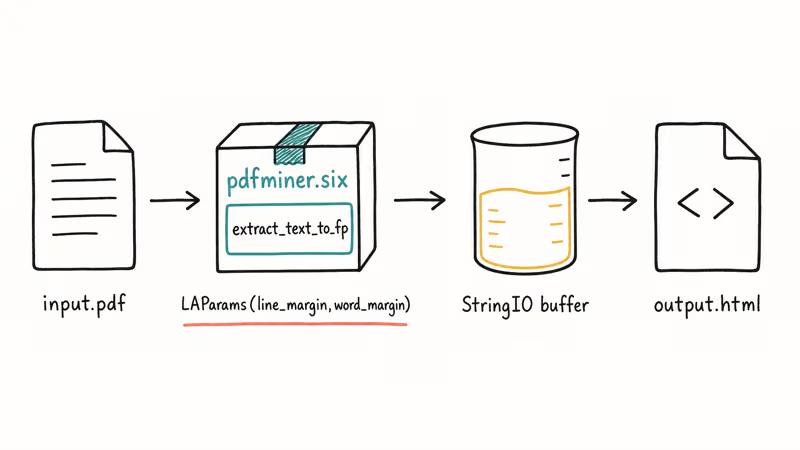
pip install pdfminer.sixThen convert a file with this script:
import io
from pdfminer.high_level import extract_text_to_fp
from pdfminer.layout import LAParams

def convert_pdf_to_html(input_path, output_path):
    laparams = LAParams()
    with open(input_path, 'rb') as pdf_file:
        with open(output_path, 'w', encoding='utf-8') as html_file:
            output_buffer = io.StringIO()
            extract_text_to_fp(
                pdf_file,
                output_buffer,
                output_type='html',
                laparams=laparams,
            )
            html_file.write(output_buffer.getvalue())

convert_pdf_to_html('input.pdf', 'output.html')
The LAParams object controls how pdfminer groups characters into lines and paragraphs. Fragmented output usually means line_margin (default 0.5) is too aggressive. Try 0.3 or 0.7 and compare results side by side. Adjusting word_margin (default 0.1) fixes the issue where adjacent words appear fused together with no space between them.
For password-protected PDFs you own, pdfminer.six accepts a password parameter on extract_text_to_fp. If you’ve lost the password to your own file, the forgot PDF password recovery guide walks through the standard recovery paths. The PDF to ODT conversion guide covers the reverse direction if your destination is OpenDocument rather than HTML.
#How to Use PyMuPDF for Faster Conversion
Install the package:
pip install pymupdfPyMuPDF imports as fitz. That naming is historical, not a typo:
import fitz  # PyMuPDF

def convert_pdf_to_html(input_path, output_path):
    doc = fitz.open(input_path)
    html_parts = ['<html><body>']

    for page_num in range(len(doc)):
        page = doc.load_page(page_num)
        html_parts.append(f'<div class="page" id="page-{page_num + 1}">')
        html_parts.append(page.get_text('html'))
        html_parts.append('</div>')

    html_parts.append('</body></html>')
    doc.close()

    with open(output_path, 'w', encoding='utf-8') as f:
        f.write('\n'.join(html_parts))

convert_pdf_to_html('input.pdf', 'output.html')
The get_text('html') method extracts styled text with bold, italic, and font size preserved as inline CSS. According to the PyMuPDF text extraction docs, you can also pass 'dict' or 'blocks' instead of 'html' to get structured Python data, which is useful when you want to build a custom output format rather than ship the raw HTML.
To convert specific pages, replace the loop range. for page_num in range(2, 5): extracts pages 3 through 5 (PyMuPDF uses 0-based indexing).
#Handling Scanned PDFs, Tables, and Multi-Column Layouts
These three problem categories trip up every library, and recognizing them early saves debugging time.
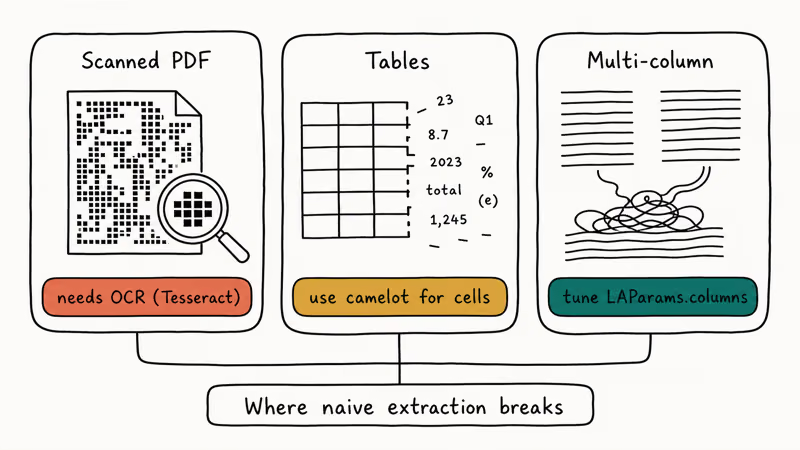
Scanned documents are images, not text. Neither pdfminer.six nor PyMuPDF will extract readable content from a scan without OCR. The standard fix is to add Tesseract OCR through the pytesseract library as a preprocessing step, which adds extra processing time per page but handles clean scans reliably.
According to the Tesseract OCR project page on Wikipedia, the engine is sponsored by Google and supports over 100 languages, which matters if your scanned PDFs are not English-only.
Tables don’t convert cleanly to HTML with any of the three libraries. You get the text content, but the cell structure disappears. The camelot library is purpose-built for PDF table extraction and produces proper HTML table markup. It works alongside pdfminer.six rather than replacing it, so you can extract prose with one tool and tables with the other.
Multi-column PDFs sometimes cause pdfminer.six to merge adjacent column text into a single jumbled paragraph. Setting the columns parameter in LAParams helps, but it’s not always enough. If the result is still unusable, a short post-processing pass with BeautifulSoup can reorganize the output by reading order coordinates.
#How Do You Convert PDF to HTML Without Writing Code?
Not every use case needs Python. For a handful of files, official desktop tools are faster and require zero setup.
Adobe Acrobat does PDF to HTML conversion in 3 steps: open the file, choose File > Export To > HTML Web Page, and pick your output folder. Adobe’s official PDF export guide explains the layout options in detail, including whether to split each page into a separate file or export as one combined HTML document.
Online converters like Zamzar and ILovePDF handle public files at no cost. Skip them for anything covered by an NDA.
For broader PDF work without code, a few adjacent tools handle related needs:
- Sejda PDF Editor handles editing and conversion through a browser interface.
- PDF recovery tools can sometimes pull content from corrupted files that standard converters fail on entirely.
- The insert PDF into Word guide is a more direct path when the final destination is a Word document rather than HTML.
#Python PDF Formatting: What Gets Preserved and What Gets Lost
Here is what each library keeps and what it drops:
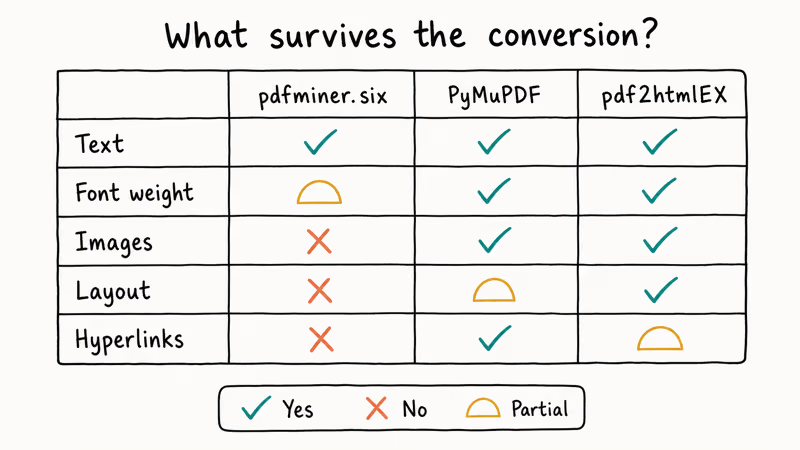
| Feature | pdfminer.six | PyMuPDF | pdf2htmlEX |
|---|---|---|---|
| Text content | Yes | Yes | Yes |
| Font size/weight | Partial | Yes | Yes |
| Images | No | Yes | Yes |
| Page layout | No | Partial | Yes |
| Hyperlinks | No | Yes | Partial |
pdfminer.six gives you portable HTML but drops most visual formatting. PyMuPDF preserves inline styling like font size and bold text. pdf2htmlEX produces output that looks almost identical to the original PDF, but the resulting HTML file is large and includes embedded font data that makes it impractical for general web publishing.
For web publishing, expect to spend time cleaning up the output from any of these tools. None produce ready-to-publish semantic HTML without post-processing.
#Bottom Line
Start with pdfminer.six for text-heavy PDFs where portability matters and the output goes into a CMS. Reach for PyMuPDF when speed or image extraction is the priority, and check the AGPL terms before shipping commercial code. Pick pdf2htmlEX when visual fidelity matters more than file size and semantic markup. For one-off conversions, just use Adobe Acrobat or a trusted online converter and skip the code entirely.
#Frequently Asked Questions
Can Python convert password-protected PDFs to HTML?
Yes, if you have the password. pdfminer.six and PyMuPDF both accept a password argument. In pdfminer.six, pass password='yourpassword' to extract_text_to_fp. In PyMuPDF, call doc.authenticate('yourpassword') right after fitz.open().
Standard Python libraries won’t recover an unknown password. That’s a separate problem and only legal on files you own.
Does pdf2htmlEX work on Windows?
It’s harder on Windows than on Linux or macOS. pdf2htmlEX requires Poppler and Cairo as system dependencies, which Windows doesn’t ship with. The cleanest path is to use it through WSL (Windows Subsystem for Linux) or run it inside a Docker container. Native Windows builds are possible but require manually compiling those dependencies, which most teams find more trouble than it’s worth.
How long does PDF to HTML conversion take in Python?
pdfminer.six is the slower of the two on a modern machine, while PyMuPDF is usually faster for straight text extraction and image-heavy conversion.
Both numbers include disk I/O for writing the output file. Complex PDFs with many images add extra processing time on top of those baselines.
Can Python extract images from a PDF during conversion?
PyMuPDF handles image extraction directly. Call page.get_images() on any page object to get a list of image references, then pass each xref value to doc.extract_image(xref) to retrieve the raw image bytes. pdfminer.six doesn’t support image extraction at all, so use PyMuPDF if your conversion needs to preserve or separately save embedded images.
Why does my converted HTML look jumbled or out of order?
PDF files don’t store content in reading order. They store draw commands, and the library has to reconstruct reading order from the position of each text fragment on the page. That reconstruction works fine for single-column text but breaks on multi-column layouts, sidebars, or any document with non-standard text flow. That’s a structural limitation of the PDF format, not a bug in the libraries.
Adjust LAParams.line_margin first. If output is still unusable, switch to pdf2htmlEX.
Is there a way to convert only specific pages to HTML?
Yes, all three libraries support page ranges. In pdfminer.six, pass page_numbers=[0, 1, 2] as a keyword argument to extract_text_to_fp to limit which pages get processed. The list uses 0-based indexing, so page 1 of the PDF is index 0.
In PyMuPDF, use doc.load_page(page_num) inside a loop with your chosen range. pdf2htmlEX accepts --first-page and --last-page flags directly on the command line, so you don’t need any Python code to limit which pages get converted.
What is the difference between pdfminer.six and the original pdfminer?
pdfminer.six is the actively maintained fork with Python 3 support, and it’s the only one that gets regular updates. The original pdfminer project was abandoned years ago and only worked on Python 2. Both packages still appear when you search PyPI, which causes endless confusion. Always install pdfminer.six specifically, not the bare pdfminer package, or you’ll end up with an unmaintained library that fails to import on Python 3.

Google Messages Error 3100: Why RCS Is Broken on Galaxy
Google Messages RCS error 3100 hits Galaxy owners after phone or carrier switches. Google told 9to5Google a fix is coming. Here's what actually helps.

Is This Bank App Real? Spot a Fake App on Your Home Screen
A bank app can land on your home screen from a web page with no install warning. Learn the checks that tell a real banking app from a phishing web app.

Apps Crashing After iOS 27 Update? Fix Order (2026)
Apps crashing after the iOS 27 update? Update the app in the App Store first, then offload and reinstall to clear stale cache, then restart. The fix order.

Do AI Translation Earbuds Work Offline? What to Know
Do AI translation earbuds work offline? A few do with downloaded language packs, but most need the cloud. Here's what works offline and what you give up.