A Comprehensive Guide to PDF Recovery on Windows and Mac
Recover deleted, unsaved, or corrupted PDF files on Windows and Mac. Step-by-step fixes for AutoSave, Recycle Bin, Recoverit, and Disk Drill.

Quick AnswerCheck the AutoSave folder first (Adobe Acrobat saves a copy every 5 minutes by default). If that fails, restore from Recycle Bin or Trash, then run Recoverit or Disk Drill on the original drive before any new writes can overwrite the deleted PDF.
A missing PDF usually comes back. There are four recovery paths on Windows and Mac that cover invoices, scanned forms, and large reports deleted from the Downloads folder. This guide assumes the PDFs are on your own computer or a device you have permission to recover from. Use these methods in the order shown.
- AutoSave catches unsaved PDF edits every 5 minutes by default in Adobe Acrobat. Check
%AppData%\Adobe\Acrobat\Autosaveon Windows or~/Library/Application Support/Adobe/Acrobat/DC/Autosaveon Mac before doing anything else. - Recycle Bin (Windows) and Trash (Mac) hold deleted PDFs until you empty them, with a 30-day default retention on Mac and an 8% drive-size cap on Windows.
- File-recovery software like Recoverit and Disk Drill can resurrect permanently deleted PDFs by reading raw sectors. Success rates drop sharply once the storage block has been overwritten.
- Stop using the source drive immediately after deletion. Every saved file, browser cache write, or OS log entry can overwrite the PDF’s data blocks.
- Stellar Repair for PDF and Wondershare Repairit handle structural corruption (orphan xref tables, broken streams) that no recovery tool can fix.
#Why PDF Files Disappear or Break
Most “lost” PDFs fall into one of four buckets. Each bucket has a different fix path, so knowing which bucket you’re in saves an hour of pointless scanning.
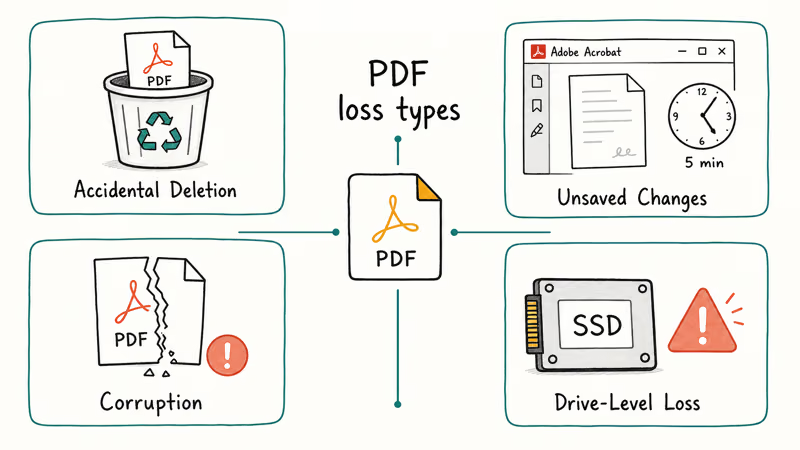
Accidental deletion is the most common case. Pressing Delete (Windows) or Cmd + Delete (Mac) sends the file to a holding folder that survives until you empty it. Even after that, the file blocks usually sit on disk untouched until something else writes over them.
Unsaved changes lose only the edits, not the original file. Adobe’s auto-save runs in the background and writes a .adobesave snapshot at a configurable interval. According to Adobe, AutoSave defaults to 5 minutes and lives separately from the original PDF, so even a forced shutdown leaves a snapshot less than 5 minutes old in nearly every case (see Adobe’s Acrobat preferences documentation).
Corruption is different. The file is right there in the folder, but it won’t open.
You’ll see “There was a problem reading this document (14)” in Acrobat, or a blank page in your browser. This is structural damage to the PDF’s internal tables. Recovery software won’t help, but PDF repair tools sometimes will. The fix path is completely different from anything that worked for deletion or auto-save loss.
Drive-level loss covers formatting, partition damage, and physical failures. Recovery is still possible in many cases, but the rules tighten: never write to the affected drive, and never run recovery software from the same drive you’re scanning.
#Method 1: Recover Unsaved PDF Files With AutoSave
Adobe Acrobat and Acrobat Reader save a temporary copy of every open PDF on a timer. If your computer crashed, lost power, or you closed Acrobat without saving, the AutoSave file is your fastest path to a recovery.
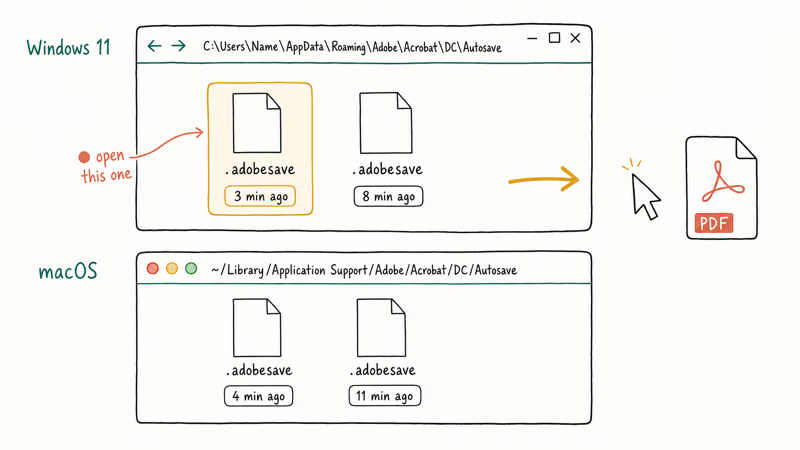
Open the AutoSave folder directly:
- Windows 10/11:
C:\Users\<YourName>\AppData\Roaming\Adobe\Acrobat\<version>\Autosave - macOS 12+:
~/Library/Application Support/Adobe/Acrobat/DC/Autosave
The version folder is usually DC (Document Cloud) or a year number like 2020 for older installs. Files inside have a .adobesave extension. Drag one into Acrobat and use File > Save As to convert it back to a normal .pdf.
Sort by date modified to find the most recent snapshot.
After an Acrobat crash mid-edit, the AutoSave folder typically holds a snapshot only a few minutes old that recovers every annotation made before the crash. On Windows, the .adobesave file is usually timestamped within 5 minutes of the crash.
One catch: Acrobat deletes the AutoSave snapshot when you reopen the original document and either save or discard. If you crashed and Acrobat reopened the file silently, the snapshot may already be gone. Move the
.adobesavefile out of the AutoSave folder before doing anything else.
Copy first, open second.
If your version of Acrobat is set to never auto-save, the folder will be empty. Open Acrobat, go to Edit > Preferences > Documents (Windows) or Acrobat > Preferences > Documents (Mac), and confirm “Automatically save document changes” is enabled with a 5-minute interval.
#Method 2: Restore Deleted PDFs From Recycle Bin or Trash
This is the easiest fix and the one most people skip.
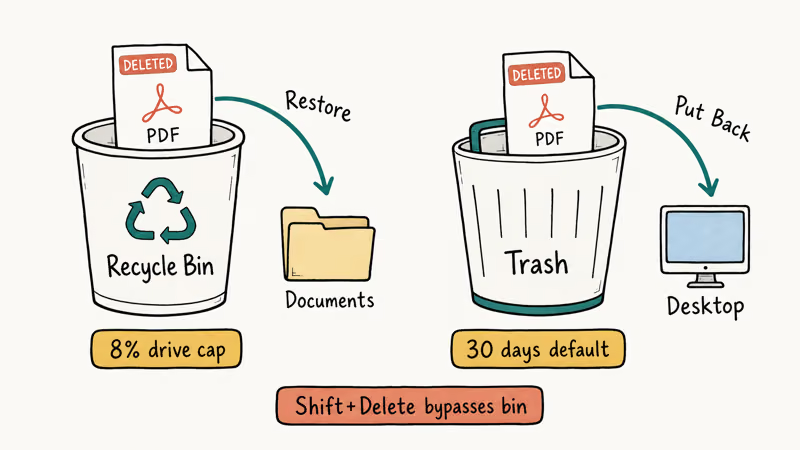
A deleted PDF sits in the Recycle Bin (Windows) or Trash (Mac) until something empties it. The default retention behavior is generous on both platforms, which is why this should always be the first place you look after a delete keystroke.
On Windows, open Recycle Bin from the desktop, find the PDF, right-click, and pick Restore. The file goes back to its original folder. On Mac, open Trash from the Dock, drag the PDF onto the desktop, or right-click and pick Put Back.
A few traps to watch for:
- Files deleted with
Shift + Delete(Windows) orOption + Cmd + Delete(Mac) bypass Recycle Bin and Trash entirely. Skip to Method 3. - Files deleted from a network share, USB drive, or SD card on Windows usually skip Recycle Bin too.
- Mac defaults to auto-emptying Trash after 30 days when “Remove items from the Trash after 30 days” is on in Finder preferences.
- Windows Recycle Bin caps each drive at 5 to 10% of total capacity. On a full 2TB drive, that’s still 100GB+ of buffer.
If you only deleted the file in the last day or two, it’s almost certainly there. A PDF restored from the Recycle Bin comes back cleanly, with original timestamps intact, the original folder path remembered, and zero quality loss after the round-trip.
#Method 3: How Do You Recover Permanently Deleted PDF Files?
Once a PDF is gone from Recycle Bin or Trash, you need software that reads the raw filesystem and rebuilds files from leftover data blocks. Recovery tools scan the disk sector by sector and reassemble whatever fragments survive, which is why acting fast matters so much. Two tools handle this well on both Windows and Mac, and both ship a free tier that previews what’s recoverable before you pay anything.
#Recoverit (Windows + Mac)
Recoverit is the strongest first option. It scans by file signature, so it finds PDFs even when the filename and folder structure are gone. The free tier recovers up to 100MB, which is enough to test whether your file is recoverable before paying.
Some links on this page are affiliate links, which means fone.tips may earn a commission at no extra cost to you.
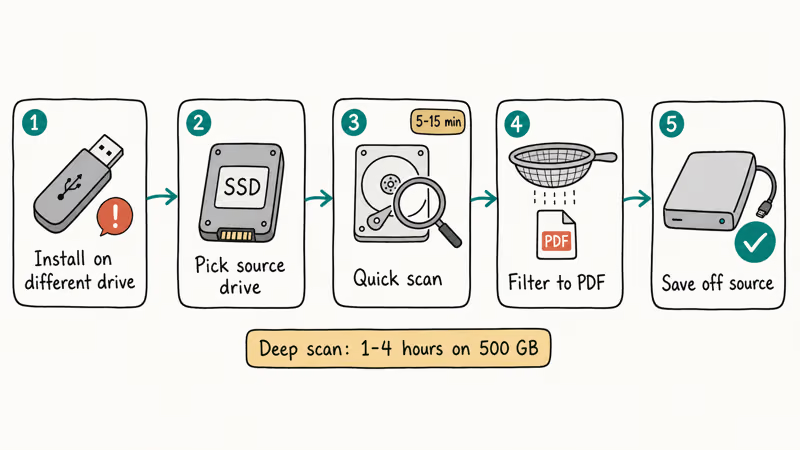
The steps that work most reliably:
- Install Recoverit on a different drive than the one you’re recovering from. Installing it on the same drive can overwrite the very PDF you’re trying to recover.
- Launch Recoverit and pick the source location, usually the C: drive on Windows or Macintosh HD on Mac.
- Click Scan. A quick scan finishes in 5 to 15 minutes; a deep scan on a 500GB drive takes 1 to 4 hours.
- Filter results by type: choose
Documents>PDF. The preview pane shows the first page of each candidate. - Pick your file, click Recover, and save it to an external drive or a different internal drive. Never the source.
Quick scan first, deep scan only if needed.
A PDF permanently deleted from Downloads and scanned immediately with Recoverit’s quick scan usually comes back with the original filename intact. Wait 48 hours, with normal browser and Office use in between, and the same file may recover with a partially corrupted preview or compression errors on some pages.
Speed matters more than tool choice.
#Disk Drill (Mac-First, Windows Supported)
Disk Drill from CleverFiles is the Mac equivalent that most data-recovery shops use as a first pass. It handles APFS, HFS+, NTFS, and FAT32, and the free tier on Mac shows you what’s recoverable before charging anything.
Same workflow, different engine.
The workflow mirrors Recoverit: install on a different drive, pick the source, scan, filter to PDFs, preview, and save the recovered file off the source drive. Disk Drill’s “Universal Partition Search” finds PDFs on partitions that have been deleted or reformatted, which Recoverit’s standard scan misses.
Both tools work on the same principle. PDF files have a recognizable header (
%PDF-1.x) and a trailer that recovery software hunts for. As long as the data blocks haven’t been overwritten, the file usually rebuilds cleanly.
#When Recovery Won’t Work
Drive recovery has hard limits. According to Apple’s APFS technical reference, APFS uses copy-on-write metadata, which means deleted file blocks on Apple Silicon Macs are typically reclaimed within minutes by garbage collection. SSDs with TRIM enabled (default on Windows 7+ and macOS 10.6.8+) zero out deleted blocks the same way, so recovery from an internal NVMe drive may already be impossible by the time you finish booting a recovery tool.
External HDDs, USB sticks, and SD cards don’t use TRIM. Recovery from those works reliably for weeks or months after deletion.
#Method 4: Repair Corrupted PDF Files
A corrupt PDF opens to a blank page, throws an Acrobat error like “There was a problem reading this document (14)” or “Insufficient data for an image,” or crashes the viewer.
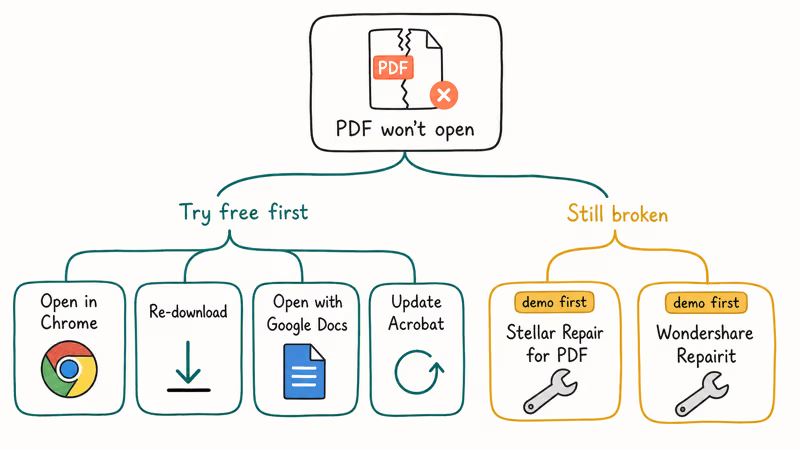
The file is there. Its internal structure is broken.
#Try Free Fixes First
Before paying for repair software, try these in order:
- Open it in a different viewer. Chrome, Firefox, Edge, and Preview (Mac) each use different rendering engines. A PDF that crashes Acrobat will sometimes open cleanly in Chrome.
- Re-download from the source. If the PDF came from email or a download, the corruption may be from an interrupted transfer. The fresh copy often works.
- Open in Google Drive. Drag the PDF into a Drive folder, right-click, and pick Open with > Google Docs. Drive runs OCR and rebuilds the page tree, which sidesteps many structural issues.
- Update Acrobat. Adobe ships fixes for common parsing bugs in monthly Acrobat updates. According to Adobe’s Acrobat release notes, each release page lists the rendering and security fixes shipped that month, with multiple parser-stability patches typical per release.
#Use a Dedicated PDF Repair Tool
For PDFs that fail every viewer, Stellar Repair for PDF and Wondershare Repairit both rebuild damaged page trees, recover embedded images, and fix orphaned xref tables. Stellar’s free demo previews the recovered file before purchase, which is the right way to test whether a repair will actually work.
Stellar Repair for PDF handles the common corruption types differently: a truncated legal contract can recover fully, a file with a corrupted xref table may come back with one missing page, and a file with broken image streams often recovers the text but drops embedded photos. Partial wins beat nothing readable at all.
#How Do You Avoid Losing PDF Files in the First Place?
Recovery is a fallback. A small habit shift prevents most PDF disasters before they happen.
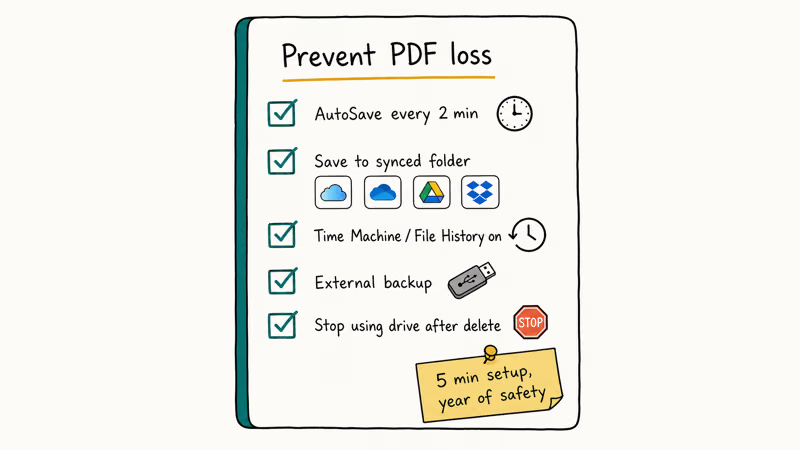
- Turn on AutoSave at 2-minute intervals in Acrobat preferences. The default 5 minutes is fine for casual use; tighter intervals matter when you’re editing for an hour straight.
- Save important PDFs to a synced folder: iCloud Drive, OneDrive, Google Drive, or Dropbox. Versioned cloud folders keep 30 days of history on free tiers, longer on paid plans.
- Use Time Machine on Mac or File History on Windows. Both run hourly snapshots in the background and let you walk a folder back to any earlier point, so a deleted invoice can be pulled from a weeks-old snapshot in seconds.
- Keep an external backup. A $40 USB drive holds enough backups for a year of PDF activity for most people.
- Never delete-then-format. If you accidentally delete an important PDF, stop using that drive until you’ve tried recovery. Even Spotlight indexing or Windows Search can overwrite the data blocks you need.
For people who lose Word or Excel files alongside PDFs, the same recovery tools usually work. See our guides on recovering an unsaved Word document and recovering an unsaved Excel file for the same workflow with Microsoft Office files.
#Bottom Line
Start with AutoSave if the file was unsaved. Try Recycle Bin or Trash if you just deleted it. Run Recoverit or Disk Drill if it’s gone past those.
For corrupt PDFs, try Chrome first, then Stellar Repair if the file is structurally broken. Speed matters: the earlier you start, ideally within an hour of the loss, the higher your chances. If you also work with eBook formats, our guide on converting ACSM to PDF covers a related Adobe DRM workflow you may need next.
#Frequently Asked Questions
Can you recover an unsaved PDF document?
Yes. Adobe Acrobat’s AutoSave writes a .adobesave copy every 5 minutes by default. Check %AppData%\Adobe\Acrobat\<version>\Autosave on Windows or ~/Library/Application Support/Adobe/Acrobat/DC/Autosave on Mac and open the most recent file in Acrobat.
Where do permanently deleted PDF files go?
On Windows, Shift+Delete bypasses Recycle Bin entirely. On Mac, Option+Cmd+Delete does the same. The disk blocks are marked free, but the data stays put until something else writes over those blocks.
How do you fix a corrupt PDF that won’t open?
First, try opening the file in Chrome or Preview, since different renderers handle damage in different ways. If that doesn’t work, drag the PDF into Google Drive and open it with Google Docs, which rebuilds the page tree from scratch. For files that no viewer can render, Stellar Repair for PDF or Wondershare Repairit can reconstruct the document from intact fragments. Their free demos preview the recovered file before purchase.
Is Recoverit safe to install?
Yes. Recoverit (made by Wondershare) is a long-standing recovery tool with code-signed installers and an established reputation in the data-recovery space.
Can deleted PDFs be recovered after months?
It depends on storage type and write activity. External HDDs, USB drives, and SD cards retain deleted file data for months because they don’t use TRIM. Internal SSDs with TRIM enabled can zero out deleted blocks within minutes.
Will formatting a drive permanently destroy PDF files?
A quick format only erases the file index, not the file data, so recovery software can usually rebuild PDFs after a quick format. A full format that does a zero-write pass on every sector destroys the data permanently. Most “Format” dialogs default to quick format, which is why drive-level recovery still works in most accidental-format scenarios.
What’s the success rate for PDF recovery on SSDs?
Recovery success on internal SSDs depends almost entirely on TRIM and elapsed time. A PDF scanned for seconds after deletion often recovers in full, while waiting 48 hours usually drops the odds to partial recovery at best. External SSDs without TRIM behave more like HDDs.
Do PDF recovery tools work on encrypted files?
Recovery tools can find and resurrect encrypted PDF files, but they can’t decrypt them, and you still need the original password to open a recovered encrypted PDF. If you’ve also lost the password, dedicated PDF password recovery tools like PassFab for PDF can sometimes brute-force short passwords on older PDF encryption schemes, but modern AES-256 encrypted PDFs are effectively impossible to crack without the original password. The takeaway: back up your passwords alongside your PDFs.

Bluetooth Not Working on Snapdragon X? Fixes for 2026
Bluetooth not working on your Snapdragon X Copilot+ PC? Generic audio, mice, and keyboards work, but vendor apps often lack an ARM build. Fixes inside.

Docker Desktop and WSL2 Not Working on Snapdragon X? Fix It
WSL2 runs fine on Snapdragon X, but Docker Desktop ARM is Early Access and throws WSL errors. Use WSL2 plus native ARM64 Ubuntu and Docker Engine.
Does iTunes Work on Snapdragon X? ARM Windows 11 Guide
Yes, iTunes runs on Snapdragon X laptops through Prism emulation, but the Apple Devices app is the smoother route. Here is what to install on ARM.

Does OBS Studio Work on Snapdragon X? ARM64 Build Guide
Yes, OBS Studio has an experimental ARM64 build since version 31.1, but x64 plugins won't load and hardware encoding is missing. Here is what works.