Nintendo Switch 2 microSD Express: Cards That Actually Work
Switch 2 requires microSD Express, not the old Switch cards. See which cards are licensed, capacity limits, and what happens if yours is not.
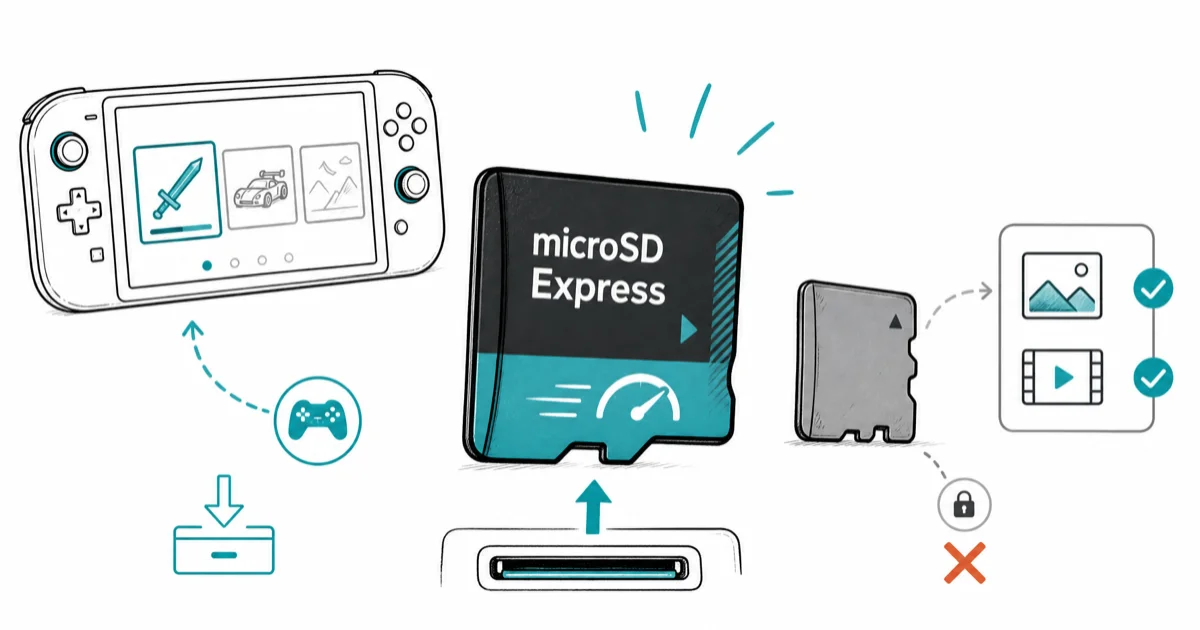
Quick AnswerYes, the Nintendo Switch 2 needs a microSD Express card to save or load games. Old Switch microSD cards still work for screenshots and videos, not downloads.
The Nintendo Switch 2 microSD Express requirement is the most confusing storage change on the new console. Slot in your old Switch card and the console won’t save or load games. The slot looks identical, yet the rules underneath have changed.
- Switch 2 only accepts microSD Express for downloadable games, save data, and game capture, per Nintendo’s official compatibility page.
- Old Switch microSD cards still work, but only for screenshots and gameplay videos, never for installing or launching games.
- microSD Express adds a second row of pins and runs a PCIe / NVMe interface, which is why cards cost roughly two to three times a UHS-I card of the same size.
- The console supports microSD Express cards up to 2 TB, with 256 GB licensed cards as the typical starting point.
- The first card you insert triggers a one-time system update over Wi-Fi before downloads will start.
#What Is microSD Express, and Why Does the Switch 2 Need It?
microSD Express is a newer card standard from the SD Association that routes data over a PCIe / NVMe lane instead of the older UHS-I bus the original Switch uses. The cards look almost the same, but flip one over and you’ll see an extra row of pins, which is what carries the faster signal. The standard itself launched in 2019, although wide commercial availability only arrived alongside the Switch 2.
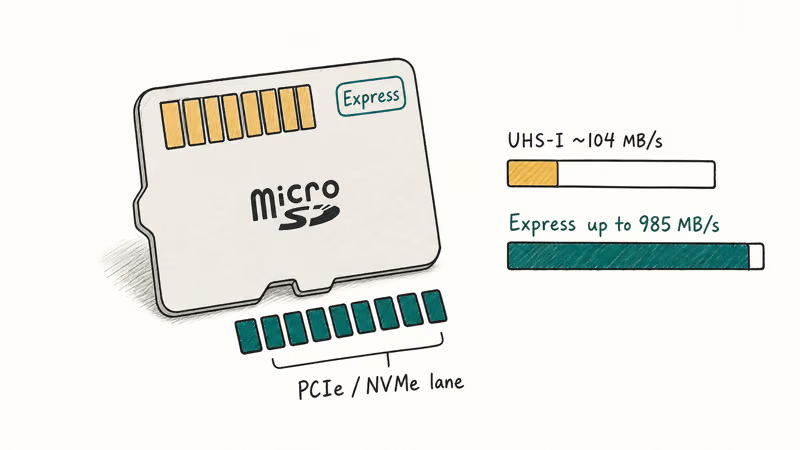
According to the SD card overview on Wikipedia, SD Express tops out at 985 MB/s on a single PCIe 3.0 lane.
That speed gap is what game loads, level streaming, and asset paging cash in on. Nintendo states that Express cards are required to keep games running smoothly on the new hardware. The console refuses non-Express media for a reason that’s mechanical, not marketing.
Slot an original Switch UHS-I card into a Switch 2 and the system flags it as unsupported within seconds.
#Will My Old Switch microSD Card Work in the Switch 2?
Partly, with one big asterisk. According to Nintendo’s microSD card compatibility page for Switch 2, a card from the original Switch can’t save or load digital games or save data on the new console. Game installs and cloud-style save sync both get blocked the moment the system identifies a non-Express card in the slot. The card itself isn’t damaged or wiped — the console simply treats it as media-only storage.
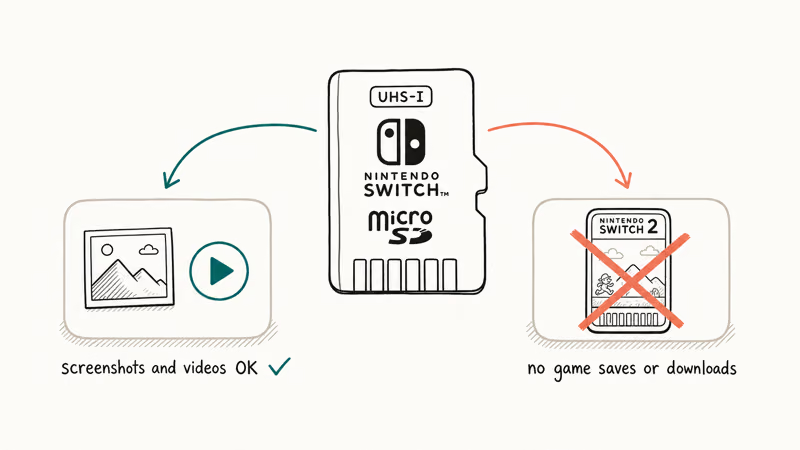
The console can still read screenshots and gameplay videos you captured on that card with the older Switch. The photos don’t disappear. You just can’t install new games to the card.
That split exists because the read and write speed on a non-Express card is too slow for the new console’s game engine expectations. The file format itself isn’t incompatible. Nintendo confirms that on the original Switch, even a microSD Express card runs at UHS-I speeds. The older hardware doesn’t have the PCIe lane to drive it faster, so the standard is forward compatible in one direction only.
If you insert an older card and see the “not recognized” prompt, Nintendo’s unrecognized-card support article confirms only Express-standard cards are accepted for game data. That’s the correct behavior, not a defect. The prompt is your cue to buy a real Express card before the next download. For other first-day quirks like the console hanging on the welcome screens, our Switch 2 stuck on setup guide covers the boot-stage fixes.
#Which microSD Express Cards Are Worth Buying
Two safe routes exist right now. The first is a Nintendo-licensed card sold through the official storefront. Nintendo lists the Samsung 256 GB microSD Express card for Switch 2 on its own store, which is the closest thing to a guaranteed-fit option since Nintendo curated the spec match itself.
The packaging carries the Switch 2 branding so it’s hard to grab the wrong product by accident.
The second route is any retail microSD Express card from a major brand. SanDisk’s microSD Express compatibility guide confirms its Express line works in the Switch 2 for game data. The company also sells a Nintendo-licensed lineup with the official seal. Samsung and SanDisk are both reasonable picks because their channel inventory is wide and the Express SKUs are clearly labeled.
What you want to avoid is any card that says only microSD, microSDXC, UHS-I, or UHS-II without the Express logo. Those cards work fine in cameras, drones, and the original Switch, but the Switch 2 will reject them for save data. The Express marking is the only label that matters. If a listing buries the Express label in the spec table rather than the product name, treat it as a yellow flag and find a clearer SKU.
#Pin Layout and Speed Differences Explained
The Express badge isn’t marketing. It’s a real hardware change. A microSD Express card adds a second row of contact pins behind the standard row, and those extra pins are what carry the PCIe lane that lifts the card from UHS-I speeds to NVMe speeds.
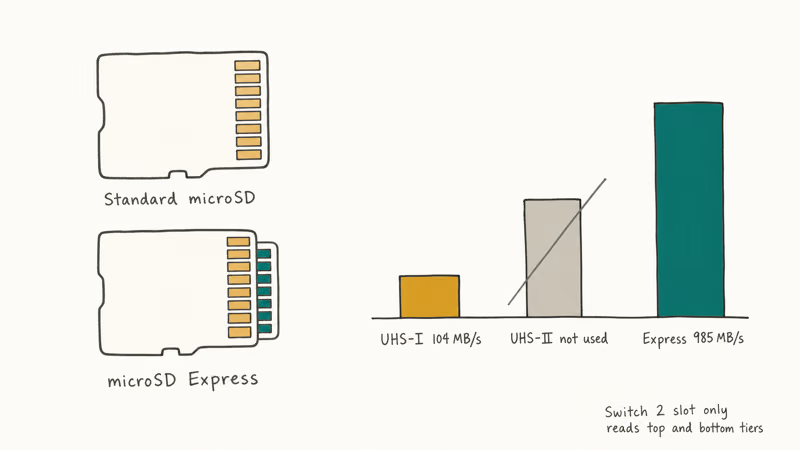
That hidden row matters for compatibility. Cameras and drones that ignore the extra pins still see a normal microSD card and run it at UHS-I, which is why an Express card is technically backward compatible.
Here is the short version of what the standards deliver in real-world Switch 2 use:
- UHS-I (original Switch cards): ceiling near 104 MB/s, fine for screenshots but slow for modern game loads.
- UHS-II: faster, but the Switch 2 slot doesn’t expose UHS-II pins, so the speed boost is wasted.
- microSD Express: PCIe 3.1 lane, up to 985 MB/s peak per Wikipedia’s SD Association coverage, which is the only tier the Switch 2 will accept for game data.
When a listing claims “Switch compatible” without the Express badge, it’s leaning on the original Switch’s UHS-I bar, not the Switch 2 requirement. Read the badge, not the marketing copy.
#Picking the Right Capacity for Your Library
Nintendo’s microSD Express card FAQ confirms the Switch 2 supports cards up to 2 TB. That’s the ceiling, not the recommendation. Picking the right size comes down to how many digital games you keep installed at once.
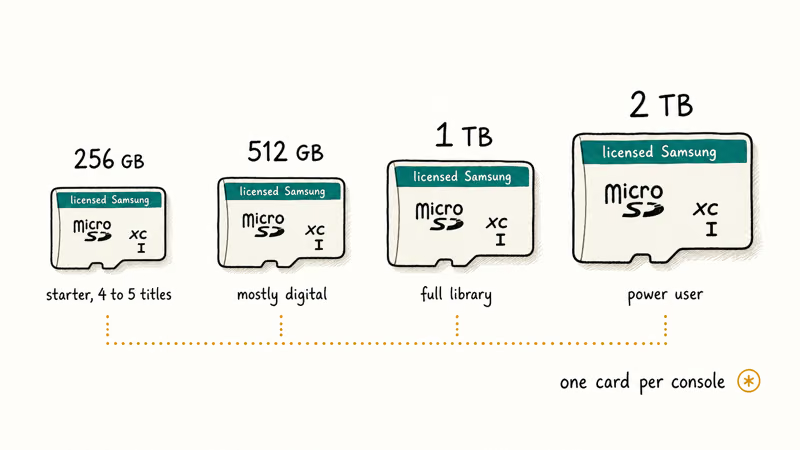
A rough guide for sizing your library on the new hardware:
- 256 GB: comfortable starter, fits four or five typical first-party titles plus indies. This is also the size of the licensed Samsung card on the Nintendo store.
- 512 GB: the right pick for someone who buys most games digitally and rotates a handful of large titles per month.
- 1 TB: for players who keep an entire installed library, including third-party 60 GB-plus releases, without uninstalling.
- 2 TB: power-user territory, and currently the most expensive tier per gigabyte.
If you tend to download long single-player games and keep them installed, lean larger. Our roundups of the best RPGs on Switch and best single-player Switch games show why a 256 GB card runs out quickly when two or three big-name RPGs from those lists are installed.
Co-op players who lean on local multiplayer should also check our 4-player Switch games list before sizing up, since party libraries tend to grow quickly.
One more rule from Nintendo: stick to a single card. The official FAQ recommends one microSD Express card per console because downloads spread across multiple cards can’t be merged into a single card later. Buying one larger card is cleaner than juggling two smaller ones.
#First-Card Setup and the One-Time System Update
The first Express card you ever put in the console triggers a one-time system update before downloads will begin. Nintendo states in the microSD Express FAQ that the console requires this update the first time you use a microSD Express card, and the console needs an internet connection at that moment — without Wi-Fi the prompt simply won’t advance, even though the card slot itself is healthy.
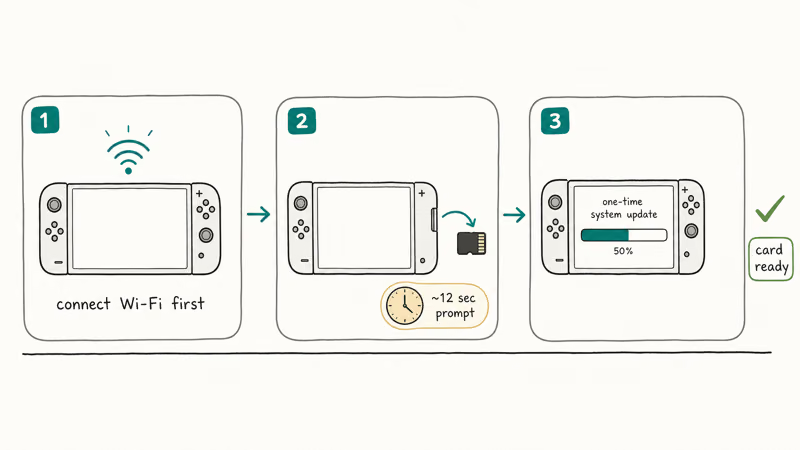
Plan for a brief detour the first time. It’s a one-time setup tax.
With a Nintendo-licensed card such as the Samsung 256 GB, the first-time setup prompt appears, followed by a short system update download before the home menu shows the card as the default install location. After that point, the card behaves like any other storage device.
A couple of practical notes for the first insert:
- Plug the console into Wi-Fi before slotting the card. The update won’t happen offline.
- The card becomes the default save target for new downloads as soon as the console recognizes it, so you don’t need to dig into Settings to flip anything.
- Save data itself stays on the System Memory. Only downloads, screenshots, and gameplay videos move to the card.
If the prompt never appears and the console reports the card as unrecognized, the card is likely not an Express SKU. Pull it, double-check the label, and try a real Express card before assuming a hardware issue. Storage problems aren’t the only first-day surprise on the new console. Accessory issues like a flaky Switch dock not working follow a similar “check the label, then the cable” diagnostic path.
#Bottom Line
For most Switch 2 owners, a 256 GB Nintendo-licensed microSD Express card, like the Samsung 256 GB sold on the Nintendo store, is the right starter. It clears the official compatibility bar and holds four or five first-party titles. Step up to 512 GB or 1 TB only if you buy most games digitally and keep a full library installed. Skip multi-card setups; Nintendo’s own guidance is to stay with one card because separate-card libraries can’t be merged later.
#Frequently Asked Questions
Can I use my old Switch microSD card in the Switch 2?
Not for games. The card will be readable for screenshots and gameplay videos captured on the original Switch, but the Switch 2 won’t save or load downloadable games or save data on it.
What is the maximum microSD Express capacity the Switch 2 supports?
Nintendo’s official FAQ lists 2 TB as the ceiling. Any card that meets the microSD Express standard at 2 TB or below is supported.
Why is microSD Express so much more expensive than regular microSD?
Express cards add an extra row of pins and run a PCIe / NVMe interface, which is closer to a tiny SSD than a traditional SD card. The controller and flash inside are pricier, which is why a 256 GB Express card costs roughly two to three times a UHS-I card of the same size right now.
Do I need a microSD Express card for physical Switch 2 games?
Not strictly. Physical game cards run from the cartridge itself, but most games still install or download patches and DLC to internal or card storage. A microSD Express card is the only way to expand that storage space.
Can I use multiple microSD Express cards in one Switch 2?
You can physically swap cards, but Nintendo recommends sticking with one card per console. The reason is mechanical, not stylistic: downloads stored on separate Express cards can’t be combined into one larger card later, so a multi-card setup ends in a permanent split library. Most owners come out ahead by buying one larger card up front and skipping the juggling exercise entirely.
Does a microSD Express card work in the original Nintendo Switch?
Yes, but only at UHS-I speeds.
What happens if I insert a regular microSD card by mistake?
The console will display a not-recognized prompt for game data and refuse to install or launch software from it. Older screenshots and videos remain readable, so removing the card is safe. Replace it with a real Express card to restore download support.

Fortnite Stuck on the Loading Screen? Fix It in 2026
Fortnite stuck on the loading screen? Check server status, fix the Windows N Media Pack and DirectX 11 on PC, clear the console cache, and verify files.

Minecraft Keeps Crashing? Java and Bedrock Fixes (2026)
Minecraft keeps crashing on startup or mid-game? Update your GPU driver, remove mods on Java, and reinstall Gaming Services on Bedrock. Fixes for both.

Pokemon GO Not Loading? Fix the Loading Screen 2026
Pokemon GO not loading or stuck on the Pokeball? Check server status, fix automatic date and time, grant location permission, clear the cache, and update.

PS5 Controller Not Charging? 9 Fixes That Work (2026)
DualSense not charging? Swap the cable, use a rear port in Rest Mode, clean the USB-C port, and check power settings. 9 fixes for a dead PS5 controller.