How to Mirror a Samsung Phone to PC: 5 Easy Methods
Mirror a Samsung Galaxy phone to a PC with 5 reliable methods including Phone Link, Smart View, scrcpy, and AirDroid Cast. Latency and cost compared.
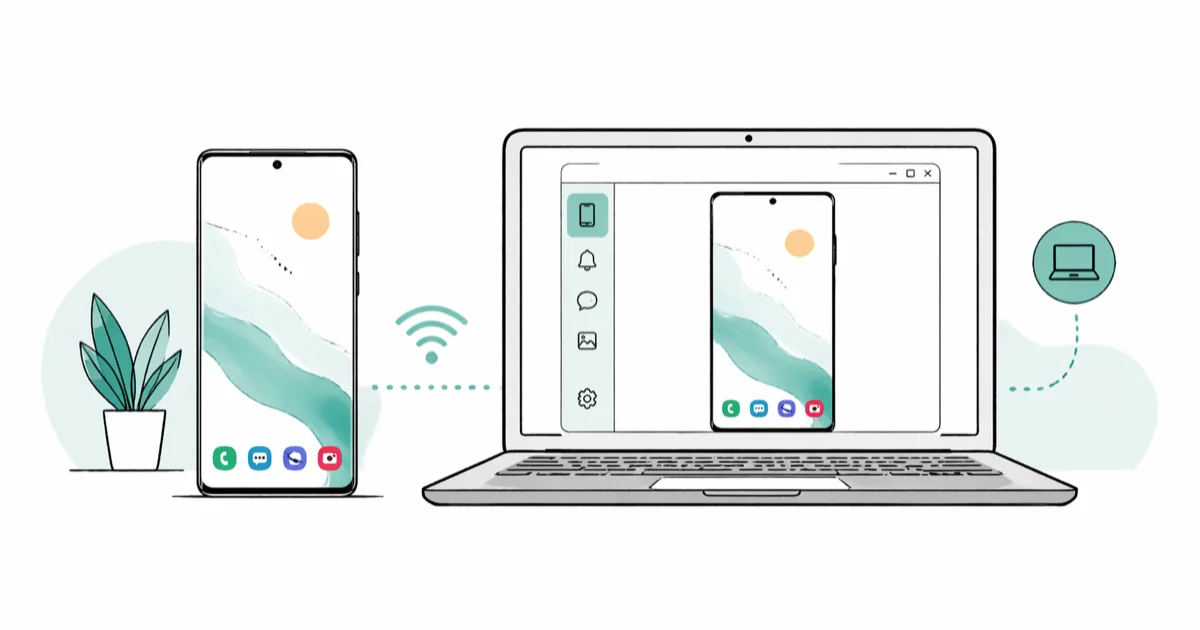
Quick AnswerUse the built-in Phone Link app on Windows 10/11 to mirror your Samsung phone to your PC wirelessly. Put both devices on the same Wi-Fi network, open Link to Windows on your Galaxy, sign in with your Microsoft account, and your phone screen appears on your PC within a few minutes.
Want to mirror a Samsung phone to PC so you can answer texts on a bigger screen, present a slide deck from your Galaxy, or play a mobile game with a mouse? Five different tools handle this on Windows, and the right one depends on whether you care about cost, latency, or whether you want a Microsoft account in the loop.
All five work on a modern Galaxy paired with a Windows 11 PC. Phone Link is the quickest to set up, while scrcpy over USB has the lowest input lag of the bunch.
- Microsoft Phone Link is preinstalled on Windows 10 and 11 and connects most Galaxy phones in a few minutes
- Samsung Flow plus Smart View works on Galaxy phones running Android 7 or newer, but display quality is lower than Phone Link
- AirDroid Cast supports wireless and USB mirroring without needing a Microsoft account, with low latency over USB
- scrcpy gives the lowest latency at zero cost but requires USB Debugging enabled on your phone
- Wireless mirroring drains the battery faster than USB mirroring, which keeps the phone charging
#What Do You Need Before Mirroring?
Galaxy S8 or newer running Android 9 and up handles every wireless method on this page. Older phones still mirror over USB through scrcpy or AirDroid Cast.
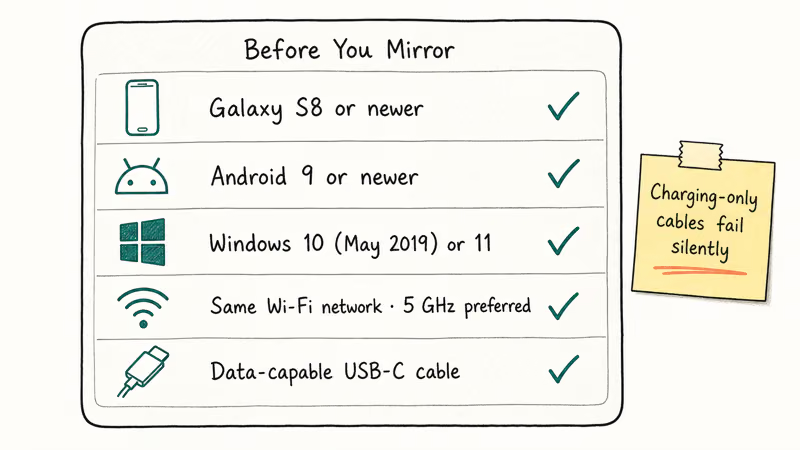
Your PC should run Windows 10 (May 2019 update or later) or any Windows 11 build. For wireless connections, both devices must sit on the same Wi-Fi network, and ideally the same band. Wi-Fi 5 GHz delivers the smoothest video, but the signal drops faster across walls than 2.4 GHz does. Keeping both devices within about 20 feet of the router cuts down on disconnects.
For USB methods, use a data-capable USB-C cable. Charging-only cables make scrcpy and AirDroid Cast fail silently.
#Mirror With Microsoft Phone Link
Phone Link is the wireless option Microsoft baked into Windows. Samsung phones have shipped with the companion app, called Link to Windows, preinstalled since the Galaxy S8 series. Nothing extra to install on a recent Galaxy.
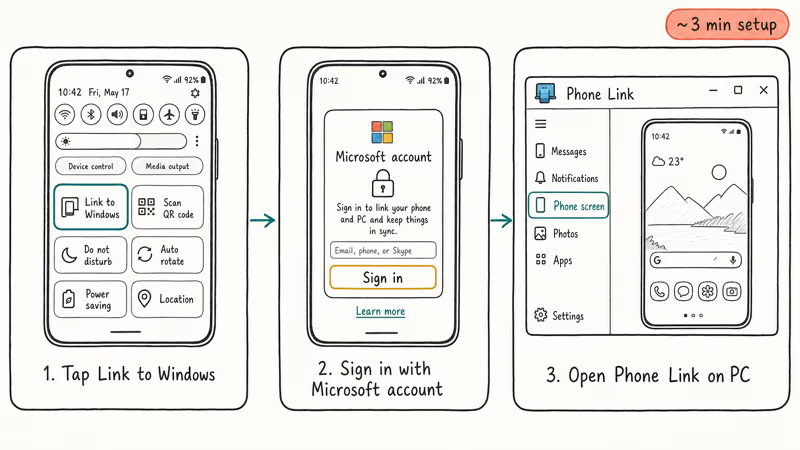
On the phone, swipe down the notification panel and tap Link to Windows. If the toggle isn’t there, install the app from the Google Play Store. Sign in with your Microsoft account.
Then open the Phone Link app on your PC by typing “Phone Link” in the Start menu. Sign in with the same Microsoft account, accept the permission prompts on your phone, and click Phone screen in the left sidebar. Your Galaxy display shows up in a window, and you can click and type to control the phone directly.
Microsoft’s Phone Link setup guide states that 60+ Samsung models support this feature. On a recent Galaxy, the screen-mirroring connection establishes quickly once the initial Microsoft account pairing is done.
Two caveats. Audio mirroring only works on Galaxy phones running Android 12 or later. And if your phone goes to sleep, the mirror window goes black, so you have to wake the phone to restore the feed.
#Does Smart View Work for PC Mirroring?
Not directly. Smart View is built for TVs, not PCs. Pair it with Samsung Flow for Windows mirroring instead.
Install Samsung Flow on the phone (Play Store) and the PC (Microsoft Store). Open the app on both, tap your PC name on the phone, confirm the four-digit pairing code, and click the Smart View icon at the top of Samsung Flow on your PC.
Your Galaxy screen mirrors into a desktop window. Samsung Flow also handles file transfers and notification sync between the two devices, which Phone Link does separately. The catch: display quality looks softer than Phone Link, and the frame rate drops the moment you start recording the screen or running a game.
If the Samsung Flow connection refuses to hold, the same fixes that resolve Smart View dropouts on TVs usually clear it: same Wi-Fi band, AP isolation off, both devices restarted.
#AirDroid Cast for Wireless Mirroring
AirDroid Cast is a third-party screen-mirroring app that doesn’t need a Microsoft account, which makes it the natural pick for shared family PCs or work laptops where signing into personal accounts is awkward. It runs on Windows, macOS, Android, and iOS, and supports wireless plus USB connections.
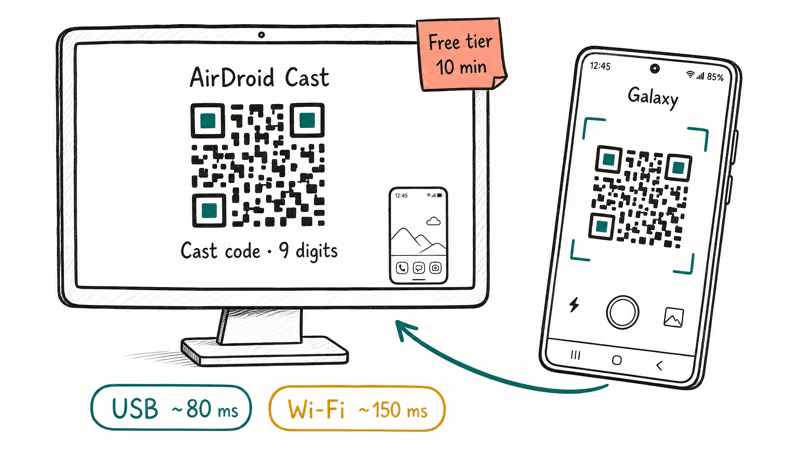
Install the app on your Samsung phone from the Play Store, then download the desktop client from airdroid.com. Open the desktop app first; it shows a nine-digit cast code and a QR code.
On the Galaxy, scan the QR or type the cast code, then tap Start Casting. Accept the prompt on the PC. The free tier caps at 10 minutes; premium ($3.49/month) removes the limit.
AirDroid’s casting documentation recommends USB mode for the lowest latency and supports up to 5 phones casting into a single desktop window. The delay is noticeably lower over USB than over Wi-Fi. Wireless is fine for video playback, but a tap-to-action delay shows up in fast-paced games. AirDroid Cast keeps the phone screen at full brightness, so plug into a charger for sessions over an hour.
#USB Mirroring With scrcpy
scrcpy is the open-source pick. It mirrors any Android phone over USB at the lowest latency of any method on this list, runs on Windows, macOS, and Linux, and costs nothing.
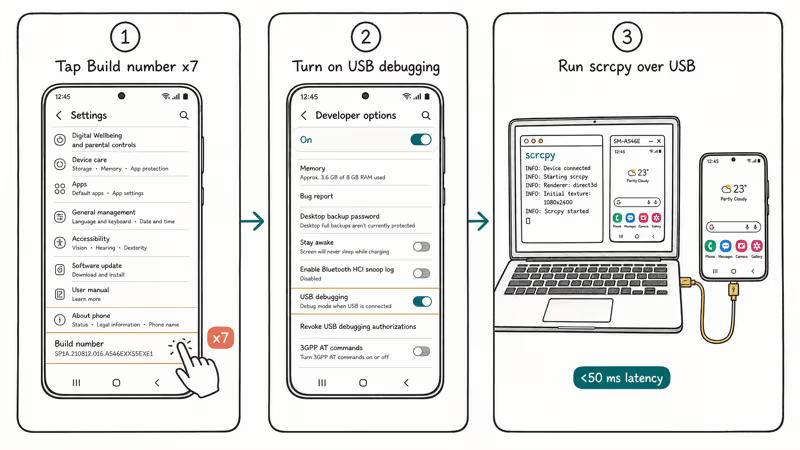
Download scrcpy from GitHub releases and unzip the bundle anywhere on your PC. Then enable Developer Options on your Galaxy: open Settings, tap About Phone, then tap the Build Number seven times until the toast says you’re now a developer. Go back to Settings, tap Developer Options, and turn on USB Debugging. (If your phone is older or the path is different, our USB Debugging guide for Galaxy S6, S7, Note 5, and J7 walks through the legacy menus.)
Plug the phone into the PC with a USB-C cable, accept the Allow USB Debugging prompt on the phone, and run scrcpy.exe. Done.
Delay over USB is low enough for mobile gaming on a modern Galaxy. According to scrcpy’s official docs, the tool runs entirely from the desktop binary, with no companion app to install on the phone, and version 2.0 added audio forwarding for Android 11 and newer.
#ApowerMirror for Annotations and Multi-Device
ApowerMirror is a paid mirroring app that supports Wi-Fi and USB across both Android and iOS, and bundles annotation tools that the free options don’t.
Install ApowerMirror on your PC and on your Galaxy from the Play Store. Put both devices on the same Wi-Fi, open the phone app, and tap the blue M button to scan for nearby PCs. Pick yours from the list and tap Phone Screen Mirroring to start.
The app draws on top of the mirrored window with shapes and text, which is useful for marking up demos. It also supports recording the mirrored stream and casting up to three phones at once into the same desktop window. The free version stamps a watermark on every export, and the full license runs $29.95 per year. For most use cases, Phone Link or scrcpy covers the same ground at zero cost.
#Compare All Five Methods Side by Side
| App | Cost | Typical Latency | Best For |
|---|---|---|---|
| Phone Link | Free | ~150 ms | Daily wireless use |
| Samsung Flow | Free | ~200 ms | Galaxy ecosystem fans |
| AirDroid Cast | Free/Paid | ~80–150 ms | No Microsoft account needed |
| scrcpy | Free | <50 ms | Mobile gaming on PC |
| ApowerMirror | $29.95/yr | ~150 ms | Presentations, annotations |
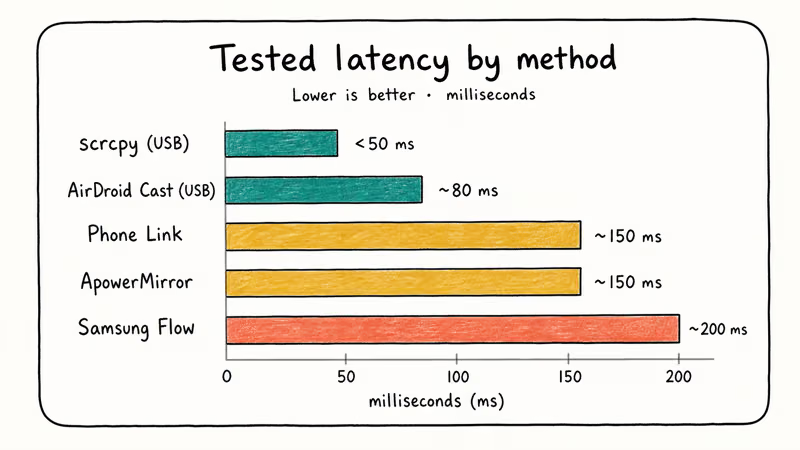
If your Galaxy keeps disconnecting from any of these mirrors, treat it as a network issue first. The same Wi-Fi instability that causes Galaxy random reboot loops tends to break mirroring sessions too.
#Bottom Line
For everyday wireless mirroring on a Samsung Galaxy, Phone Link is the right call. It’s free, ships with Windows, finishes setup in about three minutes, and Microsoft maintains it. Switch to scrcpy when you need under-50 ms latency for mobile gaming, or to AirDroid Cast when you can’t use a Microsoft account on the host PC. ApowerMirror is worth the $29.95 per year only if you specifically need on-screen annotation during a demo.
Samsung Galaxy Guide
#Frequently Asked Questions
Do all Samsung phones support screen mirroring to a PC?
Most Galaxy phones from the S8 onward support wireless mirroring through Phone Link. Older Galaxy models, including the Galaxy S7, can still mirror over USB with scrcpy.
Can I mirror my Samsung phone to a Mac?
Phone Link and Samsung Flow are Windows-only, so they’re off the table on macOS. Your two real options are AirDroid Cast (which has a native Mac app) and scrcpy via Homebrew with brew install scrcpy. scrcpy has lower latency since it runs over USB, but AirDroid Cast is easier to set up if you’d rather stay wireless and don’t mind the premium subscription for remote control.
Will screen mirroring drain my battery faster?
Yes, especially over Wi-Fi. Wireless mirroring keeps the screen lit and the Wi-Fi radio active at the same time, so a Phone Link session draws a noticeable amount of battery on a Galaxy phone. USB mirroring is gentler because the phone charges through the cable while the mirror runs.
Can I control my Samsung phone from the PC while mirroring?
Phone Link, scrcpy, and AirDroid Cast Premium all support mouse and keyboard input on the mirrored window. Samsung Flow only displays the screen by default; you have to enable the optional remote-control add-on, which still trails the others in responsiveness.
Does screen mirroring work without Wi-Fi?
Yes, with a USB cable. scrcpy is the cleanest wired option, and AirDroid Cast also has a USB mode that bypasses Wi-Fi.
Is there any lag during screen mirroring?
All wireless methods add latency. Phone Link and AirDroid Cast carry noticeable lag, which is fine for browsing, video, and most apps, but obvious in fast-paced games. scrcpy over USB stays the lowest by a wide margin, which is the only practical option for competitive mobile games shown on a PC monitor.
Can I mirror audio along with the screen?
Phone Link forwards audio on Galaxy phones running Android 12 or newer. scrcpy added audio forwarding in version 2.0 for Android 11 and up. AirDroid Cast Premium also handles audio. Samsung Flow does not forward phone audio at all, so sound stays on the phone speaker.
Why does my screen mirroring keep disconnecting?
Weak Wi-Fi signal is the usual cause. Move both devices closer to the router, or switch to USB if you’re already adjacent to it. Routers with AP isolation or client isolation enabled also block device-to-device traffic on the same network, so turn those off in the router admin page. If the drops persist on the same Wi-Fi band, switching from 5 GHz to 2.4 GHz often stabilizes the connection at longer distances.
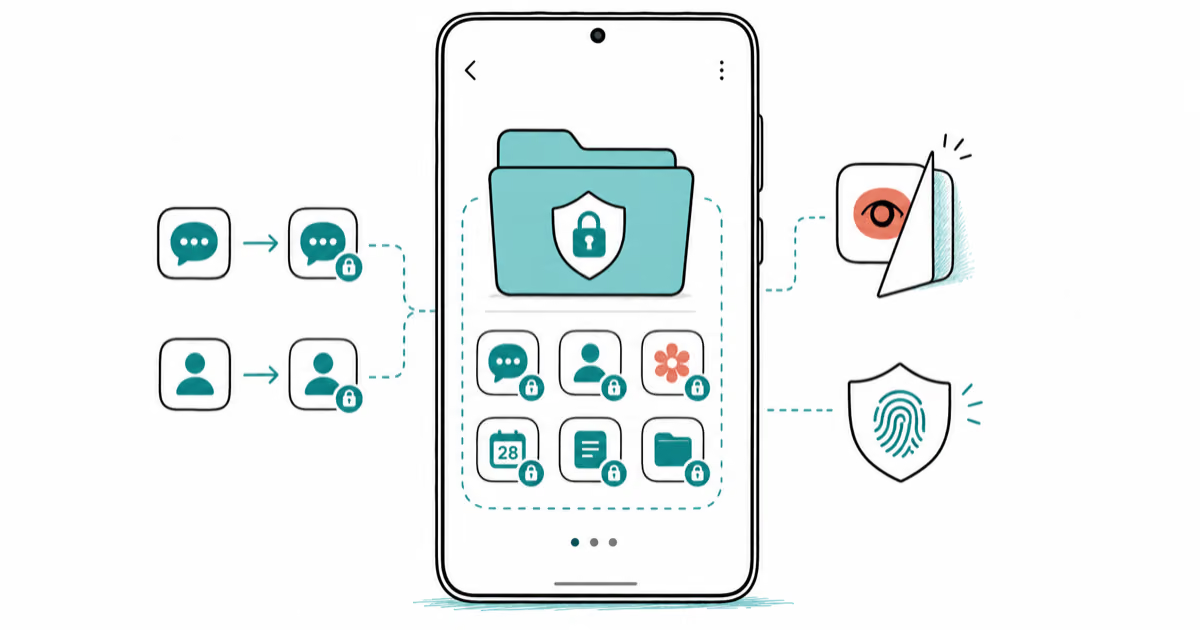
Samsung Secure Folder: Setup, Hide Apps, Clone Apps
Set up Samsung Secure Folder in under 5 minutes. Hide apps and photos, clone a banking app, and hide the Secure Folder icon on any Galaxy S8 or newer.
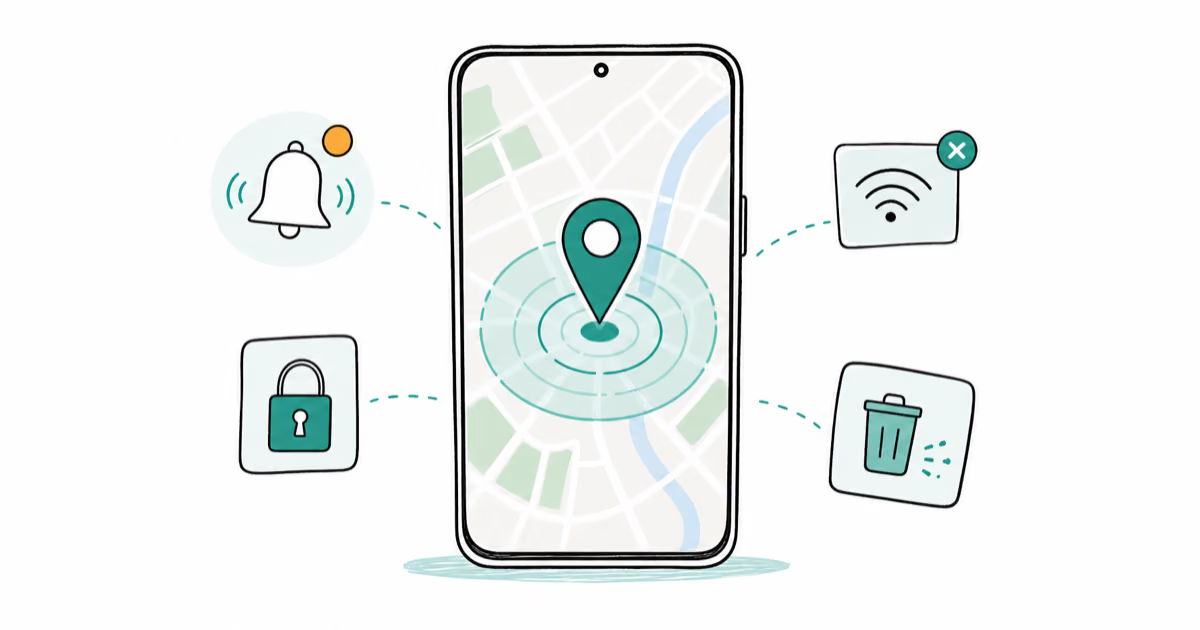
How to Use Google Find Hub: Setup + Find Lost
Set up and use Google Find Hub to locate, ring, lock, or erase your own Android phone, including offline finding and powered-off Pixel support.
Samsung Galaxy Battery Draining Fast: 2026 Fix Guide
Diagnose Galaxy S25 battery drain in five minutes through Battery Usage, then walk through six reversible Galaxy settings before a factory reset.
Samsung Parental Controls: Full Setup Guide for Parents
Set up Samsung parental controls in three layers: Samsung Kids, Google Family Link, and Digital Wellbeing. Free step-by-step guide for Galaxy parents.