MacBook Not Charging When Plugged In? 2026 Fix Guide
MacBook not charging when plugged in? Learn when Not Charging is normal, check adapter wattage and the port, reset power management, and battery health.
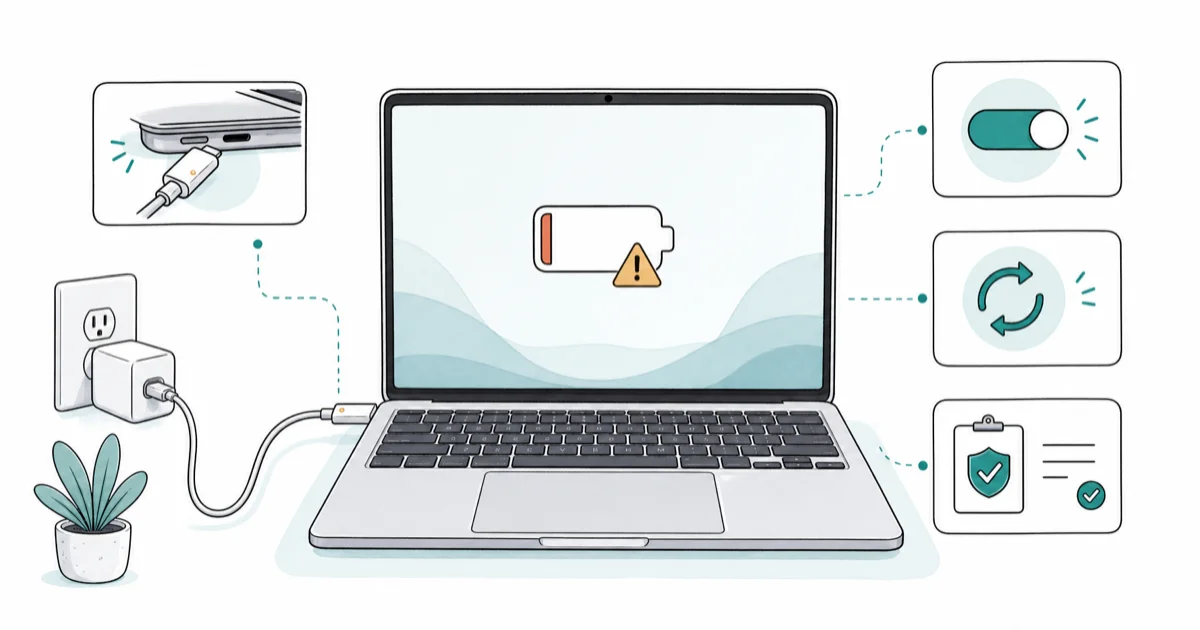
Quick AnswerA MacBook that reads Not Charging while plugged in is often normal. Optimized charging pauses near full, and low-wattage adapters only power the Mac. Use a correct-wattage charger and inspect the cable and port before assuming a fault.
A MacBook not charging when plugged in is one of the most misread Mac symptoms, because the battery menu can say Not Charging when nothing is actually broken. Optimized charging holds the battery near 80 percent, a weak USB-C adapter powers the Mac without topping it up, and a warm battery pauses charging on purpose. The causes below are ordered from normal behavior to real hardware faults.
Using these methods on devices or accounts you don’t own may violate applicable laws and platform terms.
- Not Charging is a normal status when optimized charging pauses the battery near full
- A low-wattage adapter can power your MacBook while showing Not Charging, since it lacks the wattage to also charge
- Inspect the USB-C cable and port for lint, bent pins, or fraying before any reset
- Apple Silicon Macs reset power management with a restart, while SMC reset applies to Intel models only
- Treat it as a real fault only when the adapter LED stays dark or Battery Health reads Service Recommended
#Why Does My MacBook Say Not Charging When Plugged In?
Not Charging means the Mac sees power but is choosing not to push it into the battery. That choice has several harmless triggers: the battery is already near full under optimized charging, the connected adapter delivers enough watts to run the Mac but not enough to charge it, or the battery is too warm to take a safe charge. According to Apple’s Not Charging guide, the status can appear when battery health management is working as designed.
The opposite case is a genuine fault, where the cable is damaged, the port is dirty, the adapter is dead, or the battery itself has degraded. The rest of this guide separates those two paths so you don’t reset or pay for a repair you don’t need.
#When Not Charging Is Actually Normal
Start here. Most readers who land on this page have a healthy Mac behaving exactly as Apple intended.
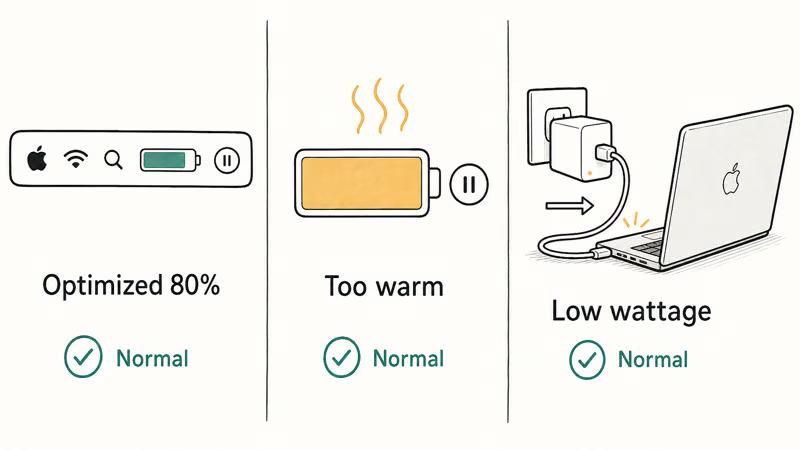
Optimized battery charging learns your routine and parks the charge near 80 percent until just before you usually unplug. If you see Not Charging at 79 to 95 percent on a plugged-in Mac that’s otherwise fine, this is almost certainly it. Click the battery icon in the menu bar, where macOS often states that charging is on hold and will resume.
Heat is the second normal cause. A warm battery pauses charging to protect the cell, then resumes once it cools. Move the MacBook off soft surfaces and onto a hard desk; if heat is the trigger, charging resumes with no settings change at all.
The third normal cause is wattage. A small phone charger powers a large MacBook without charging it. A bigger adapter fixes that.
#Check the Cable, Adapter, and Port
If the percentage is low and the Mac still won’t charge, work through the physical chain before touching software.
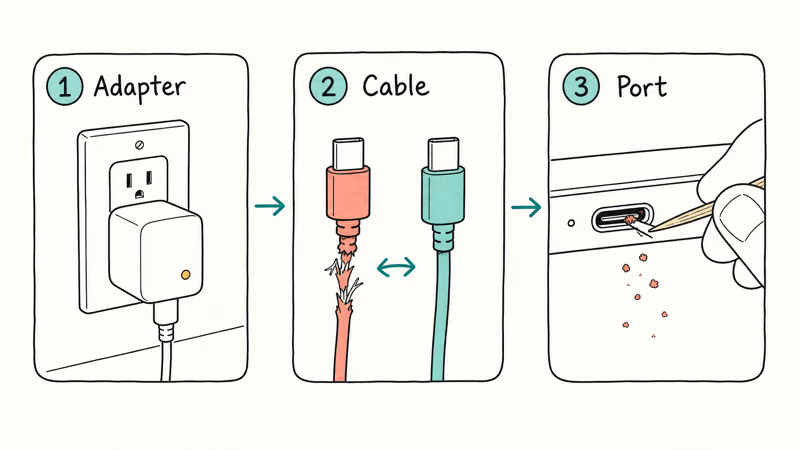
First, the adapter. Plug it directly into a wall outlet, not a power strip or monitor hub, and confirm any LED on a MagSafe connector glows amber. Try a known-good Apple or USB-C PD charger rated for your model, since chargers fail silently.
Second, the cable. USB-C charge cables fray near the connector and stop carrying full power before they look broken. Swap in a different cable and watch whether the status flips to Charging. A cable that charges your phone may still be too low-spec to charge a laptop, so use a 100W-rated cable for larger MacBooks.
Third, the port. Power off the Mac, look into the USB-C or MagSafe port with a flashlight, and gently clear lint or debris with a wooden toothpick. A clogged port is a frequent and easily missed cause. If you also rely on a wall charger for travel, the best GaN charger roundup covers compact adapters with enough wattage for a MacBook Pro, and a dedicated best MacBook power bank helps when no outlet is nearby.
An underpowered charger can keep the Mac running at idle but still let the battery fall under load, which means the adapter is powering the machine without charging it. Match the adapter wattage to your model, not to whatever cable happens to be on the desk.
#Reset Power Management and Update macOS
When the hardware checks out but charging still stalls, reset the Mac’s power management and update the system.
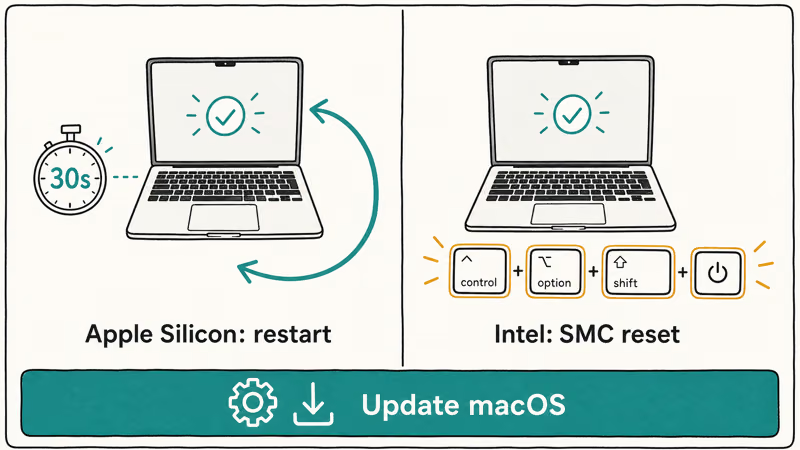
On Apple Silicon Macs (M1 and later), there is no SMC to reset. A full shutdown for 30 seconds and a restart re-initializes power management, which is the equivalent step. Apple confirms that Apple Silicon handles SMC functions automatically, so a restart is the correct reset for these models.
On Intel Macs, the SMC controls charging, fans, and power. Reset it by shutting down, then holding the correct key combination for your model (Control, Option, Shift, and power on built-in keyboards) for several seconds before restarting. Do this only on Intel hardware.
Then update. Open System Settings, then General, then Software Update, and install the latest macOS release, since charging logic and battery calibration ship in point updates. A reset and update often clear a stuck Not Charging state at the same time. If your Mac feels sluggish afterward, the Mac slow after update guide explains the post-install indexing that resolves on its own.
#When Does Battery Health Mean a Replacement?
If you have ruled out normal behavior, the cable, the adapter, the port, and a reset, the battery or charging circuit may be failing.
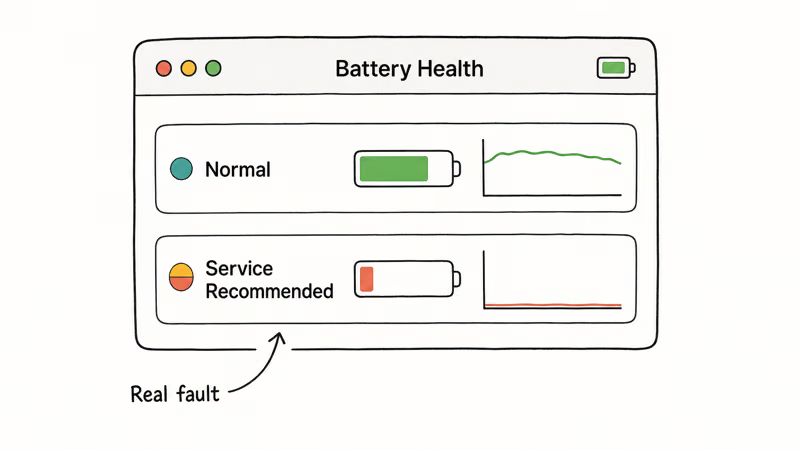
Open System Settings, then Battery, then Battery Health. According to Apple’s battery information, a status of Service Recommended means the battery is significantly degraded and may need replacement. A battery stuck at a low percentage that never rises, or one that shows Service Recommended, is the clearest sign of a real fault rather than a cosmetic Not Charging message.
If a MacBook shows Service Recommended and never climbs past a low charge with a known-good adapter, treat that as a battery problem rather than a normal pause.
Persistent failure with a known-good adapter and cable points to the battery or logic board, both of which need an Apple Store or Apple Authorized Service Provider. If the Mac is under warranty or AppleCare, contact support before any third-party repair. A draining battery that loses charge fast even when idle is a separate symptom covered in the guide to a MacBook battery draining quickly.
#When Only One Charging Method Fails
If your MacBook charges from a wall adapter but not from a monitor, dock, or car charger, the problem is the secondary power source. Many USB-C hubs and displays deliver only 60W or less of passthrough power, which runs the Mac without charging it under load.
Test each path in isolation. Plug the Apple adapter straight into a wall outlet first, then add the dock or display back one at a time. Apple’s external display support article notes that some displays power the Mac over a single cable, and an underpowered screen will keep it awake while the battery drains. If you travel with a second screen, the best portable monitor picks list models with adequate passthrough power.
#Bottom Line
First confirm whether Not Charging is normal: optimized charging pauses near full, and low-wattage adapters only keep the Mac running. Then inspect the cable, adapter, and port, restart an Apple Silicon Mac or reset the SMC on an Intel model, and install the latest macOS update. Treat it as a battery or logic-board fault only when Battery Health reads Service Recommended or the adapter LED stays dark, and take it to Apple before paying for a guessed repair.
#Frequently Asked Questions
Why does my MacBook say Not Charging when plugged in?
Not Charging means the Mac is receiving power but holding the battery steady instead of adding charge. The usual reasons are optimized charging pausing near full, a warm battery, or an adapter with too few watts to both run and charge the Mac. None of these are faults.
Is Not Charging on a Mac normal?
Often yes. Near full, optimized charging holds the battery on purpose and resumes before you unplug.
Does a low-wattage charger stop charging?
A low-wattage adapter can power the Mac without charging it, especially under heavy load. A 30W charger may keep a large MacBook awake while the percentage slowly drops. Use an adapter rated for your model to charge while in use.
How do I reset power management on a MacBook?
On Apple Silicon Macs, shut down fully, wait about 30 seconds, then restart, since there is no separate SMC. On Intel Macs, shut down and hold the documented SMC key combination for your model before powering back on.
Why does optimized charging pause charging?
It keeps the battery near 80 percent to slow wear. A paused charge near full is the feature working as designed.
When should I replace the MacBook battery?
Replace it when Battery Health in System Settings reads Service Recommended, or when the battery never rises above a low percentage with a known-good adapter and cable. A battery that drops fast even while idle points the same way. Run through the cable, port, and reset steps first, since those rule out cheaper causes. Only after all of them fail does a hardware replacement make sense.

macOS 27 Compatible Macs: Every Supported Model (2026)
macOS 27 Golden Gate runs only on Apple Silicon Macs. Here is the full list of supported M-series models and the four Intel Macs that lose support.

macOS 27 Golden Gate: Every Major New Feature Confirmed
macOS 27 Golden Gate goes Apple Silicon only, adds a Gemini-powered Siri, refines Liquid Glass, and rebuilds Spotlight. Here is every confirmed change.

macOS 27 Liquid Glass: Every Readability Fix Explained
macOS 27 Golden Gate refines Liquid Glass with an intensity slider, better contrast, cleaner window corners, and edge-to-edge sidebars to fix readability.

macOS 27 Performance: What Golden Gate Makes Faster
macOS 27 Golden Gate speeds up AirDrop, network file browsing, Safari, and Spotlight, with core system improvements on the Apple Silicon-only release.