Mac Won't Update? 9 Fixes for a Stuck macOS Install
Mac won't update or macOS won't install? Free up storage, fix date and time, run First Aid, and install from Recovery with nine practical fixes.
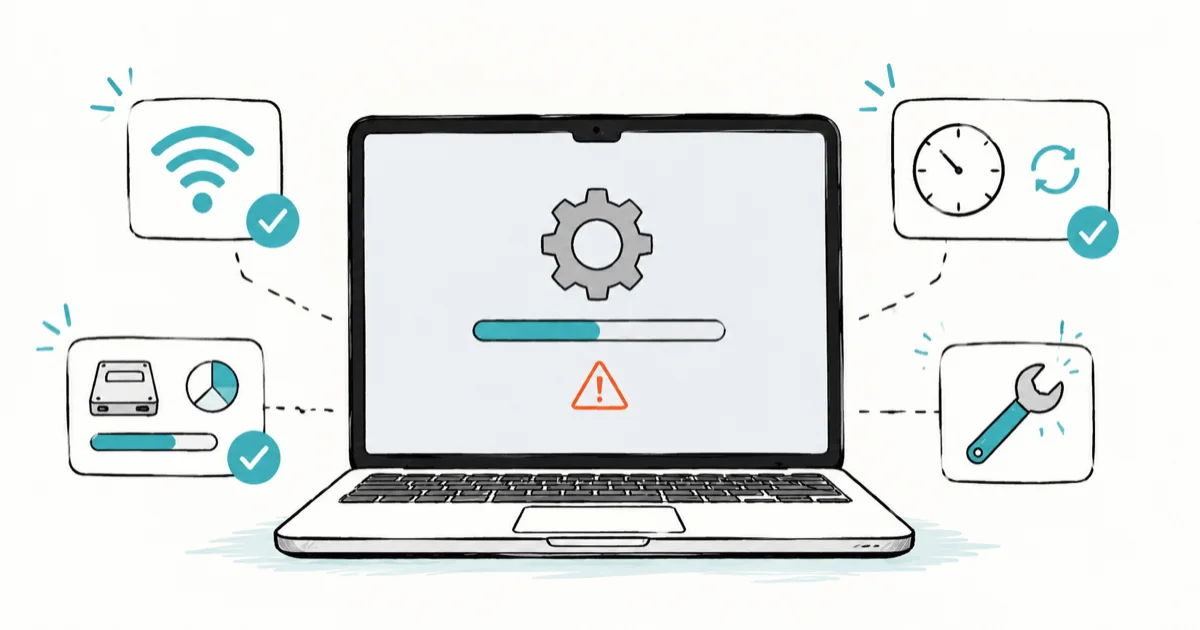
Quick AnswerA Mac won't update usually because of busy Apple servers, low free storage, or a wrong date and time. Check those three first, then install from macOS Recovery if it still fails.
A Mac won’t update for one of a few common reasons: Apple’s servers are swamped on release day, the disk is short on free space, or the date and time are wrong. The update might refuse to download, stall halfway, or throw “macOS could not be installed.” Work through the checks below in order, and if nothing else works, installing from Recovery almost always does.
- Check Apple’s System Status page first, since release-day server congestion is the top reason an update won’t download or stalls.
- A major macOS upgrade needs a lot of free space, so clear room on Macintosh HD before retrying rather than after it fails.
- A wrong date and time breaks the certificate check that verifies the installer, so set the clock to update automatically.
- Installing macOS from Recovery is the most reliable fix, because it pulls a clean copy straight from Apple with nothing else interfering.
- Back up with Time Machine before any major update, since a failed install can force a full erase and reinstall.
#Why Won’t Your Mac Update?
A stuck macOS update usually traces to a short list of causes: Apple’s servers being overloaded at release, too little free storage, a wrong date and time that breaks installer verification, a peripheral conflict, disk errors, a damaged installer, or an incompatible Mac. The fastest route is to confirm the three easy ones before anything drastic.
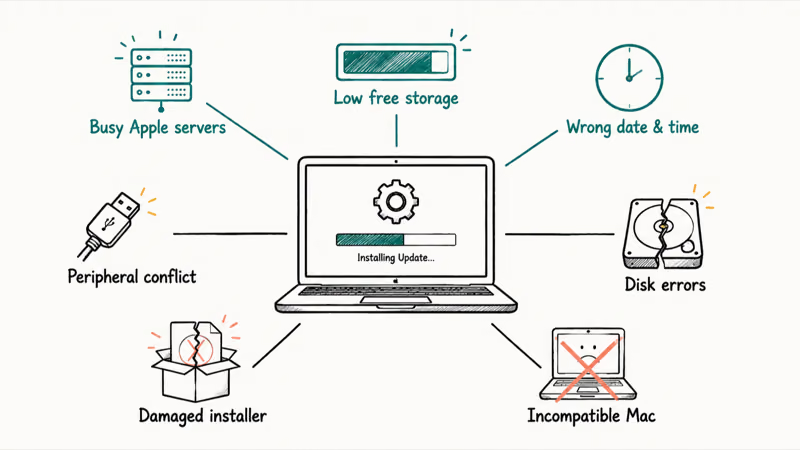
Notice where it fails. A download that won’t start or crawls points to servers or your connection. A “macOS could not be installed” error after the download points to storage, disk errors, or a damaged installer.
Stalled macOS downloads may clear simply by waiting out release-day server congestion and retrying later, which is why patience usually beats a panic reinstall.
#Check Apple’s Servers, Storage, and Compatibility
Start with Apple’s servers. On a major release day, millions of Macs download at once and the update can crawl or stall through no fault of yours.
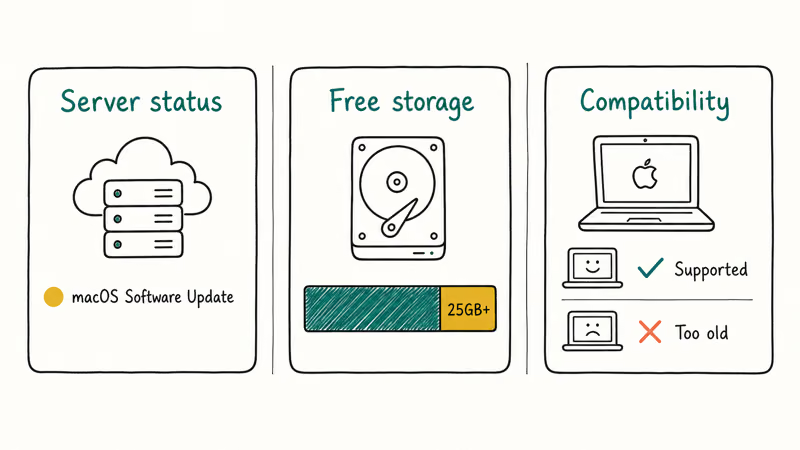
According to Apple’s System Status page, a yellow or red marker next to macOS Software Update signals a live outage on Apple’s side. If there’s an issue there, the only fix is to wait, ideally a few hours or even overnight.
Next, check your free space. A major macOS upgrade needs a large chunk of free storage to download and unpack, often around 25GB or more, and the installer can fail silently if the disk is too full. Go to System Settings > General > Storage and clear room if you’re tight. The guide on how to clear system data storage is the fastest way to reclaim space.
Then confirm your Mac is even compatible. Apple drops older models from each new macOS, so check the official compatibility list for your version before assuming the update is broken. This matters more than ever for macOS 27, which drops Intel Macs entirely.
#Restart, Fix Date & Time, and Disconnect Peripherals
A restart clears the temporary states behind a surprising number of failed updates. Reboot and try again, but never force-quit a Mac that’s mid-install, since interrupting the file-writing stage can corrupt the system.
Now check the clock. A wrong date and time is a genuine cause, because macOS verifies the installer against a security certificate, and if the clock is off by days or years that check fails and the install stops. Go to System Settings > General > Date & Time and turn on “Set time automatically.” If a failed install left the Mac unable to boot, the guide on a MacBook not turning on covers recovery from that state.
Then disconnect your peripherals. External drives, SD-card adapters, hubs, and other accessories can interfere with the install. Unplug everything except power, keyboard, and mouse, then retry. Apple’s macOS install-error support page recommends installing with minimal interference, which is exactly what this step does.
#Run Disk Utility First Aid and Try Safe Mode
If the install still fails, disk errors may be the cause. Run First Aid to find and repair them.
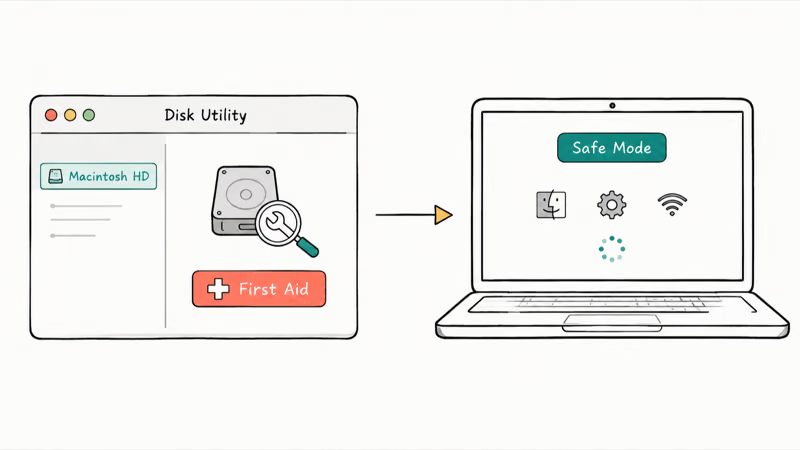
Open Disk Utility, select your startup disk (Macintosh HD), and click First Aid. It checks the disk’s format and directory structure and repairs what it can, and a corrupted volume is a common reason an install can’t complete.
Safe Mode is the next layer. It starts macOS with only essential software, which rules out a third-party login item or extension blocking the update.
On Apple Silicon, hold the power button until startup options appear, pick your disk, then hold Shift and click Continue in Safe Mode. On Intel, hold Shift after the chime, then retry the update.
#How Do You Install macOS From Recovery?
When the normal update keeps failing, installing from macOS Recovery is the most reliable path you have left. It downloads a clean copy of macOS straight from Apple’s servers, which bypasses whatever in your running system was quietly interfering with the in-place update and causing it to fail.
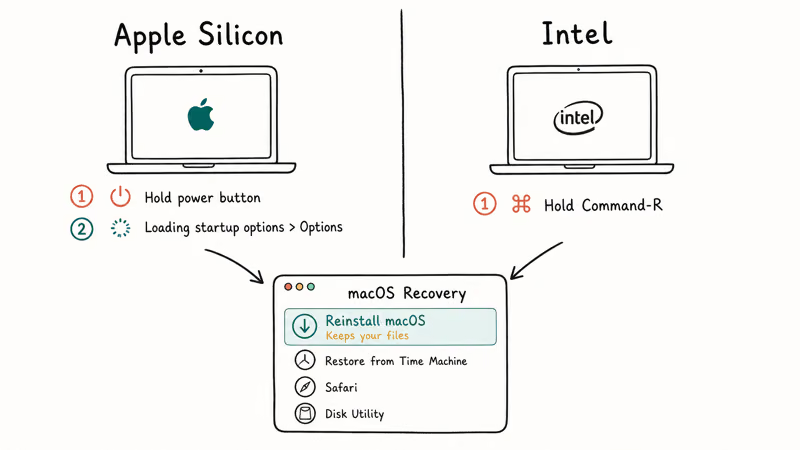
Boot into Recovery first. On Apple Silicon, shut down, then press and hold the power button until “Loading startup options” appears, click Options, and click Continue. On Intel, restart and hold Command-R until the Apple logo or spinning globe shows. The startup keys differ between the two chip families, so confirm which Mac you have before you start, since holding the wrong combination simply boots normally and leaves you wondering why Recovery never appeared.
From the Recovery menu, choose Reinstall macOS and follow the prompts. According to Apple’s install-error guidance, installing from Recovery prevents other software from interfering with the install, which is why it succeeds when an in-system update won’t. Macworld’s macOS won’t-install guide likewise puts Recovery reinstallation among the most dependable fixes after First Aid. The reinstall keeps your files, since it replaces only the system, not your data.
#Fix a Damaged Installer and Back Up First
Sometimes the downloaded installer itself is corrupt, and reusing it just fails again. Delete it and start fresh.
Find the “Install macOS [version]” app in your Applications folder, drag it to the Trash, empty the Trash, then re-download the installer from Software Update or the App Store. A clean download often succeeds where a damaged one looped.
Before any major upgrade, back up with Time Machine. This is the step people skip and regret. A major macOS update rewrites core system files, and a failure mid-install can leave the Mac needing a full erase, so a current backup turns that worst case into an inconvenience instead of lost data.
If your Mac feels sluggish after the update finally lands, the guide on Mac slow after a macOS update covers that, and macOS running slow goes broader.
For a Mac that reboots during the install, see Mac keeps restarting, and if the screen freezes instead, a forced restart and Recovery reinstall are the safe next steps.
#Bottom Line
Most failed macOS updates come down to three pre-checks people skip: busy Apple servers on release day, low free storage, and a wrong date and time. Confirm those first, disconnect peripherals, and run First Aid before anything drastic.
If the update still won’t install, installing macOS from Recovery is the most reliable path, because it pulls a clean copy straight from Apple with nothing else interfering. Always back up with Time Machine before a major upgrade, because these updates rewrite core system files and a failed one can force a full erase.
#Frequently Asked Questions
Why does my Mac say macOS could not be installed?
That error usually means low free storage, a disk error, or a damaged installer rather than a broken Mac. Free up space, run Disk Utility First Aid on your startup disk, and if it persists, delete the installer and re-download it. Installing from Recovery clears most cases that survive those steps.
How much free space do I need to update macOS?
A major macOS upgrade needs a sizable chunk of free storage to download and unpack, commonly in the range of 25GB, while smaller point updates need much less. The installer can fail silently if the disk is too full, sometimes without a clear error, so don’t assume a stalled install is broken when it may just be starved for space. Check Storage in System Settings and clear room before retrying rather than after the install has already failed.
Is it safe to restart my Mac during an update?
Restarting before or after an update is fine, but never force a restart while it’s actively installing. Interrupting the file-writing stage can corrupt the install. If it looks frozen, wait, since updates stall on the progress bar for a long time.
Why is the update so slow right after a new macOS release?
On release day, millions of Macs download the same update at once and overload Apple’s servers, so the download crawls or stalls through no fault of your own. Check Apple’s System Status page first, and if there’s a known issue, wait a few hours or run it overnight when traffic eases. There’s nothing to fix on your end during congestion, so retrying every few minutes only adds to the load rather than speeding anything up.
How do I install macOS from Recovery?
Boot into Recovery first. On Apple Silicon, hold the power button until startup options appear, then choose Options; on Intel, restart and hold Command-R. From the menu, pick Reinstall macOS and follow the prompts.
Should I back up before a major update?
Yes, always. A major macOS update rewrites core system files, and a failed install can force a full erase that wipes everything. A current Time Machine backup turns that worst case into a quick restore. Back up first, then update, and you never have to gamble with your data.

macOS 27 Compatible Macs: Every Supported Model (2026)
macOS 27 Golden Gate runs only on Apple Silicon Macs. Here is the full list of supported M-series models and the four Intel Macs that lose support.

macOS 27 Golden Gate: Every Major New Feature Confirmed
macOS 27 Golden Gate goes Apple Silicon only, adds a Gemini-powered Siri, refines Liquid Glass, and rebuilds Spotlight. Here is every confirmed change.

macOS 27 Liquid Glass: Every Readability Fix Explained
macOS 27 Golden Gate refines Liquid Glass with an intensity slider, better contrast, cleaner window corners, and edge-to-edge sidebars to fix readability.

macOS 27 Performance: What Golden Gate Makes Faster
macOS 27 Golden Gate speeds up AirDrop, network file browsing, Safari, and Spotlight, with core system improvements on the Apple Silicon-only release.