iPhone Personal Hotspot Not Working? 9 Fixes (2026)
Fix iPhone Personal Hotspot when it is grayed out, will not turn on, or will not appear. Covers iOS 26, dual-SIM, carrier APN, and USB tethering.
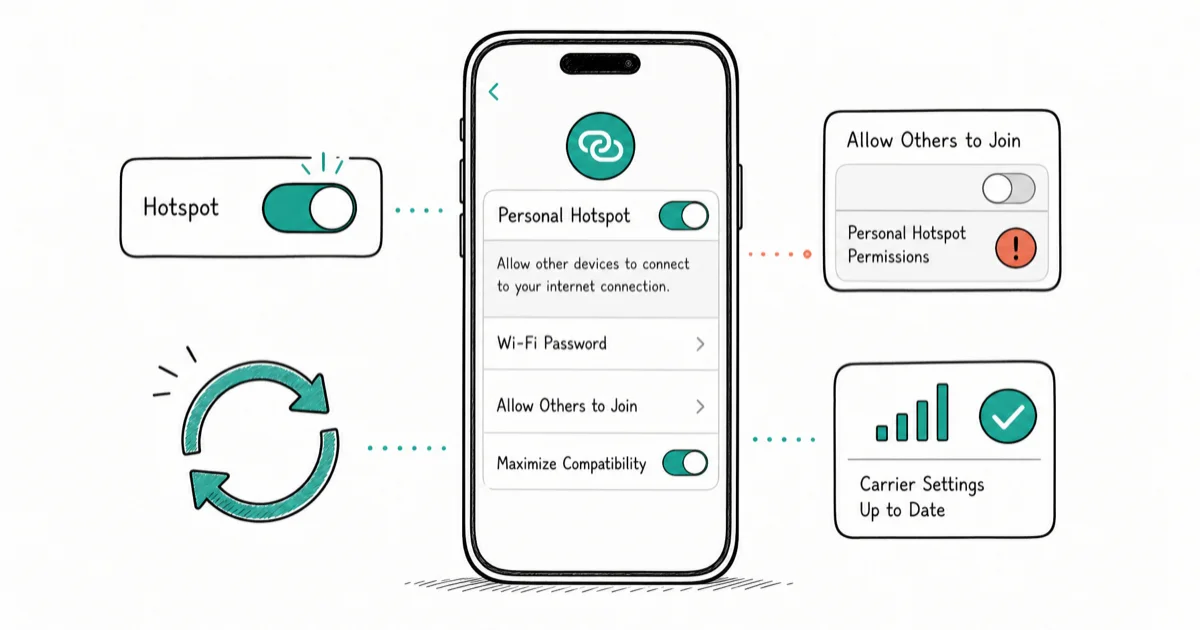
Quick AnswerMake sure Cellular Data and Allow Others to Join are both on. If the toggle is grayed out after an iOS 26 update, the cause is almost always carrier provisioning, so re-enter your APN or call your carrier before assuming the phone is broken.
iPhone Personal Hotspot not working usually means cellular data is off, tethering isn’t provisioned, or the other device can’t complete the handshake.
- Personal Hotspot needs an active cellular data connection, so confirm Cellular Data is on before anything else.
- A grayed-out hotspot toggle after iOS 26 is almost always a carrier or APN provisioning gap, not a broken phone.
- Maximize Compatibility helps older laptops connect on iPhone 12 and later, but it drops the network to 2.4GHz and lowers speed.
- Reset Network Settings clears Wi-Fi passwords and cellular config, but it never touches your photos, apps, or messages.
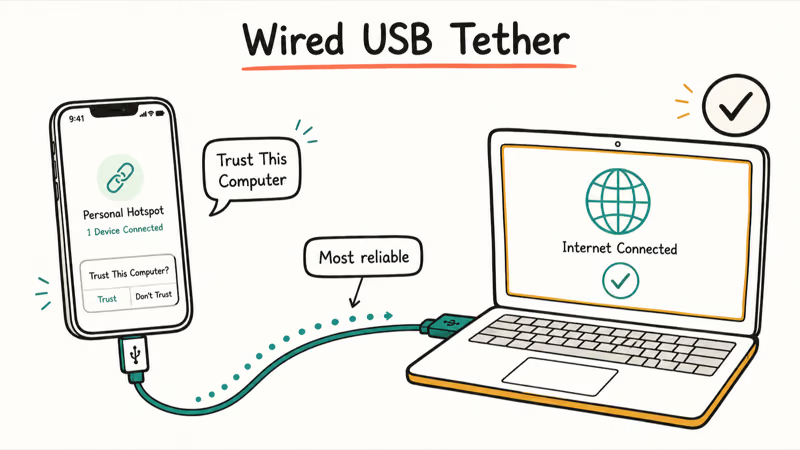
- A USB cable is the most reliable tether for a single laptop while you sort out a flaky wireless connection.
#Why Is Your iPhone Personal Hotspot Not Working?
Personal Hotspot shares your iPhone’s cellular data with other devices over Wi-Fi, Bluetooth, or USB.
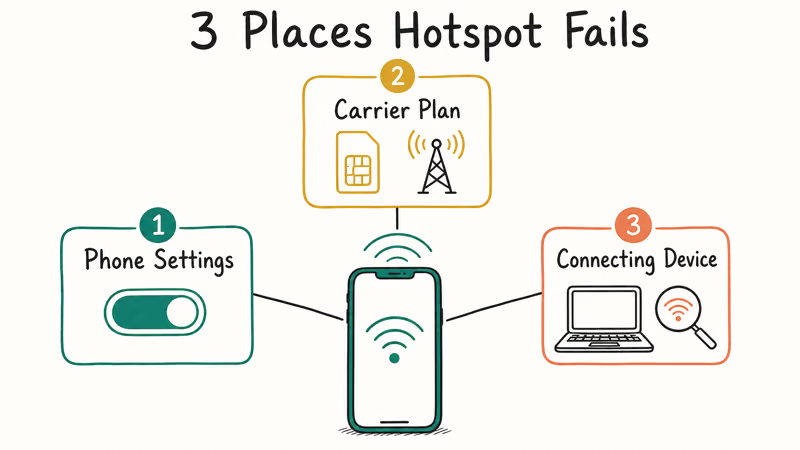
Diagnose by symptom. A grayed-out toggle points at the carrier, a hotspot no device can see points at the compatibility band, and a connection that drops seconds after joining points at a sleep or power setting. Sort which one you’ve got, then the right fix below is obvious.
According to Apple’s Personal Hotspot support page, the official order is to confirm the feature is on, restart both devices, update software, and reset network settings if those fail. The escalation below starts with the cheapest fixes and ends with the resets you should only reach for when nothing simpler works.
#Confirm Cellular Data and Allow Others to Join Are On
Open Settings, tap Cellular, and turn Cellular Data on. A hotspot has nothing to share if your data line is off.
Next, go to Settings > Personal Hotspot and turn on Allow Others to Join. This is the master switch. While you’re there, tap Wi-Fi Password and set something you actually know, because a forgotten or auto-generated password is a common reason a laptop sees the network but refuses to connect.
Leave the Personal Hotspot screen open while the other device connects. iOS sometimes suspends the hotspot to save battery the moment you navigate away, and keeping the screen active helps it stay live during that first connection.
#Turn On Maximize Compatibility for iPhone 12 and Later
If your iPhone is a 12 or newer, it defaults to a faster 5GHz hotspot that older laptops and budget devices can’t always see. The fix is a toggle most people never find.
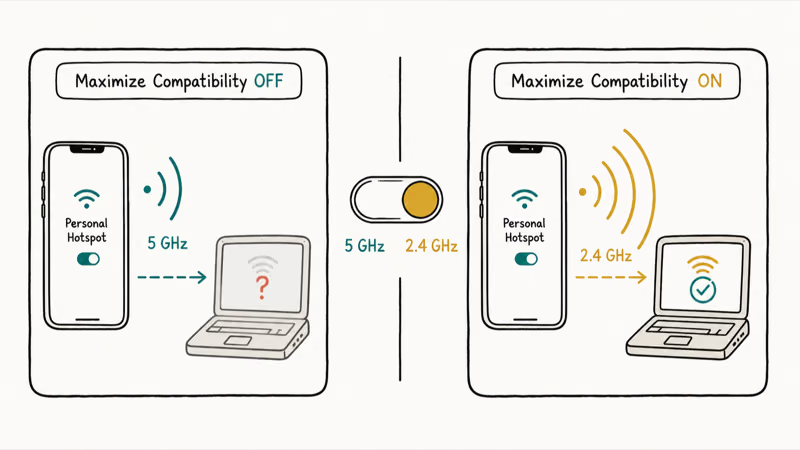
On the Personal Hotspot screen, turn on Maximize Compatibility. Apple’s support documentation confirms that iPhone 12 and later support this toggle, along with four iPad models including the iPad Pro 11-inch (3rd generation or later) and the iPad mini (6th generation). It drops the network to the more widely supported 2.4GHz band.
There’s a trade-off. Apple’s page notes that Maximize Compatibility can reduce internet performance and security for connected devices, so turn it back off once the device is paired if you want the faster band. This toggle is especially useful when an older Windows laptop or budget device can’t see the hotspot at all.
#What Do You Do if the Hotspot Toggle Is Grayed Out?
A grayed-out or missing Personal Hotspot option means your iPhone isn’t getting the tethering permission from your carrier. The phone hardware is fine; the plan or APN config is the blocker.
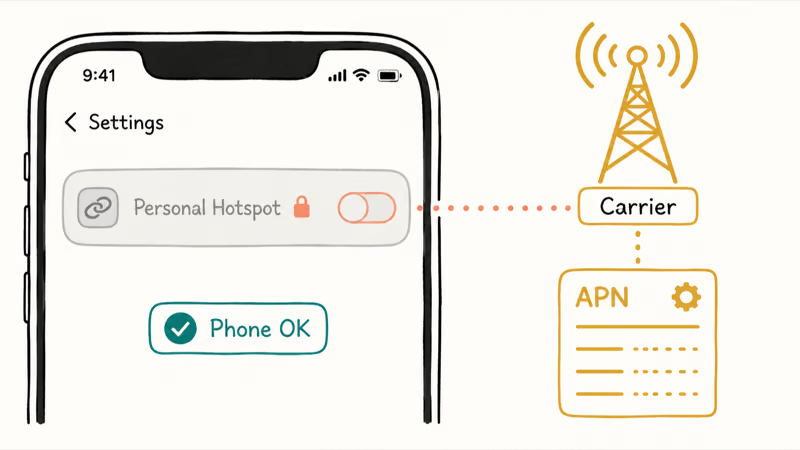
First, the simple checks. Confirm Cellular Data is on, then go to Settings > General > About and let it sit for a few seconds. If a Carrier Settings Update prompt appears, install it, since that pushes a fresh provisioning profile that often restores the toggle on its own.
If your phone also shows No Service, fix that first using our guide on iPhone No Service. A hotspot can’t share a connection that isn’t there.
If the toggle is still missing, re-enter your APN. Go to Settings > Cellular > Cellular Data Network and check the Personal Hotspot APN fields. Apple Community threads tracking the iOS 26 rollout, including this discussion of post-update hotspot reports, show this gap hitting budget and international SIMs most often. Write down the existing values first, and only change them if your carrier gives you the correct ones.
#Fix Dual-SIM Data-Line and Carrier APN Problems
Dual-SIM iPhones add a layer of confusion, because Personal Hotspot uses whichever line is set for cellular data. If your data line is the one without a tethering plan, the hotspot either fails or burns the wrong allowance.
Go to Settings > Cellular and check which line is set as your default for data. Make sure it’s the line with an active data plan that includes tethering. Swap lines often? Confirm it every time, and our guide on how to transfer eSIM covers the line-management side in detail.
An Android phone hides this fix in a different menu, which is why the Samsung hotspot not working steps look nothing like these.
Turn off Cellular Data Switching while troubleshooting. This feature lets calls borrow data from your other line, and it can quietly route hotspot traffic to a line that isn’t provisioned for tethering, which then fails or burns the wrong allowance. Disabling it keeps the hotspot pinned to the line you actually chose for data.
#Update iOS and Carrier Settings
Software bugs cause hotspot failures, and iOS 26 saw a wave of them. An early 26.x release? A later point update often fixes it.
Go to Settings > General > Software Update and install any pending iOS version. Tom’s Guide, in its walkthrough of iPhone hotspot fixes, found that a software refresh plus a network reset resolved most stubborn cases. The update also pulls in any carrier-side fix that shipped after the bug appeared, so do it before deeper resets.
Carrier settings update separately from iOS. After a major update, revisit Settings > General > About to trigger the prompt; a fresh carrier file can restore missing tethering permissions.
#Reset Network Settings and Try a USB Tether
When the settings checks above don’t fix it, reset your network configuration. Go to Settings > General > Transfer or Reset iPhone > Reset > Reset Network Settings, which wipes saved Wi-Fi passwords, VPN configs, and cellular settings, then rebuilds them cleanly from scratch on the next reboot.
This is a safe reset. It does not delete photos, apps, messages, or any personal data, so don’t confuse it with Reset All Settings or Erase All Content. Pick the wrong option and you’ll lose far more than a Wi-Fi password. If your iOS update itself stalled before you ever reached this point, our fix for an iOS 26 update stuck on Preparing covers that separately.
One legal note. Personal Hotspot is meant for your own devices on your own plan, and carriers will only enable tethering for the legitimate line owner, so do this on a phone and account you control.
If wireless keeps failing for one specific laptop, skip the wireless layer entirely. Connect the iPhone to the computer with a USB cable, trust the device, and the hotspot routes over the cable. A wired tether sidesteps the whole compatibility-band problem.
This is a different issue from a hotspot that turns itself off to save power, which our guide on why your hotspot keeps turning off addresses.
#Bottom Line
Work top-down. Confirm Cellular Data is on and Allow Others to Join is enabled first, since those two settings resolve many cases. If the toggle is grayed out after iOS 26, the cause is almost always carrier provisioning, so re-enter your APN or call your carrier. Reset Network Settings only after simpler steps fail, never pick Reset All Settings by mistake, and reach for a USB cable when one laptop just needs a reliable tether.
#Frequently Asked Questions
Why did my hotspot stop working after the iOS 26 update?
Major iOS updates can wipe your carrier provisioning profile, which leaves the hotspot grayed out. Go to Settings > General > About to trigger a carrier settings update, then install any pending point release.
Why is the Personal Hotspot toggle grayed out?
It means your carrier hasn’t enabled tethering, or the APN is missing. Confirm Cellular Data is on first, then check Settings > Cellular > Cellular Data Network for the Personal Hotspot APN. If the field is locked, only your carrier can change it, so a call beats more fiddling.
Does Personal Hotspot use my regular cellular data allowance?
Yes. Every megabyte a tethered device downloads counts against your phone’s data plan, and some carriers cap how much of that allowance can go toward tethering.
Should I turn on Maximize Compatibility?
Turn it on if an older laptop or budget device can’t see your hotspot. It drops the network to the 2.4GHz band that almost every device supports. Apple notes it can lower speed and security, so switch it back off once the device is connected if you want the faster band. Most modern laptops connect fine without it.
Why does my hotspot show up but devices cannot connect?
This is usually a wrong password or a band mismatch. Open Settings > Personal Hotspot, check the Wi-Fi Password, turn on Maximize Compatibility, and keep that screen open while the other device joins.
Will resetting network settings delete my photos or apps?
No, it’s safe. Reset Network Settings only clears saved Wi-Fi passwords, VPN profiles, and cellular configuration, leaving your photos, apps, contacts, and messages untouched. Just be careful not to select Reset All Settings or Erase All Content, which are entirely different options and far more destructive. Those two will cost you real data.
Does my carrier need to enable tethering on my plan?
Often, yes. Many plans include Personal Hotspot by default, but prepaid, budget, and some international plans treat tethering as a separate add-on you have to request.

iOS 26.6.1 Security Update: What Apple Fixed and Who Gets It
Apple released iOS 26.6.1 on August 17 with 29 security fixes, including an IPSec interception bug. See what it patches, who gets it, and how to update.

iPhone Adaptive Power: How It Works and When to Use It
Learn how iPhone Adaptive Power works, which models support it, what it changes, and when Low Power Mode is still the better battery-saving choice.

How to Transfer Data to a New iPhone Without iCloud
Move everything to your new iPhone without iCloud: Quick Start device-to-device transfer, wired migration, and encrypted Finder or iTunes backups.

Group Text Not Working on iPhone? 8 Fixes That Work
Group text not working on iPhone? Turn on MMS Messaging and Group Messaging, check iMessage vs SMS routing, and fix mixed Android group chats fast.