iTunes Dark Mode: How to Enable It on Mac and Windows
Enable iTunes Dark Mode on Mac and Windows in under 2 minutes. Step-by-step macOS and Windows 10/11 setup plus fixes when Dark Mode stops working.
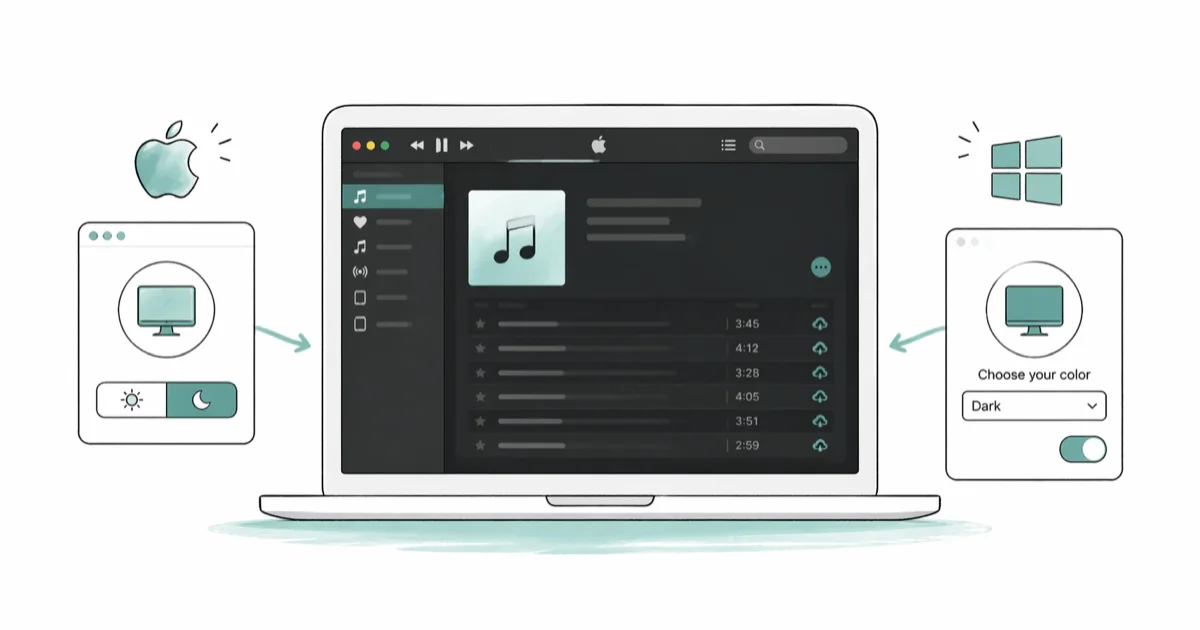
Quick AnsweriTunes Dark Mode follows your OS appearance setting. On Mac, go to System Settings > Appearance > Dark; on Windows, go to Settings > Personalization > Colors and choose Dark.
iTunes Dark Mode swaps the bright white interface for a darker palette that’s far easier on your eyes during late-night listening sessions. The setting lives in your operating system, not inside iTunes itself.
- iTunes Dark Mode follows your OS appearance setting and has no in-app toggle
- On Mac,
System Settings>Appearance>Darkswitches iTunes and all compatible apps instantly - On Windows 10/11,
Settings>Personalization>Colorswith app mode set to Dark does the same - The macOS Auto appearance option switches at sunrise and sunset, and iTunes follows passively
- Restarting iTunes fixes most cases where the dark theme doesn’t apply after switching
#Enabling Dark Mode for iTunes on Mac
macOS introduced system-wide Dark Mode with Mojave in 2018, and iTunes adopted it from day one. On macOS Monterey and earlier, the menu is called System Preferences instead of System Settings.
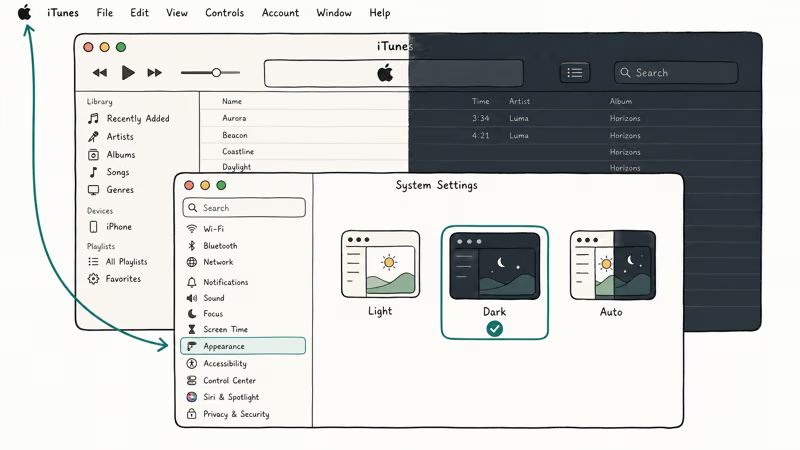
Click the Apple menu, go to System Settings > Appearance, and choose Dark.
iTunes should switch to its dark interface after the system appearance changes. The sidebar, playback controls, album browser, and mini player follow the same system theme. If the interface stays light, quit and reopen iTunes.
According to Apple’s support documentation for Dark Mode on Mac, the feature was designed as a system-wide setting so compatible apps like iTunes, Mail, and Finder all update together from a single toggle.
If your Mac runs a version older than Mojave, the Appearance option won’t exist in System Preferences. You’d need to update macOS before the toggle appears.
#How Do You Turn on iTunes Dark Mode in Windows?
iTunes on Windows reads the system-level app mode setting. The whole process takes about 30 seconds.
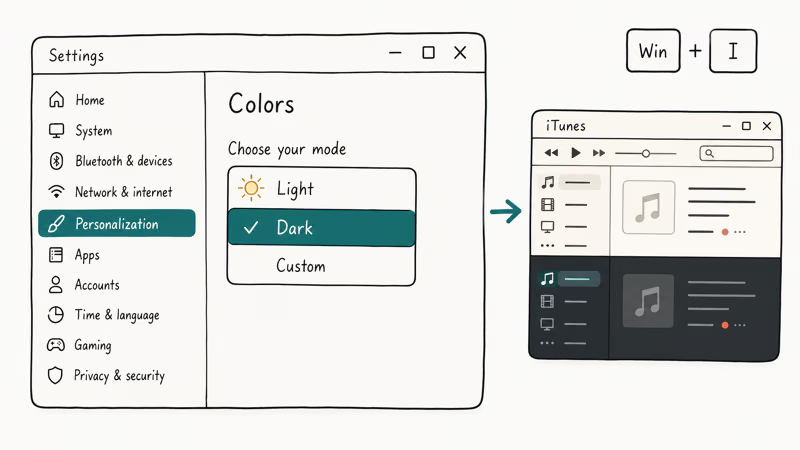
Press Windows + I to open Settings. Go to Personalization > Colors and find “Choose your default app mode” (Windows 10) or “Choose your mode” (Windows 11). Select Dark. The change applies to iTunes and most other Windows apps right away.
On supported Windows versions, iTunes can pick up the dark theme without a restart. If the sidebar, media controls, or album browser stay light after the setting change, close and relaunch the app.
Microsoft’s support page for Windows color settings confirms that app-level Dark Mode has been available since Windows 10 version 1607. Versions older than that lack the option entirely.
#What If iTunes Stays Light After You Switch?
This usually happens when iTunes was already open during the appearance change. Closing and reopening it applies the new theme.
On Mac, press Command + Q or right-click the Dock icon and select Quit. Reopen iTunes and the dark interface loads. If you chose Auto instead of Dark, the switch depends on time of day, so selecting Dark explicitly locks it in regardless of the clock.
On Windows, close iTunes from the taskbar or end it in Task Manager. Right-click the iTunes icon in the system tray and choose Exit. A fresh launch picks up the dark setting.
One common source of confusion on Mac: starting with macOS Catalina, Apple replaced iTunes with the Music app. The Music app uses the exact same System Settings > Appearance toggle, so Dark Mode setup hasn’t changed. If iTunes won’t open at all on Windows, that’s a separate installation problem unrelated to appearance settings.
#Dark Mode and Eye Strain: What the Research Shows
Dark interfaces reduce the total amount of light your screen pushes into your eyes. The benefit depends on your display type and room lighting.
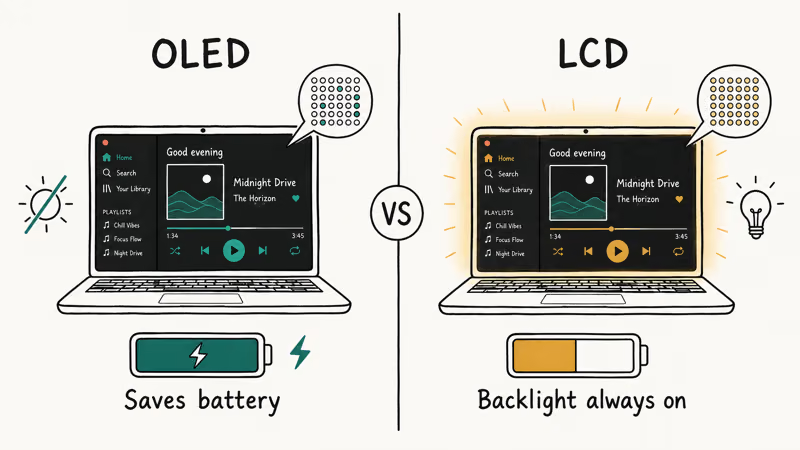
On OLED displays like the MacBook Pro 14-inch and 16-inch (2021 onward), black pixels physically turn off. Dark Mode on these machines reduces both glare and battery consumption at the same time. Most Windows laptops still use LCD panels where the backlight stays on no matter what’s displayed, so you get less glare but almost no battery savings.
Research published by the Association for Computing Machinery found that dark interfaces lowered user fatigue scores during extended sessions in low-light environments. In brightly lit rooms, the advantage largely disappeared. If you run iTunes mainly during the daytime in a well-lit office, Light Mode works just as well.
#Scheduling Dark Mode Automatically on Mac
You don’t have to flip the toggle every evening. macOS handles the transition for you.
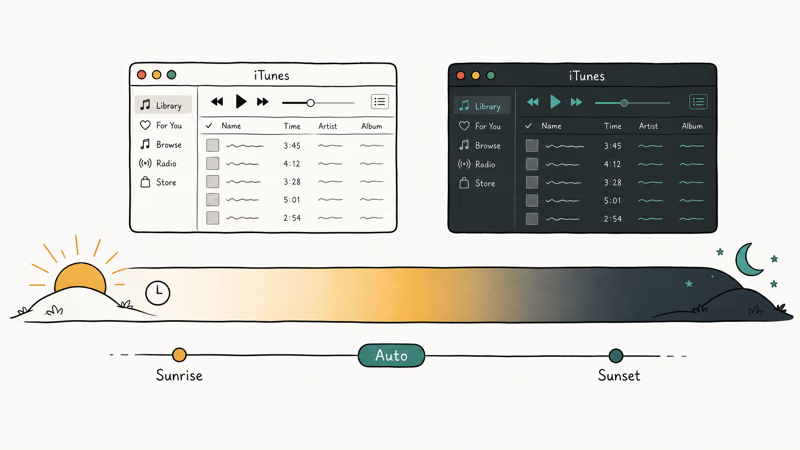
Open System Settings > Appearance and select Auto. Your Mac switches between Light and Dark at sunrise and sunset based on your location. iTunes follows each transition automatically without any input from you.
Dynamic Desktop is a separate feature under System Settings > Wallpaper that also tracks sunrise and sunset. The difference: Dynamic Desktop changes both your wallpaper and appearance, while Auto only changes the theme. Both use the same schedule, so pick whichever you prefer.
#Fixing Common Dark Mode Issues on Windows
Two problems show up regularly:
Accent color conflict. When “Show accent color on title bars and window borders” is turned on under Personalization > Colors, iTunes sometimes displays inconsistent theming where parts of the interface stay light. Turn that option off and restart iTunes. The dark theme then applies cleanly across the entire window.
Windows version too old. Dark Mode requires Windows 10 version 1607 or later. Check Settings > System > About for your version.
Beyond appearance problems, persistent UI glitches in iTunes on Windows often trace back to a corrupted installation. A clean reinstall of iTunes resolves most stubborn display issues. If error dialogs appear alongside the Dark Mode problem, the iTunes error code guide helps narrow down what’s actually broken.
A sluggish iTunes installation can also delay theme rendering, making it look like Dark Mode isn’t working when the app is just behind on drawing the updated interface.
#Bottom Line
Mac: System Settings > Appearance > Dark. Windows: Settings > Personalization > Colors > Dark. Restart iTunes if the change doesn’t show up right away. The whole process takes under 2 minutes on both platforms.
Set Appearance to Auto on Mac for hands-free switching at sunset. On Windows, the Dark setting stays locked until you manually change it back.
#Frequently Asked Questions
Can iTunes use Dark Mode without changing the rest of the system?
No. iTunes reads your OS-level appearance setting and has no independent toggle. The only way to run iTunes in Dark Mode while keeping Light Mode elsewhere would require a third-party utility that intercepts system theme calls, and neither Apple nor Microsoft officially supports that approach.
Does Dark Mode in iTunes affect playback or syncing?
Dark Mode is purely visual. Audio quality, sync behavior, and backup behavior stay tied to the same iTunes media and device-management engines. The rendering layer that draws Dark Mode is separate from playback and syncing.
Why does iTunes keep switching between Light and Dark on its own?
Your Mac is set to Auto appearance, which shifts themes at sunrise and sunset. Go to System Settings > Appearance and select Dark explicitly to lock it in permanently.
Does the Music app on newer Macs use the same Dark Mode setting?
Yes. Apple replaced iTunes with the Music app in macOS Catalina, and it reads the same System Settings > Appearance preference. No separate configuration is needed.
Does Dark Mode save battery on a laptop?
On OLED screens, yes. Black pixels are physically switched off, which measurably reduces power draw during extended use. On LCD laptops, the backlight runs at constant brightness regardless of displayed colors, so battery savings from Dark Mode are minimal. Most MacBooks with OLED panels (the 14-inch and 16-inch Pro models from 2021 onward) benefit the most.
Is there a Dark Mode option for iTunes on older Windows versions?
Windows versions before 1607 don’t include system-level app mode settings, so iTunes on those builds can’t switch to Dark Mode. Updating to at least Windows 10 version 1607 adds the color settings under Settings > Personalization > Colors.
How does TikTok Dark Mode compare to iTunes Dark Mode?
Both apps follow the same pattern: they inherit the system-level appearance setting rather than providing a standalone toggle. TikTok Dark Mode on Android reads the Android system Dark Mode preference, and iTunes reads the macOS or Windows appearance setting. The underlying concept is identical across platforms.
Can I enable Dark Mode for iTunes inside a Windows virtual machine on Mac?
macOS appearance settings only affect native Mac apps. If you run Windows inside Parallels, VMware, or UTM, any app in the VM reads the Windows color settings independently. You’d need to enable Dark Mode separately inside the virtual machine through the Windows Settings > Personalization > Colors menu. The macOS and Windows theme states don’t sync with each other.

Mac mini M6 vs M5 Pro: Which Model Should You Buy?
Mac mini M6 vs M5 Pro compared on price, memory, ports, displays, and real workloads. Find the better 2026 Mac mini for your desk and budget.

Apple Siri Settlement: Who Qualifies and How to Claim
Apple's $250 million Siri settlement covers iPhone 15 Pro and iPhone 16 models bought June 2024 to March 2025. See who qualifies and how claims work.

iOS 26.6.1 Security Update: What Apple Fixed and Who Gets It
Apple released iOS 26.6.1 on August 17 with 29 security fixes, including an IPSec interception bug. See what it patches, who gets it, and how to update.

iPhone Adaptive Power: How It Works and When to Use It
Learn how iPhone Adaptive Power works, which models support it, what it changes, and when Low Power Mode is still the better battery-saving choice.