iPhone Stuck on Loading Screen: Safe Recovery Steps (2026)
Recover an iPhone stuck on an Apple logo, progress bar, or loading screen with current Apple force-restart, Recovery Mode, backup, and service guidance.
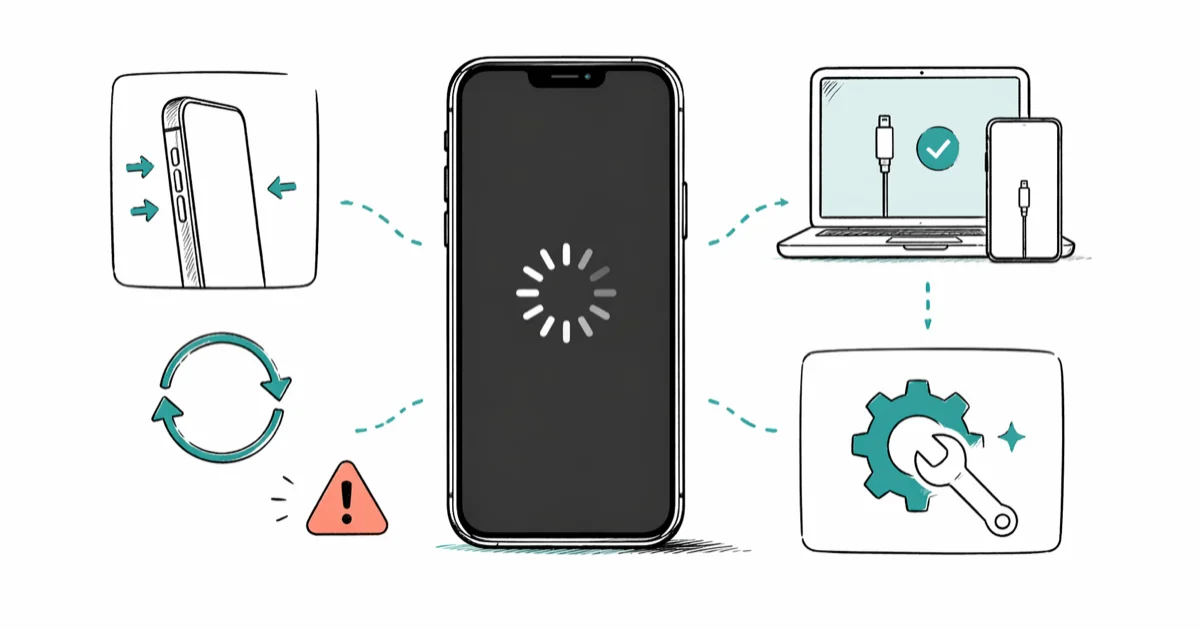
Quick AnswerIf an Apple-logo progress bar after a restore or migration has not moved for at least one hour, connect the iPhone to a computer and use Recovery Mode. Choose Update first when offered; Restore erases the iPhone.
An iPhone stuck at startup can show an Apple logo, progress bar, spinning indicator, or Connect to computer screen. Those screens have different next steps, so identify what’s displayed before forcing a restart or restoring the device.
- If a progress bar is moving, allow the current restore, migration, or update to continue
- After a restore or migration, Apple says to act when an Apple-logo progress bar hasn’t moved for at least one hour
- A force restart doesn’t erase data; use the button sequence for the iPhone model
- In Recovery Mode, Update attempts to reinstall iOS without erasing data, while Restore erases the iPhone
- If Recovery Mode can’t update or restore the device, use Apple service rather than a vendor recovery promise
#1. What Screen Is the iPhone Showing?
According to Apple’s stuck-progress-bar article, an Apple logo and progress bar can remain visible after restoring a backup or migrating from another device. Confirm that the bar hasn’t moved for at least one hour before putting the device in Recovery Mode.
Apple’s Recovery Mode guide states that an Apple logo with no progress bar, a Connect to computer screen, or a Recovery Assistant loop that can’t finish can require computer-based recovery. A phone stuck only on a spinning wheel may need a different symptom check.
A blank display, liquid exposure, impact damage, unusual heat, or a phone that power and a computer never detect can indicate a different hardware or charging problem. Don’t infer a software failure rate from the loading screen alone; use the iPhone black-screen checks when the display has no logo or progress indicator.
#2. Force Restart the iPhone
A force restart is a reasonable first step when the phone is frozen and isn’t actively advancing through an update, restore, or migration. It doesn’t erase the device.
iPhone 8 or later, including iPhone SE (2nd generation or later):
- Press and quickly release Volume Up.
- Press and quickly release Volume Down.
- Hold the Side button until the Apple logo appears.
iPhone 7 or iPhone 7 Plus: Hold the Side button and Volume Down together until the Apple logo appears.
iPhone 6s or earlier, including iPhone SE (1st generation): Hold the Home button and the Side or Top button together until the Apple logo appears.
Apple’s current force-restart instructions confirm that the Apple logo is the release cue and that it can take longer than ten seconds to appear on Face ID models. Don’t stop at a universal ten-second timer. If the phone repeatedly reboots instead of starting, switch to the restart-loop guide.
#3. When Should You Use Recovery Mode?
Use a USB cable and the current computer app for the platform:
- Mac with macOS Catalina or later: Finder
- Windows PC: Apple Devices; use iTunes only if Apple Devices isn’t installed
- Mac with macOS Mojave or earlier: iTunes
Connect the iPhone and open the appropriate app. Keep it connected while using the model-specific sequence below.
iPhone 8 or later: Press and release Volume Up, press and release Volume Down, then hold the Side button past the Apple logo until the Connect to computer screen appears.
iPhone 7 or iPhone 7 Plus: Hold the Side or Top button and Volume Down until the Connect to computer screen appears.
iPhone 6s or earlier: Hold the Home button and the Side or Top button until the Connect to computer screen appears.
Locate the iPhone in Finder, Apple Devices, or iTunes. If Update is available and you haven’t already tried an update, choose it first. Apple says Update installs the current compatible iOS version; Restore reinstalls iOS and erases all data. The related stuck-on-Apple-logo guide covers that same Update-versus-Restore decision.
If the software download takes more than 15 minutes and the iPhone leaves the Connect to computer screen, Apple’s current Recovery Mode page recommends letting the download finish and then putting the phone back into Recovery Mode. Fifteen minutes is an exit condition for the screen, not a promised repair duration.
#4. Know Exactly What Restore Does
Restore is destructive. Apple’s computer factory-restore guide states that a computer restore erases the device’s information and settings and installs the latest compatible iOS version. Use it only after understanding that boundary and checking whether a usable backup already exists.
Apple’s current consumer Recovery Mode guide doesn’t publish a general DFU button sequence or guarantee a paid repair tool’s result. This guide therefore doesn’t present unsourced DFU timings or vendor promises as the next step.
If the computer reports an error, update the Mac or Apple Devices app, try a known-good cable and USB port, and follow the error-specific Apple guidance. The iPhone error 4013 guide covers one named error; if the phone still can’t update or restore in Recovery Mode, Apple says it may need service.
#5. Reduce the Risk Before the Next Update
Check storage. Go to Settings > General > iPhone Storage before a large update. Apple’s update troubleshooting article says an update requires enough available storage but doesn’t publish a universal five-gigabyte rule.
Use power and a working internet connection. The same Apple article lists power and internet access among the update requirements. It doesn’t say that every interrupted Wi-Fi connection corrupts iOS or that one habit prevents most startup freezes.
Keep a current backup. Apple’s iCloud backup guide recommends Settings > [your name] > iCloud > iCloud Backup > Back Up Now for a manual backup. Stay connected to Wi-Fi until the backup finishes. A computer backup is another option if you prefer to keep the copy locally.
Don’t rely on a fixed weekly restart schedule, battery percentage, or storage threshold as an Apple requirement. The device’s own update, storage, and battery prompts are the relevant checks.
#6. Contact Apple for Persistent Failures
Contact Apple or an authorized service provider if Recovery Mode can’t update or restore the iPhone, the computer never recognizes it after cable and port checks, or the device has signs of physical damage. The iPhone-won’t-restore guide can help separate a computer, cable, or update error before service.
Apple can quote service options after identifying the model, coverage, and failed component. Don’t use a universal price range for logic-board repair or promise that diagnostics and warranty service always cost zero; coverage, region, model, and the actual fault determine the option and price.
#Bottom Line
Wait if an active progress bar is still moving. If a restore-or-migration bar hasn’t moved for at least one hour, or if the iPhone can’t complete startup, use Apple’s model-specific Recovery Mode steps. Choose Update first when appropriate; Restore erases the device. If Recovery Mode fails, move to service rather than unsourced DFU timings or a paid recovery promise.
#Frequently Asked Questions
Will Recovery Mode erase my data?
Entering Recovery Mode doesn’t itself erase the iPhone. Update attempts to reinstall iOS without erasing data. Restore erases the iPhone and reinstalls iOS.
How long should I wait on an Apple-logo progress bar?
For the restore-or-migration case covered by Apple’s current article, confirm that the progress bar hasn’t moved for at least one hour before starting Recovery Mode. That sourced one-hour rule is different from a generic spinning indicator with no progress bar.
Should I use DFU Mode after Recovery Mode fails?
Apple’s current consumer Recovery Mode article says a device that can’t update or restore may need service. It doesn’t provide a general DFU timing sequence as the next supported step, so this guide doesn’t invent one.
Can a third-party repair tool guarantee no data loss?
No guarantee on this page supports that claim. Before paying for a tool, compare its terms with Apple’s Update and Restore boundaries and assume important data is at risk unless you have a verified backup.
How much free storage prevents the problem?
Apple requires enough available storage for an update but doesn’t publish one amount that prevents every startup failure. Review Settings > General > iPhone Storage and follow the device’s recommendations.
What does an Apple repair cost?
There isn’t an accurate universal price. The model, coverage, region, damage, and diagnosed component determine the service option and quote.

Mac mini M6 vs M5 Pro: Which Model Should You Buy?
Mac mini M6 vs M5 Pro compared on price, memory, ports, displays, and real workloads. Find the better 2026 Mac mini for your desk and budget.

Apple Siri Settlement: Who Qualifies and How to Claim
Apple's $250 million Siri settlement covers iPhone 15 Pro and iPhone 16 models bought June 2024 to March 2025. See who qualifies and how claims work.

iOS 26.6.1 Security Update: What Apple Fixed and Who Gets It
Apple released iOS 26.6.1 on August 17 with 29 security fixes, including an IPSec interception bug. See what it patches, who gets it, and how to update.

iPhone Adaptive Power: How It Works and When to Use It
Learn how iPhone Adaptive Power works, which models support it, what it changes, and when Low Power Mode is still the better battery-saving choice.