How to Fix an iPhone Stuck on the Spinning Wheel (2026)
Fix an iPhone stuck on the spinning wheel with a force restart, battery checks, Recovery Mode, a clear Update-versus-Restore choice, and Apple service.
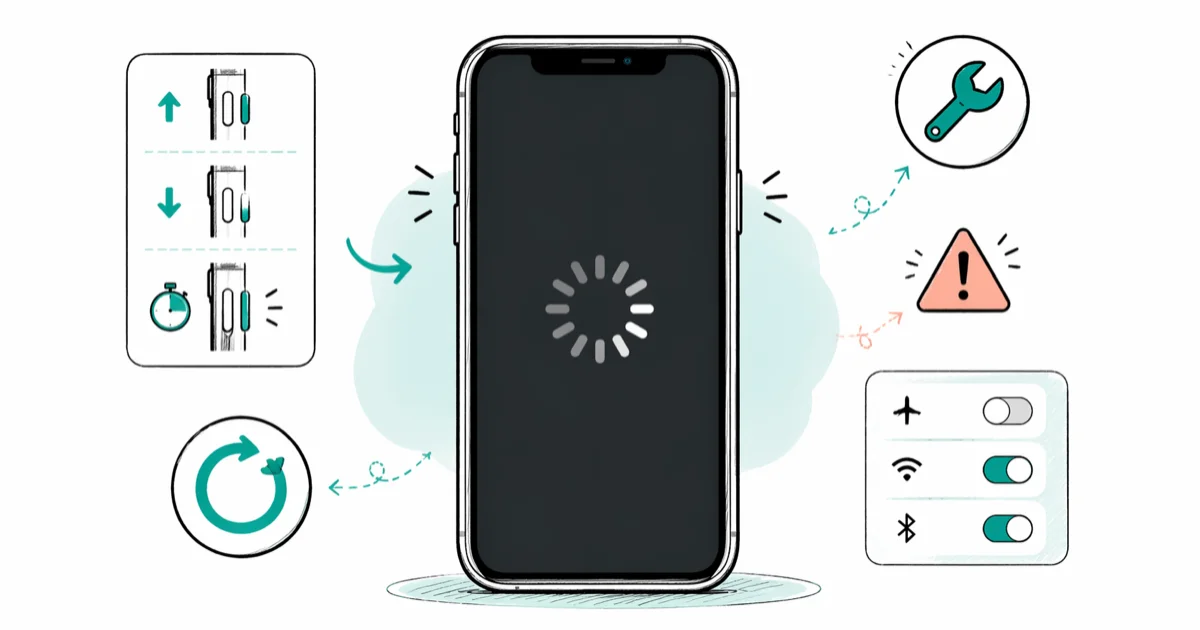
Quick AnswerOn a Face ID iPhone, press Volume Up, Volume Down, then hold Side until the Apple logo appears. This force restart does not erase data; if the phone still cannot start, try Update before a data-erasing recovery Restore.
Your iPhone shows a black screen with a spinning wheel and won’t respond. An incomplete update, an app conflict, or hardware trouble can look alike. Start with a force restart before computer-based recovery.
- A force restart does not erase data; hold the model-specific buttons until the Apple logo appears
- An incomplete update or insufficient free storage can prevent an update from finishing, but the spinning wheel alone does not identify the cause
- If the computer offers Update and Restore, try Update before the data-erasing Restore option
- Apple’s public recovery guide sends failed recovery-mode updates or restores to service; it does not publish a consumer DFU procedure
- Rule out a discharged battery before moving to a computer-based restore
#What Causes the iPhone Spinning Wheel?
The spinning wheel means iOS started loading but got stuck partway through. Your iPhone isn’t bricked. It’s caught in a loop where the operating system can’t finish booting.
An incomplete software update is one possible trigger. According to Apple’s current update troubleshooting article, insufficient free storage, a long download, an unreachable update server, and an update that doesn’t complete can prevent an iPhone from updating. The page also says an update requires power and an internet connection; it doesn’t say that every spinning wheel has an update cause.
Other possibilities include an app that crashes during launch or a hardware problem with the battery, storage, or logic board. If your iPhone keeps restarting before reaching the spinning wheel, use the symptom checks in that guide rather than assuming the two cases share one cause.
#Force Restart Your iPhone
A force restart is the fastest fix and works without connecting to a computer. The button combination depends on your iPhone model.
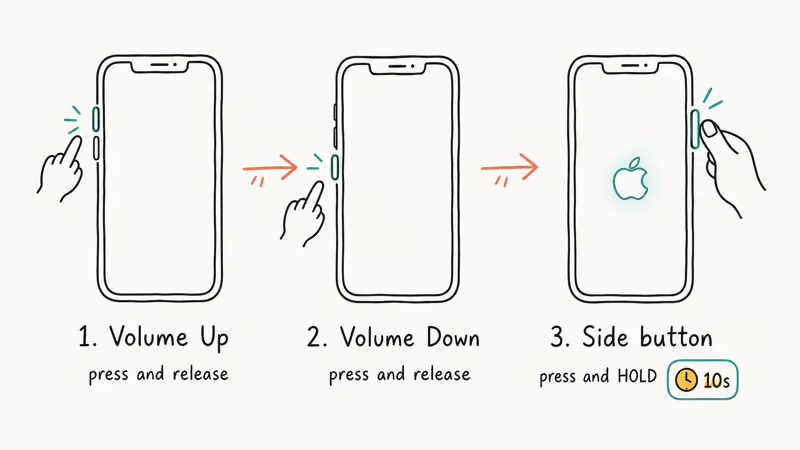
iPhone 8 and later, including SE (2nd/3rd gen):
- Press and quickly release the Volume Up button
- Press and quickly release the Volume Down button
- Press and hold the Side button until the Apple logo appears
iPhone 7 and 7 Plus:
Hold the Volume Down button and the Side button together until you see the Apple logo.
iPhone 6s and earlier:
Hold the Home button and the Top button together until the Apple logo shows up.
Don’t release the buttons early. Apple’s current force-restart article confirms that the Apple logo is the release cue and notes that this can take longer than 10 seconds on Face ID models. A force restart doesn’t erase data.
If the spinning wheel comes back after the force restart, the issue is deeper. Move to the next methods.
#Check the Battery First
Rule out a discharged battery before assuming an iOS failure. Apple’s force-restart article recommends charging an iPhone that won’t turn on for an hour before trying again; if the low-charge battery image appears, charge for 30 minutes or until it starts.
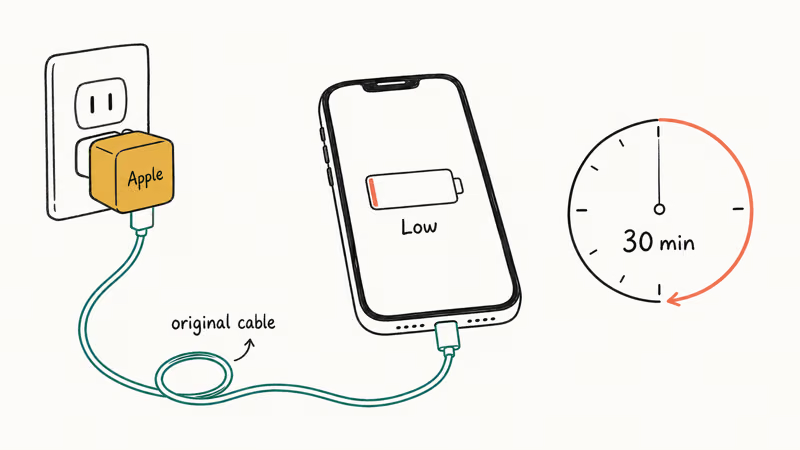
Try a known-good cable and power adapter too. A dark screen alone doesn’t prove a battery or software cause.
#How to Fix the Spinning Wheel With Recovery Mode
Recovery Mode lets a computer restore iOS when the phone won’t start normally. Apple’s current Recovery Mode guide states that an Apple logo with no progress bar, a device the computer can’t recognize, the Connect to computer screen, and a failed Recovery Assistant loop are situations where recovery mode may be needed.
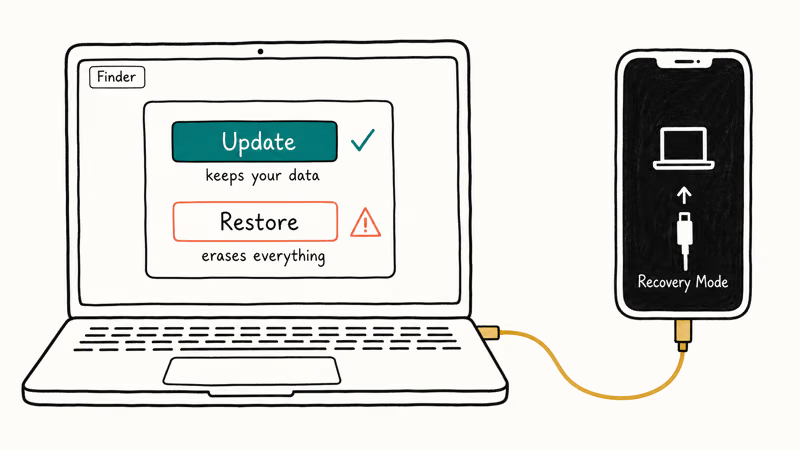
Use Finder on a current Mac or the Apple Devices app on a PC. Use iTunes only on a PC without Apple Devices or on macOS Mojave or earlier.
- Connect your iPhone to the computer and open Finder, Apple Devices, or iTunes as appropriate
- Force restart your iPhone, but keep holding past the Apple logo until the Recovery Mode screen appears
- Choose Update when prompted (this reinstalls iOS without erasing your data)
If you haven’t tried Update, Apple’s guide says to try it first. Return to recovery mode only if the phone still won’t start.
Restore erases the iPhone. Confirm a backup; if it fails, see restore troubleshooting.
#Should You Use DFU Mode?
Apple’s current consumer Recovery Mode guide doesn’t publish a DFU button-timing procedure. It says that a device that can’t update or restore in recovery mode may need service. For that reason, this guide doesn’t present an unsourced timing sequence as an Apple-supported next step.
If you choose Restore in Finder or Apple Devices, Apple’s computer factory-restore guide confirms that the computer erases the device and installs the latest compatible iOS version. If recovery mode can’t update or restore the phone, contact Apple or a qualified repair provider instead of paying for a third-party tool based only on a no-data-loss promise.
#Hardware Problems and the Spinning Wheel
If the spinning wheel returns immediately after a supported factory Restore, hardware becomes more plausible, but only diagnostics can confirm the cause.
For hardware diagnosis, book service through Apple Support. Coverage and charges vary.
If your iPhone is stuck on the Apple logo instead of showing the spinning wheel, the troubleshooting steps are almost identical. Both symptoms point to a boot failure.
#How to Prevent the Spinning Wheel in the Future
Keep free storage available before updates. Apple’s update guide confirms that iOS needs enough working space, although it doesn’t publish one universal threshold.
Don’t interrupt iOS updates. Keep the iPhone plugged in and on Wi-Fi until the update finishes.
Install supported updates and keep a current backup so a necessary Restore doesn’t become a data-loss surprise. Apple doesn’t say that skipping a particular number of versions makes the update inherently riskier.
#Bottom Line
Force restart your iPhone first because it doesn’t erase data.
If it doesn’t work, connect to a computer and try Update before a recovery-mode Restore. Restore erases the phone. If the phone can’t update or restore in recovery mode, take it to Apple or another qualified service provider before paying for an unsupported recovery promise.
#Frequently Asked Questions
Will a force restart erase my data?
No. A force restart is safe for your data. It’s the same as pulling the power and rebooting. Your photos, apps, messages, and settings all stay intact.
How long does the spinning wheel normally last?
Apple says an update’s duration depends on the update size and the number of files on the device, so there is no universal cutoff. If the software download in recovery mode takes more than 15 minutes and the phone exits the Connect to computer screen, let the download finish and then re-enter recovery mode.
Can a bad app cause the spinning wheel?
An app change is one possibility, but timing doesn’t prove the cause. If the phone starts after a force restart, remove apps installed or updated immediately before the symptom and see whether it returns. Our frozen iPhone guide covers app-specific freezes.
What if my iPhone shows the spinning wheel after a water incident?
Don’t connect a cable or charge the iPhone while it’s wet. Let it dry and follow Apple’s liquid-detection guidance; if the spinning wheel began after liquid exposure, seek service rather than repeatedly powering the phone on.
Does restoring from a backup bring back the spinning wheel problem?
If the symptom returns immediately after restoring a particular backup, erase the phone again and test it briefly as new. That comparison can help separate a restored configuration problem from a device problem, but it does not prove that the backup itself was corrupt.
My iPhone shows the spinning wheel only when making calls. Is that the same issue?
That’s a different issue. A spinning wheel during calls points to a network or carrier problem, not a boot failure. Check your cellular data settings.
Can I fix the spinning wheel without a computer?
Only through a force restart while the phone is unresponsive. If that doesn’t work, Recovery Mode needs Finder, Apple Devices, or iTunes on a computer. The iPhone can’t open its own erase settings while it remains stuck on the spinning wheel.
Should I use third-party repair tools?
Use Apple’s built-in Recovery Mode first. This guide hasn’t verified a third-party tool that can repair every spinning-wheel case without erasing data, so don’t pay based solely on that promise. If Apple’s recovery flow fails, service is the supported escalation.
Some links on this page are affiliate links, which means fone.tips may earn a commission at no extra cost to you.

Mac mini M6 vs M5 Pro: Which Model Should You Buy?
Mac mini M6 vs M5 Pro compared on price, memory, ports, displays, and real workloads. Find the better 2026 Mac mini for your desk and budget.

Apple Siri Settlement: Who Qualifies and How to Claim
Apple's $250 million Siri settlement covers iPhone 15 Pro and iPhone 16 models bought June 2024 to March 2025. See who qualifies and how claims work.

iOS 26.6.1 Security Update: What Apple Fixed and Who Gets It
Apple released iOS 26.6.1 on August 17 with 29 security fixes, including an IPSec interception bug. See what it patches, who gets it, and how to update.

iPhone Adaptive Power: How It Works and When to Use It
Learn how iPhone Adaptive Power works, which models support it, what it changes, and when Low Power Mode is still the better battery-saving choice.