iPhone Not Charging When Plugged In? 9 Fixes (2026)
Your iPhone is plugged in but not charging? Work through cable, port, adapter, and software fixes in order, from the 30-second resets to hardware checks.
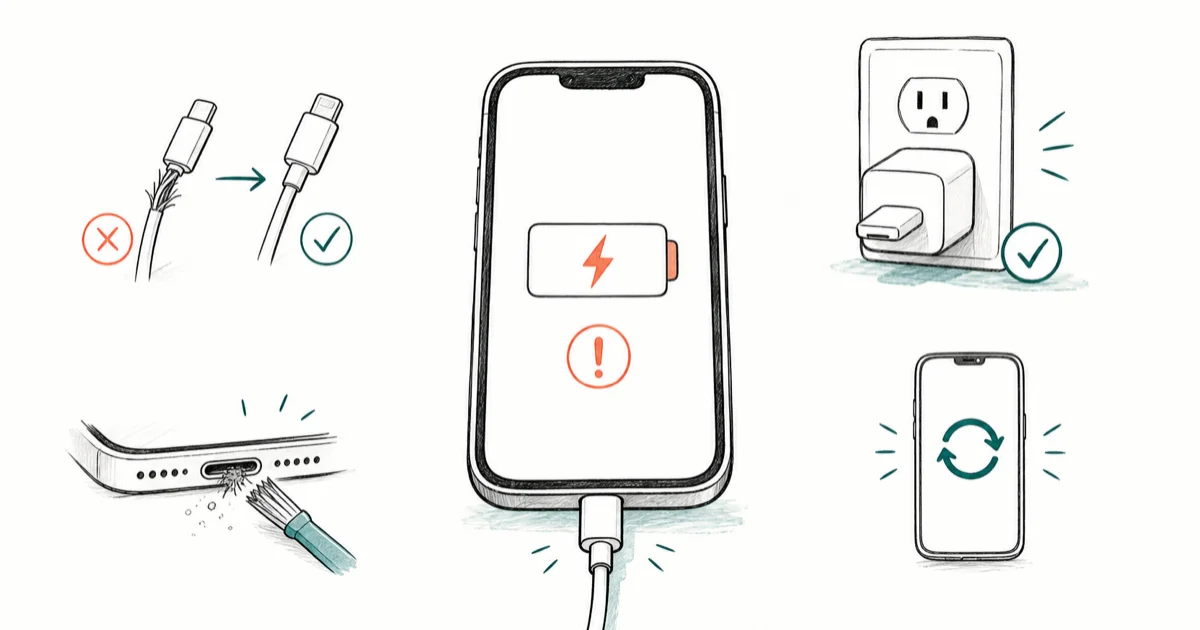
Quick AnswerMost "plugged in but not charging" cases come down to a worn cable, a lint-clogged port, or a weak power source. Swap the cable and outlet, clean the port, then force restart before suspecting hardware.
Plugging in your iPhone and watching nothing happen is maddening, but the fix is usually cheap and quick. The cause is almost never a dead phone. It’s a tired cable, a pocket-lint-packed port, or a power source that can’t keep up. Start with the simplest checks before you suspect a rare hardware repair.
- A worn cable or weak power source causes most “plugged in but not charging” cases, not a dead battery
- Lint packed into the charging port is the single most common physical culprit, so clean it first
- A force restart clears software glitches that freeze charging without any hardware fault
- Optimized Battery Charging can pause at 80 percent on purpose, which is not a malfunction
- A hot iPhone deliberately slows or stops charging until it cools down
#Why Is Your iPhone Not Charging When Plugged In?
The cause almost always hides in one of four places: the cable, the charging port, the power source, or the software. Rule them out in that order, cheapest first.
Don’t jump straight to “my battery is dead,” because that’s the rarest cause of all and the one fix that costs the most money to chase down when the real culprit is almost always a cable, a clogged port, or a weak outlet you can sort out in minutes.
Seeing the charging bolt but no rising percentage? That’s a different problem, covered in our guide on an iPhone that says it’s charging but isn’t.
#Cable, Adapter, and Power Source Checks
Start with the cheapest swap. Most “won’t charge” calls trace back to a frayed cable or a flaky adapter, so try a different known-good cable and a different wall outlet before anything else.
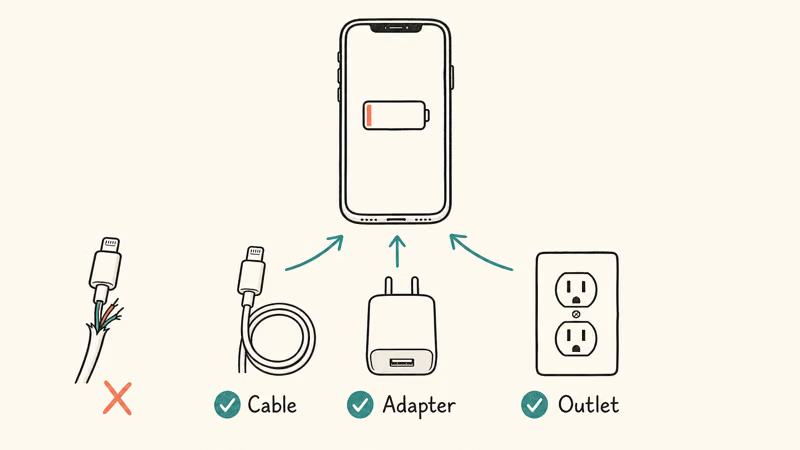
Inspect the cable closely. According to Apple’s charging support guide, you should “check your charging cable and USB adapter for signs of damage, like breakage or bent prongs.” A cable that works at one angle but not another is on its way out.
Then check the source. Apple lists three reliable options: a computer, a power accessory, or a wall outlet. Wall power delivers the most current, so if a laptop USB port isn’t cutting it, plug straight into the wall. A cheap, off-brand adapter is a common weak link worth swapping out.
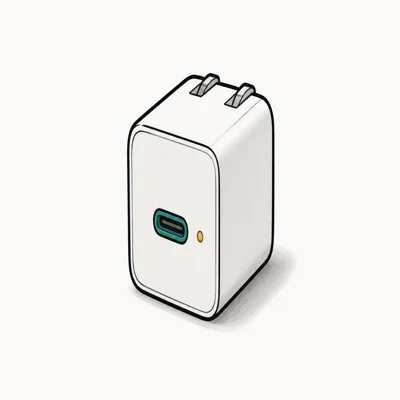
- Foldable prong slides flat into a tech pouch with zero snag risk
- 65W is enough for a MacBook Air or 13-inch MacBook Pro at full speed
- GaN II keeps a compact 58 percent smaller body than older 61W chargers
Last updated on Jun 16, 2026
As an Amazon Associate fone.tips earns from qualifying purchases. Prices and availability on Amazon are accurate as of the date above and subject to change.
#Cleaning the Charging Port Safely
If the cable and outlet check out, the port is your next suspect. Lint compacts at the bottom of the port over months and physically blocks the connector from seating.
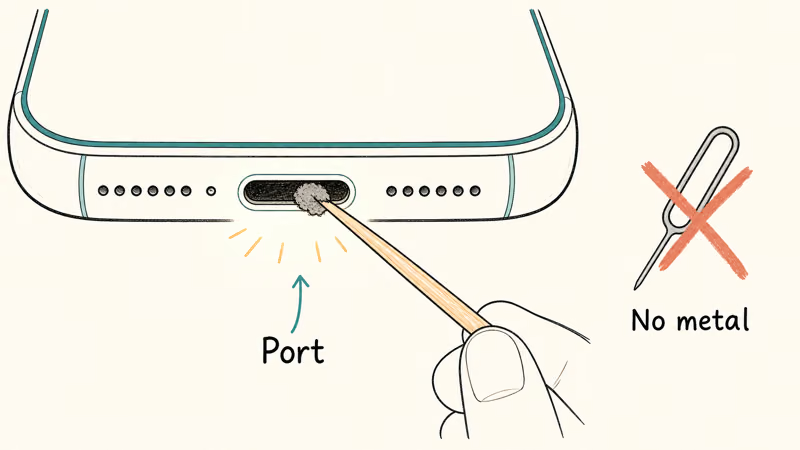
Power the phone off first. Then use a wooden or plastic toothpick, never metal, to gently scoop out the debris under good light. A short burst of canned air can help, but hold the can upright and keep it a few inches back.
Be patient and gentle here. A port that looks clean can still hide compacted lint that blocks the connector from seating. The pins inside are delicate, so forcing anything in can do real damage. If the port got wet rather than dirty, stop and follow our steps for getting water out of a charging port instead, because charging a wet port can corrode it.
#Does a Force Restart Fix Charging Problems?
Often, yes. A frozen background process can stall charging even when every cable and port is fine, and a force restart clears it without touching your data.
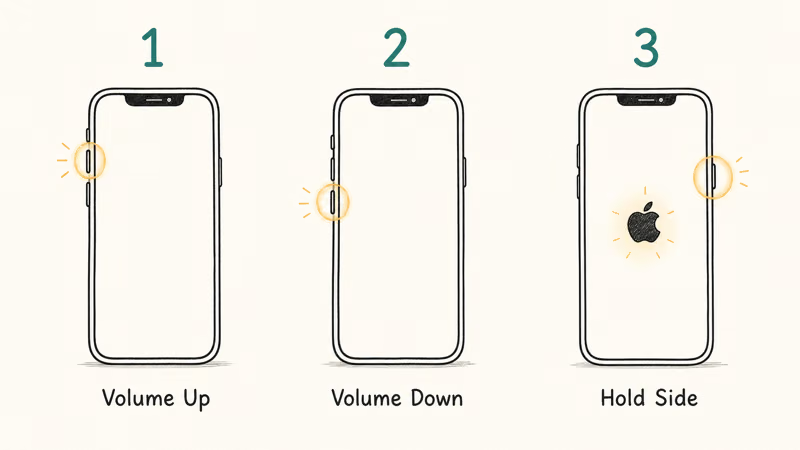
The sequence is the same on every recent model. According to Apple’s force restart guide, you press and quickly release volume up, press and quickly release volume down, then press and hold the side button until the Apple logo appears.
Hold that side button longer than you’d expect, since it can take more than 10 seconds. Once the phone reboots, plug it back in and watch for the charging bolt. This single step resolves a surprising share of mystery charging failures.
#Charge Limit, Temperature, and the 80% Pause
Sometimes the phone isn’t broken at all. It’s protecting its battery. Two built-in features can make a healthy iPhone look like it stopped charging.
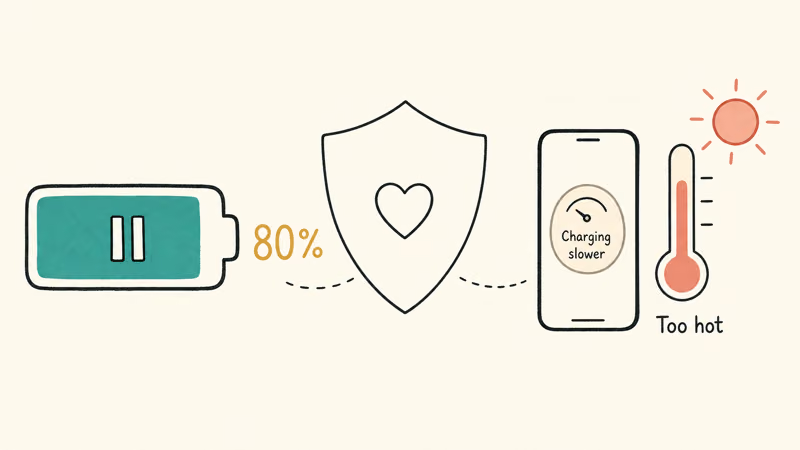
The first is Optimized Battery Charging. Apple confirms that this feature can hold charging at 80 percent in certain conditions to slow battery aging, then top off before you usually unplug. That pause near 80 percent is intentional, not a fault.
The second is heat. iPhones deliberately throttle or halt charging when they run hot, so a phone left in a sunny car or under a thick case may refuse to fill up. If yours runs warm during every charge, our guide to an iPhone overheating while charging digs deeper, and a battery that drains fast often shares the same root cause.
#When to Suspect Hardware and Visit Apple
You’ve swapped the cable, cleaned the port, restarted, and ruled out heat. If it still won’t charge, hardware is finally a fair suspect.
A bent connector, a failed charging IC, or a degraded battery can all stop charging for good. Check your battery’s Maximum Capacity under Settings, Battery, and Battery Health, and read more about how charging affects battery health before paying for a repair. Apple’s battery service page explains your options if the battery itself is the problem.
At this point, book an appointment. Bring the phone and your cable so a technician can test both, and back up first in case the fix involves a swap.
#Bottom Line
When your iPhone is plugged in but not charging, don’t panic-buy a new phone. Run the fixes in order: swap the cable and outlet, clean lint out of the port, then force restart. Those three steps clear the overwhelming majority of cases for free, and most people never have to go any further than the lint-cleaning step before the charging bolt finally appears.
Remember that a pause at 80 percent or a charge that stalls in the heat is your phone protecting its battery, not failing. Only after all of that should you book a hardware check at Apple.
#Frequently Asked Questions
Why is my iPhone plugged in but not charging?
Usually a bad cable, a clogged port, or a weak power source. Swap to a known-good cable and a wall outlet, then clean lint out of the charging port. A force restart clears software glitches, and only after those should you suspect the battery or a hardware fault.
How do I clean my iPhone charging port without damaging it?
Power off first, then gently lift out lint with a wooden or plastic toothpick under good light. Never use metal against the delicate pins.
Does a force restart fix charging problems?
Surprisingly often, yes. It clears a frozen process that can block charging, and it erases no data.
Why won’t my old Lightning cable charge my iPhone 15?
Because the iPhone 15 switched to USB-C, so a Lightning cable simply won’t fit. Grab a USB-C cable for that model and newer.
Is it bad that my iPhone stops charging at 80 percent?
No, that’s a feature, not a fault. Optimized Battery Charging deliberately pauses near 80 percent to reduce long-term wear, then learns your routine and tops off the last 20 percent just before you normally unplug each morning. You can switch it off in Battery settings, but leaving it on is clearly better for the battery’s lifespan, so most people should ignore the pause entirely.
Can a hot iPhone stop charging?
Yes. iPhones slow or pause charging when they overheat to protect the battery. Move it out of direct sun, take off a thick case, and let it cool, and charging usually resumes on its own once the temperature drops.
When should I take my iPhone to Apple for a charging issue?
After you’ve tried a different cable, a different outlet, a port cleaning, and a force restart with no luck. At that point a bent port, a failed charging chip, or a worn battery becomes likely, and those need a technician. Back up first and bring your cable for testing.

Apple Siri Settlement: Who Qualifies and How to Claim
Apple's $250 million Siri settlement covers iPhone 15 Pro and iPhone 16 models bought June 2024 to March 2025. See who qualifies and how claims work.

iOS 26.6.1 Security Update: What Apple Fixed and Who Gets It
Apple released iOS 26.6.1 on August 17 with 29 security fixes, including an IPSec interception bug. See what it patches, who gets it, and how to update.

iPhone Adaptive Power: How It Works and When to Use It
Learn how iPhone Adaptive Power works, which models support it, what it changes, and when Low Power Mode is still the better battery-saving choice.

How to Transfer Data to a New iPhone Without iCloud
Move everything to your new iPhone without iCloud: Quick Start device-to-device transfer, wired migration, and encrypted Finder or iTunes backups.