AirPods Only Playing in One Ear? 7 Proven Fixes (2026)
AirPods playing in only one ear? Start with the audio balance slider, then clean, recharge, and reset. 7 proven fixes for AirPods on iPhone and Mac.
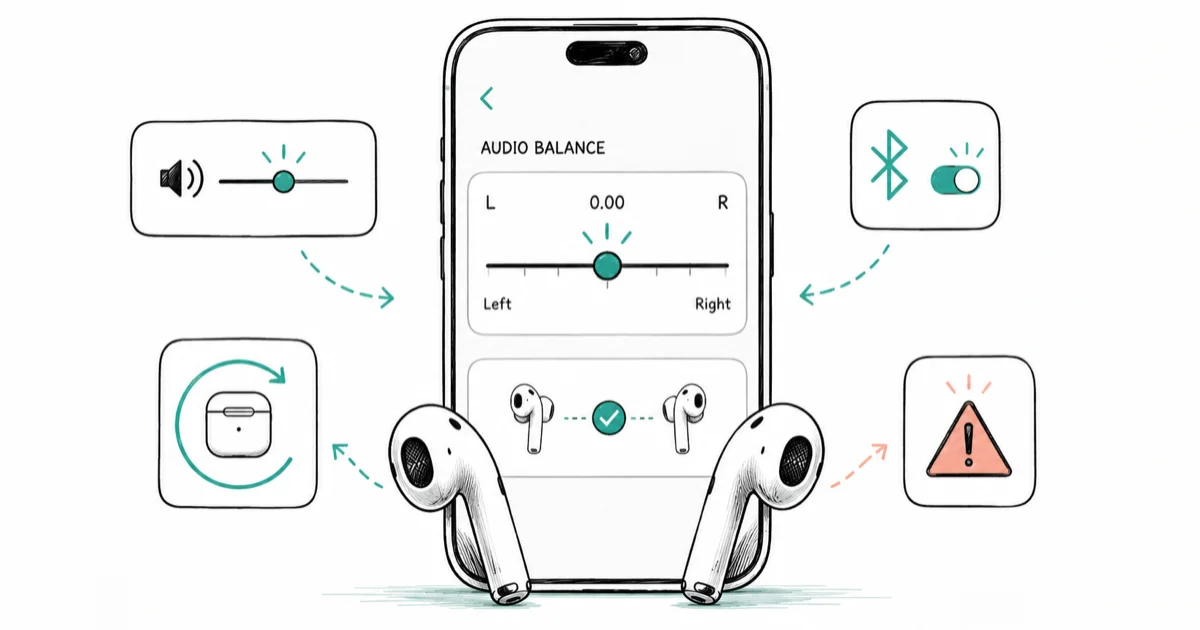
Quick AnswerCheck the audio balance slider first. Go to Settings > Accessibility > Audio/Visual and center the balance at 0.00. A slider nudged off-center is the most common reason all your sound routes to one AirPod.
AirPods only playing in one ear is usually a setting issue rather than a broken bud. Start with the audio balance slider before moving to charging, cleaning, and reset steps.
- The audio balance slider in Accessibility is the single most common cause, and it takes 10 seconds to check.
- Mono Audio sends both channels to both ears, so leaving it off keeps left and right separate.
- A dead or low bud sounds like a one-ear failure, so charge both AirPods and the case for at least 30 seconds.
- The isolation test, playing one bud alone with the other in the closed case, tells you if it’s hardware or software.
- A hard reset needs the full 15-second button hold, amber then white; a too-short press does nothing.
#Why Are Your AirPods Only Playing in One Ear?
When one AirPod goes quiet, your brain jumps to a hardware fault. Usually it’s software or a dirty speaker.
There are five usual suspects: a brushed audio balance slider, Mono Audio left on, a low battery in one bud, debris in the speaker mesh, or a connection conflict between Apple devices. We’ll work through them fastest-first.
According to Apple’s left or right AirPod support page, the recommended order is to check the balance, charge both AirPods, inspect the mesh, and reset only if those fail. Follow that sequence rather than jumping straight to a reset, because a reset won’t help a bud that’s simply muted by the balance slider or starved of charge.
#Center the Audio Balance Slider and Turn Off Mono Audio
This is the fix that gets buried in every other guide, so we lead with it. On your iPhone, go to Settings > Accessibility > Audio/Visual and look at the Balance slider under the volume controls.
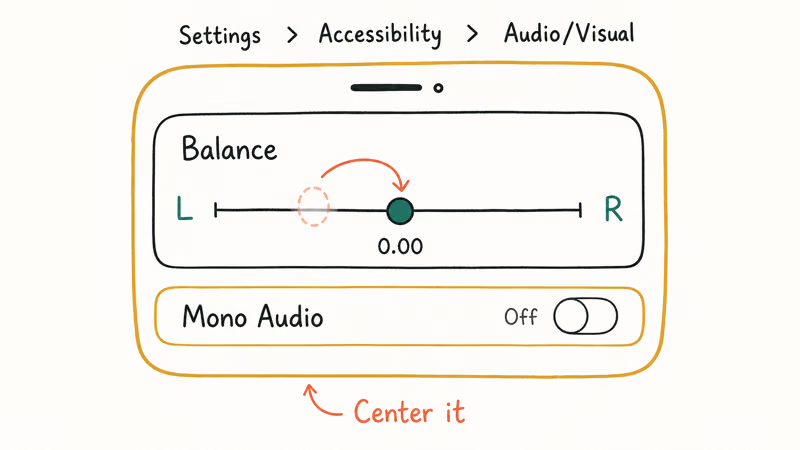
If that slider sits anywhere but dead center, all your sound shifts to one side. Apple’s support page states that the balance belongs at 0.00 in the middle. Slide it back there. A single accidental swipe on this slider can make it seem like an AirPod died.
While you’re on that screen, check Mono Audio. With it on, both channels play in both ears, which can mask a balance problem. Turn it off unless you need it.
On a Mac, the same control lives in System Settings > Sound > Output, with its own left-right balance slider. If one ear is quiet only when connected to your Mac, the Mac’s balance is set separately from your iPhone’s, so check both.
#Charge Both AirPods and the Case
A bud that’s nearly empty drops out before its twin, and that reads exactly like a one-ear failure. The fix is simple but easy to skip.
Put both AirPods in the case, close the lid, and let them charge. Apple recommends 30 seconds in the case to clear a no-sound glitch, though a flat bud may need a few minutes to get real charge back. Open the lid next to your iPhone and check the battery widget for each bud.
If one bud reads 0% no matter how long it sits in the case, the problem may be the case contacts or the case itself, not the bud. Our guide on AirPods case not charging covers that branch in detail.
#Clean the Speaker Mesh on Each AirPod
Earwax and lint pack into the speaker mesh over time, and that muffles or kills sound on the affected side. This is a common hardware-adjacent cause.
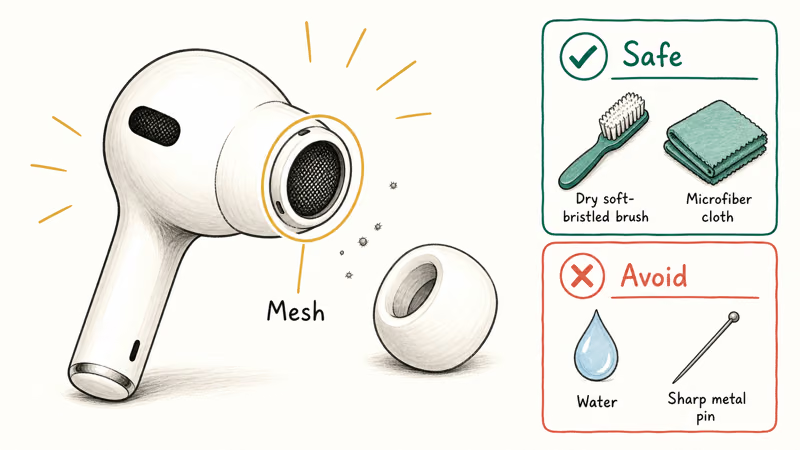
Pull off the ear tips on AirPods Pro and look at the mesh under good light. Use a dry, soft-bristled brush or a clean microfiber cloth. Don’t push fluid or sharp objects into the mesh, which can drive debris deeper or damage the driver. If the tips themselves bother you while you’re in there, our take on AirPods that hurt your ears covers tip sizing.
If both buds work but one sounds thin or distant rather than silent, that’s usually a mesh issue, and our deep-dive on AirPods sound muffled walks through a safe cleaning method.
#How Do You Test Whether It’s Hardware or Software?
Run the isolation test. It separates a failing bud from a software glitch in about a minute, and it decides every fix that follows.
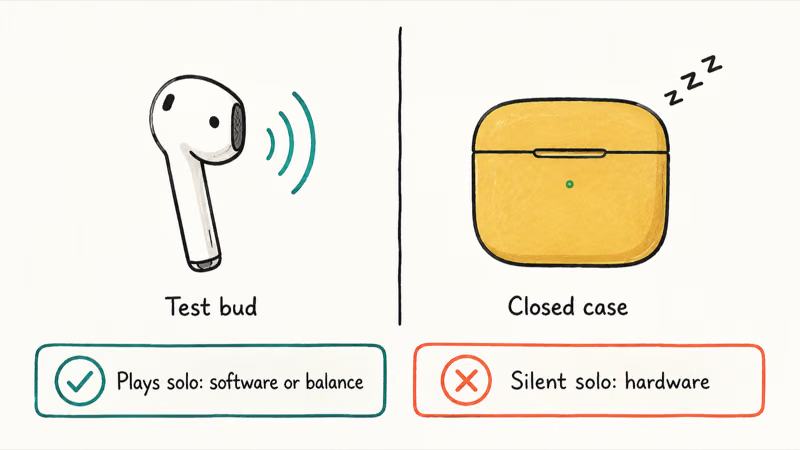
Take the suspect AirPod out, leave the other one in its closed case, and play audio. A bud that plays cleanly on its own but goes quiet in the pair points to a software or balance issue, not a dead driver. If it stays silent even solo after a charge, you’re likely looking at a hardware fault. Run this isolation check before any reset, because a reset is pointless if the driver is physically gone.
SoundGuys, in its guide to fixing one AirPod, recommends the same one-bud isolation approach to rule out a software conflict before assuming the bud is dead.
One more software check: AirPods connect to one device at a time. If sound is split or odd, make sure a nearby iPad or Mac hasn’t grabbed one channel. Our note on AirPods connected but sound coming from the phone covers that routing trap.
#Refresh Bluetooth and Hard Reset Your AirPods
If the isolation test says the bud is alive, refresh the connection. Toggle Bluetooth off and on, then forget the AirPods under Settings > Bluetooth and pair them fresh.
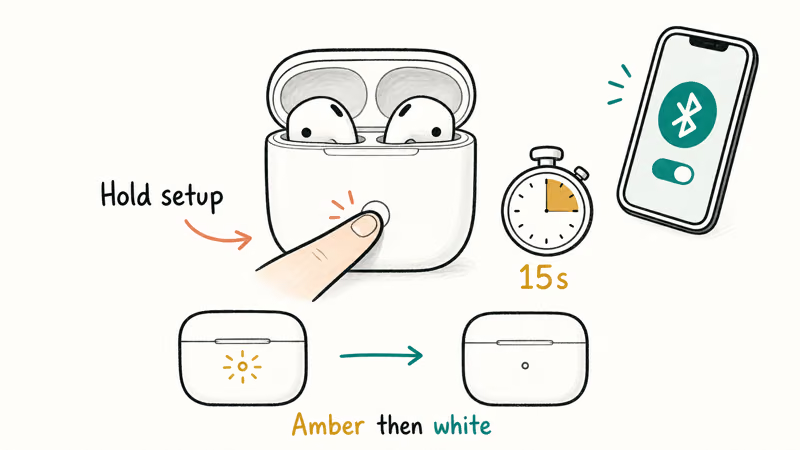
When that doesn’t stick, do a full hard reset. Put both AirPods in the case, hold the setup button on the back for a full 15 seconds until the light flashes amber, then white. The single most common mistake is letting go too early, which resets nothing.
After the reset, re-pair and test both ears. A hard reset clears most stubborn software cases, and it’s the right next step when a bud passes the isolation test but still misbehaves. Charging issues on newer models can also mimic this, so the AirPods Pro 2 not charging fixes are worth a look if one bud keeps dying.
#Bottom Line
Check the audio balance slider first, because it’s the most common cause and the easiest to miss when a brushed setting silently routes sound to one side. If balance is centered, charge both buds, clean the mesh, then run the one-bud isolation test. A hard reset fixes most stubborn software cases. If a bud stays silent after a reset and a charge, it’s a hardware fault, and a single AirPod replacement through Apple beats a new pair.
#Frequently Asked Questions
Why is one AirPod quieter than the other?
Usually the audio balance slider has drifted off center, or the quieter bud’s mesh is clogged with earwax. Center the balance, then clean the mesh.
How do I reset AirPods that only play in one ear?
Put both AirPods in the case, hold the setup button for 15 full seconds until the light flashes amber then white, and re-pair. Releasing too early resets nothing.
Can earwax really block sound from one AirPod?
Yes, and it’s more common than people expect. Earwax and lint build up in the speaker mesh over weeks of daily wear and can muffle or completely block sound on one side, especially the bud you tend to seat deeper. A dry, soft-bristled brush usually clears it without damaging the driver.
Why does this only happen when connected to my Mac?
Because the Mac keeps its own audio balance setting, separate from your iPhone. Open System Settings > Sound > Output and center the balance slider there.
Does Mono Audio cause one-ear playback?
Not exactly, but it changes how sound is split. Mono Audio sends both left and right channels to both ears, which can mask a balance problem or make troubleshooting confusing. Turn it off in Accessibility while you diagnose.
Will Apple replace a single AirPod that stopped working?
Yes. Apple sells individual left and right AirPod replacements, so you don’t have to buy a whole new pair. If your bud fails the isolation test after a charge and reset, a single replacement is the cheaper fix.

iOS 26.6.1 Security Update: What Apple Fixed and Who Gets It
Apple released iOS 26.6.1 on August 17 with 29 security fixes, including an IPSec interception bug. See what it patches, who gets it, and how to update.

iPhone Adaptive Power: How It Works and When to Use It
Learn how iPhone Adaptive Power works, which models support it, what it changes, and when Low Power Mode is still the better battery-saving choice.

How to Transfer Data to a New iPhone Without iCloud
Move everything to your new iPhone without iCloud: Quick Start device-to-device transfer, wired migration, and encrypted Finder or iTunes backups.

Group Text Not Working on iPhone? 8 Fixes That Work
Group text not working on iPhone? Turn on MMS Messaging and Group Messaging, check iMessage vs SMS routing, and fix mixed Android group chats fast.