How to Fix iPhone 12 Stuck on Recovery Mode (2026)
Fix an iPhone 12 stuck in recovery mode with an Apple force restart, recovery-mode Update or Restore, error 4013 checks, and repair options.
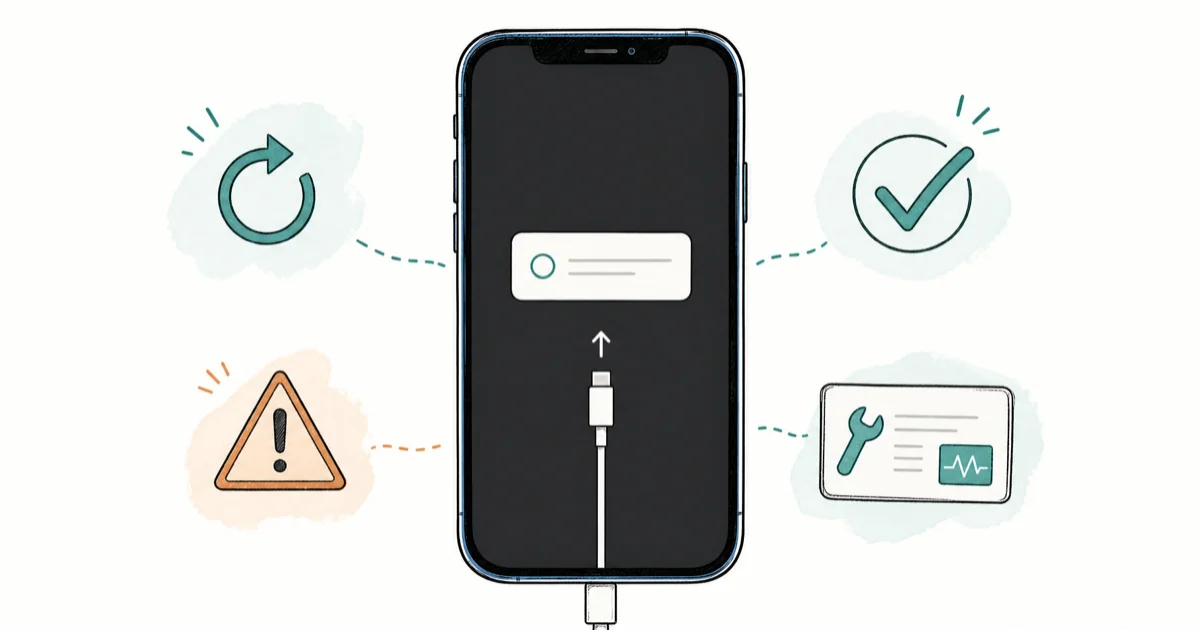
Quick AnswerPress and quickly release Volume Up, press and quickly release Volume Down, then hold the Side button until the Apple logo appears. If the recovery screen returns, connect to a computer and try Update before Restore.
Your iPhone 12 is stuck on the Connect to Computer recovery screen and taps do nothing. On a device you own, follow Apple’s sequence: force restart, try Update, use Restore only when needed, then troubleshoot a restore error or arrange service.
- Try Apple’s force-restart sequence before any erase or paid repair tool
- In recovery mode, choose Update first to reinstall software while attempting to keep personal data
- Choose Restore only after Update fails or when you accept that the iPhone will be erased
- For errors 4013 or 4014, update the computer, restart, and test another cable or computer before contacting Apple
- A red liquid-contact indicator records liquid exposure, but Apple still recommends inspection when the cause is uncertain
#What Causes an iPhone 12 to Get Stuck in Recovery Mode?
Recovery mode is the state represented by the Connect to Computer screen. It gives Finder, Apple Devices, or iTunes a path to update or restore an iPhone that did not finish starting normally.
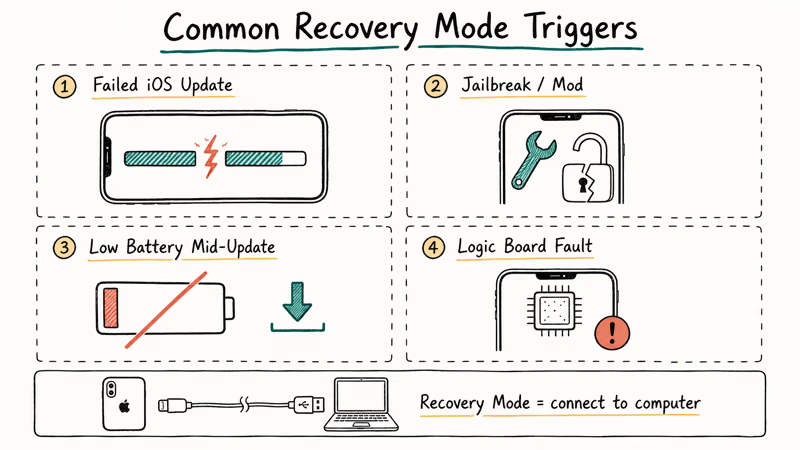
According to Apple’s current recovery-mode guide, this route is appropriate when the Apple logo remains without progress, the computer doesn’t recognize the device, the Connect to Computer screen appears, or Recovery Assistant repeatedly fails. The page doesn’t rank one universal root cause, so treat failed software work and possible hardware trouble as hypotheses until the next step succeeds or service identifies the fault.
#How Do You Force Restart an iPhone 12?
Try this first because it doesn’t erase the iPhone.
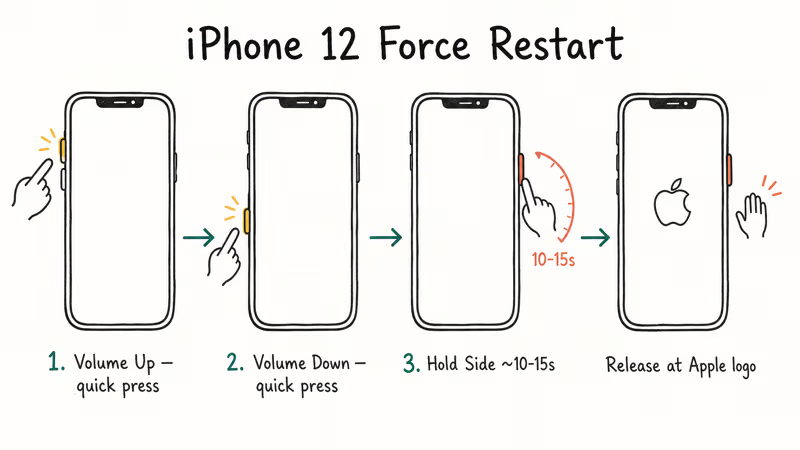
- Press and release the Volume Up button
- Press and release the Volume Down button
- Press and hold the Side button
- Release when the Apple logo appears
Apple’s error 4013 and 4014 guide gives this same button order for iPhone 8 and later. Keep holding the Side button until the Apple logo appears. If the recovery screen returns, move to the computer step instead of repeating an arbitrary number of attempts.
#Update or Restore With Finder, Apple Devices, or iTunes
When a force restart fails, connect the iPhone to a computer. Use Finder on macOS Catalina or later. On Windows, use Apple Devices; use iTunes only when the PC doesn’t have Apple Devices or the Mac runs macOS Mojave or earlier. According to Apple’s factory-restore guide, those are the current tool boundaries.
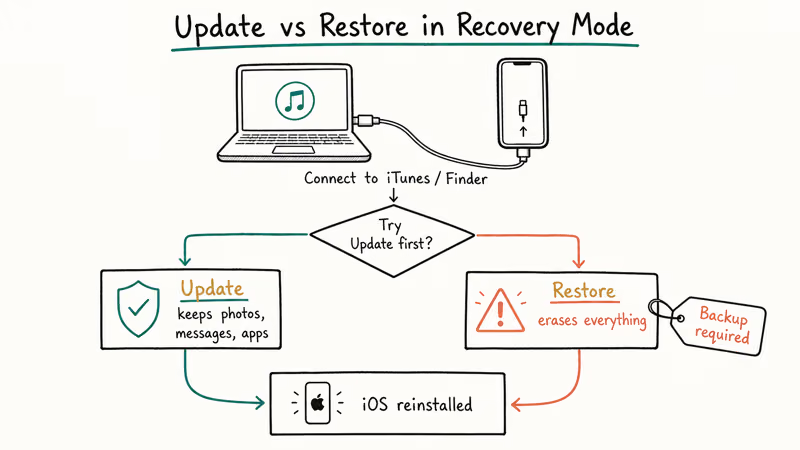
- Connect your iPhone 12 to your computer with a Lightning cable
- Open Finder, Apple Devices, or iTunes, as applicable
- Your computer should detect the iPhone in recovery mode automatically
- Click Update first to try reinstalling iOS without erasing data
- If Update fails, click Restore to perform a full iOS reinstall
Update attempts to keep your personal data. Apple says to try it before Restore when the options appear. Keep the device connected while the computer downloads and reinstalls the software.
Restore wipes everything. Only use this if Update failed or if you already have a backup you can restore later.
If your iPhone won’t restore in recovery mode, update the Mac or PC, restart the iPhone, connect it directly by USB, and try another cable or computer. Apple lists those steps for errors 9, 4005, 4013, and 4014 rather than naming one universal cause.
#Why This Guide Stops at Recovery Mode
Apple’s current self-service documents don’t tell users to jump from recovery mode to a timed DFU button sequence. In particular, Apple doesn’t present DFU as a guaranteed fix for error 4013. According to the current error-specific sequence, errors 9, 4005, 4013, or 4014 call for updating the computer software, force restarting the iPhone, reconnecting by USB, choosing Update first, and then trying another cable or computer. Contact Apple if the error continues.
#Check for Hardware Damage
Software fixes won’t help if the problem is physical.
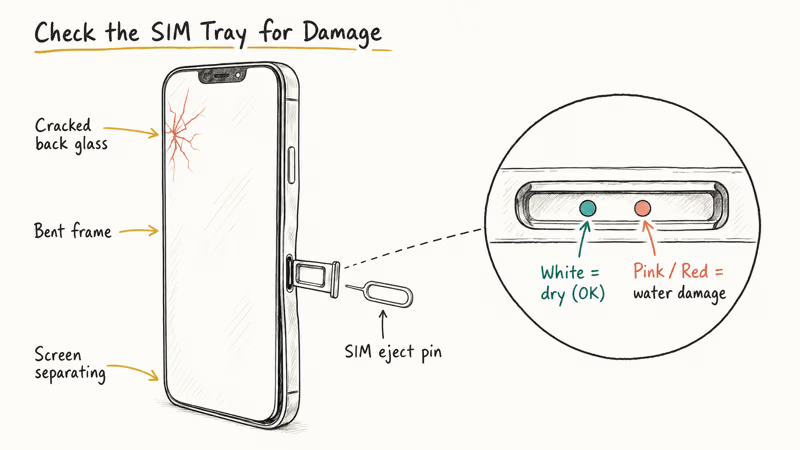
Check the liquid-contact indicator. Apple’s LCI guide shows the indicator location for each iPhone 12 model. It’s normally white or silver and turns fully red after contact with water or a water-containing liquid. A red indicator records exposure; if you are unsure whether that caused the fault, Apple recommends inspection.
Look for physical damage. If glass is cracked or the frame is bent, stop restoring. Run the won’t-turn-on checks or arrange an inspection.
Arrange Apple service. Apple’s current iPhone repair page says a technician must inspect the product before providing a personalized estimate. Apple and Apple Authorized Service Providers can have different fees, and service options depend on location, coverage, and the diagnosed issue.
#Third-Party iOS Repair Tools
Third-party vendors also market iOS repair tools, but a vendor’s data-preservation claim is not a substitute for a backup or Apple’s Update option.
Some links on this page are affiliate links, which means fone.tips may earn a commission at no extra cost to you.
If you still consider Tenorshare ReiBoot, use it only on an iPhone you own, verify current model and iOS compatibility on the vendor page, and assume that an erase can still trigger Activation Lock. Don’t pay for a repair tool before trying Apple’s force-restart and Update paths.
#Dealing With Activation Lock After Restore
Restoring the iPhone doesn’t itself transfer ownership. If Find My remains linked to an account, Apple’s Activation Lock guide explains that the linked Apple Account password or device passcode is required before the iPhone can be reactivated and used.
Contact the original owner or, if you have proof of purchase, start Apple’s Activation Lock support request. Our guide on removing Activation Lock covers the official options.
#Bottom Line
Start with Apple’s force-restart sequence. If the recovery screen returns, connect to Finder, Apple Devices, or iTunes and choose Update before Restore.
For a numbered restore error, follow Apple’s cable, computer, and software checks. If the error persists or the device shows physical or liquid exposure, arrange an inspection instead of relying on an undocumented DFU sequence.
#Frequently Asked Questions
Will force restart erase my iPhone data?
No. Apple’s force-restart sequence does not erase the iPhone’s photos, messages, or apps.
How long does an iTunes restore take for an iPhone 12?
Apple doesn’t publish one fixed restore time. The computer must download software before it can update or restore the iPhone, so the duration depends on the connection and the device. Keep the cable connected and wait for the onscreen process to finish.
Can I fix recovery mode without a computer?
Try the force restart first. If the iPhone 12 returns to the Connect to Computer screen, Apple’s documented workflow uses Finder, Apple Devices, or iTunes to Update or Restore it.
Should I use DFU mode after recovery mode fails?
Not as an assumed next step. Apple’s current consumer instructions move from recovery-mode Update to Restore, then to error-specific cable and computer checks or support. They don’t promise that DFU will fix error 4013.
Why does my iPhone keep going back into recovery mode?
The loop can return when an update doesn’t complete, the computer loses communication with the iPhone, or the device needs service. Repeat Apple’s Update or Restore path once with a direct USB connection; if a numbered error persists, use its support page or arrange an inspection instead of guessing at the failed component.
What should I do if my iPhone shows error 4013 or 4014 during restore?
Apple says these errors can appear when the device disconnects during Update or Restore, or when the computer can’t tell it to restore. Follow Apple’s 4013 and 4014 steps: update the Mac or PC software, force restart the iPhone, reconnect by USB, and choose Update first. If it continues, try another cable and another computer, then contact Apple.
Does Apple charge for fixing recovery mode issues?
Apple’s repair page doesn’t promise a universal free diagnosis or one fixed fee. Apple or the service provider inspects the iPhone and provides an estimate based on the issue, coverage, service option, and location.
Can I restore my iPhone without updating to the latest iOS version?
Not through Apple’s standard factory-restore flow. Apple’s factory restore guide says Restore installs the latest iOS and erases the device. In recovery mode, choose Update first to reinstall software while attempting to keep personal data; if Update fails, Restore is the destructive fallback.

Apple Siri Settlement: Who Qualifies and How to Claim
Apple's $250 million Siri settlement covers iPhone 15 Pro and iPhone 16 models bought June 2024 to March 2025. See who qualifies and how claims work.

iOS 26.6.1 Security Update: What Apple Fixed and Who Gets It
Apple released iOS 26.6.1 on August 17 with 29 security fixes, including an IPSec interception bug. See what it patches, who gets it, and how to update.

iPhone Adaptive Power: How It Works and When to Use It
Learn how iPhone Adaptive Power works, which models support it, what it changes, and when Low Power Mode is still the better battery-saving choice.

How to Transfer Data to a New iPhone Without iCloud
Move everything to your new iPhone without iCloud: Quick Start device-to-device transfer, wired migration, and encrypted Finder or iTunes backups.