iPhone Mirroring Not Working? A Practical 2026 Fix
iPhone Mirroring not working? Fix it by checking eligibility, Apple Account, Continuity settings, Wi-Fi, Bluetooth, and region or work restrictions.
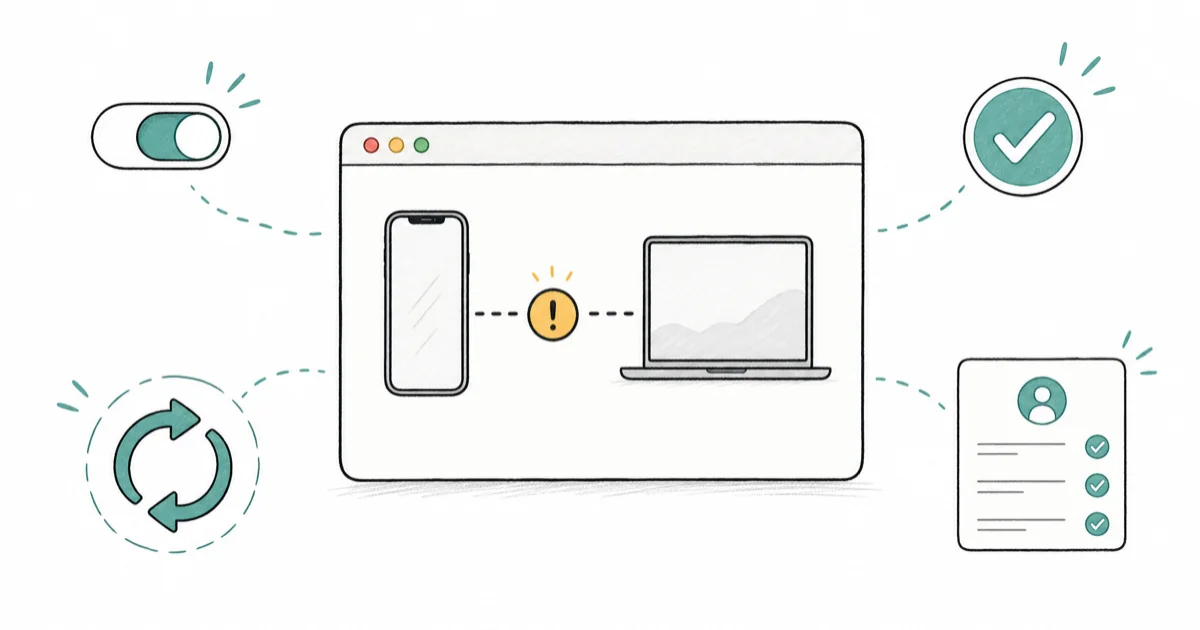
Quick AnsweriPhone Mirroring not working usually comes down to eligibility: it needs macOS Sequoia, iOS 18, the same Apple Account on both, plus Wi-Fi and Bluetooth on.
iPhone Mirroring not working is almost always an eligibility or Continuity problem, not a bug. Missing one requirement makes your Mac show no device, a pairing failure, or a grayed-out window. Confirm both devices qualify first, then check the Apple Account, the network, and any work or region blocks.
- iPhone Mirroring needs macOS Sequoia and iOS 18 on a supported Mac and iPhone, so an older OS on either side is the most common blocker.
- Both devices must use the exact same Apple Account, with two-factor authentication on, or the connection never establishes.
- Wi-Fi and Bluetooth must be on for both, and the iPhone must be locked and physically near the Mac.
- A managed work device or certain regions can block iPhone Mirroring entirely, which no setting on your end can override.
- If the account still won’t pair, sign out and back into the same Apple Account before chasing restarts.
#Why Is iPhone Mirroring Not Working?
The reasons sort into four buckets: eligibility, account, network, and policy. Work them in that order and you won’t chase settings that were never the problem.
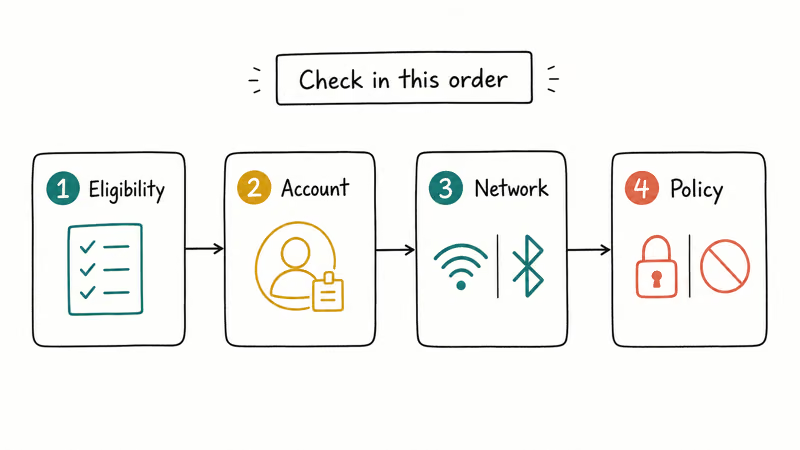
The single most common cause is an unmet requirement. One device on an older OS, a mismatched Apple Account, or Bluetooth switched off will each stop Mirroring before it starts. Policy blocks are rarer but absolute, since a work profile or unsupported region can disable the feature with no workaround.
Use this quick map to pin down the cause.
| Symptom | Likely bucket | Where to look |
|---|---|---|
| No iPhone listed at all | Eligibility or account | OS versions, Apple Account |
| ”Unavailable” or grayed out | Policy or region | Work profile, region |
| Pairing starts then fails | Network or lock state | Wi-Fi, Bluetooth, iPhone lock |
| Worked before, broke after update | Account or Continuity | Sign out, re-enable |
Common iPhone Mirroring failure signals mapped to the cause bucket to check first.
The feature refuses to connect unless both devices use the identical Apple Account, which matches Apple’s support requirement and explains why account mismatch is such a hard blocker.
#Does Your Mac and iPhone Support It?
Eligibility is the first thing to confirm, because no setting fixes an unsupported device. iPhone Mirroring has hard requirements on both ends, and one missing piece explains most failures.
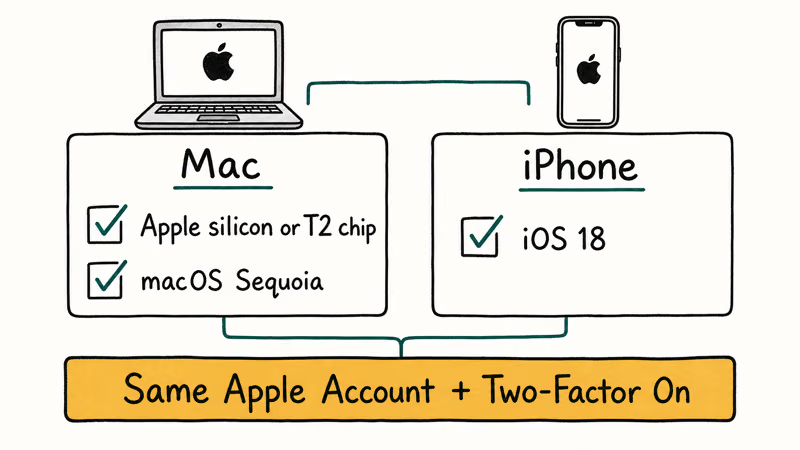
According to Apple’s iPhone Mirroring support page, the feature requires a Mac with Apple silicon or a Mac with the T2 chip, running macOS Sequoia, plus an iPhone running iOS 18, with both signed in to the same Apple Account using two-factor authentication. Miss any one and the Mac won’t see your phone.
Check your Mac under menu > About This Mac for the chip and the macOS version. Check the iPhone under Settings > General > About for the iOS version. If either is below the line, update it first, since that alone resolves a large share of cases.
Hardware matters too. An Intel Mac without a T2 chip can’t run iPhone Mirroring at all, so confirm the chip before troubleshooting anything else.
If you’re trying to control your iPhone for a different reason, like answering calls on your desktop, the How To Use Phone App On Mac guide covers that separate Continuity feature. And if you’re new to the feature, the How To Use iPhone Mirroring on Mac walkthrough sets it up from scratch.
#Fix Apple Account and Continuity Settings
When both devices qualify but Mirroring still won’t connect, the Apple Account or a Continuity toggle is usually the holdout. These are the fastest fixes, and they don’t touch your data.
Start with the account match. Confirm both devices show the same Apple Account: on the Mac, open System Settings and check the account at the top, and on the iPhone, open Settings and check the name banner. Even a slightly different account, like an old iCloud address you forgot you were signed into, quietly breaks the pairing before it ever begins.
If the account looks right but pairing stays stuck, sign out of the Apple Account on both devices and sign back in. That refreshes the identity token without touching your local data.
Next, confirm Handoff is on, since iPhone Mirroring rides on the same Continuity stack. On the Mac, go to System Settings > General > AirDrop & Handoff and enable Allow Handoff. On the iPhone, the matching toggle lives under Settings > General > AirPlay & Continuity.
The shared Continuity requirements are strict. Apple’s documentation states that Continuity needs Wi-Fi, Bluetooth, and 1 shared Apple Account, kept within about 30 feet. iPhone Mirroring inherits every one of those conditions.
Apple’s two-factor authentication support page confirms that this security layer must be enabled on the Apple Account you use, which iPhone Mirroring requires on both devices. If two-factor is off, turn it on before retrying.
A related Continuity feature failing too points to a shared root cause. The Universal Control Not Working guide covers that overlapping failure mode in detail, and the fixes there often resolve iPhone Mirroring at the same time since both ride the same underlying Continuity plumbing.
#Fix Wi-Fi, Bluetooth, and Lock-State Problems
Account fine? Look at the radios and the lock state next.
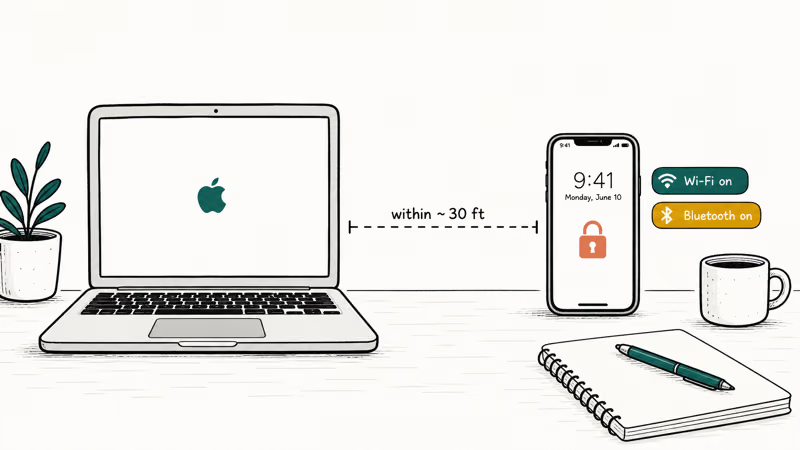
If the account checks out, the next layer is the network and the iPhone’s physical state. iPhone Mirroring needs both a working short-range link and a specific lock condition, and either one being wrong is enough to stop the connection cold before the Mac ever lists your phone.
Turn on Wi-Fi and Bluetooth for both devices, even if you don’t actively use Wi-Fi for internet. The connection rides on both radios. Toggling Bluetooth off and on once often re-establishes a stalled pairing.
The lock state catches almost everyone. Your iPhone must be locked and sitting nearby for Mirroring to start, because the feature deliberately refuses to take over a phone you’re actively holding, so if you’re unlocking and using it, the Mac will keep listing it as unavailable until you set it down and let it lock.
Keep the iPhone close. Continuity expects the devices within roughly 30 feet, and walls or a different room can weaken the Bluetooth handshake enough to fail. Bring them onto the same desk and retry.
This won’t help if the iPhone is in Low Power Mode at a very low battery, which can suppress background Continuity. Charge it past the warning threshold and try again.
#When Work or Region Restrictions Block It
Everything checks out but it still says “Unavailable”? That’s a policy block.
When account, network, and eligibility all pass but Mirroring still shows “Unavailable,” you’ve hit the one category settings can’t fix. Two causes dominate: managed work devices and unsupported regions.
A work or school device under Mobile Device Management can have Continuity disabled by the administrator. If your Mac or iPhone was issued by an employer, the feature may simply be off by policy, your only path is asking IT, and no toggle on your side overrides an MDM restriction no matter how many times you flip it.
Region is the second block. iPhone Mirroring rolled out unevenly, and some regions, including parts of the EU at launch, didn’t get it on day one, so the feature can stay absent until Apple enables it locally for your area, with no setting on your side able to force it on early.
Neither block has a workaround. If you need remote access anyway, the Control iPhone From PC guide covers the options, and AirPlay Without Wi-Fi handles media mirroring.
#Restarting the Continuity Connection Cleanly
When everything qualifies but the link still feels wedged, a clean restart of the Continuity stack often clears it. Run this after the account and network checks, never before, since restarting a setup that was misconfigured to begin with just wastes a few minutes and lands you back at the same unavailable screen.
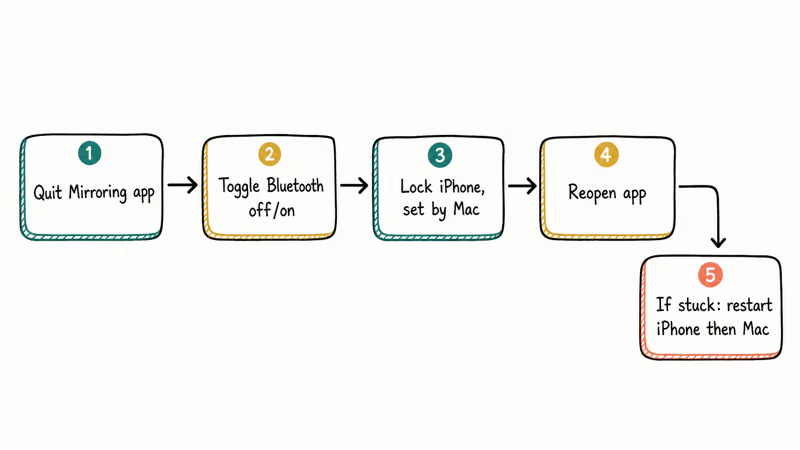
Quit the iPhone Mirroring app on the Mac fully. Toggle Bluetooth off and on for both, lock the iPhone, set it beside the Mac, and reopen the app for a fresh handshake.
If that doesn’t take, restart both devices in order: the iPhone first, then the Mac. A clean reboot clears a stuck Continuity daemon that no toggle reaches. Give the Mac a minute after login before you reopen Mirroring, since the background services need time to register the nearby iPhone.
#Bottom Line
Confirm eligibility first: macOS Sequoia, iOS 18, supported hardware, and one shared Apple Account with two-factor on. That single chain resolves most cases. If those pass, sign out and back into the Apple Account, then verify Wi-Fi, Bluetooth, and that the iPhone is locked and nearby.
If the feature still reads “Unavailable” after all of that, suspect a work-device policy or an unsupported region, neither of which you can fix yourself. Don’t waste time on resets before you’ve ruled out the account match.
#Frequently Asked Questions
iPhone Mirroring not working, what is the first thing to check?
Confirm both devices run the required OS and share one Apple Account. The Mac needs macOS Sequoia and the iPhone needs iOS 18, both signed in to the identical account with two-factor on, since a mismatch on any of those is by far the most common reason the Mac never lists your phone in the first place.
Why did iPhone Mirroring stop working after an update?
An update can quietly sign you into a different Apple Account or reset a Continuity toggle behind the scenes. Signing out and back into the same account on both devices usually fixes it within two minutes, and re-enabling Handoff afterward covers the toggle case if the sign-out alone didn’t do it.
Does fixing iPhone Mirroring require a reset?
Almost never. Re-signing into the Apple Account, enabling Handoff, and toggling Bluetooth resolve the large majority of cases without erasing any data.
What official support page should I check first?
Apple’s iPhone Mirroring support page lists the exact hardware and OS requirements. The Continuity requirements page explains the shared Wi-Fi, Bluetooth, and Apple Account conditions, and reading both together makes it obvious why the feature is so dependent on a matched setup across the two devices.
What should I avoid doing when Mirroring won’t connect?
Don’t jump to a factory reset, which won’t fix an eligibility or policy block and risks your data. Avoid unlocking and using the iPhone while you try to mirror, since it must stay locked. And don’t assume a setting will override a work-device MDM restriction, because it can’t.
When should I contact Apple or my IT department?
Contact your IT department if your device is work-managed and Mirroring reads “Unavailable.” Contact Apple if both devices qualify, share an account, and still fail after re-signing in.
Can I use iPhone Mirroring while the phone is in use?
No. The iPhone has to be locked and idle for Mirroring to start, because the feature won’t take over a phone you’re actively holding and using. Set it down, lock it, and keep it near the Mac, and the connection should pick up on its own within a few seconds.

iOS 26.6.1 Security Update: What Apple Fixed and Who Gets It
Apple released iOS 26.6.1 on August 17 with 29 security fixes, including an IPSec interception bug. See what it patches, who gets it, and how to update.

iPhone Adaptive Power: How It Works and When to Use It
Learn how iPhone Adaptive Power works, which models support it, what it changes, and when Low Power Mode is still the better battery-saving choice.
How to Transfer Data to a New iPhone Without iCloud
Move everything to your new iPhone without iCloud: Quick Start device-to-device transfer, wired migration, and encrypted Finder or iTunes backups.

Group Text Not Working on iPhone? 8 Fixes That Work
Group text not working on iPhone? Turn on MMS Messaging and Group Messaging, check iMessage vs SMS routing, and fix mixed Android group chats fast.