How to Find, Delete, and Manage Instagram Drafts (2026)
Find and delete Instagram drafts for posts, Reels, and Stories in 2026. Includes fixes for disappeared drafts and when to schedule them instead.
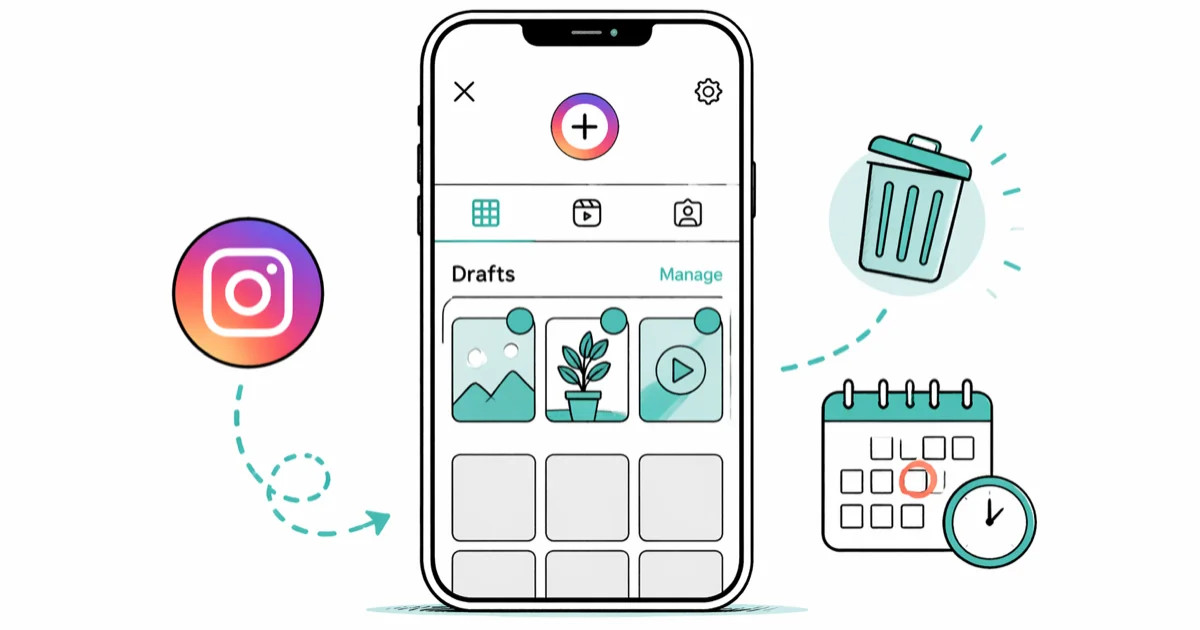
Quick AnswerTo find Instagram drafts, tap the + icon, then look for the Drafts row below your photo library. To delete them, tap Manage next to Drafts, hit Edit, pick the ones you want gone, and tap Discard. Story drafts auto-expire after 7 days, but post and Reel drafts stay until you delete them or uninstall the app.
Instagram drafts let you save unfinished posts, Reels, and Stories so you can publish them later. Where the app stashes each type isn’t always obvious, and the delete flow buries a few extra taps that most people miss.
Drafts behave almost identically on current iPhone and Android builds of Instagram. This guide covers finding, saving, and deleting them, and flags the few spots where the two platforms diverge so you can save and clear post, Reel, and Story drafts without losing the work you meant to keep.
- Post and Reel drafts live behind the + icon: tap +, choose Post or Reel, then scroll to the Drafts row below your photo library.
- Story drafts auto-expire after 7 days with no extension option, which is the single biggest reason drafts seem to “disappear.”
- Delete post drafts by tapping Manage next to Drafts, then Edit, selecting the ones you want, and confirming Discard. There is no recovery flow.
- Reel drafts also surface on your profile’s Reels tab, giving you a second access path that skips the create flow entirely.
- Instagram only offers a Save Draft prompt after you make at least one edit (filter, caption, tag, or location) before tapping back.
#How Do You Find Drafts on Instagram?
The location depends on what type of content you saved. Instagram doesn’t keep one central Drafts folder, so you’ll need to look in different spots for posts, Reels, and Stories.
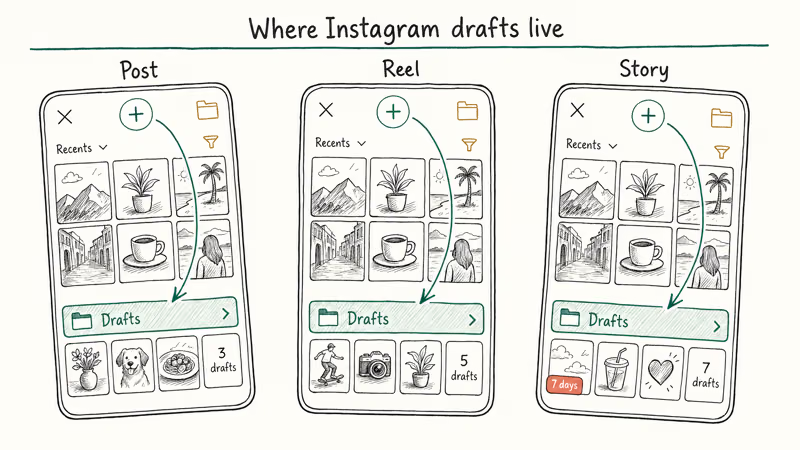
Finding post drafts:
Open Instagram and tap the + icon (bottom center on iPhone, top right on Android). Select Post, then look below your photo library for a Drafts row. Your saved posts appear there as thumbnails. Tap any draft to keep editing.
On Android, the Drafts row only appears once you’ve saved at least one draft. With no prior drafts, the section won’t show up at all.
Finding Reel drafts:
Tap the + icon and select Reel. Your saved Reel drafts show up in the Drafts section, just like posts.
According to Instagram’s Reel drafts help page, there’s a second way in: go to your profile and tap the Reels tab, where Reel drafts sit alongside your published clips. This shortcut works the same on both Android and iPhone.
Finding Story drafts:
Tap +, select Story, then swipe up or tap the gallery icon. Drafts appear at the top.
Here’s the catch: Story drafts expire after 7 days, and you’ll see a countdown timer on each thumbnail. Post and Reel drafts have no expiration, so those stay safe indefinitely. That 7-day limit is one of the most common reasons people think their drafts vanished.
Looking for saved Reels you bookmarked (not drafted)? That’s a separate feature. Check our guide on how to find saved Reels on Instagram.
#Saving a Post, Reel, or Story as a Draft
Before you can find or delete drafts, you need to know how saving works. Instagram only offers the Save Draft option after you make at least one edit.
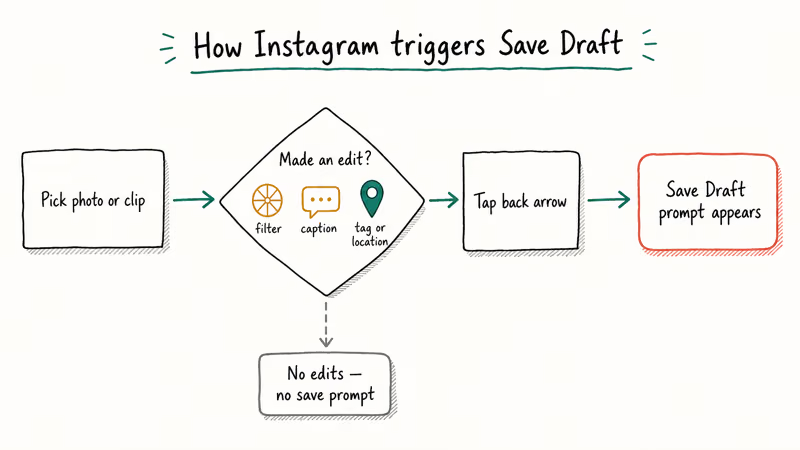
For posts, start creating one and apply a filter, type a caption, tag a person, or drop a location. Then tap the back arrow. Instagram asks if you want to save your draft or discard it. Skip every edit and back out, and the save option won’t even appear.
Reels work the same way. Record or upload your clip, make at least one edit, and tap back to get the draft prompt.
Stories work slightly differently. After capturing or selecting Story content, tap the X to close. Instagram offers Save Draft automatically. Story drafts save with a 7-day timer that you can’t extend.
On iPhone, the Save Draft prompt usually appears almost instantly once you add a single filter. On Android, the same prompt sometimes lags a beat or two after the back tap, so wait for it before assuming the draft didn’t save.
#How to Delete Instagram Drafts
Removing old drafts is straightforward, but the process differs slightly for each content type.
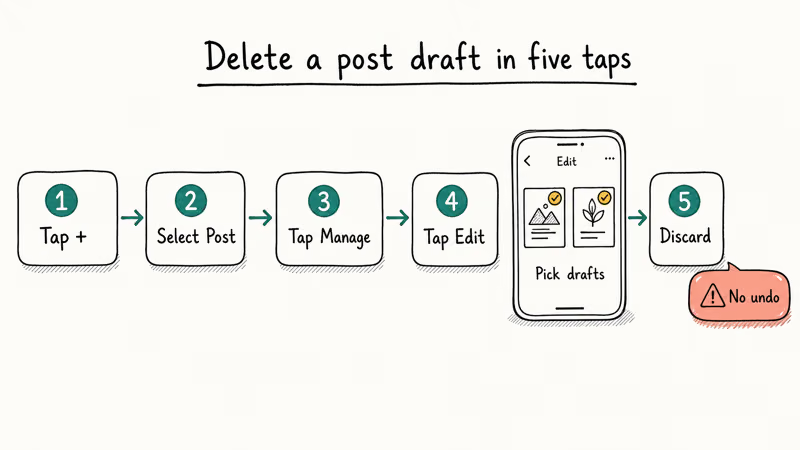
Deleting post drafts:
Tap the + icon and select Post. Next to the Drafts label, tap Manage, then tap Edit in the top right. Select the drafts you want to remove (blue checkmarks appear), tap Discard, and confirm.
According to Instagram’s help page on managing drafts, discarded drafts can’t be recovered. There’s no trash folder and no undo button.
Deleting Reel drafts:
Tap +, select Reel, open your drafts, then tap Select in the top right. Choose the ones to remove, tap Discard, and confirm. The flow is identical to posts.
Deleting Story drafts:
Swipe up in the Story camera, tap Select, pick the drafts you want gone, and hit Delete at the bottom of the screen. You can also just let them expire since Story drafts auto-delete after 7 days anyway.
Bulk deletes can take a few seconds. Don’t tap the back arrow until the row count updates, or one or two drafts may stay behind.
#What to Do When Instagram Drafts Disappear
This is one of the most common Instagram draft complaints. You save a draft, come back a few days later, and it’s gone. A system update on Android can wipe in-progress Reel drafts, since drafts are stored locally rather than synced to the cloud.
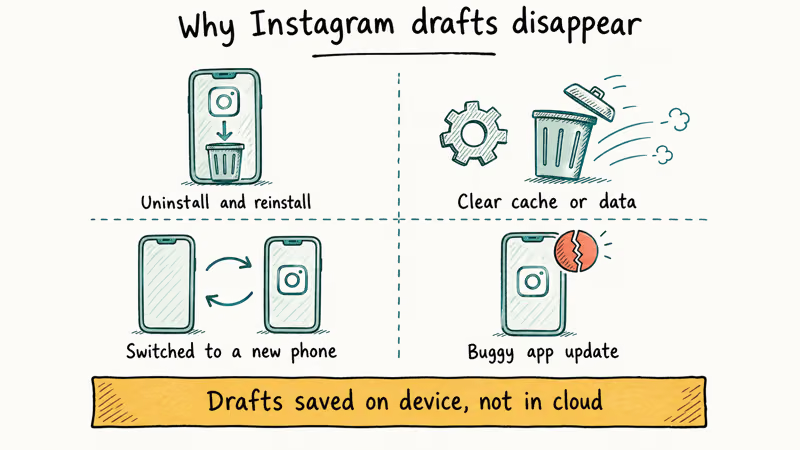
Why drafts vanish:
Instagram stores drafts locally on your device. They don’t sync to the cloud or to Instagram’s servers. That means any of these actions can wipe your drafts:
- Uninstalling and reinstalling the app
- Clearing the app’s cache or data
- Switching to a new phone
- A buggy app update
Instagram’s official documentation on saving drafts confirms that the save-as-draft option only works after you’ve made at least one edit to the post. If you select a photo and immediately back out without adding a filter, caption, tag, or location, Instagram skips the save prompt entirely.
Wikipedia’s overview of Instagram confirms that Stories content “expires after 24 hours,” which is the same local-only model that drafts inherit. That helps explain why no cloud recovery flow exists at the platform level for either Story drafts or unfinished posts.
Steps to try if your drafts are missing:
First, make sure you’re logged into the right account since drafts are tied to the account that created them. Restart the app by force closing Instagram, then reopen it. Check for app updates too, because an outdated version sometimes hides drafts.
Don’t clear your cache as a troubleshooting step. That actually deletes stored drafts and makes the problem worse.
If your Instagram keeps stopping or crashing frequently, that can also corrupt draft data. Fix the crashing issue first, then check your drafts. There’s no official recovery method for drafts that are already gone, so you’d need to recreate that content from scratch.
#Drafts vs. Scheduling: Which Should You Use?
Instagram now lets you schedule posts and Reels up to 75 days in advance, directly from the app. This is worth weighing if you’re using drafts mainly for content planning.
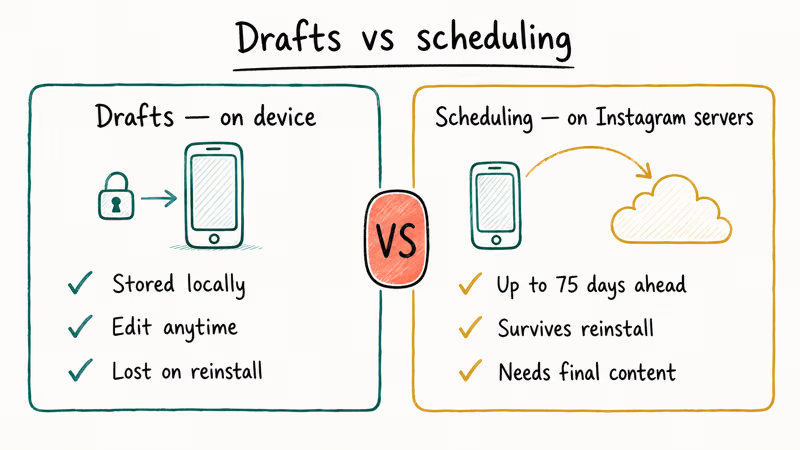
When drafts make more sense:
- You’re still working on the caption or edits
- You want to save multiple photo options before committing
- You aren’t sure when you’ll post
When scheduling wins:
- Your content is ready and you know exactly when to publish
- You don’t want to risk losing drafts to a local-storage glitch
- You manage a business account and need consistent posting times
According to Instagram’s scheduling guide, scheduled posts are stored on Instagram’s servers, not your device. They survive app reinstalls and device switches, unlike drafts.
Wikipedia’s article on Instagram Reels notes that Reels were extended to up to three minutes by January 2025, which means longer Reel projects benefit even more from scheduling rather than living in a local draft that could vanish with a reinstall.
If you run into issues while posting, our guide on fixing an Instagram post stuck on sending covers the most common solutions.
#Troubleshooting Common Draft Problems
Draft shows a black screen or looks blurry:
This usually happens after an app update. Force close Instagram, reopen it, and try opening the draft again. A black or blurry preview right after an OS update often clears with a full phone restart.
If the preview is still broken after restarting, the media file itself is likely corrupted. You’ll need to recreate that draft from scratch.
Can’t save a draft at all:
You need to make at least one edit. Add a filter, type a caption, tag a location, or tag a friend. Just selecting a photo and backing out won’t trigger the save prompt.
Drafts not appearing for Stories:
Story drafts expire after 7 days. If more than a week passed, the draft auto-deleted. There’s no way to extend this timer.
Instagram not loading properly:
If the whole app feels buggy, your drafts issue might be a symptom of a bigger problem. Related troubleshooting guides:
- Instagram Stories not working for general Story playback and creation fixes
- Instagram Reels not working for Reel-specific upload and playback issues
- Upload failed on Instagram Story for upload-specific error troubleshooting
#Bottom Line
Start with the + icon to find drafts grouped by content type under Post, Reel, or Story. To delete, use Manage then Discard.
Post and Reel drafts stick around until you remove them, but Story drafts auto-delete after 7 days. If you need something more reliable than local drafts, lean on Instagram’s built-in scheduling feature and treat drafts as scratch space rather than long-term storage.
For creators who post multiple times a week, schedule the finished pieces and reserve drafts for unfinished concepts you’re still iterating on.
Instagram Tips & Tricks
#Frequently Asked Questions
Can you access Instagram drafts on a computer?
No, drafts are mobile-app only. Use Meta Business Suite to plan from desktop.
How many drafts can you save on Instagram?
There’s no official cap. You can save well over 20 post drafts without hitting a limit, and your phone’s free storage is the only real constraint.
Why did my Instagram drafts disappear?
Drafts are stored locally on your phone, not on Instagram’s servers. Uninstalling the app, clearing the cache, switching devices, or a buggy update can all wipe them. Story drafts auto-expire after 7 days. No recovery option exists once they’re gone.
Can you share Instagram drafts with another account?
No, drafts can’t move between accounts.
Do Instagram drafts use phone storage?
Yes, they take up space on your device. Video Reels use the most; photos use much less. If you’re running low on space and your Instagram notifications aren’t working, clearing old drafts may help.
What happens if you update Instagram with unsaved drafts?
Normal app updates won’t touch your drafts. Routine version updates leave local drafts in place. The risk is clearing app data or doing a full reinstall, which both wipe local drafts.
Can you recover a deleted Instagram draft?
No, once you discard one or it auto-expires, it’s permanently gone, and Instagram doesn’t keep draft backups. Save your caption text in a notes app before discarding to keep at least the words. If you’ve lost a published post (not a draft), check our guide on how to see deleted Instagram posts.
Is there a way to back up Instagram drafts?
Instagram doesn’t offer draft backups. The data download tool (Settings > Your Activity > Download Your Information) includes published posts but not drafts. Your best bet: save caption text in a notes app and keep original photos in your camera roll before you trust Instagram’s local storage with anything important. If your videos aren’t loading right, see our guide on fixing Instagram videos not playing.
Instagram Parental Controls: Family Center Setup (2026)
Set up Instagram Family Center, privacy settings, Hidden Words, content filters, and time limits with your teen's consent on iPhone or Android.
Instagram Notifications Not Working? Quick Fixes (2026)
Instagram notifications not working? Fix push alerts, DMs, likes, and Stories on iPhone and Android in under 5 minutes with proven 2026 steps.
Instagram "We Limit How Often" Error: How to Fix It 2026
Instagram says "we limit how often you can do certain things"? Wait 24-48 hours, slow down likes and follows, then appeal through Help Center.

Instagram Name Checker: Find Available Usernames Fast
Check Instagram username availability instantly with free tools like Namechk and KnowEm. Find perfect handles and avoid the frustration of taken names.