Phone Won't Connect to Wi-Fi? 10 Proven Fixes (2026)
Fix an Android phone that won't connect to Wi-Fi with 10 proven methods. Covers network resets, router reboots, DNS swaps, and a final factory reset.
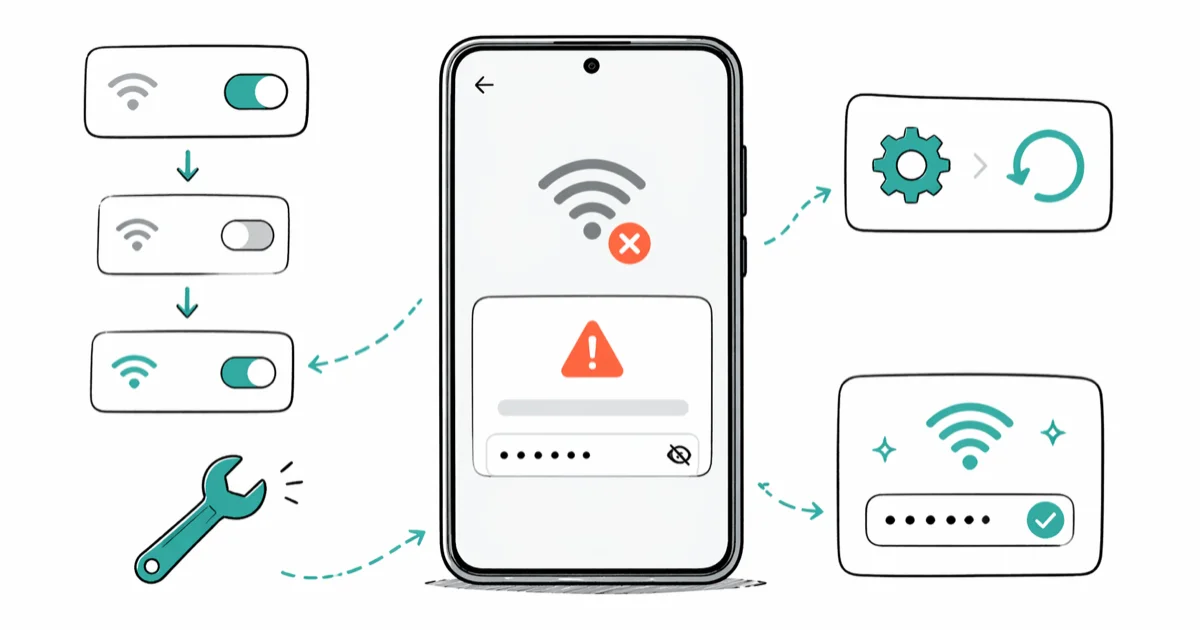
Quick AnswerToggle Wi-Fi off, wait 30 seconds, then turn it back on. If the network still refuses, tap the network and select Forget, re-enter the password, and reconnect. As a last step, reset network settings under Settings > System > Reset options.
This guide assumes the phone and Wi-Fi network are yours, since changing router admin settings or resetting another person’s device may breach carrier or network terms. Your Android phone sees the Wi-Fi network but won’t connect, or it joins for a few seconds and drops back to mobile data. The fixes below work on Android phones like the Samsung Galaxy S23 and Pixel 7a, and at least one of them clears the issue in nearly every case.
- Toggling Wi-Fi off for 30 seconds forces the phone to negotiate a fresh handshake with the router
- Forgetting the saved network and re-entering the password clears most stuck connections caused by a stale profile
- Resetting network settings wipes saved Wi-Fi passwords, VPNs, and Bluetooth pairings in one tap
- A router power cycle is the right move when other devices on the same network also refuse to connect
- Switching DNS to 8.8.8.8 or 1.1.1.1 rescues the “Connected, no internet” state without a full reset
#Common Causes of Wi-Fi Connection Failures
Connection failures almost always trace back to one of four root causes: a corrupted saved network profile on the phone, a router-side glitch, a wrong or rotated password, or a software bug introduced by a recent system update.
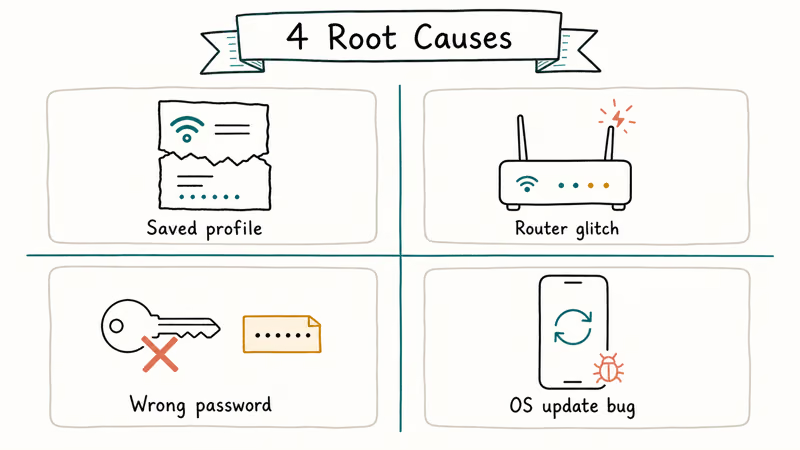
Saved credentials drift out of sync after a router firmware update or a security-type change (WPA2 to WPA3, for example). The phone keeps trying to log in with stale handshake data and silently fails. According to Google’s Android support team, the first 3 stale-state fixes worth trying — in order — are forgetting the saved network, rebooting the router, and resetting network settings; their full Wi-Fi troubleshooting checklist walks through each in detail.
Bluetooth interference is the second-biggest hidden cause. Wi-Fi 2.4 GHz and Bluetooth share the same radio band, and on older phones with single-antenna chipsets the two protocols collide hard enough to drop packets.
Knowing which bucket your problem lives in saves time. If only your phone’s affected, the fix is on the phone. If every device on the network is affected, the router’s the suspect.
#Toggle Wi-Fi Off and Back On
The simplest fix is also the one that works most often, and it takes under a minute.
Open Settings > Network & internet > Internet (Samsung calls this Settings > Connections), tap the Wi-Fi switch off, count to 30, and tap it back on. The phone will rescan and re-authenticate from a clean state. This often clears a stuck “Saved” status that refuses to upgrade to “Connected” on its own.
If the toggle clears the lock screen but the phone now reads “Connected, no internet,” skip ahead to the DNS section. That message means the radio link is fine but name resolution is broken.
#Forget the Network and Reconnect
When toggling fails, the next likeliest culprit is a corrupted saved profile. Forgetting the network throws away the cached password, security cipher, and DHCP lease, then forces a brand-new handshake the next time you connect.
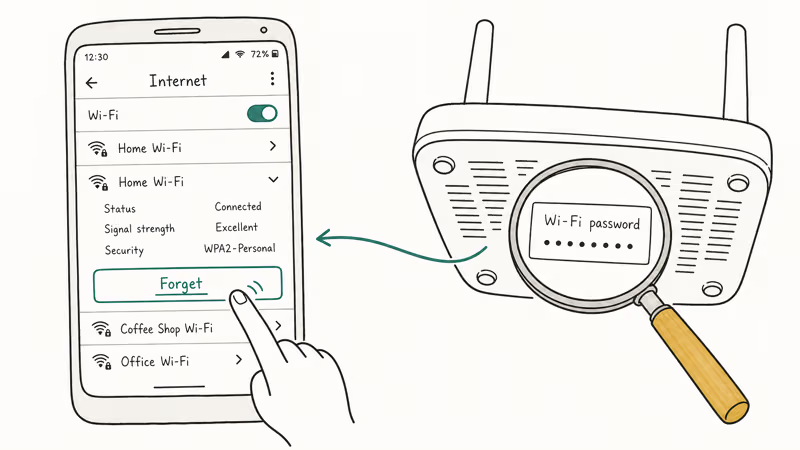
Go to Settings > Network & internet > Internet, tap the gear icon next to your network, and tap Forget. Reselect the network from the list, type the password, and connect. The password lives on the sticker on the back or bottom of the router, and it’s case-sensitive, so a lowercase o instead of a zero will look identical and silently fail.
If you are seeing the same problem on an iPad in the same house, our walkthrough on fixing an iPad that won’t connect to Wi-Fi covers the iPadOS-specific menus.
#How Do You Fix Wi-Fi Authentication Errors?
An authentication error means the phone reached the router but the credential exchange was rejected. Three causes account for almost every case: a wrong password, a router that switched security types without re-broadcasting, and a MAC-address allowlist that hasn’t seen this device before.
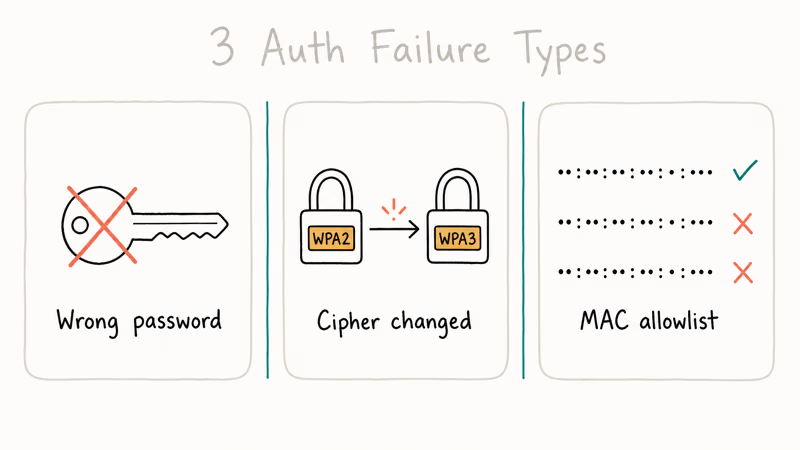
Start by confirming the password against the router’s admin page (usually 192.168.1.1 or 192.168.0.1). Then check whether the router was recently flipped from WPA2 to WPA3, since older Android builds sometimes refuse the new cipher. Last, look for MAC-filter rules in the router’s wireless security panel.
Find the phone’s MAC address under Settings > About phone > Status > Wi-Fi MAC address. According to Android’s MAC randomization documentation, Android 10 and newer rotate a fresh per-network MAC by default for every saved SSID, which trips MAC allowlists that were configured before the upgrade. Tap the gear icon next to the network and switch Privacy from “Use randomized MAC” to Use device MAC.
#Restart the Phone, Then the Router
A restart is boring advice for a reason: it works. The reboot purges cached network state, releases the DHCP lease, and forces a fresh ARP table on both ends.
Hold the power button (or press power and volume up on Samsung) and tap Restart. Then unplug the router, wait a full 30 seconds for capacitors to drain, and plug it back in. Give the router 2 to 3 minutes to bring its radios up before you try to join. A phone will usually auto-rejoin moments after the router’s lights go solid.
A two-minute hard cycle. That is the entire fix for maybe a third of “won’t connect” reports.
#Turn Off Bluetooth (Or Move to 5 GHz)
Bluetooth and 2.4 GHz Wi-Fi both live in the 2.400-2.4835 GHz band, and on older phones they can’t fully coexist. Pull down the notification shade and tap the Bluetooth tile to disable it, then attempt the Wi-Fi connection.
If Wi-Fi instantly works once Bluetooth is off, you have an interference problem rather than a credential problem. The clean long-term fix is to join the router’s 5 GHz SSID instead, since 5 GHz lives nowhere near Bluetooth’s spectrum and stays clean. If your headphones, watch, and car are all paired and you are also seeing Bluetooth not working on Android symptoms, the radio coexistence issue is probably the same root cause.
#Reset Network Settings
Reset network settings is the nuclear option that stops short of a factory reset. It wipes every saved Wi-Fi network, every Bluetooth pairing, every VPN profile, and every mobile data preference. Apps, photos, contacts, and messages stay intact.
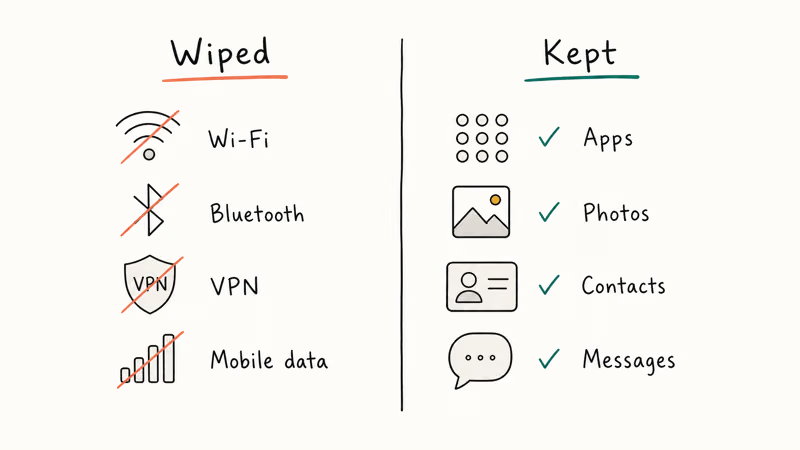
The trade-off is small relative to the upside.
Go to Settings > System > Reset options and tap Reset Wi-Fi, mobile & Bluetooth. Confirm. After the reset you’ll need to rejoin every Wi-Fi network you care about and re-pair every Bluetooth accessory. Plan for about 5 minutes of housekeeping, especially if you have a lot of paired devices.
On Samsung the path is Settings > General management > Reset > Reset network settings. This is the fix when a One UI security patch breaks a connection to a WPA3 router, since it clears the stale handshake data the patch left behind.
Samsung’s own Wi-Fi troubleshooting guide recommends this same reset for stubborn connection problems.
#How Do You Fix “Connected, No Internet” on Android?
The phone shows a Wi-Fi icon and the network name, but pages refuse to load and apps spin forever. Almost always, the radio link is fine and DNS resolution is the broken part.
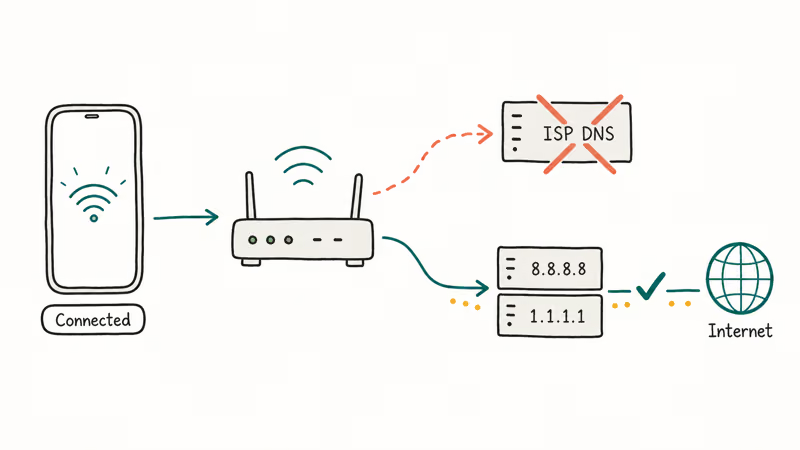
Long-press the connected network under Settings > Network & internet > Internet, tap Modify network, expand Advanced options, change IP settings from DHCP to Static, and set DNS 1 to 8.8.8.8 and DNS 2 to 8.8.4.4. Save and reconnect.
Cloudflare’s 1.1.1.1 and 1.0.0.1 work just as well. Both bypass your ISP’s resolvers, which sometimes have minute-long outages that look like a Wi-Fi failure even though the link itself is healthy. For the broader symptom set where browsers throw a specific error code, our guide to DNS_PROBE_FINISHED_NO_INTERNET walks through Chrome- and Windows-side fixes too.
#Toggle Airplane Mode
Airplane mode kills every wireless radio at once, then brings them back together when you switch it back off. It’s a faster radio reset than a full phone reboot, and it costs you about 15 seconds.
Pull down the notification shade and look for the airplane icon. If it’s already lit, tap it to turn it off, wait a few seconds, and try Wi-Fi again. If it’s off, tap it on, count to 10, and tap it off again. The forced restart of all radios can clear a stuck connection state that no amount of Wi-Fi toggling will budge.
Across many different Wi-Fi failure scenarios, the airplane-mode toggle clears some of them on its own and shaves time off the rest by skipping the full reboot. This trick is also worth trying when cellular data isn’t working on the same phone, since both share the modem subsystem.
#Switch Channels or Move to 5 GHz
In dense apartment buildings, your router’s 2.4 GHz channel might overlap with 20 or more neighboring networks. The result is constant retransmits, slow speeds, and connections that drop after a few seconds.
Log into the router’s admin page (usually 192.168.1.1) and find the wireless channel setting. On 2.4 GHz, only channels 1, 6, and 11 are non-overlapping, so pick whichever one is least crowded.
Android’s Wi-Fi scan guidelines confirm that 5 GHz delivers less interference and faster throughput at the cost of shorter range. If both your phone and router support 5 GHz, joining that SSID directly is the cleaner fix. If your current router struggles in a larger home, our roundup of the best routers under $50 covers budget upgrades that handle dual-band well.
#Factory Reset (Last Resort)
If nothing above works, a factory reset eliminates any software bug behind the Wi-Fi failure. Back up your photos, messages, and authenticator codes first, because this wipes everything on the phone.
Go to Settings > System > Reset options and tap Erase all data (factory reset). Confirm the prompts, let the phone reboot, then join Wi-Fi on the fresh setup before restoring anything.
If Wi-Fi holds on the bare setup but breaks the moment you restore, a third-party app is the cause. Reinstall apps in small batches to find which one. For specific model recovery menu steps, our Android factory reset code reference covers Samsung, Pixel, OnePlus, and Xiaomi shortcuts.
In the common version of this pattern, Wi-Fi works instantly on the fresh setup and the problem only returns once an older VPN client is restored, which points to a third-party app holding stale network state.
#Bottom Line
Start at the top of this list. Toggle Wi-Fi, forget the network, then restart the phone and router; those 3 steps alone clear the problem for most people in under 5 minutes on Android. If the radio connects but pages refuse to load, change the DNS to 8.8.8.8 before going any deeper. Hold the factory reset for true last-resort situations, and only after you’ve backed up your data.
#Frequently Asked Questions
Why does my phone keep disconnecting from Wi-Fi?
Frequent drops usually point to weak signal, router-side instability, or the “Keep Wi-Fi on during sleep” setting being off. Open Settings > Network & internet > Internet > Network preferences and set Turn on Wi-Fi automatically to on. If you are seeing signal strength below -70 dBm, you are too far from the router; move closer or add a mesh node.
Can a phone case block Wi-Fi signal?
Yes. Metal-backed cases and heavily reinforced rugged cases can knock 10 to 20 percent off Wi-Fi reception. Pop the case off for 60 seconds and recheck signal bars to confirm.
Should I use 2.4 GHz or 5 GHz Wi-Fi?
Use 5 GHz when you are in the same room or one wall away from the router for higher throughput. Switch to 2.4 GHz when you are farther away or behind multiple walls, since the lower frequency penetrates better. Most modern routers broadcast both bands under the same SSID and let the phone pick automatically.
Why does Wi-Fi work on other devices but not my phone?
The saved network profile on this specific phone is corrupted. Forget the network and rejoin with the password. If that does not clear it, run Settings > System > Reset options > Reset Wi-Fi, mobile & Bluetooth, which wipes every saved Wi-Fi credential without touching personal files. In rare cases, a router MAC-address filter is blocking this device specifically, which you can verify in the router’s admin panel.
Does airplane mode fix Wi-Fi problems?
Often, yes. Toggling airplane mode on, waiting 10 seconds, and toggling it off restarts every wireless radio without the overhead of a full phone reboot. The whole fix takes about 15 seconds.
What does “Obtaining IP address” mean when connecting to Wi-Fi?
The phone is waiting for the router to hand it an IP address through DHCP, and the request is timing out. Reboot the router first. If that doesn’t help, assign a static IP under Advanced options > IP settings > Static: try 192.168.1.100 for the IP address, 192.168.1.1 for the gateway, 255.255.255.0 for the netmask, and 8.8.8.8 plus 8.8.4.4 for the DNS pair. This bypasses DHCP entirely and forces a working route through the router.
How do I check whether the router is the problem?
Try a second device, ideally a laptop or tablet, on the same SSID. If it also fails, the router is at fault. If it joins instantly, the phone is the problem and you should focus the fixes above on the phone.
Will a factory reset definitely fix Wi-Fi issues?
A factory reset clears software-side Wi-Fi problems for most people. If Wi-Fi still refuses to work on a fresh setup with no apps restored, you are looking at a hardware fault in the Wi-Fi antenna or the system-on-chip radio block. Contact the manufacturer or take it to an authorized service center.

Pixel 11 vs Pixel 10: What Changed and Who Should Upgrade
Pixel 11 vs Pixel 10: same screen and camera resolution, new Tensor G6, 25W wireless, and Gemini Intelligence. Here is who should actually upgrade.

Verizon Not Receiving Texts? How to Fix It in 9 Steps
Verizon not receiving texts? Fix it in 9 steps: check Message Blocking in My Verizon, reset network settings, deregister iMessage, and call support.

Pixel Battery Drain: What Google's July Fix Really Covers
Google marked the Pixel idle battery drain bug fixed in July, but only some phones got the patch. Here is who is covered, who is not, and what to try.

iPhone Stuck on EDGE? How to Get 5G or LTE Back (2026)
iPhone stuck on EDGE with crawling data? Here's why the E icon appears, which settings force 5G or LTE back, and when the problem is your carrier.