How to Use Odin to Flash Firmware on Samsung Galaxy
Use Odin only as a last resort for Samsung firmware repair. Back up first, assume data loss, understand the Knox risk, and try Smart Switch first.
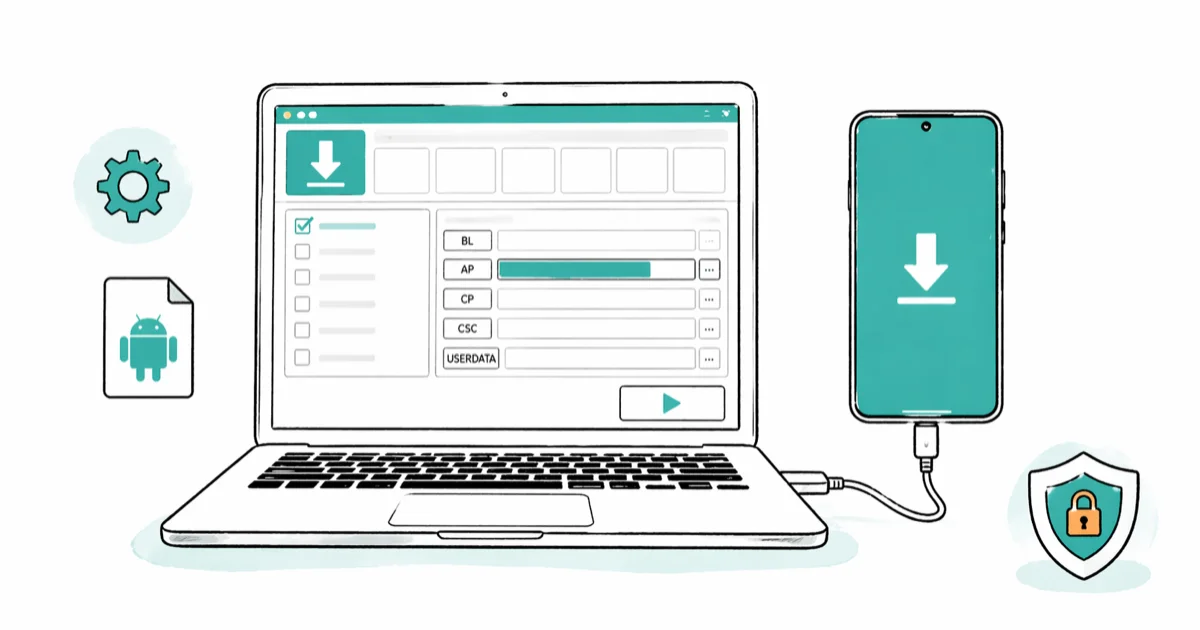
Quick AnswerOdin is an unofficial Windows tool for flashing Samsung Galaxy firmware. Use it only as a last resort, assume the flash can erase your data, and don’t treat HOME_CSC as a backup.
Odin is an unofficial Windows utility used to flash firmware on Samsung Galaxy phones and tablets.
Treat it as a last resort after Samsung Smart Switch recovery. Assume the process can erase the phone even when a file is labeled for data retention.
- Try Samsung Smart Switch Emergency Software Recovery before using Odin
- Samsung has never released Odin as a public consumer repair tool
- Back up first and treat every Odin flash as a possible full wipe
- HOME_CSC may retain the user partition, but it isn’t a data-loss guarantee
- Custom binaries can trip the Knox Warranty Bit permanently
#What Is Odin and What Can It Do?
Odin is a firmware flashing utility originally developed for Samsung’s internal use. It leaked to the public years ago and became the standard tool for Samsung device maintenance. Samsung has never officially released it, but repair shops and Android enthusiasts worldwide rely on it daily.
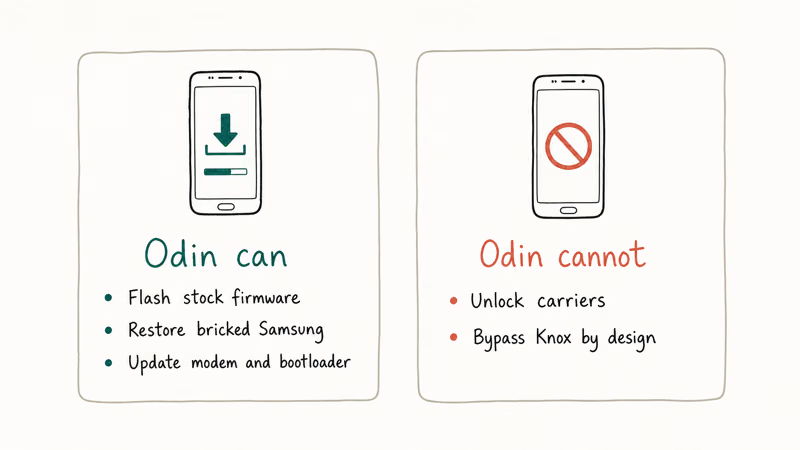
Samsung’s USB driver page states that the driver is for developers connecting a Samsung Android device to a Windows development environment. It doesn’t mention Odin or serve as Samsung approval of the leaked tool.
Odin can flash three types of files onto Samsung devices:
- Stock firmware packages split into Samsung’s BL, AP, CP, and CSC slots
- Custom recovery images, which can trip Knox and disable protected services
- Individual partitions such as the modem or bootloader, with a high mismatch risk
Samsung doesn’t provide an official Odin download. Any copy comes from a third party, so scan the archive and don’t assume a familiar filename proves it’s clean. Flashing a package for the wrong model, region, or bootloader can leave the device unable to start.
#Entering Download Mode on Samsung Devices
Download Mode is a special boot state that lets Odin communicate with your phone. Without it, Odin can’t flash anything.
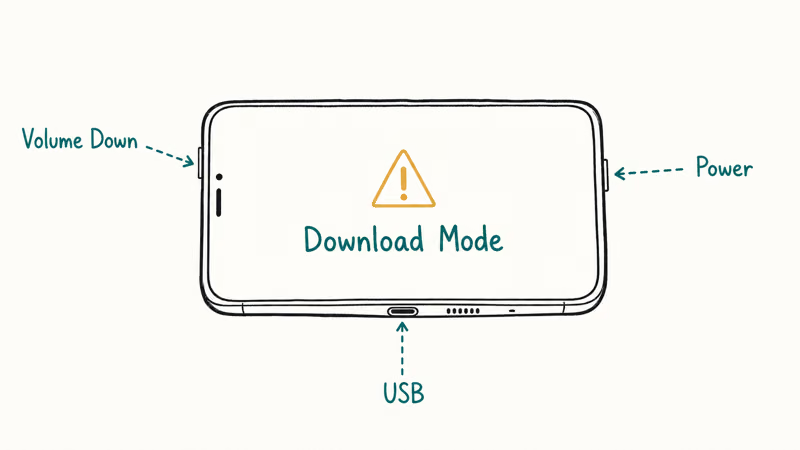
Button combinations vary by exact model. Check the device’s Samsung support page or user manual before relying on a generic sequence.
On many older phones with a physical Home button:
-
Power off your phone completely.
-
Hold Volume Down + Home + Power at the same time.
-
Release when you see the warning screen.
-
Press Volume Up to confirm.
On newer phones without a Home button:
Don’t use one “Galaxy S8 and newer” combination for every model. Recent devices commonly enter Download Mode while connected by USB and holding both volume buttons, while models with a Side or Bixby key can use a different sequence. Stop and look up the exact model if its manual gives different instructions.
If your Samsung is stuck on the boot screen, Download Mode may still be available because it starts outside the normal Android interface.
If the device won’t enter Download Mode, charge it first and confirm the model-specific button sequence. A damaged button, cable, port, or battery can also prevent the expected response.
#Use Smart Switch Before Odin
Smart Switch is Samsung’s official first stop when a Galaxy update fails.
According to Samsung’s Phone Recovery Guide, Emergency Software Recovery and Initialization can restart an interrupted update with current software.
Open Smart Switch on a Windows PC or Mac, connect the phone, and look under More for the emergency recovery option. Read every warning: recovery or initialization can still erase data, and availability varies by Smart Switch version, device, region, and the failure it detects.
Move to Odin only when Smart Switch doesn’t offer a recovery path and you have a verified backup, the exact model code, the regional CSC, and a firmware package that matches the installed bootloader generation.
#How Do You Flash Firmware With Odin Step by Step?
These steps are for an owner who has exhausted Samsung’s supported recovery. A successful flash can take several minutes, but preparation and recovery from a mismatch can take much longer.
Before you start, you’ll need:
- A Windows PC (Odin doesn’t run on Mac or Linux)
- Samsung USB drivers installed
- The correct firmware file for your exact model (check
Settings>About Phone>Model Number) - A USB cable, preferably the one that came with your phone
- At least 50% battery on your Samsung device
Assume the phone will be wiped. Copy every accessible file elsewhere before entering Download Mode. HOME_CSC isn’t a backup, and a failed flash or later factory reset can erase the same user partition it was meant to retain.
Step 1: Download and extract the firmware.
Odin has no official Samsung download channel, and public firmware mirrors aren’t Samsung support sites. Verify that the firmware matches the exact model code, region, and current bootloader generation before extracting it. A package can contain BL, AP, CP, CSC, and HOME_CSC files.
Step 2: Extract and launch Odin.
Use only an Odin archive whose source and hash you have verified. Extract it on Windows and run the executable as Administrator. Samsung doesn’t endorse a public Odin version as the official or most stable release.
Step 3: Boot into Download Mode.
Use the button combinations from the previous section.
Step 4: Connect your phone.
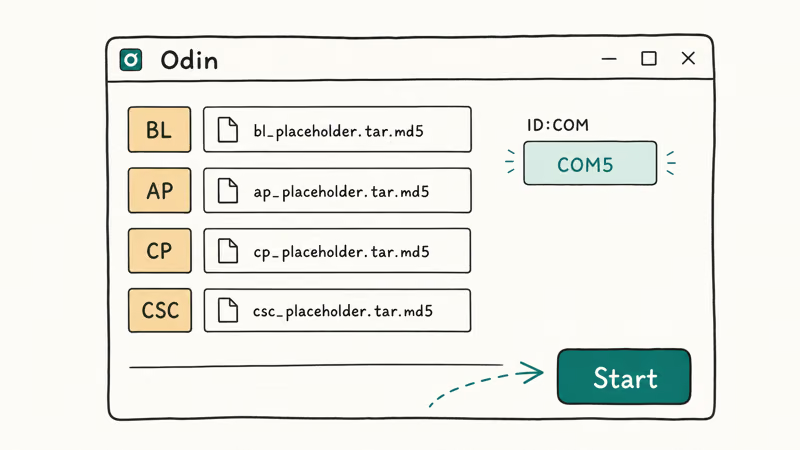
Plug the USB cable into your PC first, then into your phone. Odin should show a colored ID
box at the top left. An empty box means Odin hasn’t detected the device; possible causes include Download Mode, the driver, the cable, or the USB port.Step 5: Load the firmware files into Odin.
Click BL and select the BL file. Click AP and select the AP file. Click CP for the CP file.
For the final slot, plain CSC requests a clean flash. HOME_CSC attempts to retain the user partition, but it can still lose data during a major Android change, a mismatch, a failed flash, or a reset needed afterward. Proceed as if either choice will wipe the phone.
Step 6: Start the flash.
Check that only Auto Reboot and F. Reset Time are enabled in the Options tab. Click Start and don’t disconnect the USB cable or touch your phone until Odin shows PASS or FAIL. Duration varies with the package, device, computer, and connection.
If you run into the firmware upgrade encountered an issue error, stop and recheck the model number, bootloader generation, firmware integrity, connection, and CSC. The screen doesn’t identify one guaranteed cause.
#Common Odin Errors and Fixes
Even experienced users hit snags with Odin. Here are the most common errors and their solutions.
FAIL at “system.img” or “boot.img”: Stop retrying. Verify the package integrity and exact model match, then check the log, cable, port, and storage.
“Odin can’t detect device”: Check Windows Device Manager first. If the Samsung device has no working driver, install Samsung’s Windows USB driver. Try another cable and USB port before changing firmware.
NAND Write Start FAIL: A blocked downgrade is one possible cause, but package integrity, storage, connection, and partition-write problems can produce similar failures. Read the full log and verify the installed bootloader generation before choosing another package.
“Complete (Write) Fail”: This isn’t proof of a wrong CSC. Check the log, model, package, connection, and storage.
If your Samsung gets stuck in Odin Mode after a failed flash, hold Volume Down + Power for 10 seconds to force a reboot and try again with correct firmware.
The XDA Odin thread documents Odin as a leaked Samsung tool and repeatedly warns users to match firmware and device variants. Community documentation can help interpret an error, but it isn’t an official Samsung recovery guarantee.
#Odin Safety and Knox Warranty Concerns
Odin changes protected partitions. The risk comes from both the third-party binary and what you flash with it.
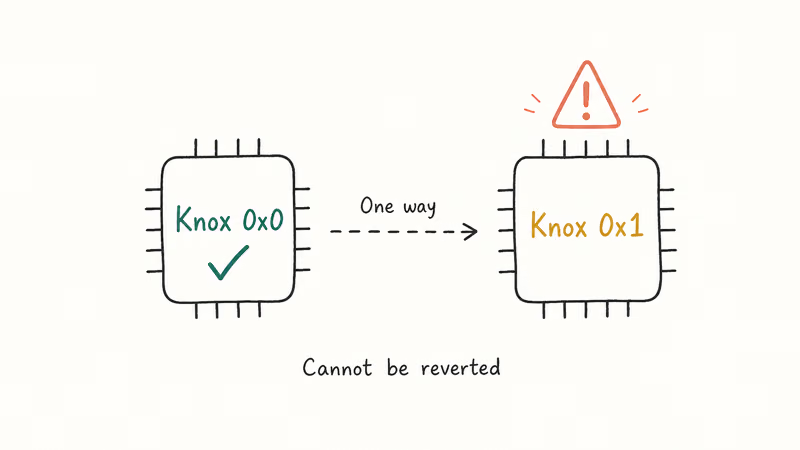
Flashing a stock package for the exact model is lower risk than flashing custom code, but don’t treat that as a Knox or warranty guarantee. A mislabeled package, unsupported downgrade, modified file, or existing device state can change the outcome.
Flashing custom binaries or custom recovery can trip Knox permanently. Samsung Knox’s technical FAQ states that the Warranty Bit is a one-time programmable e-fuse that changes from 0x0 to 0x1 when a non-Knox bootloader or kernel is installed. It can’t be reverted, and services such as Samsung Pay and Secure Folder can stop working.
Treat flashing as a wipe by default. HOME_CSC preserves the user partition in some cases, but a major version change or recovery after failure can still erase it. Always back up your Samsung before flashing.
Tenorshare ReiBoot for Android is a commercial alternative. We haven’t verified its firmware-matching or recovery claims, so read the supported-device and refund terms before paying.
Some links on this page are affiliate links, which means fone.tips may earn a commission at no extra cost to you.
#Odin Alternatives Worth Considering
Odin isn’t the only option for Samsung firmware flashing.
Samsung Smart Switch is Samsung’s official software-update recovery tool. Try its emergency recovery option before Odin, but keep a backup because recovery and initialization aren’t data-loss guarantees.
Heimdall is a cross-platform alternative, but verify device and firmware support first.
If your Samsung issue doesn’t require a full flash, try simpler fixes first. The “process system isn’t responding” error or an app not installed error can often be resolved without Odin at all.
A model-supported cache partition wipe may help some problems. It isn’t universal, and reset options can erase data.
#Bottom Line
Start with Samsung Smart Switch Emergency Software Recovery. Use Odin only as a last resort with a verified backup and firmware that matches the exact model, region, and bootloader generation. Assume either CSC choice can end in data loss.
#Frequently Asked Questions
Can Odin work on non-Samsung Android phones?
No. Samsung only. For Xiaomi, use MiFlash. Pixel devices use Google’s Android Flash Tool.
Does flashing stock firmware with Odin void the warranty?
Stock firmware for the exact model is the lower-risk choice, but it isn’t a blanket Knox or warranty promise. Unofficial kernels, bootloaders, custom recovery, and rooting can trip the one-time Warranty Bit permanently, and another flash can’t reset it to 0x0.
What happens if Odin fails mid-flash?
A failed flash can leave the phone unable to boot. Don’t keep retrying the same package. Recheck the model, region, bootloader generation, cable, and failure log; use Smart Switch recovery or Samsung service if the device won’t start.
Do I need to enable USB debugging for Odin?
No. Odin uses Download Mode, not USB debugging. These are completely different communication channels. You don’t need to enable USB debugging at all.
How do I know which firmware version to download?
Check Settings > About Phone > Software Information for your exact model number (like SM-S911B) and build number. Verify the model, region, CSC, and bootloader generation before downloading anything; a newer-looking build number alone doesn’t prove compatibility.
Can Odin downgrade my Samsung to an older Android version?
Sometimes, but Samsung bootloader rollback protection can block a downgrade. A NAND error alone doesn’t prove that this is the cause, so verify the installed and package bootloader generations before retrying.
Is it safe to close Odin while it says “Downloading”?
Don’t close Odin or disconnect the cable while it’s actively writing. Wait for a clear PASS or FAIL; if the log stops changing, consult the device-specific recovery guidance or Samsung service instead of guessing at a timeout.
Why does Odin show “Added!!” but nothing else happens?
“Added!!” records that Odin detected a device connection; it doesn’t mean a firmware file loaded successfully. If nothing follows, check the colored ID
entry, confirm Download Mode, and then test the driver, cable, and USB port before changing firmware.
Pixel 11 vs Pixel 10: What Changed and Who Should Upgrade
Pixel 11 vs Pixel 10: same screen and camera resolution, new Tensor G6, 25W wireless, and Gemini Intelligence. Here is who should actually upgrade.

Verizon Not Receiving Texts? How to Fix It in 9 Steps
Verizon not receiving texts? Fix it in 9 steps: check Message Blocking in My Verizon, reset network settings, deregister iMessage, and call support.
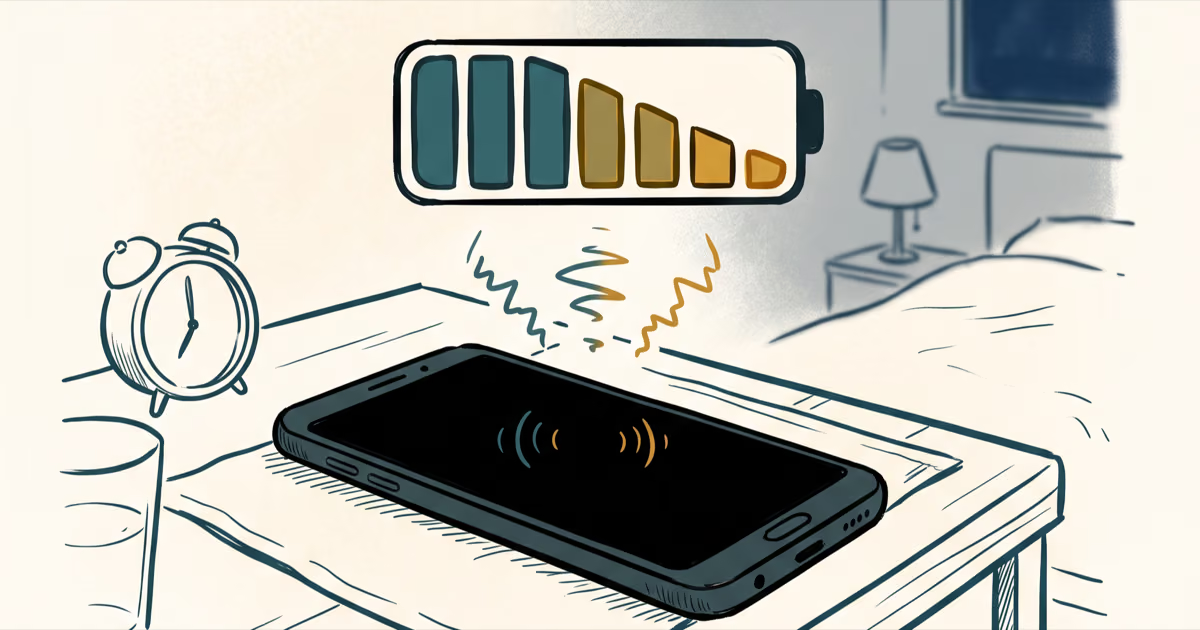
Pixel Battery Drain: What Google's July Fix Really Covers
Google marked the Pixel idle battery drain bug fixed in July, but only some phones got the patch. Here is who is covered, who is not, and what to try.
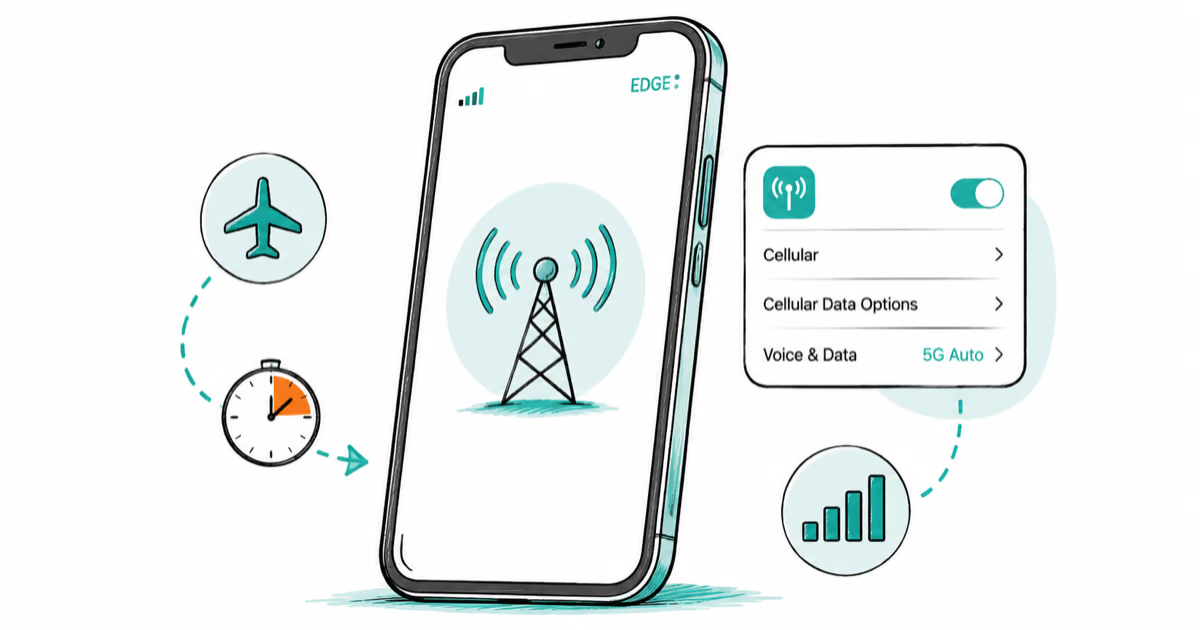
iPhone Stuck on EDGE? How to Get 5G or LTE Back (2026)
iPhone stuck on EDGE with crawling data? Here's why the E icon appears, which settings force 5G or LTE back, and when the problem is your carrier.