Samsung DeX: How to Use It on a Monitor, TV, or PC
Samsung DeX turns your Galaxy into a desktop. Learn how to use DeX wired to a monitor, wirelessly to a TV, and on a PC, plus the devices that support it.
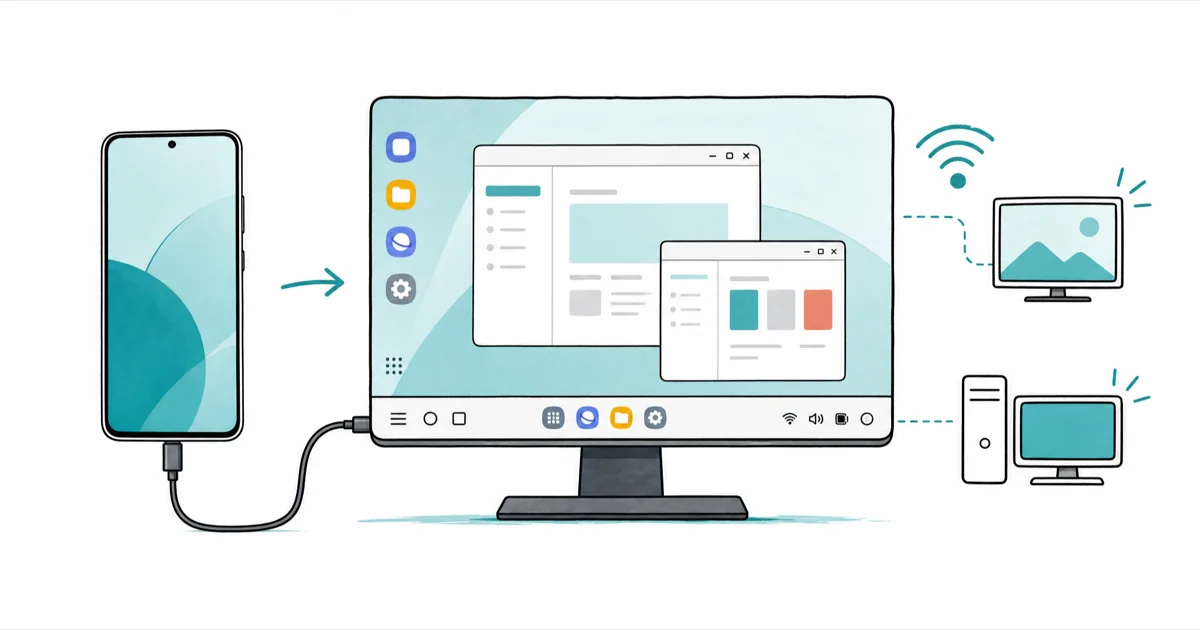
Quick AnswerSamsung DeX turns your Galaxy phone into a desktop workspace. Connect it to a monitor with a USB-C cable, link it wirelessly to a newer Samsung TV, or run the DeX on PC app over Wi-Fi.
Samsung DeX is the feature that turns a supported Galaxy phone or tablet into a desktop computer on a bigger screen. Setup is usually quick once you know which path your hardware supports.
- Samsung DeX gives you a desktop interface with resizable windows, a taskbar, and an app tray when you connect your Galaxy to a monitor, TV, or PC
- There are three ways to use it: wired to a monitor or TV with a USB-C to HDMI cable, wirelessly to a 2018 or newer Samsung TV, and on a PC through the free DeX app
- Wireless DeX needs your phone and the display on the same network, and Samsung recommends a 5 GHz connection for the smoothest session
- DeX runs up to 5 apps at once across as many as 4 separate desktops, so it handles real multitasking, not just mirroring
- Most Galaxy S, Note, Tab S, and foldable models from the S9 era onward support DeX, while the Z Flip line has limited or no support
#What Is Samsung DeX?
Samsung DeX is a desktop mode built into modern Galaxy phones and tablets. Plug into a screen and your phone stops mirroring and shows a real desktop instead: a taskbar, resizable windows, and an app tray you drive with a mouse.
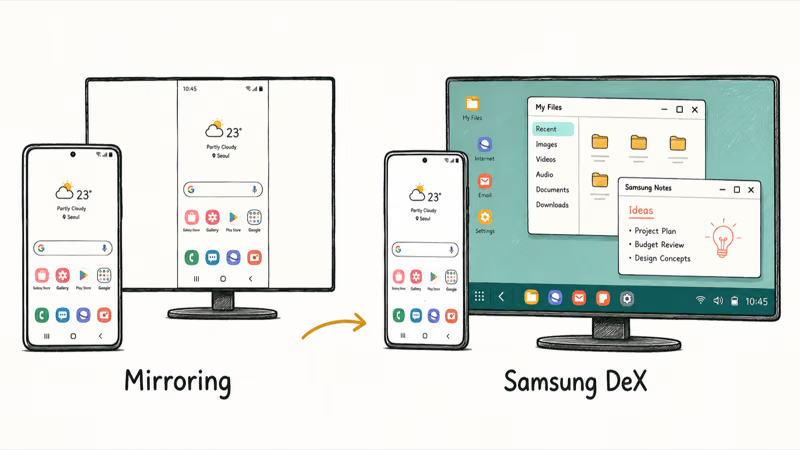
It’s not screen mirroring.
Mirroring just copies your phone’s portrait screen onto a bigger one. DeX launches a separate landscape workspace where apps open in windows you can drag, resize, and snap side by side. According to Samsung’s DeX overview, you can extend that workspace across monitors and run several apps together for genuine multitasking, which is the whole point of the feature.
The payoff is a laptop-style setup from the device in your pocket.
#Which Galaxy Phones and Tablets Support DeX?
Support has been baked into Samsung’s flagships for years. The Galaxy S9 was the first to drop the special dock requirement, and every mainstream flagship since carries DeX in software.
In practice, DeX works across the Galaxy S9 through S25 lines, the Note9 and Note10 and Note20 families, recent Z Fold models, and the Tab S5e through Tab S11 tablets. The big exception is the Z Flip series, which has limited DeX support compared with the rest of the lineup.
Not sure about your phone? Open the notification panel and look for a DeX tile. It only appears on hardware that supports the feature, so its presence is your answer. Older models can still run DeX with an official dock, but newer ones skip the accessory.
#How to Use DeX Wired to a Monitor or TV
A cable is the most reliable route. You need a USB-C to HDMI cable or adapter, plus a free HDMI port on the monitor or TV.
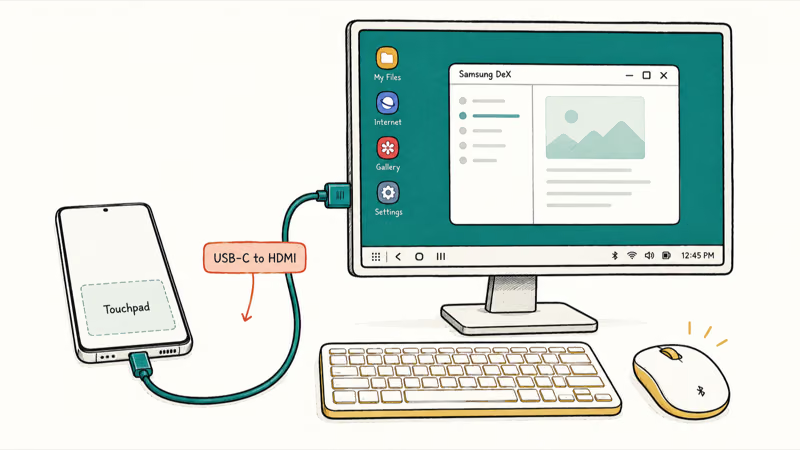
Plug the USB-C end into your phone and the HDMI end into the display. DeX launches within a few seconds, and your phone screen becomes a touchpad. Connect a Bluetooth keyboard and mouse and you have a full workstation. On supported models, DeX can launch from the cable connection without a separate confirmation prompt.
The cable itself matters. A charge-only USB-C cable carries power but not video, so the screen stays blank. A proper USB-C cable for your Samsung that supports video output is the fix.
If the display stays dark, swap the cable before blaming the phone.
#How to Use Wireless DeX on a TV
No cable? Newer Galaxy phones cast DeX straight to a compatible TV. Both devices have to sit on the same Wi-Fi network first.
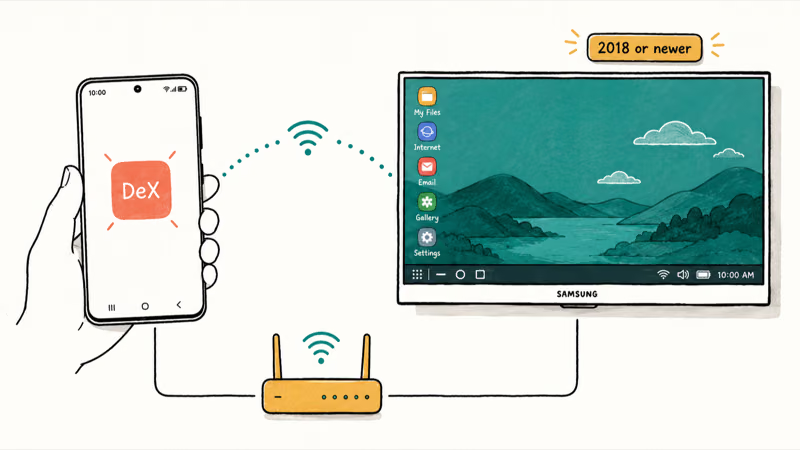
Swipe down the Quick Settings panel and tap the DeX tile, or go to Settings > Connected devices > Samsung DeX > Connect wirelessly. Pick your TV from the list and tap Start now, then accept the prompt on the TV.
Samsung’s wireless DeX guide states that Wireless DeX works with 2018 and later Samsung TVs, plus any display that supports Miracast. Wireless sessions can take a few seconds longer to handshake than a cable, but they should stay usable once connected on a strong network.
Keep the phone near the TV. According to Samsung’s wireless DeX support page, staying within a short distance prevents the stuttering that creeps in over a weak signal.
#How to Use Samsung DeX on a PC
The DeX on PC app puts your phone’s desktop inside a window on Windows or Mac. Download the DeX app from Samsung’s site and install it first.
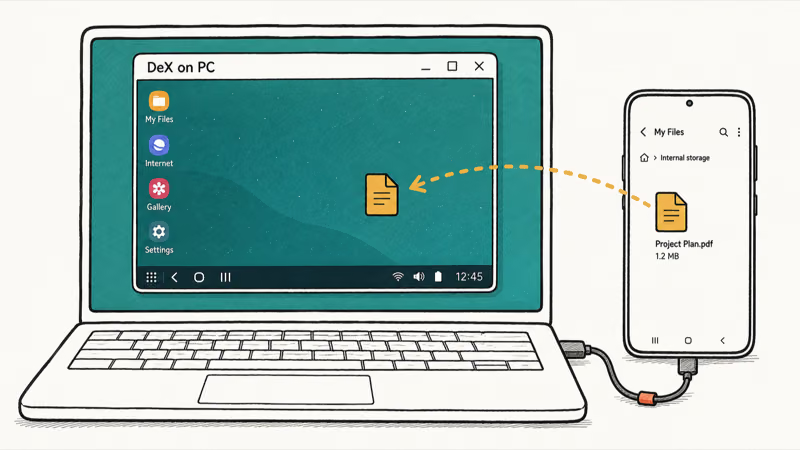
Connect with the USB-C cable, or go wireless if your model supports it. For a wireless session your PC and phone must share one Wi-Fi access point, and Samsung recommends a 5 GHz band for a stable link.
Open the notification panel, tap the DeX button, choose DeX on PC, pick your computer, and accept the request on the PC. If DeX on PC won’t connect, turn off Link to Windows first, since the two features can clash.
DeX on PC mirrors your phone to a PC you legally control and trust.
DeX on PC is the best version for office work, because you drag files between phone and computer and type on the keyboard already in front of you.
#Getting the Most Out of DeX
DeX shines when you treat it like a real desktop. Build separate workspaces for separate jobs and the windows stop fighting for room.
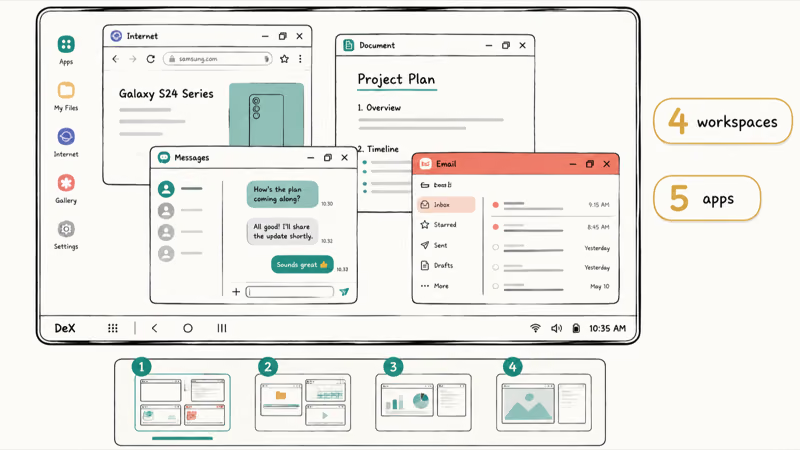
According to Samsung’s DeX screen guide, you can create up to 4 workspaces and run up to 5 apps at once, with the oldest minimizing if you open a sixth. That covers a browser, a document, a chat app, and email together. Useful real-world tasks include writing long emails with a physical keyboard, and running a WhatsApp backup on your Samsung on the big screen while you keep working.
Pair a keyboard and mouse and the experience tightens up fast.
Glitches happen. If a Samsung Keyboard has stopped error pops up while typing, or a com.samsung.android.incallui error interrupts a call you take mid-session, restart the session before digging deeper.
Heavy DeX use also caches a lot of files, so it helps to clear Other storage on your Samsung now and then to keep the workspace snappy.
#Bottom Line
For office work and long typing sessions, use DeX on PC over a USB-C cable. The wired path avoids wireless handshake problems, and dragging files between phone and computer beats every wireless option. Reach for wireless DeX to a Samsung TV when you just want a big screen for browsing or video without hunting for a cable. Either way, keep a video-capable USB-C cable handy, because a charge-only cable is the single most common reason DeX refuses to start.
#Frequently Asked Questions
Is Samsung DeX free?
Yes. DeX is built into supported Galaxy phones and tablets at no cost, and the DeX on PC app is a free download from Samsung. You only pay for hardware you don’t already own, like a USB-C to HDMI cable, a monitor, or a Bluetooth keyboard and mouse.
What is the difference between DeX and screen mirroring?
Mirroring copies your phone’s portrait screen to a bigger display. DeX launches a landscape desktop with resizable windows and multitasking.
Does Samsung DeX work on any TV?
Wired DeX works on any TV with an HDMI port. Wireless DeX is pickier: it needs a 2018 or newer Samsung TV or a Miracast display, and both devices must share the same Wi-Fi network. Older non-Samsung TVs usually need the cable.
Can I use DeX without a monitor?
Only through the DeX on PC app, which shows the desktop in a window on your computer. Otherwise DeX needs an external display, since there is no phone-only DeX mode.
Why won’t DeX start when I plug in the cable?
The cable is usually to blame. A charge-only USB-C cable carries power but no video signal, so the screen stays black. Swap in a USB-C to HDMI cable rated for video, confirm the TV is on the right HDMI input, and DeX should launch within a few seconds.
Which Galaxy phones support Samsung DeX?
Most flagships from the Galaxy S9 era onward support it, including the S9 through S25 series, the Note9 and later, recent Z Fold models, and Tab S5e through Tab S11 tablets. The Z Flip line is the main exception, with limited support. Check for a DeX tile in your notification panel to confirm.

Pixel 11 vs Pixel 10: What Changed and Who Should Upgrade
Pixel 11 vs Pixel 10: same screen and camera resolution, new Tensor G6, 25W wireless, and Gemini Intelligence. Here is who should actually upgrade.

Verizon Not Receiving Texts? How to Fix It in 9 Steps
Verizon not receiving texts? Fix it in 9 steps: check Message Blocking in My Verizon, reset network settings, deregister iMessage, and call support.
Pixel Battery Drain: What Google's July Fix Really Covers
Google marked the Pixel idle battery drain bug fixed in July, but only some phones got the patch. Here is who is covered, who is not, and what to try.
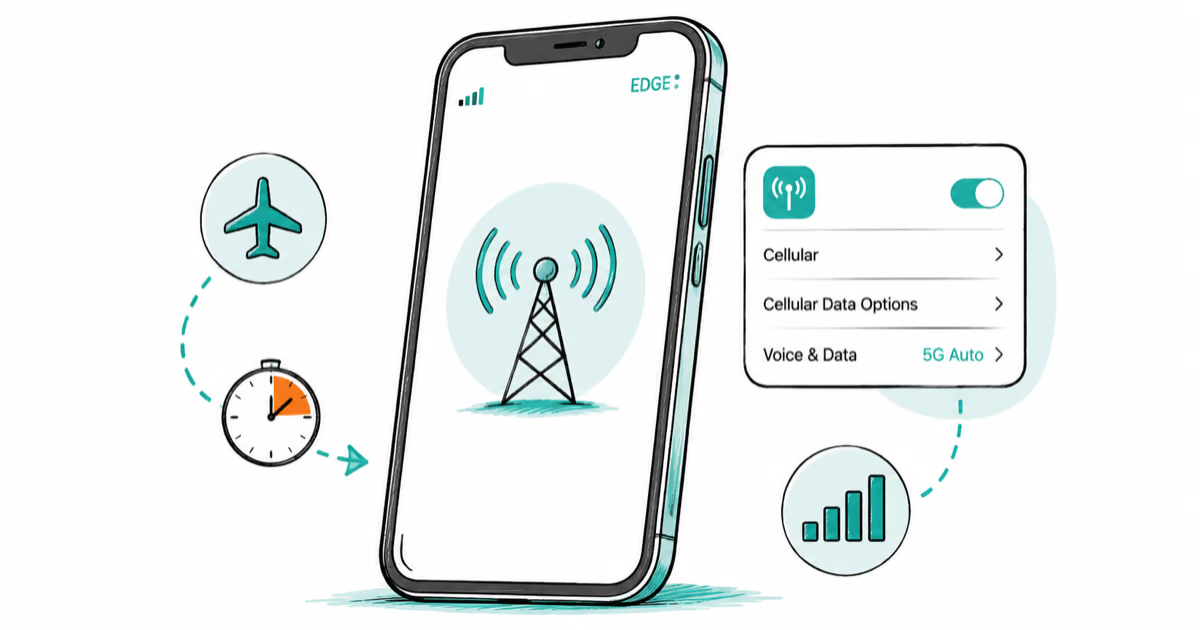
iPhone Stuck on EDGE? How to Get 5G or LTE Back (2026)
iPhone stuck on EDGE with crawling data? Here's why the E icon appears, which settings force 5G or LTE back, and when the problem is your carrier.