How to Stream Disney Plus on Discord: 2026 Setup Guide
Stream Disney Plus on Discord without the black screen. Discord setup, hardware acceleration fix, GroupWatch alternative, and ToS notes for 2026.
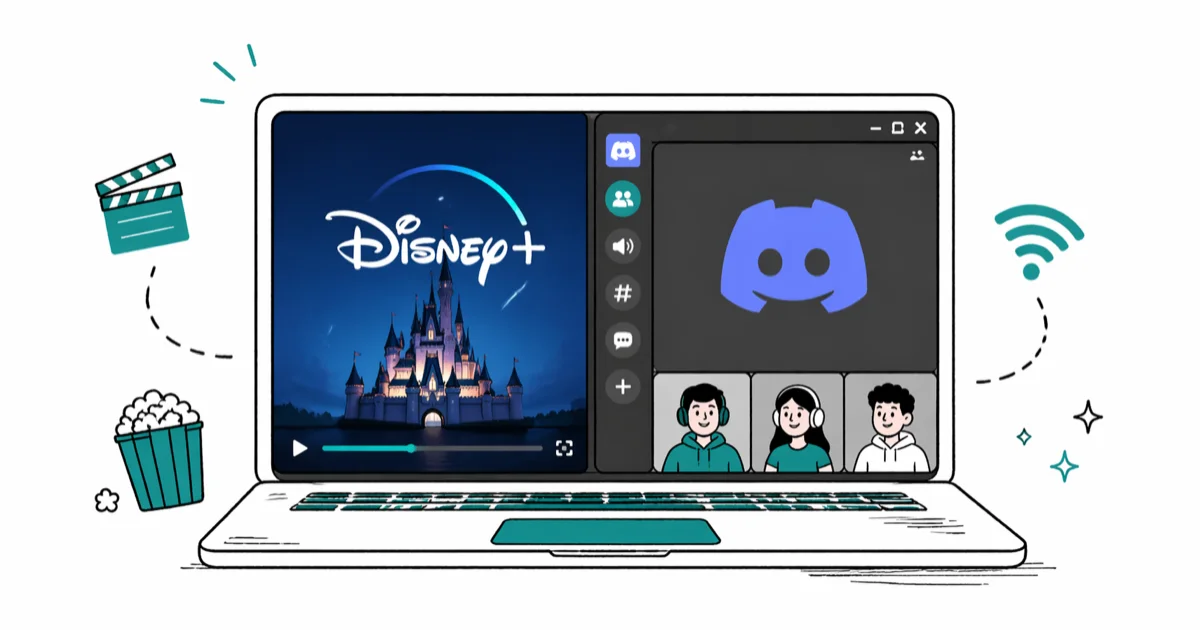
Quick AnswerTo stream Disney Plus on Discord, open Disney Plus in a browser, add it as a Registered Game in Discord, turn off hardware acceleration in both apps, then use the Screen Share button in your voice channel to Go Live. Friends in the same channel can watch from their own accounts.
Streaming Disney Plus on Discord is how most friend groups still run movie nights when half the room is on the wrong continent. The catch isn’t the Discord side; it’s the Disney Plus side, which uses HDCP-style DRM that turns the video into a black screen the moment Discord tries to capture it. The workaround is a software-rendering switch in Discord and your browser, plus a careful setup that keeps the audio in sync.
This guide walks through that setup on Discord’s current desktop client, the GroupWatch alternative Disney built for exactly this use case, and what the Disney Plus terms of service actually say before you press Go Live.
- The black screen on Disney Plus streams is caused by hardware-accelerated DRM video paths; turning off Use hardware acceleration in both Discord and the browser routes video through software rendering and lets Discord capture the frame.
- Disney Plus subscribers can use the official GroupWatch feature with up to seven other paid subscribers on the same plan tier, with no Discord screen share required.
- Discord’s standard screen share is capped at 720p 30 fps for non-Nitro users; Nitro Basic and Nitro raise this to 1080p 60 fps or 4K 60 fps depending on the tier.
- You must add the browser as a “Registered Game” under Activity Privacy in Discord, or the Screen Share button captures only Discord itself instead of the Disney Plus tab.
- Sharing your account credentials with viewers is a separate violation from screen sharing the playback, and account sharing has been restricted under Disney’s 2024 password-sharing rules.
#Why Does Disney Plus Show a Black Screen on Discord?
The black screen isn’t a Discord bug. It’s a deliberate result of how protected video frames move through the GPU on Windows and macOS.
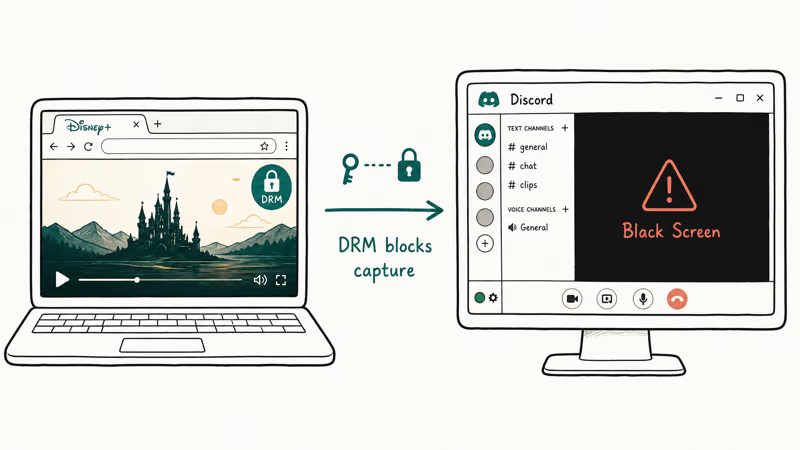
Disney Plus uses Widevine DRM in browsers and PlayReady on the Windows app. Both run protected content through a hardware-accelerated path inside the GPU driver. When Discord (or OBS, or QuickTime) asks the system to capture that surface, the GPU returns a black frame because the protected output bit is set.
Microsoft’s hardware-based DRM documentation for PlayReady confirms that protected video paths are designed to be unreadable by any capture surface outside the licensed pipeline. Toggling hardware acceleration off forces the browser and Discord to render frames in CPU memory instead, which is the only frame buffer Discord’s capture API can read.
The fix takes one toggle each.
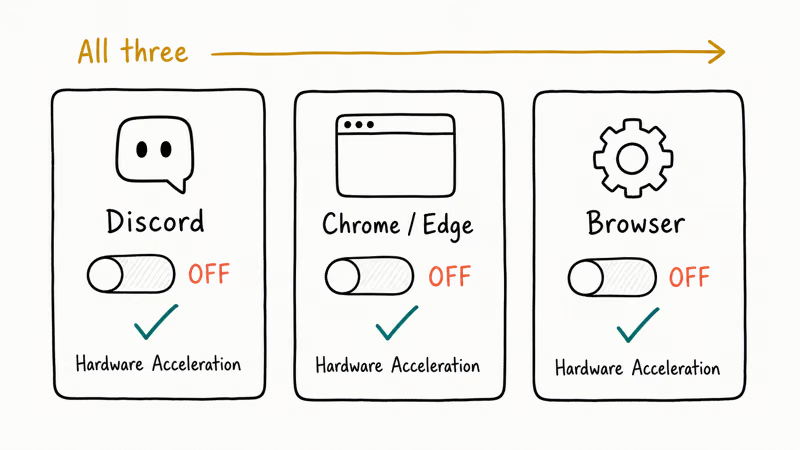
Turn off the “Use hardware acceleration when available” setting in Chrome, Edge, or Firefox, and the matching toggle in Discord under Settings > Advanced. After both apps fully restart, reload Disney Plus and start the share again; the previously black window should show the player instead of a protected blank frame.
The trade-off is real but small. Software rendering uses more CPU, so on older laptops you’ll hear the fans spin up and battery life takes a hit. On any machine made since 2020, the CPU overhead is usually a few percent.
#Setting Up Discord for a Disney Plus Stream
Before screen share will work, Discord needs to know which window to capture. By default, Screen Share offers only Discord itself unless you register the browser as a game.
- Open the Discord desktop app and sign in. The browser version of Discord can’t screen share at all, so the desktop client is required.
- Click the gear icon next to your username at the bottom-left to open User Settings.
- Go to Activity Privacy under Activity Settings. (On older client builds this is called Activity Status or Registered Games.)
- Click Add it! next to “Not seeing your game?” and pick your browser window from the list. The window has to be open and on the Disney Plus tab for it to show up.
- Confirm the browser now appears in the Activity Privacy list with a green dot next to it.
This step is the single most common reason a Discord screen share session shows nothing but Discord chat to your friends. If you skip Activity Privacy, the Screen Share button is still there, but it can only see Discord’s own window.
Discord’s screen share help article states that any window registered as a game becomes capturable through Go Live, which is why this works for browsers as well as actual games. If you’re also troubleshooting Discord’s overlay (the in-game widget, not the stream itself), our Discord overlay not working guide covers the registry side of that feature.
#Turning Off Hardware Acceleration in Discord and Your Browser
Hardware acceleration has to be off in two places: Discord and the browser playing Disney Plus. Turning it off in just one of them still gives you a black screen.
#Discord
- Open User Settings (gear icon).
- Click Advanced under App Settings.
- Toggle Hardware Acceleration off.
- Click Okay when Discord asks to restart, and let it relaunch.
#Google Chrome
- Click the three-dot menu in the top-right, then Settings.
- Open System in the left sidebar.
- Toggle Use hardware acceleration when available off.
- Click Relaunch when the prompt appears.
#Mozilla Firefox
- Click the hamburger menu and choose Settings.
- Scroll to Performance under the General tab.
- Uncheck Use recommended performance settings, then uncheck Use hardware acceleration when available.
- Restart Firefox.
#Microsoft Edge
- Click the three-dot menu and choose Settings.
- Open System and performance.
- Toggle Use hardware acceleration when available off.
- Restart Edge.
After both apps relaunch, reload the Disney Plus tab and start the title you want to watch. The video should still play; the only change is that the GPU is no longer in the protected pipeline.
#Starting the Disney Plus Stream on Discord
With both hardware acceleration switches off and the browser registered as a game, the actual Go Live flow is short.
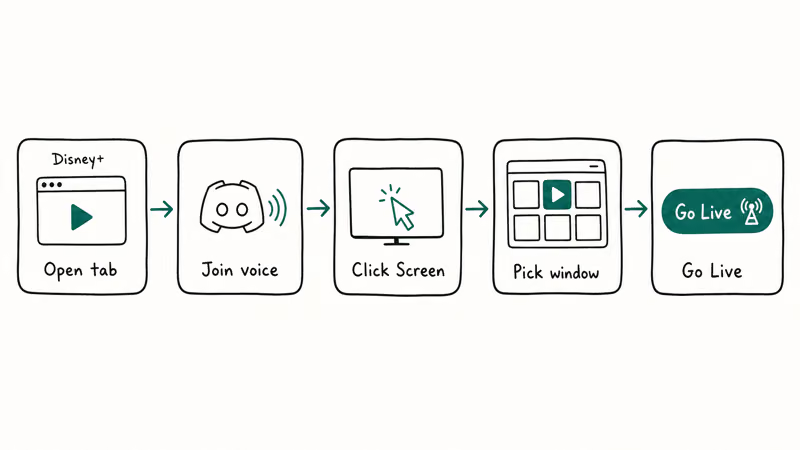
- Open Disney Plus in the browser and start playback. Pause it at the opening frame if you want to wait for friends to join.
- Switch back to Discord and click the voice channel where you want to host the watch party.
- Hover over your username at the bottom-left. A Screen button appears above the existing voice controls. Click it.
- In the Screen Share dialog, click the Applications tab and pick your browser. Pick the Disney Plus tab specifically, not the whole screen, so any other tabs stay private.
- Set the resolution and frame rate. For most home uploads, start with 720p; move to 1080p only if your upload bandwidth stays stable and viewers are not seeing drops.
- Click Go Live. A small preview window appears in the corner; your friends now see the Disney Plus tab.
- Resume playback in the browser. Anyone in the voice channel can click your name and the Live tag to join the stream.
If the audio doesn’t follow the video for friends on the receiving end, the most common cause is that Discord captured the wrong sound source. Our Discord stream no sound walkthrough covers the system-audio side of that fix.
#Is Streaming Disney Plus on Discord Against the Rules?
Yes, in most reasonable readings of Disney’s policies, even when every viewer has a paid account.
Disney’s Disney Plus subscriber agreement states that subscribers may use the service for personal, non-commercial purposes only, and that the content can’t be retransmitted, redistributed, broadcast, or made available to others. A Discord watch party where you’re the playback source and other viewers don’t have their players running technically falls under “redistribution,” even if the redistribution is private and only friends are watching.
Two practical implications:
The first is account safety. Disney has the technical means to detect concurrent stream conflicts, regional mismatches, and unusual session activity, and accounts that look like distribution hubs can be suspended. The 2024 password-sharing rules added “household” restrictions that can flag a session if your IP doesn’t match the registered household.
The second is the copyright side. Streaming a feature film over Discord isn’t the same scale of issue as uploading it to YouTube, but it’s the same legal category. Most groups avoid both problems by using GroupWatch (covered next), where every viewer has their own subscription and plays the content themselves.
If you want a private movie night without the policy gray area, GroupWatch is the cleaner path.
#GroupWatch: Disney Plus’s Built-In Co-Watching Tool
Disney announced GroupWatch in September 2020, and it remains the only Disney-sanctioned way to watch a Disney Plus title together. According to Disney’s GroupWatch help article, it lets up to seven people watch the same movie or episode in sync, with each viewer streaming from their own Disney Plus account.
To start a GroupWatch session:
- Open Disney Plus on a supported device. The web player, the Disney Plus mobile app, smart TVs running the Disney Plus app, Roku, Apple TV, and most game consoles all support GroupWatch.
- Open the details page for the movie or episode you want to watch.
- Click or tap the GroupWatch icon (a row of small profile circles) next to the play button.
- Invite up to seven other Disney Plus subscribers by sharing the link or by inviting profiles already on your plan.
- Each viewer joins from their own account. Playback stays in sync across all viewers, and anyone can pause, rewind, or skip ahead for the whole group.
The catch is that every participant has to be a paying Disney Plus subscriber in a country where the title is available. If half your friend group doesn’t have Disney Plus, Discord screen share is still the realistic option, but it’s the option with the policy footnote attached.
For comparison with other communication platforms, the Discord vs Twitch breakdown covers when each tool is the better choice for a video watch party.
#Troubleshooting Common Discord Streaming Problems
Most issues during a Disney Plus watch party fall into three buckets: black screen, audio drift, and lag.
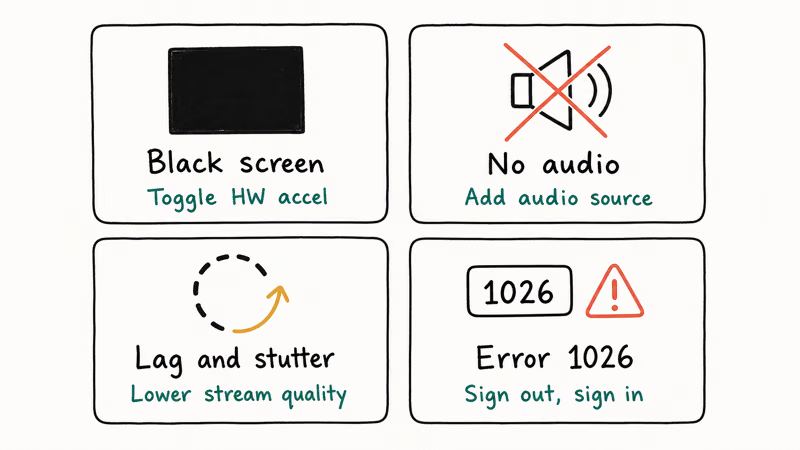
Still seeing a black screen after disabling hardware acceleration. Both toggles must be off and both apps fully restarted (not just closed and reopened from the dock). On Windows, the Discord installer occasionally leaves a tray icon running that doesn’t pick up the new setting; right-click the Discord tray icon, choose Quit Discord, then relaunch. Also clear the browser cache, because some browsers cache the GPU-accelerated decoder selection per-tab and will keep using the old pipeline until you reload.
Audio is out of sync by half a second or more. Discord is capturing the browser’s audio through a different pipeline than the video. Open User Settings > Voice & Video > Audio Subsystem and switch from Standard to Legacy, then restart Discord.
Stream stutters or drops resolution. Discord measures upload bandwidth in real time. According to Discord’s video and screen share help center, all users can stream up to 720p 30 fps, while Nitro raises the ceiling to 4K 60 fps. Run a speed test, close other upload-heavy apps, and lower the stream quality if your upload can’t sustain the resolution you picked.
Friends can’t see the stream button. They have to be in the same voice channel.
If the server is on an older Discord voice region or routed through a country with restricted video, the stream icon doesn’t appear next to your name. Server admins can change the region under server settings.
If Discord itself isn’t launching for someone in the group, our Discord not opening fixes cover the most common Windows and macOS startup loops, including the grey-screen loop on Discord 0.0.296 and later on Windows 11.
#Tips for a Smoother Disney Plus Watch Party
A few small choices make the difference between a smooth watch party and a stop-start one.
Use a wired Ethernet connection instead of Wi-Fi on the host machine if you can. Wi-Fi packet loss is the single biggest cause of Discord screen share stutter, and it doesn’t show up on a normal speed test because speed tests average over ten seconds.
Start the stream five minutes early. The first thirty seconds of any Discord screen share renegotiate bitrate as Discord’s servers feel out the connection, and you don’t want that happening on the opening credits.
Keep the browser tab in the foreground. Chrome and Edge throttle background tabs.
Mute notifications on the host browser. Disney Plus doesn’t pop notifications, but Slack, email, and macOS system alerts can flash on top of the captured tab and break the watch party mood. Flip on the system Focus mode (DND) for the duration of the movie.
Set a backup host. If your stream drops mid-movie, having a second person in the voice channel who can immediately Go Live with their own copy of the same Disney Plus tab cuts the recovery time from “thirty minutes of troubleshooting” to “thirty seconds.”
For longer-form events, the Discord screen share walkthrough covers the multi-host pattern that streaming communities use for back-to-back movies.
#Bottom Line
If you want the cleanest experience, use Disney’s own GroupWatch and skip Discord screen share entirely. Every viewer plays from their own account, sync is automatic, and you stay inside Disney’s terms of service.
Reach for Discord screen share only when at least one viewer doesn’t have a Disney Plus subscription. Confirm hardware acceleration is off in both Discord and the browser, and register the browser under Activity Privacy first. Don’t share your Disney Plus credentials with anyone outside your household; that’s a separate (and easier to detect) policy violation than the screen-sharing itself.
#Frequently Asked Questions
Why is my Disney Plus stream a black screen on Discord?
Disney Plus uses DRM that returns a black frame when a capture tool reads from a hardware-accelerated video surface. Turn off Use hardware acceleration in both Discord (Settings > Advanced) and your browser, then restart both.
Can I stream Disney Plus on Discord mobile?
No. Discord’s mobile apps don’t have a Disney Plus capture path, and Disney Plus mobile apps disable screen recording on both iOS and Android. Host the stream on a desktop browser instead, and let mobile-only friends join the voice channel as viewers; they’ll see the Disney Plus video on their phone screen once they tap your Go Live tile.
Does turning off hardware acceleration hurt video quality?
Quality stays the same; the GPU draws the frame either way. CPU load goes up by a few percent on a 2020-or-newer laptop, and fans spin up on older machines.
How many friends can join a Discord stream at once?
Discord allows up to twenty-five viewers per Go Live stream on standard servers, including the streamer. Server boost levels and Nitro perks don’t raise this limit, but they do raise the resolution cap. For larger watch parties, you’d need to split into multiple voice channels with a second host.
Is Disney’s GroupWatch better than Discord screen share?
For viewers who all have Disney Plus, yes. GroupWatch keeps playback in sync, lets anyone pause for the room, runs at each viewer’s native resolution, and stays inside Disney’s terms of service. Discord screen share is only the better tool when at least one viewer doesn’t have a Disney Plus subscription, because GroupWatch requires every participant to have an active paid account.
Will Disney ban my account for using Discord screen share?
Disney rarely bans for screen sharing alone. The risk comes from secondary signals: account credential sharing with viewers, regional mismatches between your subscription country and viewer IPs, and concurrent stream conflicts.
The 2024 password-sharing rules added IP-based household checks, so keep your Disney Plus playback tied to the same physical address as your billing.
Does Discord Nitro help with Disney Plus streams?
Nitro raises the resolution ceiling but doesn’t change Disney’s DRM behavior; hardware acceleration still has to be off either way.
Can I record a Disney Plus stream from Discord?
Discord doesn’t have a built-in recorder, and third-party screen capture of DRM content hits the same protected-output issue that causes the black screen. Recording playback is also a clearer copyright issue than live screen sharing. Our how to record a Discord call guide covers the audio-only approach, which doesn’t touch the protected video stream.

Google Messages Error 3100: Why RCS Is Broken on Galaxy
Google Messages RCS error 3100 hits Galaxy owners after phone or carrier switches. Google told 9to5Google a fix is coming. Here's what actually helps.

Is This Bank App Real? Spot a Fake App on Your Home Screen
A bank app can land on your home screen from a web page with no install warning. Learn the checks that tell a real banking app from a phishing web app.

Apps Crashing After iOS 27 Update? Fix Order (2026)
Apps crashing after the iOS 27 update? Update the app in the App Store first, then offload and reinstall to clear stale cache, then restart. The fix order.

Do AI Translation Earbuds Work Offline? What to Know
Do AI translation earbuds work offline? A few do with downloaded language packs, but most need the cloud. Here's what works offline and what you give up.