Transfer iPhone Data to Android on Windows: Full Guide
Move contacts, photos, and other supported data from iPhone to Android on Windows. Compare transfer tools, deregister iMessage, and verify the result.
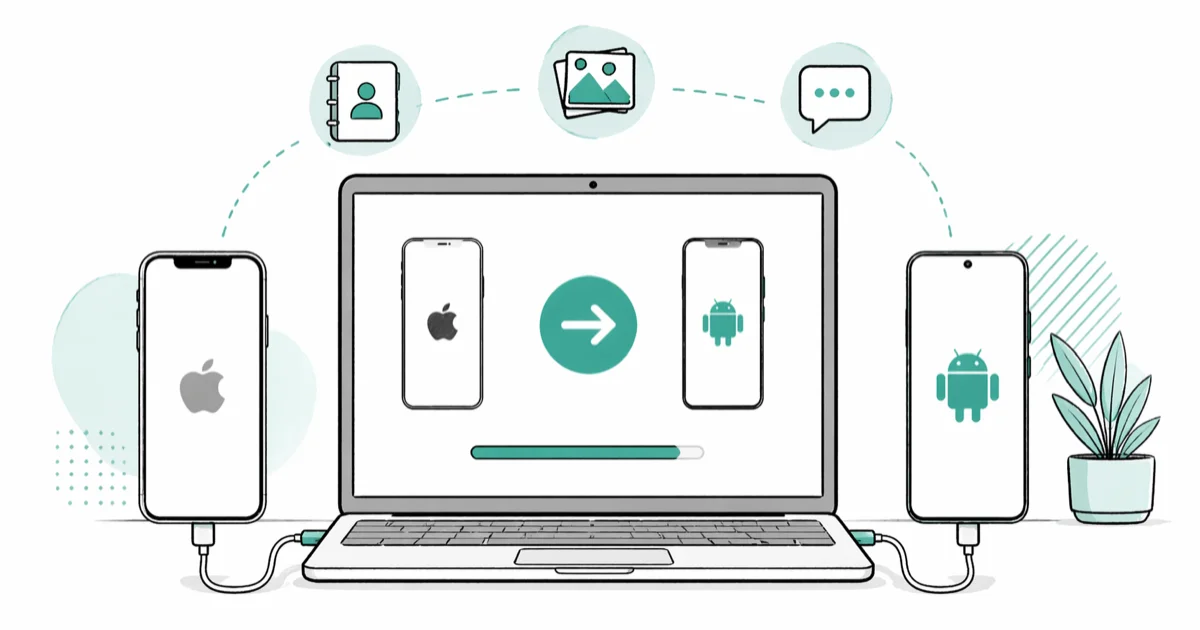
Quick AnswerUse a Windows transfer tool for supported data, then deregister iMessage before moving the SIM. On current iOS, turn off iMessage and FaceTime under Settings > Apps; without the iPhone, use Apple's online tool.
Switching from iPhone to Android doesn’t require erasing the iPhone first. Windows transfer apps can help with compatible content, but the supported data varies by app version, phone, and transfer method.
- Check the current tool requirements and supported data types before buying or starting a transfer
- Deregister your phone number from iMessage so new RCS or SMS/MMS messages can reach the Android phone
- Back up your iPhone to iCloud before starting, so you have a safety net
- App-specific data, game progress, and settings transfer only when the developer and transfer method support them
- Large photo and video libraries take longer, so keep both phones connected until the app finishes
#What Can You Actually Transfer from iPhone to Android?
Not everything moves cleanly. Here’s what works and what doesn’t.
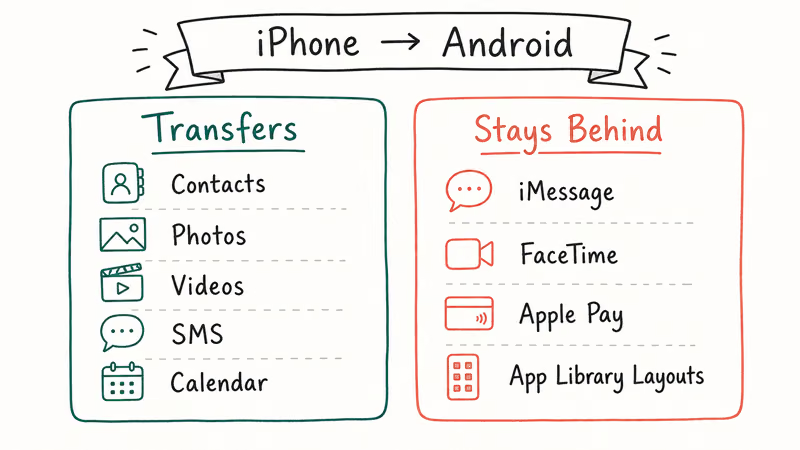
Google’s current Android transfer guide states that the available data types depend on the connection method and device manufacturer. Check the transfer app’s current support list before selecting contacts, photos, videos, calendar events, messages, or other content.
iMessage isn’t available on Android. According to Apple’s current iMessage deregistration guide, someone who switched to a non-Apple phone and isn’t getting RCS or SMS/MMS messages might need to deregister the phone number.
If you still have the iPhone, Apple’s current iOS path is Settings > Apps > Messages to turn off iMessage, then Settings > Apps > FaceTime to turn off FaceTime. If the iPhone is unavailable, use Apple’s online deregistration tool. Apple says texts can resume right away, although some Apple devices may take a few hours to recognize the change.
App-specific data varies. Account data can return after sign-in only where the developer supports the Android app and stores that data in the cloud. Local-only game progress and settings may not transfer.
If you’re keeping the same number, follow your carrier’s instructions for moving a physical SIM or activating an eSIM on the Android phone.
#How to Use MobileTrans on Windows
MobileTrans is the simpler option for most people because the transfer runs from one screen.
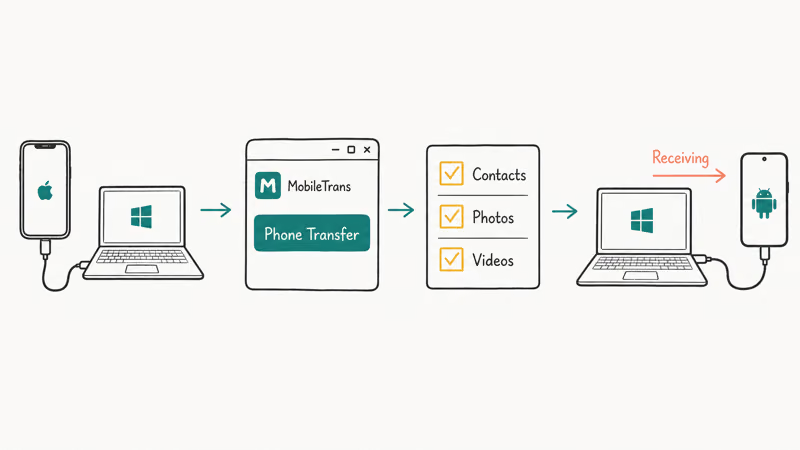
Step 1: Download and install
Some links on this page are affiliate links, which means fone.tips may earn a commission at no extra cost to you.
Download MobileTrans from the official Wondershare site and install it on your Windows PC.
Step 2: Connect both phones via USB
Connect your iPhone and Android device to the PC using data-capable cables. When your iPhone prompts “Trust This Computer,” tap Trust. Follow the transfer app’s current connection instructions if either device does not appear.
Step 3: Select Phone Transfer and flip if needed
Click Phone Transfer. The app shows a Source and Destination slot. iPhone goes in Source, Android in Destination. If they’re reversed, hit Flip.
Step 4: Pick content types and run
Check only the data types the current app version lists as supported, then start the transfer and keep both devices connected until it reports completion. Don’t erase the iPhone afterward; first spot-check the content on Android and compare the result with the vendor’s current documentation.
If you hit USB detection issues, our guide on fixing Android file transfer not working walks through the driver fix.
#How to Use dr.fone on Windows
dr.fone does the same job as MobileTrans and also includes a file manager for browsing your iPhone’s content on the PC after transfer. It’s a good pick if you want to preview and selectively export files beyond the basic transfer.
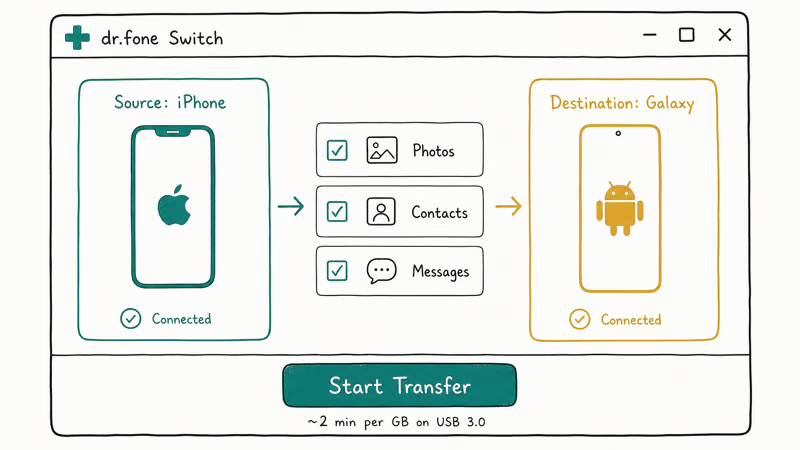
Step 1: Download and install
Get dr.fone from Wondershare’s official site.
Step 2: Connect both phones and select Phone Transfer
Launch dr.fone, click Phone Transfer, then connect both phones via USB. The app should detect both phones after the trust prompts and drivers are ready.
Step 3: Set source and destination, then run
iPhone in Source, Android in Destination. Select your data types. Click Start Transfer. According to Wondershare’s official dr.fone tech specs, Windows 10 and 11 both work, and the page states that the tool supports iOS 5.0 or later and Android 5.0 or later.
Once done, spot-check a few contacts and photos on your Android. Handle WhatsApp separately because it has its own cable-and-setup requirements.
#Why Is the Transfer Not Working?
Here are the three most common failures and how to fix them.
USB not recognized. Apple’s current device-recognition guide recommends unlocking the iPhone, checking the port for debris, trying another data-capable cable or USB port, responding to the Trust prompt, and updating Windows and iOS. For current Apple device management on Windows, use the Apple Devices app. If the phone appears there but not in a third-party transfer app, follow that vendor’s current connection instructions.
Not enough storage. Compare the selected data size with the free space reported by the Android phone. You can delete photos from your iPhone permanently only after verifying the copies you intend to keep, then restart with enough room for the selected items.
iMessages not transferring. This is expected. iMessages are Apple-only.
Set up your contacts and other data on a new iPhone if you switch back. The process works in both directions.
#Transferring WhatsApp from iPhone to Android
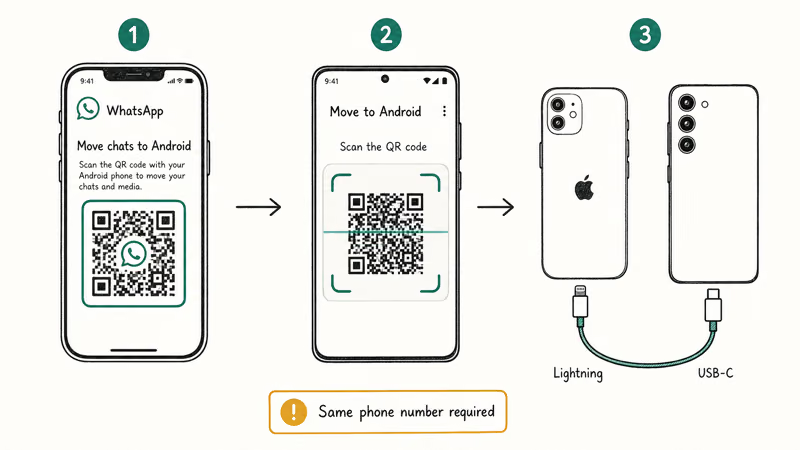
WhatsApp requires its own separate process. Google’s current WhatsApp transfer guide recommends using the same phone number, connecting the phones by cable during Android setup, and transferring before using WhatsApp on the new phone. Scan the QR code shown during setup; if it can’t be scanned, open WhatsApp on the iPhone and use Settings > Chats > Transfer chat history > Transfer to Android.
#Transferring Notes from iPhone to Android
Apple Notes can be stored in iCloud or another configured account, so the correct export path depends on where each note lives.
Export any important notes to PDF before your switch, or email them to yourself. The dedicated guide on transferring notes from iPhone to Android covers the manual workarounds in detail, including Google Keep as a replacement app.
#Bottom Line
Start with the transfer tool’s current supported-data list, then spot-check the result before erasing anything. Handle account-based apps separately, and deregister both iMessage and FaceTime before the number moves to Android.
#Frequently Asked Questions
Can you transfer iMessages to Android?
iMessage isn’t an Android messaging service. On current iOS, turn it off at Settings > Apps > Messages, turn off FaceTime at Settings > Apps > FaceTime, and preserve any conversations you need before erasing the iPhone. Use Apple’s online deregistration tool if you no longer have the device.
Does the transfer delete anything from my iPhone?
Don’t treat a transfer-complete message as proof that every item copied or that nothing changed. Keep the iPhone, verify representative contacts, photos, messages, and files on Android, and follow the current vendor instructions before erasing or trading in the old phone.
Can you transfer apps from iPhone to Android?
Apps don’t transfer. iOS apps run in the Apple App Store ecosystem and Android apps run in the Google Play ecosystem — the two formats are incompatible, and there’s no conversion tool that bridges them. You’ll need to find Android equivalents for each app. Most major apps (Instagram, Spotify, WhatsApp, Netflix, YouTube) are on both platforms, so you’ll just download them fresh and log in to restore your account data.
How long does the iPhone to Android transfer take?
Contacts usually move faster than photo and video libraries. Larger libraries take longer, but the process runs on its own once started so you don’t need to watch it.
Do you need iTunes installed for the transfer?
Current Apple guidance uses the Apple Devices app to recognize and manage an iPhone on Windows. A third-party transfer app may have its own connection requirements, so follow its current instructions instead of assuming that installing iTunes will repair detection.
What data types can’t transfer to Android?
iMessages, FaceTime history, Apple Pay cards, and Apple Watch pairing don’t transfer. Neither does app data stored locally on the device.
Is it safe to use third-party transfer tools?
Use the vendor’s official download, read the privacy terms and supported-data list for the version you install, and keep a current backup. Verify contacts, photos, and messages on the Android phone before erasing or trading in the iPhone.

Mac mini M6 vs M5 Pro: Which Model Should You Buy?
Mac mini M6 vs M5 Pro compared on price, memory, ports, displays, and real workloads. Find the better 2026 Mac mini for your desk and budget.

Apple Siri Settlement: Who Qualifies and How to Claim
Apple's $250 million Siri settlement covers iPhone 15 Pro and iPhone 16 models bought June 2024 to March 2025. See who qualifies and how claims work.

iOS 26.6.1 Security Update: What Apple Fixed and Who Gets It
Apple released iOS 26.6.1 on August 17 with 29 security fixes, including an IPSec interception bug. See what it patches, who gets it, and how to update.

iPhone Adaptive Power: How It Works and When to Use It
Learn how iPhone Adaptive Power works, which models support it, what it changes, and when Low Power Mode is still the better battery-saving choice.