How to Remove Malware From Android: Step-by-Step Fix
Think your Android phone has malware? Boot into Safe Mode, uninstall the rogue app, scan with Play Protect, and reset only if needed. Full guide.
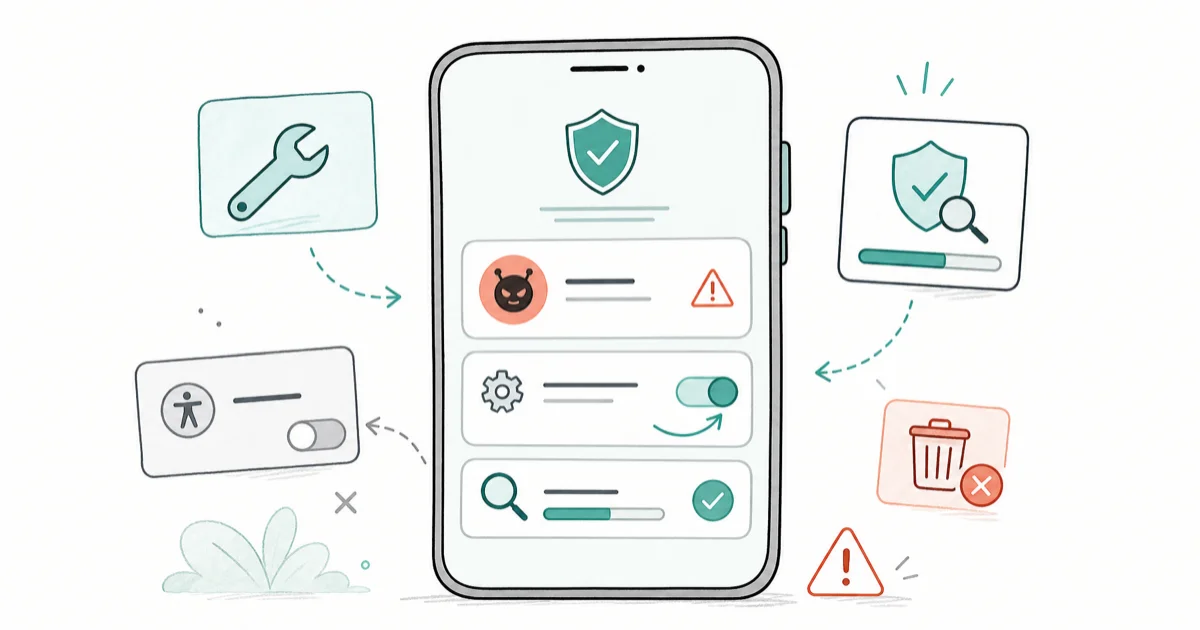
Quick AnswerBoot into Safe Mode, revoke Device Admin and Accessibility for any app you don't recognize, uninstall it, then run Play Protect. Reset only if those steps fail.
Your Android is throwing pop-up ads outside any app, draining battery, or running a service you didn’t install. This guide walks the cleanup in the order that fixes most cases free, and every step works across mainstream Android phones like Samsung Galaxy and Google Pixel. The phone must be your own.
- Safe Mode disables every third-party app so you can uninstall the rogue one without it fighting back.
- Most “unremovable” apps are holding Device Admin or Accessibility permissions, so revoke those first.
- Google Play Protect is built into every Google-certified Android and runs scans for free.
- A factory reset is the last step, not the first, and it doesn’t always remove pre-installed system malware.
- After cleanup, change your Google account password and audit your account device list.
#How Do You Know Your Android Has Malware?
Real Android malware shows specific symptoms. A lot of what looks like an infection is actually a misbehaving normal app.
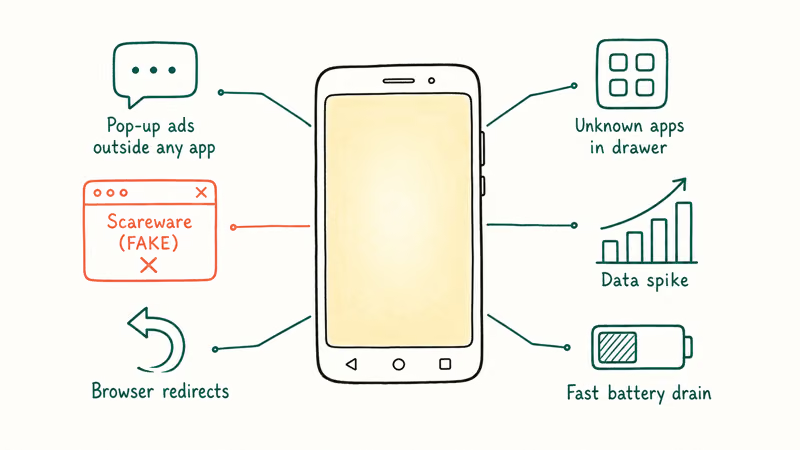
The clearest signs are pop-up ads that appear while the screen is locked or when no browser is open, unknown apps in your app drawer, and mysterious data spikes in Settings > Network & internet > Data usage. A battery that drops 30% an hour while sitting on the desk is another flag.
Browser redirects to sites you didn’t tap, and SMS messages you didn’t send showing up in your sent folder, round out the list. None of those alone prove malware. Two or three together usually do.
The flip side is the full-screen browser pop-up that says “Your phone is infected with 4 viruses!” with a countdown and a button to install a cleaner app. Google’s Play Protect documentation states that Play Protect is the only legitimate malware warning surface on a Google-certified Android. Anything full-screen outside that interface is a scareware ad.
Don’t tap install. Don’t call the listed number. Clear browser data and move on.
If you’re trying to figure out whether the symptom is malware or something else entirely, our guide on how to tell if your phone is hacked covers the broader diagnostic. If you came here from an iOS angle, iPhones and antivirus explains why the Android playbook doesn’t map directly to iOS.
#Boot Your Android Into Safe Mode First
Safe Mode disables every app you installed yourself. A malicious app can’t fight you when you try to uninstall it. According to Google’s Safe Mode guide, the stock Android entry takes 3 specific taps.
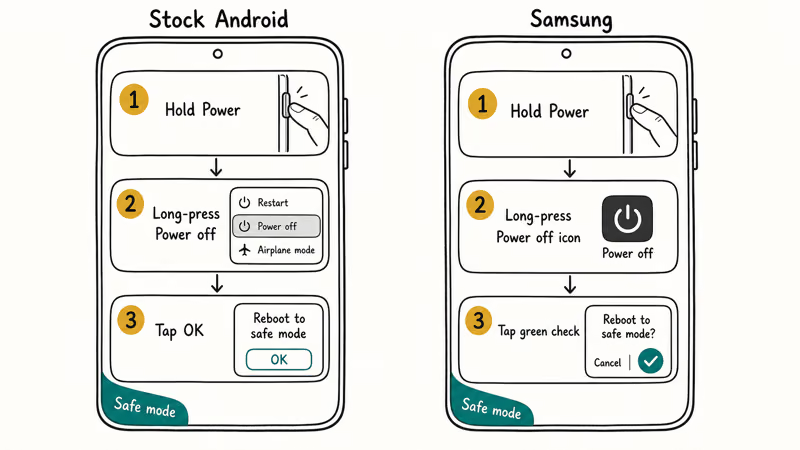
Google’s documentation states that 3 actions get you there: press and hold the power button until the power menu appears, touch and hold “Power off” until you see “Reboot to safe mode”, then tap OK. The phone restarts with “Safe mode” displayed in the corner.
Samsung phones do it differently. Samsung’s Safe Mode instructions state that you press and hold Power, then long-press the “Power off” icon, then tap the green check when the Safe mode prompt appears.
Stay in Safe Mode through the next two sections. To leave Safe Mode later, just restart the phone normally.
#Uninstall the Rogue App (and Revoke Its Permissions)
In Safe Mode, open Settings > Apps and scroll through the full list. Look for app names you don’t recognize, generic names like “System Service” or “Battery Saver”, install dates from the past few days, and on Android 14+, the “Installed by” field. Anything installed by a source other than the Play Store, Galaxy Store, or your phone’s preloaded vendor deserves a second look.
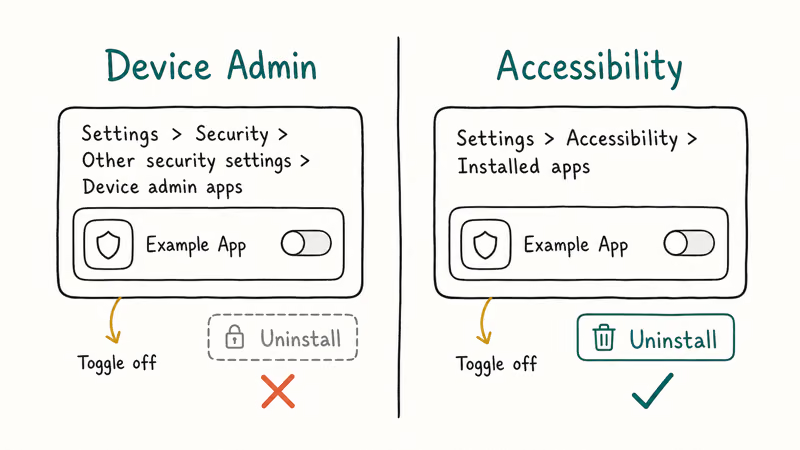
When you tap the suspect app, you’ll often see Uninstall greyed out. That’s the most common symptom of a malicious app, and the cause is almost always one of two permissions.
The first is Device Admin. Go to Settings > Security > Other security settings > Device admin apps. The path varies slightly by Android version, but searching “device admin” in Settings will find it. If the suspect app is listed, tap it and deactivate.
The second is Accessibility. Open Settings > Accessibility > Installed apps. If the suspect app is enabled as an accessibility service, turn it off.
An app that refuses to uninstall almost always holds one of those two permissions. Revoking the permission first makes the Uninstall button work immediately. After you revoke both, go back to Settings > Apps > [suspect app] > Uninstall. It should now work.
If the app is preloaded by the manufacturer and uninstall is still unavailable, choose Disable instead. A disabled app can’t run, even if it can’t be fully removed.
#Run a Google Play Protect Scan
Play Protect is the free, official Android malware scanner that runs on every Google-certified phone. Open the Play Store, tap your profile icon in the top-right, tap Play Protect, then tap Scan. The scan typically completes in under a minute and lists anything it flags as harmful, along with an Uninstall button per finding.
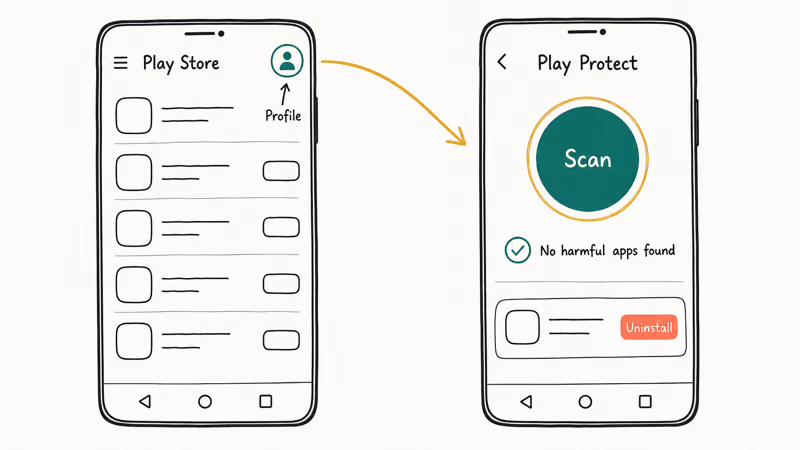
If Play Protect comes back clean and your symptoms are gone, you’re done. If symptoms continue, get a second opinion from one reputable scanner. Malwarebytes’ Android threat blog is a good orientation to the current threat landscape. Malwarebytes, Bitdefender, and ESET are the categories of free Android scanner that don’t have a reputation for being PUPs themselves.
Install one. Run a scan. Uninstall it when you’re done. Don’t install a generic “Android cleaner” or “battery booster” app, because many of those are themselves the problem.
#What If the Malware Won’t Uninstall?
A small set of stubborn cases survives the Safe Mode plus permission revocation routine. The 2 most common are system-level adware preloaded on a budget device at the factory, and self-reinstalling malware whose parent app you haven’t yet identified. Both need different handling than a normal uninstall: the first because the partition is read-only, the second because killing the visible app leaves the silent installer behind to recreate it on the next reboot.
For the re-installing case: sort Settings > Apps by install date (Android 14+) and look for two apps with near-identical timestamps. Uninstall the parent (usually the silent one) first, then re-check the child.
Bought the phone new from a reputable carrier or store? A factory reset usually clears it. Bought it used or from a third-party seller? The problem may need a full firmware reflash or a different phone.
#Factory Reset: When and How
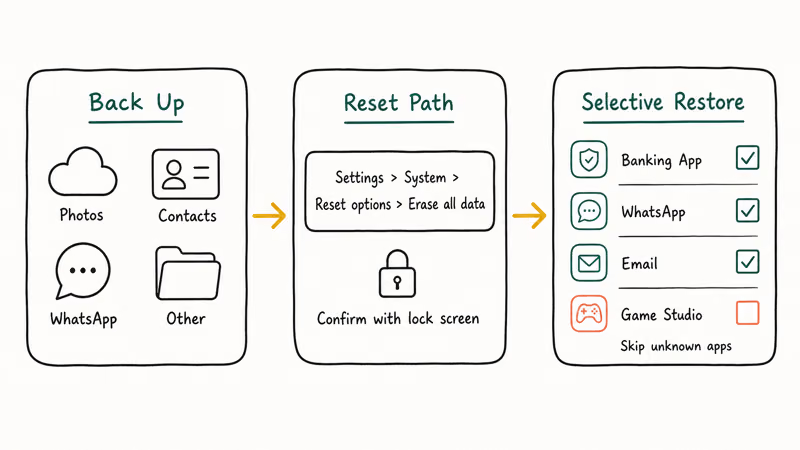
Reset is the last step, not the first. Before you start, back up: photos to Google Photos, contacts via your Google account (Settings > Google > Backup), WhatsApp through Settings > Chats > Chat backup, and anything else important. If you skip this and lose photos, our guides on recover photos after factory reset and Android factory reset code cover the mechanics and the slim recovery options.
A reminder. If you suspect someone with physical access to your phone installed monitoring software on it, treat that as a personal-safety situation. Reach a domestic-violence hotline or law enforcement before resetting, because a reset can also reset the situation in ways that aren’t safe.
Once you are safe to act and the threat looks like spyware rather than generic malware, follow the Safe Mode and Device Admin cleanup for Android spyware rather than stopping at a normal uninstall.
This isn’t a DIY moment. When you’re ready, the reset path is Settings > System > Reset options > Erase all data. The phone asks for your lock screen credentials and walks you through a confirmation. The reset typically takes 5 to 10 minutes plus restore time on first boot.
After the phone restarts and you sign in, don’t restore the full backup blindly. Selectively restore apps you trust, and skip anything you don’t recognize. Restoring everything can re-introduce the same malicious app.
#What to Do After You Clean the Phone
The infection is the easy part. The follow-up is what most guides skip.
Change your Google account password from a different device. A desktop browser is ideal. Turn on 2-Step Verification at myaccount.google.com > Security > 2-Step Verification. Then open myaccount.google.com > Security > Your devices and sign out of any device you don’t recognize.
If you used banking or payment apps on the phone, check recent transactions for anything you don’t remember. Our Google account recovery after a reset covers the account-side cleanup in detail.
Going forward, the most common Android infection vector is a sideloaded app from an SMS link or an APK download outside the Play Store. Our guide on whether you can get hacked by replying to a text covers what the actual risk surface looks like.
#Bottom Line
Work this order and you’ll fix most Android malware in under 30 minutes without paying anyone: Safe Mode, revoke Device Admin and Accessibility for any app you don’t recognize, uninstall the suspect app, run a Play Protect scan. Reach for a factory reset only after those four steps fail. After the phone is clean, change your Google password and audit your account device list. Most of the long-term damage from Android malware happens after the infection, not during it.
#Frequently Asked Questions
How do I know if my Android phone really has malware?
Look for two or three symptoms together, not just one. Pop-up ads outside any app, unknown apps in your drawer, unexplained data spikes, fast battery drain, and browser redirects in combination are a strong signal. A single full-screen “your phone is infected” pop-up is almost always scareware.
Will a factory reset definitely remove all Android malware?
A reset clears almost all user-installed malware. It doesn’t always remove malware burned into the system partition at the factory, which is a known issue on some budget devices sold through third-party sellers. If your symptoms come back after a clean reset and a careful selective restore, the malware may live below the user-data layer and need a firmware reflash.
Do I need to pay for an antivirus app on Android?
No. Google Play Protect is built in and free.
Why is an app refusing to uninstall on my Android?
The app is almost certainly holding either Device Admin or Accessibility permissions, both of which block uninstall while active. Go to Settings > Security > Other security settings > Device admin apps and deactivate the app. Then check Settings > Accessibility > Installed apps and disable the service. The Uninstall button should work after both are revoked.
Can my Android get a virus from a text message?
A text alone almost never delivers malware. The risk is a link in the message that leads to a malicious APK download. Treat the link as the surface, not the message itself.
Is the “your phone is infected” pop-up real?
Almost always no. Android doesn’t display full-screen virus warnings outside of Play Protect’s own interface. The pop-up is a scareware ad served by a website you visited, designed to push you toward installing a fake “cleaner” app or calling a fake support number. Clear browser data and close the tab.
Should I change passwords after removing malware?
Yes. Change your Google account password first, ideally from a desktop browser, and turn on 2-Step Verification. Then sign out of unknown devices in your Google account’s Security page. The aftermath of an Android infection is usually the account exposure, not the device itself.

Is This Bank App Real? Spot a Fake App on Your Home Screen
A bank app can land on your home screen from a web page with no install warning. Learn the checks that tell a real banking app from a phishing web app.

Passkeys Not Syncing Between iPhone and Windows? Read This
Passkeys not syncing between iPhone and Windows is by design, not a bug. Here is why iCloud passkeys skip Windows Hello and the three ways to fix it.

VPN Not Working on Snapdragon X? Why It Fails, How to Fix
Your VPN won't install or connect on a Snapdragon X Copilot Plus PC because Windows on ARM can't emulate the network driver. Here are the fixes that work.

How to Check If a Link Is Safe Before You Click It
Learn how to check if a link is safe with official-first steps: read the real domain, use the app instead, and treat scanners as a second opinion only.